Integrated with Microsoft Entra
Integration Guide for HAP SaaS
According to Microsoft Entra's policy, integrating with a SaaS platform like HAP requires admin authorization to grant application permissions. Once the authorization is complete, HAP will handle the remaining integration steps.
1. Request Entra Authorization
-
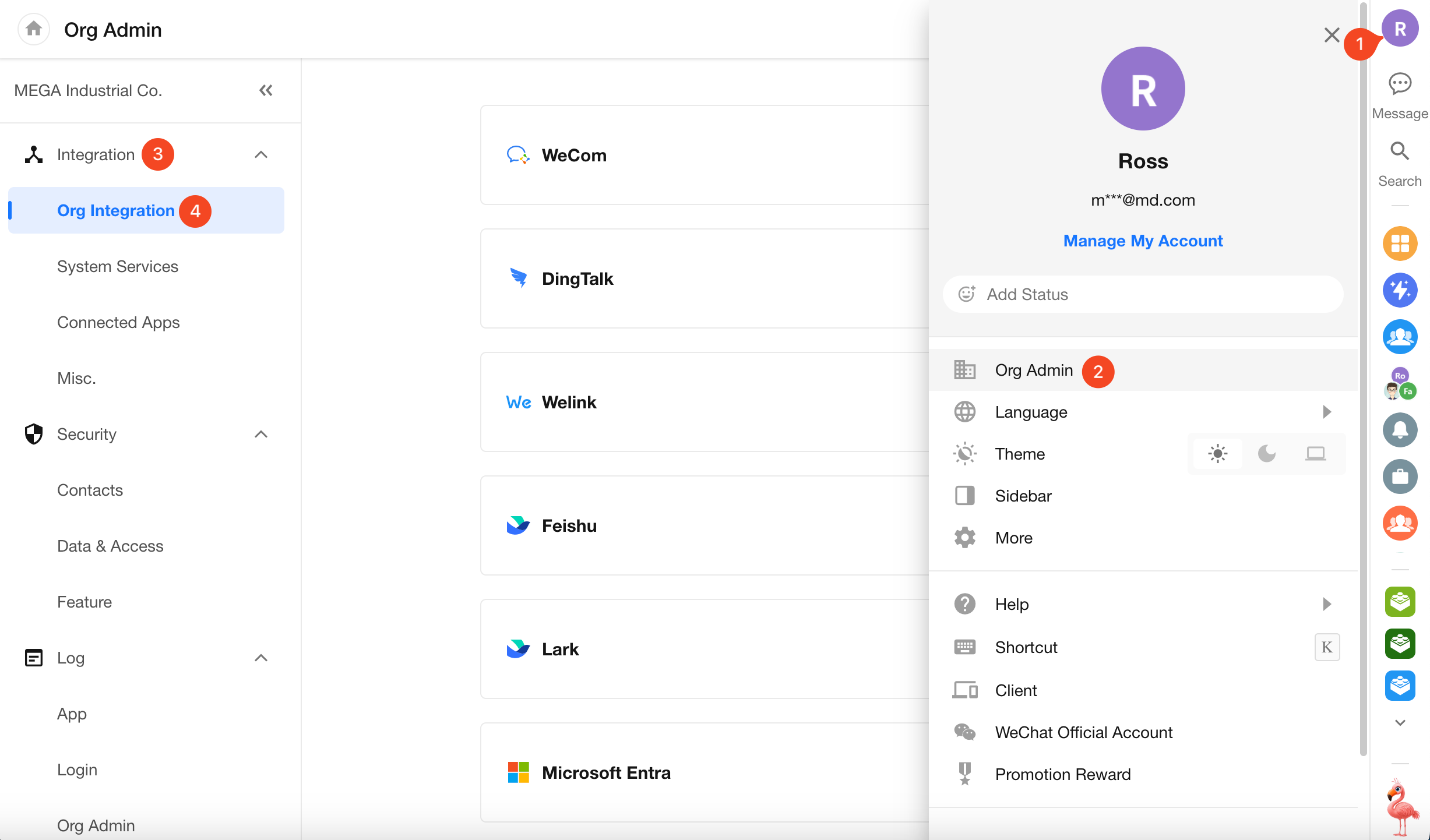
In HAP, the Super Admin should go to Org Admin > Integration > Org Integration, then select Microsoft Entra.
Note: HAP can only be integrated with one identity platform at a time. If another platform is already connected, it must be disabled first before switching to Entra.
-
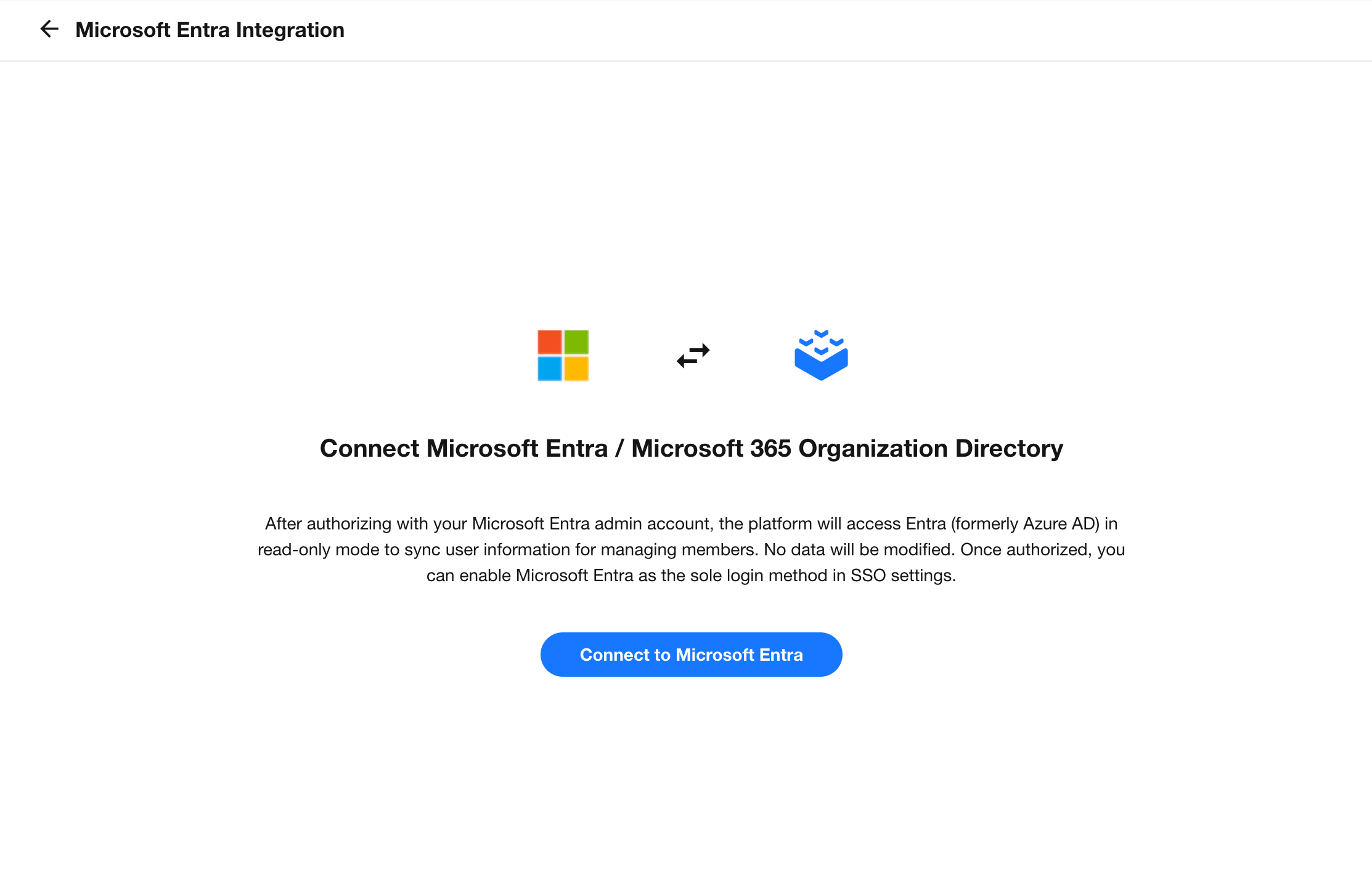
Click the Connect button to authorize with Entra.
The Microsoft Entra administrator will be redirected to the Microsoft authorization page. Follow the prompts to complete authorization.
2. Define Sync Scope
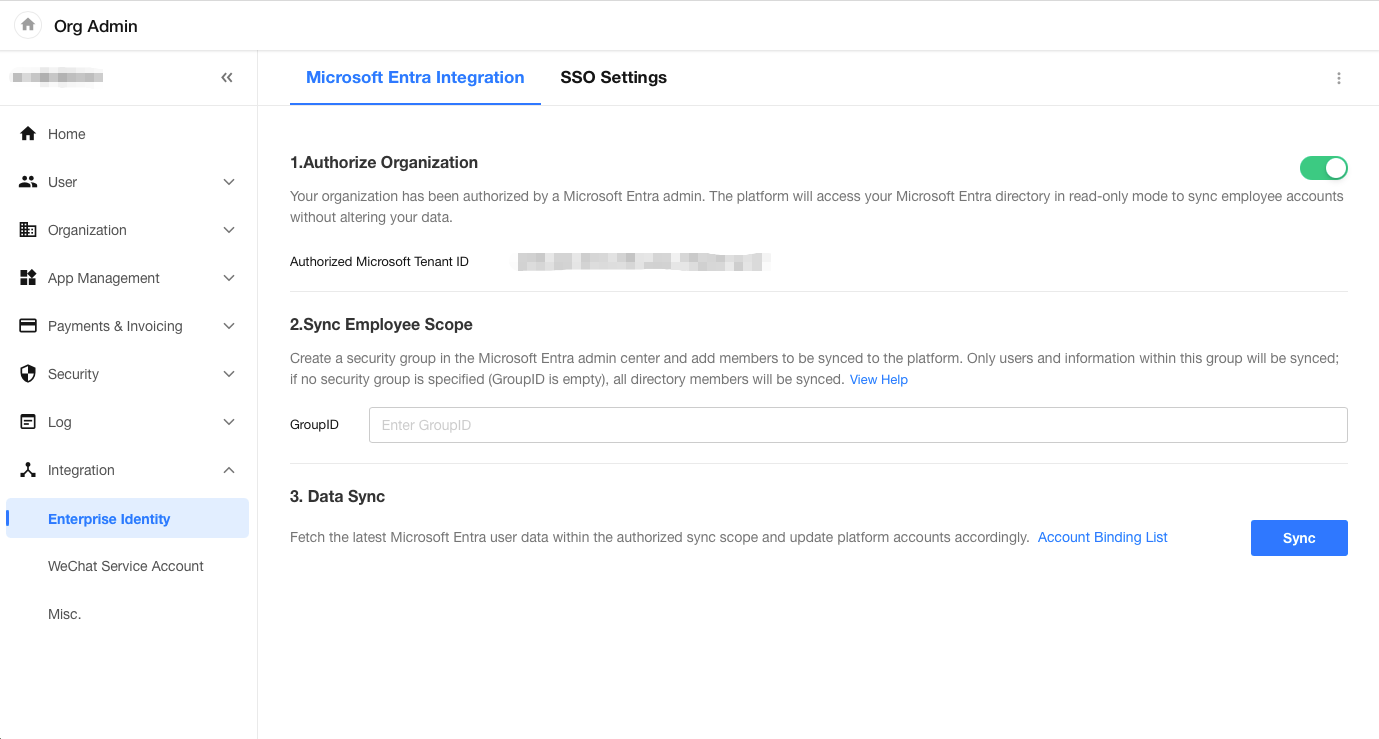
If you don't want to sync the entire directory, you can define a security group in the Microsoft Entra Admin Center.
Add only the users you want to sync to this Security group.
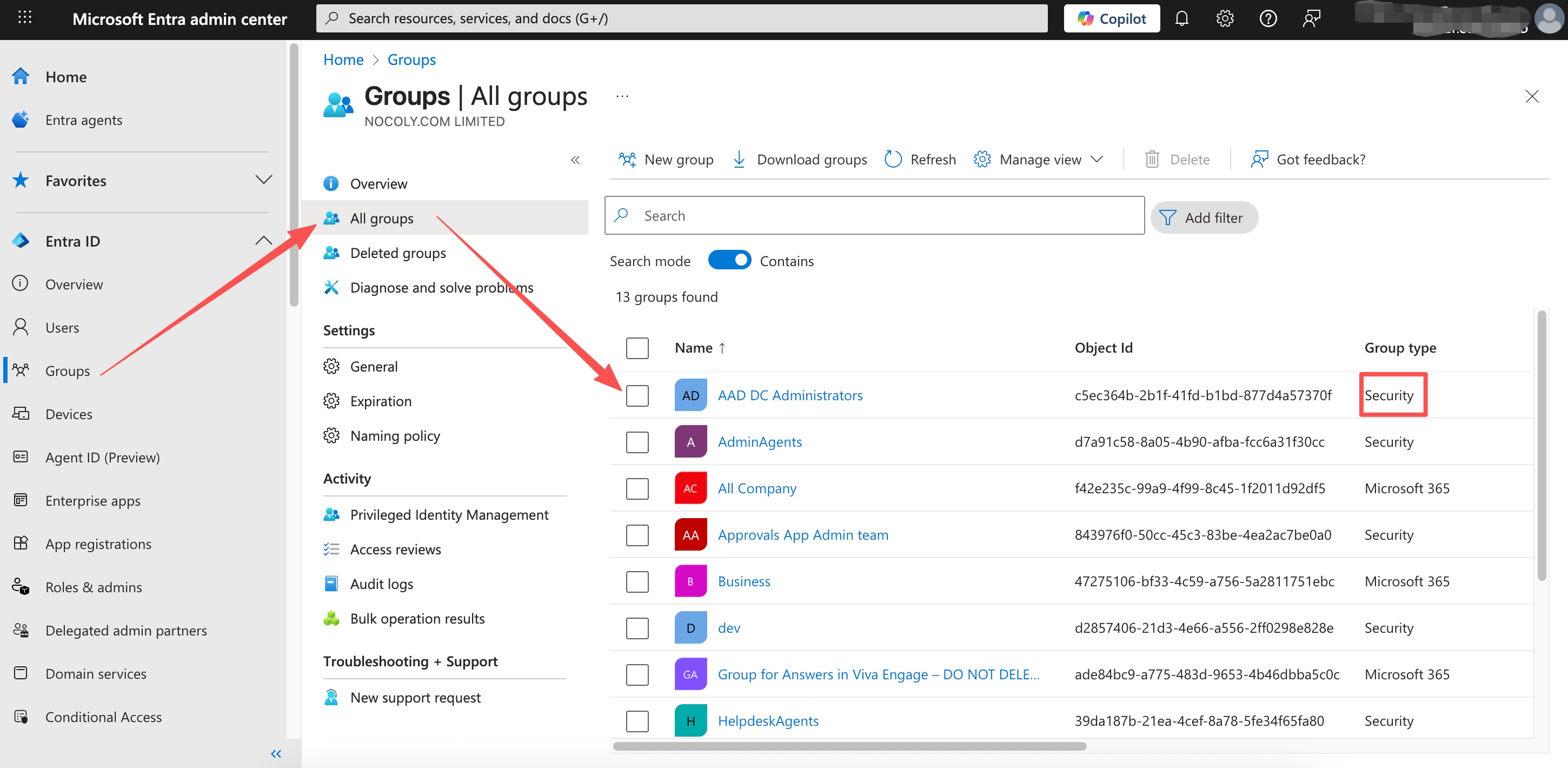
Open the group's detail page and copy the Object ID.
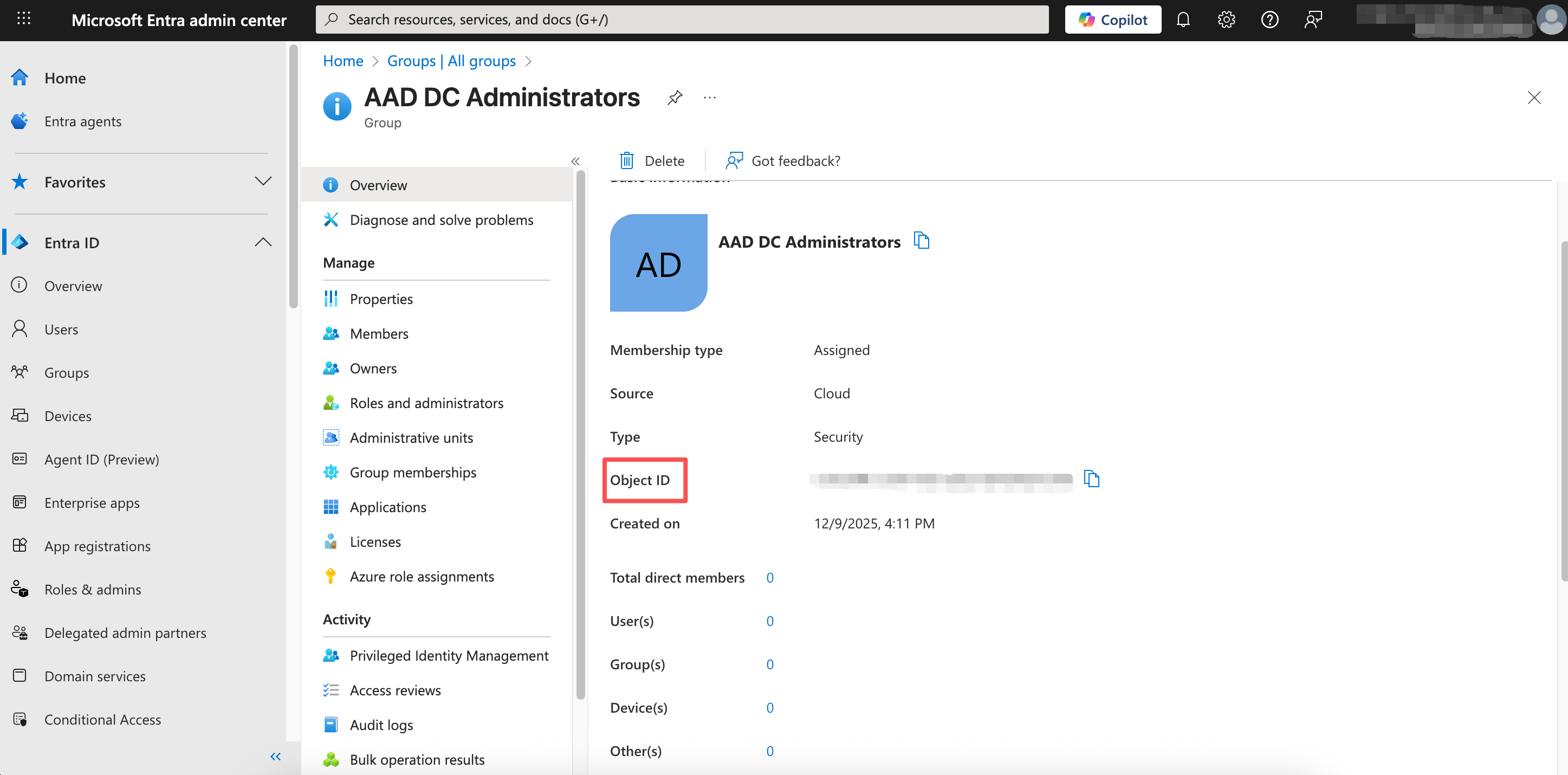
Back in HAP, paste this Object ID into the GroupID field on the integration page.
If the GroupID is left blank, all users in the Entra directory will be synced.
3. Sync Users
After confirming the sync scope, click Sync to begin.
To enable single sign-on (SSO) using Microsoft accounts in HAP, each Entra user must be linked to an account in HAP.
- HAP attempts to match each Microsoft account's User Principal Name (UPN) with existing HAP user email addresses.
- If no match is found, HAP will automatically create a new account using the UPN.
4. Manage Linked Accounts
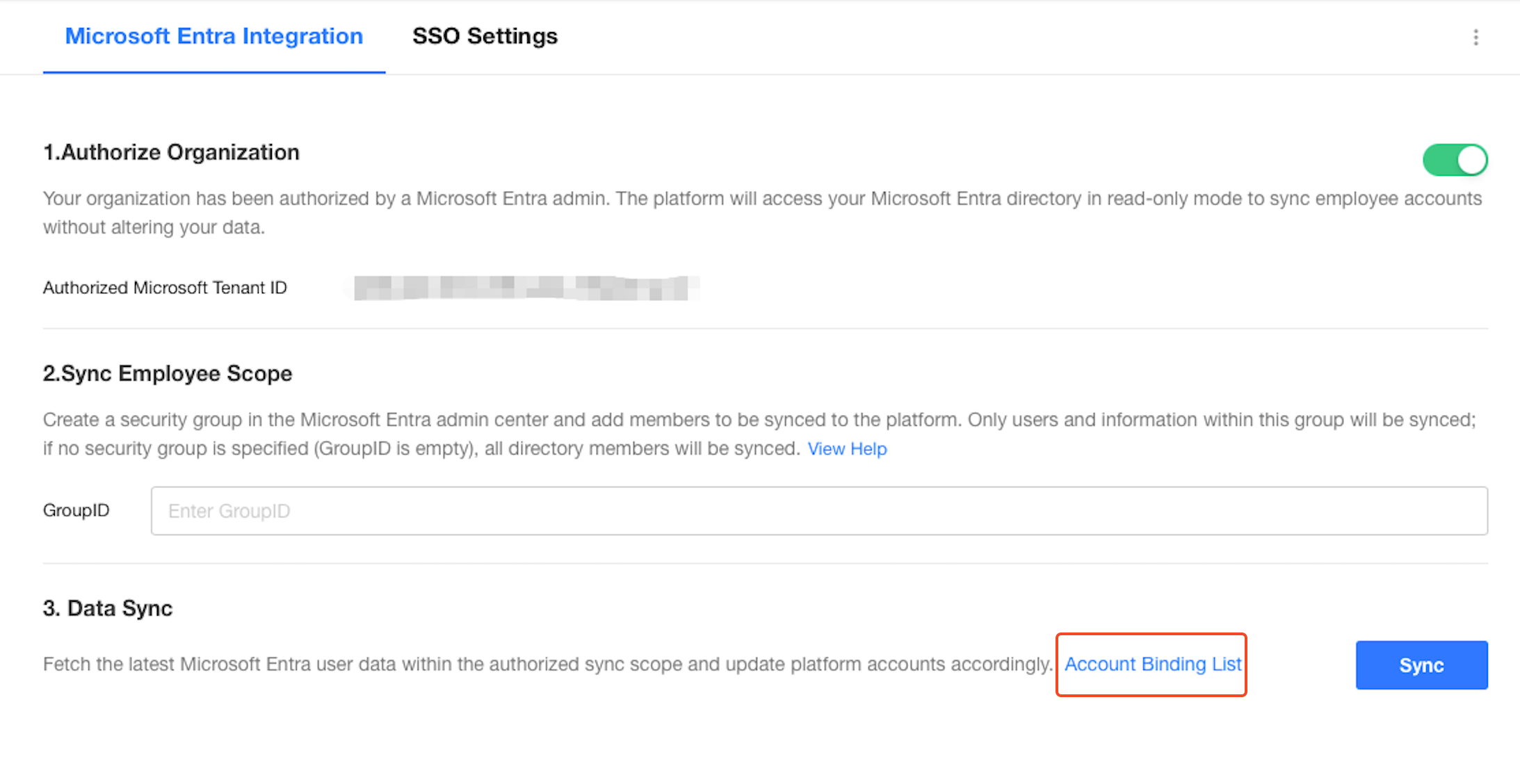
Super Admins can manage account linkages under Org Admin > Integration > Org Integration > Data Sync.
- View currently linked accounts
- Unlink existing connections
(Unlinked Microsoft accounts will no longer be able to log in to HAP. Re-syncing will allow re-linking.)
Integration Guide for HAP Server
This section outlines how to integrate HAP Server with Microsoft Entra.
1. Entra Admin Login
Log in to the Microsoft Entra Admin Center: https://entra.microsoft.com.
2. Register a New Application
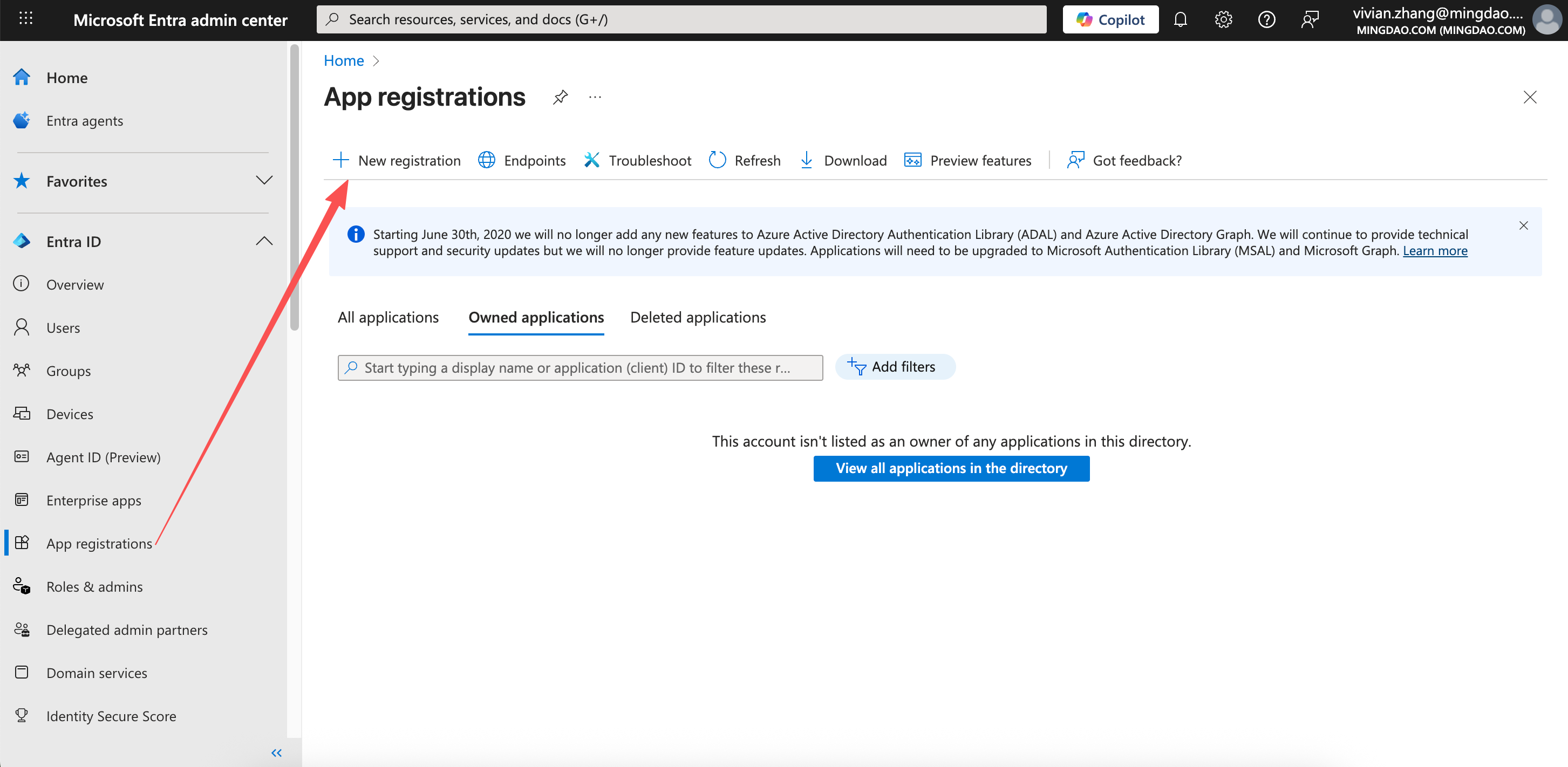
Go to App registrations, then click New registration.
3. Create Application
-
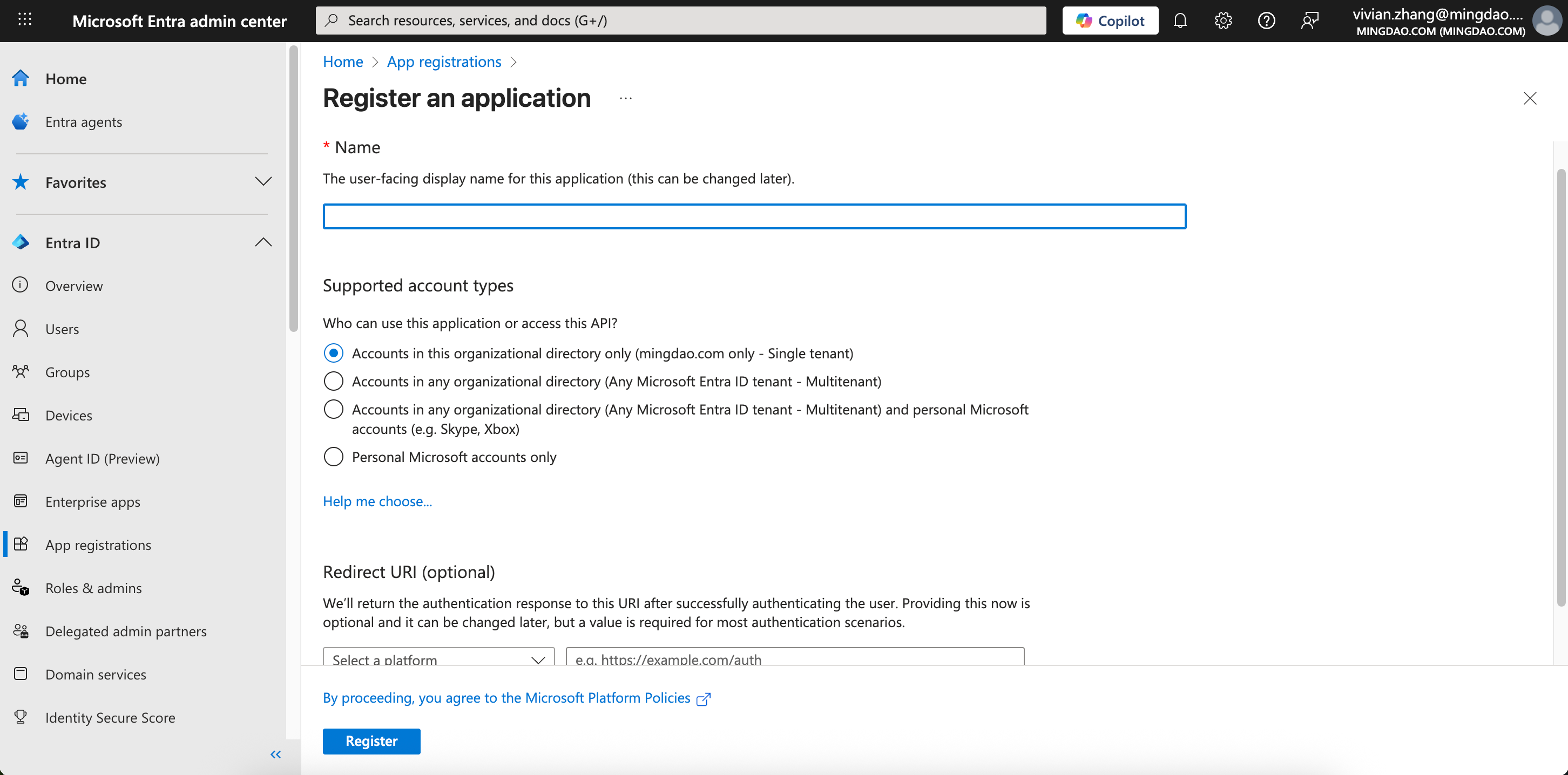
Supported account types:
Select Accounts in this organizational directory only for HAP Server use.For multi-tenant SaaS platform integration, choose Accounts in any organizational directory.
-
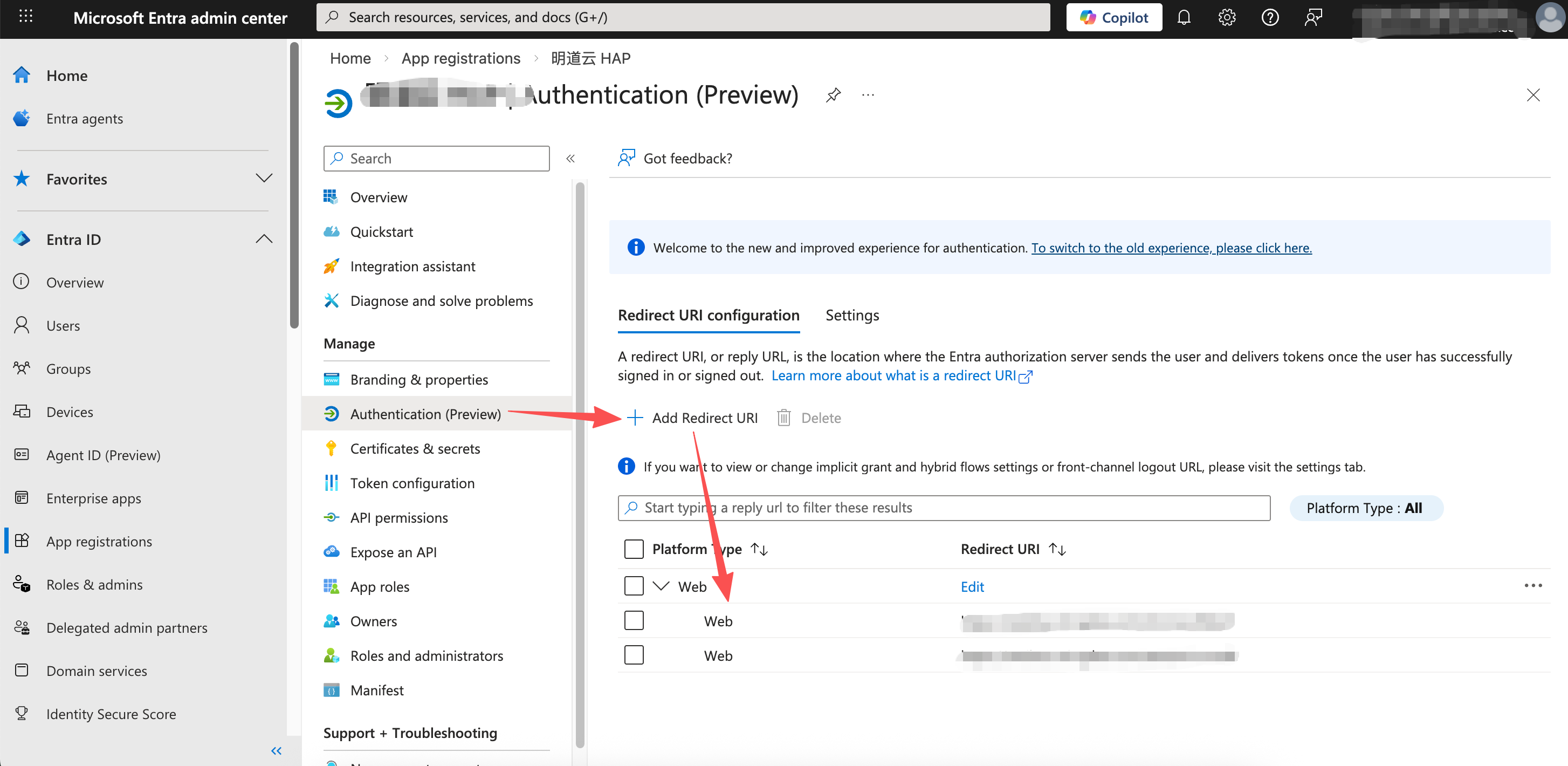
Redirect URLs:
In HAP's Platform Admin Panel, copy the two redirect URLs.Paste both URLs into the Redirect URI section in Microsoft Entra.
4. Copy Application Information to HAP Platform Admin
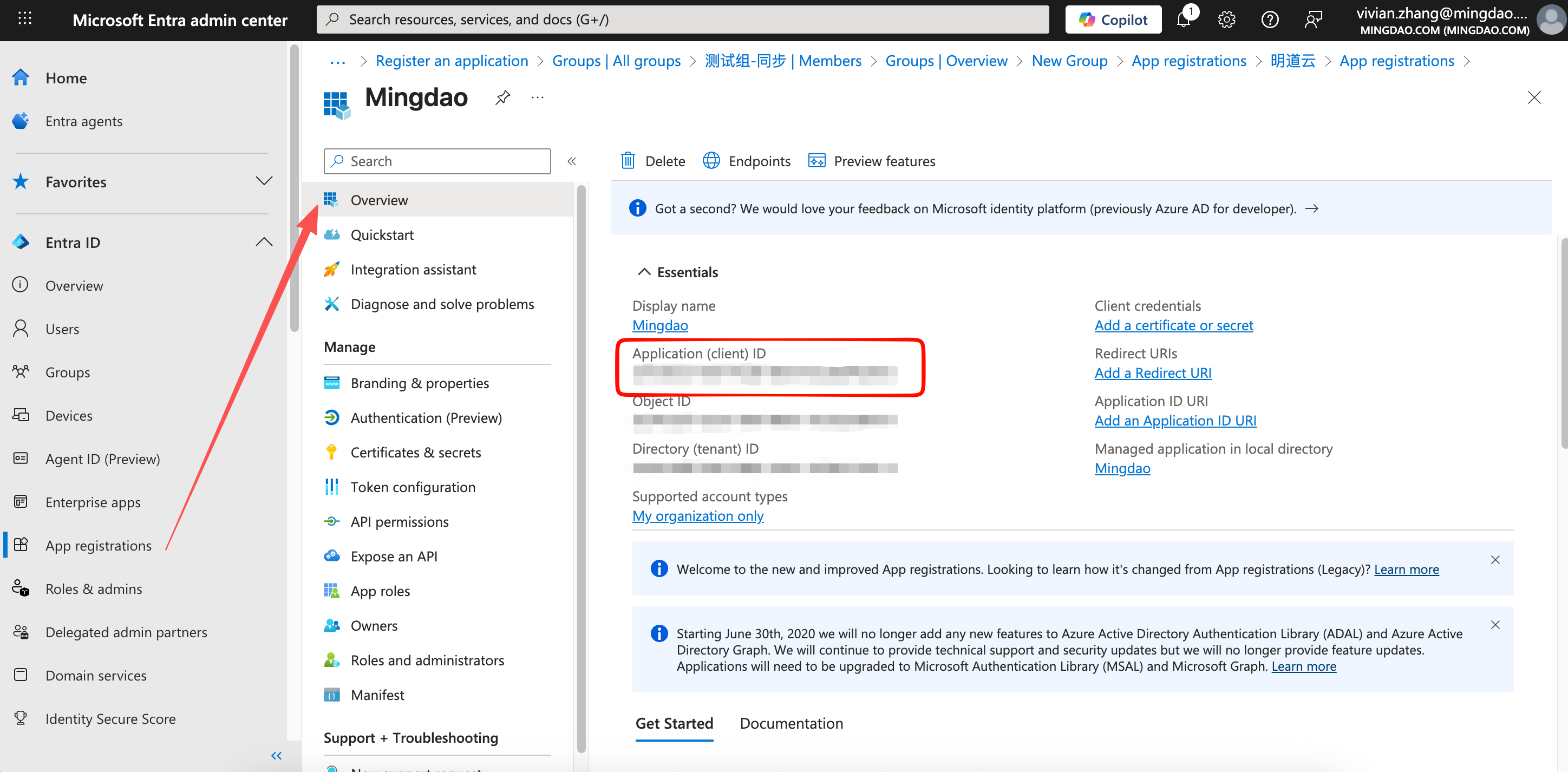
1) Application (Client) ID
Copy the Application (Client) ID from the Entra app and paste it into HAP's Entra Configuration Panel.
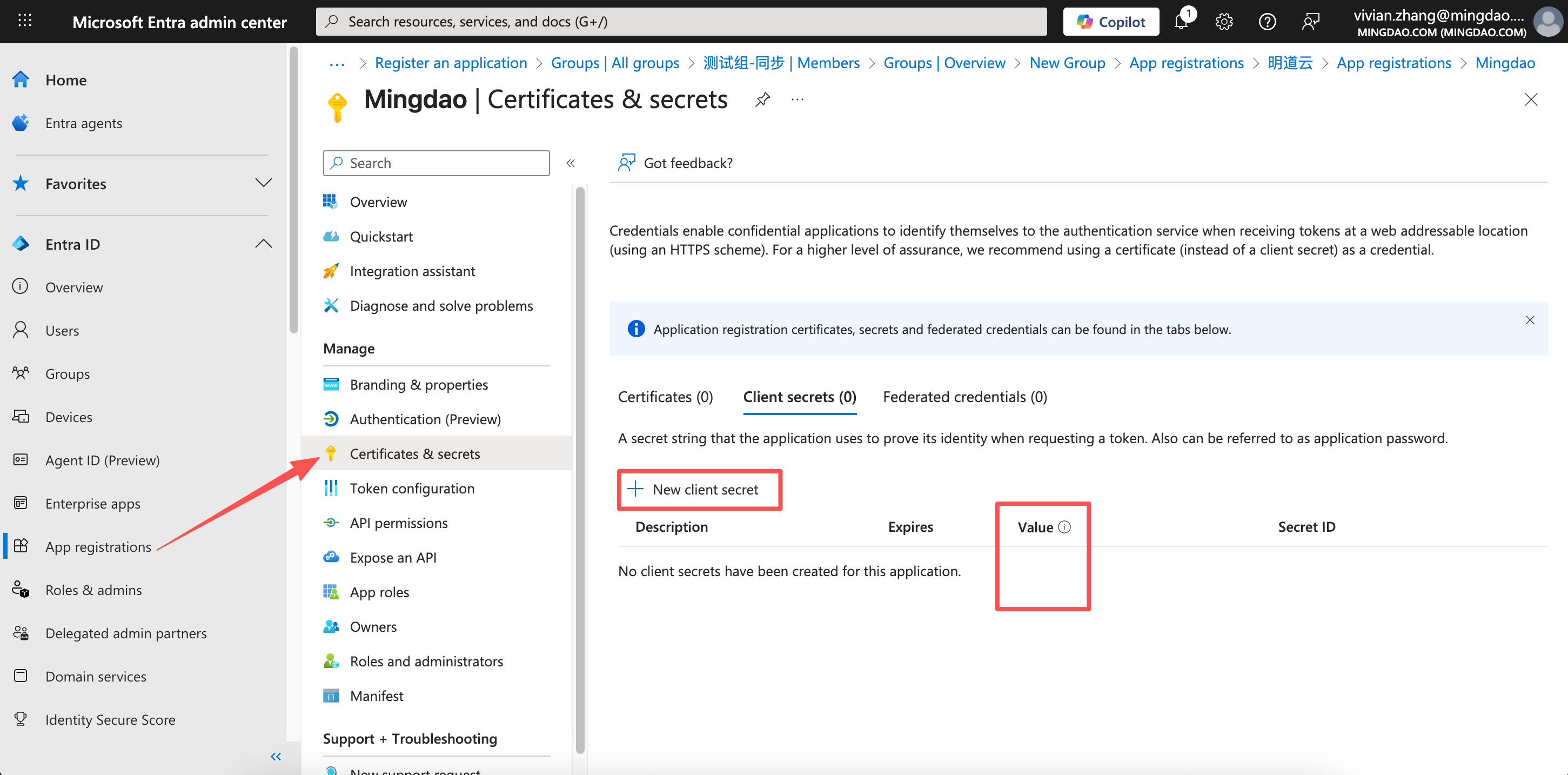
2) Create and Add a Client Secret
Generate a Client Secret in the Microsoft Entra application. After creating it:
- Copy and securely store the secret immediately
- Paste the value into HAP's Entra Configuration Panel
3) Configure Required API Permissions
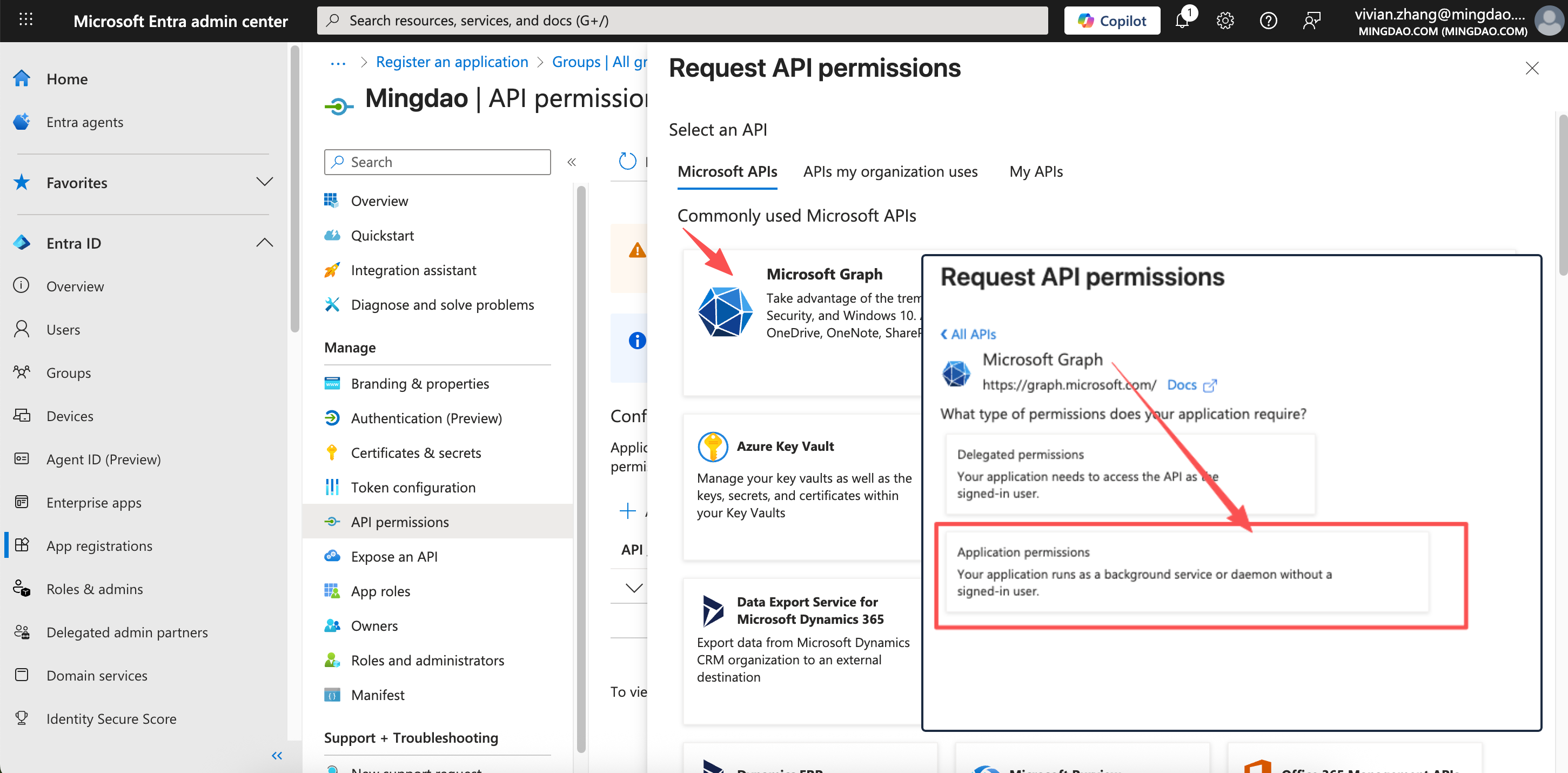
In the Entra Admin Center, go to API permissions > Add a permission.
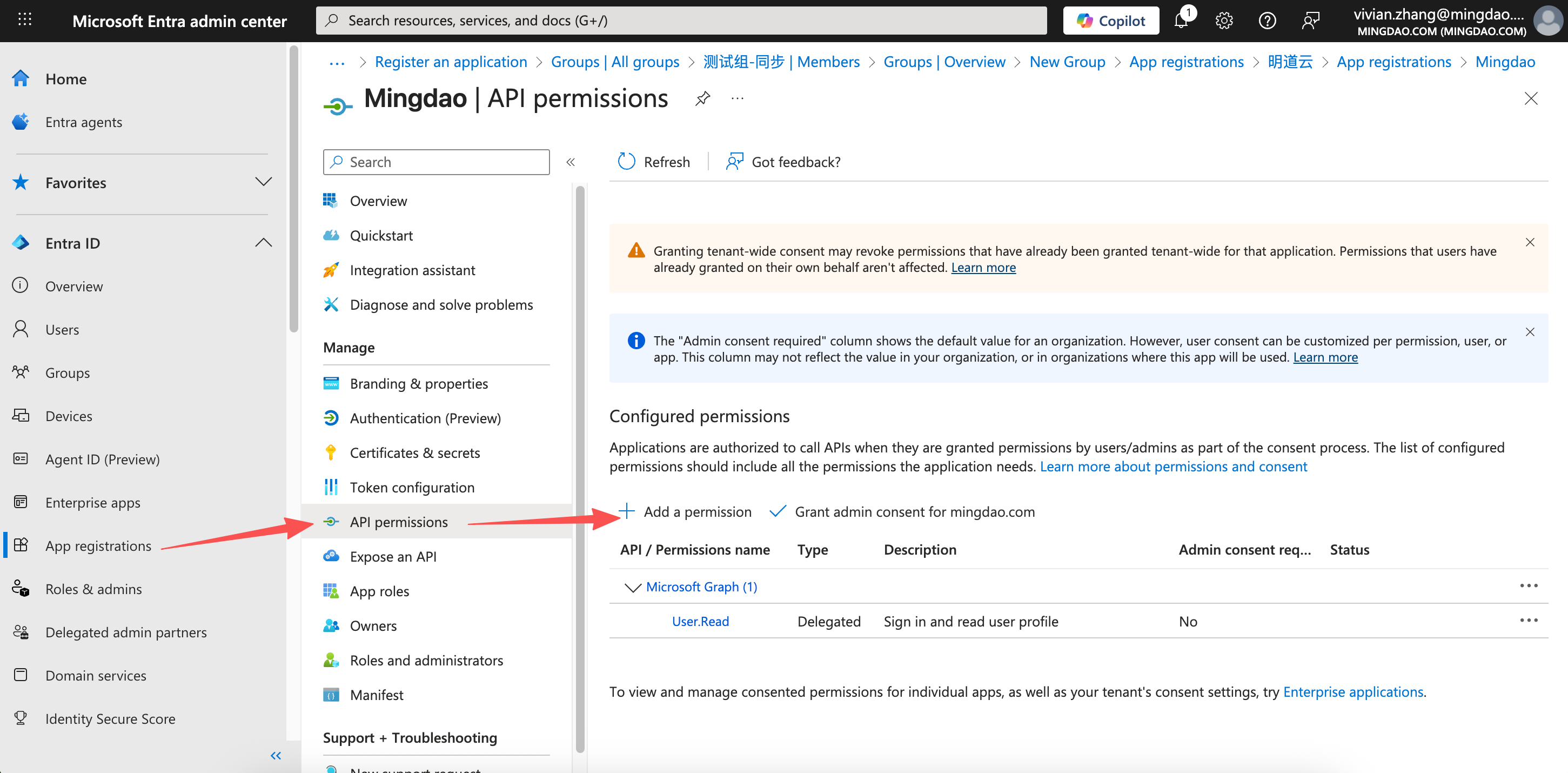
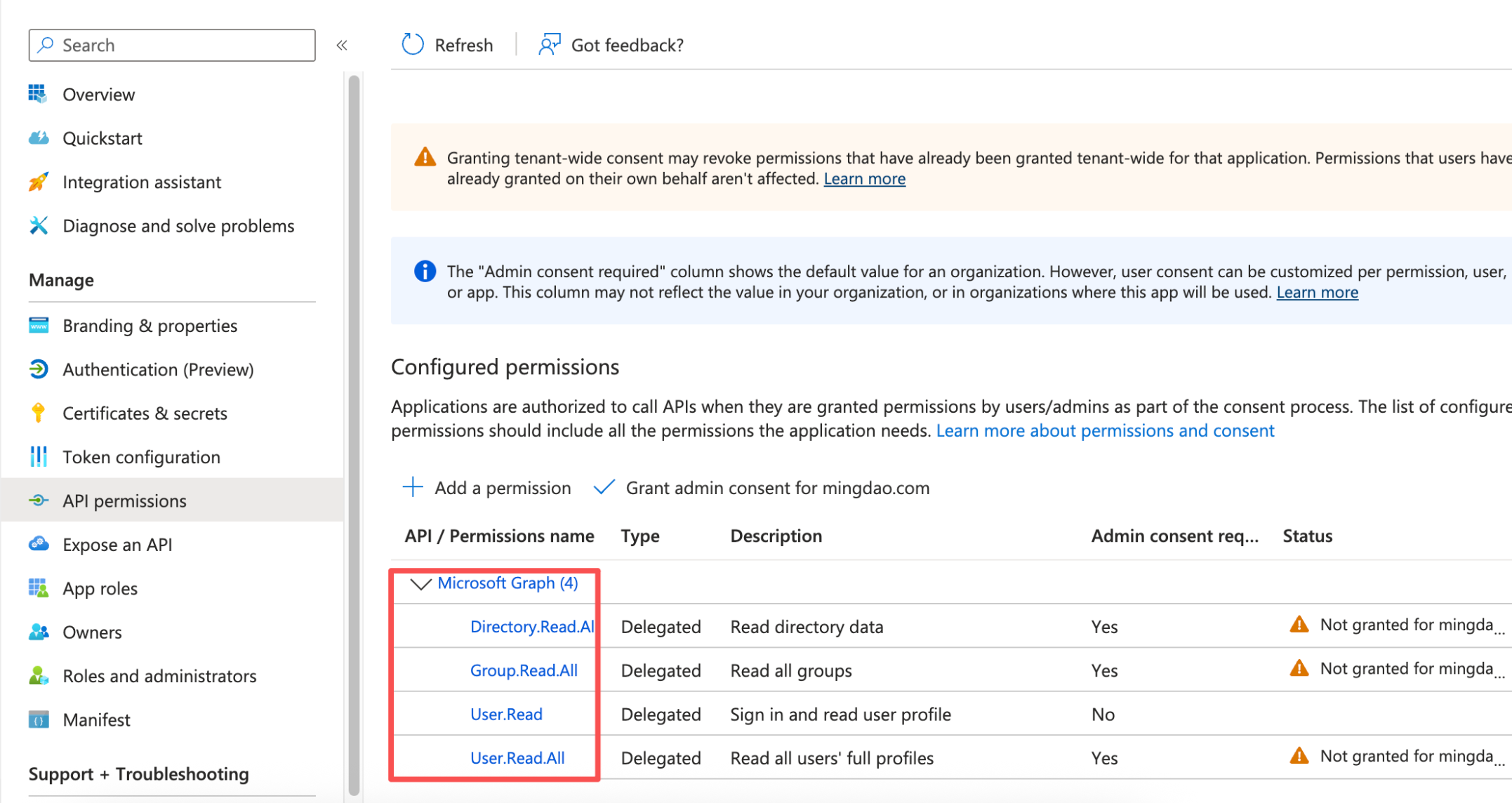
Choose Microsoft Graph, then select the required permissions as shown.
Example of selected API permissions:
5. Authorize Sync from HAP Organization Admin Console
Once the Entra app is registered and credentials are saved in the HAP backend, follow the SaaS Integration Guide to complete the user sync and authorization process.
Microsoft Entra Single Sign-On (SSO)
After successfully integrating with Microsoft Entra, you can enable Set Microsoft Entra as the sole login method under Single Sign-On Settings.
Once enabled, all other login methods—including passwords, verification codes, and other SSO providers—will be disabled. Microsoft Entra will take over as the centralized authentication authority, managing security policies such as password rules, login verification, and multi-factor authentication (MFA).
This setting is ideal for organizations that require a unified identity system and enhanced login security and compliance.
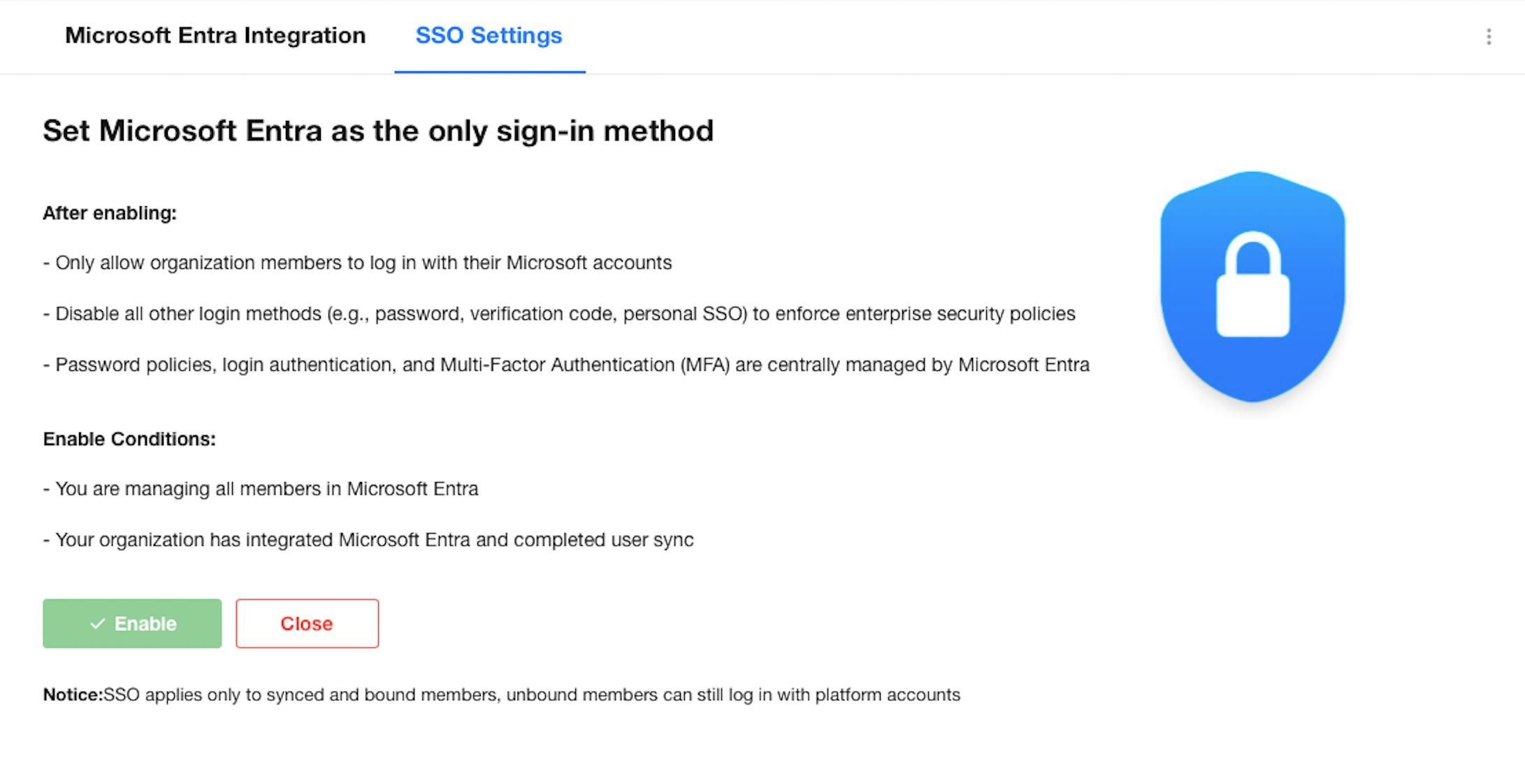
After enabling, the organization login page will only display the Microsoft Entra login option. Users attempting to sign in through other login methods will be blocked.
Note: SSO enforcement only applies to members whose accounts have been successfully synced and bound via Microsoft Entra. Unlinked users can still log in using their platform accounts.
Was this document helpful?