Introduction to Views
Overview
Views are the primary way users access and manage worksheet data. By configuring different display styles, filter criteria, and sorting rules, views help present the most relevant records for specific user roles and business scenarios.
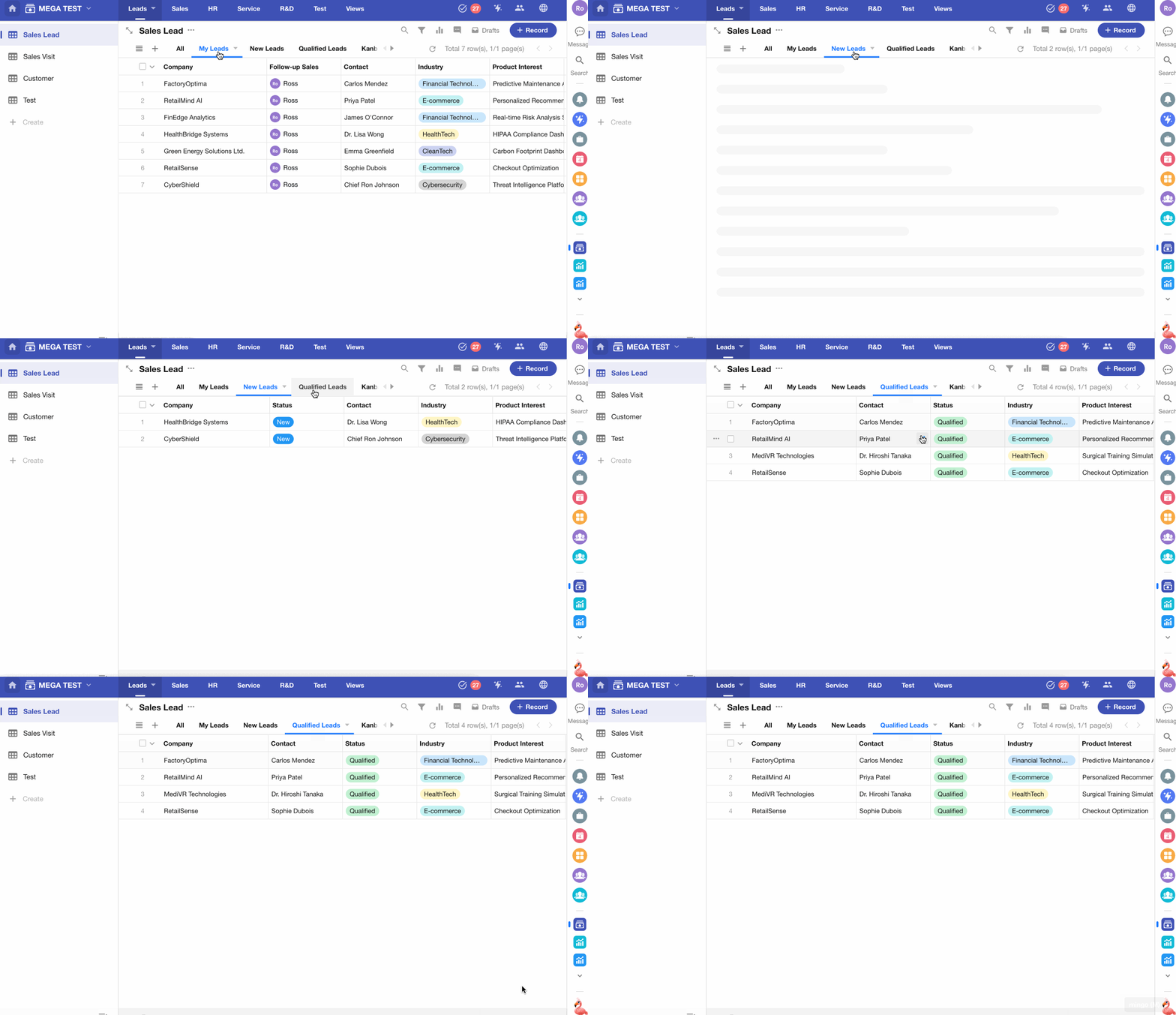
Using a Sales Leads worksheet as an example, different views can be created to support multiple management perspectives:
-
Track leads by status: Create views such as New Leads and Qualified Leads.
-
Manage leads by owner: Create views such as My Leads and My Team's Leads.
Key Components of a View
| Configuration Item | Description |
|---|---|
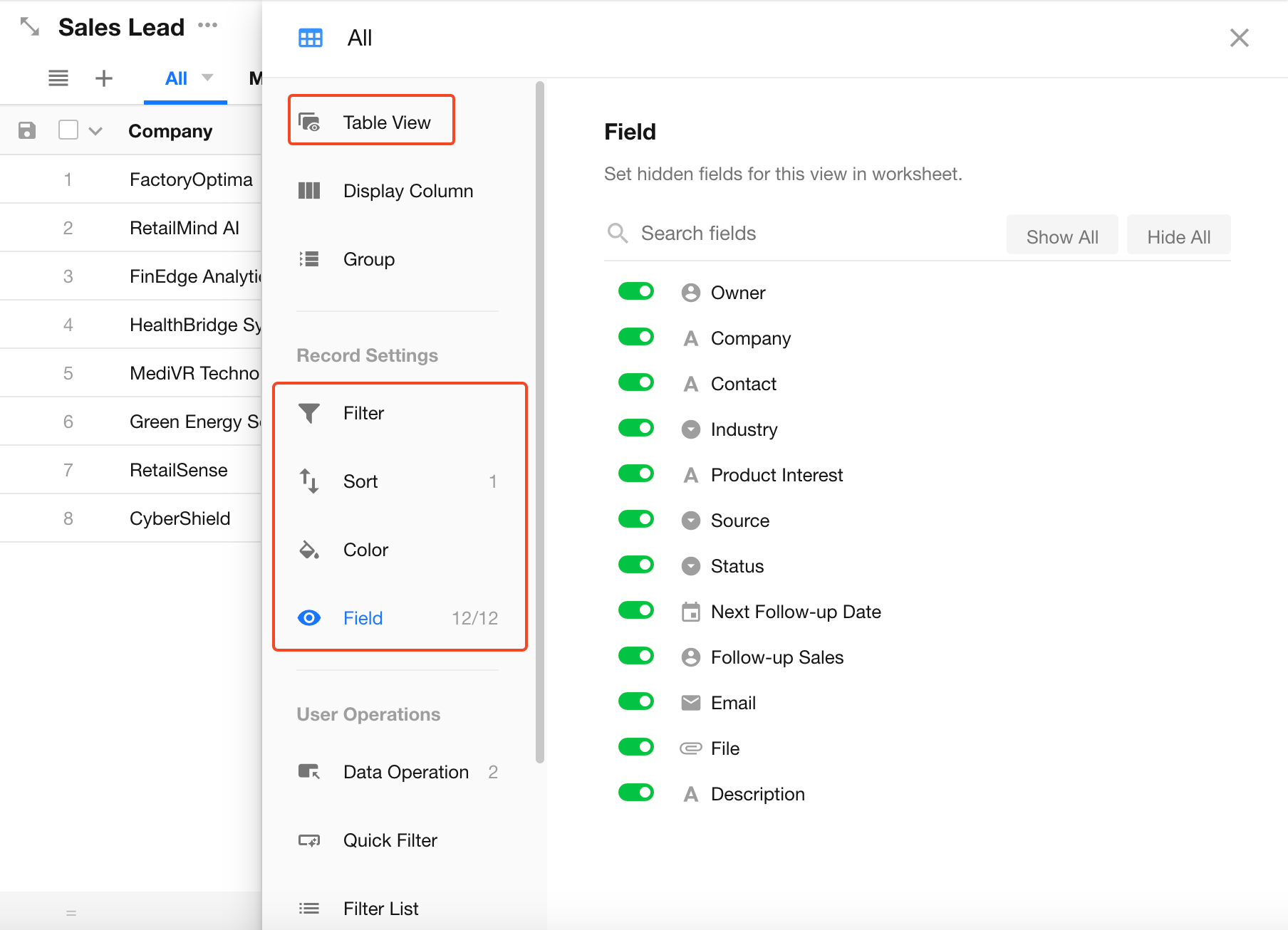
| Display Style | Determines how data is presented. Supports 10 built-in view types, including Table, Kanban, Org, Gantt, and more, as well as custom plugin views. |
| Filter Criteria | Defines the data scope of the view. Only records that meet the specified conditions are displayed. Users can also apply additional filters within the view. |
| Default Sort Order | Determines the order in which records are displayed. Administrators can configure default sorting rules, while users can temporarily sort records by clicking column headers. |
| Record Color | Provides visual indicators for records. A Single Select field can be used to apply background colors based on option colors, making records easier to identify at a glance. |
| Displayed Fields | Controls which fields are visible in the view. Sensitive or irrelevant fields can be hidden to keep information focused and secure. |
View Rules
-
Permission Control: Views can only be created and configured by application administrators. Administrators can also control which application members are allowed to access each view.
-
Data Security: Every worksheet must contain at least one view. Views only control how data is displayed and filtered. Modifying or deleting a view never affects the underlying worksheet data.
View Types
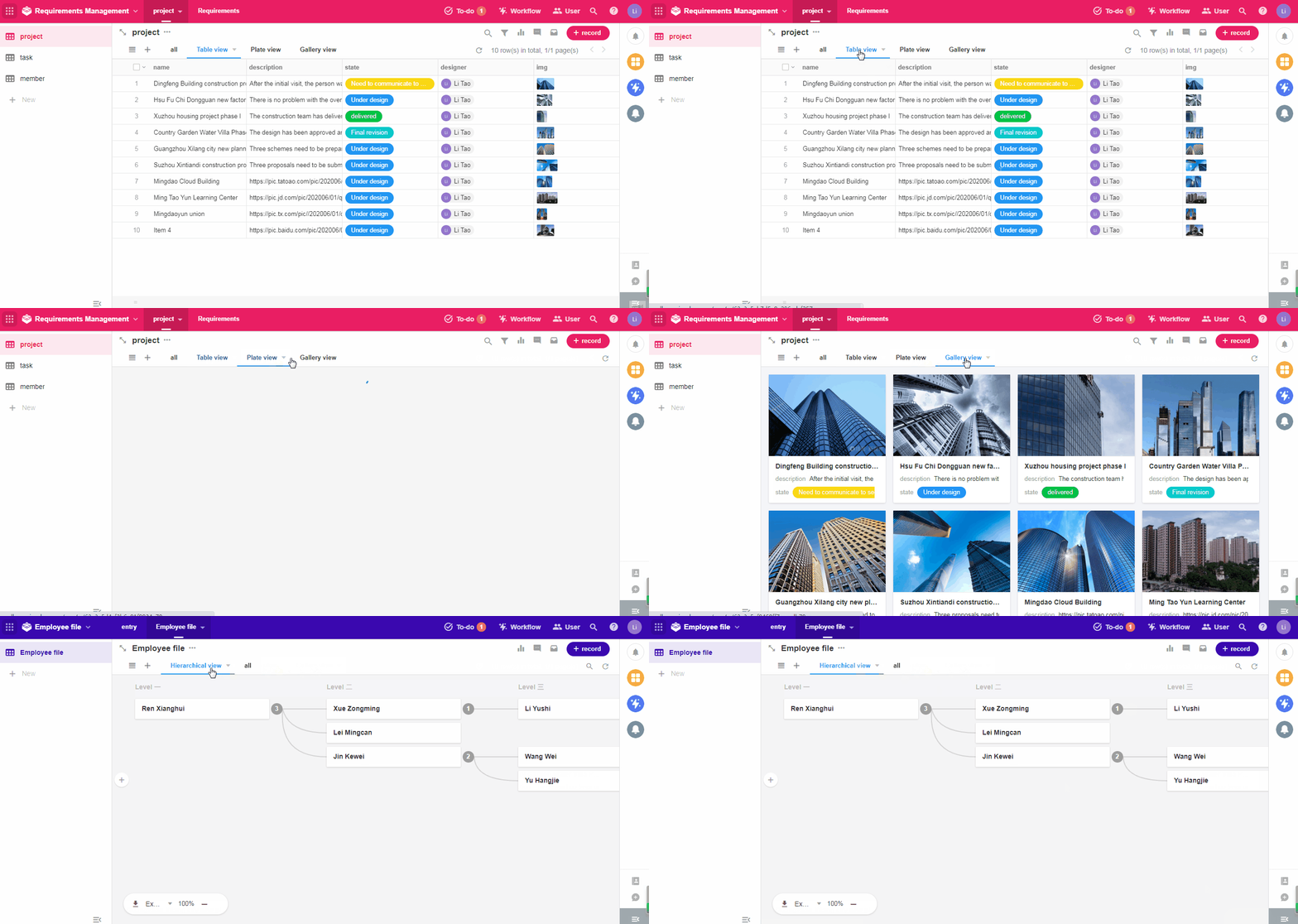
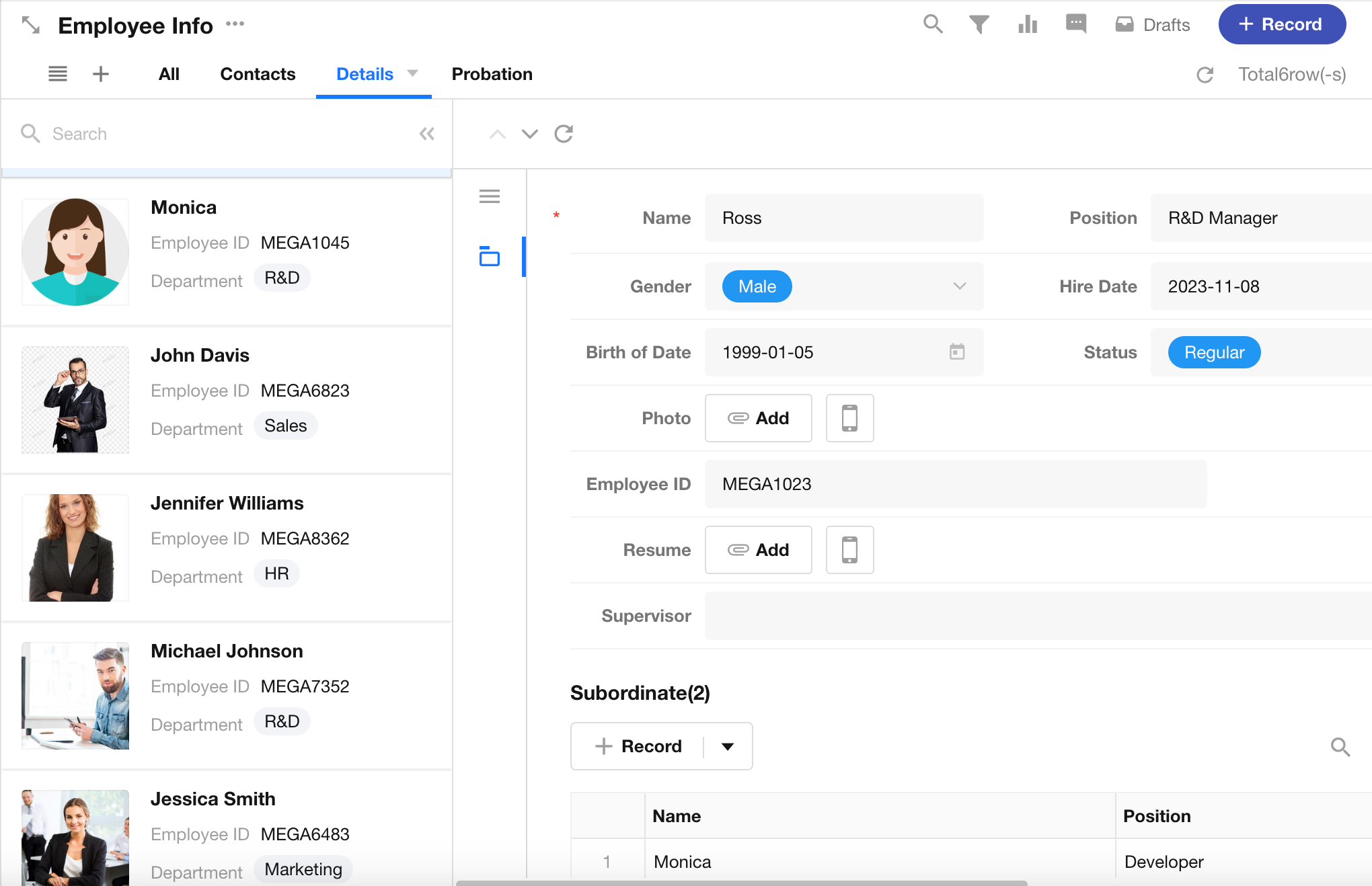
HAP provides 10 ready-to-use view types to support a wide range of scenarios, from daily data management to complex project planning. These include Table View, Kanban View, Details View, Org View, Gallery View, Map View, Resource View, Calendar View, Gantt View, and Custom Plugin View.
-
Table View, Kanban View, Org View, and Gallery View
-
Details View
-
Map View
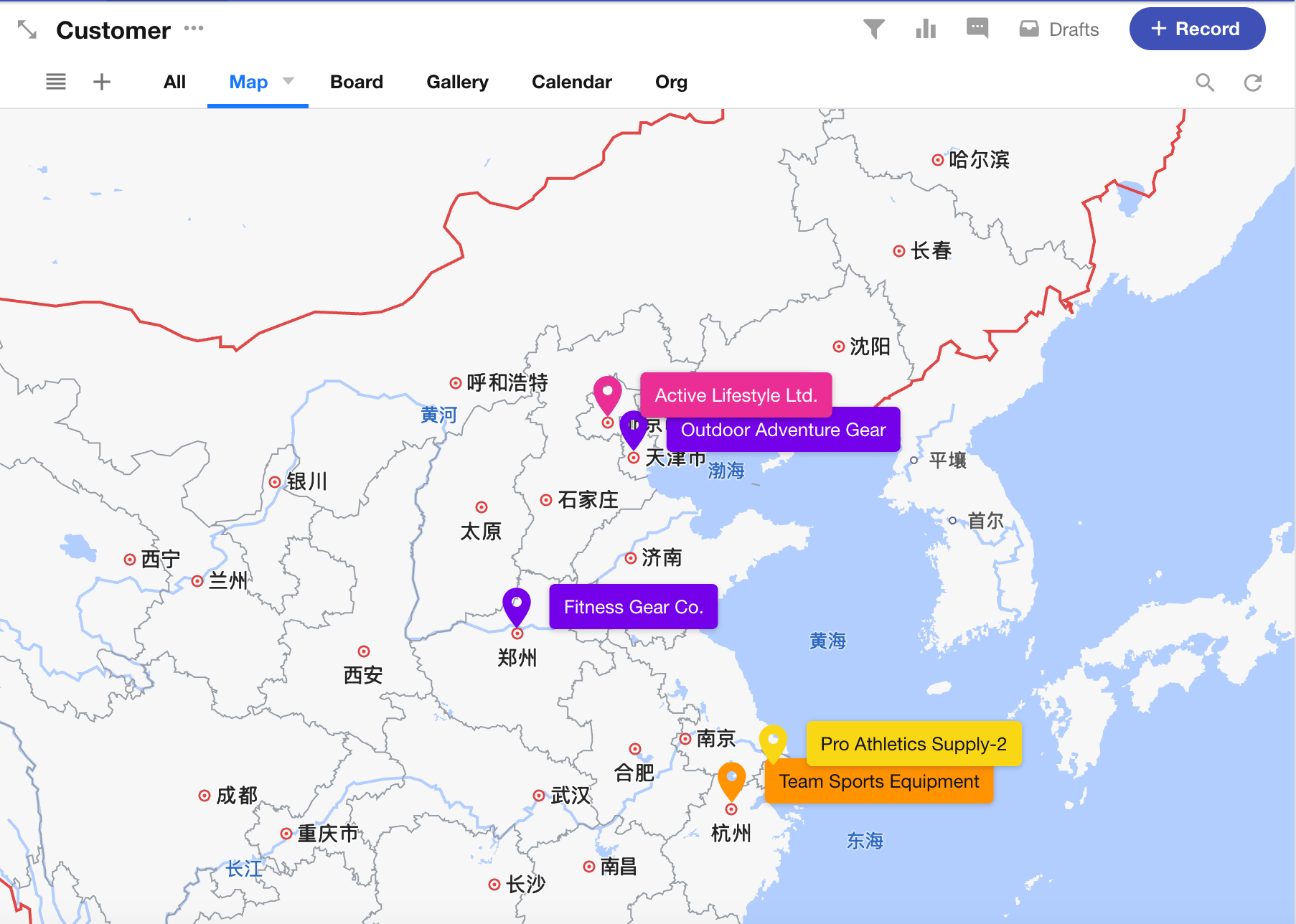
-
Calendar View
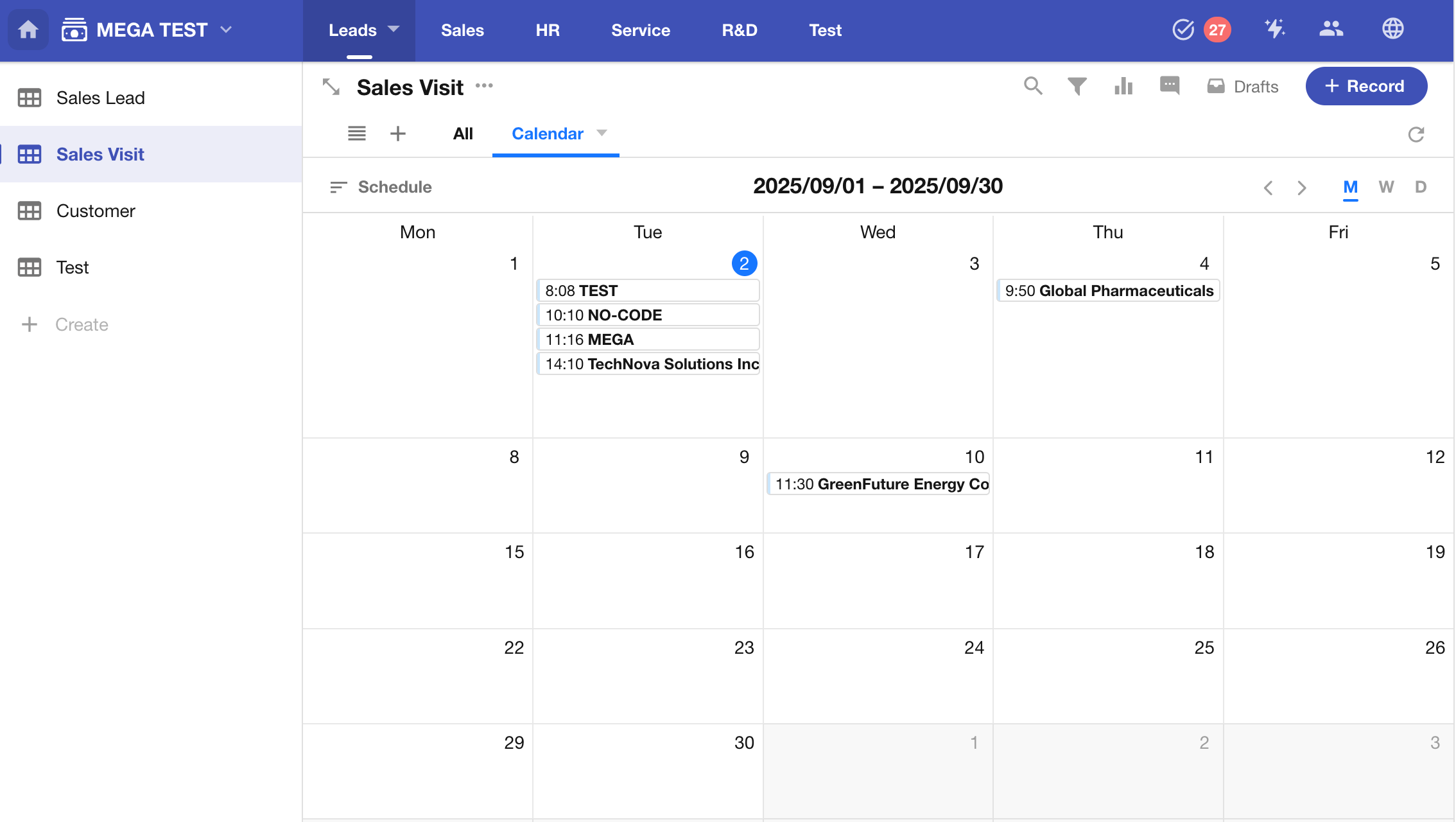
-
Gantt View
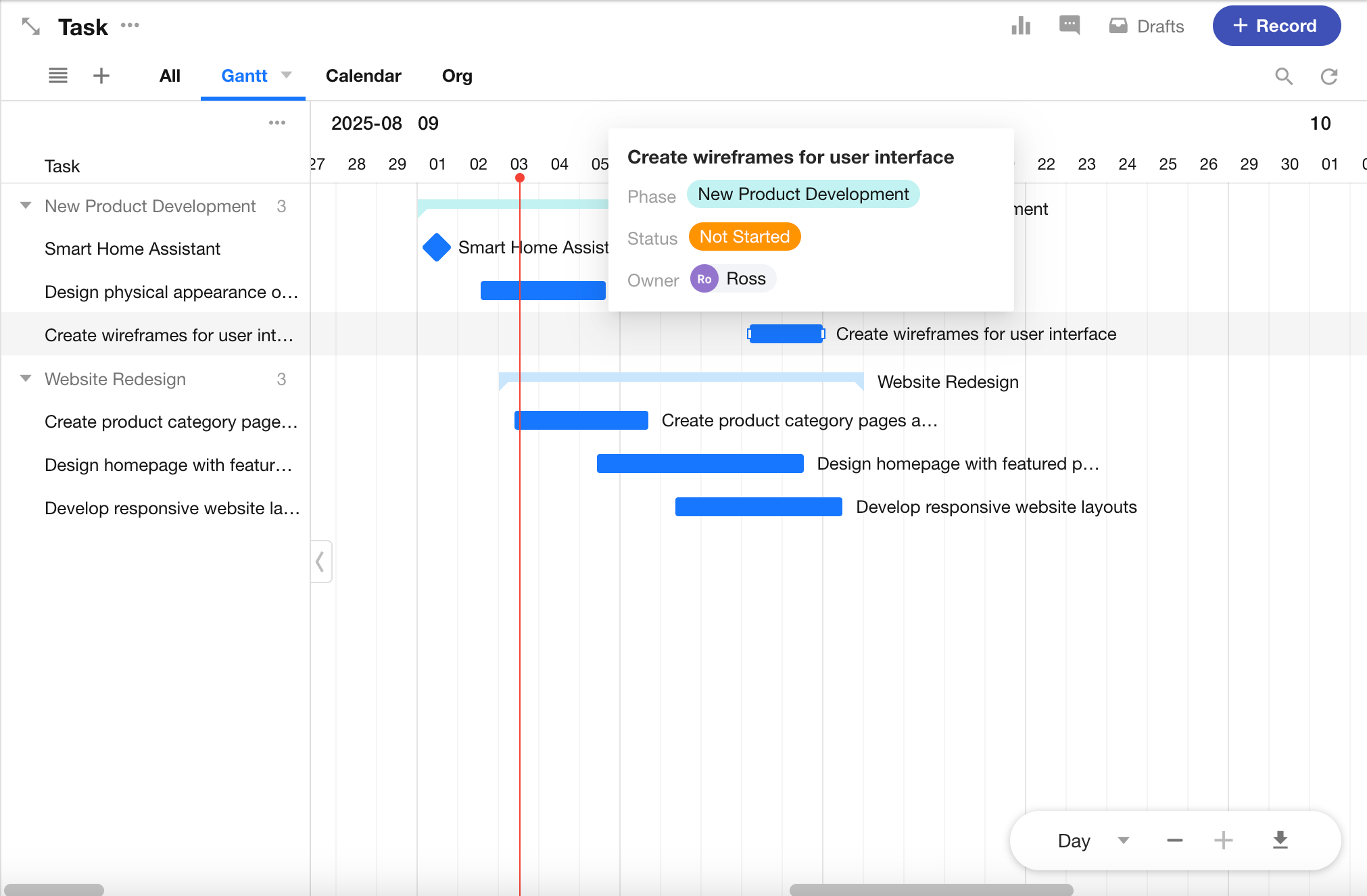
-
Resource View
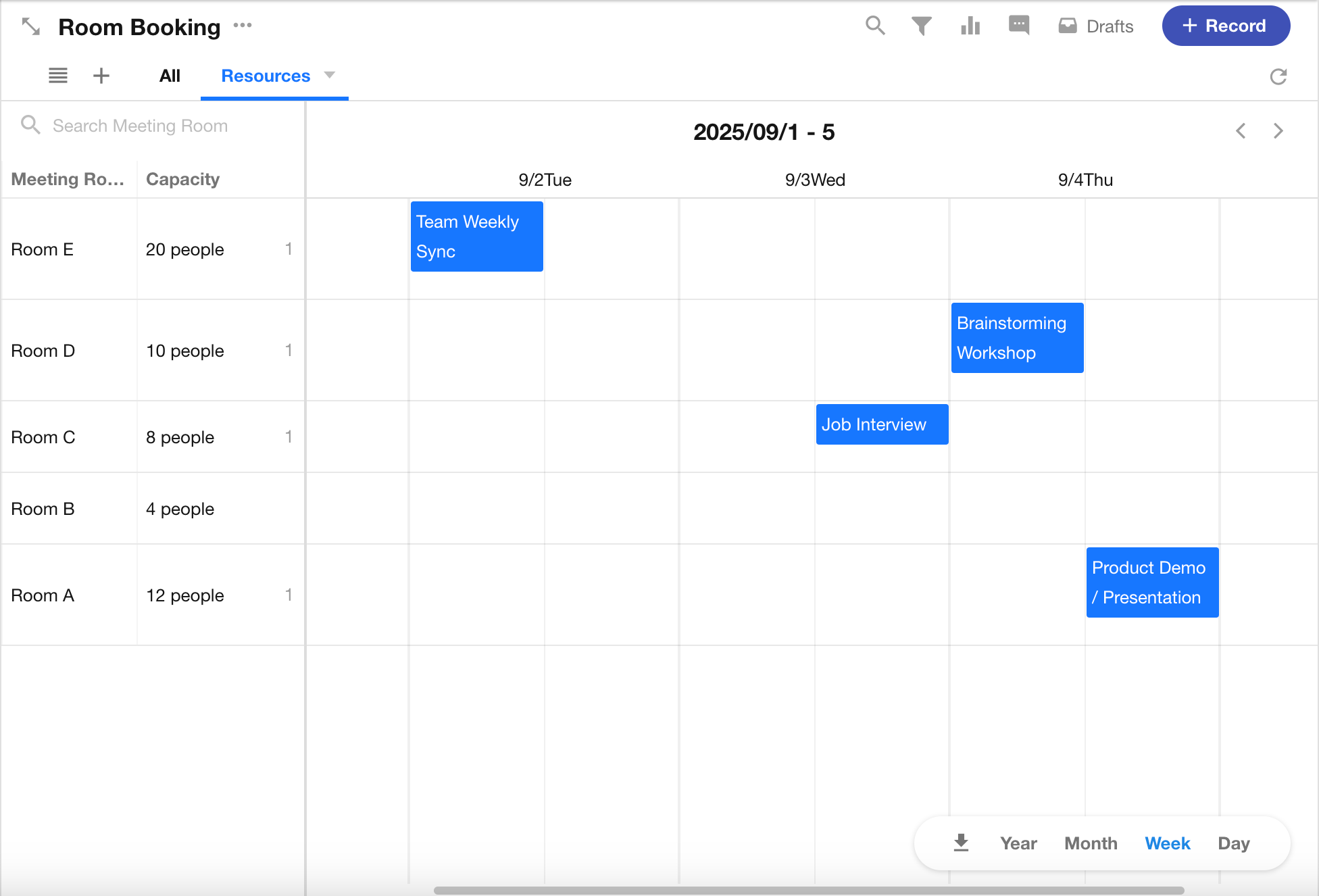
-
Plugin View
Custom view types developed by users. There is no predefined layout or style.
Control View Visibility
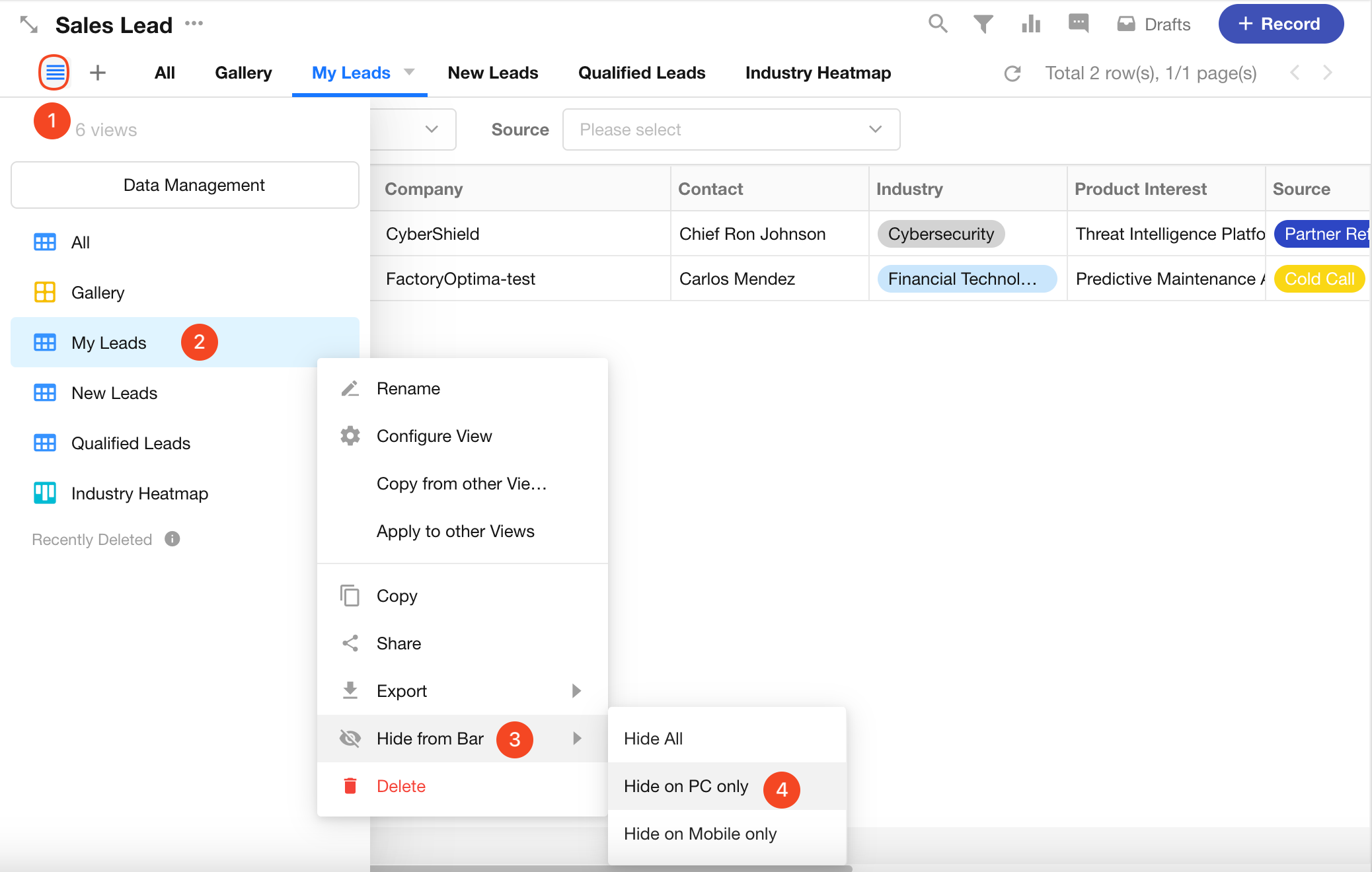
Application administrators can configure how views are displayed in the navigation menu.
-
Platform-Specific Visibility: Control whether a view is displayed in the navigation menu, or hide it separately on the web and mobile apps.
-
Hide Across All Platforms: When a view is hidden across all platforms, it becomes unavailable to all users, including application administrators, and will no longer appear in the navigation menu on any platform.
Was this document helpful?