Time Zone Settings for Calendar Events
Calendar events support time zone conversion, allowing users to view event times in their local time zones. As a result, the same event may appear at different times for users in different time zones.
How Event Times Are Displayed
You may wonder how event times are displayed across different time zones. For example:
- If you schedule a meeting in Beijing for three days from now but plan to view it from New York on the day of the meeting, do you need to adjust the event time?
- If you create an event with participants in Beijing, Tokyo, and New York, what time will each participant see?
Event times are automatically displayed based on the time zone settings of each user's device, whether they are using a computer or mobile phone. No manual adjustment is needed when viewing events from a different time zone.
For example, suppose you create an event in New York from 8:00 PM to 9:00 PM on June 1. A colleague in Beijing would see the event scheduled for 9:00 AM to 10:00 AM on June 2, as shown below.
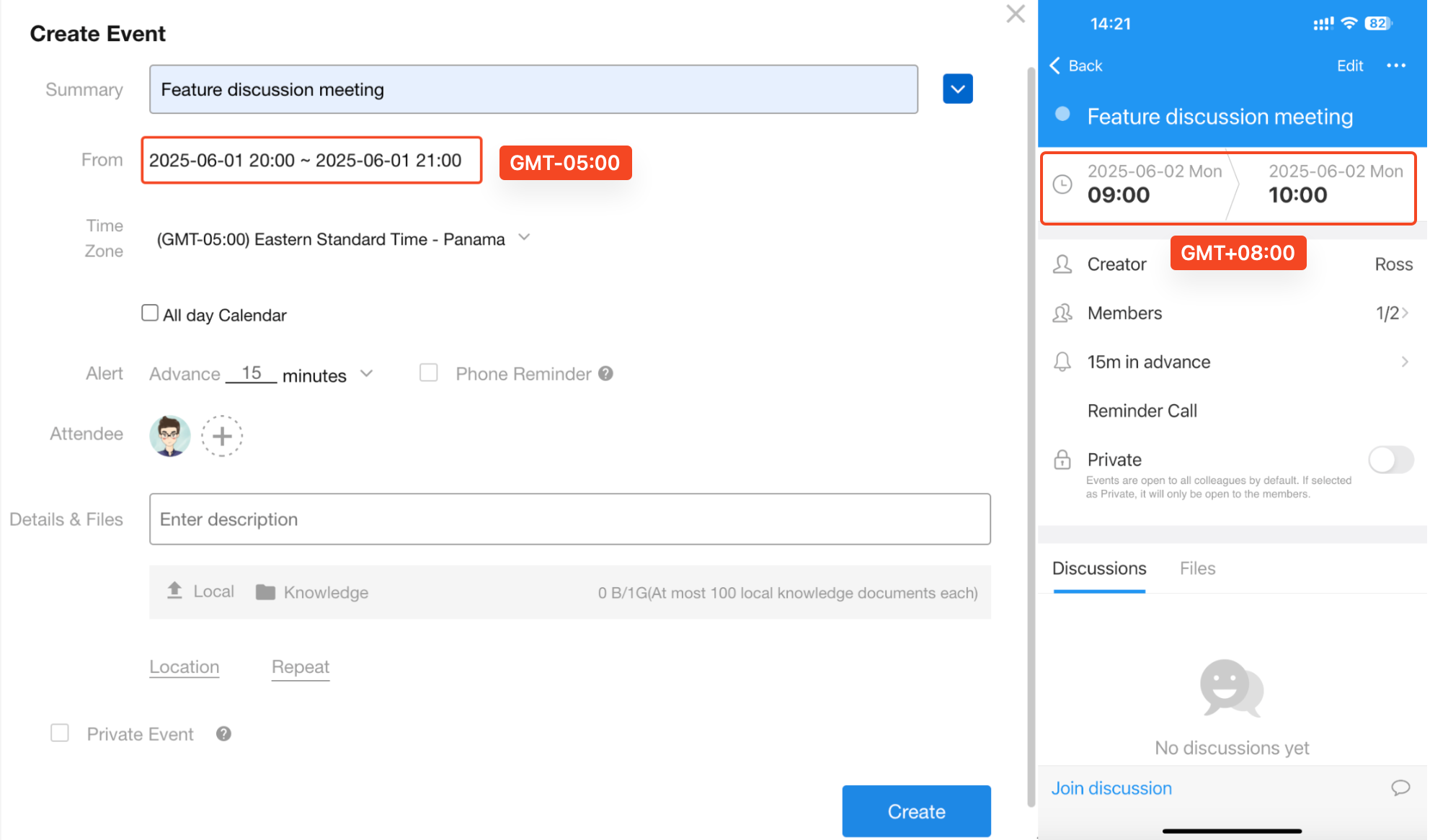
Note: Task start and end times do not currently support automatic time zone conversion. For example, if a task's end time is set to 9:00 AM on June 1, it will appear as 9:00 AM on June 1 regardless of the viewer's time zone.
Configure the Time Zone
By default, new events are created and saved using your computer's system time zone.
You can also select a different time zone when creating an event and enter the event time in that time zone. This is useful when coordinating schedules with colleagues in different locations.
For example:
- You are scheduling a meeting with a colleague in New York and want to set the event time based on their local time zone.
- You are creating an event for three days from now and expect to be in New York when the event takes place.
How to Set the Time Zone
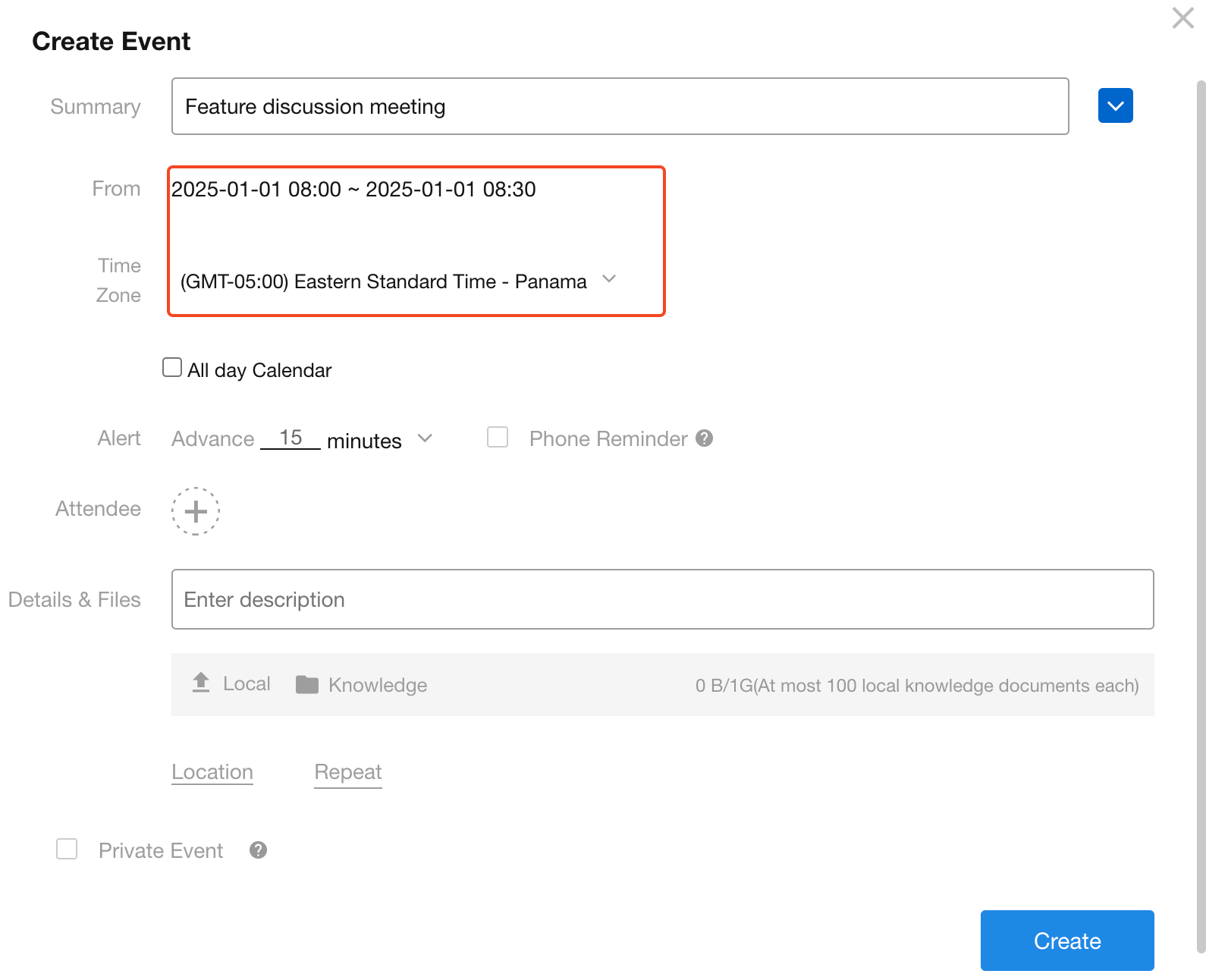
In this example, we will create an event scheduled for January 1, 2025, from 8:00 AM to 8:30 AM in New York (GMT-05:00).
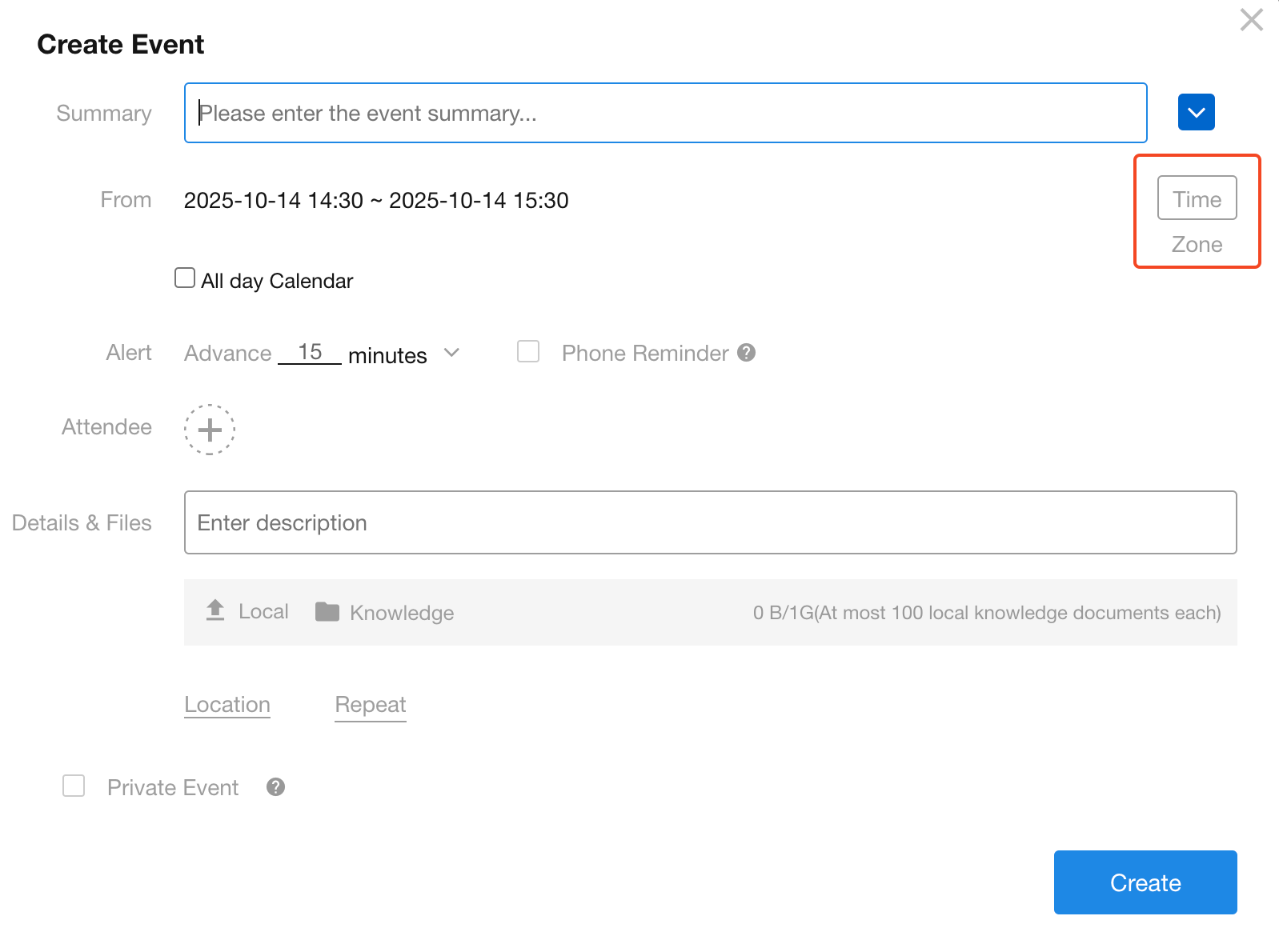
1. Open the Time Zone Settings
In the event creation window, click Time Zone.
2. Select the Time Zone and Set the Event Time
- Select Eastern Time (GMT-05:00).
- Enter the start and end times in New York local time: January 1, 2025, 8:00 AM–8:30 AM.
3. Create the Event
Click Create to save the event.
When you open the event, its time is displayed according to your device's system time zone.
For example, if your system time zone is set to Beijing (GMT+08:00), the event will appear as January 1, 2025, 9:00 PM–9:30 PM.
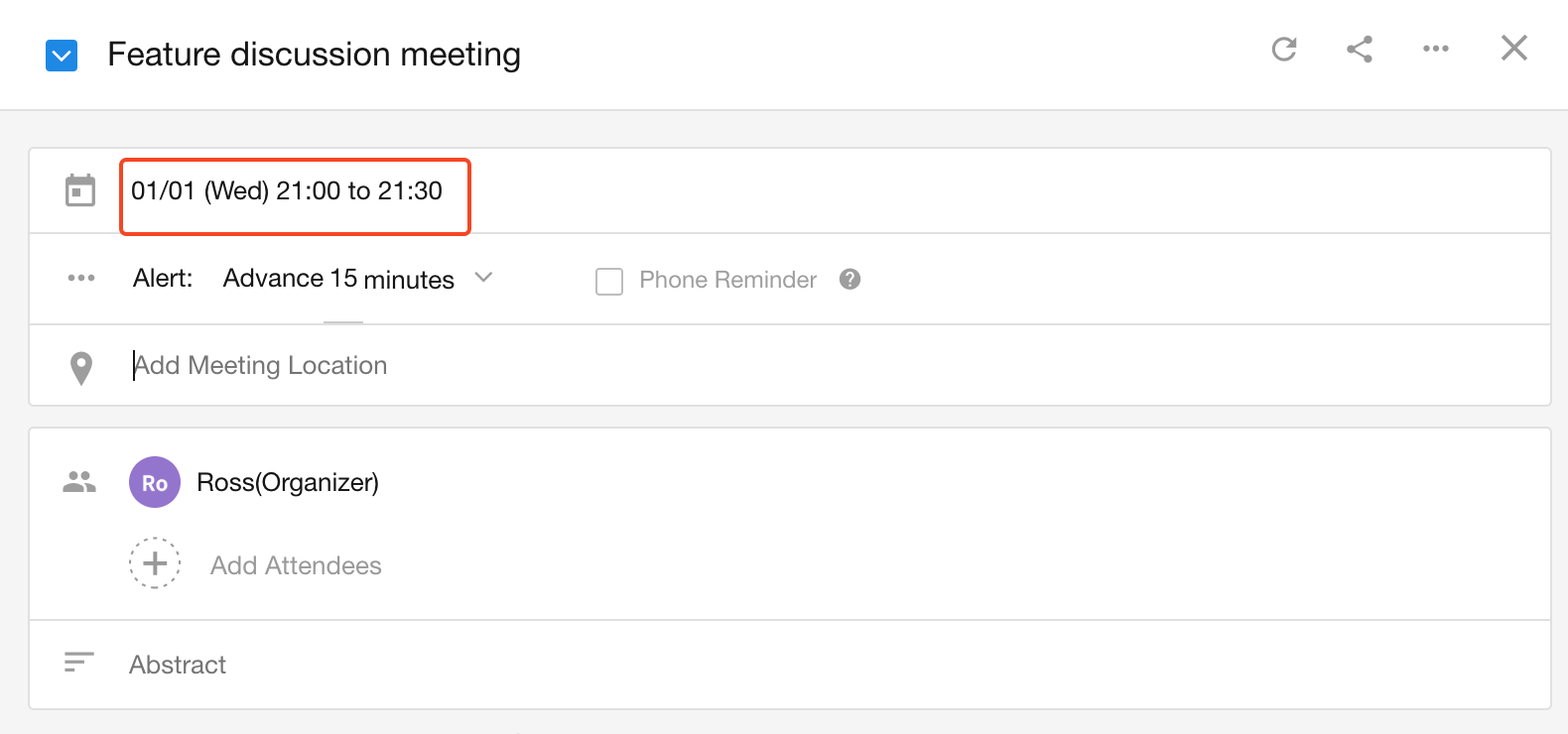
Alternatively, if your system time zone is already set to Beijing (GMT+08:00), you can create the same event without changing the time zone by entering January 1, 2025, 9:00 PM–9:30 PM directly.
Was this document helpful?