Record Creator, Owner, Member, and Joined User
Each record in a worksheet represents an individual business object. Multiple users may collaborate on the same record—for example, by viewing, editing, deleting, following up, or managing it.
Before configuring record permissions, it's important to understand the different identities associated with a record: Creator, Owner, Member, and Joined User. These identities are used as conditions when evaluating record permissions, but they do not determine permissions on their own. A user's actual permissions are determined by the combination of their record identity, app role, and permission settings.
Identity Comparison
| Identity | Description | Can Be Changed | Determines Final Permissions |
|---|---|---|---|
| Creator | The user or source that created the record | No | No. Used only as an identity indicator. |
| Owner | The user responsible for managing the record | Yes | Not entirely. Also depends on role and permission settings. |
| Member | A general participant in the record | Determined by Member, Department, or Organization Role fields | Not entirely. Also depends on role and permission settings. |
| Joined User | A collective term for the Owner and Members | Determined by the Owner and Members | Not entirely. Primarily used to define record scope. |
Creator
The Creator is the user or source that created the record. The Creator serves only as an identity indicator—it is not a permission role and cannot be changed.
If you need to change who manages a record, update the Owner, or grant access through Member, Department, or Organization Role fields.
The Creator is displayed differently depending on how the record was created:
- For records created manually, the Creator is the user who created the record.
- For records created through a public form, the Creator is displayed as Public Form.
- For records created by a workflow, the Creator is displayed as Workflow.
- For records created through the API, the Creator is displayed as API.
Owner
Every record includes a built-in system field named Owner, which typically represents the person responsible for managing the record.
By default, the Creator becomes the Owner when the record is created. You can reassign ownership to another user at any time based on your business needs.
To change the Owner: Open the record details page and click the Owner field to assign a new owner.
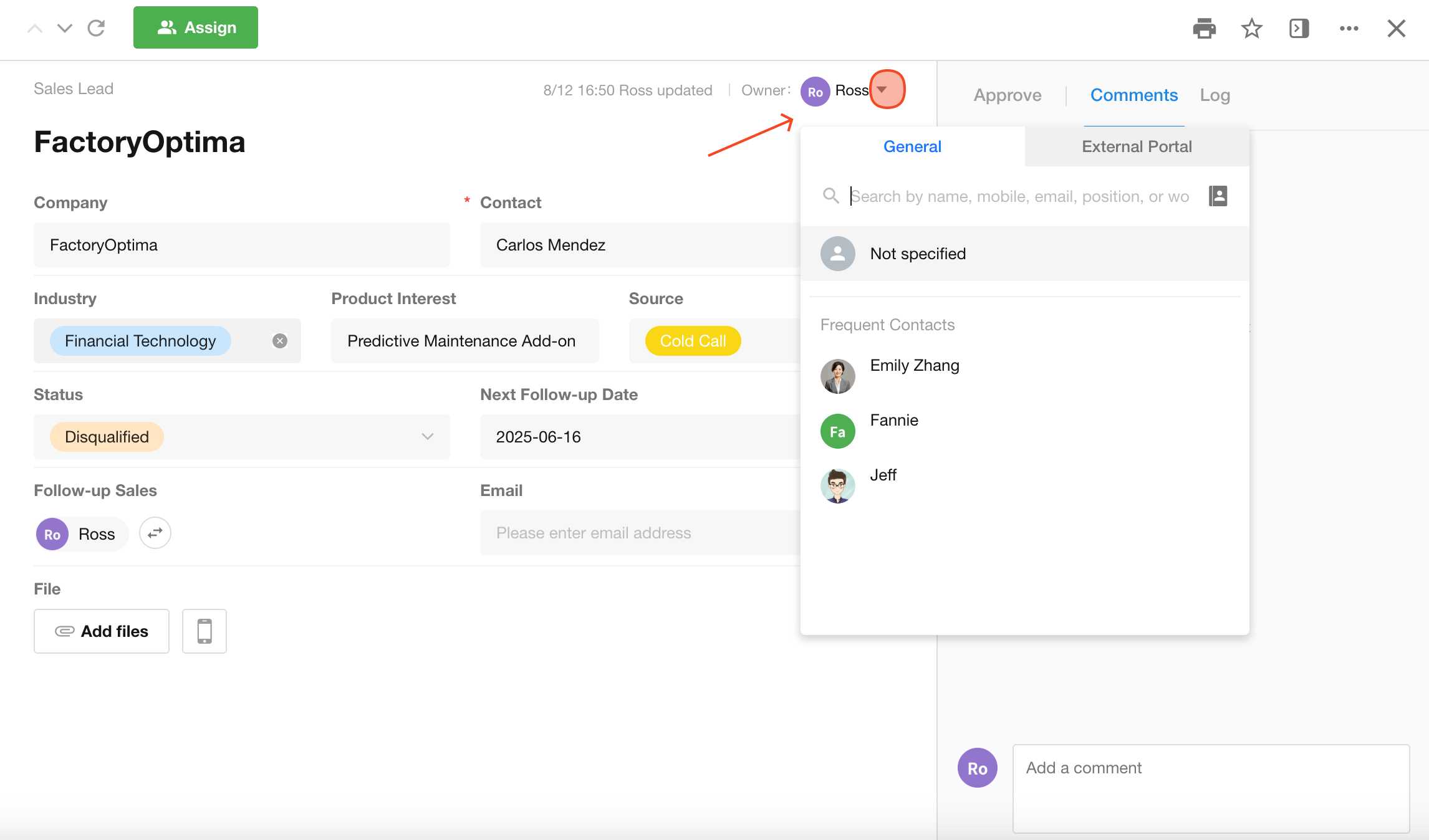
Grant Owner Permissions Through Fields
In addition to the built-in Owner system field, you can grant Owner-level permissions through Member, Department, and Organization Role fields.
Simply set the field permission to Owner.
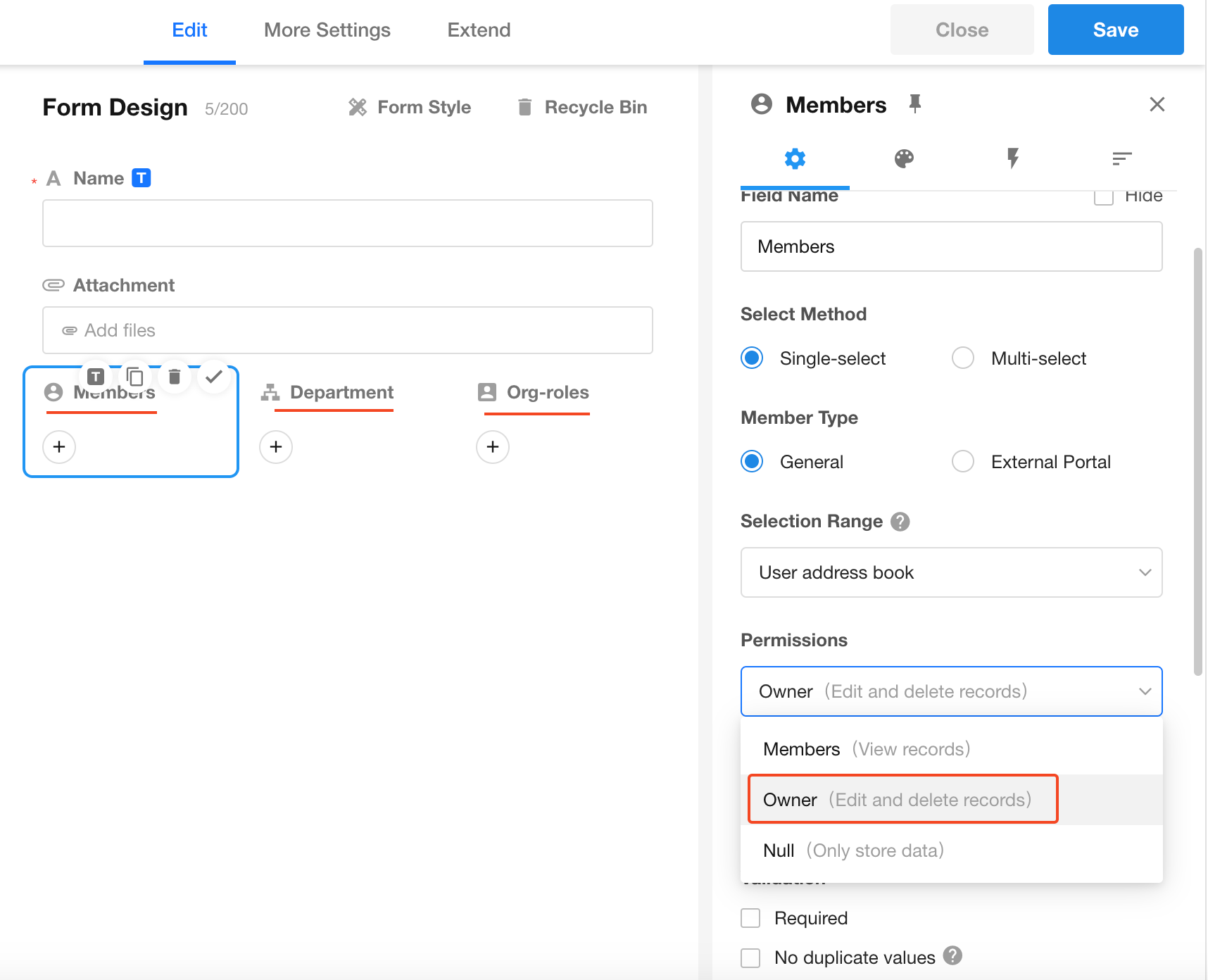
Common scenarios include:
- Member field: Select one or more HAP users. The selected users receive the same permissions as the record owner.
- Department field: When the field permission is set to Owner, users in the selected department receive owner-level permissions for the record.
- Organization Role field: When the field permission is set to Owner, users assigned to the selected organization role receive owner-level permissions for the record.
What's the Difference Between the System Owner and Owner Permissions Granted Through Fields?
Users assigned Owner permissions through Member, Department, or Organization Role fields receive the same permissions as the record owner for permission evaluation.
However, these users are not added to the built-in Owner system field.
As a result, only the Owner system field is recognized in the following scenarios:
- Filtering records by Owner in a worksheet.
- Updating the record owner in a workflow.
- Referencing or evaluating the Owner system field.
Member
A Member is a general participant in a record, typically someone who collaborates on, follows up on, or needs access to the record.
Being a Member does not automatically grant management permissions. Whether a user can view, edit, or delete a record still depends on the configured roles and permissions.
How to Become a Record Member
In a Member, Department, or Organization Role field, set the field permission to Member. Users included in these fields become Members of the record.
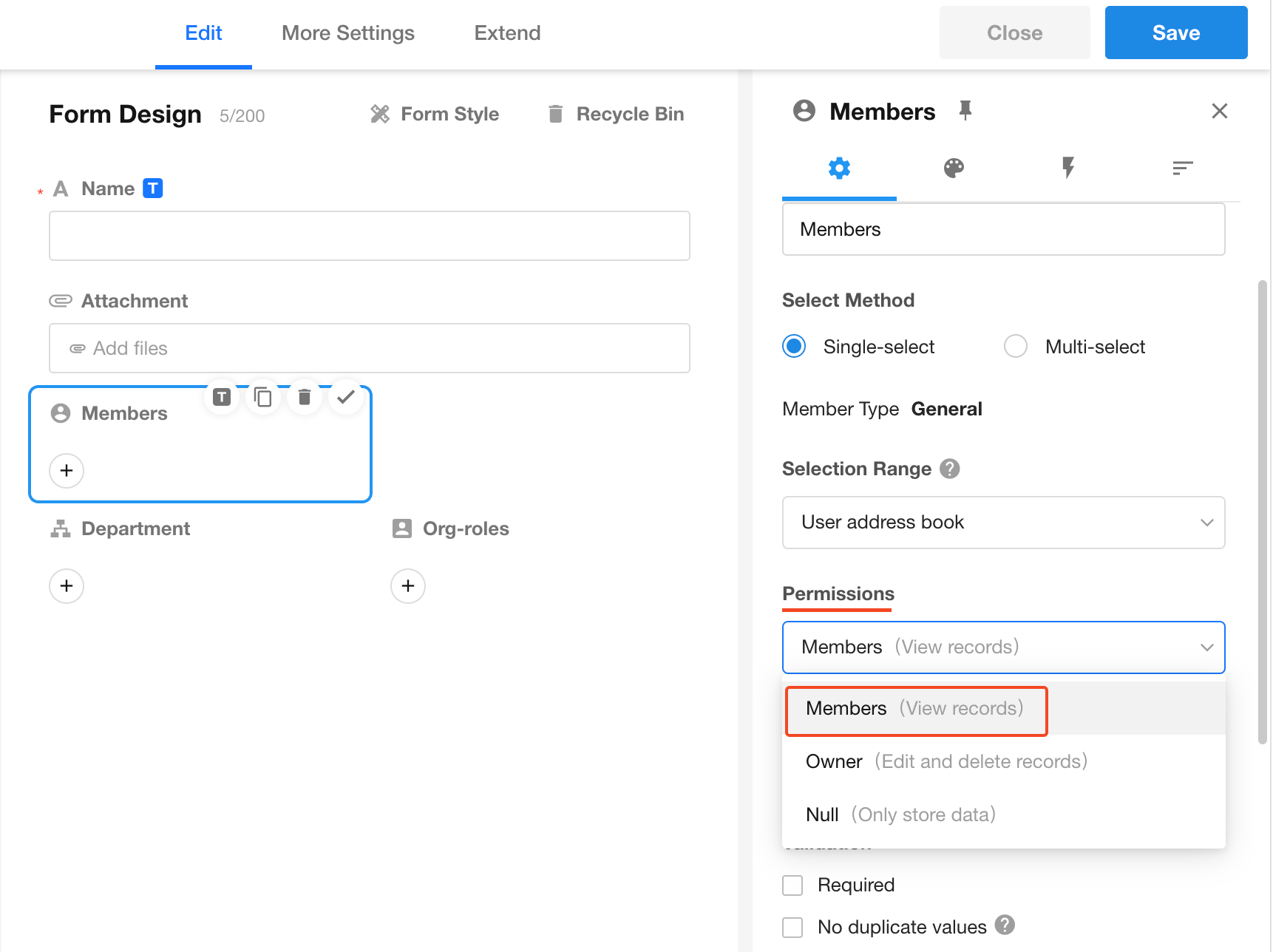
Joined User
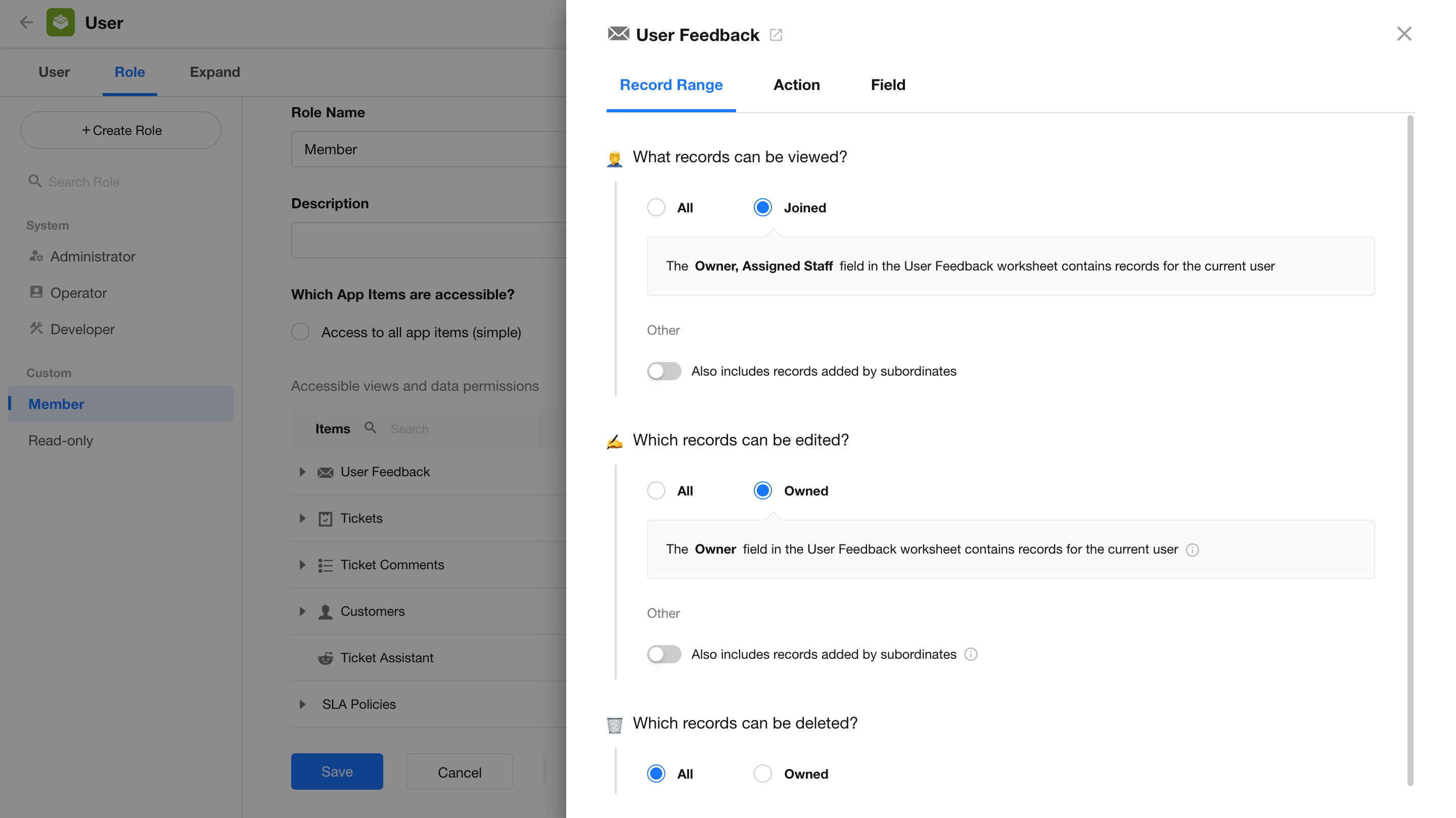
When configuring the record scope for a role, you can select Joined.
A Joined User is a collective term for the Owner and Members of a record.
- If a user is the Owner, they are considered to have joined the record.
- If a user is a Member, they are also considered to have joined the record.
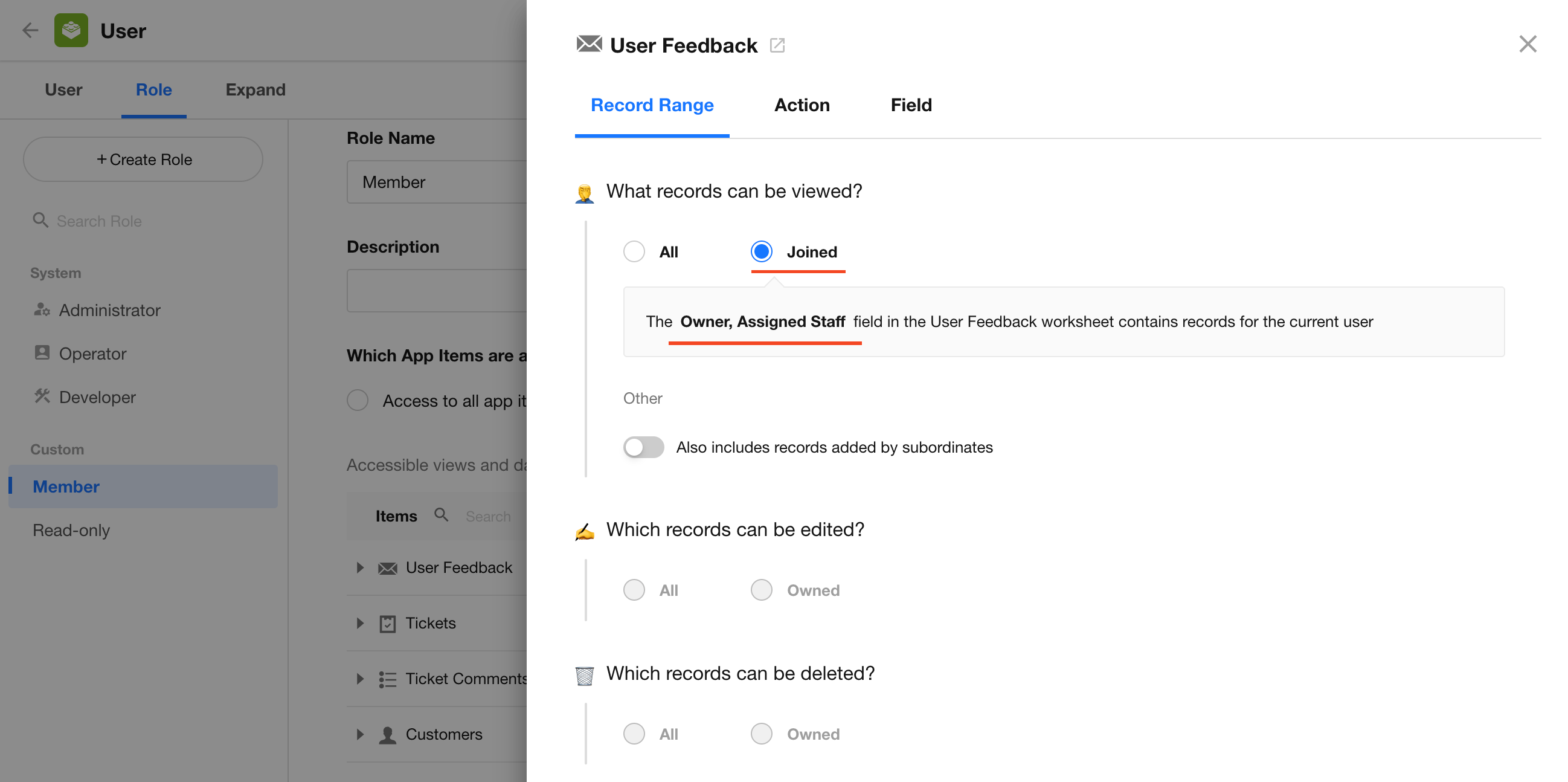
When Joined is selected, the system determines whether the current user has joined the record based on its Owner and Member information, and uses this to control which records the user can access.
Actual Permissions Are Determined by Roles and Permissions
Creator, Owner, Member, and Joined User are identity conditions used during permission evaluation.
Whether a user can ultimately view, edit, or delete a record depends on the configured app roles and permissions.
For example:
- If an app role does not include permission to edit records, even the record Owner cannot edit the record.
- If an app role allows editing All Records, a Joined User may still be able to edit the record.
When configuring permissions, consider all of the following:
- The user's identity in the record.
- The record scope configured for the role.
- The operation permissions configured for the role.
- The field-level permissions configured for the role.
As shown below, configure roles and permissions together to control which users can access and operate on records.
Was this document helpful?