How Department and Job Title Information Is Displayed
In member fields, @mentions, profile cards, user profile pages, and other areas, HAP may display organization, department, or job title information alongside a user's name to help identify them.
The information shown depends on where you view the user and your relationship with them. It may come from either the user's Personal Information or the Organization Information maintained by an organization administrator.
Personal Information and Organization Information
The organization, department, and job title information displayed on profile cards, in member selectors, and in other areas mainly comes from two sources:
-
Personal Information: The organization name and job title maintained by the user under Manage My Account > Profile > Detailed Infomation.
-
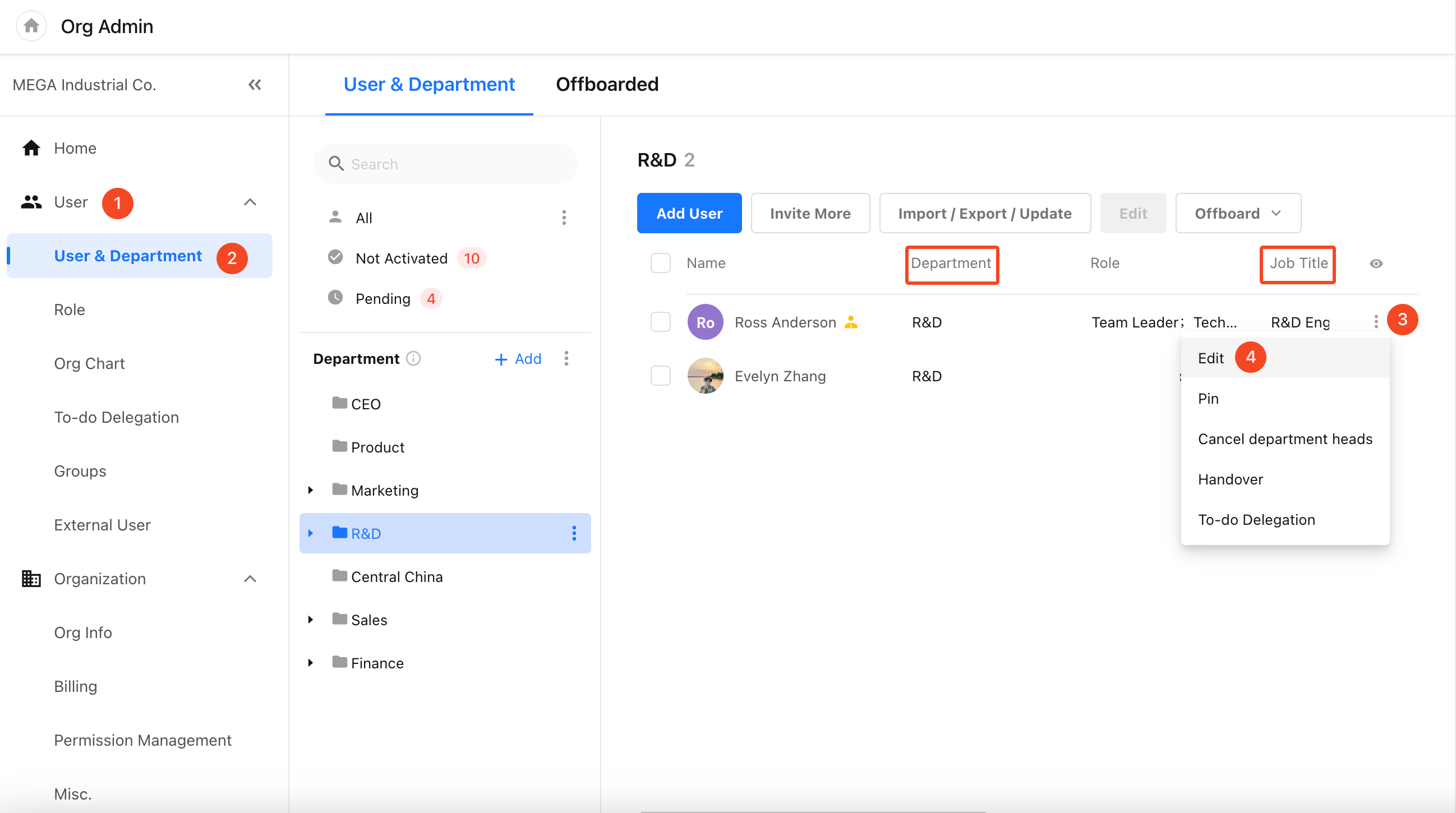
Organization Information: Information such as organization name, department, job title, and employee ID maintained by organization administrators in the organization management console.
Profile Cards
Hover over a member's profile picture to view their profile card. The information displayed varies depending on where you view the card and your relationship with the user.
-
Viewing a colleague's profile card
-
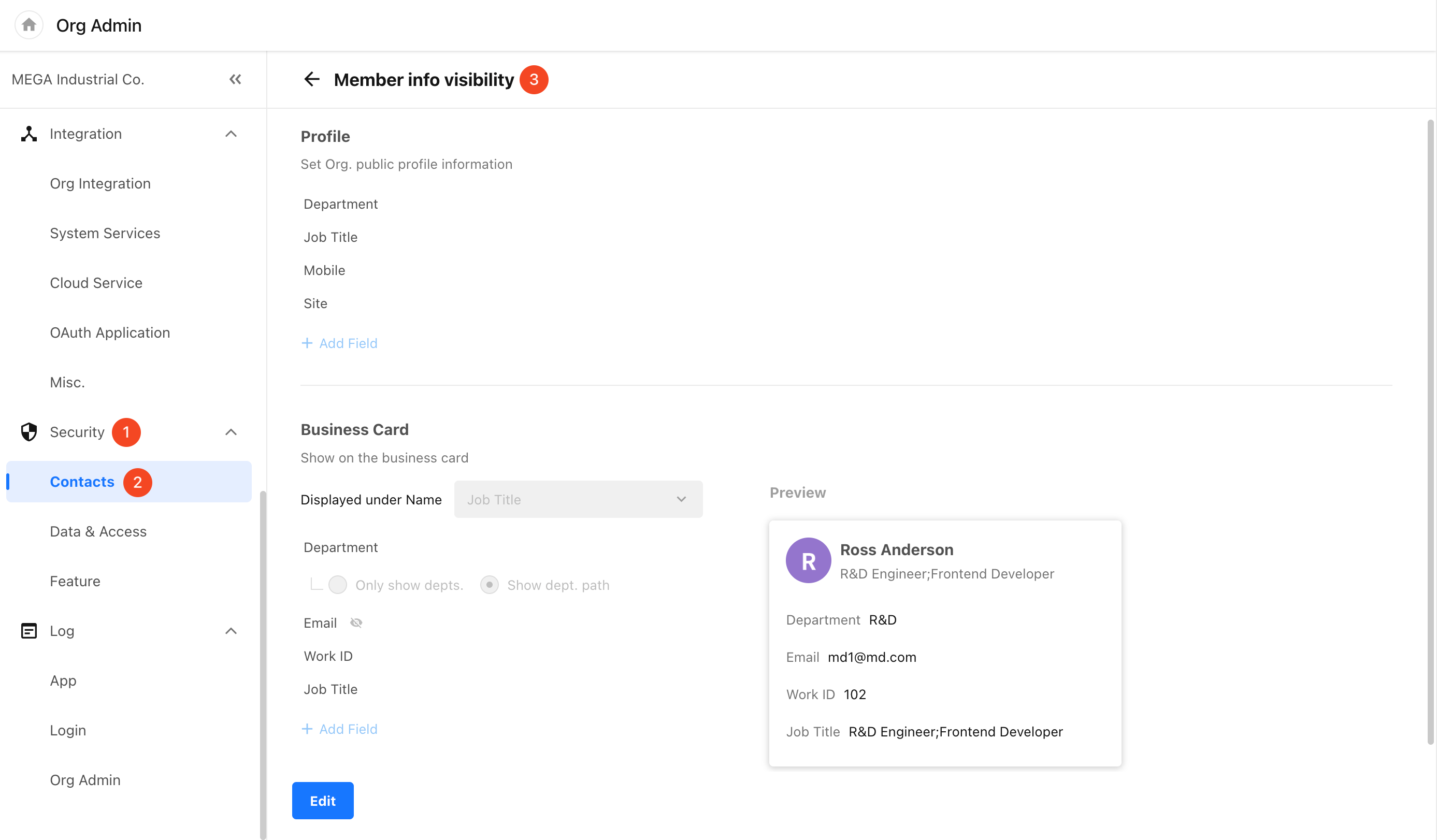
When viewing a colleague's profile card in an app, organization group, or the organization management console, the card displays the Organization Information configured under Org Admin > Security > Contacts.
-
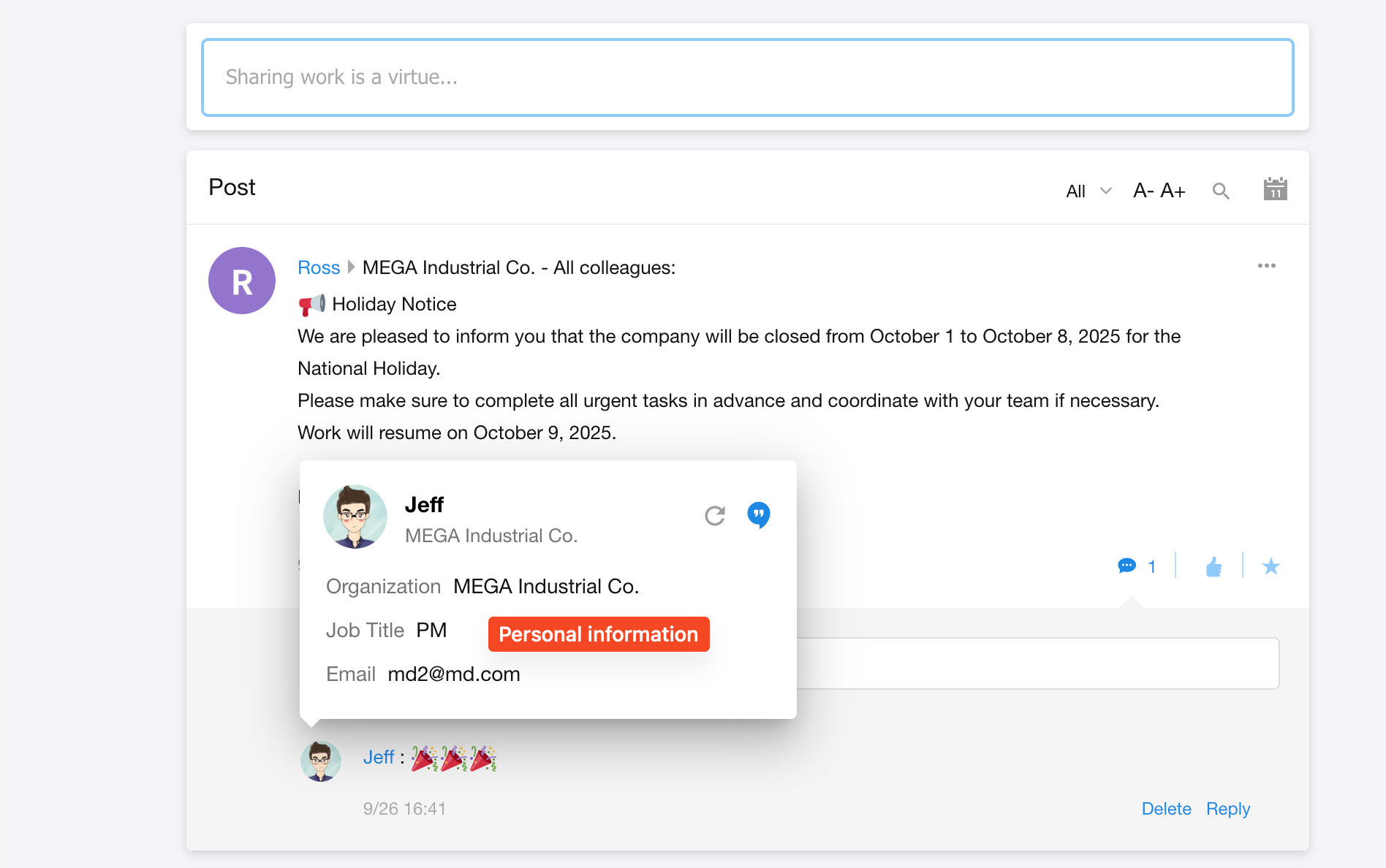
When viewing a colleague's profile card in Messages, Workflow To-Dos, Collaboration, or personal groups and chats, the card displays the organization, job title, email address, and phone number from the user's Personal Information.
-
-
Viewing an external user's profile card
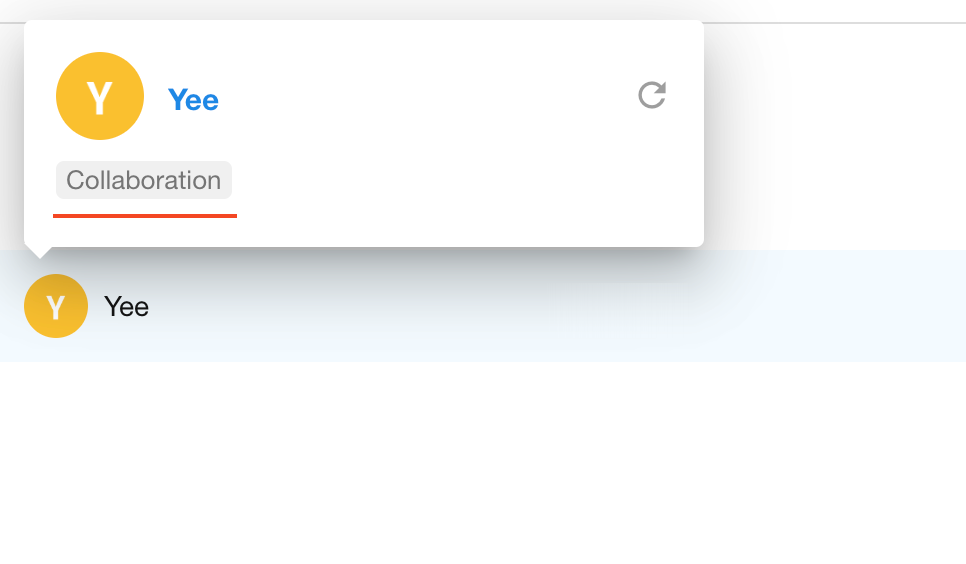
When viewing an external user in an app or organization group, the Collaboration label is displayed. If the user is also your friend, the phone number and email address linked to their account are also displayed.
For users who are not your contacts, only their name and profile picture are displayed on the profile card. A user is considered a non-contact in either of the following cases:
- The user is neither your colleague nor your friend.
- The user is your colleague but not your friend, and access is restricted by Contacts settings.
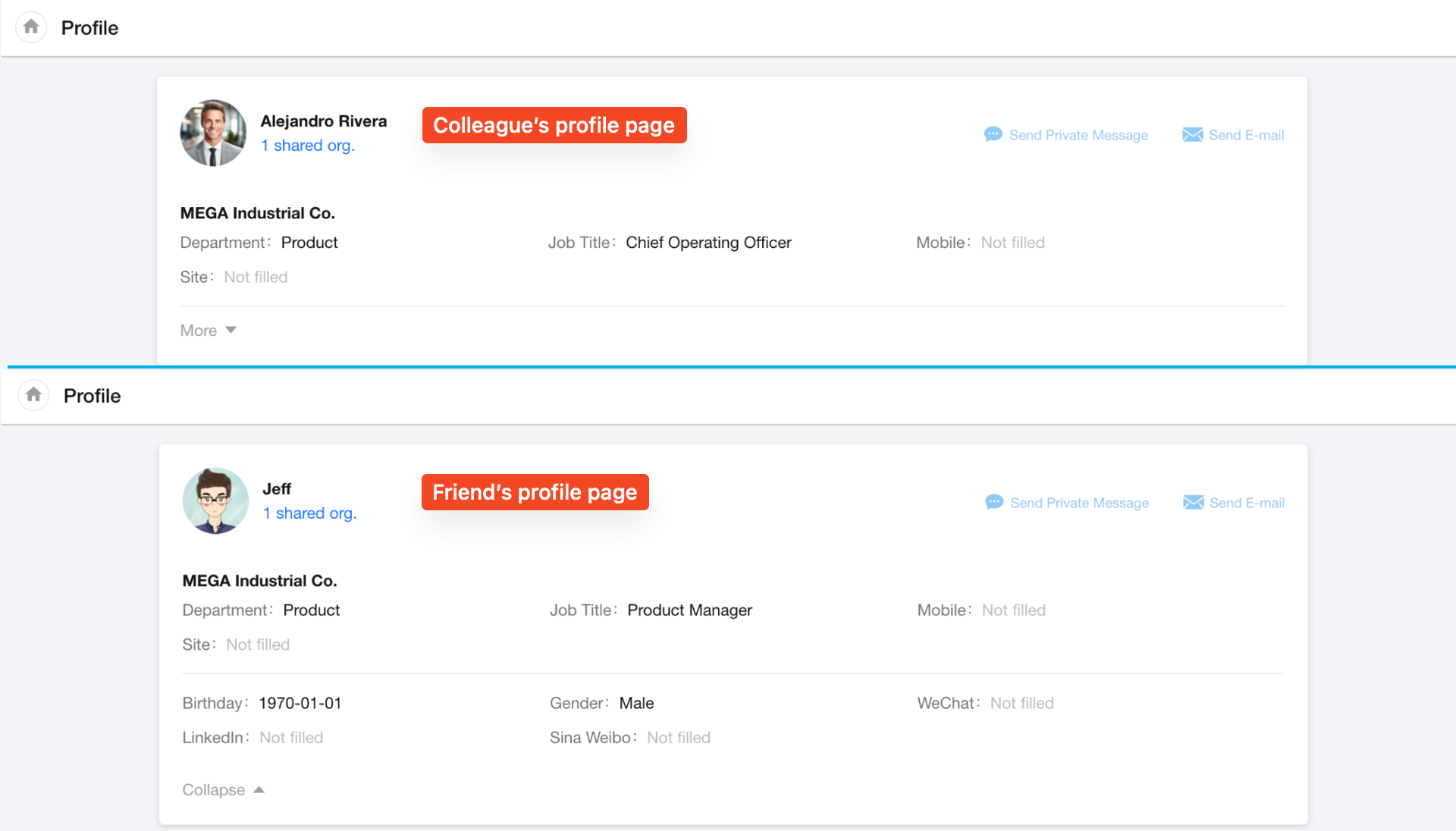
Profile Page
Click a user's profile picture to open their profile page.
-
Users in the same organization: The profile displays Organization Information. Organization administrators can configure which information is visible in the organization management console.
-
Friend: The profile displays Personal Information.
-
Users who are neither in the same organization nor your friend: Their profile cannot be viewed.
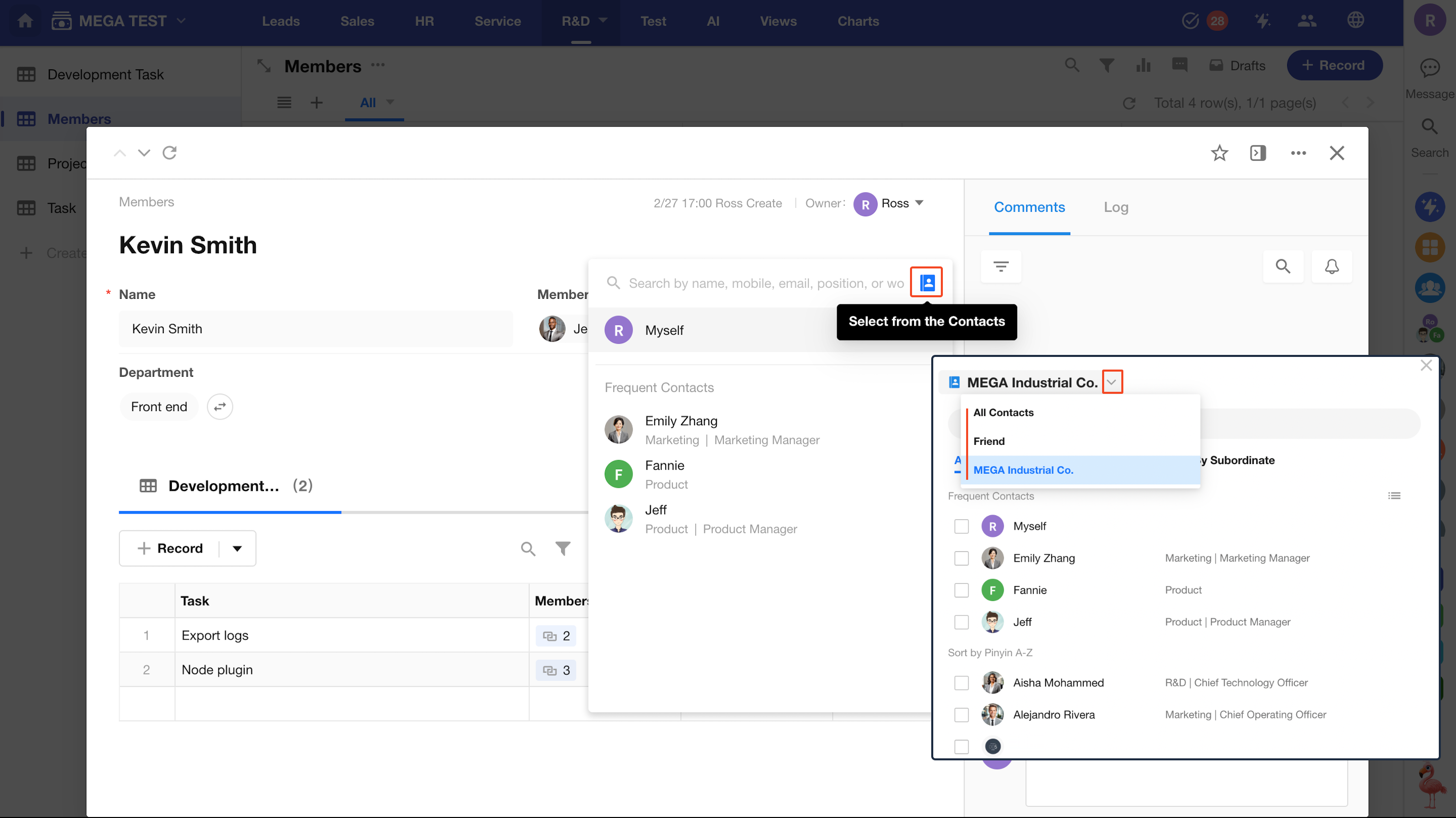
When Selecting Users from Contacts
When selecting users from Contacts, such as in a member field, the information displayed varies depending on where the user is selected from.
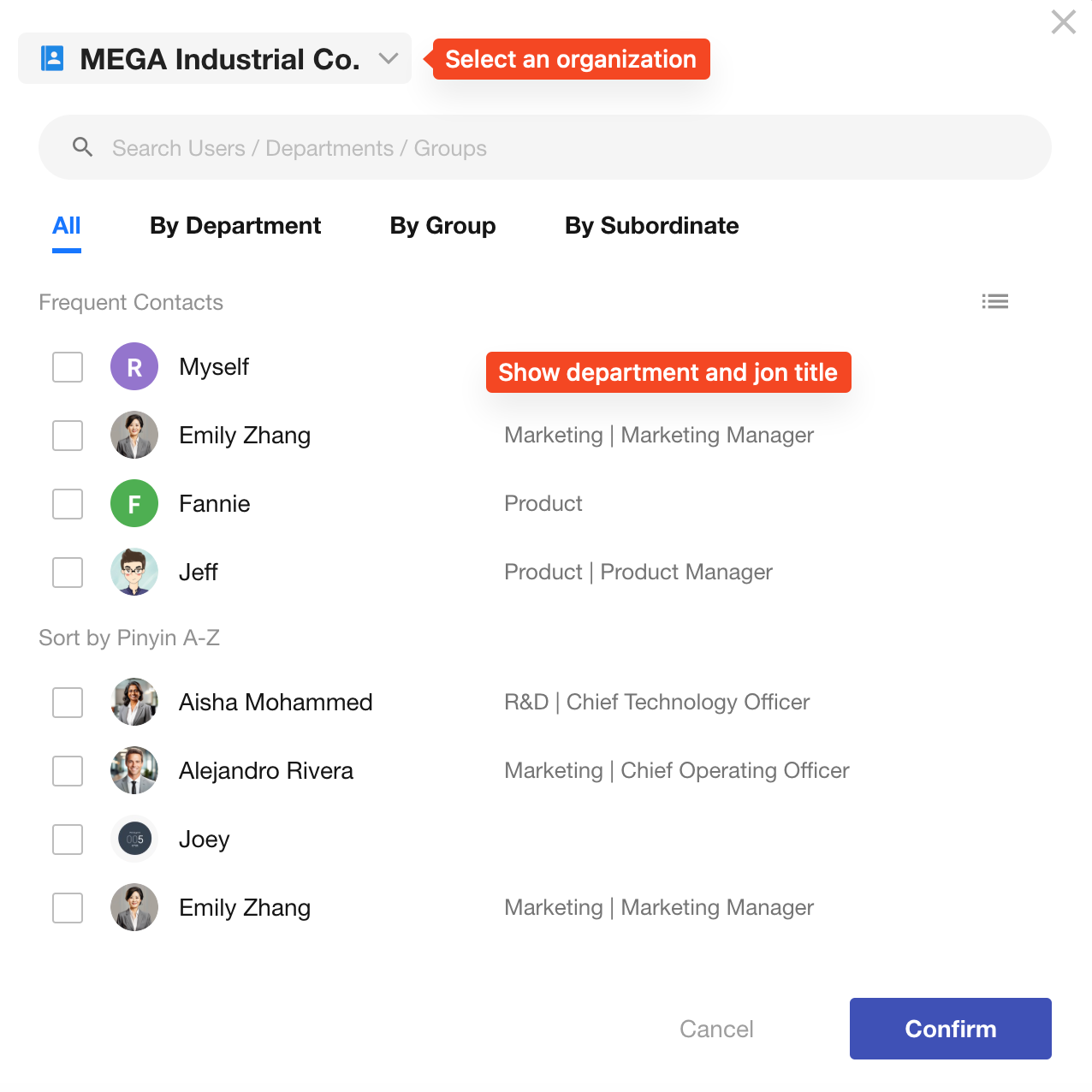
Users Selected from an Organization
The user list displays each user's department and job title from their Organization Information. If a user belongs to multiple departments, only the primary department is displayed.
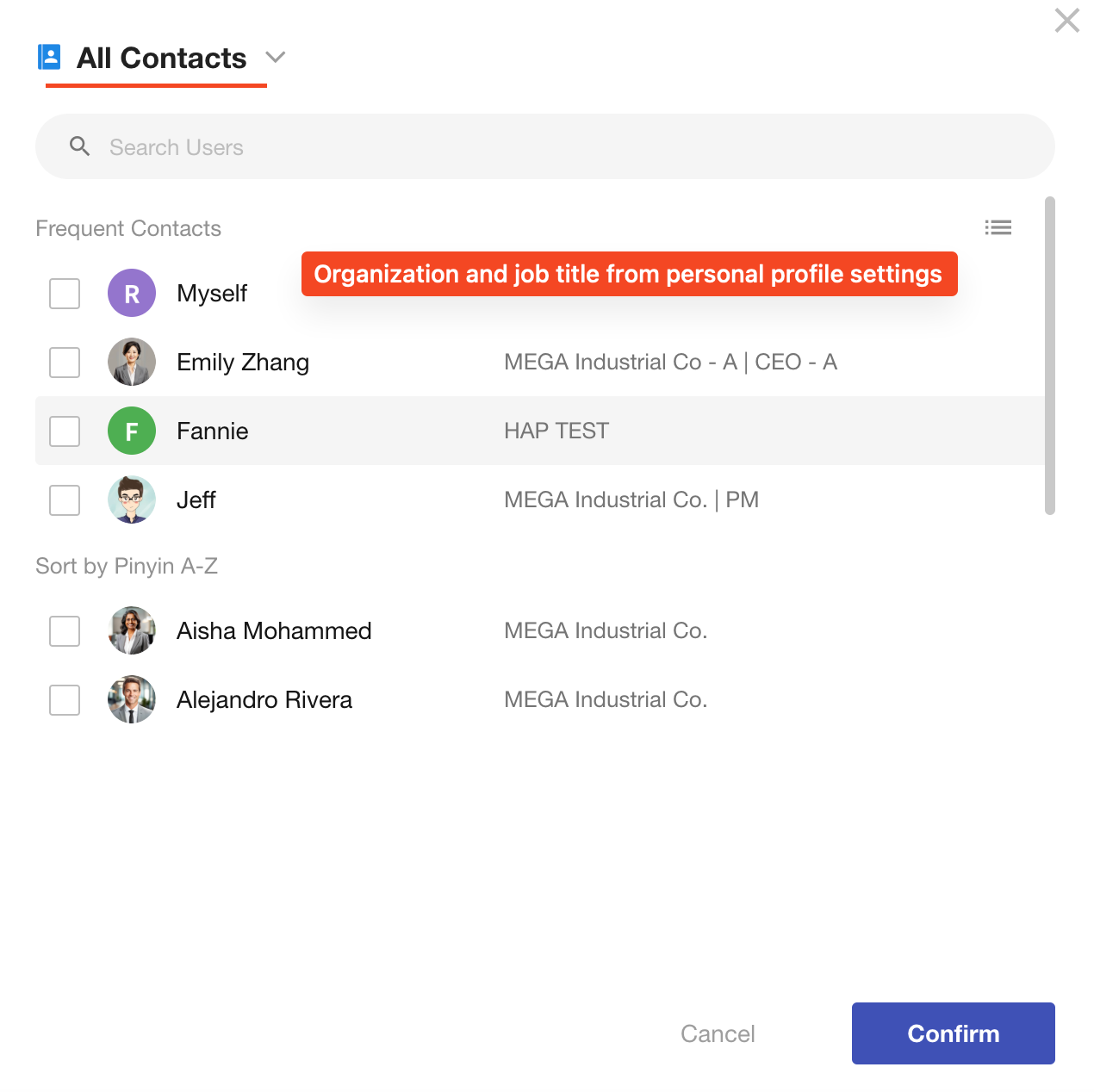
Users Selected from All Contacts/Friends
Because contacts may belong to different organizations, the user list displays the organization name and job title from each user's Personal Information.
User Lists for @Mentions and Frequent Collaborators
-
@mentioning users in app records or organization posts: The frequent collaborators list only includes users in the current organization and displays their department and job title from their Organization Information.
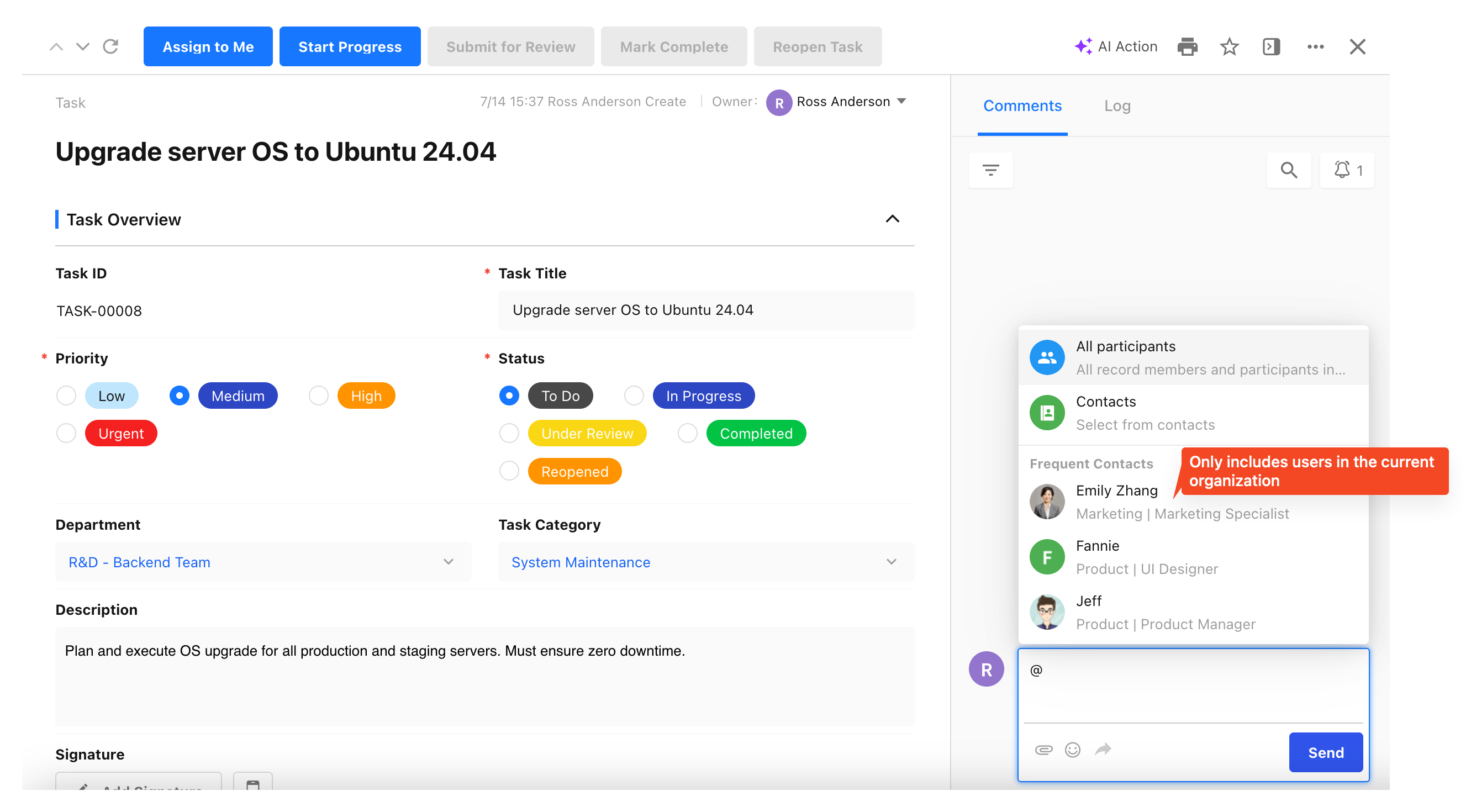
-
@mentioning users in a calendar: The frequent collaborators list includes all users and displays the organization name and job title from their Personal Information.
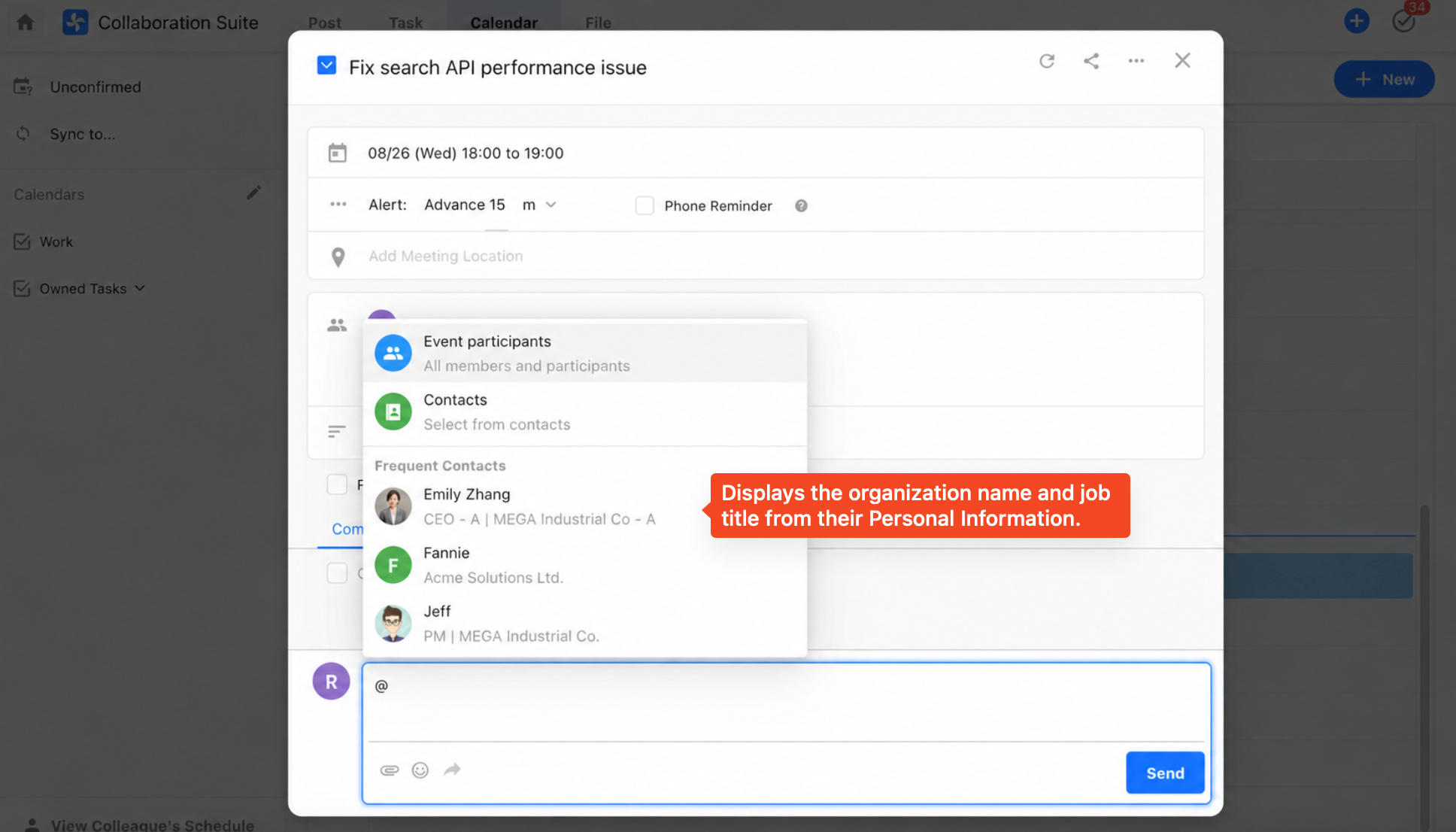
Was this document helpful?