How to Read/Write Worksheet Data via API
HAP provides API access for users with development capabilities, enabling integration between worksheets and external systems. You can use the API to write data into a worksheet or read data from it.
Example
Suppose you’ve created an Orders worksheet in your Order Management application to manage both online and offline orders. You also have an online sales system that records e-commerce orders.
Whenever a customer places an order online, the system can use the worksheet API to automatically write a new order record into the worksheet—saving time and reducing manual data entry errors.
API Reference
App administrators can access the API documentation to view all available APIs for the current application.
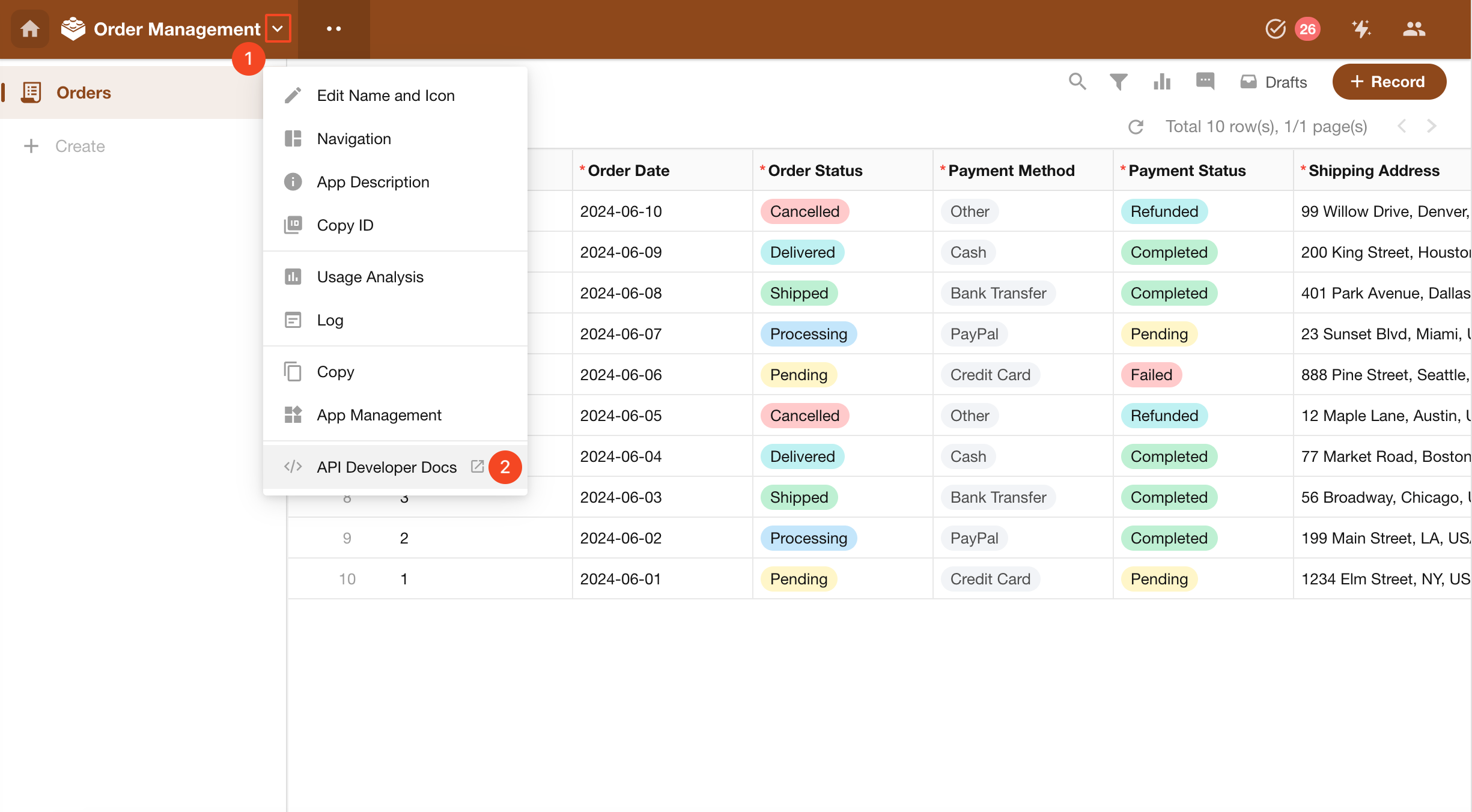
Authorization Management
The platform uses token-based authentication. The AppKey and SecretKey are provided within the API documentation of each application. Super administrators can regenerate these credentials when needed.
Field Information Table
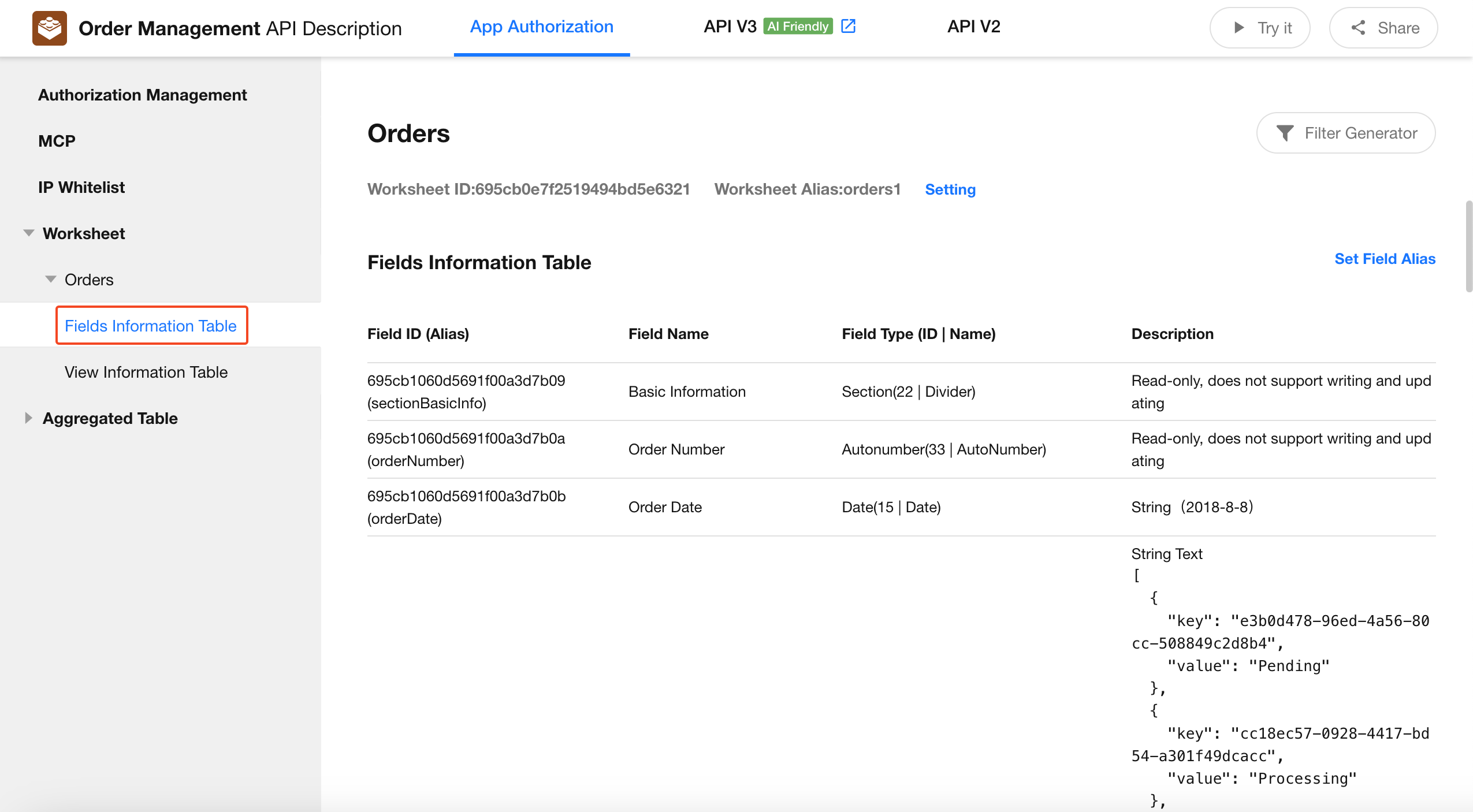
-
Field ID:
A system-generated identifier for the field. This ID is used in API requests to represent the field and cannot be modified. -
Field Name:
The name defined by the app administrator for the field. -
Type:
The control type used for the field (e.g., text, number, dropdown). -
Field Type Code:
A numeric code that identifies the control type. This is often required when filtering or passing parameters through the API. -
Description:
Usage notes for the field, including sample data, whether it supports write operations, etc. -
Worksheet and Field Aliases:
Since worksheet IDs and field IDs are typically long and difficult to remember, you can define aliases for both. When submitting API parameters, aliases can be used in place of IDs with the same effect.
Create Record API
HAP provides over 10 APIs to support various data operation scenarios in an application. This section uses the Create Record API as an example, which adds a new row to a worksheet via API.
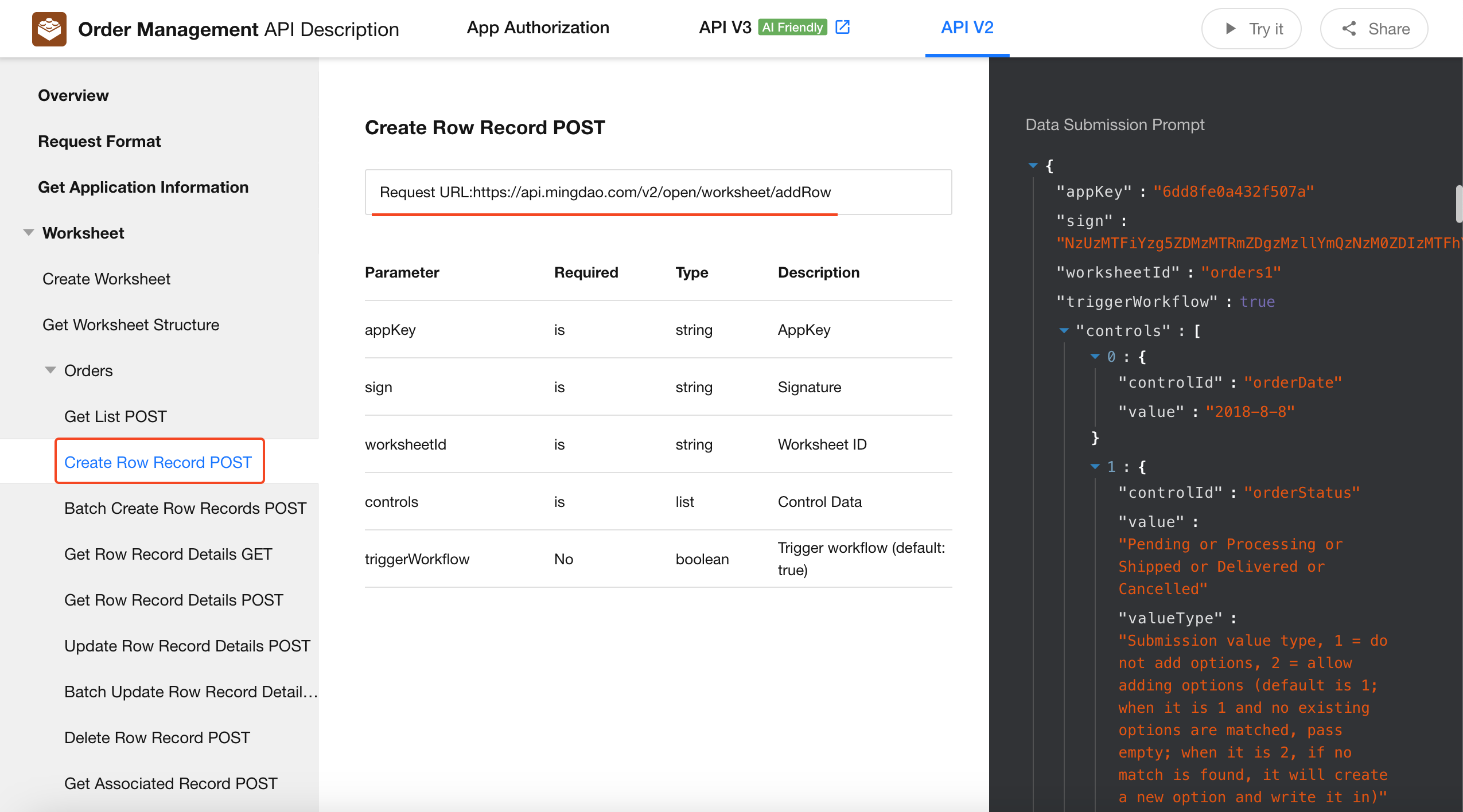
API Rules
-
Request URL:
https://api.mingdao.com/v2/open/worksheet/addRow -
Parameters:
The parametersappkey,sign,worksheetid,controls, andcontrolIdcan be reused directly from the values provided on the right side of the API documentation interface.
The parameter names are auto-generated based on the worksheet and should not be modified—only the parameter values need to be updated during testing.
Example Request Can be directly copied and used in testing.
{
  "appKey": "15d5b427b4bbf1b6",
  "sign": "ZDRjZDEzM2Q3YzUzMGI1ZDhjOWNhOWQ2MzFiZDkxNDY1NmYyZjBiYjE1YzYzZGMxNGU0MmNjZDA2NjJmYjViNA==",
  "worksheetId": "655c79654120176fa4758593",
  "controls": [
    {
      "controlId": "6426808e315e39d1e4dae83e",
      "value": "This is a test"
    },
    {
      "controlId": "5e0a02642134520001e19345",
      "value": "666.66"
    }
  ],
  "triggerWorkflow": true
}
Response Parameters & Example Output
{
    "data": "75f221fb-d645-4010-92cb-acced0c73cea",
    "success": true
}
Error Code Reference
| ErrorCode | Description |
|---|---|
| 0 | Failure |
| 1 | Success |
| 10001 | Missing parameter |
| 10002 | Invalid parameter value |
| 10005 | No permission to operate |
| 10007 | Record not found |
| 10101 | Missing API token |
| 10102 | Invalid signature |
| 99999 | Data operation error |
Simulate a Test
You can simulate writing external data using an online API testing tool.
Recommended tool: https://hoppscotch.io
You may also use other API clients.
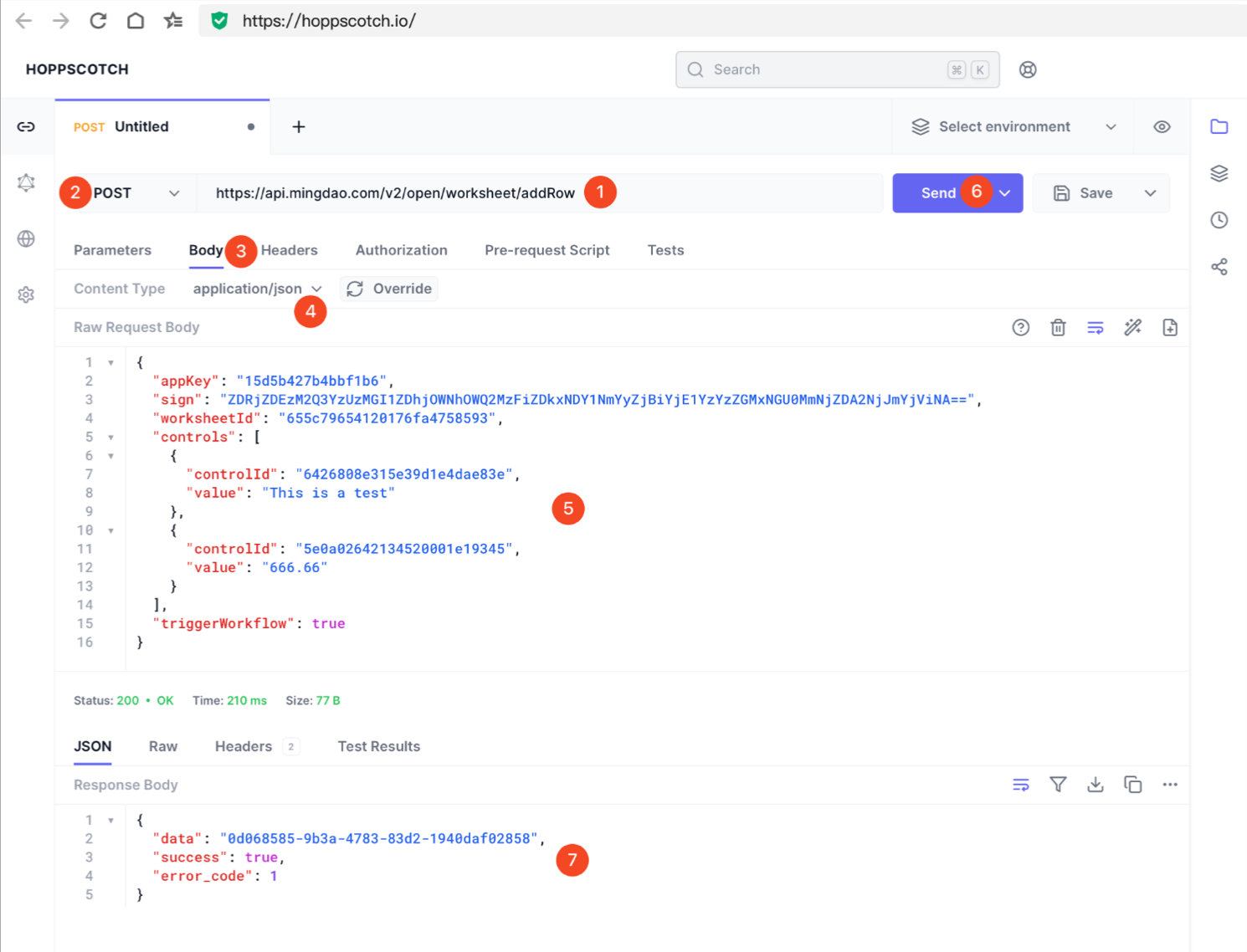
Steps:
- Paste the API request URL into the input field
- Choose the POST method
- Select the Body tab
- Set Content Type to
application/json - Paste the example request body into the editor
- Click the Send button
- If the response returns
"success": true, the record has been successfully written. You can refresh the worksheet to confirm—the record creator will appear as API.
How to Retrieve Required Parameters
During testing, you may need fixed values like the view ID or a record ID (rowId).
Record ID (rowId)
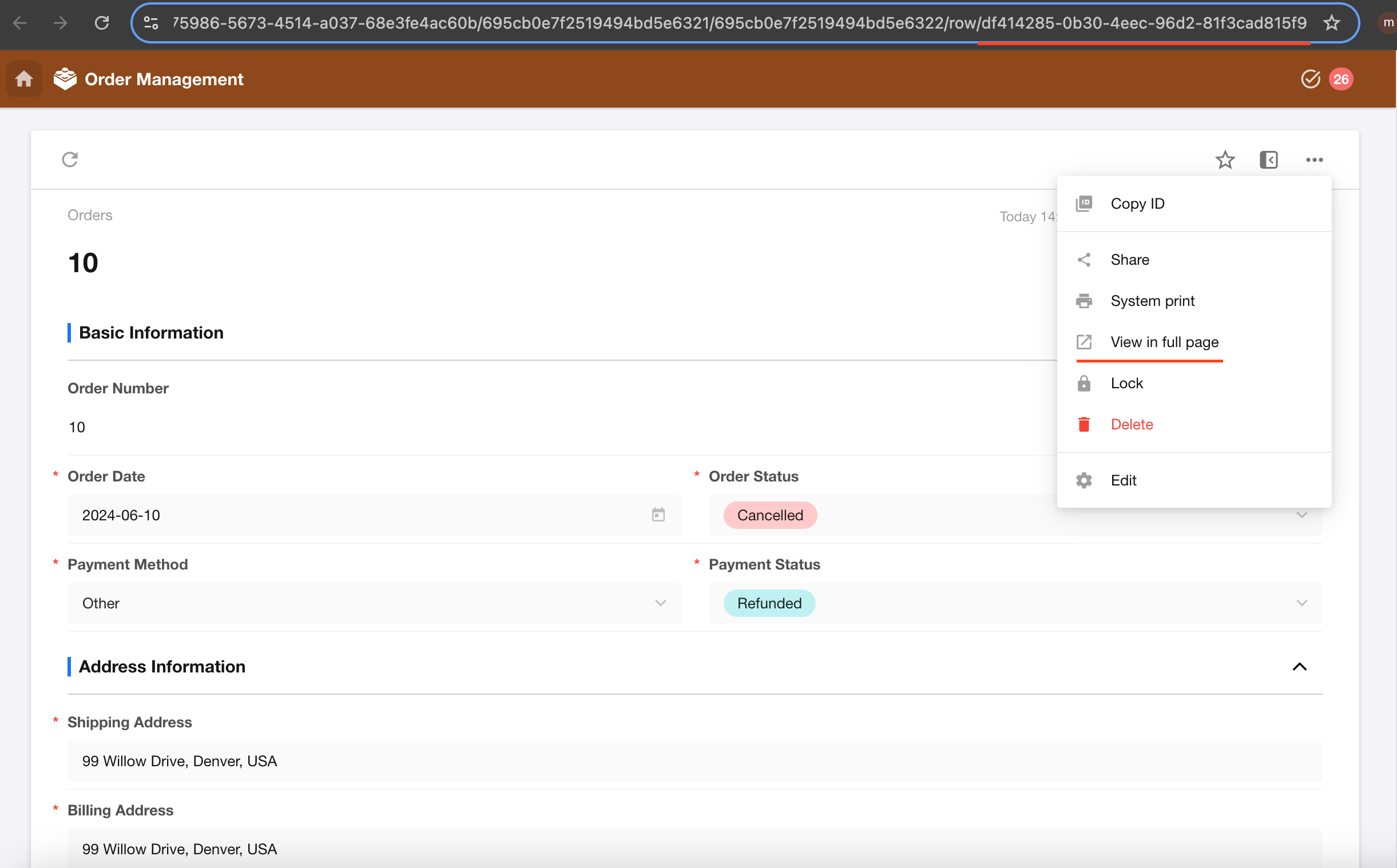
To get the rowId, open a record's detail page.
Navigate to the worksheet, locate the target record, then open it in a new tab. The value after row/ in the URL is the record ID.
For example, the record ID in the image below is: df414285-0b30-4eec-96d2-81f3cad815f9
View ID
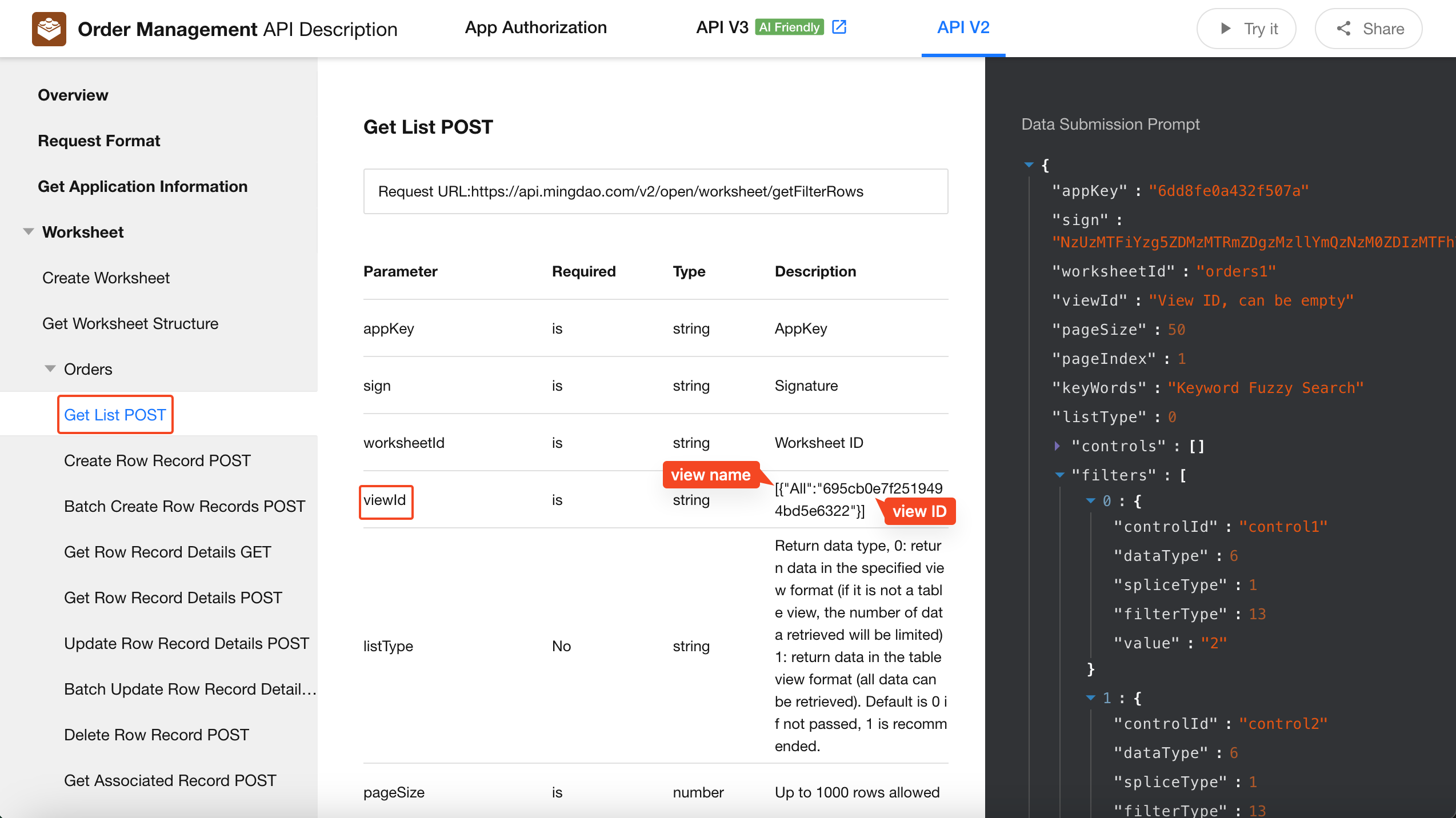
The view ID is required when using the API to retrieve record lists.
You can find view names and their corresponding IDs in the API documentation.
Was this document helpful?