Bulk Refresh Data
Bulk Refresh Data allows users to update historical records in bulk after configuration changes. It supports the following scenarios:
- Refresh calculated field results
- Update option order or assigned option values
- Refresh encrypted field values
- Refresh foreign field and rollup field results
- Refresh relationships between records
Path: Open the table view, select the records to refresh (supports Select All), click More > Calibrate Data, and choose the appropriate refresh type.
Only app administrators can use this feature.
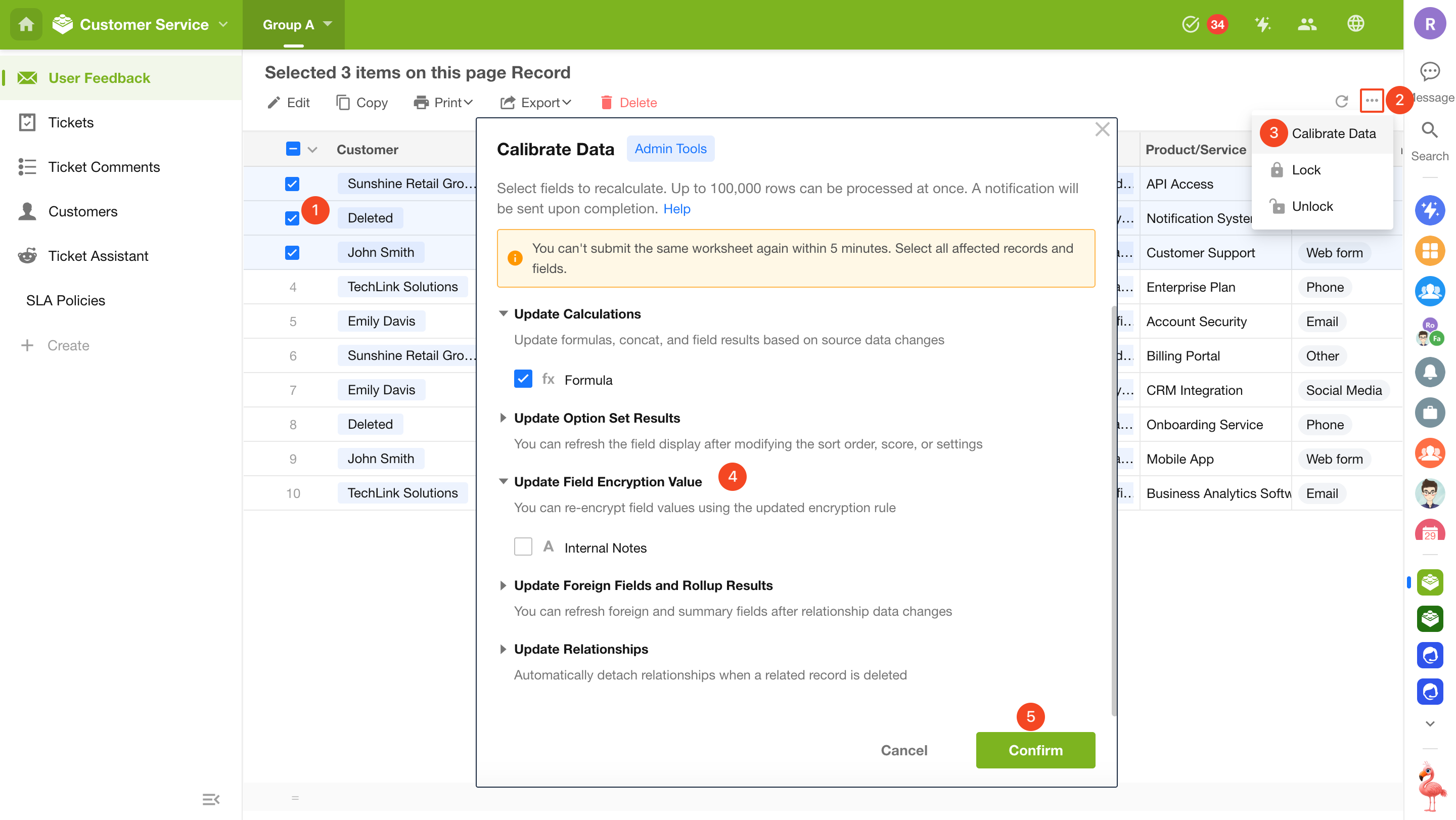
When should I refresh calculated field results?
When a worksheet contains more than 100,000 records, changes to certain field configurations do not automatically update historical records. In this case, you must manually refresh the calculation results.
For example, suppose a formula field is originally configured as:
Quantity × Unit Price
Later, the formula is updated to:
Quantity × Unit Price × Discount
- Fewer than 100,000 records: Existing records are recalculated automatically after the worksheet configuration is saved.
- More than 100,000 records: You must manually run Refresh Calculations.
The following field types require manual data refreshing:
- Formula
- Rollup
- Concat
- Foreign Field
Why do I need to refresh option order?
The system assigns a hidden sort index to each option to represent its position within a field. When a user selects an option, the record stores the corresponding index. Likewise, when records are sorted by option values in a view, the sort order is based on these stored indexes.
For example, the original options are:
| Option | Sort Index |
|---|---|
| A | 1 |
| B | 2 |
| C | 3 |
Later, new options A+, B+, and C+ are inserted, and the indexes are reassigned:
| Option | New Sort Index |
|---|---|
| A+ | 1 |
| A | 2 |
| B+ | 3 |
| B | 4 |
| C+ | 5 |
| C | 6 |
However, historical records still retain the original indexes. For example, a record that originally selected A still stores index 1 instead of the new index 2.
Therefore, after reordering options or adding new options, run Update Option Set Result to synchronize the stored indexes in historical records with the current option order.
Note: Updating option order is not supported for multi-select fields.
Why do I need to refresh assigned option values?
When the assigned value of an option is modified, historical records are not updated automatically.
This works much like changing the price of a product: the new price applies only to new records, while existing records retain their original values. Since the system cannot determine whether historical records should also be updated, an app administrator must perform the refresh manually.
After the refresh is complete, any Formula fields that reference assigned option values are recalculated automatically.
Why do I need to refresh encrypted field values?
When an encryption rule is updated, historical records continue to use the original encrypted values.
Run Update Encrypted Field Values to regenerate encrypted values for historical records based on the latest encryption rules, ensuring that all historical data complies with the current encryption configuration.
When should I refresh foreign field and rollup field?
The values of foreign fields and rollup fields depend on related records. If data in the related worksheet changes but the current worksheet has not yet been recalculated, you can refresh these values in bulk.
For example:
- The Customer Tier field in the Customers worksheet has been updated, but the corresponding foreign field in the Orders worksheet still displays the previous tier.
In this case, run Update Foreign Fields and Rollup Results to retrieve the latest values from related records and recalculate rollup results, ensuring that historical records remain synchronized with the current related data.
When should I refresh relationships between records?
When related records are deleted, imported, or otherwise modified, historical relationships may become invalid or inconsistent.
Run Update Relationships to revalidate relationships based on the current data and remove invalid references.
For example:
- A related record has been deleted, but the current record still contains an invalid relationship (displayed as Deleted).
- Relationship data needs to be rebuilt after a data migration or restoration.
Refreshing relationships ensures that relationships between records remain accurate and valid.
This operation only updates relationships. It does not modify any field values in the records.
Limitations
-
Refresh interval: After a bulk refresh is completed, you must wait 120 minutes before running another refresh on the same worksheet.
-
Record limit: A maximum of 100,000 records can be refreshed in a single operation. It is recommended to use filters to limit the selected records to fewer than 100,000. If more than 100,000 records are selected, only the earliest 100,000 records by creation time are processed.
Was this document helpful?