Data Filtering
Data filtering is used in various scenarios such as custom filters in worksheets, view-based filtering, and conditions within workflow trigger nodes and branch nodes. This guide explains how to use data filtering effectively.
Field Types
Different field types support different filtering methods. Filtering behavior is generally consistent across the same field types. Field types include:
-
Text fields: Text, Telephone, Email, ID Number, Concat, Auto-number
-
Numeric fields: Number, Currency, Formula, Rollup
-
Single-select fields: Single-select, Region/City, Level, Members (single), Department (single), Org-roles (single), Relationship (single)
-
Single-select fields (2 options only): File (Yes/No), Check item (Checked/Unchecked, On/Off, Yes/No), Positioning (Empty/Not Empty), Signature (Yes/No), Subform (Empty/Not Empty)
-
Multi-select fields: Multi-select, Members (multi), Department (multi), Org-roles (multi), Relationship (multi)
-
Date fields: Time, Date, Date/Time
-
Relationship: Realted worksheet
Filtering Rules
1. Support for multiple conditions/condition groups
-
Multi-field Conditions
Example: Two or more field conditions are included.
-
Condition 1: "Department equals Sales"
-
Condition 2: "Amount is greater than 5000"
You can define the relationship between them as AND or OR.

-
-
Condition Groups
Condition groups allow sets of conditions to be grouped. Records matching any group will be returned.

2. Is Empty/Is Not Empty
All field types support filtering by whether the field is empty or not.
-
Fields with a value are Not Empty
-
Fields without a value are Empty
For example:
-
“No file” and an “Unchecked” checkbox are treated as Empty.

Note: If a numeric field has a value of
0, it is not considered empty.
3. Text Field Filtering
- Equals/Not Equals – Exact match
- Include/Not Include – Partial match
- All Include – All keywords must be present in the text
- Starts With/Not Start With – Matches beginning of the text
- Ends With/Not End With – Matches ending of the text
4. Date Field Filtering
-
Equals/Not Equals – Match a specific date (e.g., created today).
Even if the date field includes time, only the date is evaluated when setting "Equals Today".

-
Before/After – Exclusive of the selected date
-
On or Before/On or After – Inclusive of the selected date
-
In Range – Inclusive of both start and end dates
-
Out Of Range – Exclusive of both start and end dates
Differences Between Date and Date/Time Fields Filtering
-
Supports hierarchical matching
Example: A Date/Time field displays
2022-09-23 10:00:00. If today is2022-09-23:- Filter: "Equals Today" → Record is matched
- Filter: "Equals This Month" → Record is matched
-
Filter precision depends on the display format
If the field displays
YYYY-MM-DD, you can only filter by Day.
If the field displaysYYYY-MM-DD HH:mm:ss, filtering supports down to Second.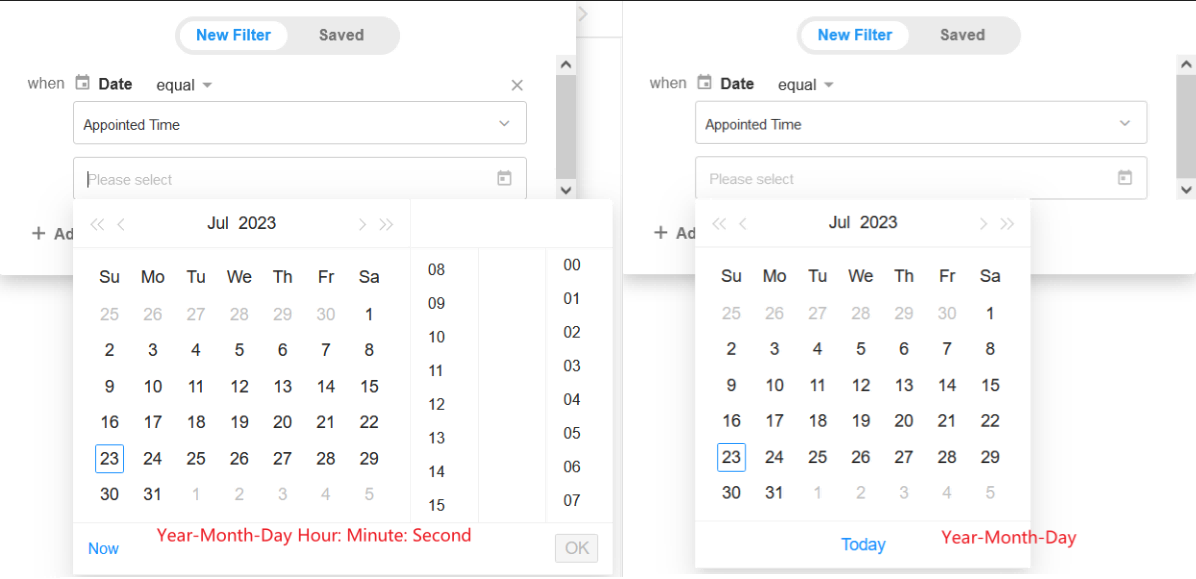
5. Single-Select Field Filtering
Supported options: Equals, Not Equals, Is One Of, Is Not Any Of
Examples:
-
Equals/Not Equals – Exact match
-
Is One Of – Match any selected option
-
Is Not Any Of – Exclude all selected options


Note:
- “Is One Of” and “Is Not Any Of” allow multiple fixed values
- “Equals” and “Not Equals” allow only one value
6. Multi-Select Field Filtering
Supported options: Equals, Not Equals, Is Any Of, Is None Of, Also Includes
- Equals/Not Equals – Must exactly match the selected set
- Is Any Of – Match if any of the selected options are chosen
- Is None Of – Exclude records that contain any selected options
- Also Includes – Record must contain all selected values, may include others

7. Department/Region/City Field Filtering
Example org structure:

-
Belongs To/Not Belong To
- Example 1: "Department belongs to Sales" → Includes Sales and all sub-departments
- Example 2: "Department belongs to [Sales, Product]" → Includes all records in Sales/Product and their sub-departments
-
's Subordinate Contain/'s Subordinate Not Contain:
-
Example 1: Department's subordinate contains North China
North China's superior departments are the Sales Department and the North China. Records with these two departments selected will be queried.
-
Example 2: Department's subordinate contains "North China, Product
The superior departments for North China are Sales and North China, and the superior department for Product is only the Product Department. The records with these three departments selected will be queried.
-
Department hierarchy is managed by the organization admin in “User & Department" section on the organization management page.
8. Relationship Field Filtering
-
Equals Record ID
Example: to query contacts related to a specific customer, use the filter:

9. Number/Currency/Formula/Rollup Field Filtering
-
Within Range – Inclusive of the boundary values
e.g.,
1 to 3returns{1, 2, 3} -
Outside Range – Exclusive of the boundary values
e.g.,
Not in 1 to 3returns{..., -1, 0, 4, 5, ...}
Was this document helpful?