Management and Monitoring of All Workflows
Super administrators can manage all workflows across the organization's applications, view workflow execution counts, and monitor the current status. To access the management page, the super administrator should click their profile picture, go to [Org Admin] > [App Management] > [Workflow].
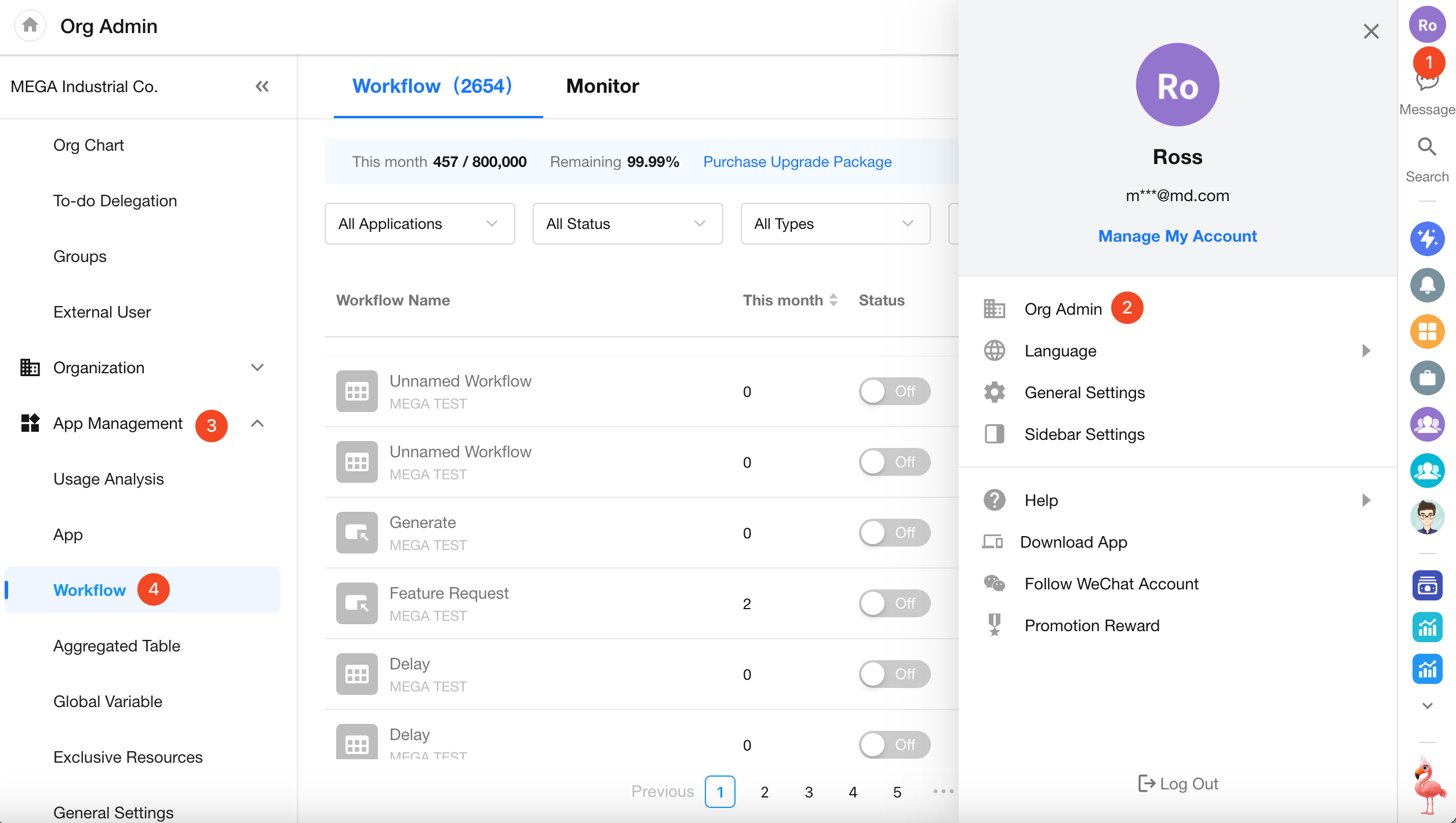
1. Workflow List
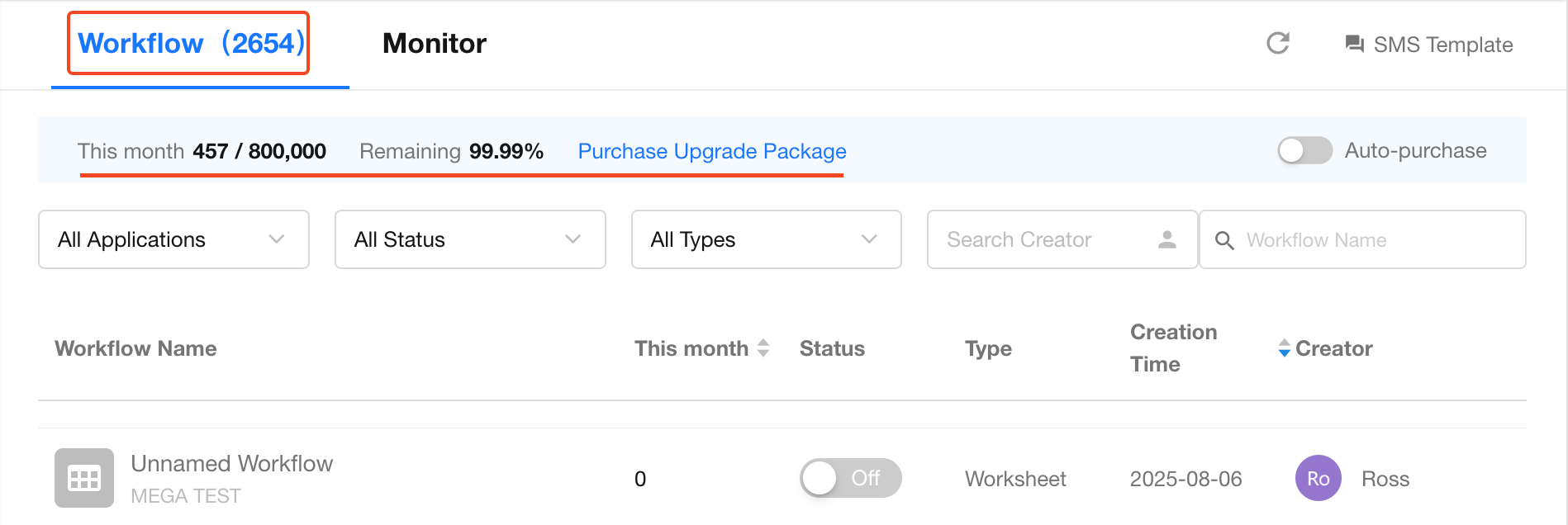
Data
In the "Workflow" module, you can view the workflows in the organization, as well as the execution count for all workflows in the current month. If the current month's workflow executions are insufficient, you can purchase an expansion package.
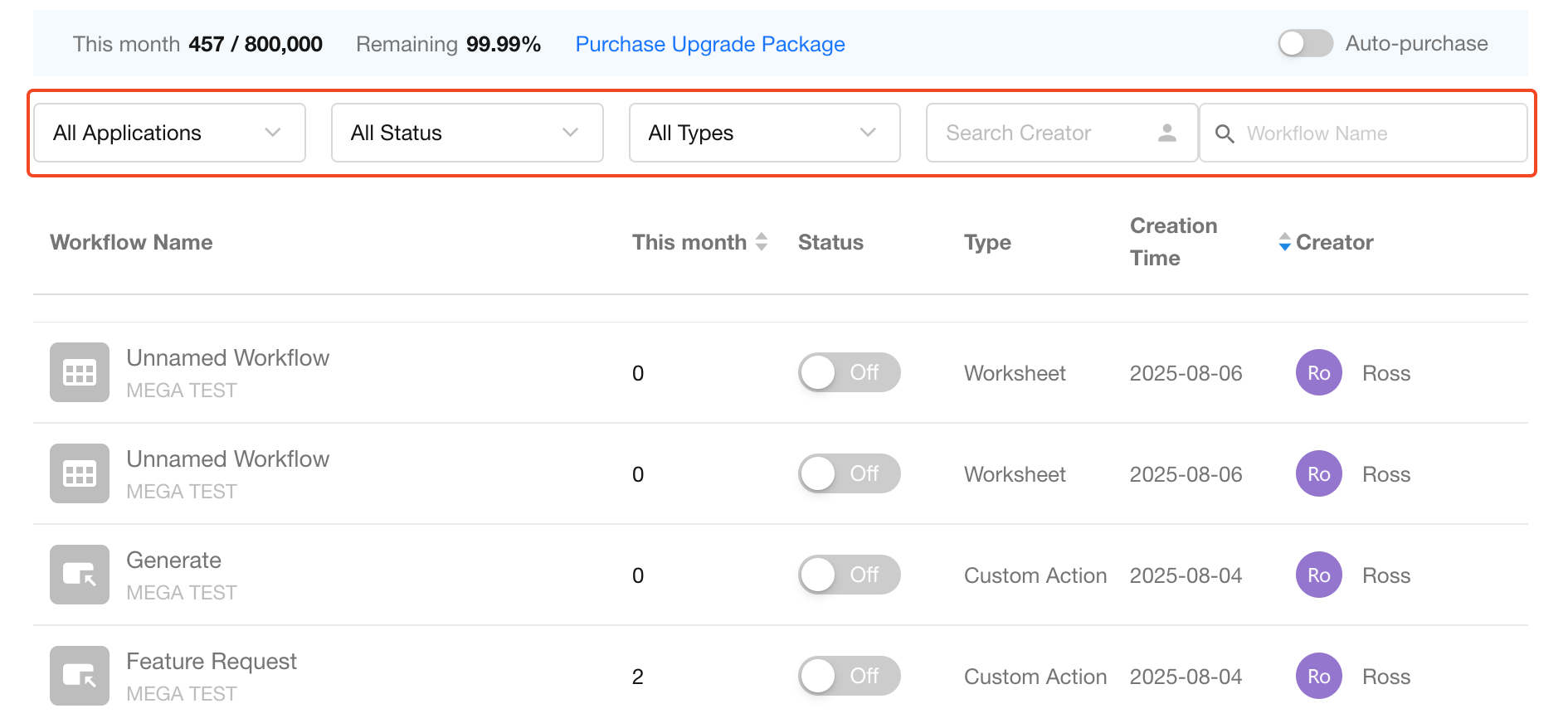
Filtering and Searching
Use filters and search to quickly locate the target workflow.
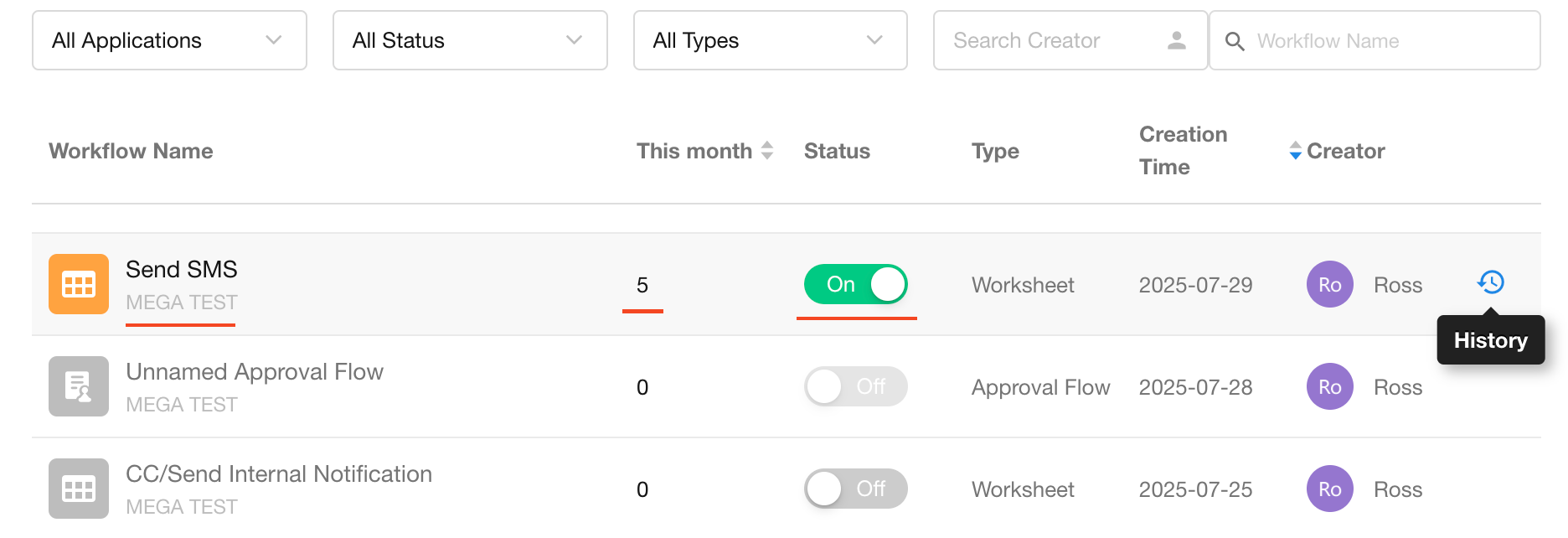
Workflow Operations
For individual workflows, you can enable or disable them, view the workflow's historical runs, and check the execution count for the current month. Workflow creators cannot transfer ownership. Click on the workflow name to view the workflow configuration.
2. Workflow Monitoring
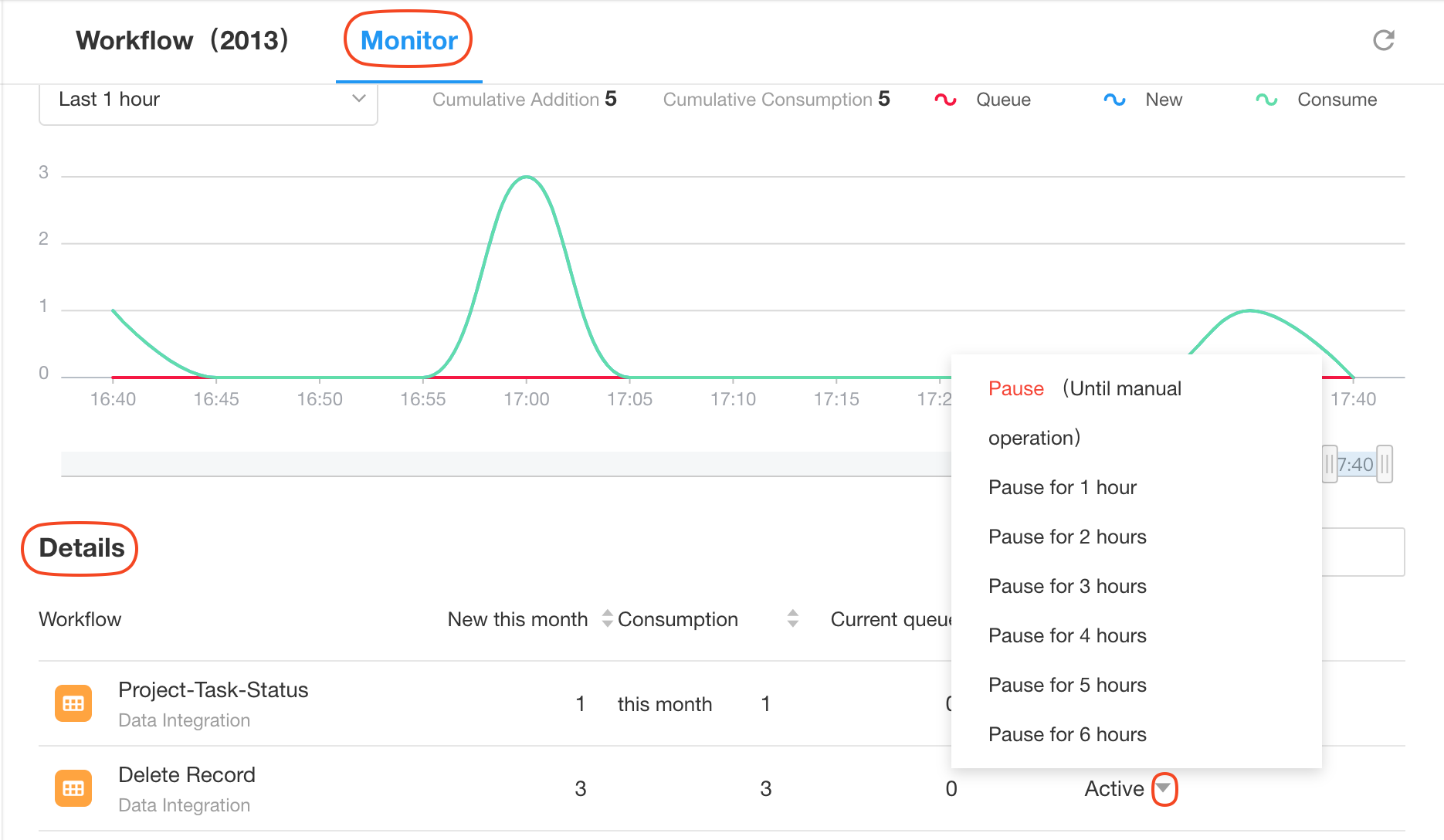
Within the Monitor module, you can view both real-time and historical workflow execution metrics across the entire organization. When abnormal execution behavior is detected for a specific workflow, you can pause its execution or configure an alert threshold for queued workflows.
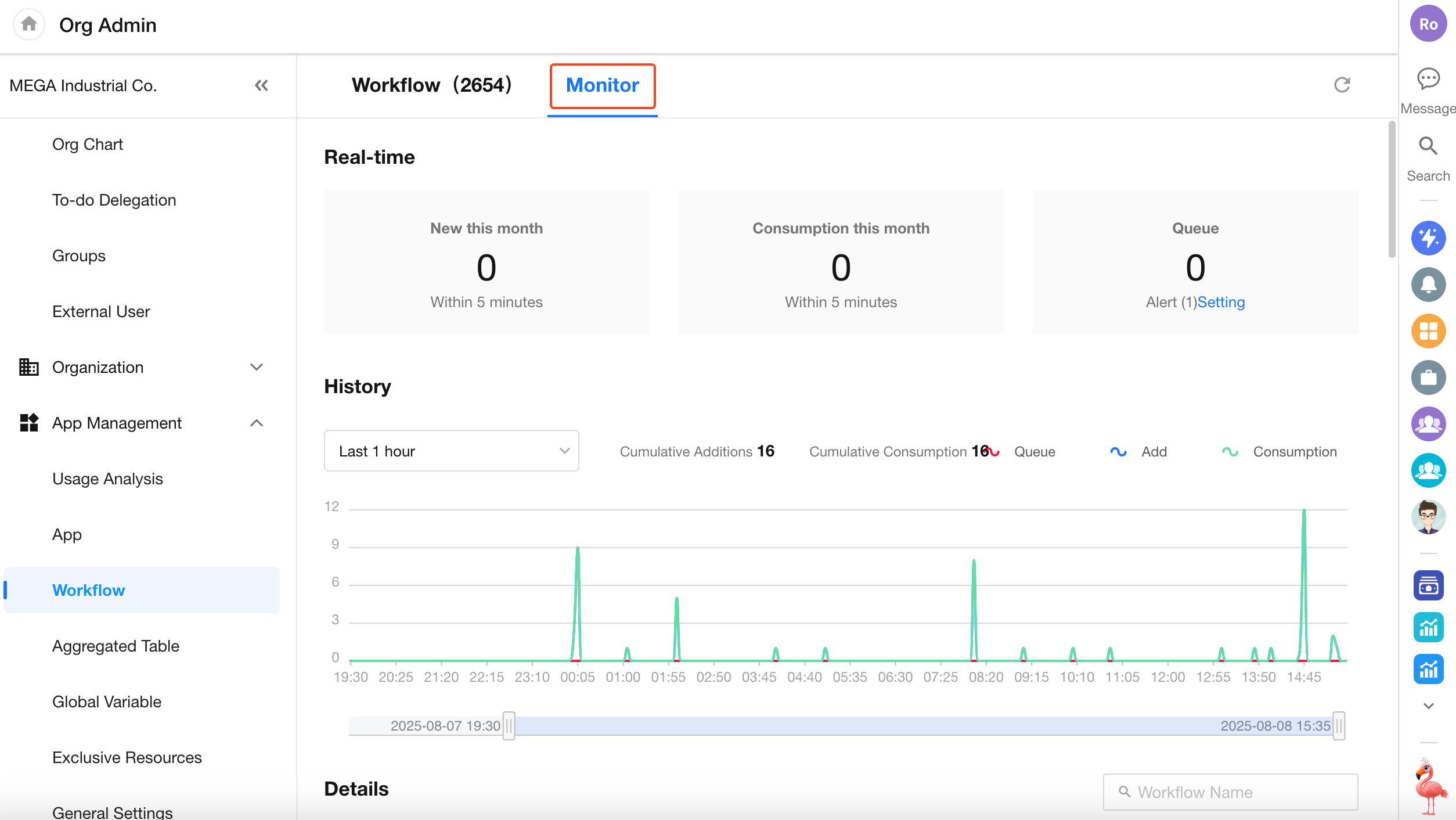
Real-Time Status
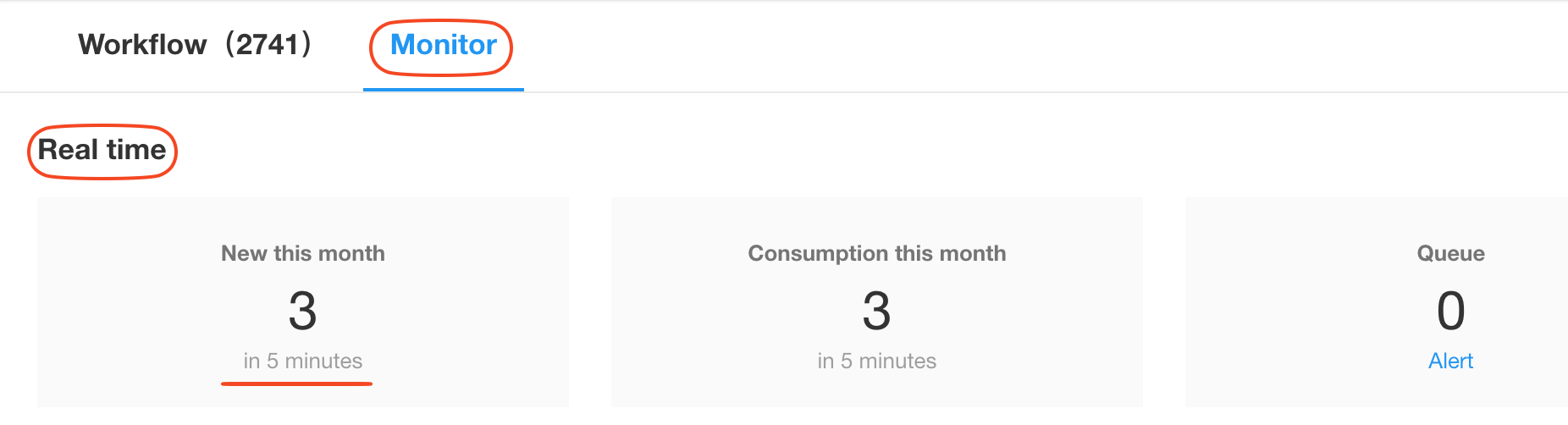
You can monitor workflow volume in the following three dimensions:
-
Workflows currently queued for execution
Workflows may enter a queue due to limited service resources or exceptions in specific workflows.
-
Workflows newly triggered within the last 5 minutes
This metric indicates how many workflows have been added for execution in the last 5 minutes.
-
Workflows consumed (executed) within the last 5 minutes
This reflects the number of workflows that were actually processed and completed.
Note: The number of newly added workflows may not always be higher than the number of consumed workflows. For example, if 1,000 workflows were triggered 5 minutes ago and 500 have been executed, then the system has consumed 500 workflows. If another 300 are triggered and immediately executed, then the system has added 300 and consumed 800 workflows in the last 5 minutes.
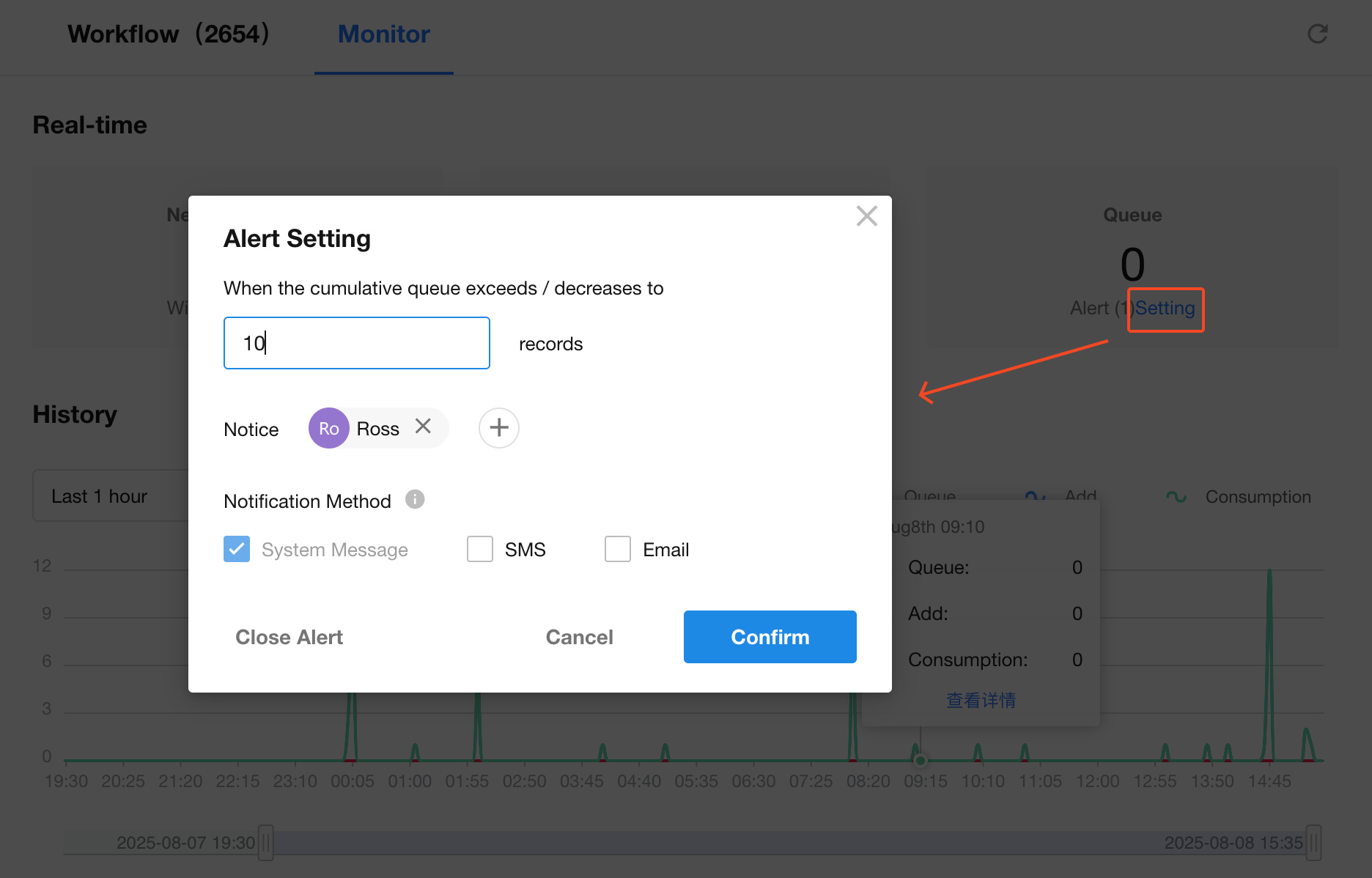
Workflow Queue Alert
You can configure an alert threshold. When the number of queued workflows reaches or falls below this threshold, designated users will be notified.
Historical Execution
This section allows you to review workflow execution over a selected time range, which is helpful for troubleshooting and performance analysis.

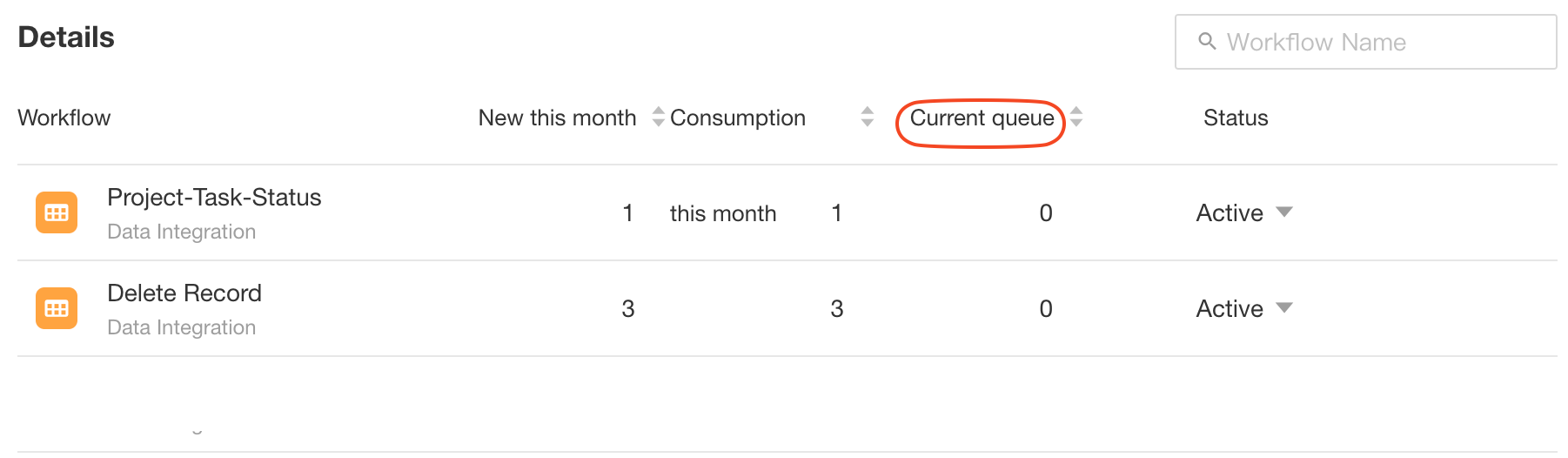
Execution Details
In this section, you can inspect and manage execution records for each individual workflow.
View Queue Duration
Monitor how long each workflow has been waiting in the queue before execution.
Pause Workflow Execution
When a workflow experiences abnormal behavior that impacts others and causes queue congestion, you can temporarily pause it. This allows the system to clear queued workflows before resuming the paused one.
You can either specify a pause duration (after which it will resume automatically) or choose manual resume.
Pausing a workflow only delays its execution. Queued workflows will resume when the workflow is re-enabled. Any workflows triggered during the pause will also wait for resumption.
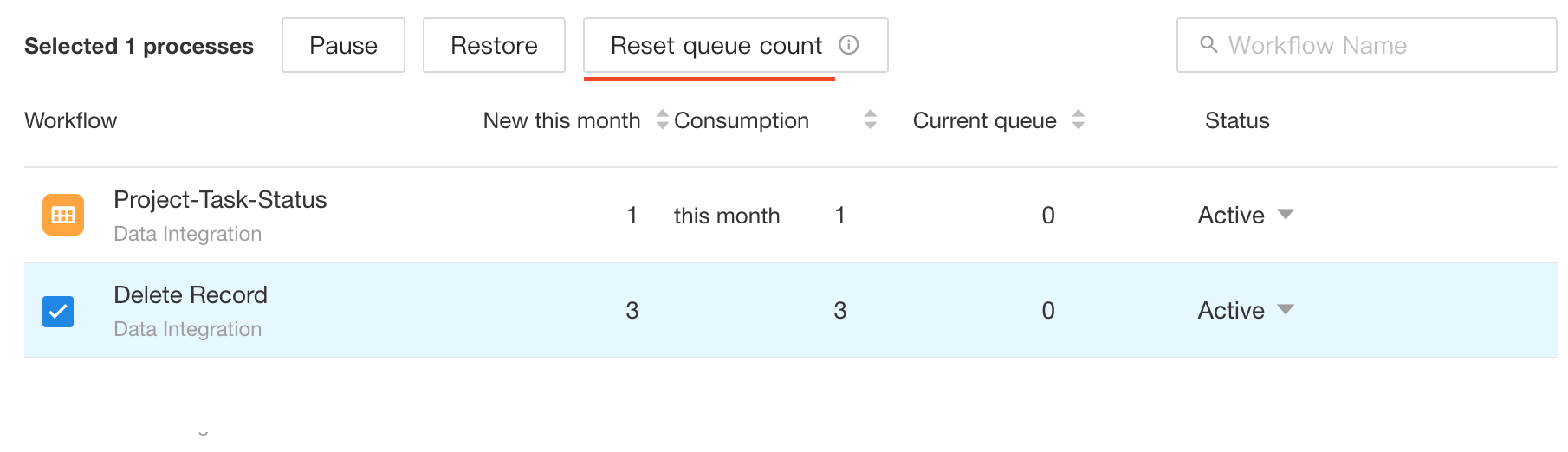
Batch Operations
You can pause or resume workflows in bulk.

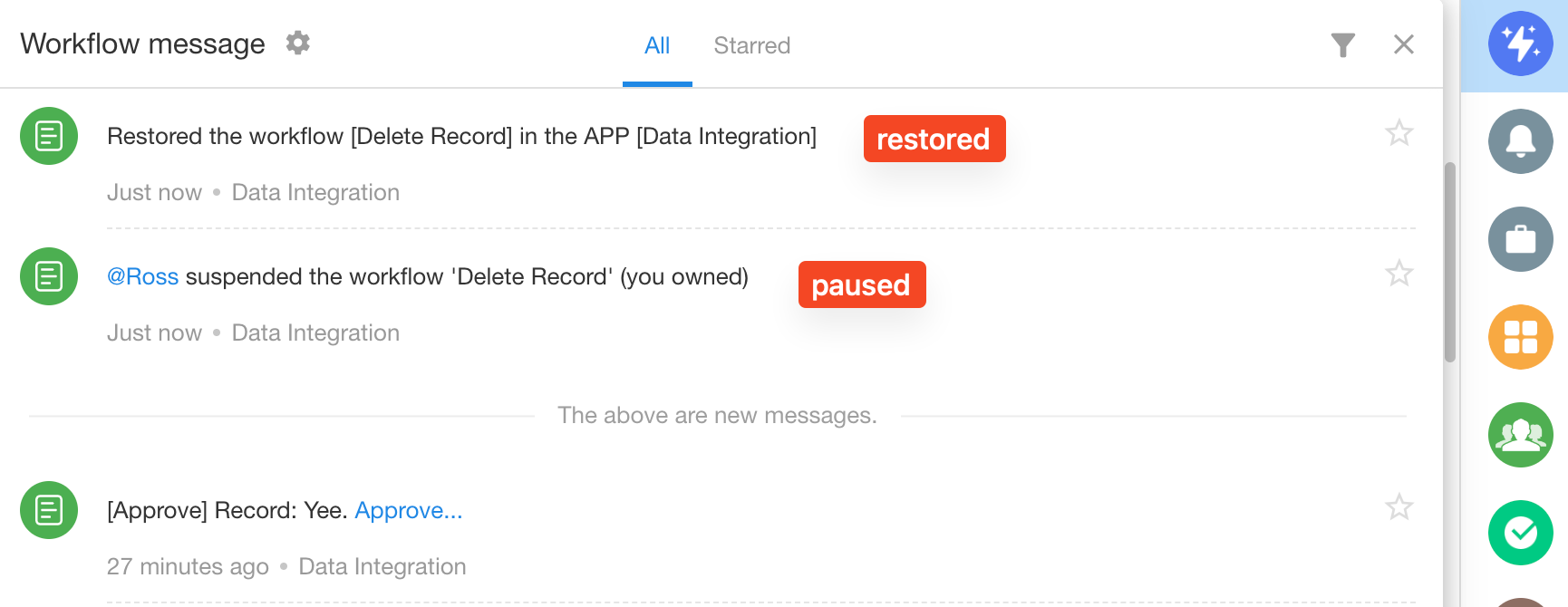
Notifications for Pause/Resume
When a workflow is paused or resumed, the designated System Error Notifier for that workflow will receive a notification message, such as:
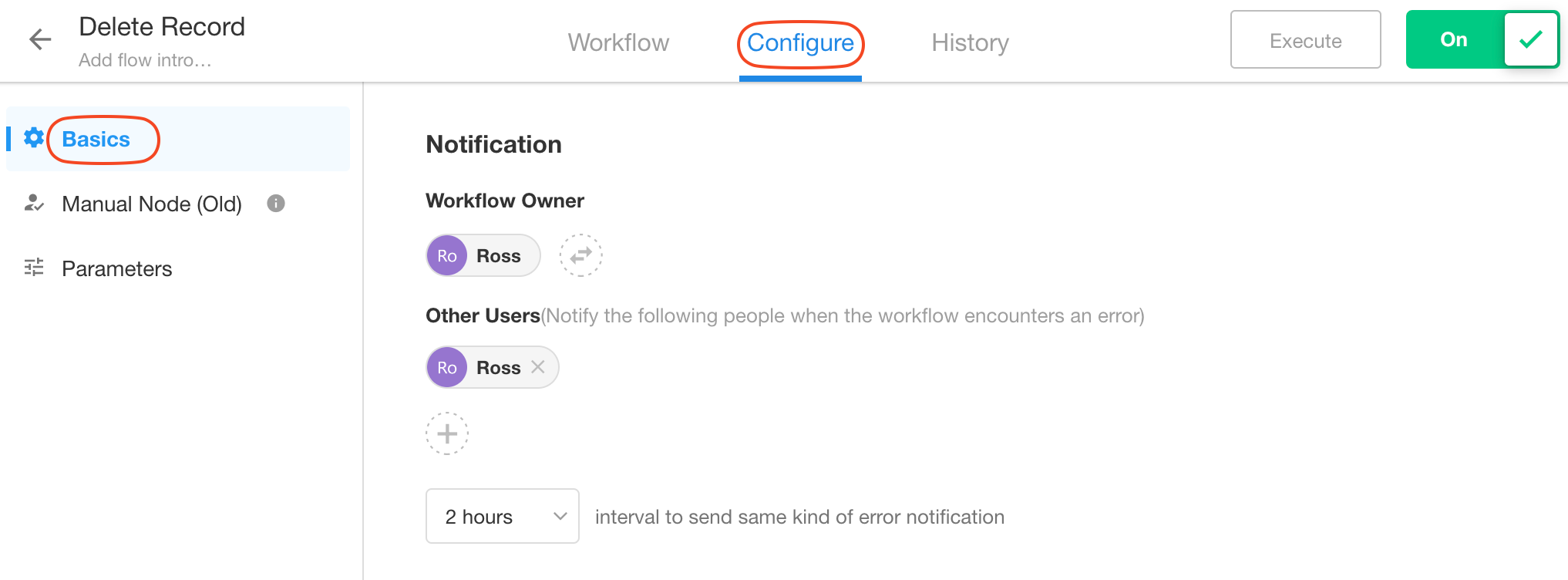
How to Add a System Error Notifier?
Application admins can assign error notifiers within the workflow configuration settings.
Reset Queue Count
Occasionally, long-running monitoring may lead to inaccurate queue counts. Use this option to reset the count to zero. Batch operations are supported.
Was this document helpful?