Global Workflow Settings
The workflow Configuration page contains configuration options that apply to the entire workflow. These settings cover three areas: basic workflow settings, manual node settings, and workflow parameters.
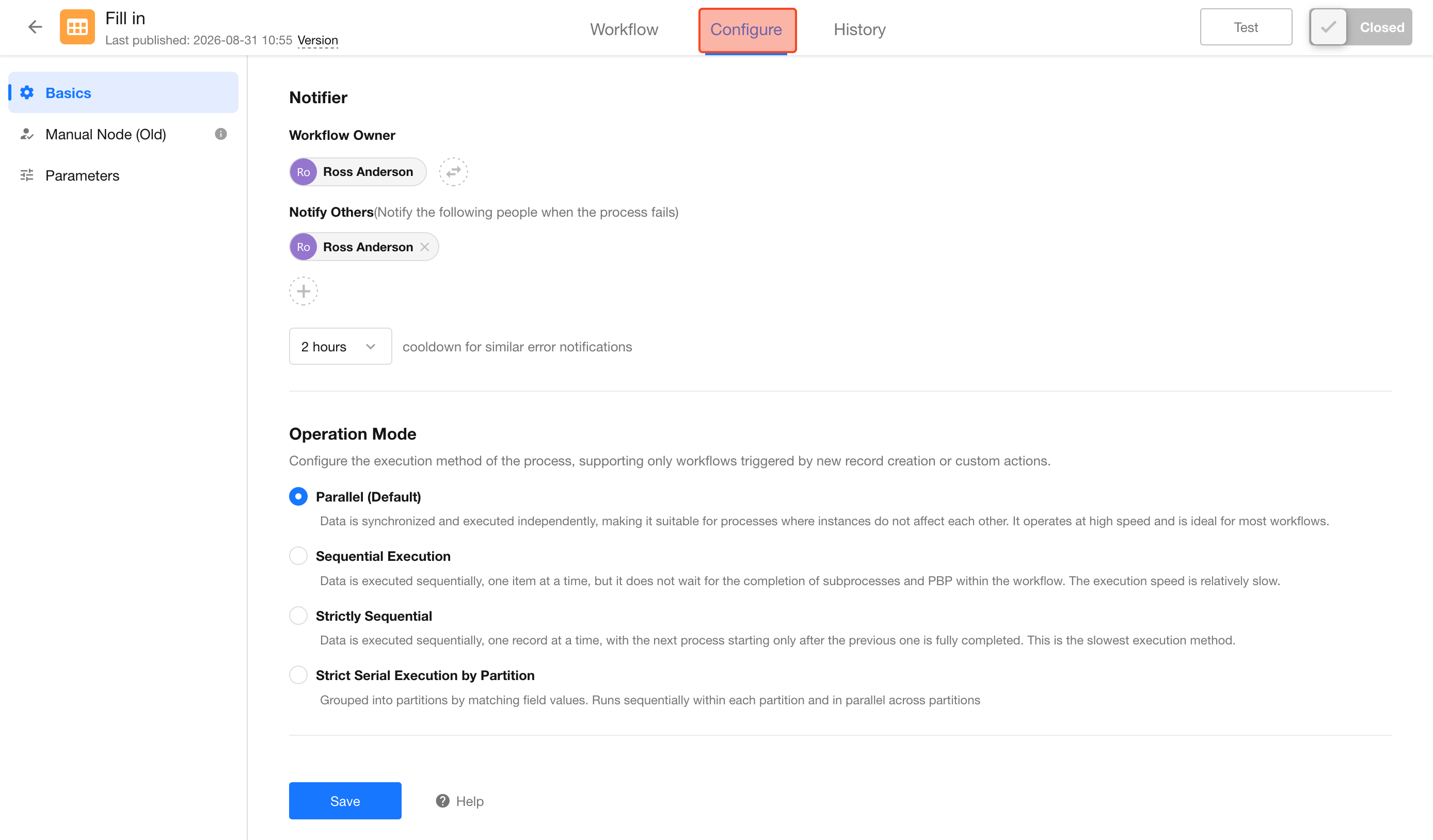
1. Basic Workflow Settings
Workflow Error Notifications
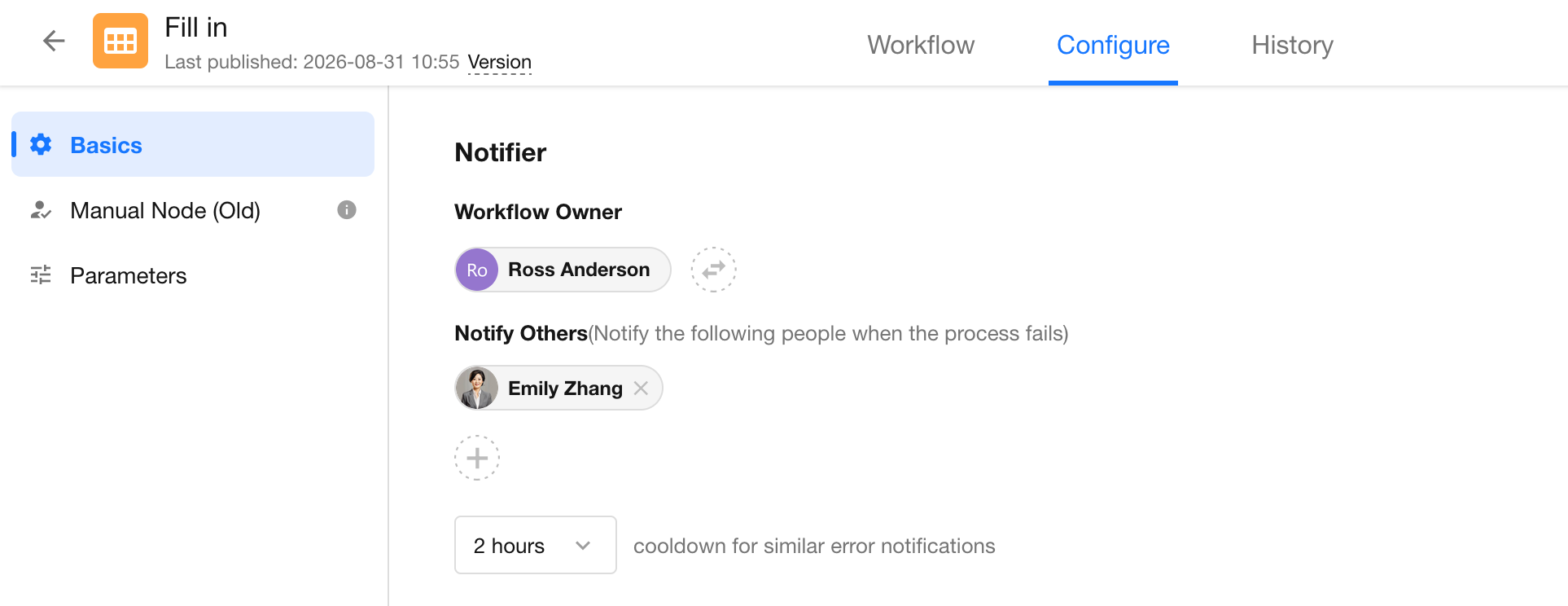
When a workflow encounters an error, HAP can notify the workflow owner and other specified members. You can also suppress repeated notifications for the same error within a specified period.
-
Workflow Owner
By default, the user who creates the workflow is its owner. The owner can be changed, but each workflow can have only one owner.
-
Notify Additional Members
The workflow owner is always notified. You can also select additional members to receive error notifications.
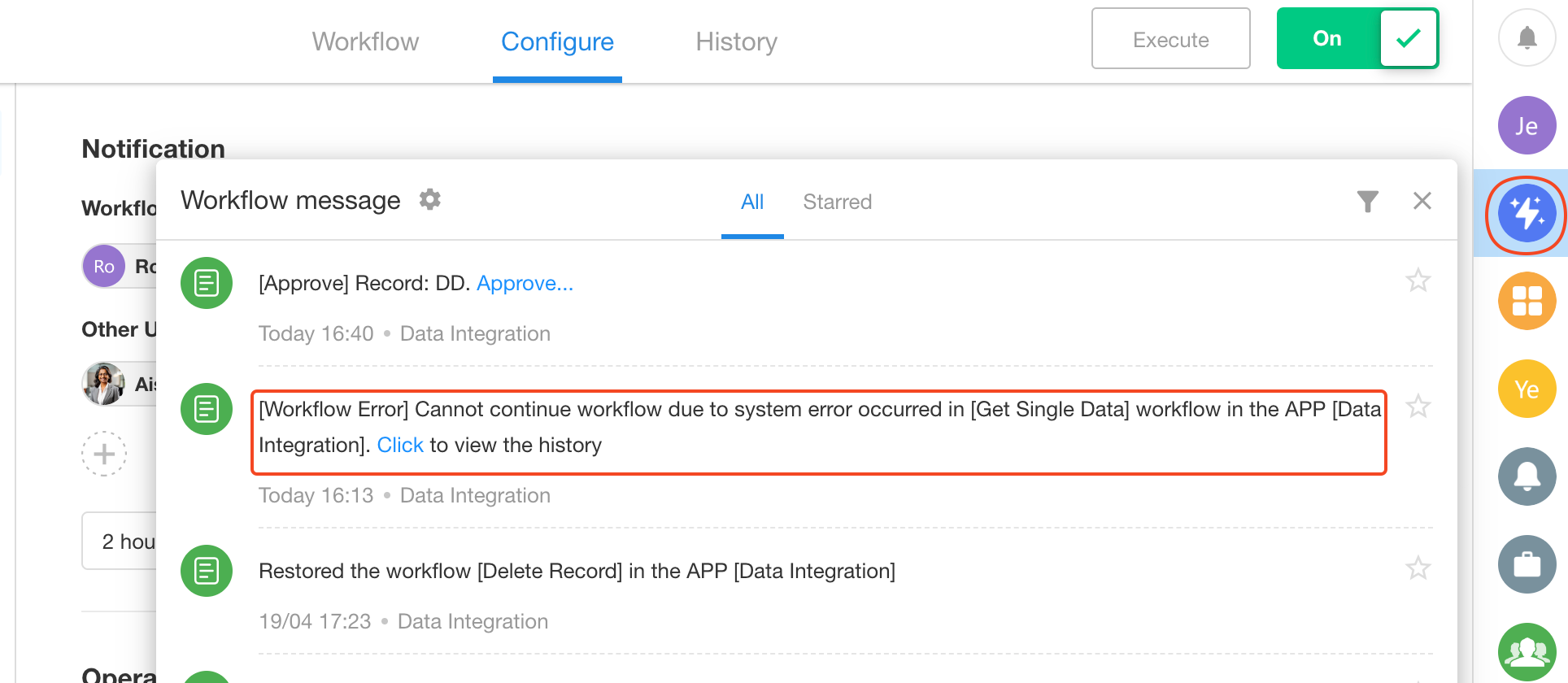
Example notification:
Operation Mode
Bulk operations can trigger multiple instances of the same workflow at nearly the same time. For example, importing 100 records from Excel may trigger 100 workflow instances.
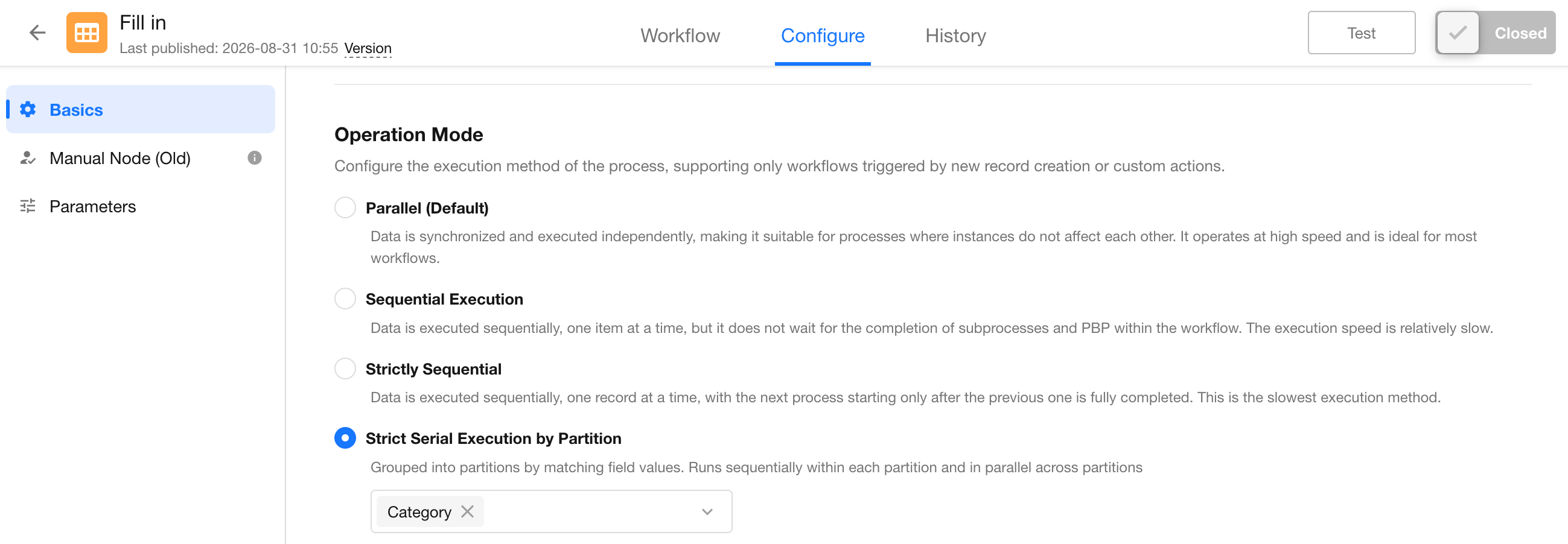
When multiple instances need to be processed, you can choose from four execution modes based on how those instances should be queued and processed:
- Parallel
- Sequential
- Strictly Sequential
- Strict Serial Execution by Partition
The main differences are whether workflow instances are queued and whether the next instance must wait for the previous one to finish completely.
Workflow Types That Support Execution Mode Settings
Execution mode can be configured only for the following workflow types:
-
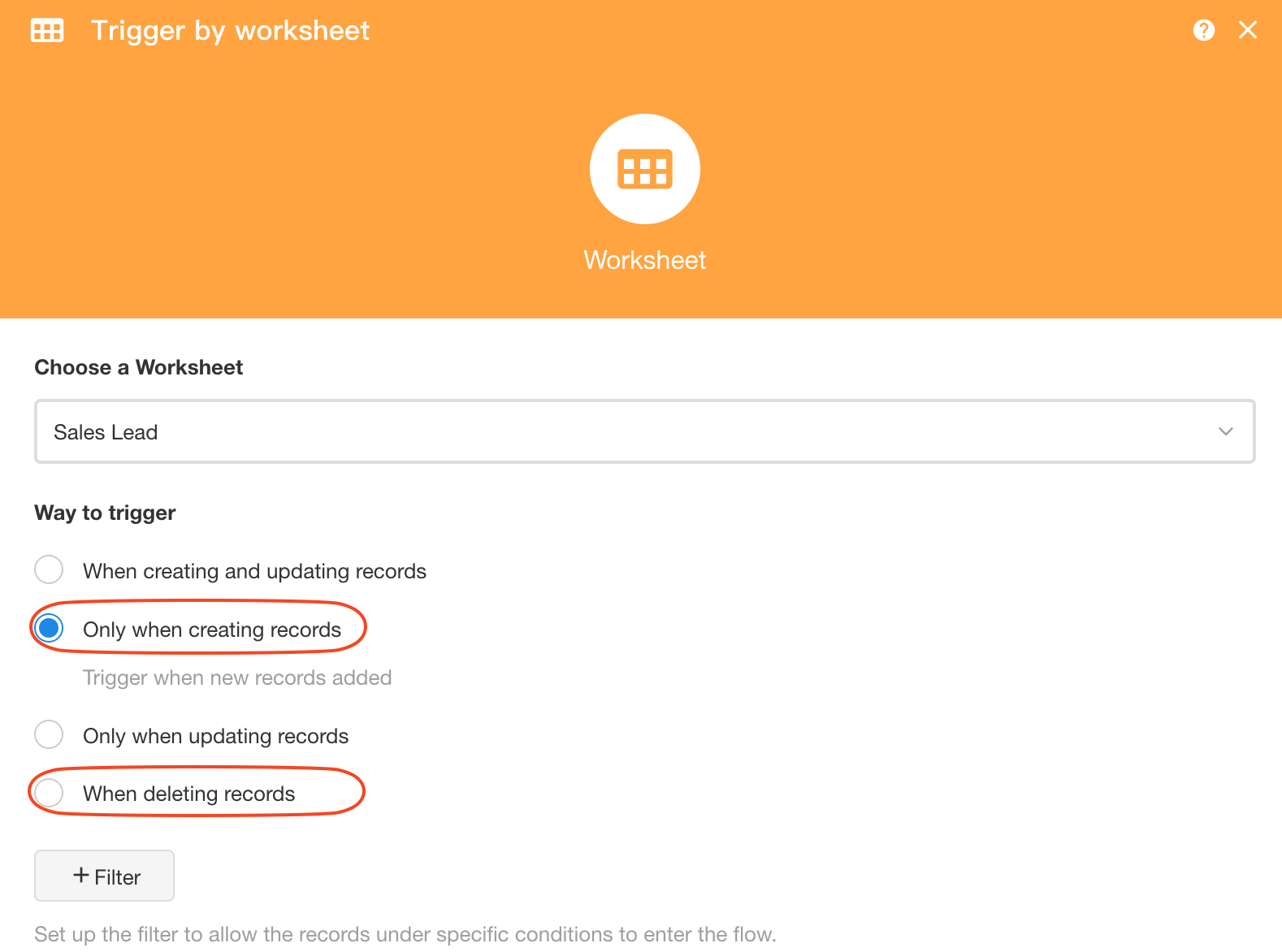
Workflows triggered when a record is created only or when a record is deleted
These workflows are commonly triggered by bulk record creation, import, or deletion. For example, importing 100 records may trigger 100 workflow instances at nearly the same time.
-
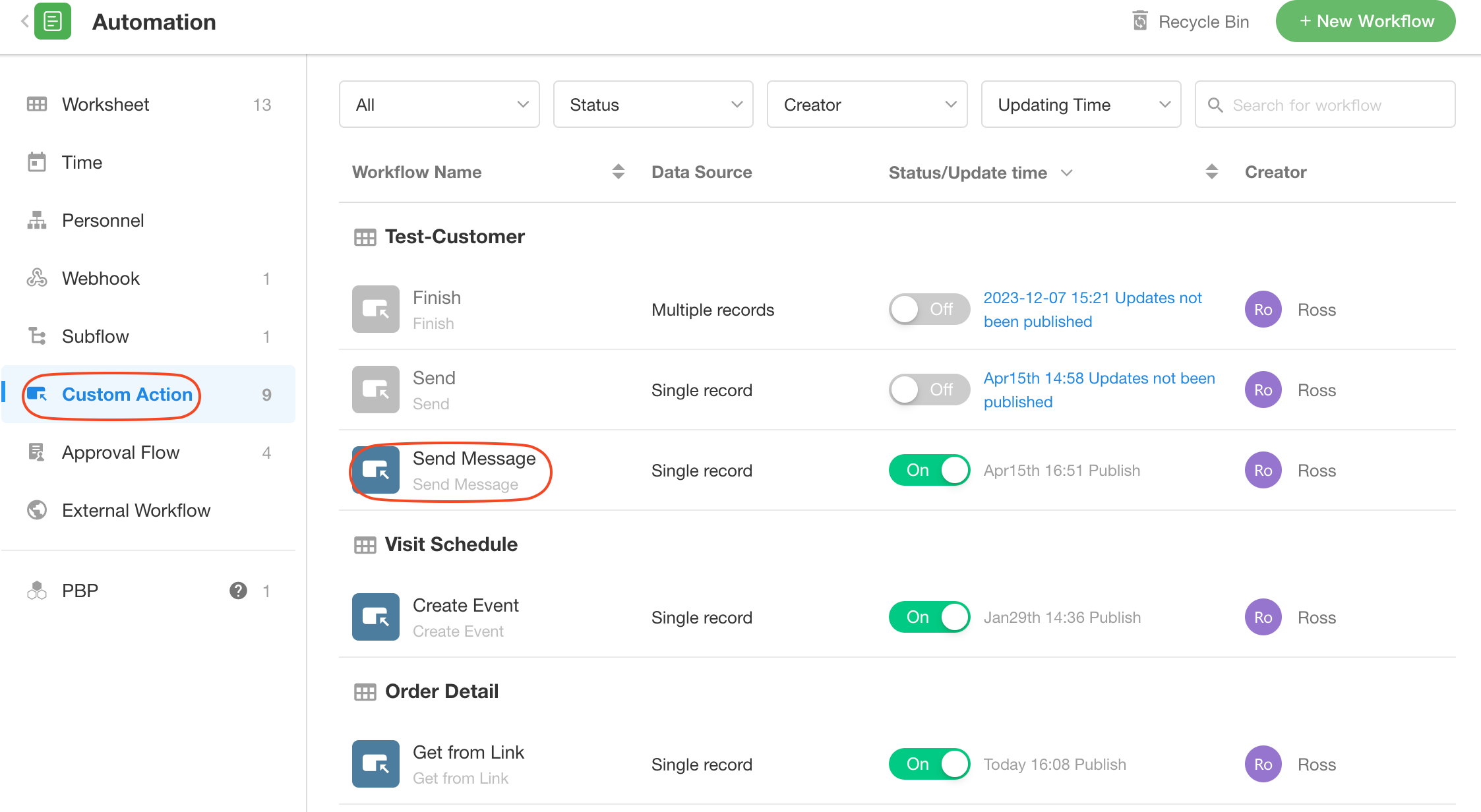
Workflows triggered by a custom action
These workflows are commonly used when multiple records are selected and a custom action is run in bulk.
All other workflow trigger types use Parallel execution, and their execution mode cannot be changed.
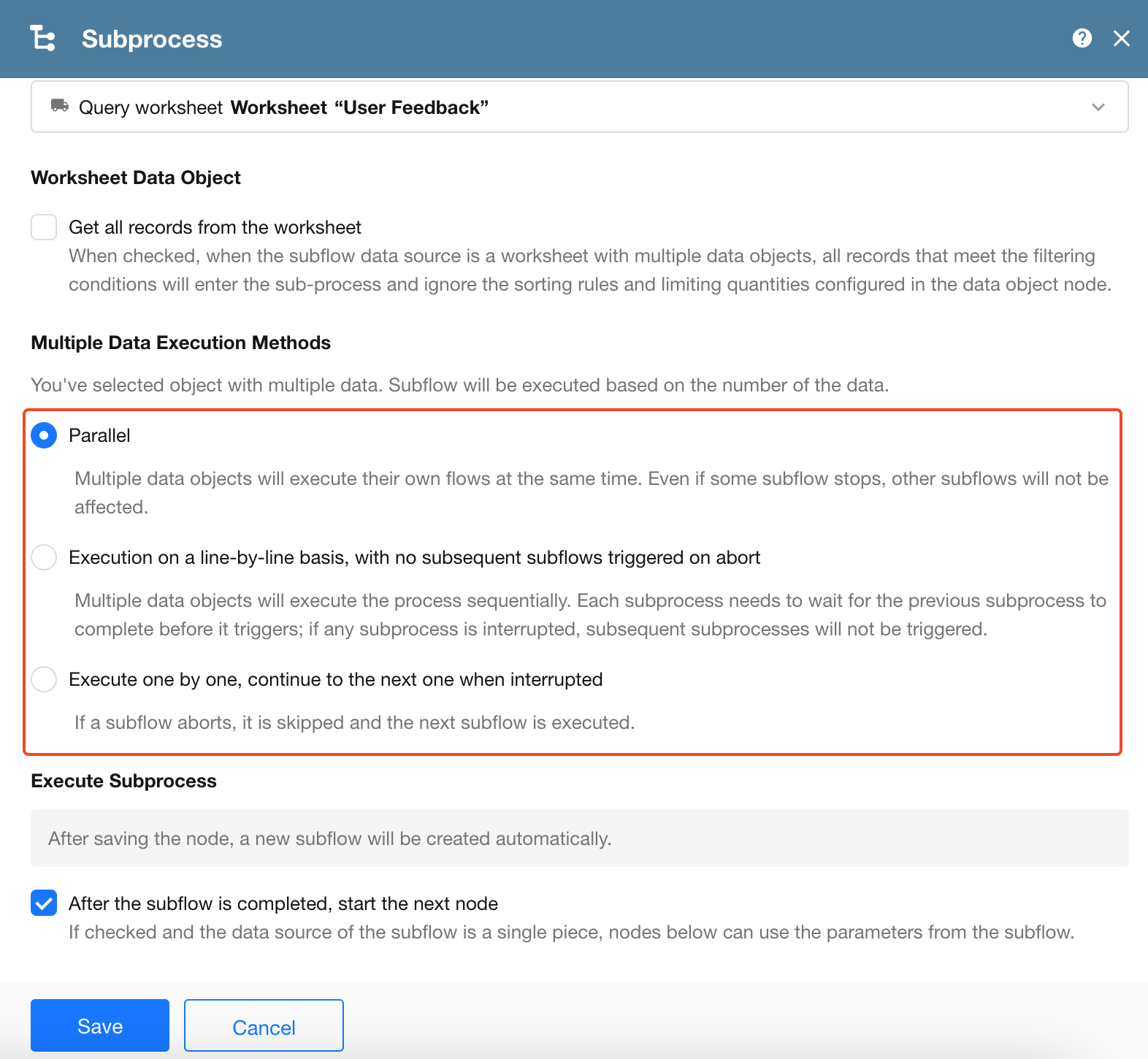
For subprocesses and packaged business processes, the execution mode is determined by the settings of the corresponding subprocess node or packaged business process node.
The four execution modes work as follows:
| Execution Mode | How Instances Run | Wait for Previous Instance to Finish Completely | Across Different Business Objects |
|---|---|---|---|
| Parallel | Run concurrently | Not applicable | Run concurrently |
| Sequential | Start one by one in order | Not always | Share a single queue |
| Strictly Sequential | Run one by one in order | Yes | Share a single queue |
| Strict Serial Execution by Partition | Run one by one within each partition | Yes | Different partitions run concurrently |
The key difference between Sequential and Strictly Sequential is whether the next instance must wait for the previous one to finish completely. With Sequential execution, the next instance may start before the previous one finishes. With Strictly Sequential execution, it cannot.
Parallel
With Parallel execution, multiple workflow instances run concurrently. Execution order is not guaranteed.
This mode provides the highest throughput and is best suited to workflows that do not depend on or affect one another.
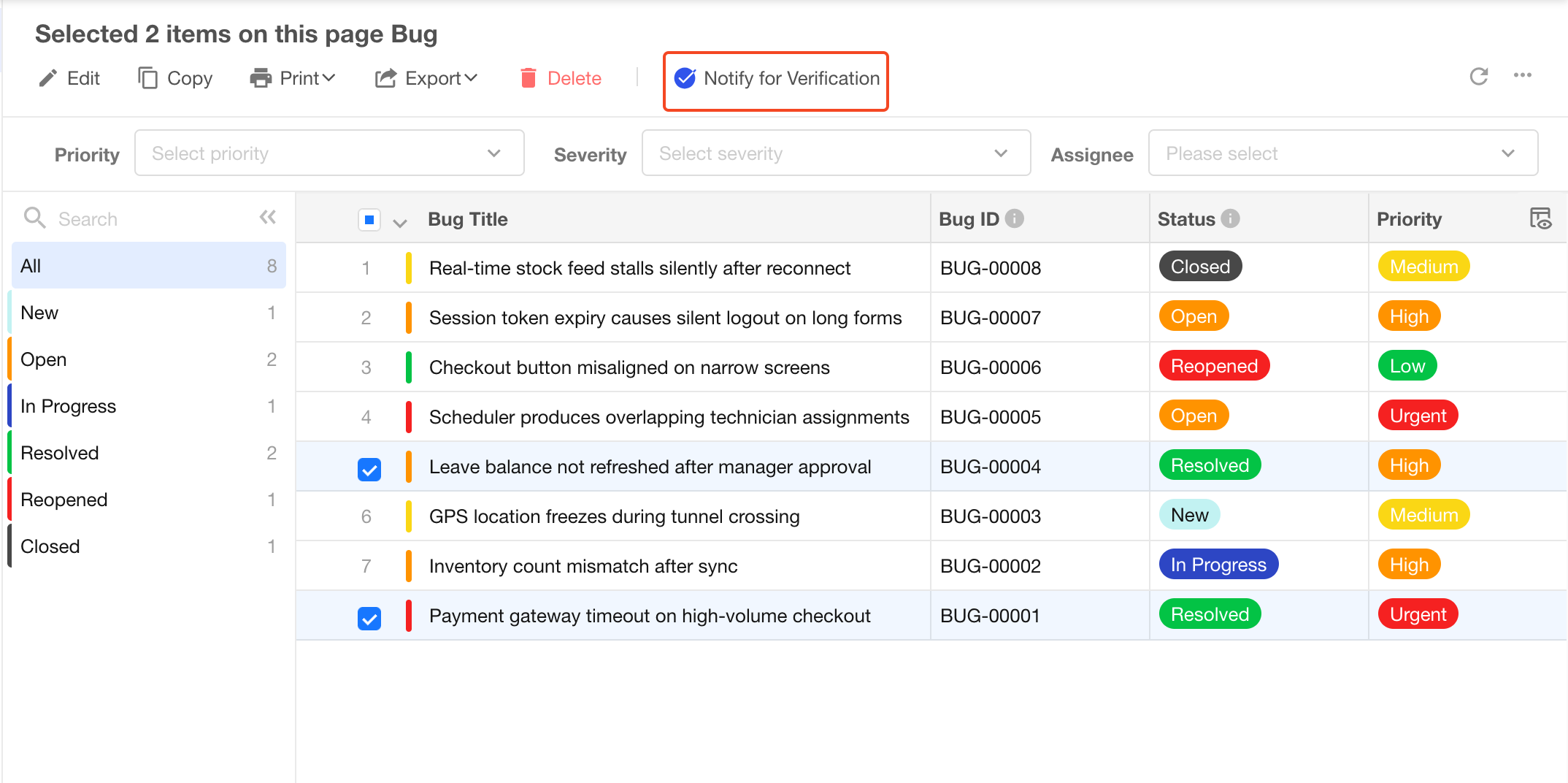
For example, suppose 19 bugs in a bug management app have been fixed and their reporters need to be notified for verification. You can select all 19 bug records and click Notify for Verification to trigger the workflow in bulk. Because the workflow instances are independent and do not need to run in a specific order, Parallel execution is appropriate.
Execution order: No fixed order.
Sequential
With Sequential execution, workflow instances are started one by one in a defined order. This mode is useful when multiple instances may affect the same data and their processing order needs to be controlled.
For example, suppose an equipment request workflow checks available inventory and deducts stock whenever a new request is submitted. There are 10 laptops in stock, and three users simultaneously request five laptops each.
With Parallel execution, all three workflow instances could read the available stock as 10 before any deduction is completed. Each instance could then deduct five laptops, resulting in over-allocation.
With Sequential execution:
- The first request starts with 10 laptops available. After five are allocated, five remain.
- The second request starts with five laptops available. After five are allocated, the stock reaches zero.
- The third request finds insufficient stock and the workflow is terminated.
Execution order in Sequential mode:
- Records selected individually before a bulk action: Instances run in the order the records were selected.
- All records selected before a bulk action: Instances run from top to bottom according to the current sort order.
- Workflows triggered by newly created records: Instances run in record creation order.
When does the next instance start?
Sequential execution does not always wait for the current instance to finish completely. The next instance can start when the current instance:
- Finishes successfully.
- Is terminated due to an error.
- Reaches a delay node.
- Reaches an approval or fill in node. Because these nodes may wait indefinitely for user action, the next instance can start immediately.
- Reaches a subprocess or packaged business process.
For subprocesses and packaged business processes, the behavior depends on the node configuration:
-
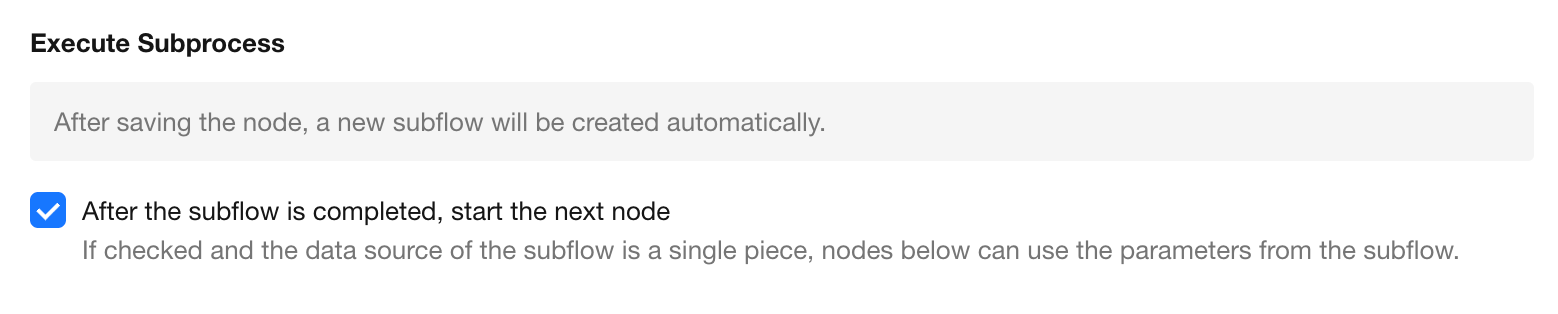
If Wait until the subprocess finishes before continuing is selected, queued workflow instances do not wait for the subprocess to finish. The next instance can start as soon as the current instance enters the subprocess.
-
If this option is not selected, the current workflow continues to subsequent nodes. The next instance starts after the current main workflow finishes successfully.
Strictly Sequential
Sequential execution controls the order in which workflow instances start, but the next instance may start before the current one finishes if the current instance reaches a delay, approval, fill in, subprocess, or packaged business process.
Use Strictly Sequential when each workflow instance must finish completely before the next one starts.
In this mode, HAP waits for the current workflow and all of its subprocesses and packaged business processes to finish before starting the next instance. Because all workflow instances share a single global queue, this mode provides the strongest sequencing guarantees but also has the lowest throughput. Even instances that process unrelated data must wait for one another.
The next instance starts when:
- The current workflow finishes successfully, including all of its subprocesses and packaged business processes.
- The current workflow is terminated due to an error.
Strict Serial Execution by Partition
Strictly Sequential execution guarantees complete sequential processing, but all workflow instances share the same global queue. This can introduce unnecessary waiting when instances operate on unrelated business objects.
For example, if a workflow for allocating Item A is running, a workflow for allocating Item B must still wait, even though the two items do not affect each other.
Strict Serial Execution by Partition addresses this by placing workflow instances into separate queues based on a partition field. Instances within the same partition run strictly sequentially, while different partitions run concurrently.
In other words, the partition field is used to create independent queues based on field values, rather than simply sorting instances by that field:
- Same field value: Instances are assigned to the same partition.
- Within a partition: Instances run strictly sequentially. The next instance starts only after the previous one finishes completely.
- Across partitions: Instances run concurrently and do not wait for one another.
This effectively splits a single global queue into multiple independent queues.
Using the equipment request example again:
-
With Parallel execution, multiple requests may read the same stock level at the same time, resulting in over-allocation.
-
With Strictly Sequential execution, all equipment requests share one queue. A request for Equipment B must wait while a request for Equipment A is being processed, even though they do not affect each other.
-
With Strict Serial Execution by Partition execution using Equipment as the partition field, requests for the same equipment are placed in the same queue and processed one by one, preventing inventory conflicts. Requests for different equipment are placed in separate queues and can run concurrently.
Choose a Partition Field
The partition field determines which workflow instances need to wait for one another.
First identify which instances may compete for the same data or resource. Then select a field that consistently identifies that business object, such as a product, material, account, customer, or order.
Avoid fields whose values may change during processing.
-
Recommended: Partition by Product. Orders for the same product are queued when deducting Inventory Quantity.
-
Not recommended: Partition by Inventory Quantity. Different products with the same inventory quantity could be placed in the same partition, while the same product could move to a different partition as its inventory changes. Instances that should be processed sequentially could therefore run concurrently.
Within the same partition, the next instance starts when:
- The current workflow finishes successfully, including all of its subprocesses and packaged business processes.
- The current workflow is terminated due to an error.
Data Formatting
Decimal Places for Numeric Fields
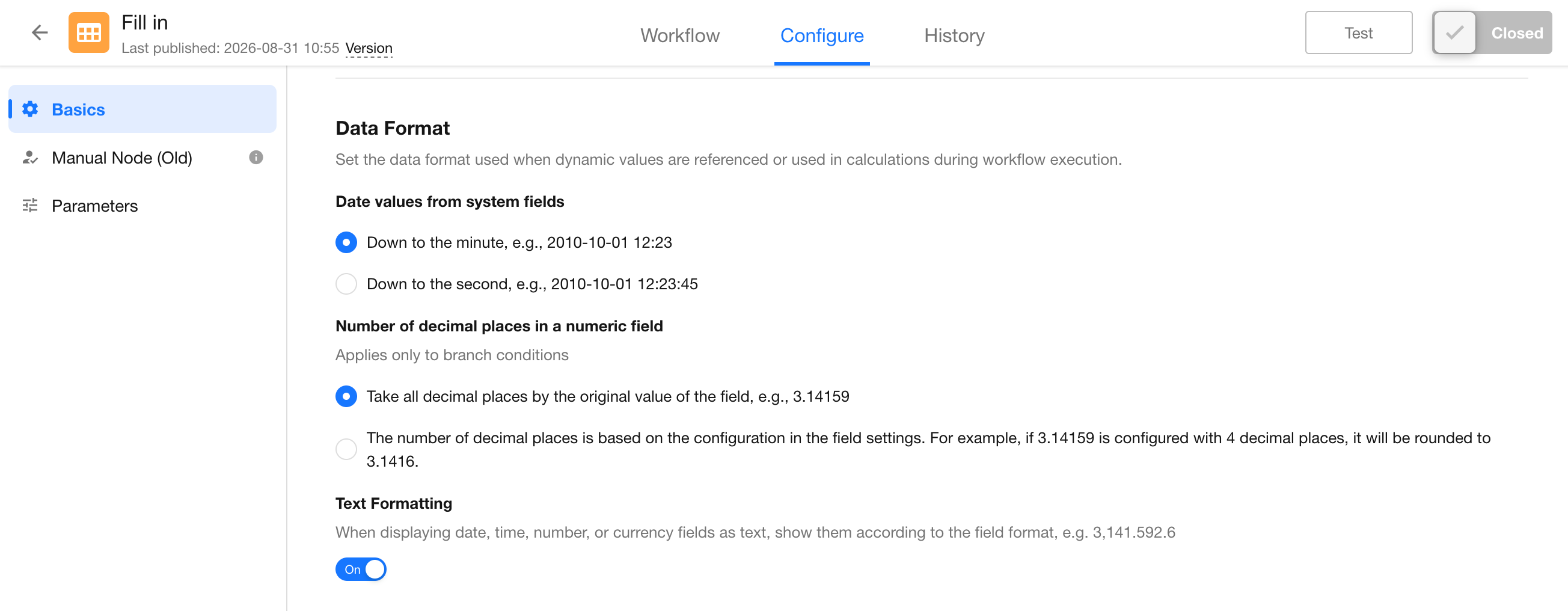
Numeric fields in worksheets can be configured to display a specific number of decimal places. When a numeric field is used in a branch condition, you can choose whether the comparison uses the original value or the value based on the field's configured decimal places.
This setting applies only to condition evaluation in branch nodes. Other workflow nodes always use the original value.
For example, if a numeric field stores 3.14159:
- Using the original value compares against
3.14159. - If the field is configured to display two decimal places, using the configured decimal places compares against
3.14.
Date and Time Precision for System Fields
On the workflow Configuration page, you can configure the precision used for system date and time fields in workflow calculations.
The default precision is minutes. When the precision is set to seconds, workflow system fields are referenced and calculated with second-level precision.
System date and time fields include:
- Worksheet - Created Time
- Worksheet - Approval - Initiated Time
- Worksheet - Approval - Node Start Time (available within an Initiate Approval Flow block)
- Worksheet - Approval - Remaining Time (available within an Initiate Approval Flow block)
- Workflow - Trigger Time
- Workflow Parameter - Date/Time parameters
- Calculation node - Add/Subtract Time from Date - outputs in Date + Time format
The current system time is always precise to the second.
This setting primarily affects:
- Code block nodes
- Calculation nodes
- Other nodes that use date and time fields
When a date/time field is used as a query condition in a Get Data node, Equals and Does Not Equal queries always use day-level precision. Other query operators use second-level precision.
Text Formatting
Date, time, number, and currency fields support formatted display. When these fields appear in approval or CC summaries, or are included in notification content such as SMS messages or emails, you can choose one of the following display formats:
- Original Value: Displays the original value directly, for example,
3141592.6. - Field Format: Applies the display format configured for the field, for example,
3,141,592.6.
Save Node Input and Output parameters
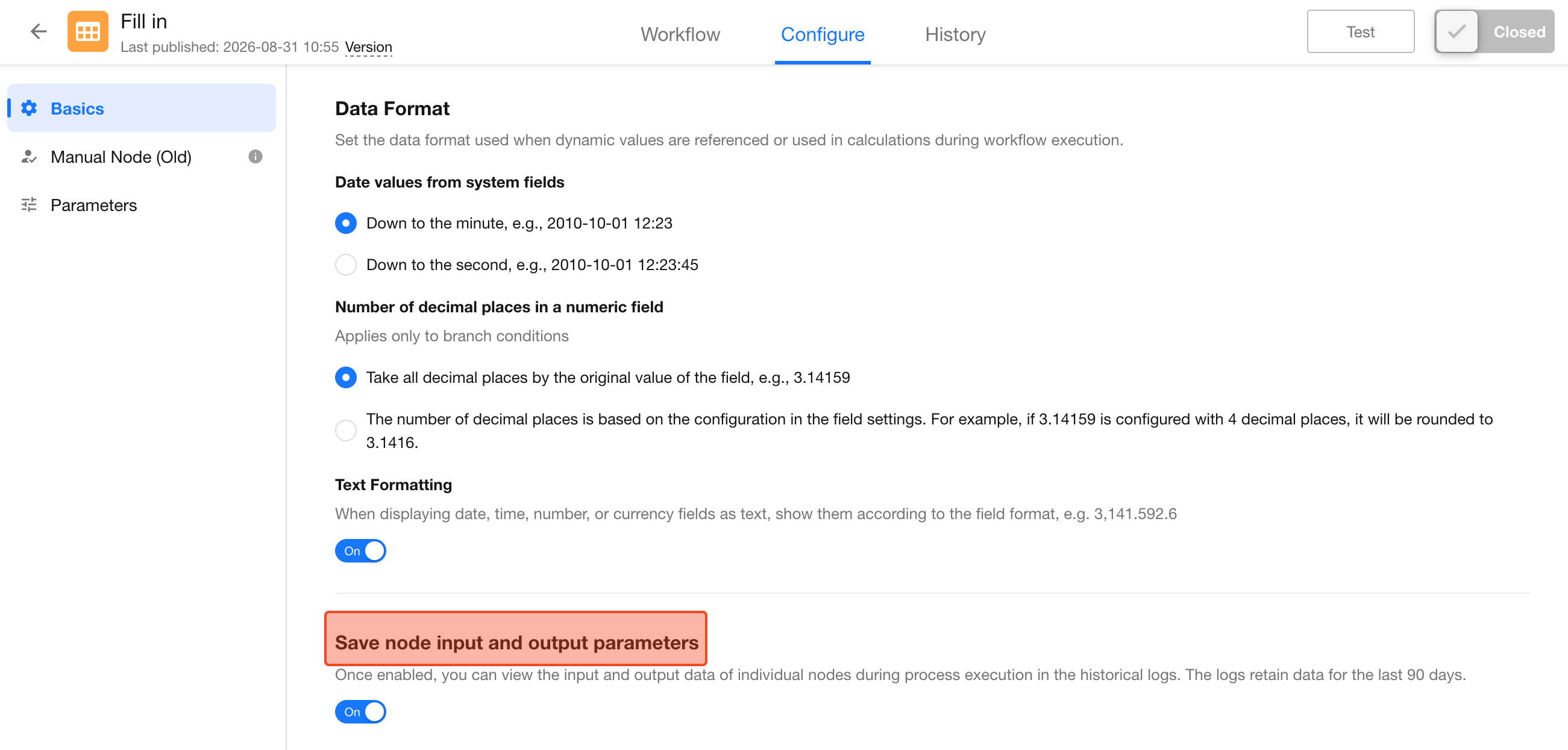
Enable this option to retain the input and output data for individual nodes in the workflow execution history. This data is retained for the most recent 90 days.
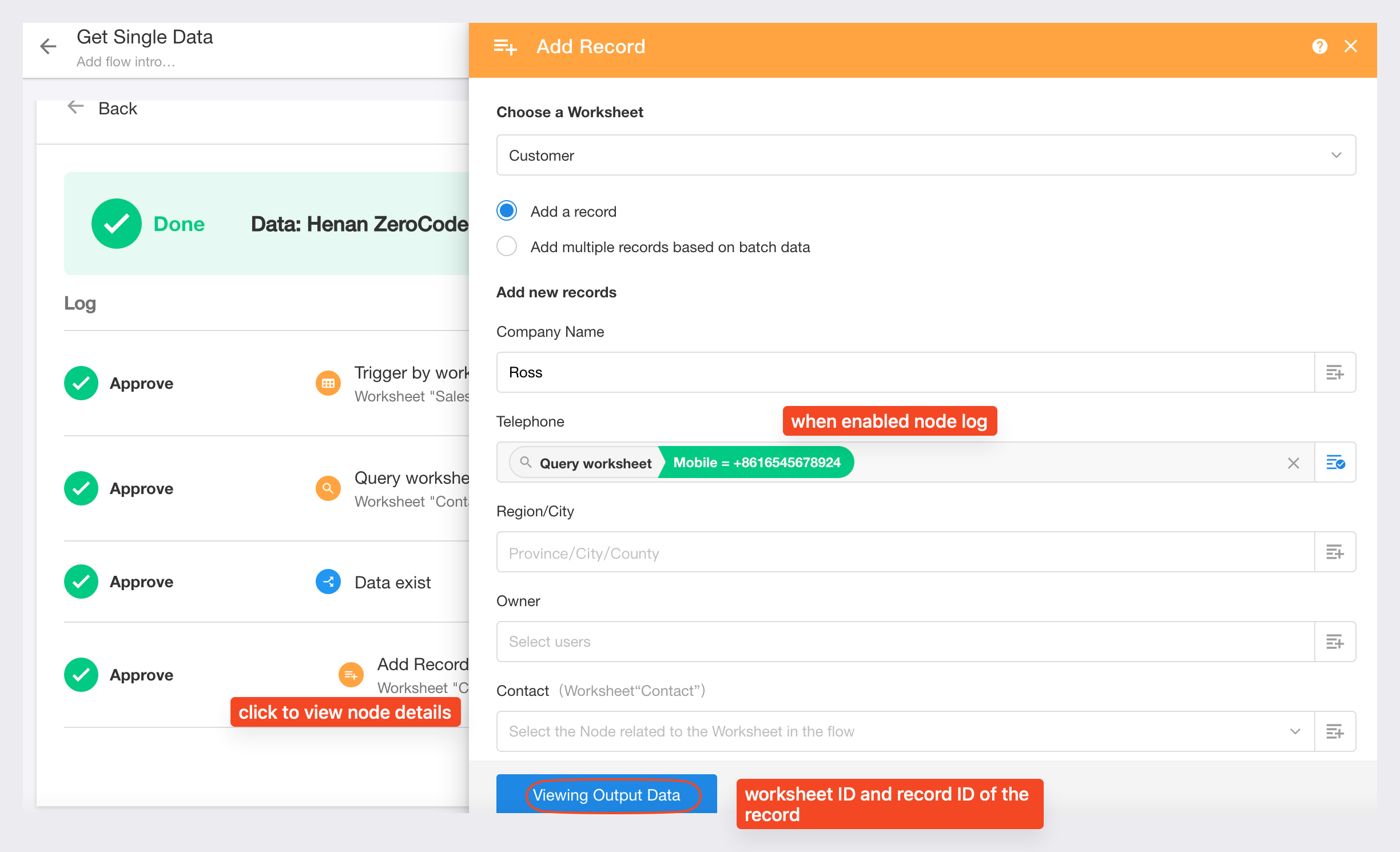
When viewing a node in the execution history, dynamic fields show the values captured at the time the node ran.
Initiator View
Use Initiator View on the workflow Configuration page to control whether the workflow appears under Submit in the triggering user's workflow to-dos.
Disable this option if the workflow does not need to appear under Submit for the user who triggered it.
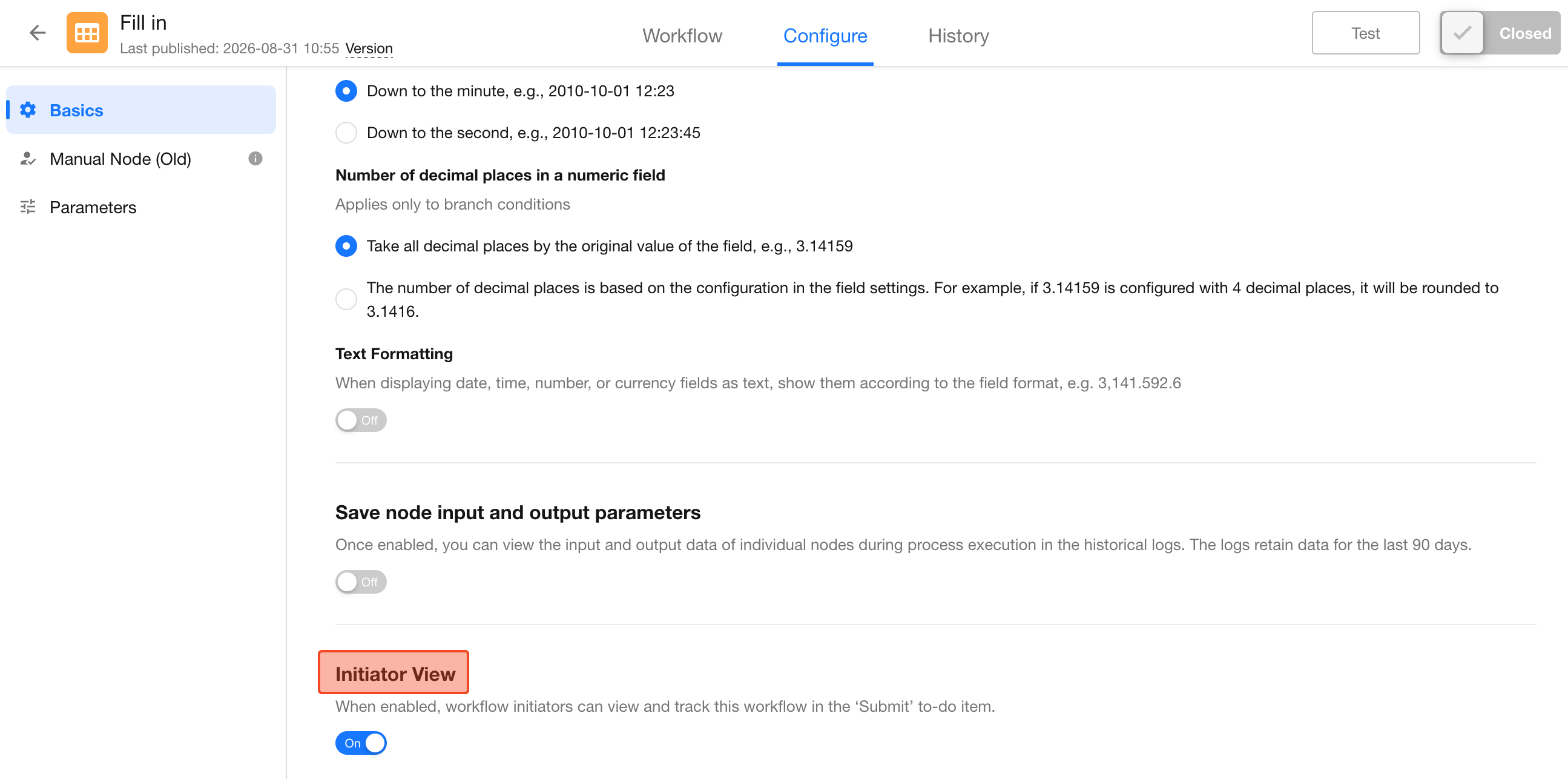
When disabled, the workflow does not appear under Submit in that user's workflow to-dos.
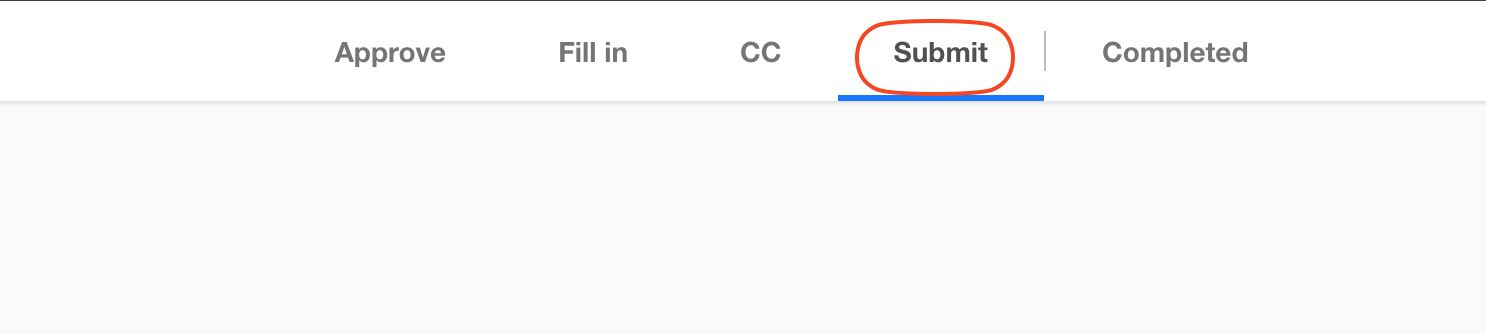
This option is disabled by default for newly created workflows. It is automatically enabled when an approval, fill in, or CC node is added (These nodes added within an Initiate Approval Flow block do not automatically enable this option).
Trigger Other Workflows
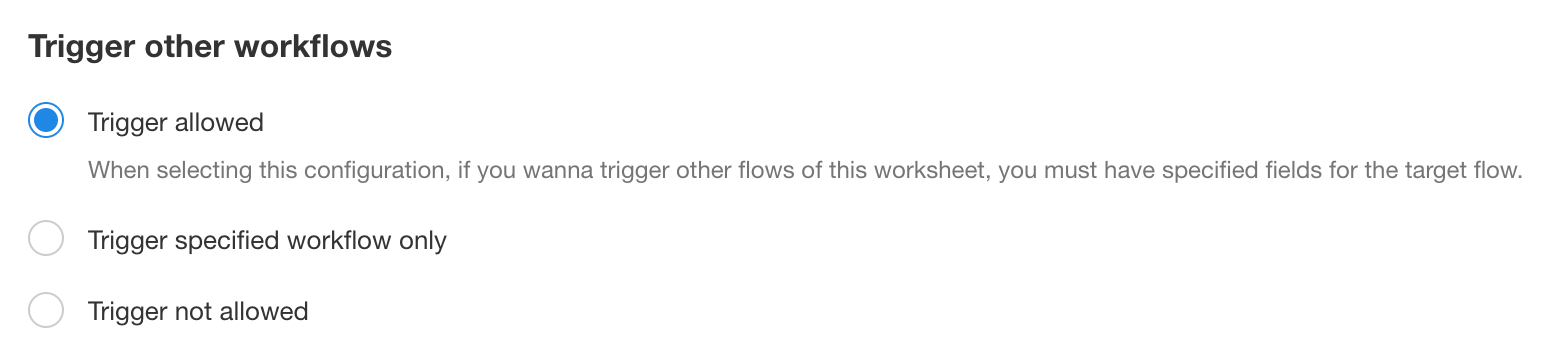
Nodes that create, update, or delete records may cause their changes to meet the trigger conditions of other workflows. This setting determines whether those workflows are allowed to run.
Example: Workflow A uses an Add Record node to create a record in Worksheet 1. Workflow B is configured to run when a record is created in Worksheet 1. The record created by Workflow A meets Workflow B's trigger conditions. Whether Workflow B runs depends on this setting.
-
Trigger Allowed
Allows record changes made by the current workflow to trigger other workflows.
If the current workflow and another automatically triggered workflow use the same worksheet as their trigger source, the other workflow must have a trigger field specified before it can be triggered.
In the following example, Workflow B must have a trigger field specified.
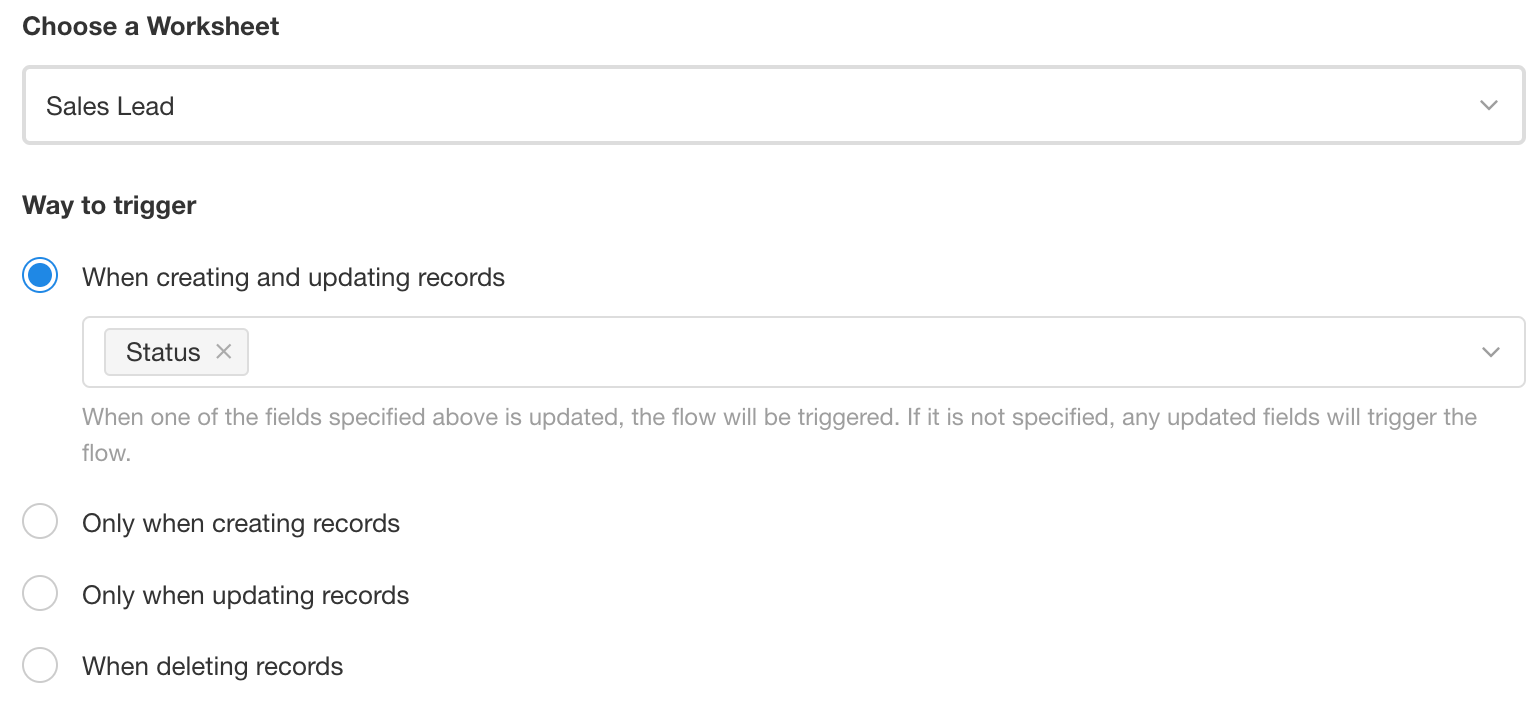
If Workflow A is triggered manually by a button, Workflow B does not need to specify a trigger field. This requirement applies when Workflow A is triggered automatically.
-
Trigger Only Specified Workflows
Allows only selected workflows to be triggered by operations performed by the current workflow. Other workflows are not triggered, even if their trigger conditions are met.
The selected workflows can belong to the current app or other apps.
-
Trigger Not Allowed
Record changes made automatically by the current workflow do not trigger other workflows, even when those changes meet their trigger conditions.
Manually created records can still trigger workflows.
For example, if clicking a button directly creates a record, Workflow B can still run when configured to trigger on record creation because the record was created manually.
If clicking the button starts Workflow A and Workflow A then creates the record, Workflow B does not run because the record was created automatically by a workflow and triggering other workflows is disabled.
2. Manual Node Settings
These settings apply only to approval workflows configured directly with approval nodes. They do not apply to approval nodes within a Initiate Approval Flow block.
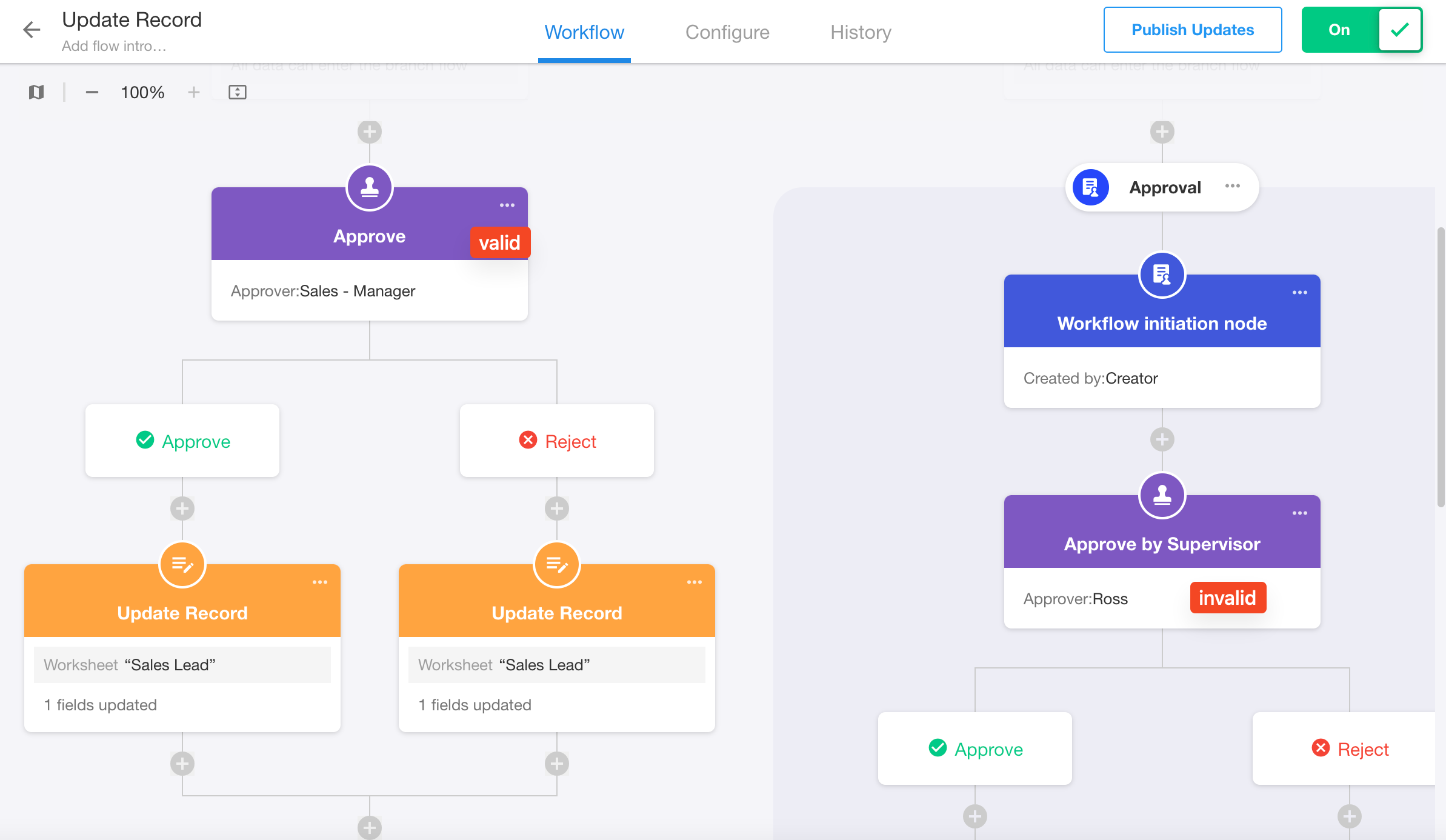
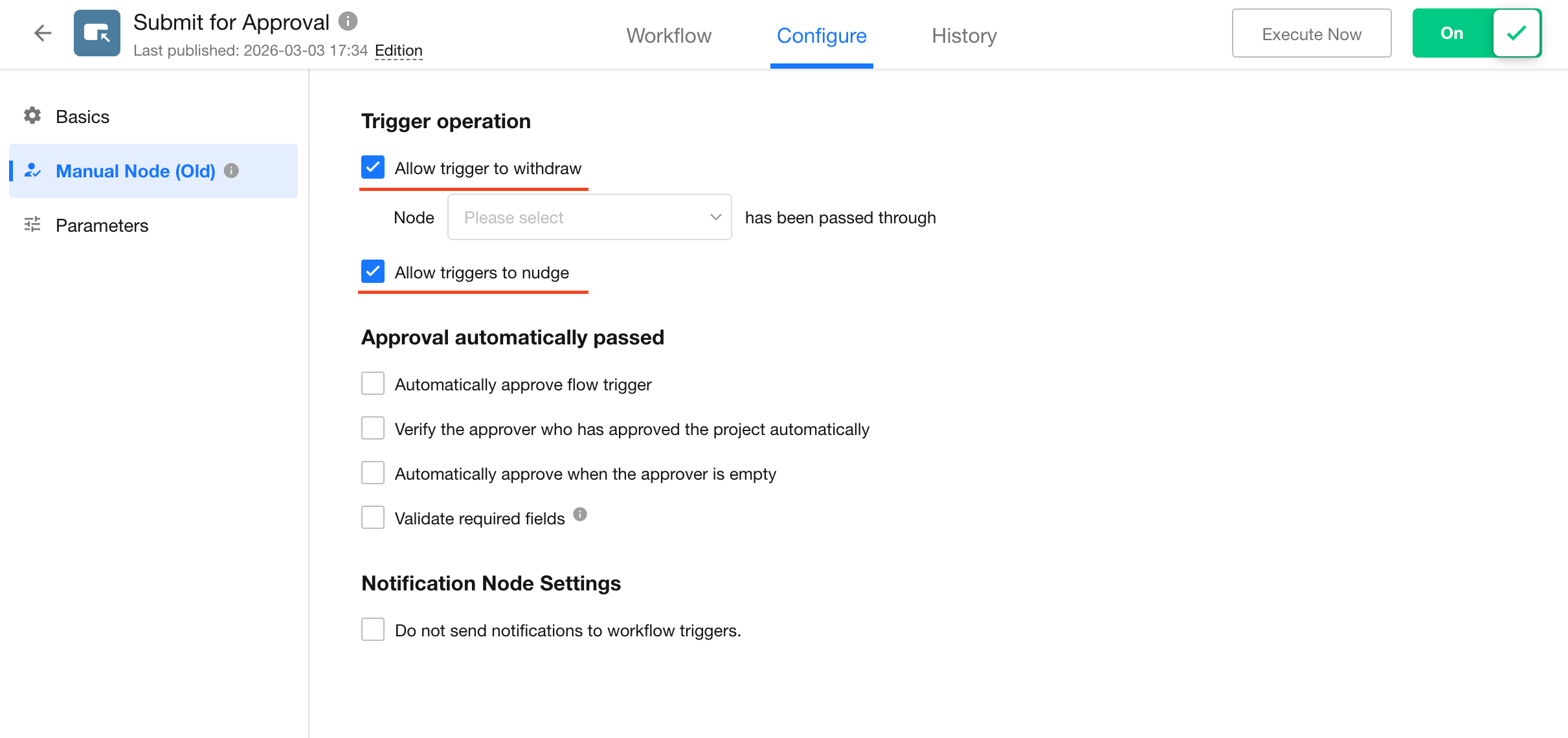
Withdraw and Nudge
The triggering user can withdraw a running workflow or send a nudge to approvers:
-
Withdraw
- You can specify an approval node after which the workflow can no longer be withdrawn by the triggering user.
- Withdrawing the workflow terminates it immediately.
-
Nudge
If an approval has been pending for an extended period, the triggering user can send a nudge to remind the approver to take action.
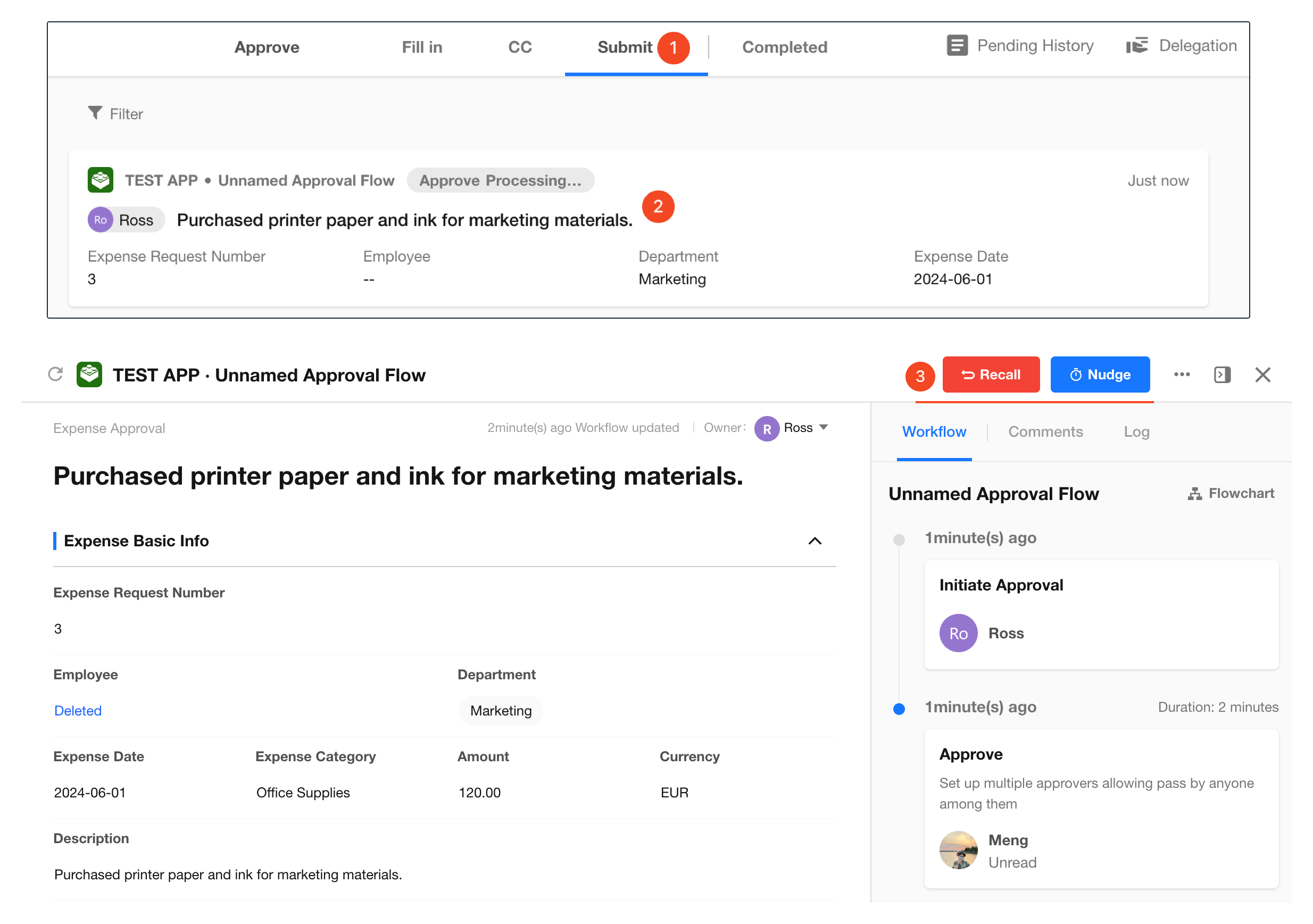
Withdraw or Nudge a Workflow
The triggering user can go to To-do > Submit, open the approval workflow, and select Withdraw or Nudge.
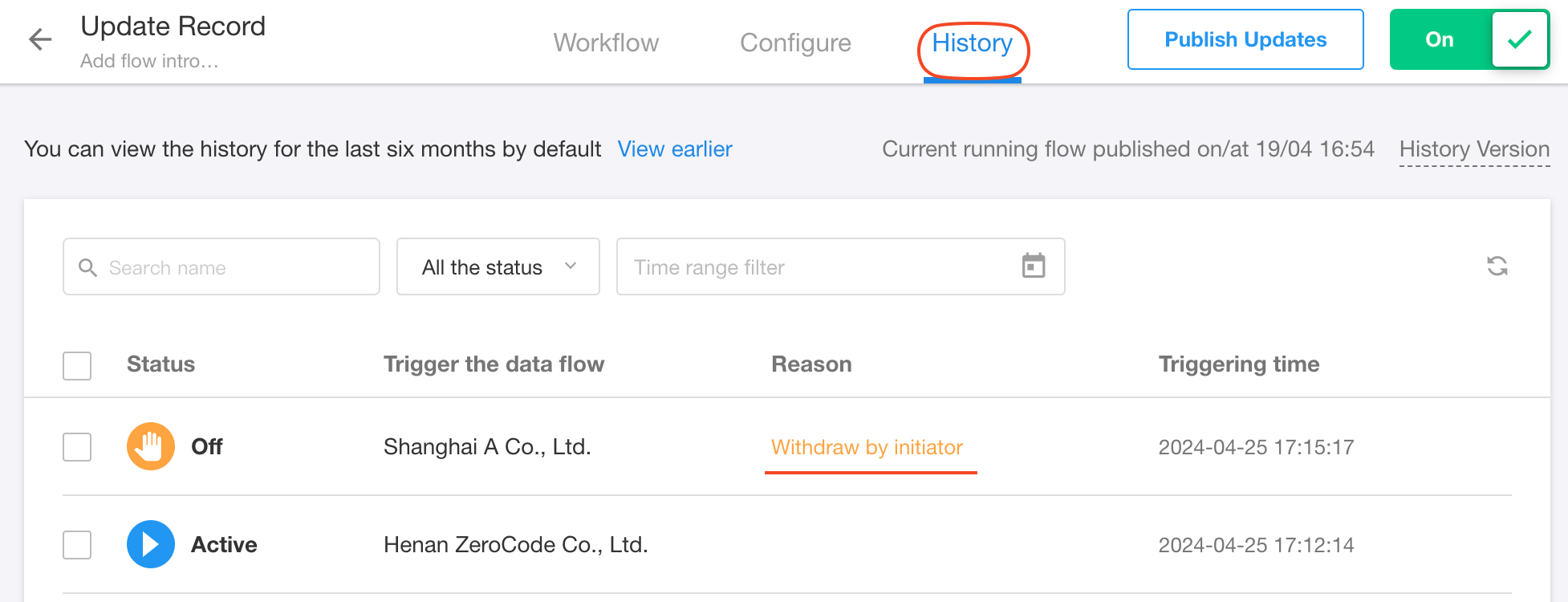
View Withdrawal Status
Administrators can check the workflow status in the execution history to see whether it was withdrawn.
Withdrawing a workflow does not undo actions performed by nodes that have already run.
For example, suppose Workflow A contains the following nodes:
Trigger > Update Record > Approval
After the workflow is triggered, the Update Record node changes a field value from A to B, and the workflow then waits at the Approval node. If the triggering user withdraws the workflow at this point, the approval process stops, but the field value remains B and is not reverted to A.
Auto-Approval Settings
These settings apply only to approval workflows configured directly with approval nodes. They do not apply to approval nodes within a Initiate Approval Flow block.
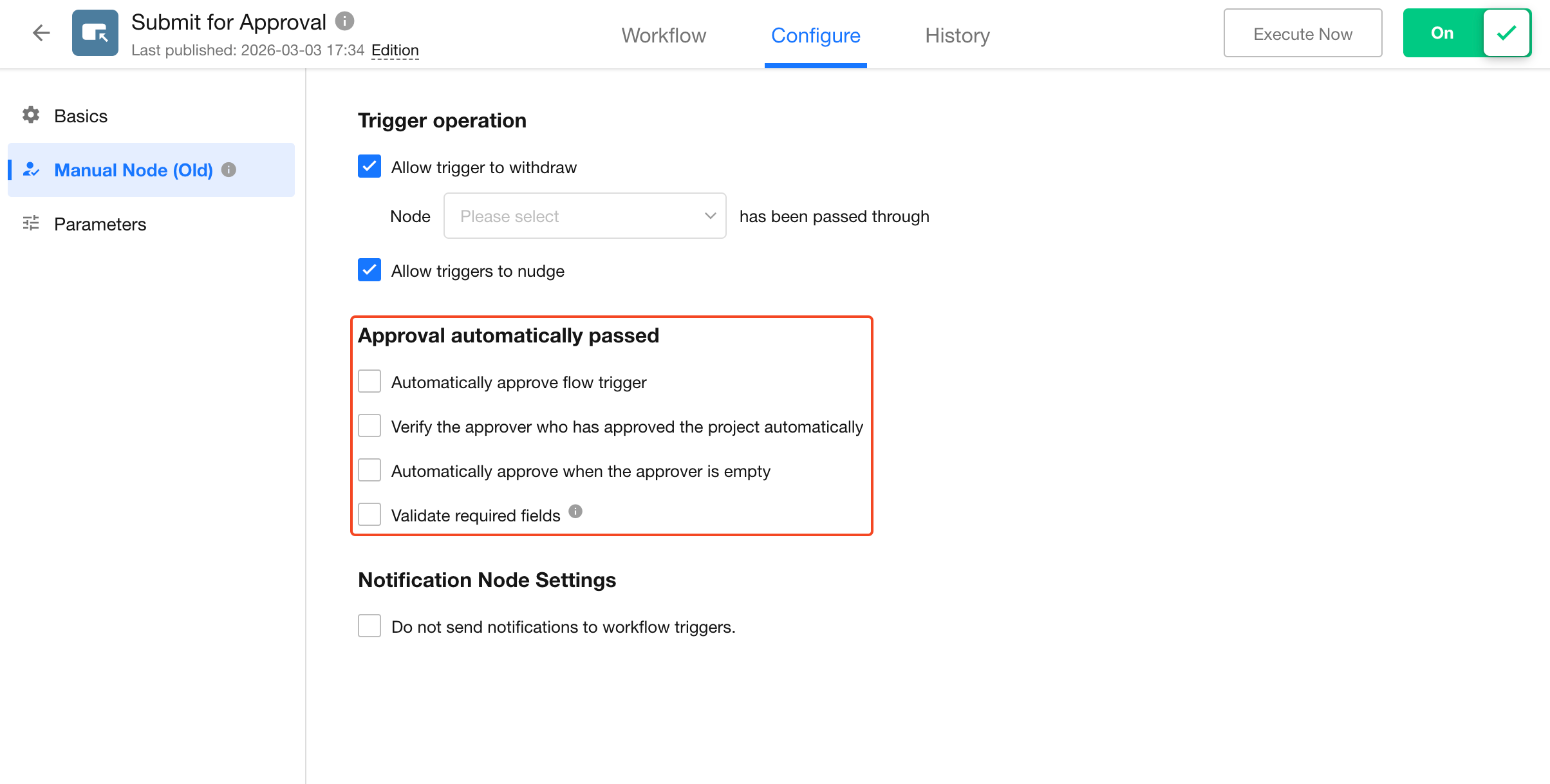
-
1) Auto-approve when the triggering user is the approver
When the triggering user is also the approver for the current approval node, the node is approved automatically. If this option is disabled, the triggering user must complete the approval manually.
-
2) Auto-approve if the approver has already approved the same record
When the same approver has already approved the same record at an earlier approval node, a subsequent approval node for that record can be approved automatically.
For example, suppose a workflow contains:
Approval 1 > Approval 2 > Approval 3 > Approval 4
If Approval 1 and Approval 4 apply to the same record and have the same approver, the workflow can automatically approve Approval 4 because that approver has already approved the record at Approval 1.
-
3) Auto-approve when there is no valid approver
When an approval node has no configured approver or the configured approver is no longer valid, the node is approved automatically.
-
4) Validate required fields
This setting applies to the first two auto-approval scenarios above.
If the current approval node contains required fields:
- When Validate Required Fields is enabled, auto-approval is blocked and the approver must complete the approval manually.
- When Validate Required Fields is disabled, the node can be approved automatically.
If there is no valid approver, the node is always approved automatically regardless of this setting.
Notification Nodes
Use this setting to control whether the triggering user receives notifications from CC and internal notification nodes in the workflow.
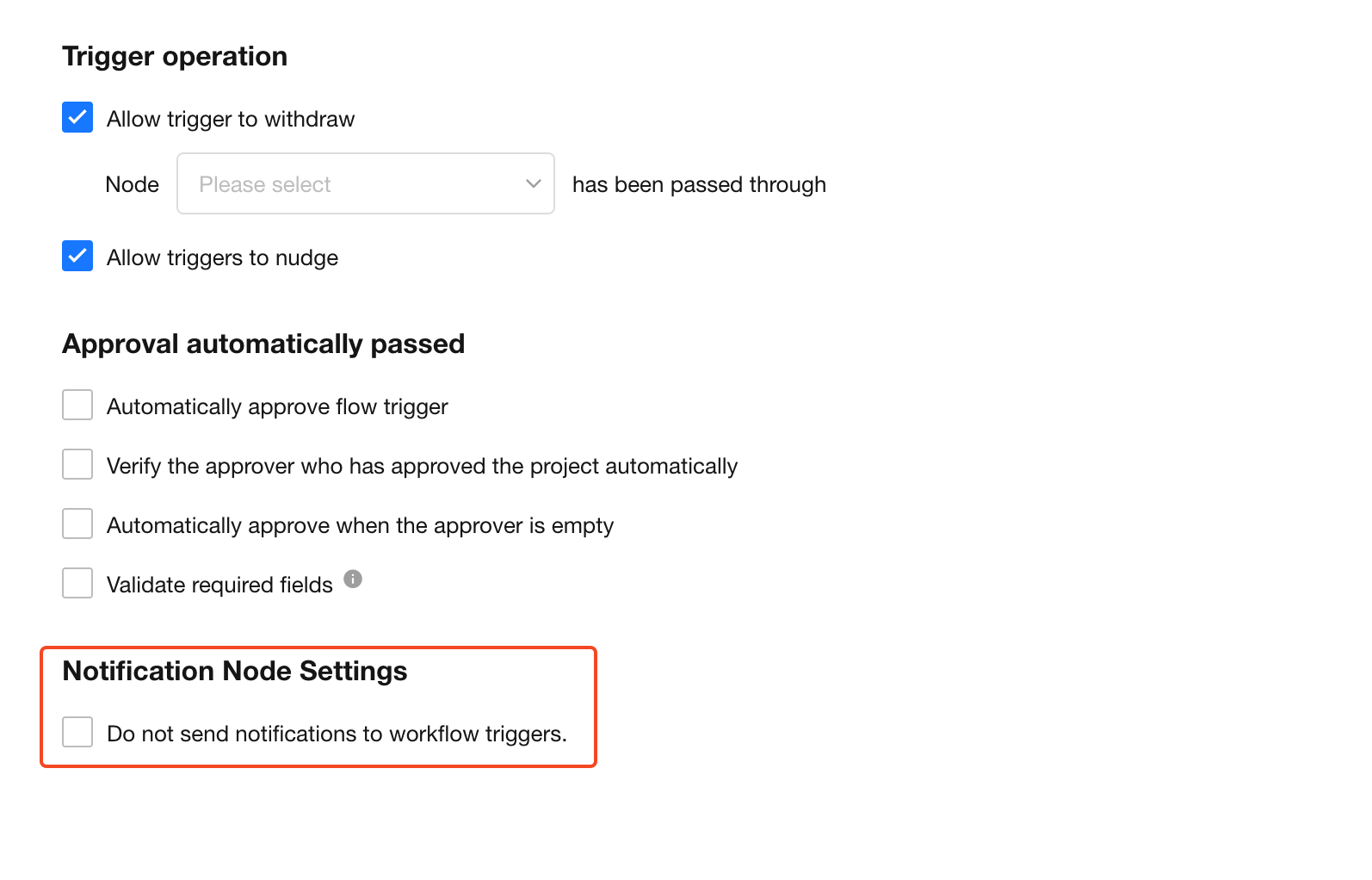
When the workflow reaches one of these nodes:
- If the triggering user is the only recipient, the node is skipped.
- If the node has other recipients, it runs normally and sends notifications to those recipients, but not to the triggering user.
If a CC or internal notification node is skipped unexpectedly, or the triggering user does not receive a notification, check this setting.
3. Workflow Parameters
Workflow parameters are temporary variables available during a workflow execution. They can store field values or calculation results, receive values passed from other workflows, and be referenced by other nodes.
Parameter values exist only for the current workflow execution and are cleared when the workflow finishes.
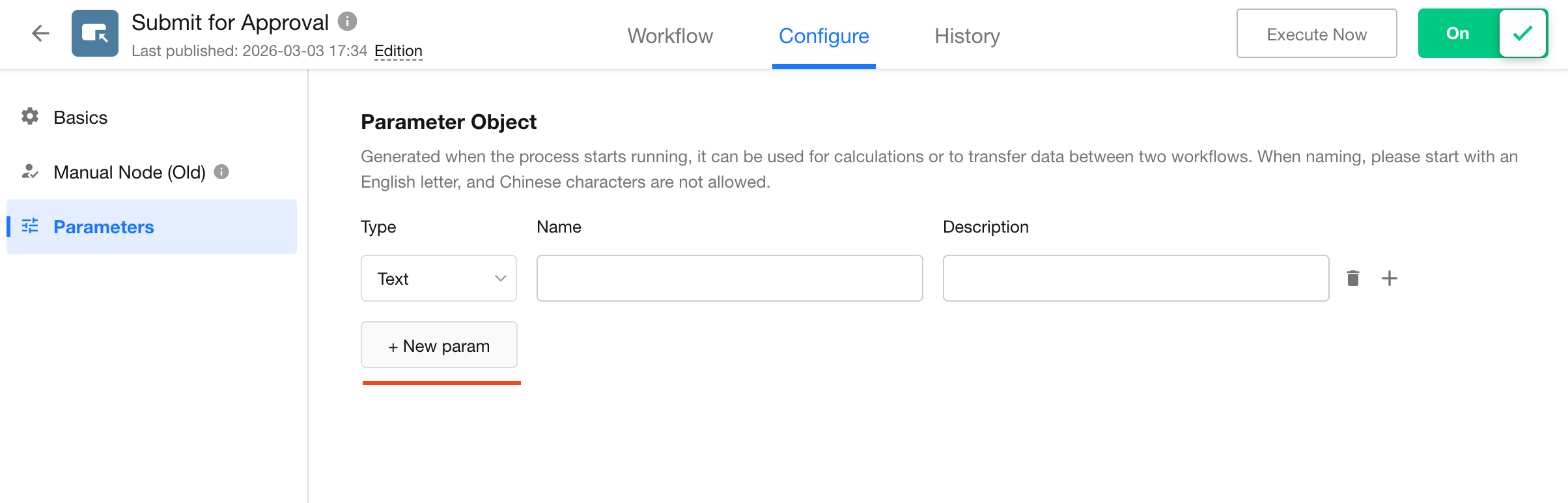
-
Parameter Type
Supported parameter types include text, numeric (including currency), date/time, member, and department.
-
Parameter Name
Parameter names must begin with a letter and can contain numbers and underscores.
Assign Values to Workflow Parameters
You can assign values to workflow parameters in either of the following ways:
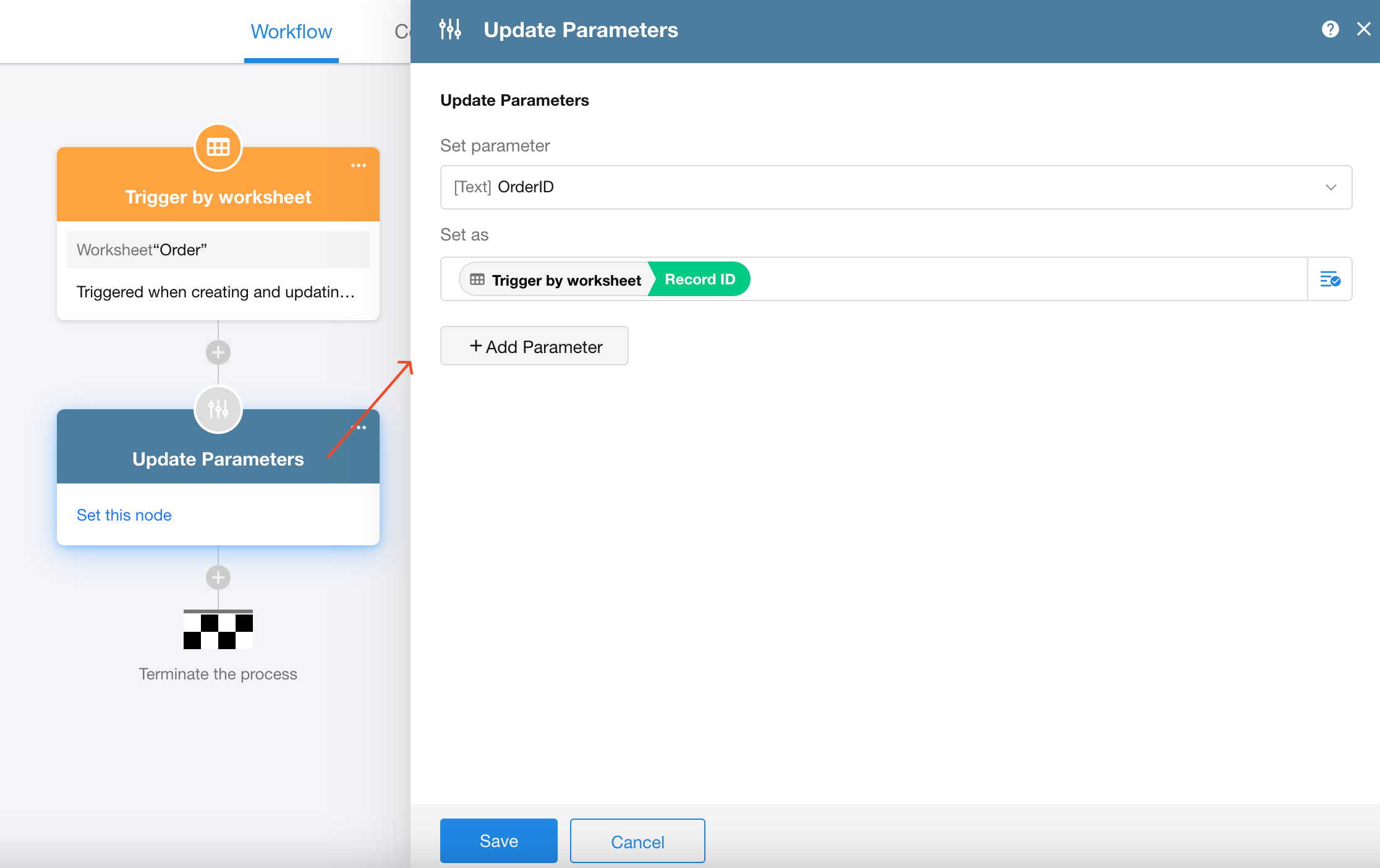
-
Use Update Parameters to assign values to parameters in the current workflow.
-
Assign values to subprocess parameters from a subprocess node.
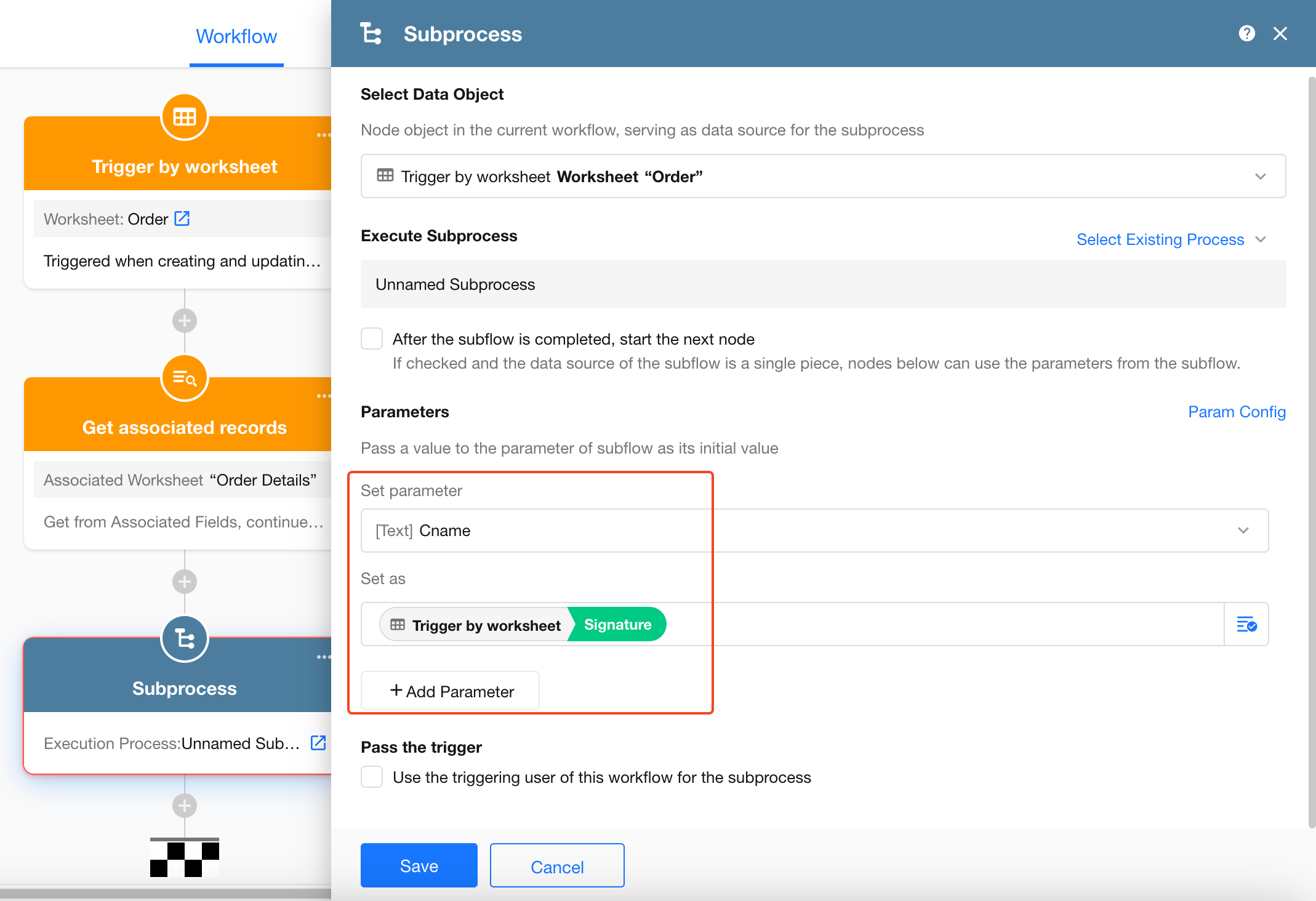
Subprocess parameters must be configured in the subprocess before values can be assigned to them from a subprocess node. The assigned values are used as the initial parameter values when the subprocess runs.
Was this document helpful?