Workflow To-do Delegation
Workflow To-do Delegation automatically assigns newly generated approval and filling in to-dos to another user during a specified period when you're on vacation, traveling, or otherwise unavailable. This helps prevent workflows from being delayed due to unprocessed tasks.
Overview
- Every user in the organization can configure their own delegation.
- Organization administrators can create, edit, or end delegations for organization members.
- Delegation is supported only for Approval and Fill in nodes. CC nodes cannot be delegated.
- Only workflow to-dos generated during the delegation period are automatically delegated. Existing to-dos are not reassigned.
- Multiple delegations are supported, allowing workflow to-dos from different applications to be delegated to different users.
- Delegated workflow to-dos can be recalled and returned to the original assignee.
- After a delegation ends, newly generated workflow to-dos are no longer delegated. Workflow to-dos that have already been delegated remain assigned to the delegate.
Set Up Your Own Delegation
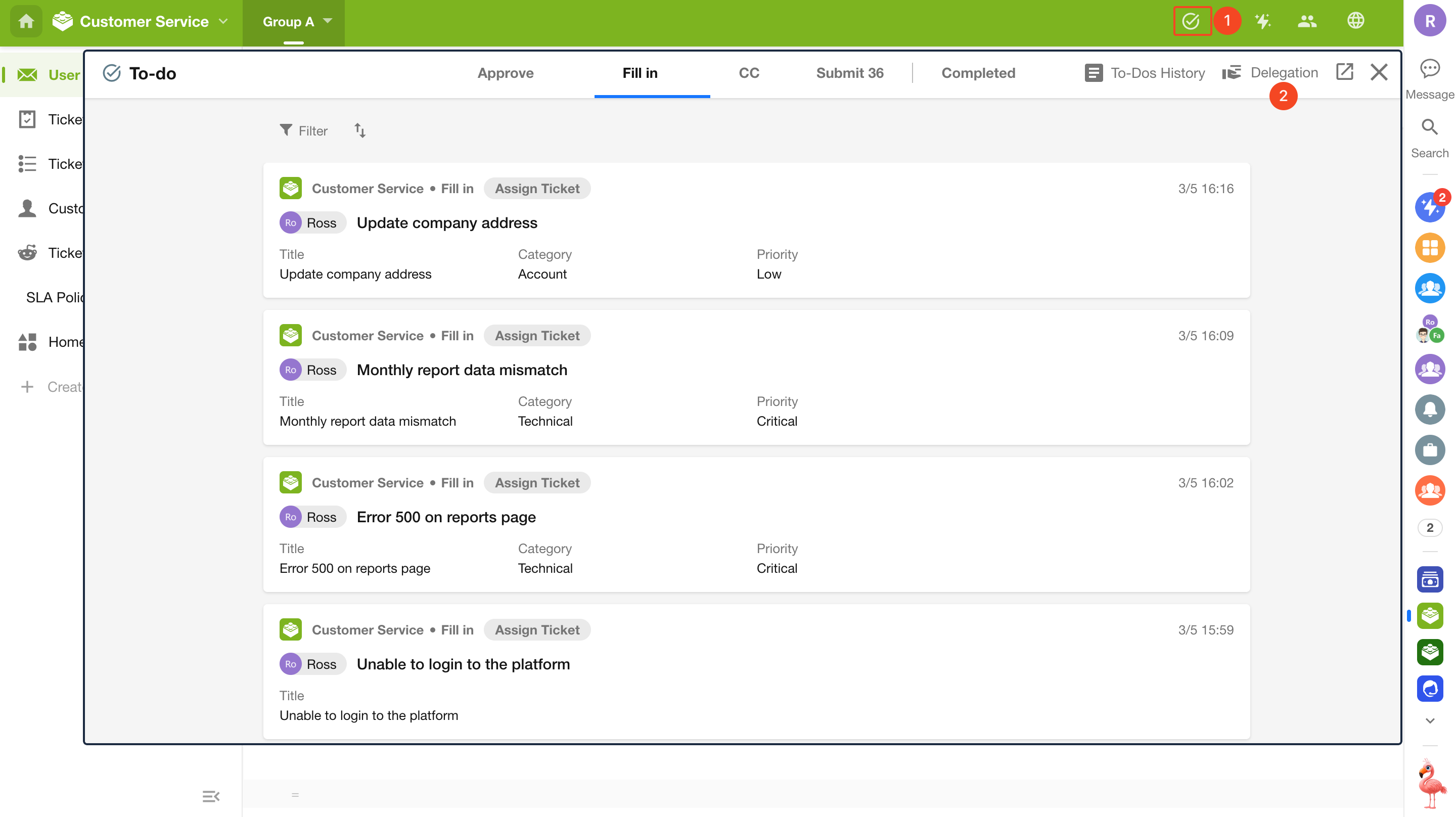
1. Open My Delegation
In any application, click To-do to open the workflow to-do page, then click Delegation to open the My Delegation dialog.
2. Create a Delegation
Click Create Delegation, then select the organization, delegate, delegation period, and application scope. Click Confirm to save the configuration.
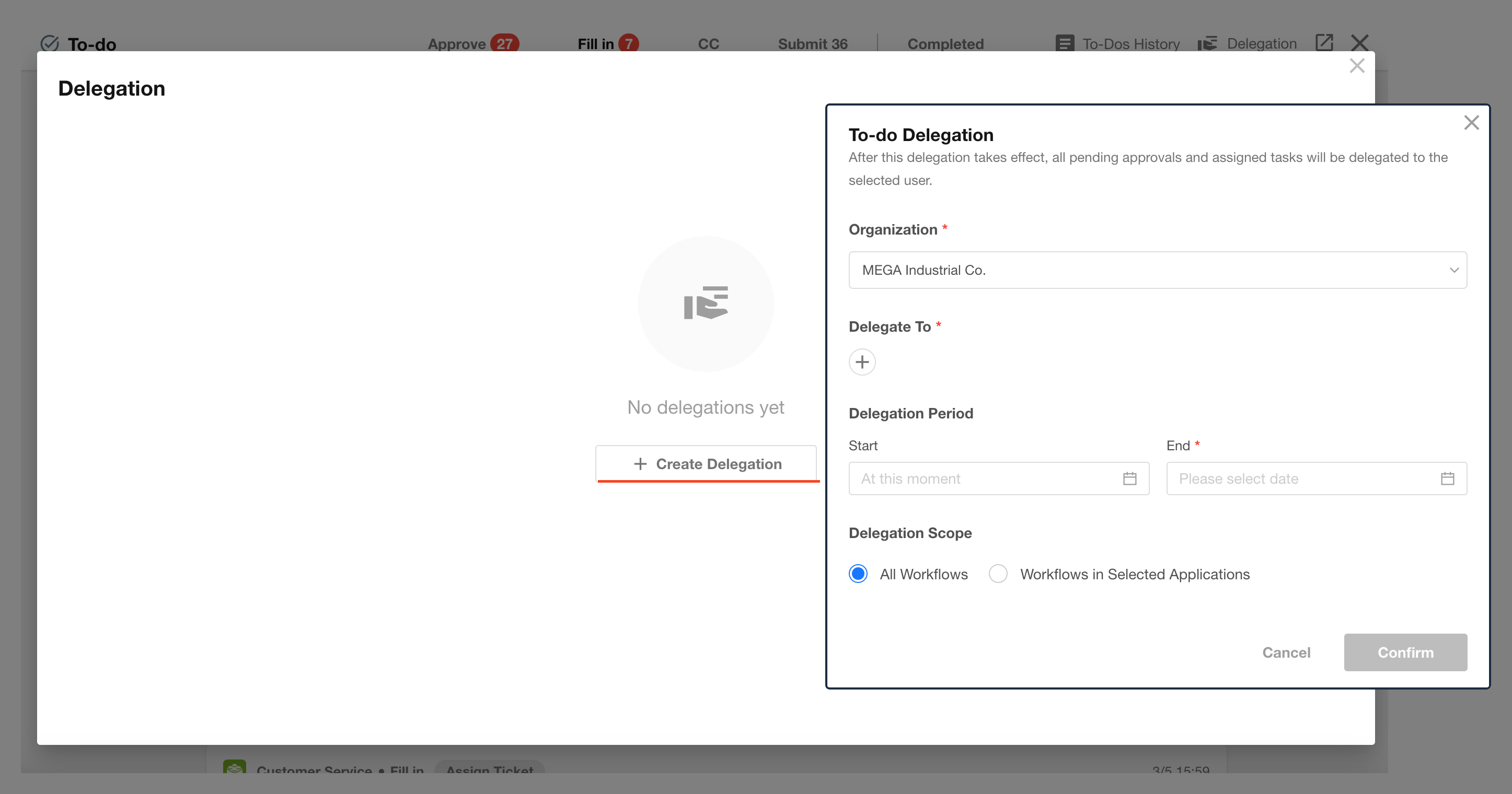
Once the delegation is created, the delegate receives a notification.
3. How Delegation Works
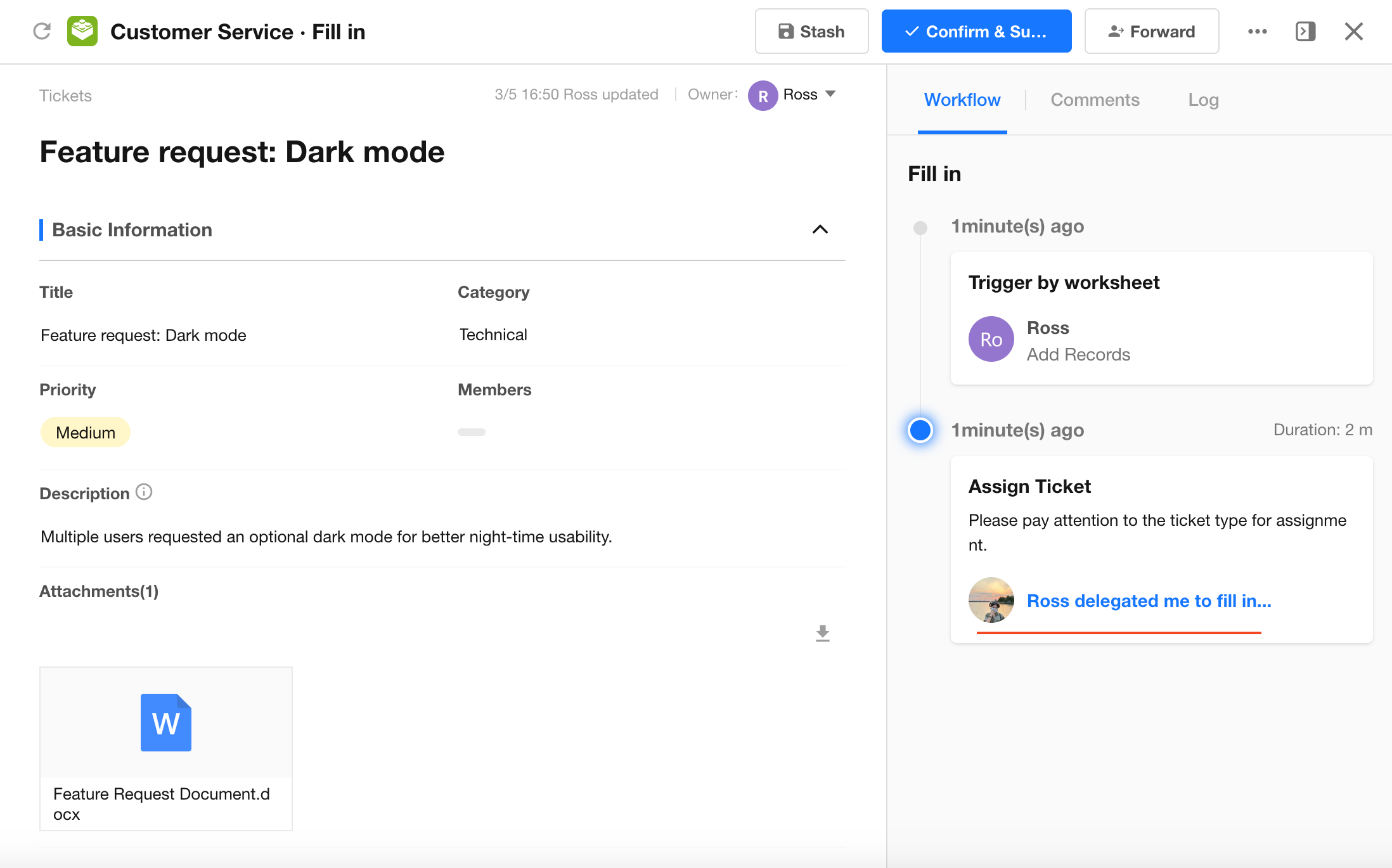
After the delegation takes effect, any new approval or filling in to-dos generated during the delegation period are sent directly to the delegate instead of the original assignee.
The delegate processes delegated to-dos the same way as regular approval or filling in tasks. Each delegated to-do clearly indicates who delegated it.
4. View and Recall Delegated To-dos
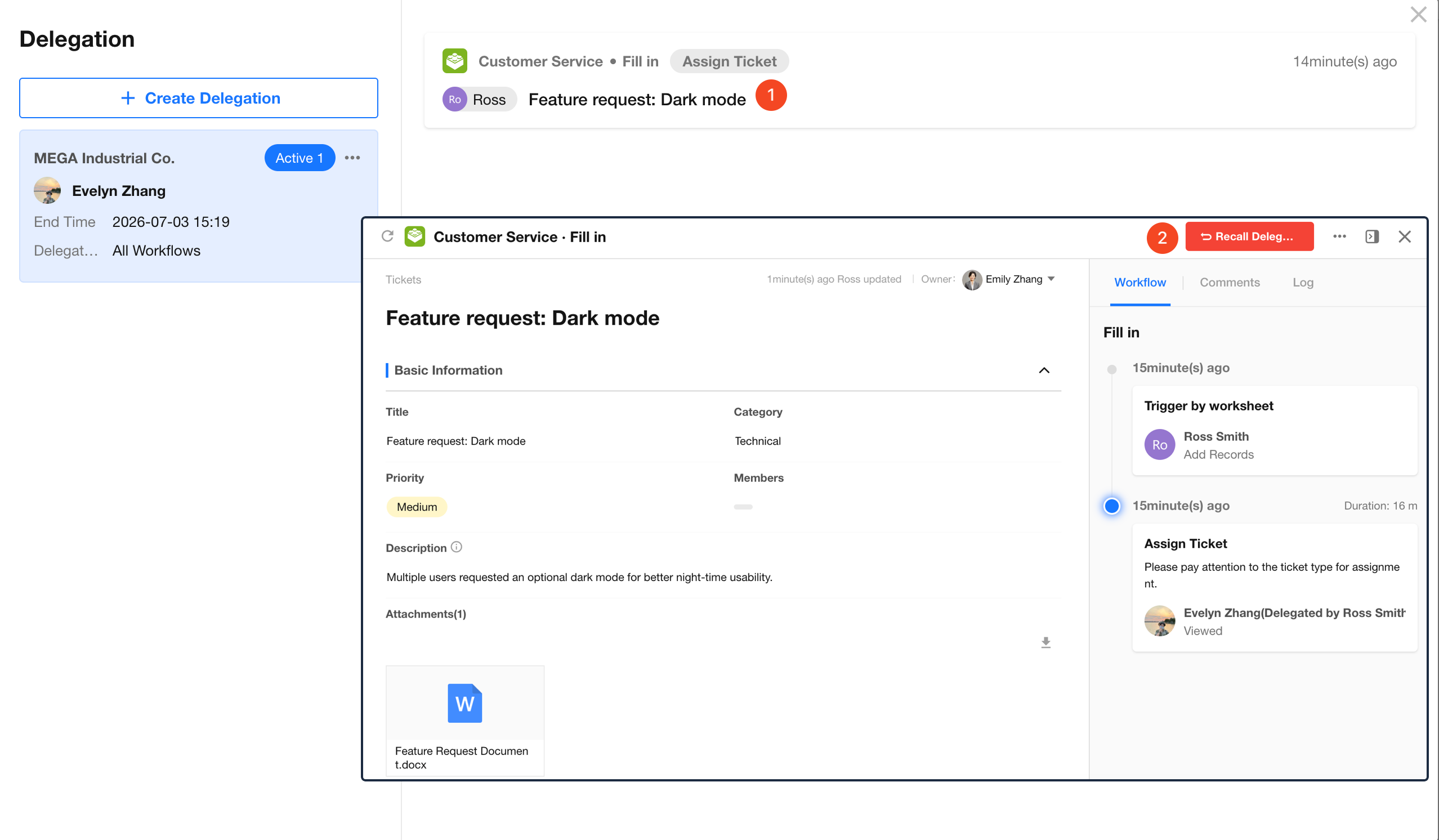
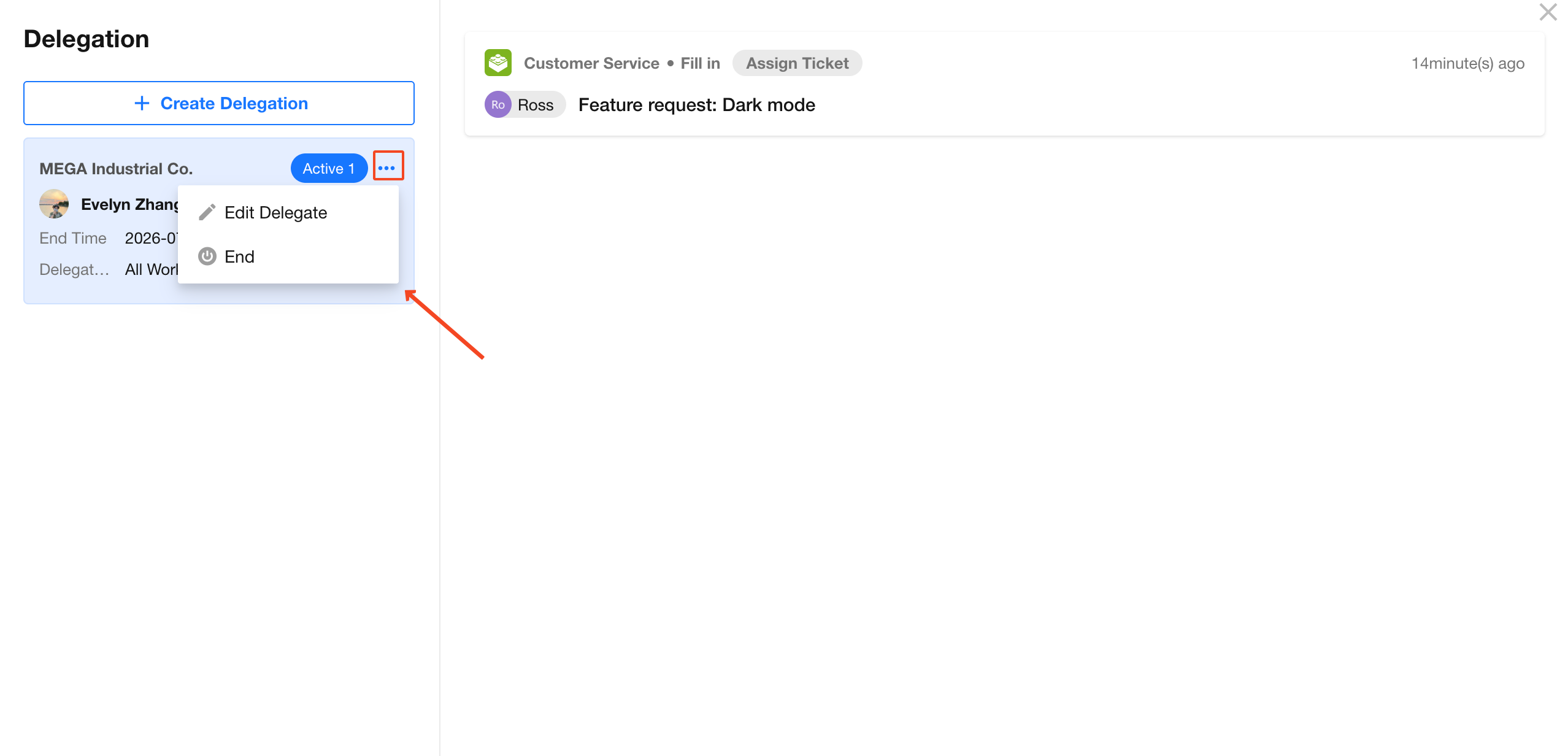
Active delegations are listed on the left side of the My Delegation dialog. Select a delegation to view the workflow to-dos that have been delegated under it.
To return a delegated workflow to-do to yourself, open the specific to-do and click Recall Delegation.
5. Edit or End a Delegation
Click the action menu next to a delegation to edit or end it.
- Edit Delegation: Update the delegate, delegation period, or application scope.
- End Delegation: Stops delegating newly generated workflow to-dos.
Note: Ending a delegation affects only workflow to-dos generated afterward. Workflow to-dos that have already been delegated are not automatically returned to the original assignee and remain assigned to the delegate. If you need to handle one yourself, open the specific workflow to-do and click Recall Delegation.
Manage Delegations as an Organization Administrator
Organization administrators can configure delegations by going to Org Admin > User > To-do Delegation.
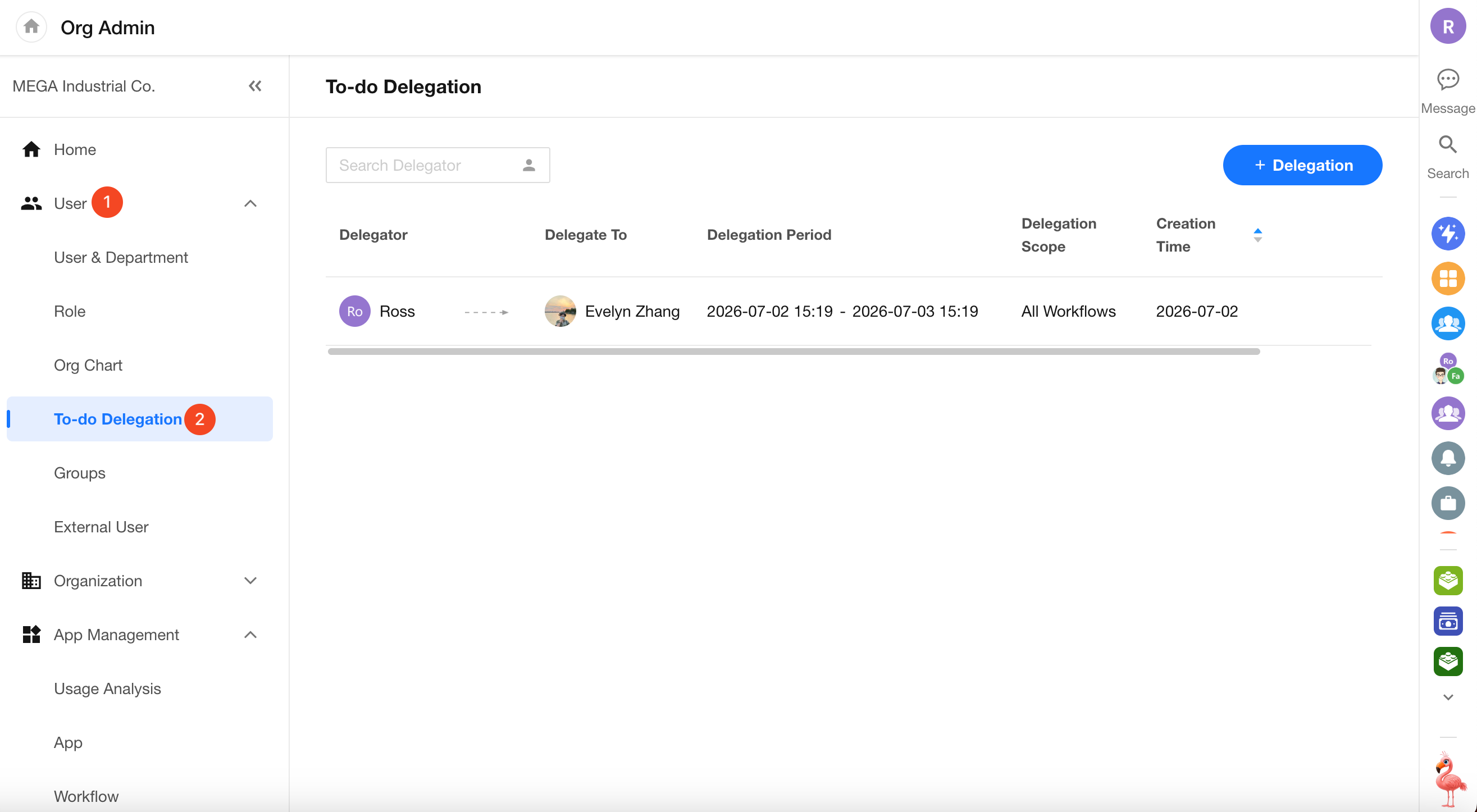
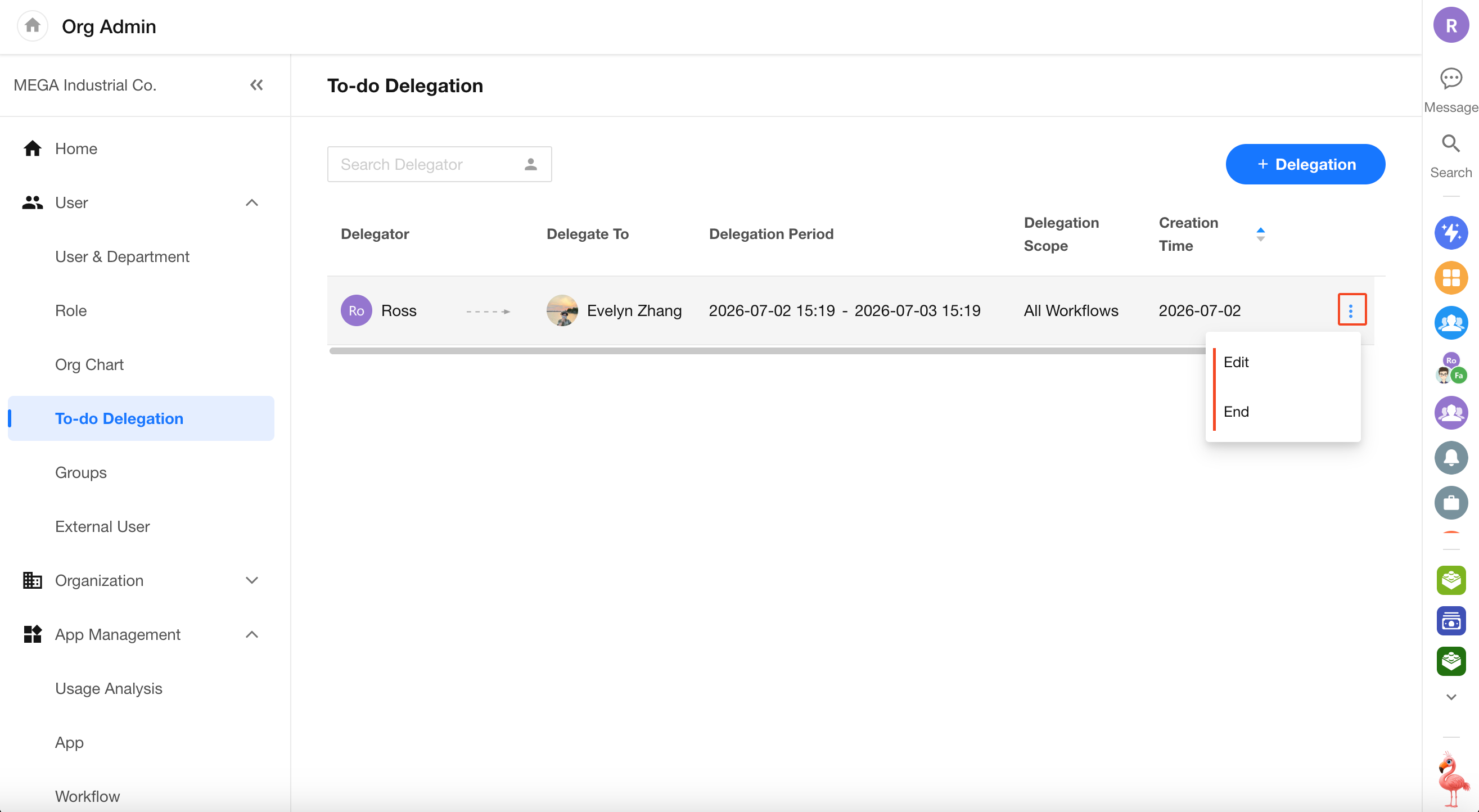
Delegations created by users are also listed on this page. For delegations within the organization, organization administrators can view, edit, or end delegation settings.
Was this document helpful?