Workflow History and Execution Details
In the workflow runtime history, you can view the execution status of each workflow instance and manage previously published workflow versions.
It serves two primary purposes:
- Manage individual workflow instances — review execution details for troubleshooting or terminate a workflow.
- Manage historical workflow versions — restore a previous version if needed.
I. Workflow Instances
What is a workflow instance?
A workflow configuration acts as an execution template. Each time a record triggers the workflow, the process runs based on that template. Every triggered run is considered a workflow instance.
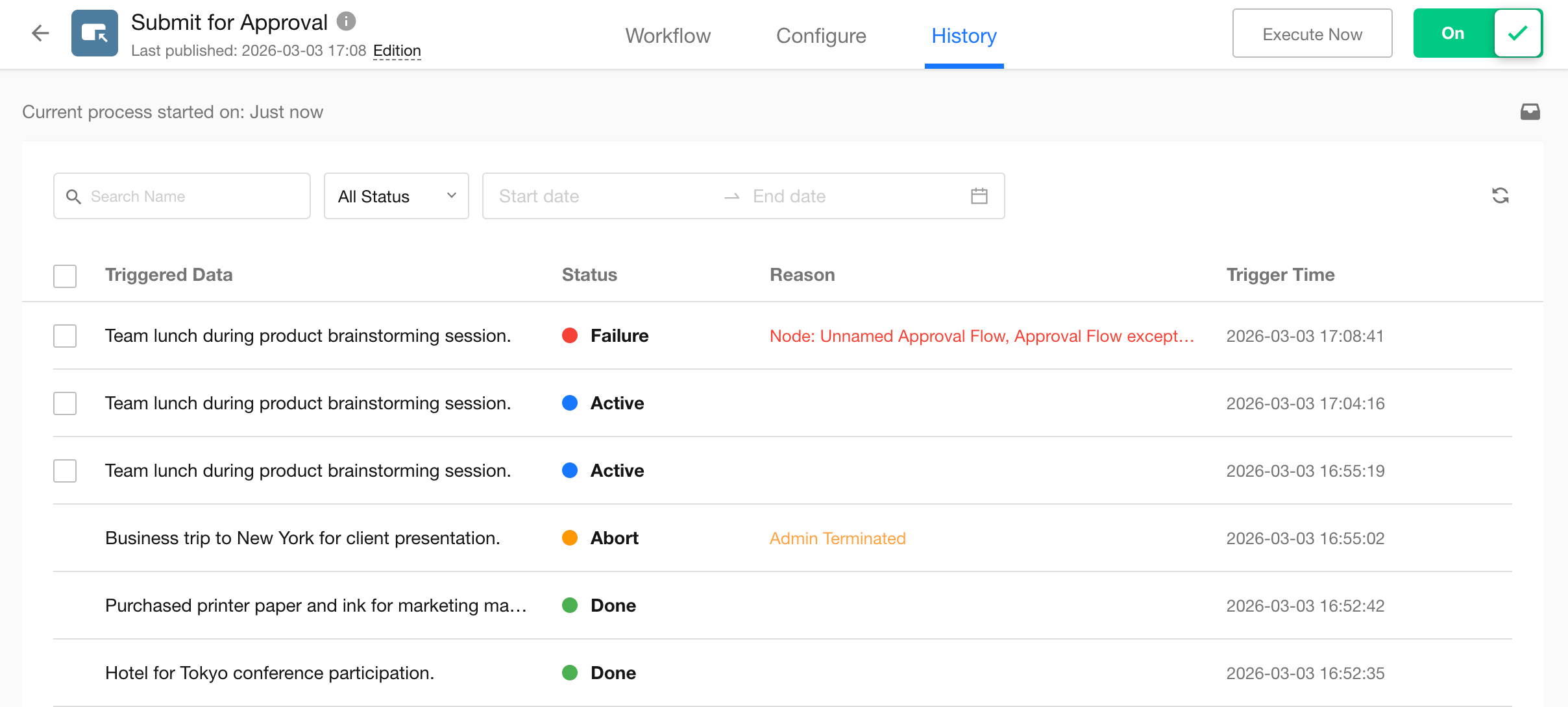
1. Workflow Runtime History (Instance List)
The runtime history displays individual workflow instances. You can view the current status of each instance in the list.
2. View a Single Workflow Instance
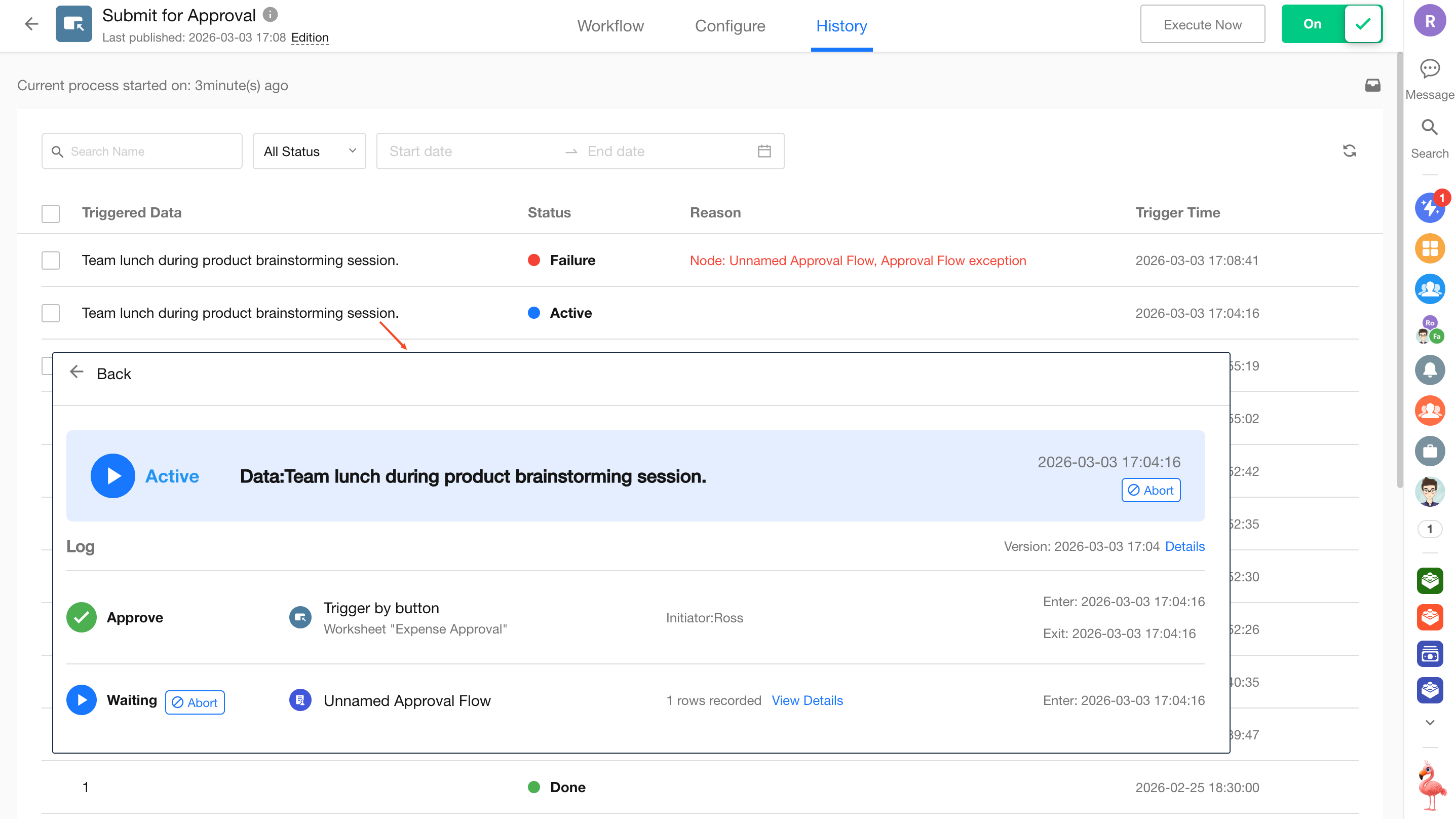
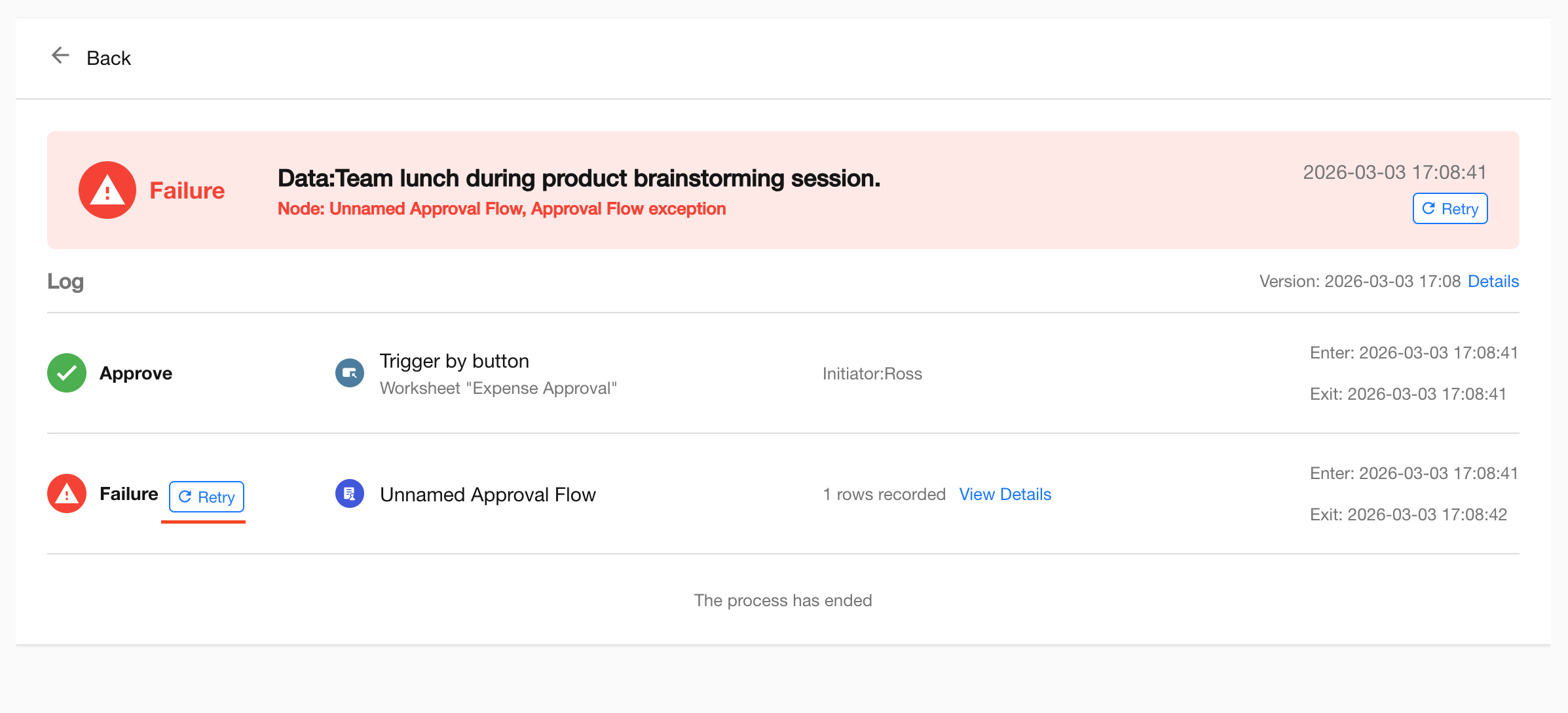
Click the name of a workflow instance to open the execution details page. You can view the execution status of each node within that instance.
3. Terminate a Workflow
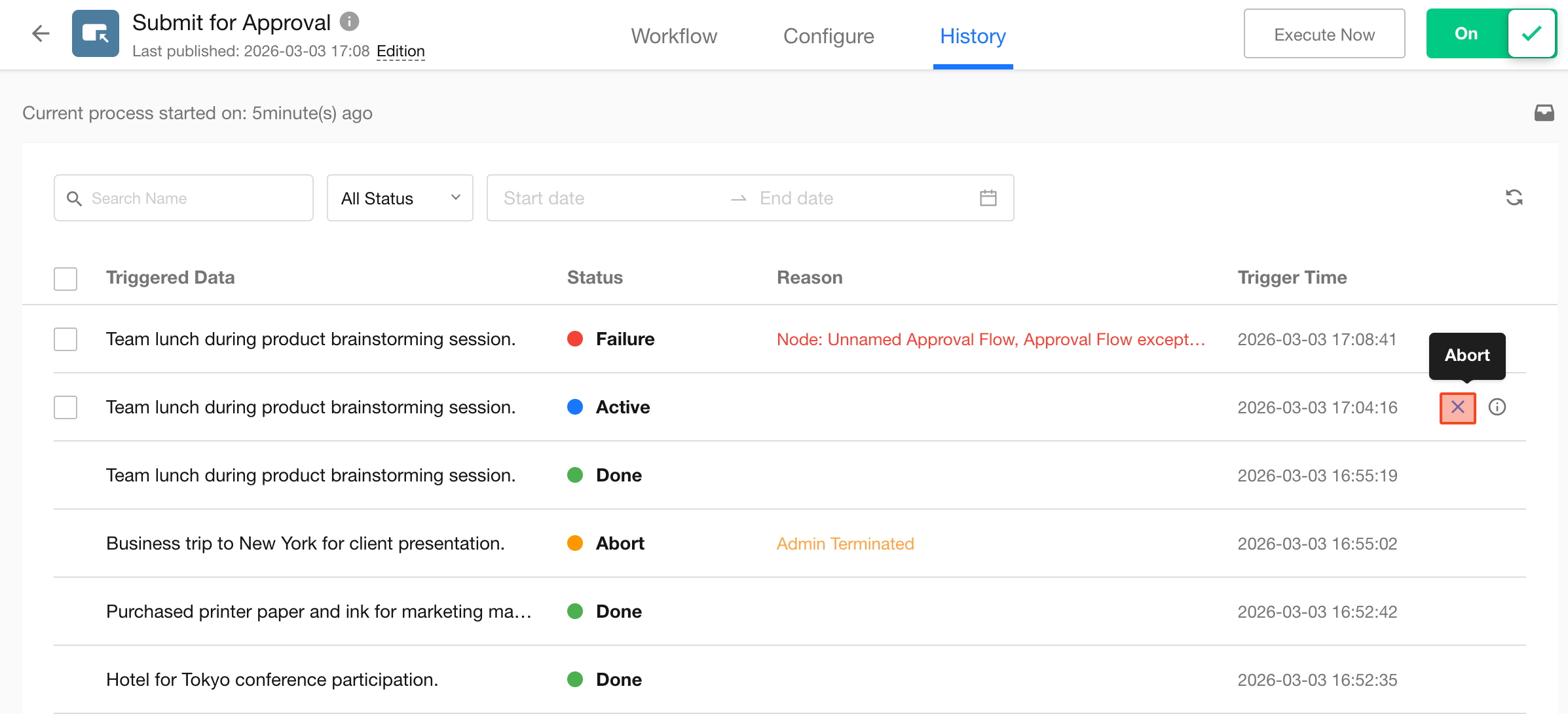
Application administrators can manually terminate an unfinished workflow instance from the list, or select multiple running workflow instances and terminate them in bulk.
After a workflow is terminated, the current workflow and all associated running subprocesses, approval processes, and packaged business processes are terminated automatically.
4. Re-run Failed or Terminated Workflow Instances
A workflow may be terminated if branch conditions are not met, or it may fail due to errors.
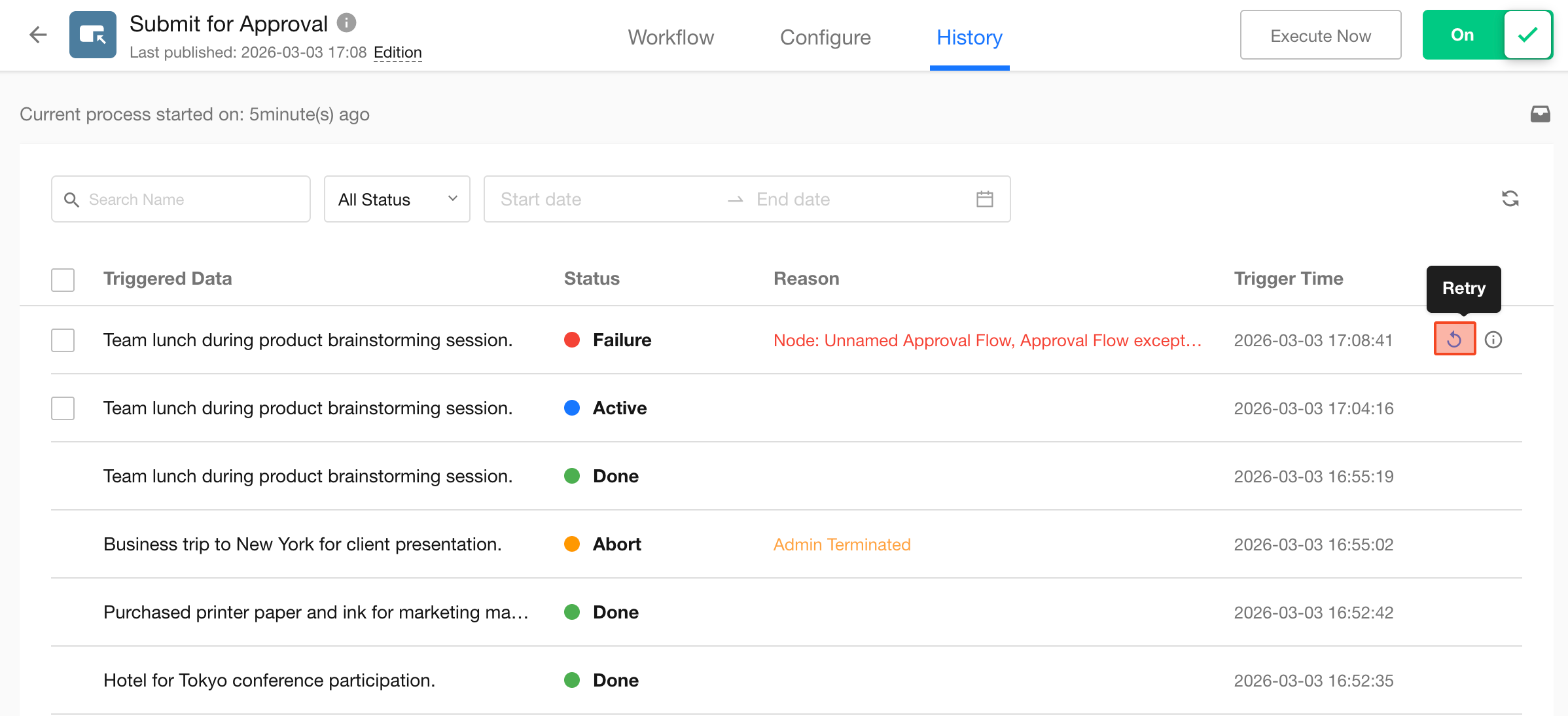
For example, if an approval step cannot find a designated approver, the workflow will fail. After resolving the issue (e.g., assigning the approver), you can re-run the workflow directly from the runtime history.
When re-running, the workflow resumes from the failed or terminated node, rather than starting over from the beginning.
-
Retry a single instance or select multiple instances for batch retry from the workflow instance list page:
-
Click Retry on the workflow instance details page:
II. Workflow Troubleshooting
If a workflow does not execute as expected, you can use the runtime history to diagnose the issue.
1. Check Whether the Workflow Was Triggered
The workflow may not be triggered in the following scenarios:
- The trigger conditions defined in the workflow trigger node are not met (e.g., only specific fields can trigger it).
- If Record A has already triggered Workflow B and the current instance of Workflow B has not yet completed, modifying Record A again will not re-trigger Workflow B — even if the trigger conditions are met.
- The monthly workflow execution quota has been exhausted.
2. The Workflow Was Triggered but Failed During Execution
If the workflow was triggered but encountered an issue during execution:
- Go to the workflow configuration page.
- Click History.
- Locate the target workflow instance.
- Identify the node where the issue occurred.
For troubleshooting, it is recommended to enable the Node Log and then re-run the workflow. This allows you to review the runtime data of each node.
III. Managing Historical Versions
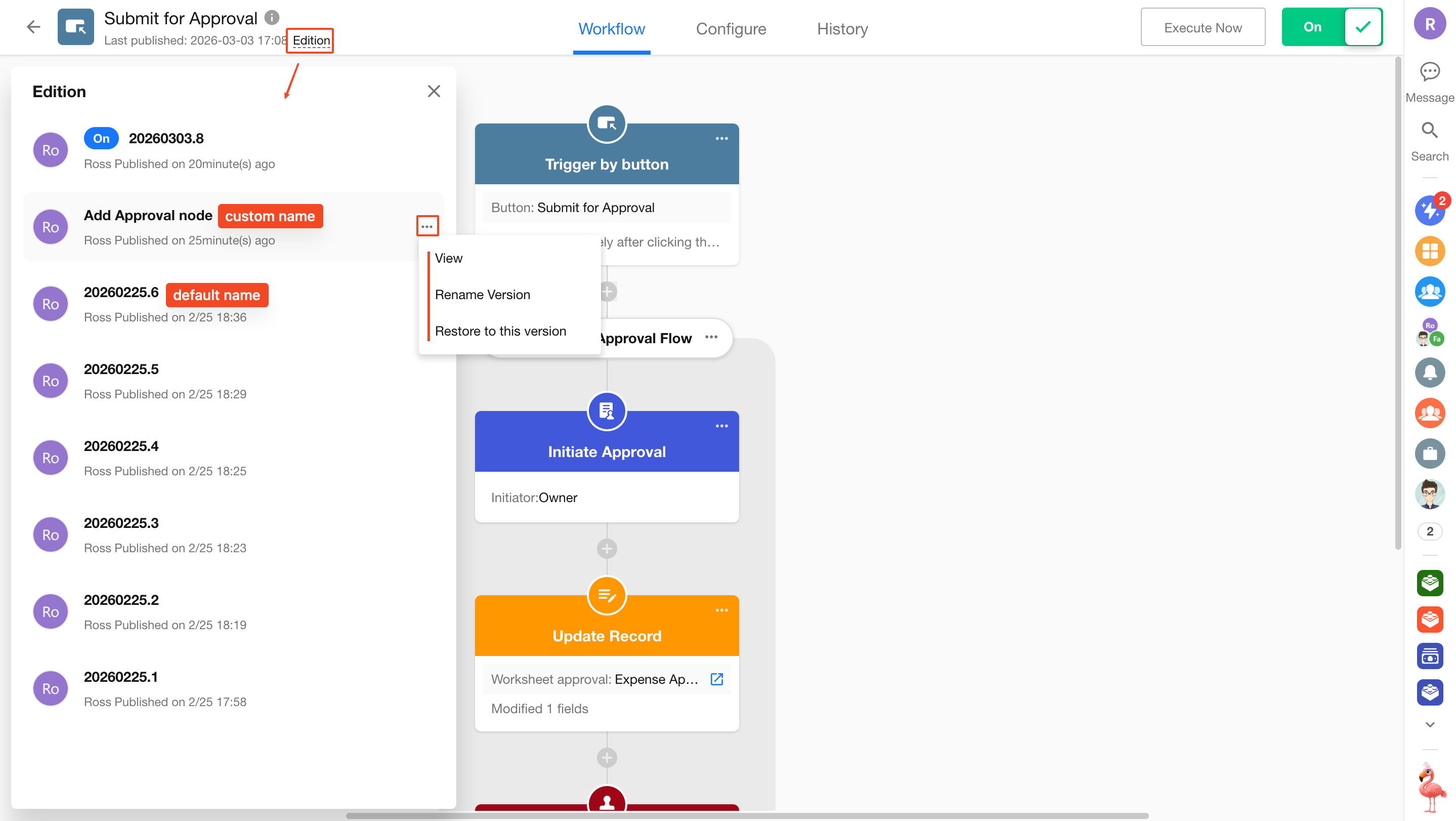
On the workflow configuration page, click the Version button in the upper-left corner to view previously published versions.
You can:
- View the configuration of historical versions
- Rename historical versions
- Restore and publish a previous version (workflow rollback)
In the version list, the default version name is the publish date plus a sequence number. Custom version names are supported.
Restore a Workflow to a Historical Version
To restore a workflow to a previous version:
- Select a version directly from the version list and restore it; or
- Click View to open the details of that historical version, then click Restore.
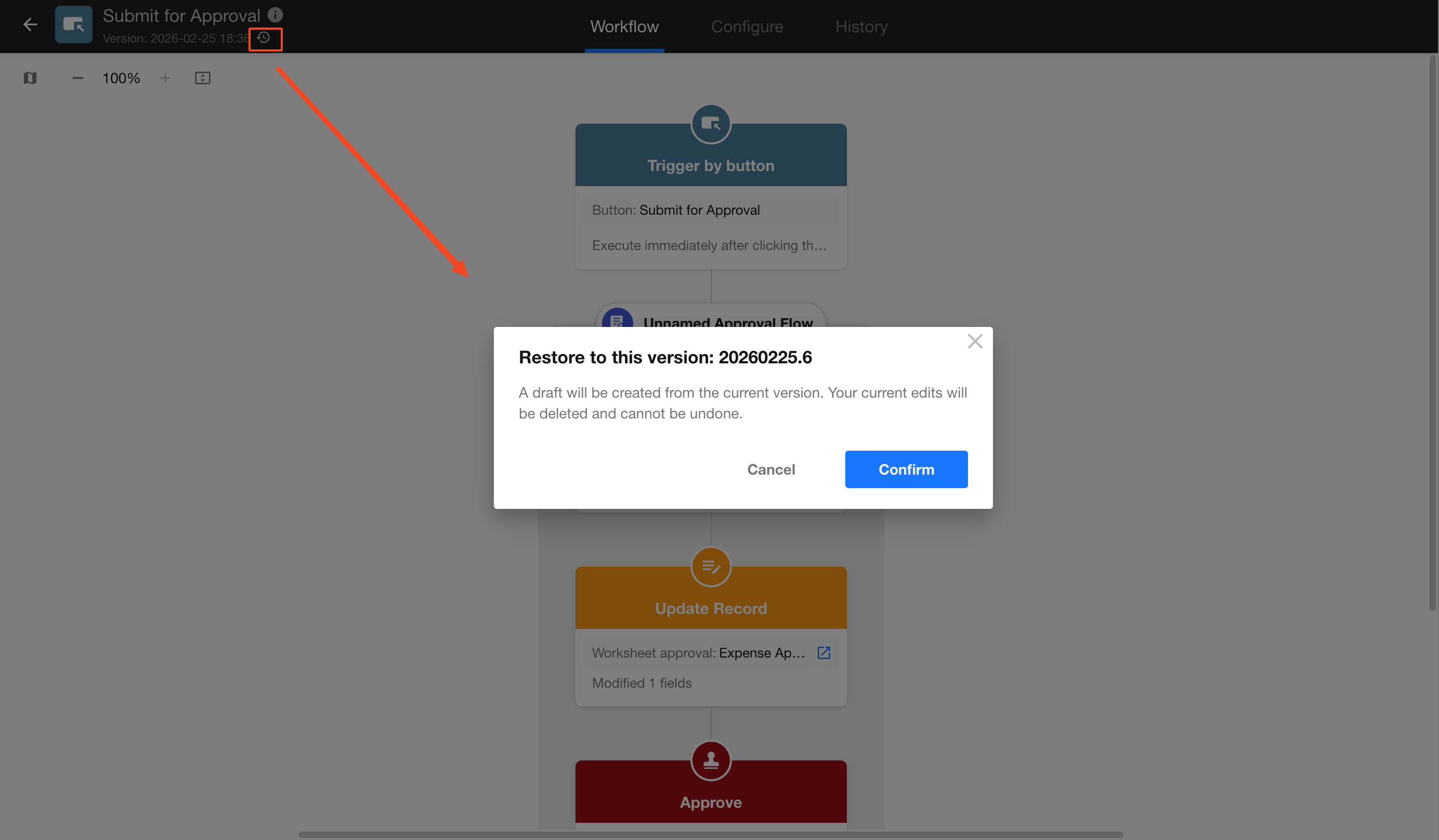
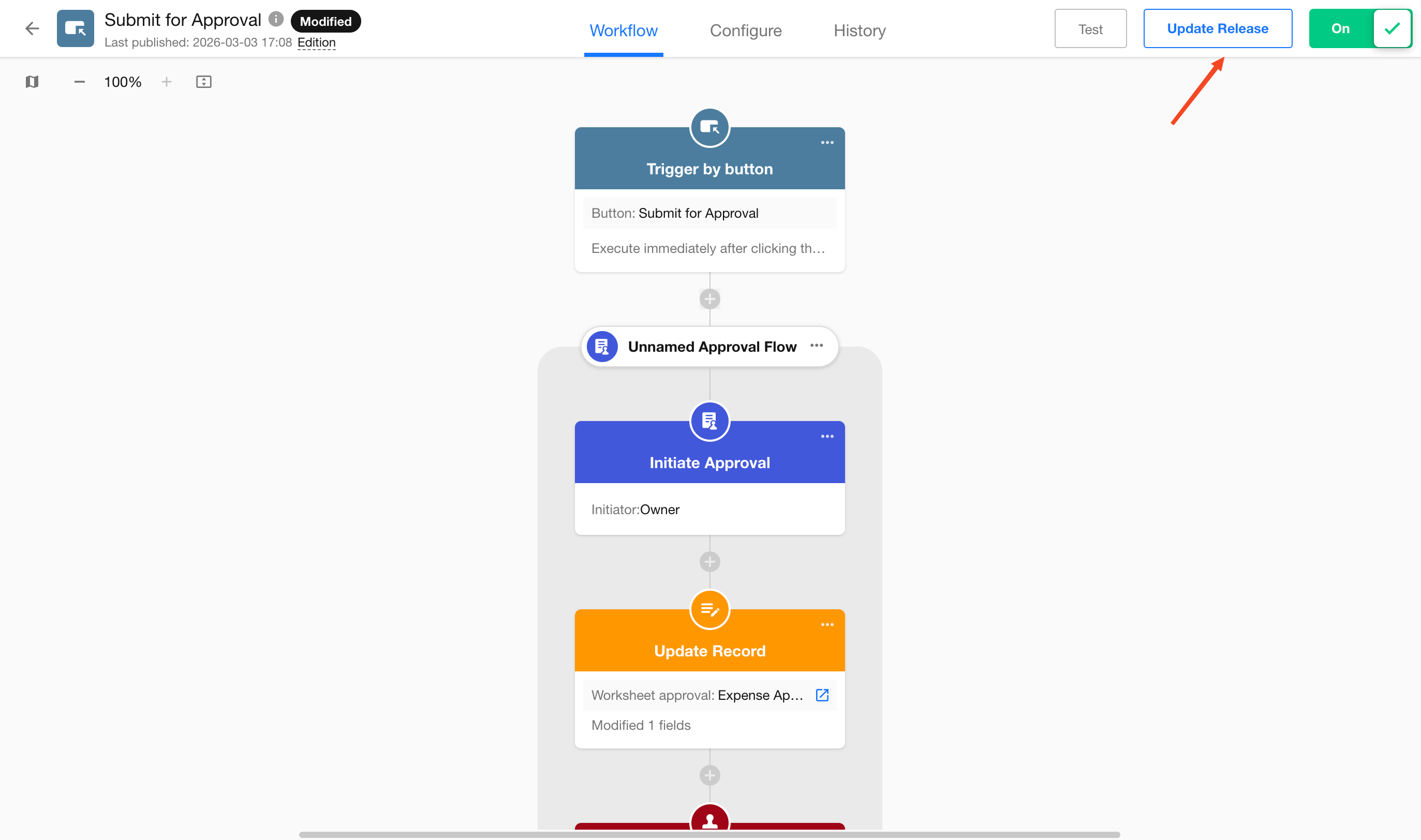
Restoring a version only rolls back the design configuration.
To replace the currently running version, you must manually click Update Release.
Was this document helpful?