How to Automatically Link Records When Importing from Excel
When importing Excel data into a worksheet, if there are relationship fields in place, related records can be automatically linked during the import process.
Example
Consider a scenario with two worksheets: one for Company (customer info) and another for Contacts. These two worksheets are linked via a relationship field:
- One company record can be linked to multiple contact records.
- Each contact record can only be linked to one company record.
If the company information already exists in the Company worksheet, you can automatically link it when importing contacts.
For instructions on importing data, see: How to import data into a worksheet
Key Steps
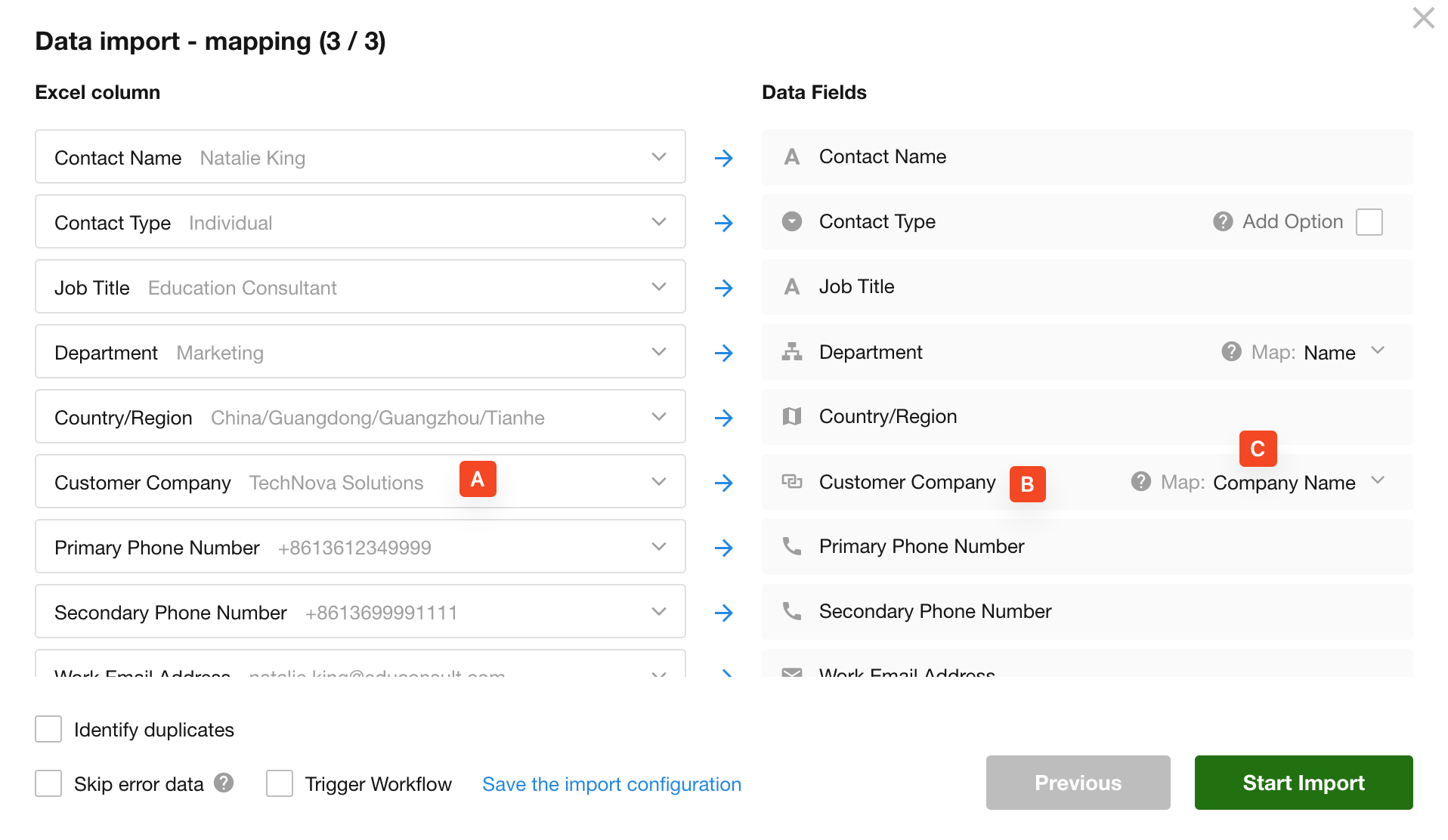
While mapping Excel columns to worksheet fields, you will need to configure the relationship field properly:
- A: The "Customer" column in your Excel file (Contacts sheet)
- B: The name of the relationship field in the Contacts worksheet
- C: The specific field in the Company worksheet used for matching records
If the Excel file contains a customer name like "TechNova Solutions", the system will search the Company worksheet for a matching value in the specified field (e.g., full company name). If a match is found, the relationship will be automatically created.
Tips
If Worksheet A is linked to Worksheet B in a one-to-many relationship — meaning one record in A can be linked to multiple records in B — only when importing data into Worksheet B can records from Worksheet A be auto-linked. The reverse is not supported.
For example:
- When importing Contacts, you can auto-link to existing Company records.
- But when importing Company data, you cannot auto-link to Contact records.
Therefore, if you need to import both worksheets, always import the Company data first, followed by Contacts. This ensures proper linking during the import.
Was this document helpful?