How to Update Existing Records When Importing from Excel
When importing data into a worksheet, you may only want to update specific fields in existing records rather than create new ones. You can achieve this by enabling the "Identify duplicate records" option during the import process.
How to Import Data
For step-by-step instructions, refer to: How to import data to a worksheet
Key Steps
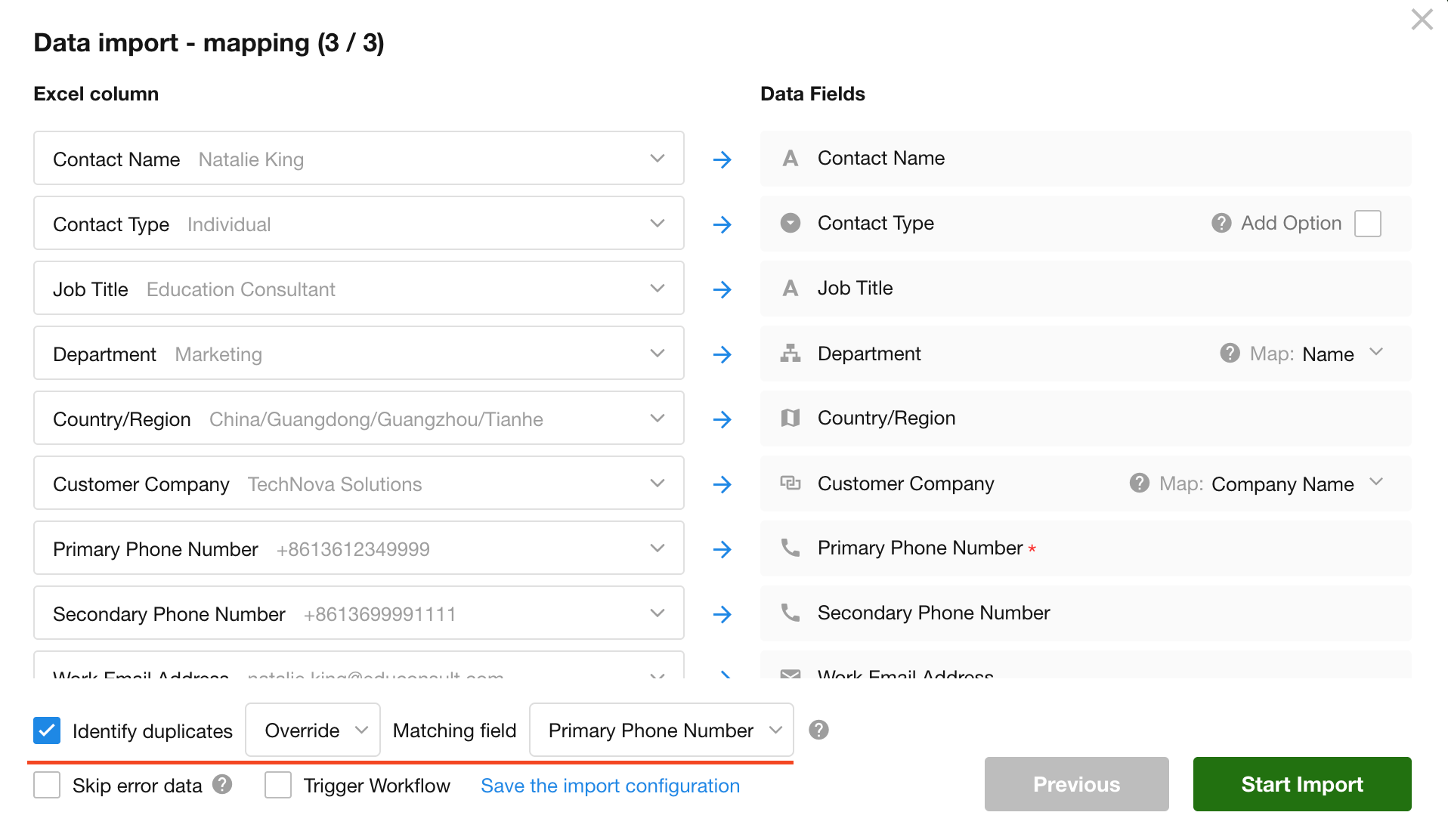
After selecting the target worksheet, you’ll need to map worksheet fields to the corresponding columns in your Excel file.
At the bottom of the page, check "Identify duplicate records", choose "Overwrite", and then select a matching field that will be used to determine whether a record already exists.
For example, if you've added an "Email" column and filled in the email addresses in your Excel file, and now want to import this into the worksheet, Telephone field can be used as the matching field. Fields like "Name" may not be suitable as they can have duplicates.
Matching field: The content of the selected field will be used to check whether the worksheet already contains a corresponding record. Typically, use a unique field such as record ID, employee ID, or phone number.
Skip: Based on the matching field, if a record already exists in the worksheet, it will be skipped. If not, it will be imported as a new record.
Overwrite: Fully replaces the existing record in the worksheet with the values from the Excel file. If no match is found, the row is added as a new record.
Update only, do not add new records: Only updates records that already exist in the worksheet. Any rows in Excel that don’t match existing records will not be imported.
Was this document helpful?