Attachment Export and Import (Images/Documents)
This article explains how to batch export attachments from records, and how to import images and documents into records via attachment links in Excel or bulk upload of local files.
1. Export Attachments
You can batch export attachments from multiple records, or export attachment links to Excel.
1.1 Batch Export Attachments
This feature is available in paid versions only.
-
Entry Points
-
Method 1:
Select multiple records in the record list, then click [Export] > [Export Attachments] in the top toolbar.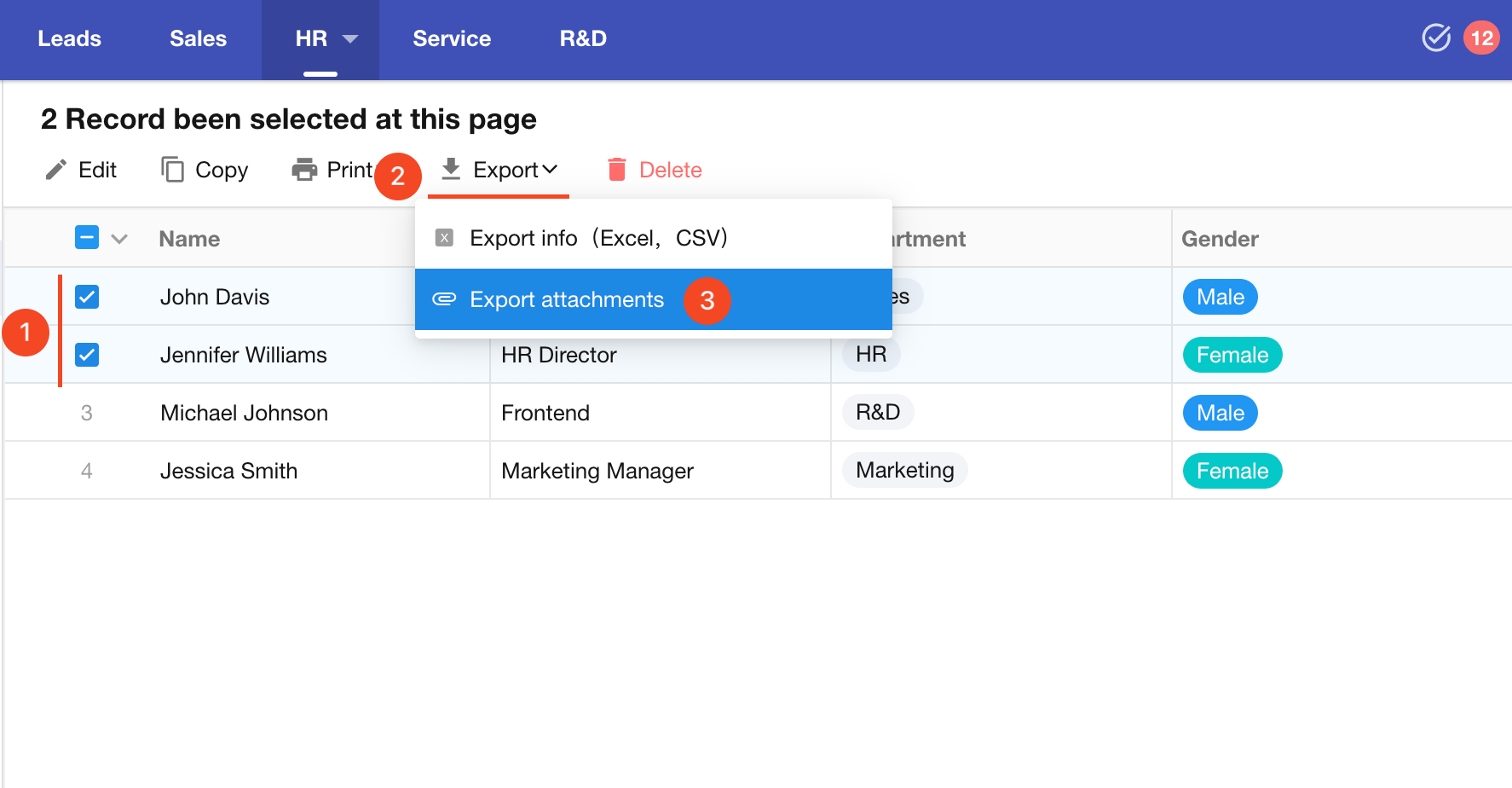
-
Method 2:
Open the action menu next to the view name and select [Export] > [Export Attachments].
If the Export Attachments option is not available, it means the worksheet does not contain any file fields. Attachments displayed via foreign fields are not supported for export.
-
-
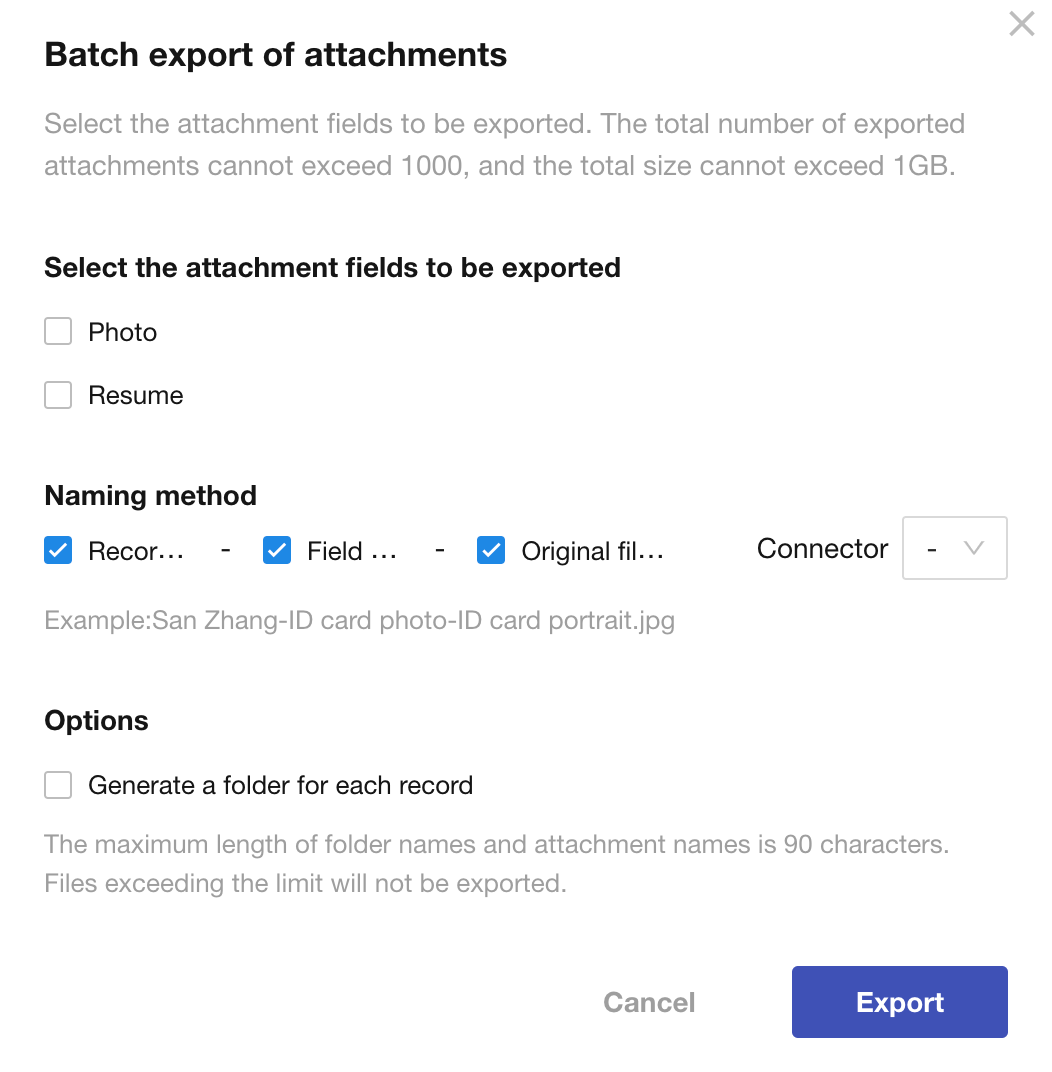
Export Settings
-
Field Selection:
Select one or more file fields. -
Naming Rules:
File names can be composed of: -
Record title
-
File field name
-
Original file name
You can also define custom separators for clarity.

- Packaging Options:
- Create a separate folder for each record’s attachments
- Place all attachments into a single folder
-
-
Export Limits
- Maximum number of attachments per export: 1,000
- Maximum total size per export: 1 GB
1.2 Export Attachment Links to Excel
When exporting worksheet data to Excel, file fields are represented as links.
-
Storage Format:
File name + URL. Multiple files are separated by commas. -
Access Permission:
The exported links require login to the platform to access. -
Re-import Supported:
The exported file link in Excel can be imported back into HAP as-is to recreate files.

2. Import Attachments
2.1 Import via Attachment Links
If you already have publicly accessible file links, you can import them into record fields in bulk via Excel. The system will automatically download the files from the links and save them as attachments.
-
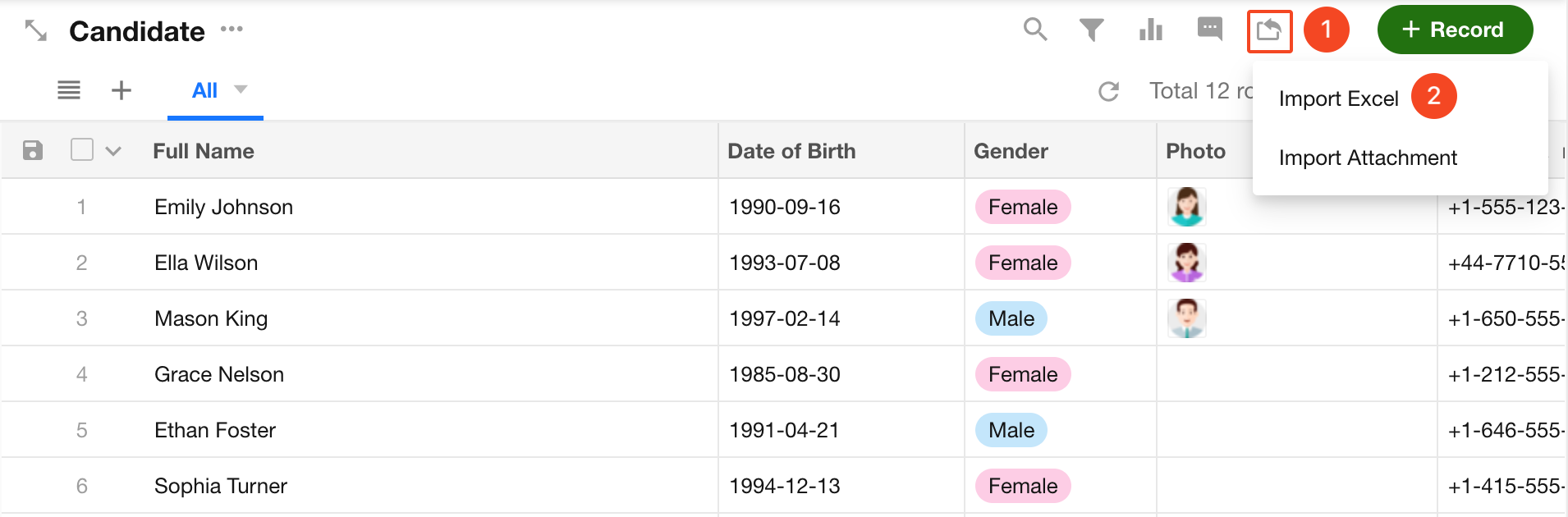
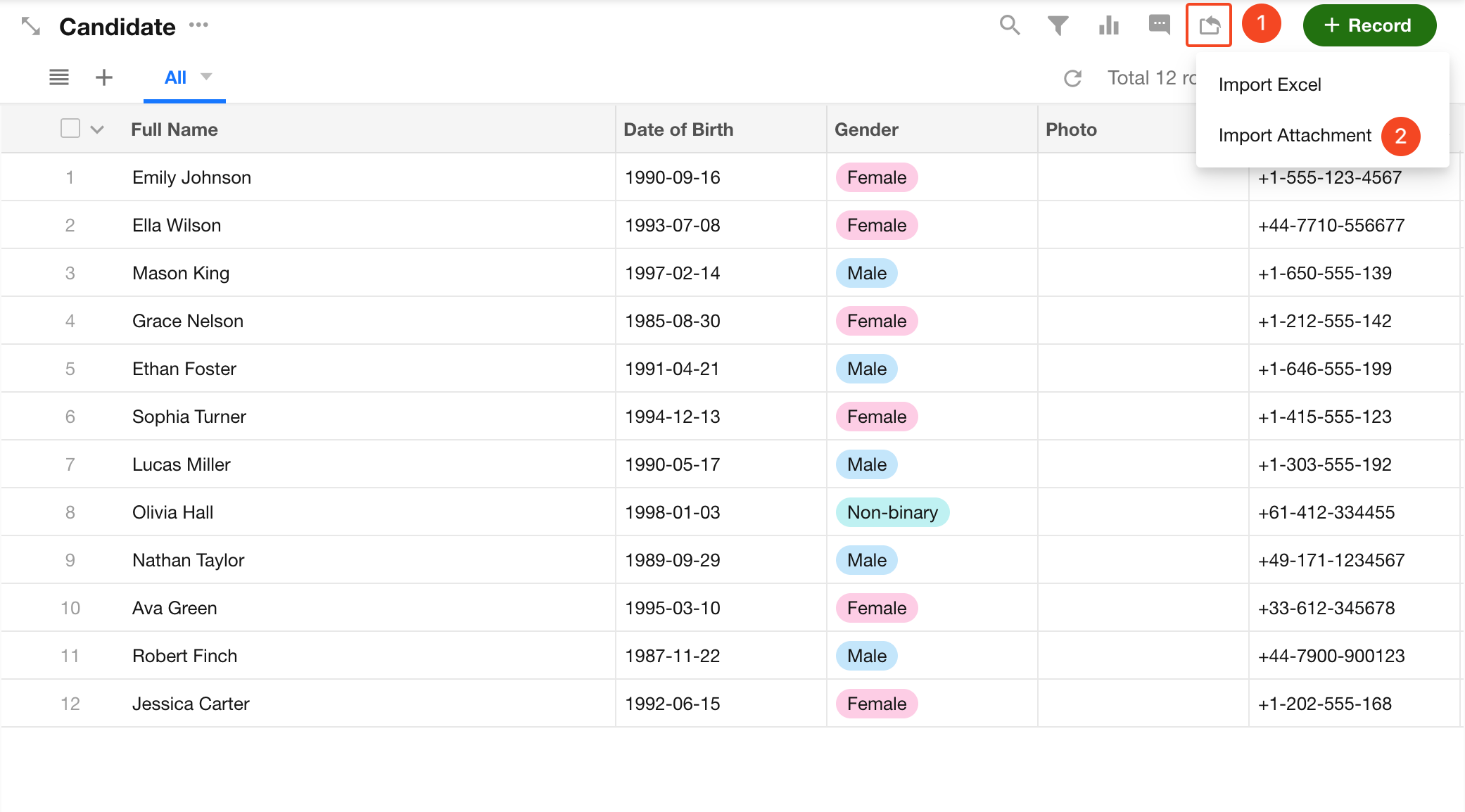
Entry Point:
In the worksheet top toolbar, click the [Import] icon and select [Import Excel].
-
Supported Formats
-
Direct Links:
Enter the URL directly in the cell (e.g.,http://.../a.jpg).
Multiple links should be separated by commas.
After import, the file name defaults to the last segment of the URL.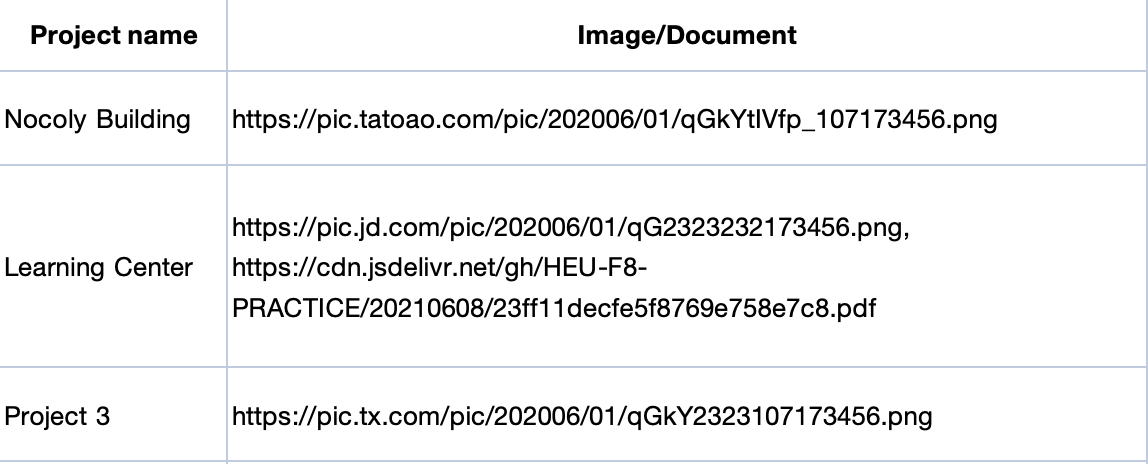
-
Custom File Name + Link:
Format:filename.extension (URL)
For multiple attachments, separate them with commas.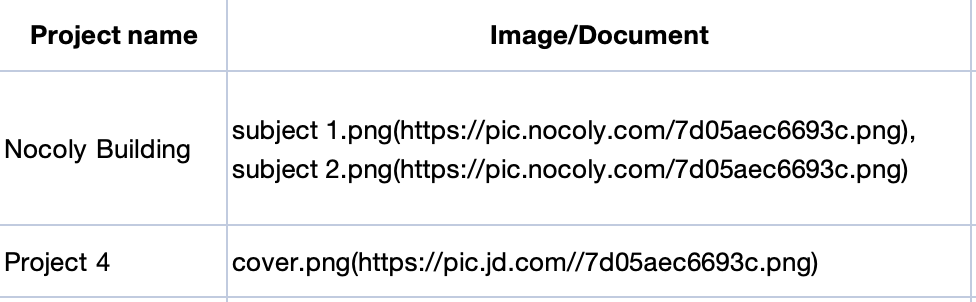
-
2.2 Bulk Upload Local Files to Records
By uploading local files in bulk with standardized naming conventions, the system can automatically match file names to records and upload them to the corresponding file fields. This helps avoid the inefficiency of uploading files one by one.
Entry Point
In the worksheet toolbar, click the Import icon and select Import Attachments.
Notes:
- This feature is unavailable if the worksheet does not contain an attachment field.
- Users must have import permissions and permission to create and edit records.
- Uploaded attachments count toward the organization’s attachment uploads quota.
Import Configuration
Before uploading files, configure the matching logic:
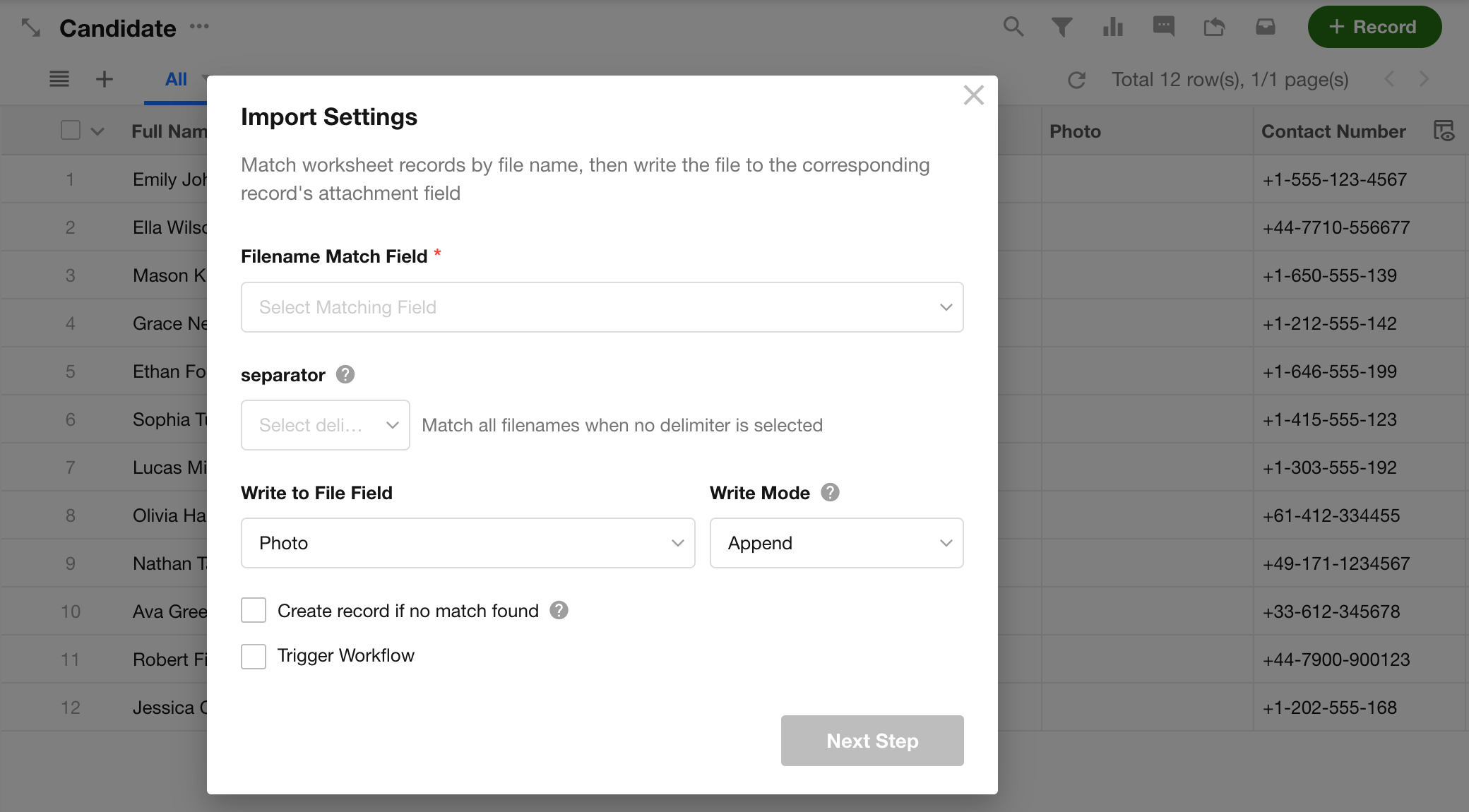
File Name Matching Field:
Specify a field used to identify records (e.g., “Employee ID” or “Contract Number”). The system matches file names against values in this field.
- Supported field types: text, email, telephone, ID number, auto number, foreign field (text / email / telephone / ID number / auto number)
- System fields are not supported
Delimiter:
-
Not configured:
The system matches the full file name with the field value. -
Configured (e.g.,
_ - .):
Only the part of the file name before the first delimiter is used as the matching prefix.Example:
File nameABC-001.pdf, delimiter-→ matching value:ABC
Target Field:
Select the attachment field where files will be stored.
Write Mode:
-
Append:
Keep existing attachments and add new files. -
Overwrite:
Remove all existing attachments in the field and keep only the newly imported files (cannot be undone).
Create Records When No Match Is Found
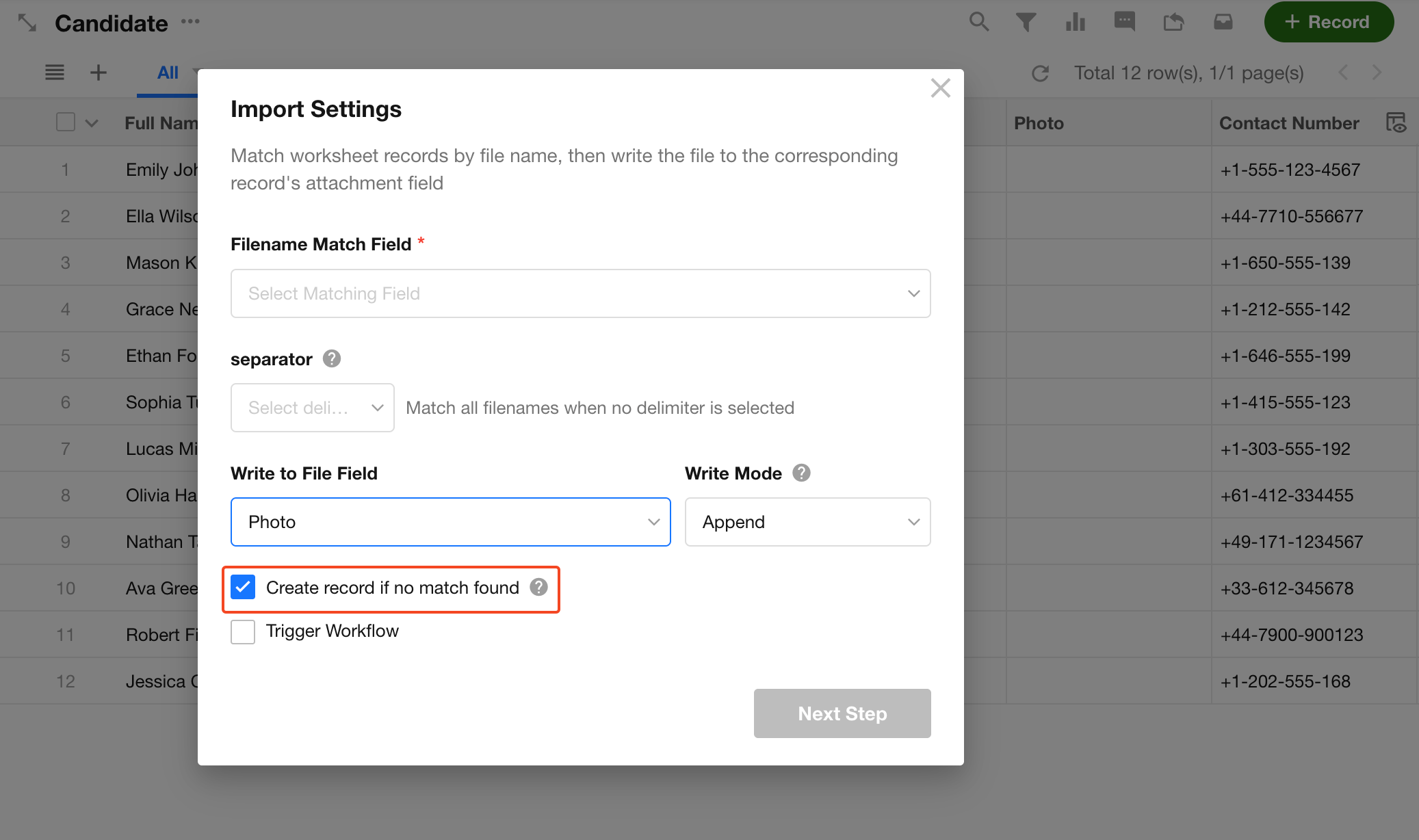
If Create records when no match is found is enabled, unmatched files will automatically create new records:
-
Auto-fill:
The file name (or prefix) is written into the matching field. -
Grouping rule:
Files with the same name or prefix are grouped under the same record. -
Constraints:
If other required fields exist without default values or imported data, record creation may fail.
Upload Files
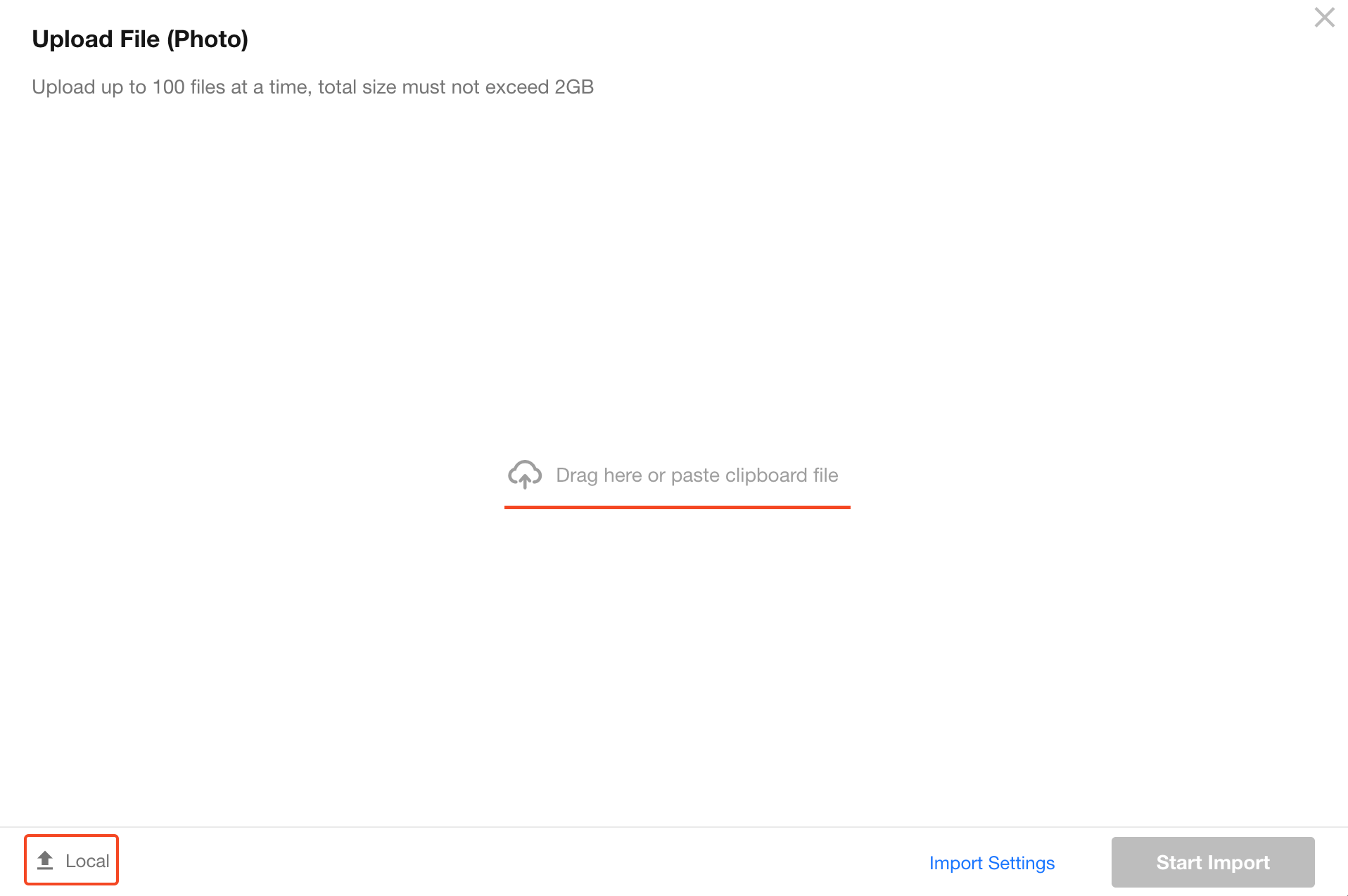
You can upload individual files, entire folders, or paste files directly from the clipboard. After uploading, click Start Import.
Upload limits:
- Quantity: Up to 100 files per upload
- Size: Total size must not exceed 2 GB
- Format: File names cannot contain special characters such as
\ / : * ? " < > |. These will be automatically replaced with_during upload
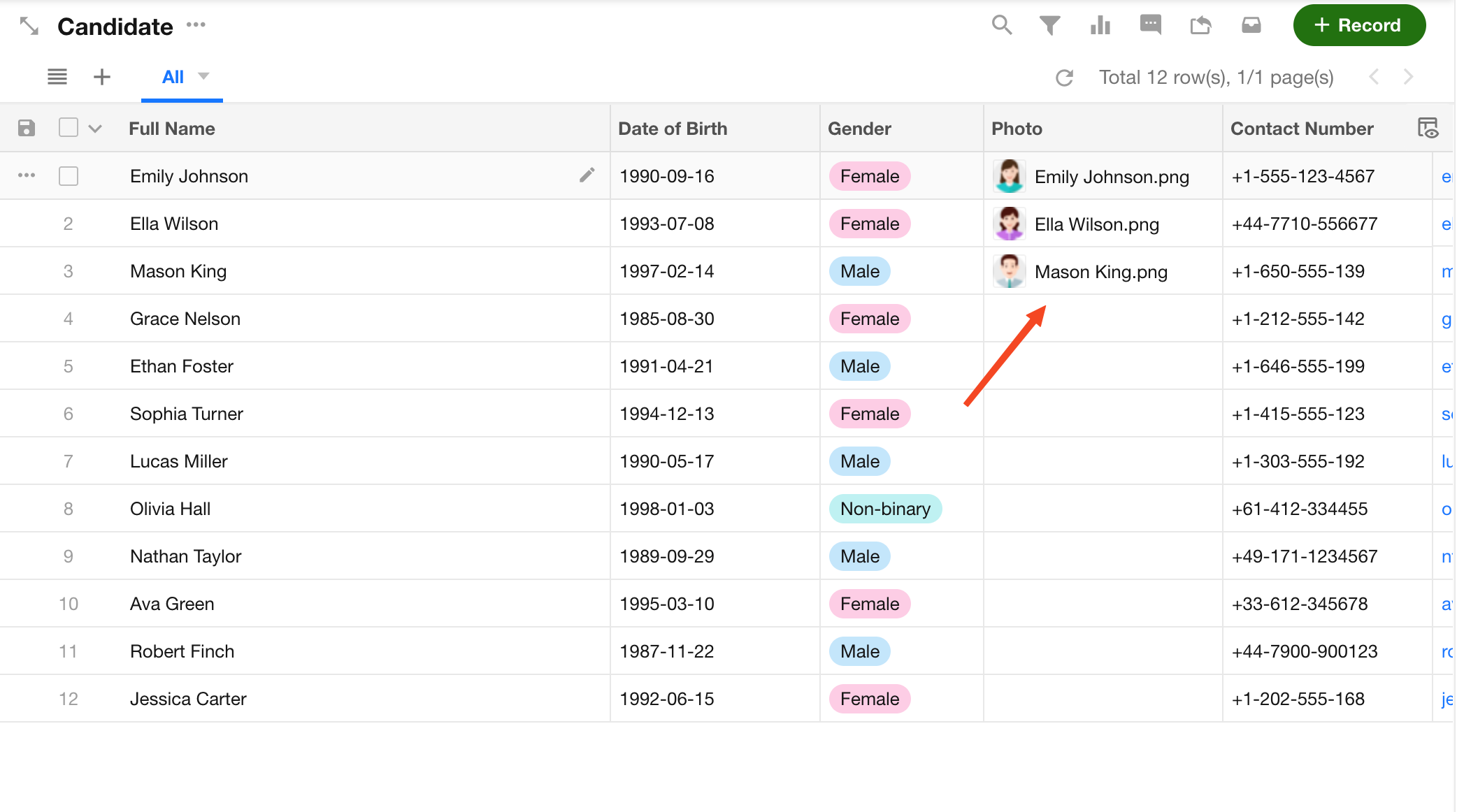
Example:
Results and Logs
-
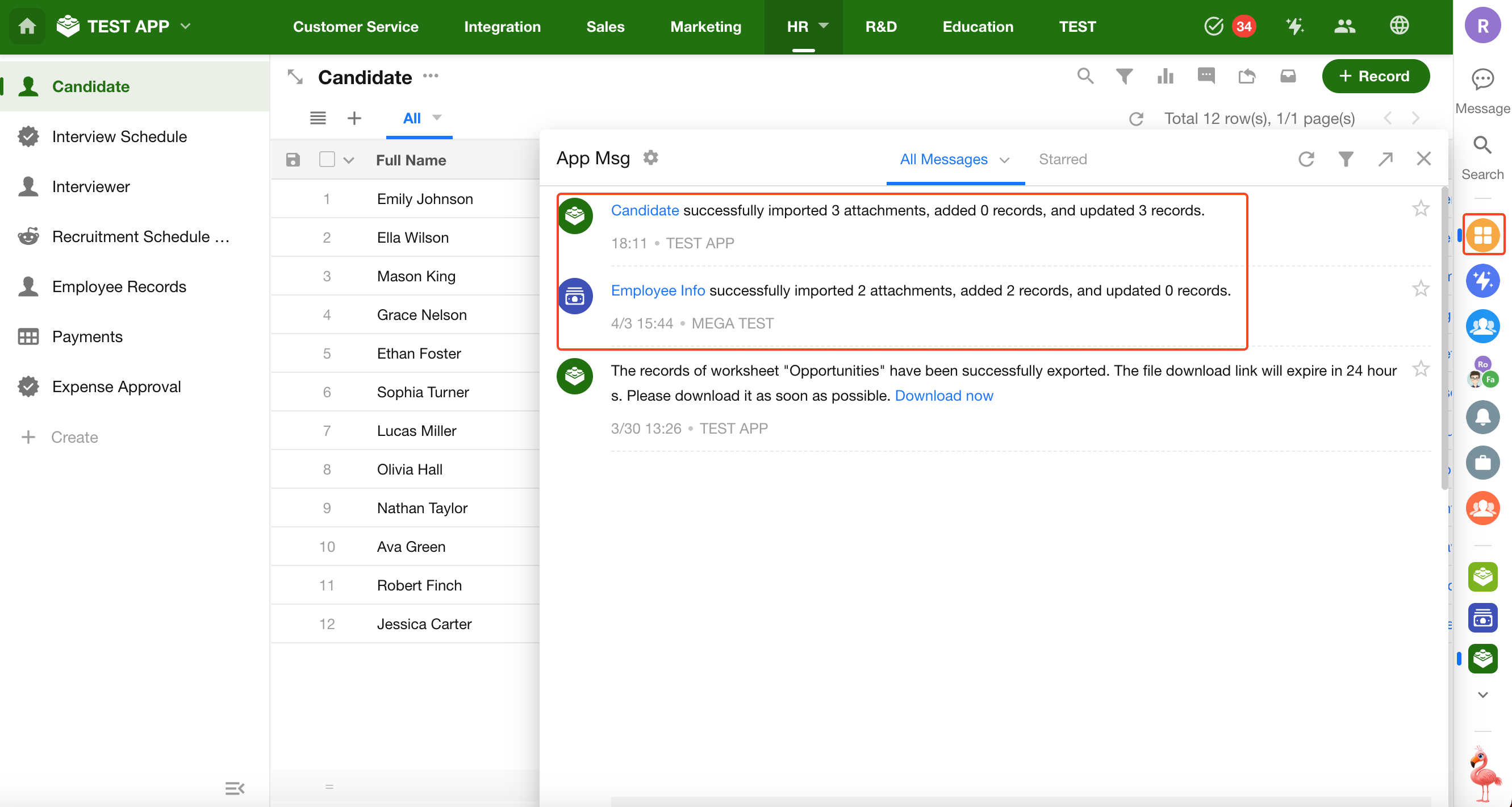
Result Notifications
After the import is complete, the system will send notifications via pop-ups and application messages. If some or all files fail to import, you can download an error report to review the reasons.
-
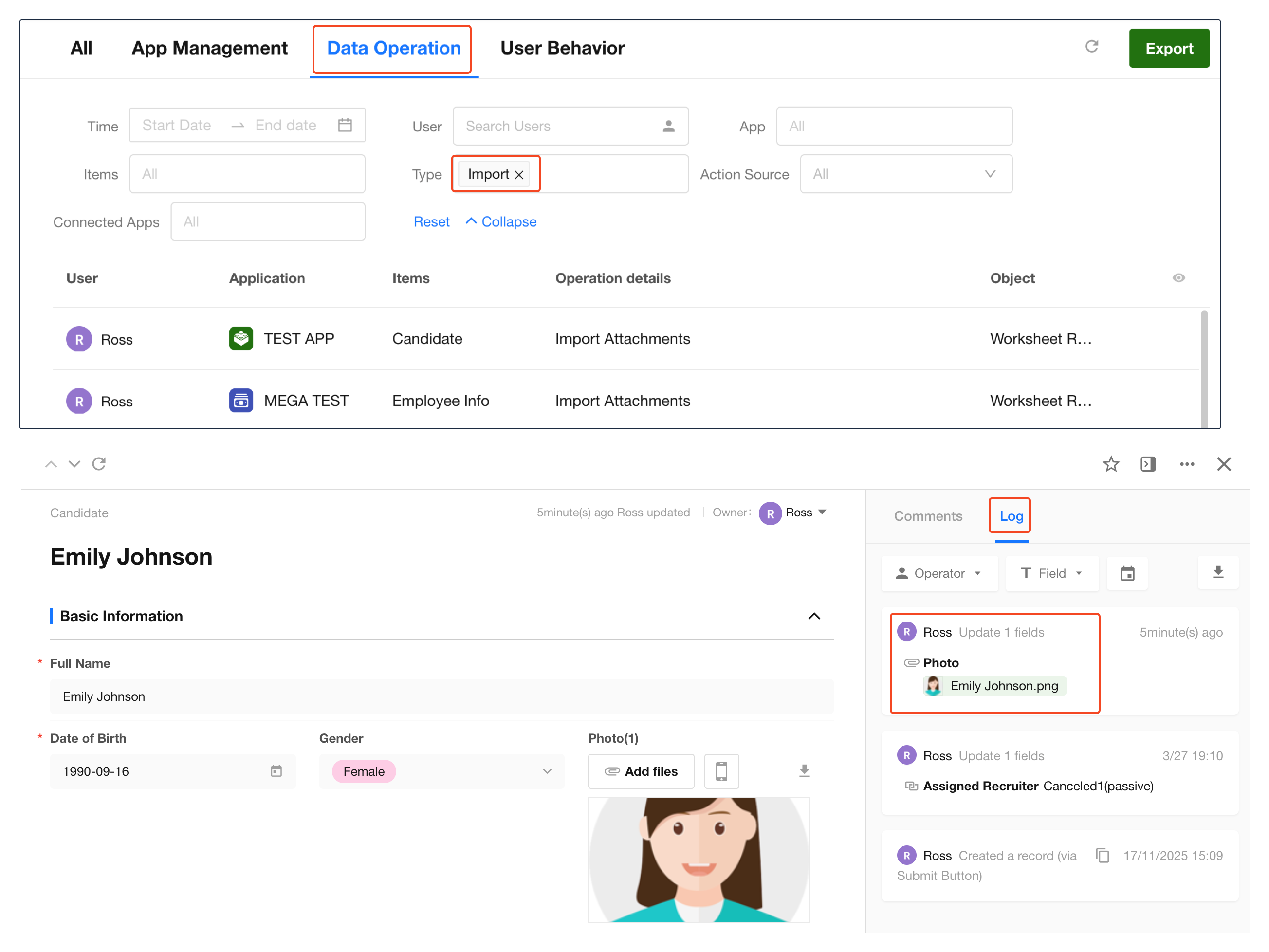
Log Tracking
-
Application logs:
Under Data Operation, operation type is Import, and object is Worksheet Record -
Record logs:
In the record detail page, you can view the history of attachment updates
-
Was this document helpful?