Public Sharing of Views and Records
Views and records in a worksheet can be shared externally. Anyone with the shared link can access the view data or record details.
When mentioning users (@) in record discussions, you can also control whether non-members are allowed to view record details, ensuring data security.
Share Views
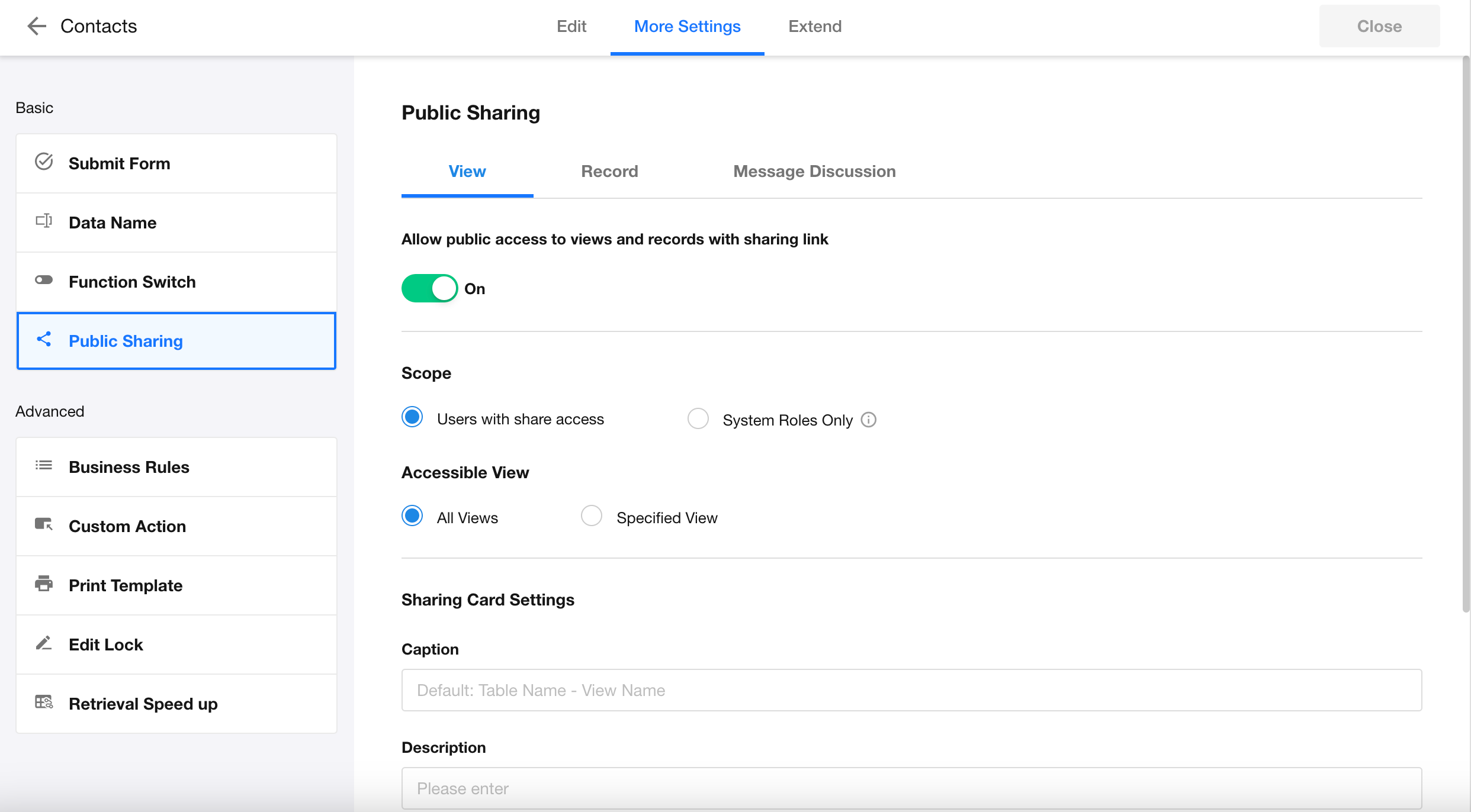
Go to Edit Form > More Settings > Public Sharing, and open the View tab to enable or disable view sharing.
-
Enabled
- Specify which views can be shared
- Define which users are allowed to share
-
Disabled
- All view sharing is disabled
- Existing shared links will become invalid
Notes:
- Each user generates a unique sharing link
- Data accessed via the shared link reflects the sharing user’s permissions
Sharing Card in WeChat
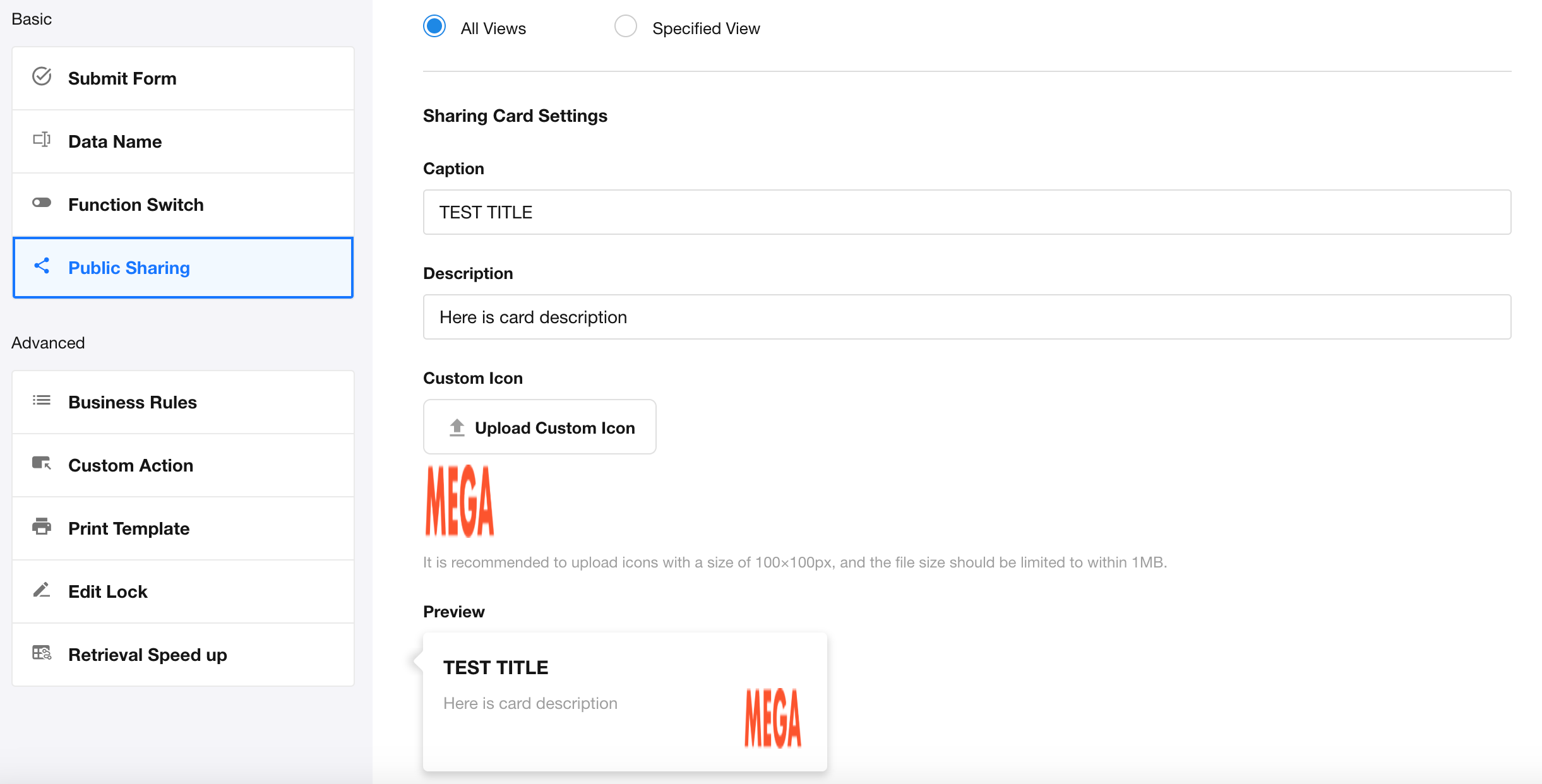
When sharing a view via WeChat, you can customize the sharing card:
- Title: Defaults to “Worksheet Name - View Name” (e.g., Tasks - table view)
- Description: Supports static text only
- Custom Icon: Defaults to the view icon; you can upload a custom icon
Configuration:
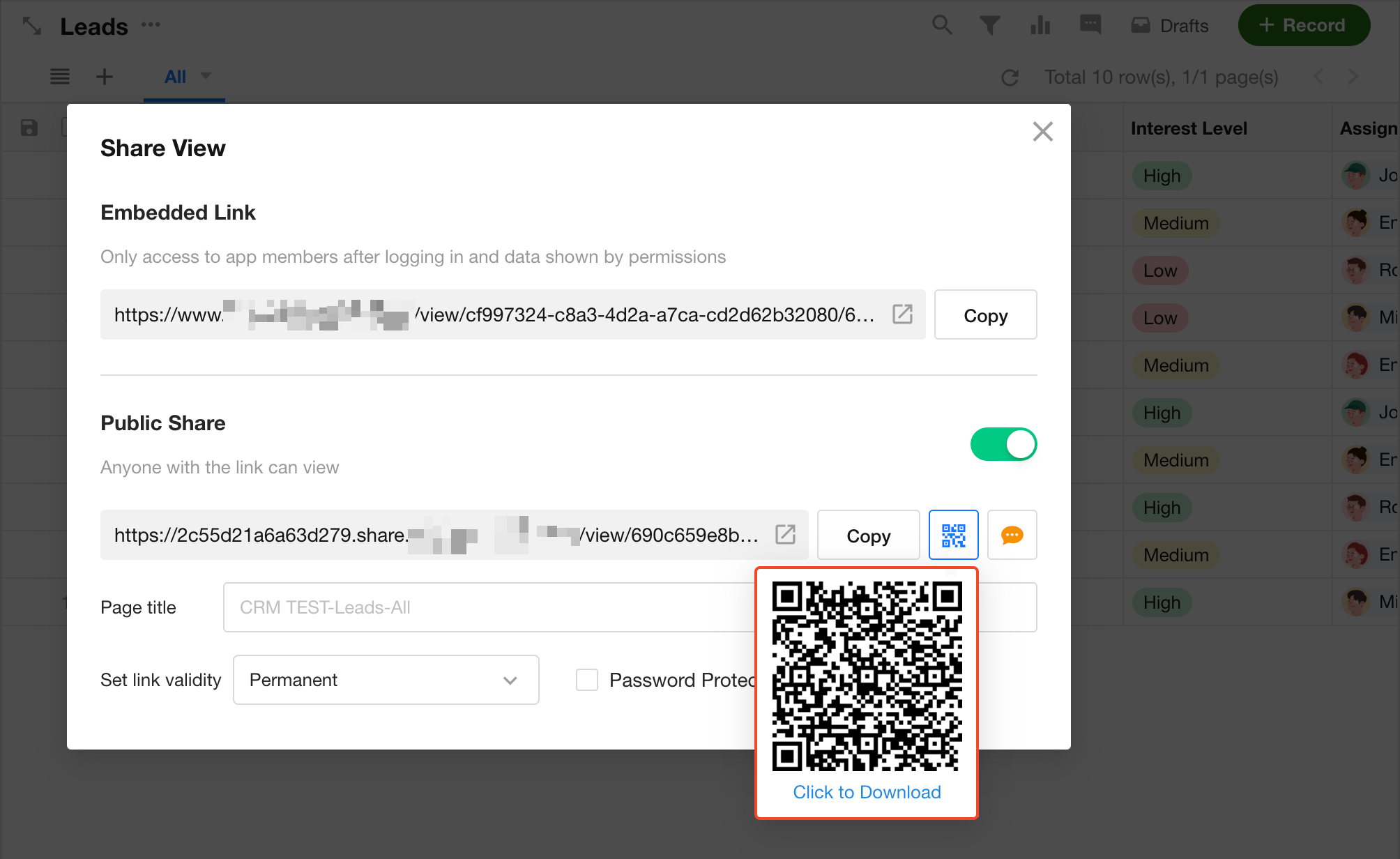
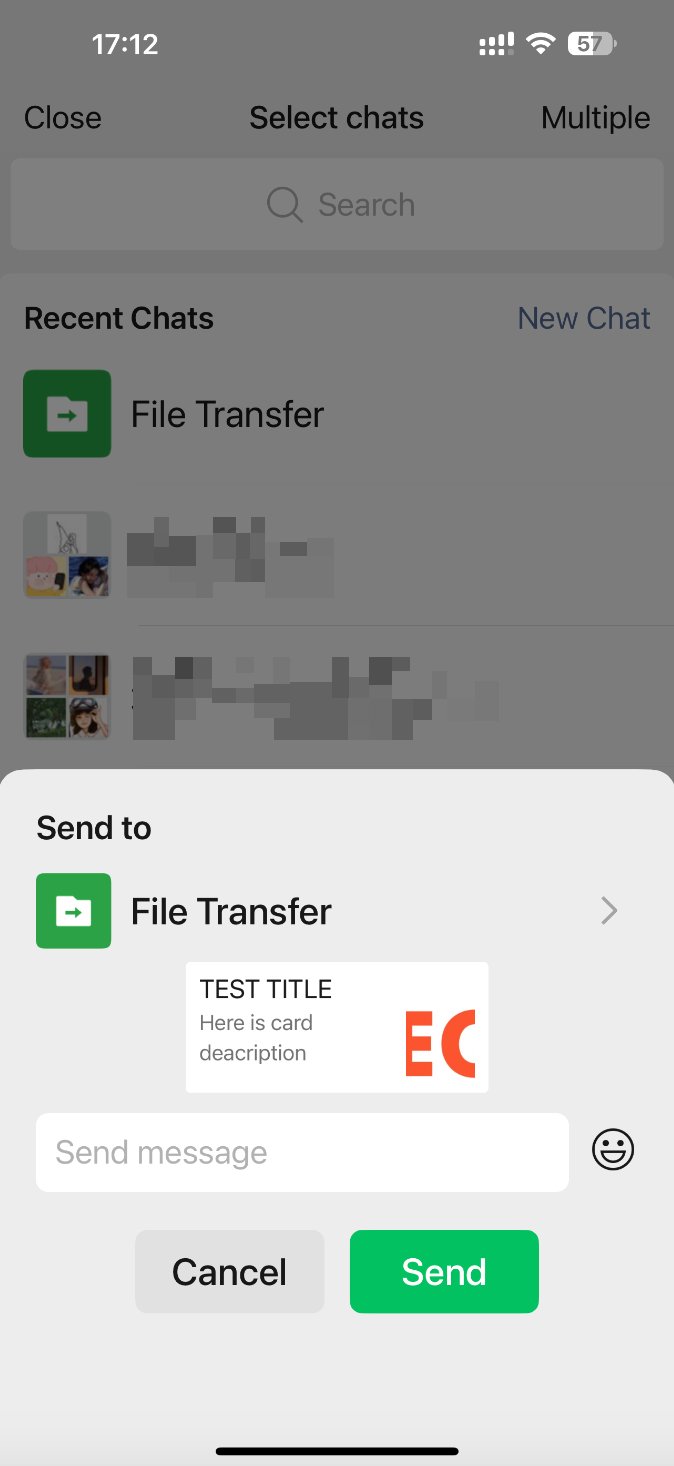
Sharing steps and result:
-
Scan the view sharing QR code using WeChat
-
Share with WeChat contacts
Share Records
Go to Edit Form > More Settings > Public Sharing, and open the Record tab to enable or disable record sharing.
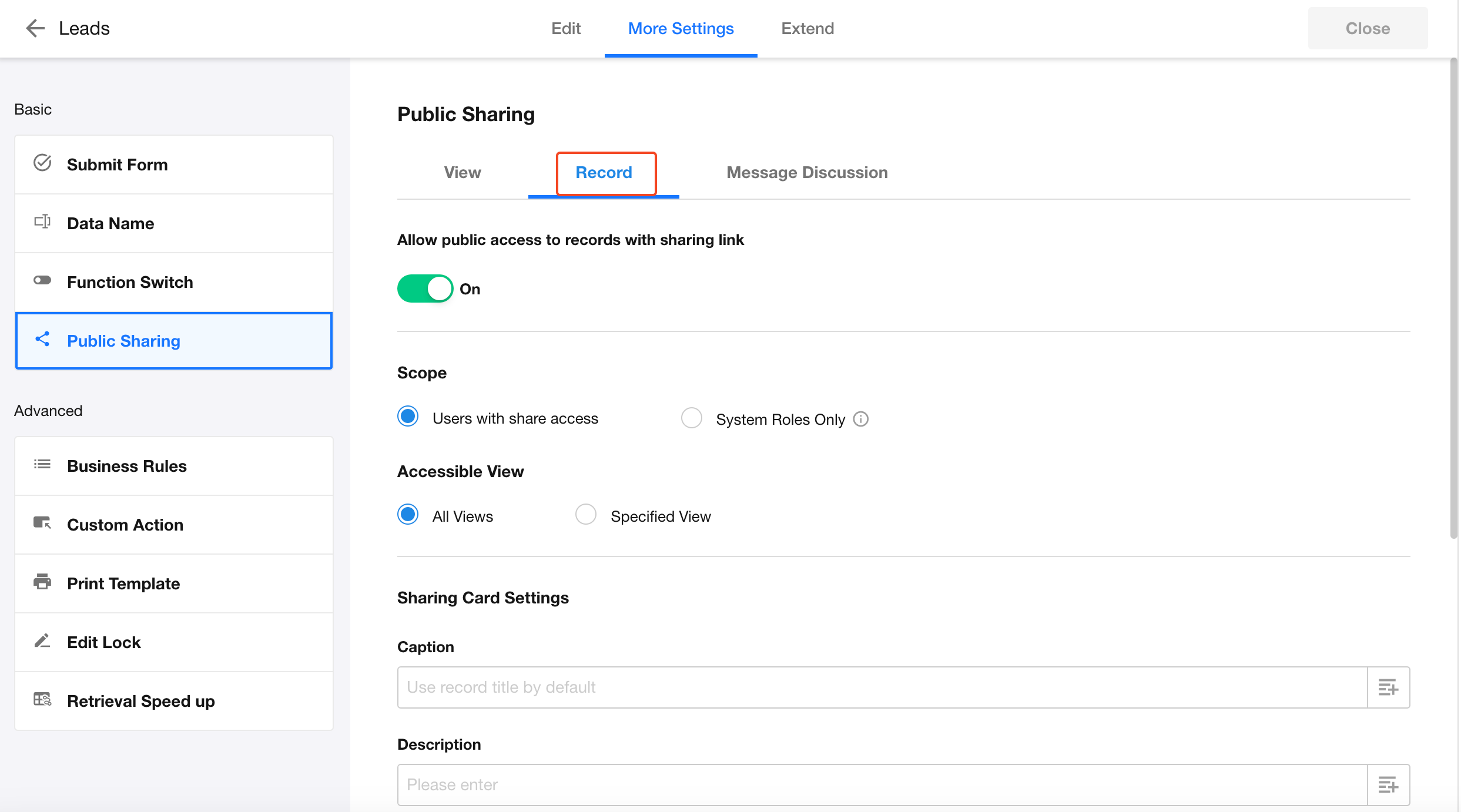
-
Enabled
- Specify which users can share records
- Define which views allow record sharing
-
Disabled
- Record sharing is disabled across all views
- Existing shared links will become invalid
Notes:
-
Each user generates a unique sharing link
-
Record details accessed via the shared link match the sharing user’s permissions
-
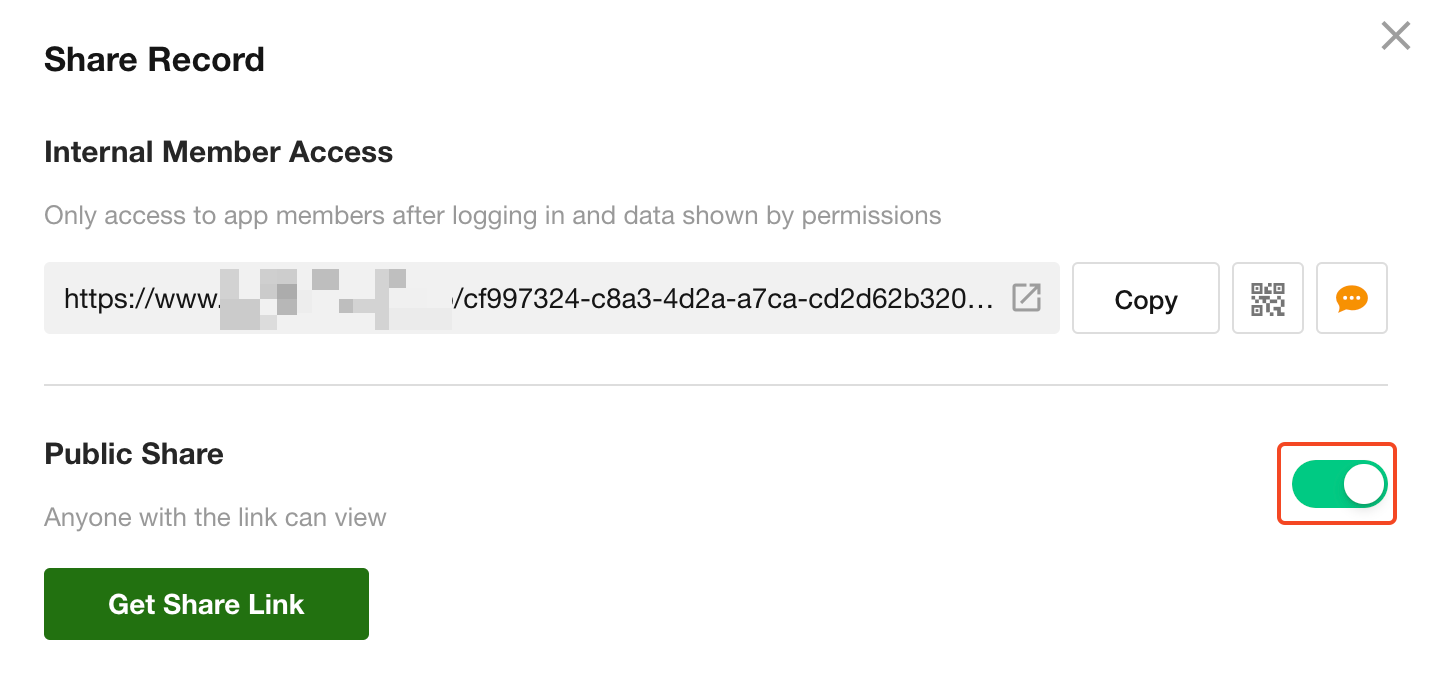
Sharing can be disabled at the individual record level without affecting other records
Sharing Card in WeChat
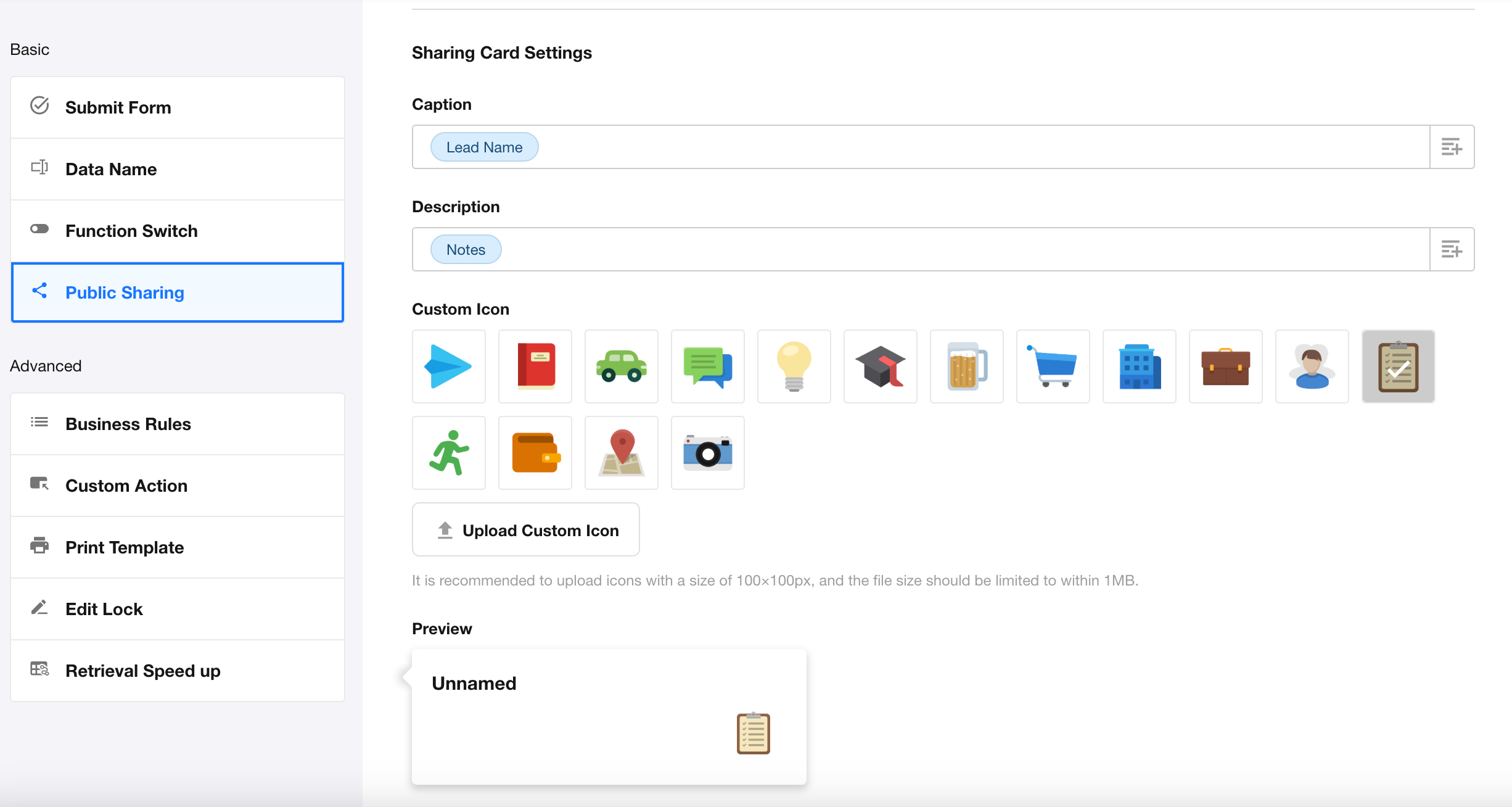
When sharing a record via WeChat, you can customize the sharing card:
- Title: Defaults to the record title; can be mapped to a specific field
- Description: Can be mapped to a field value
- Custom Icon: Defaults to the view icon; you can upload a custom icon
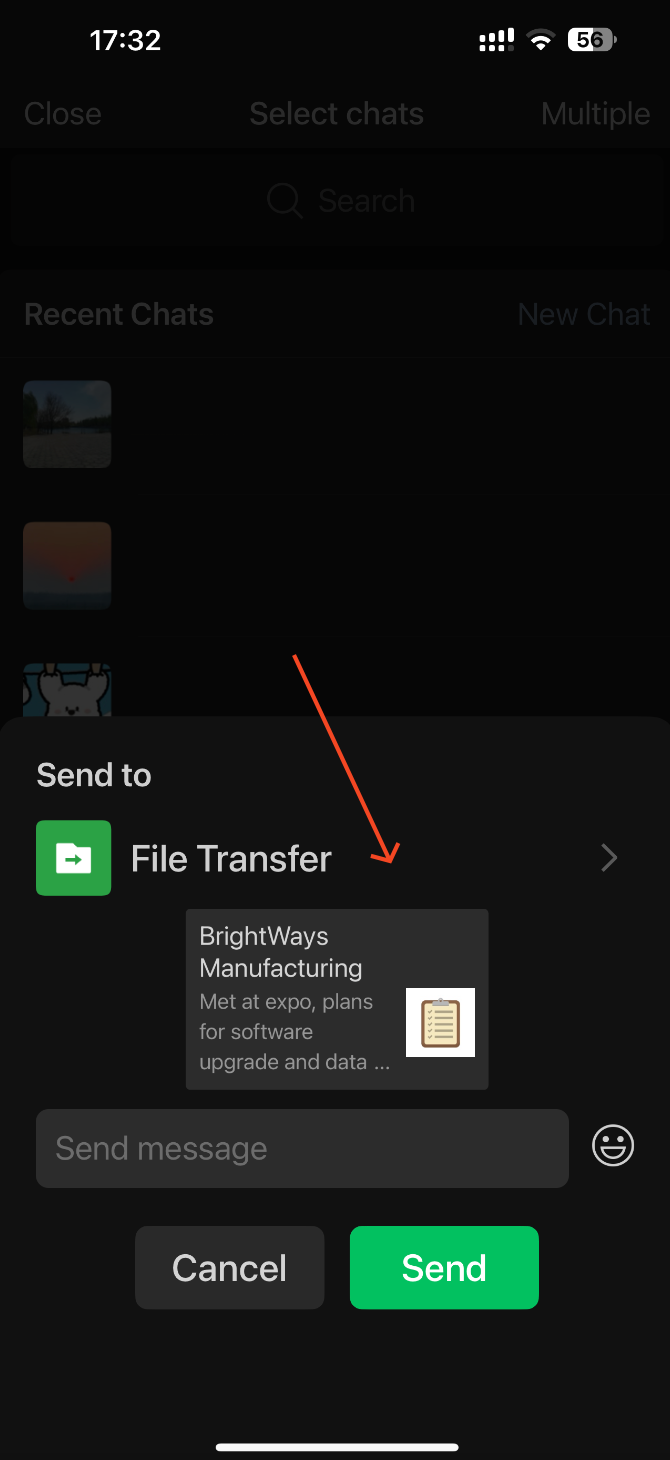
Configuration:
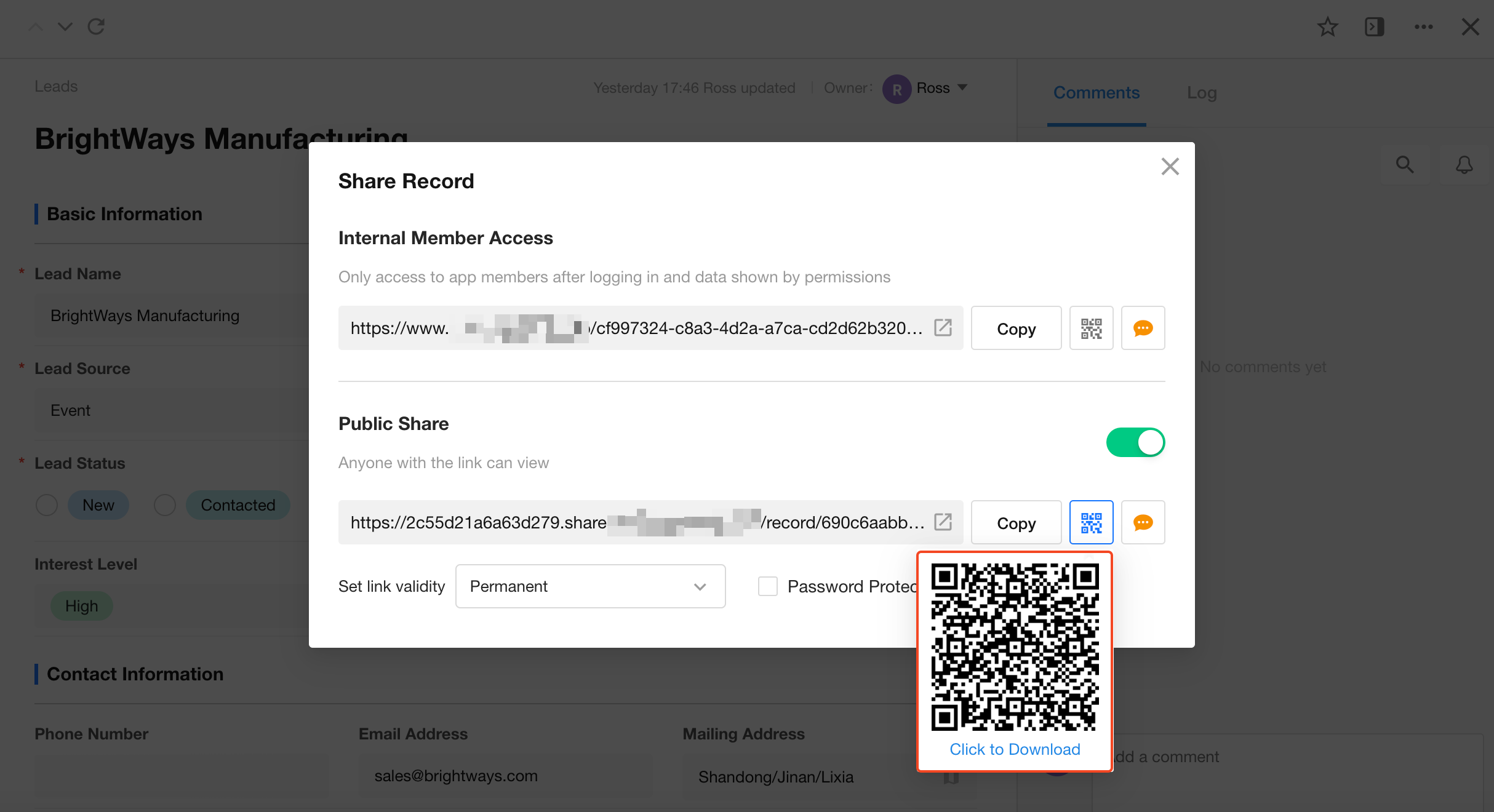
Sharing steps and result:
-
Scan the record sharing QR code using WeChat
-
Share with WeChat contacts
Permissions for @Mentions in Record Discussions
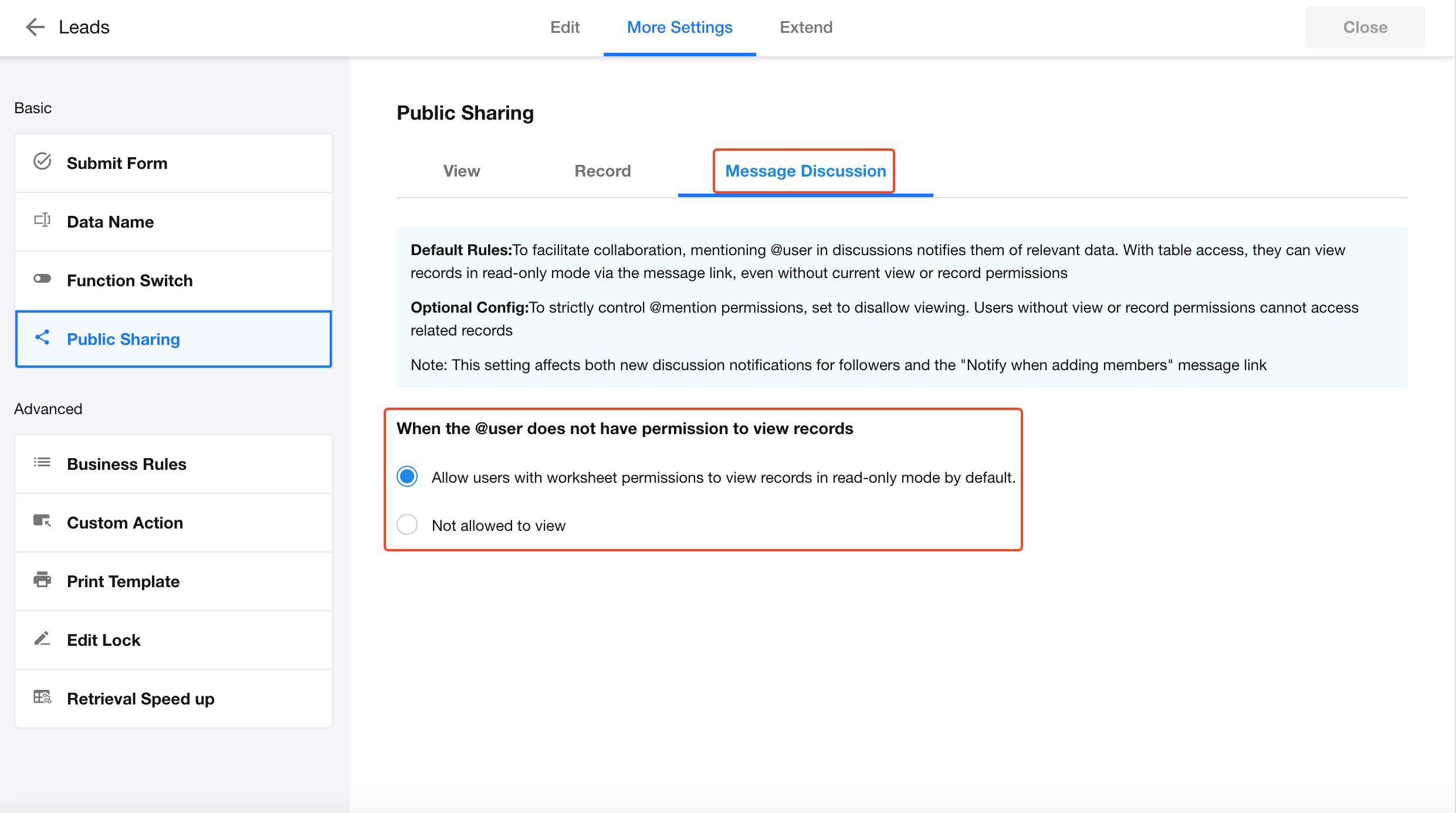
When a user is mentioned (@) in a record discussion, the system sends a notification containing the view and record context. Whether the mentioned user can access the record depends on the following rules:
Default Rule
If the user has permission to view the worksheet, they can access the record in read-only mode.
- As long as the user has visibility to any view in the worksheet, they can open the record via the notification link
Note: The notification link is used for navigation only and does not grant access to a specific view.
Access Restrictions
The user cannot view the record in the following cases:
- The user does not have access to the view where the action occurred
- The user has access to the view, but the record is not visible within that view
If access is denied, the page will display: “Record not accessible.”
Note:
These rules also apply to:
- Notifications sent to record followers when new discussions are posted
- Notifications triggered by adding users in member fields within a record
Was this document helpful?