Control - Members
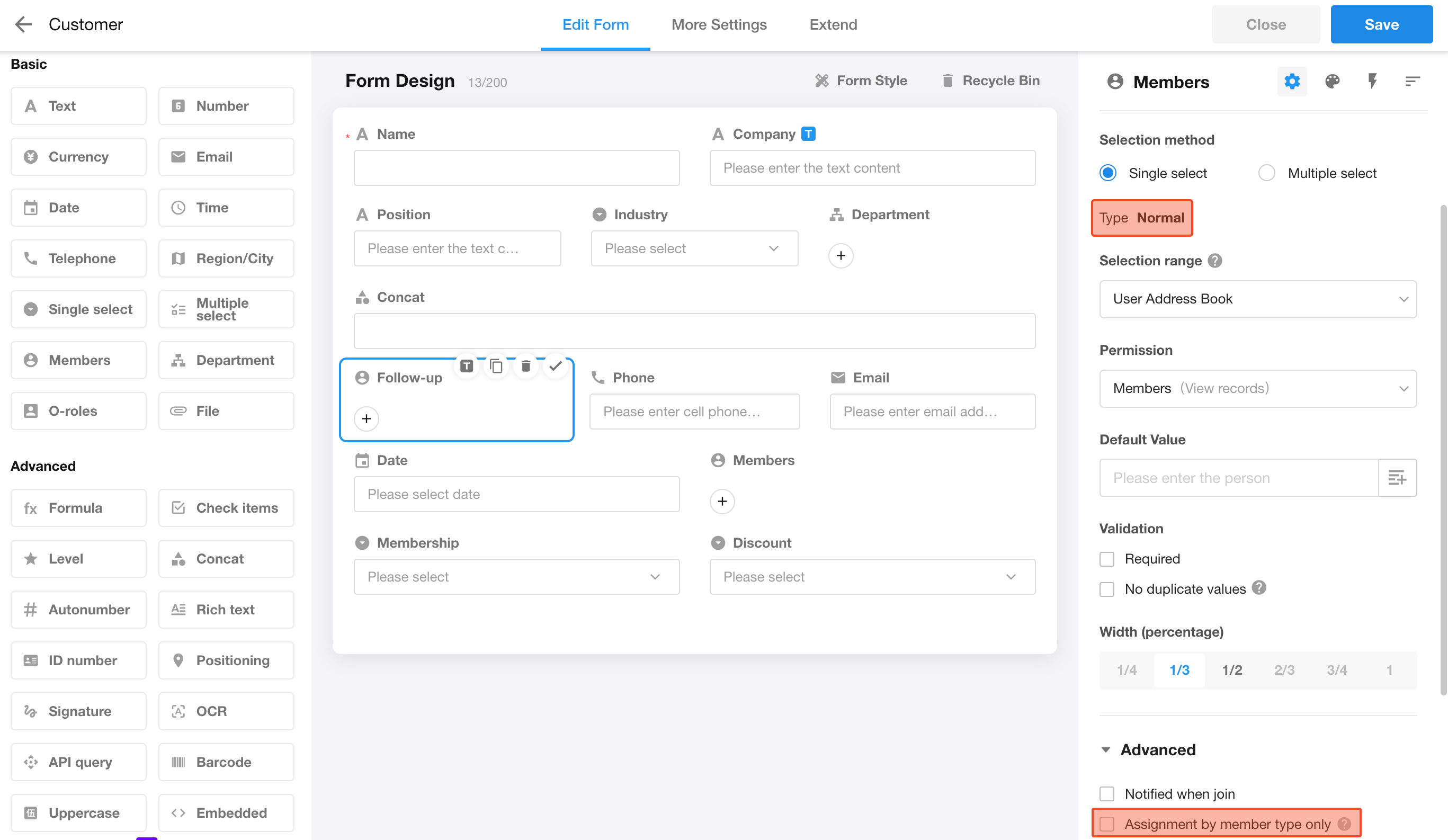
The Members control allows you to select colleagues or contacts from the Contacts. You can notify selected members and optionally grant them permissions to manage the record.
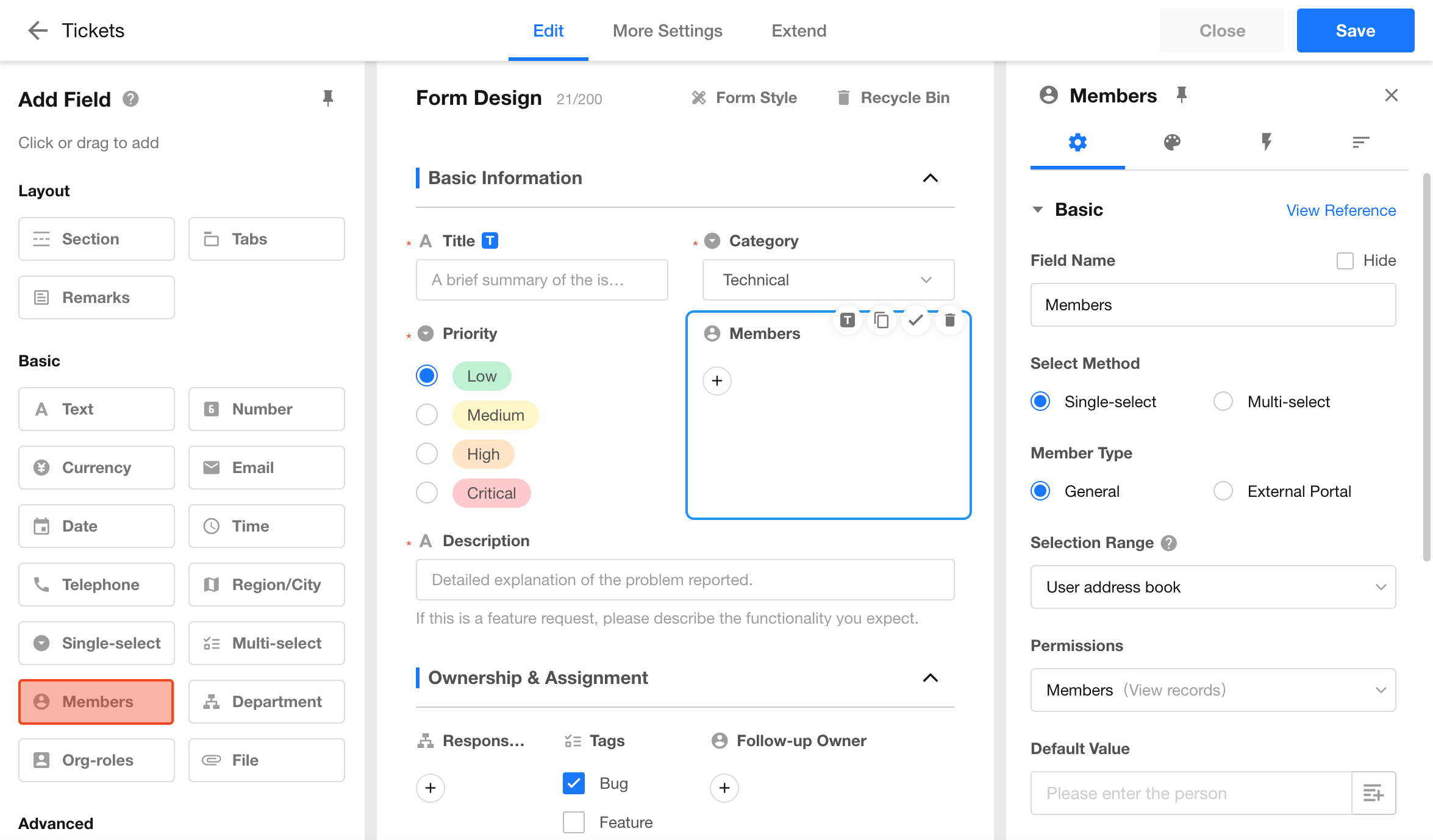
Field Configuration
1. Selection Mode: Single or Multiple
- Single select: Only one member can be selected
- Multi-select: Multiple members can be selected
You can switch the selection mode even after saving the field.
- If changed from multi-select to single select, existing selected members will still be displayed, but only one member can be retained when editing.
- In multi-select mode, you can drag to reorder selected members.
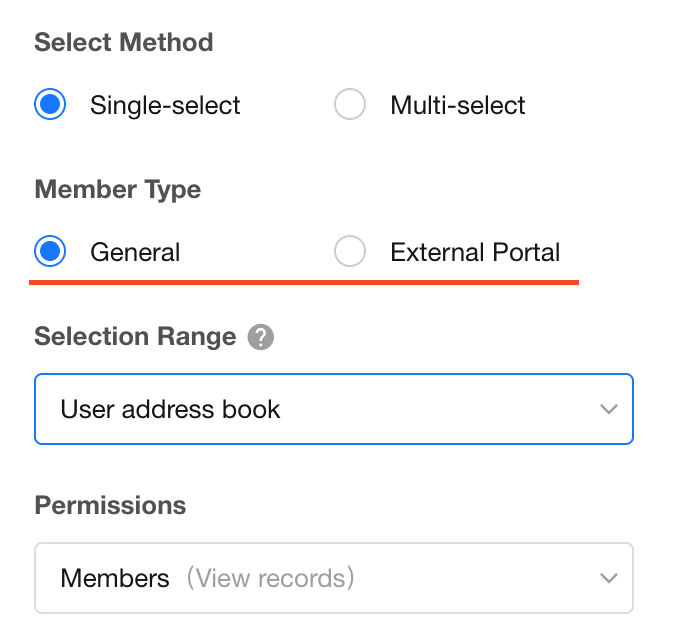
2. Member Type
There are two types of members:
- General: Select platform users
- External Portal: Select external users of the current application only
Once selected and saved, the member type cannot be changed.
If the application has not enabled the External Portal, this option will not appear, and the default type is General.
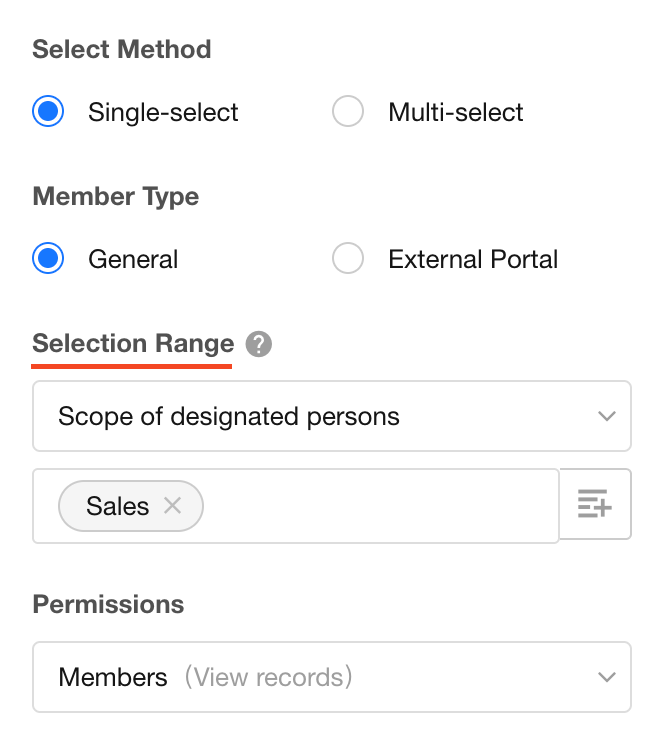
3. Selection Scope
By configuring the selection scope, users will only see members within the defined range when selecting.
For example, if the scope is set to “Sales Department,” only members within that department can be selected.
The selection scope is not supported for External Portal member fields.
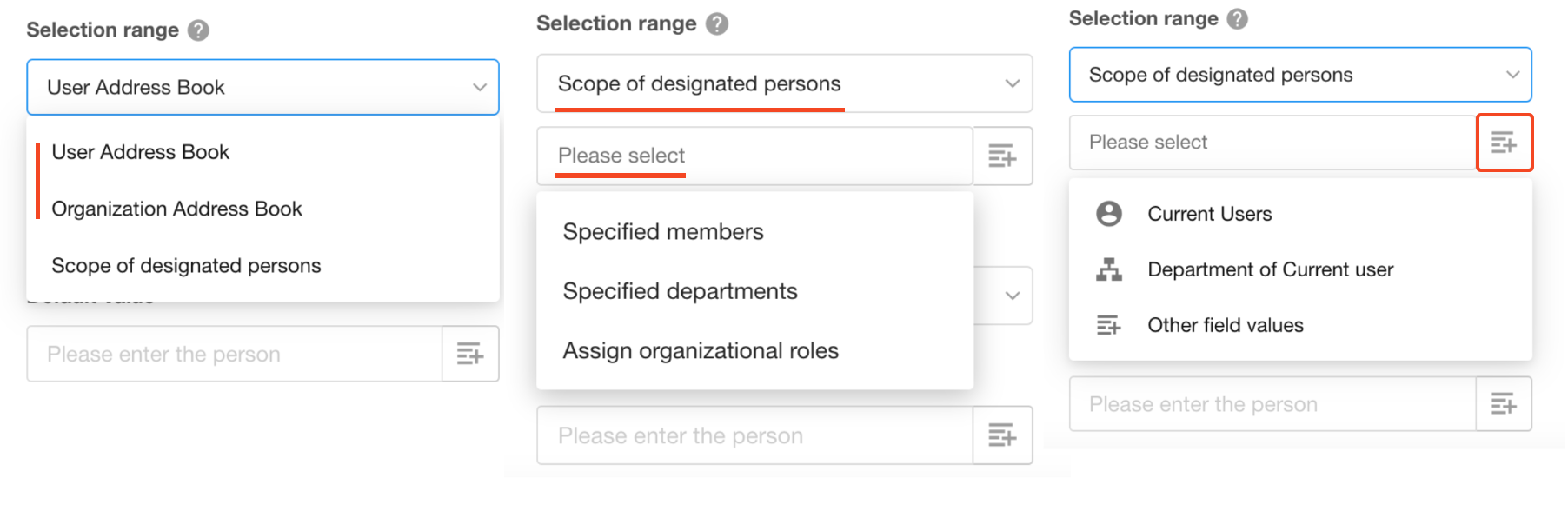
Supported scope types include Contacts, members, departments, and organizational roles:
- User Contacts: All colleagues within the user’s organizations or personal contacts can be selected
- Organization Contacts: Only members within the current organization can be selected
- Custom Scope:
- Selecting a department also includes all members in its sub-departments
- Selecting an organizational role includes all members under that role
- Supports using other members/department/ organizational role fields in the current record as the scope
- Supports combining members, departments, and organizational roles (union of all included members)
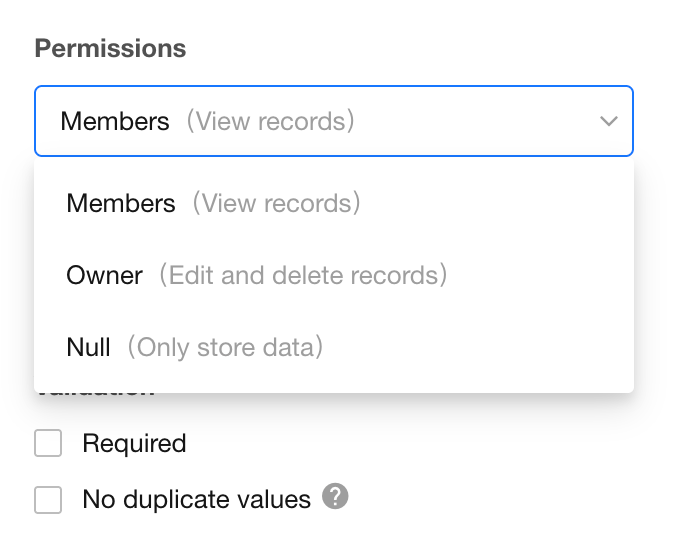
4. Permissions of Selected Members
- As Member: Selected users are added as record members (joiners)
- As Record Owner: Selected users have the same permissions as the record owner
- None (Data only): The member field acts like a text field; selected users are stored as data only
Being assigned as a member or owner does not guarantee access. Permissions are still governed by role and permission settings.
Learn more
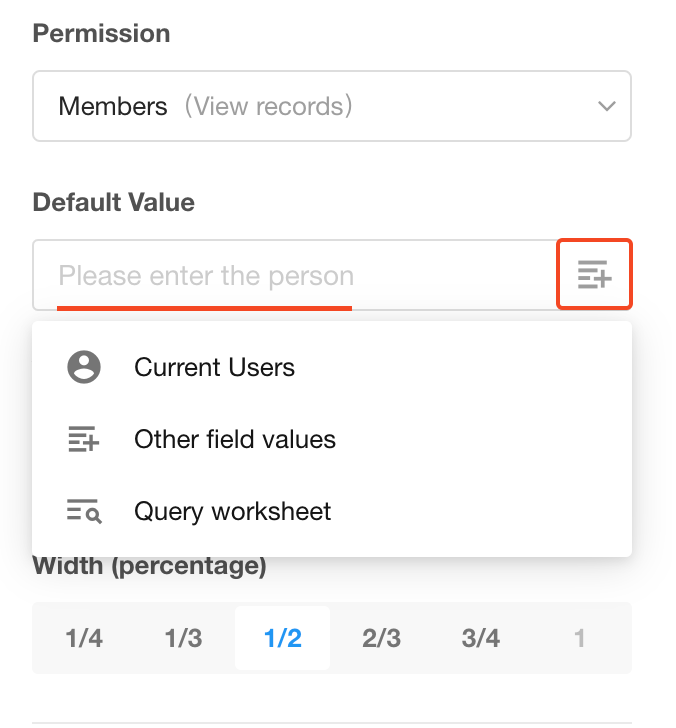
5. Default Value
You can define default selected members when creating a record:
- Fixed users
- The record creator (current user)
- Members selected from other member fields
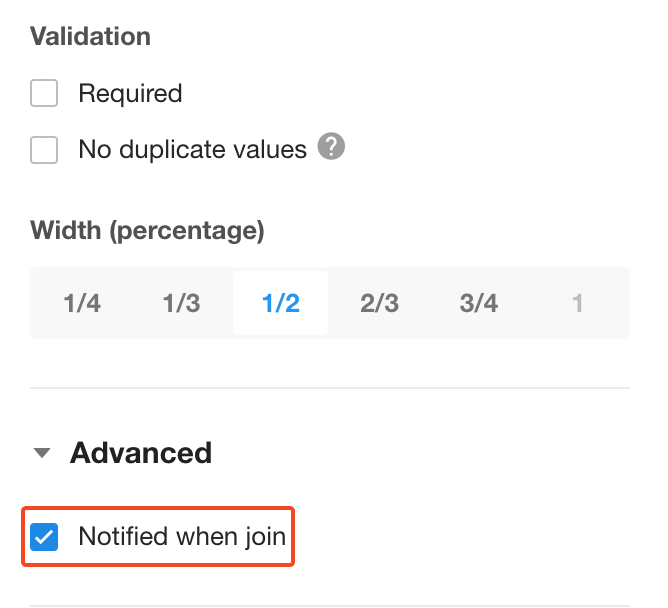
6. Notify Selected Members
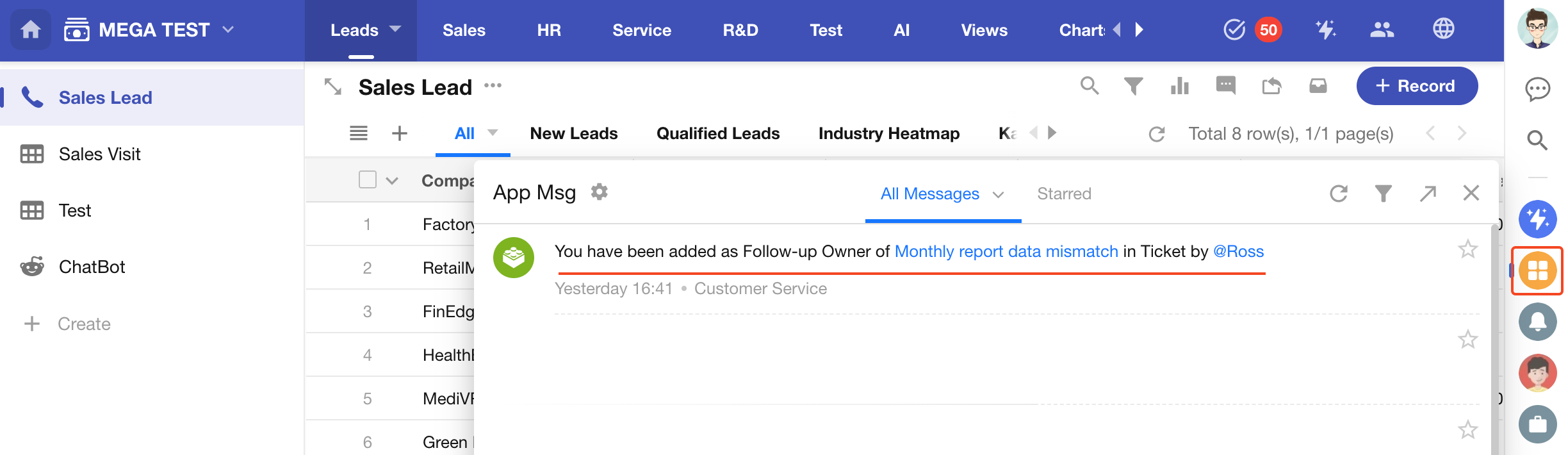
If enabled, selected members will receive notifications when they are added.
Example:
Assign by Member Type
When selecting members manually, only users matching the configured type (General or External Portal) can be selected.
However, this restriction does not apply when data is:
- Imported
- Written via workflow
- Written via API
For member fields created before Dec 1, 2024, user types are not distinguished.
Once enabled this configuration option, only users of the selected type can be added.
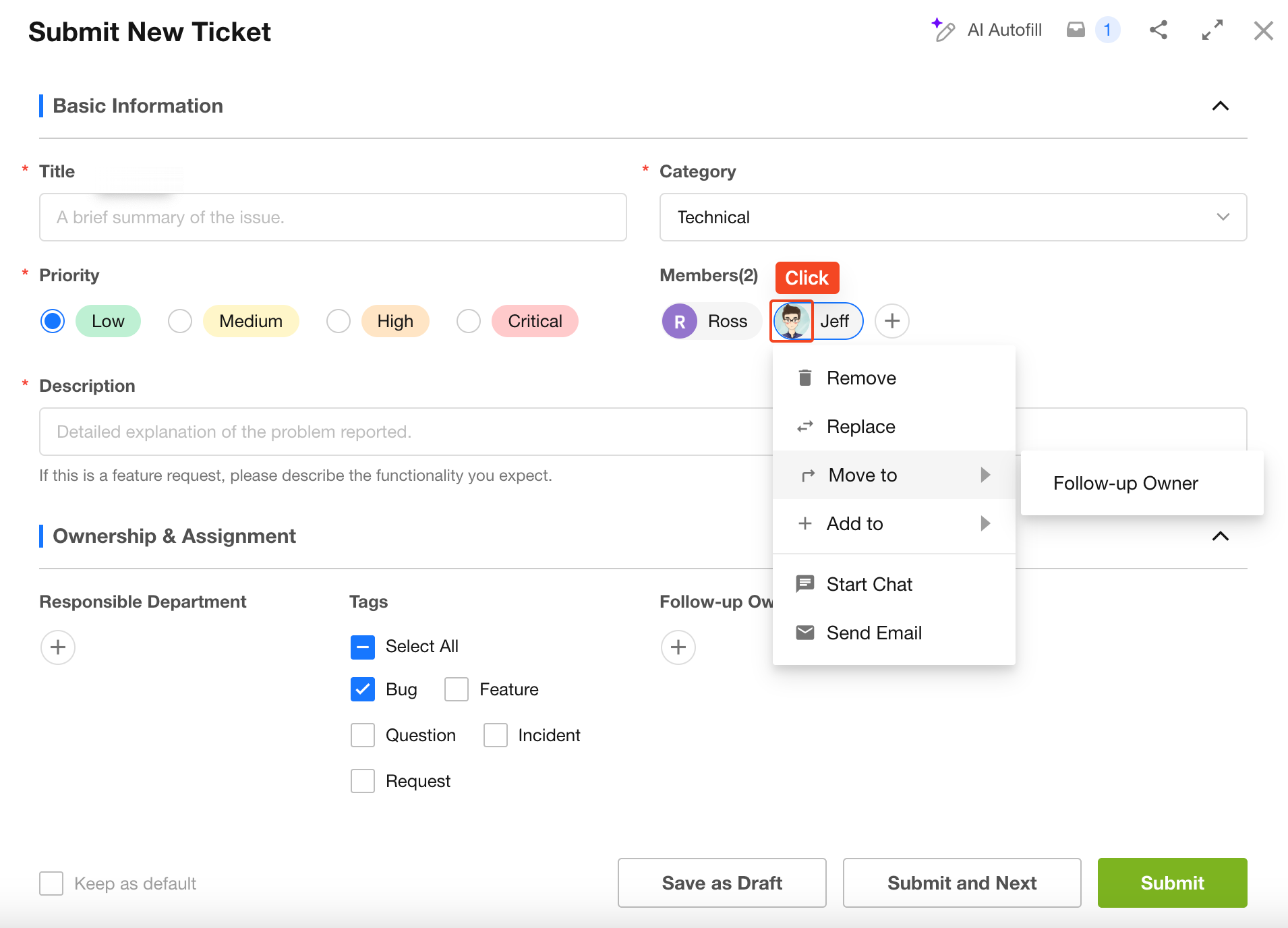
Quick Actions on Selected Members
Click a selected member’s avatar to perform quick actions such as:
- Remove
- Replace
- Add to another member field
Was this document helpful?