Control - Single Select/Multi Select
Single select and multi select fields allow users to complete input by selecting predefined options, improving data entry efficiency. Each option can also be assigned a value for use in business calculations.
Display Modes
Options can be displayed in three ways: Dropdown, Tiled Layout (horizontal, vertical, or matrix), and Progress Bar. These can be combined with the field’s width settings for better layout and visual presentation.
Multi select fields do not support the Progress Bar display mode.
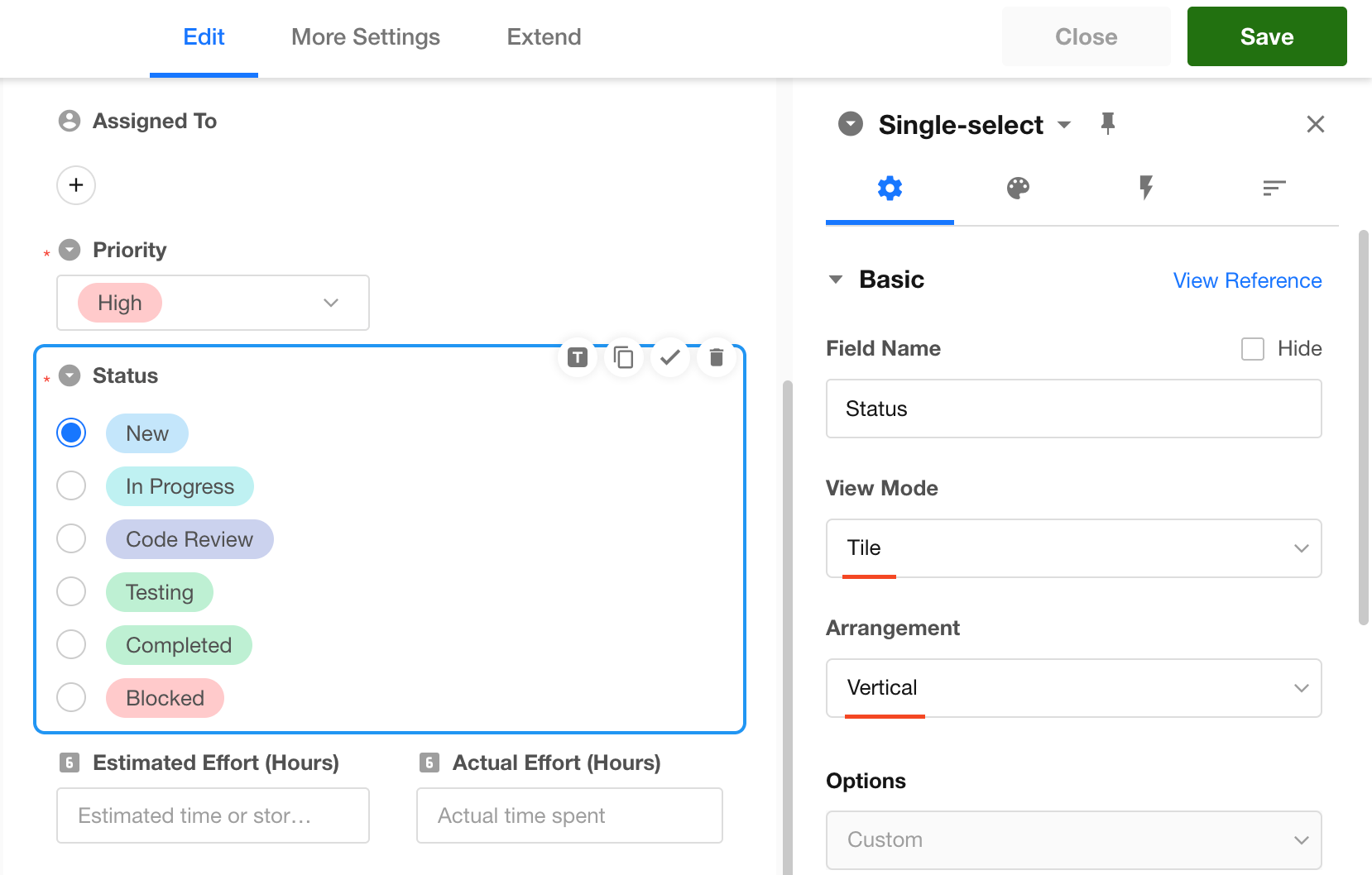
Example:
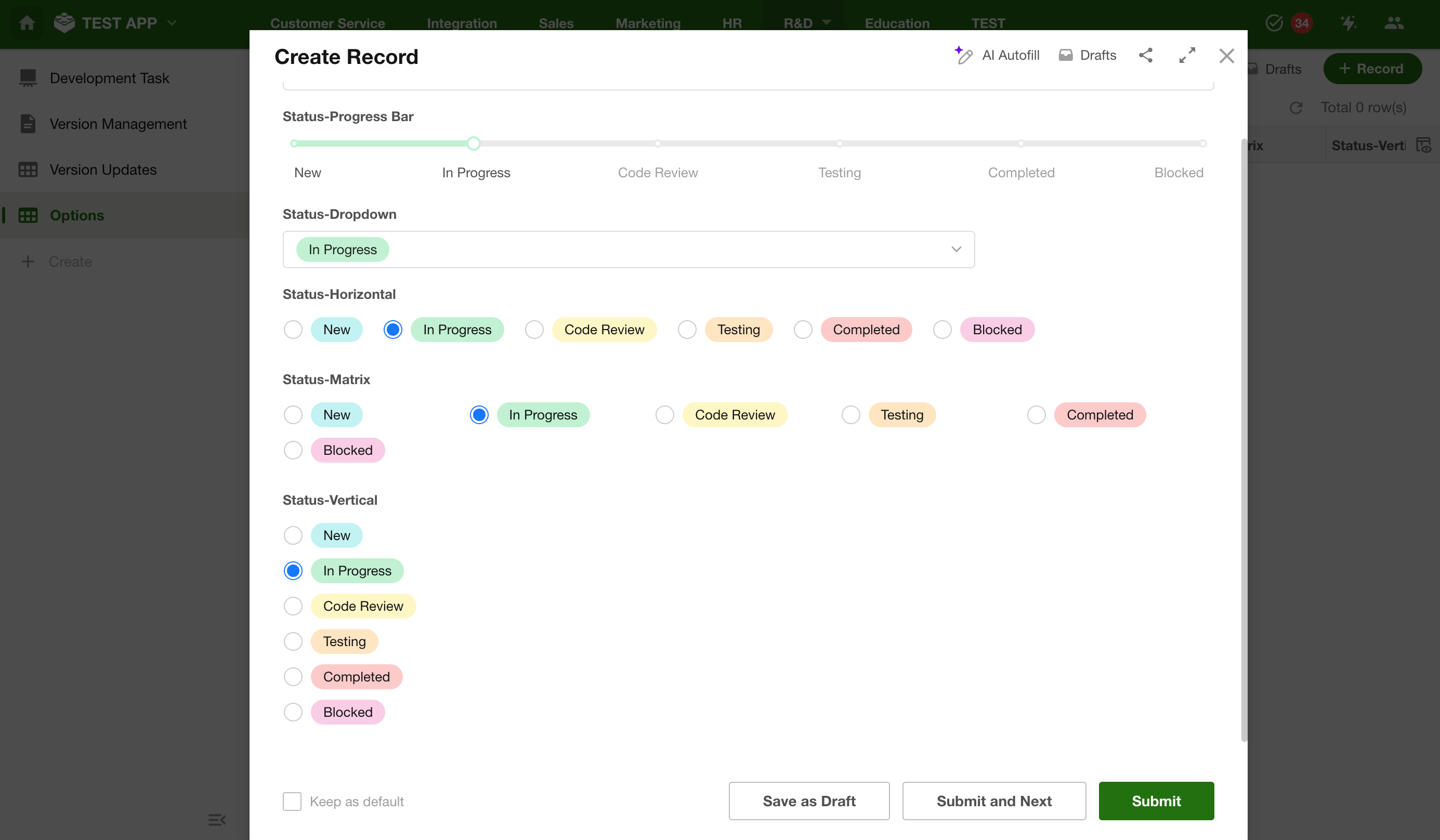
-
In horizontal tiled layout, options are displayed closely next to each other. When wrapping to multiple lines, options may not align vertically.
-
In matrix layout, options are arranged into a fixed grid (X columns per row) based on label length. When displayed across multiple rows, items are aligned vertically and to the left.
Option Management
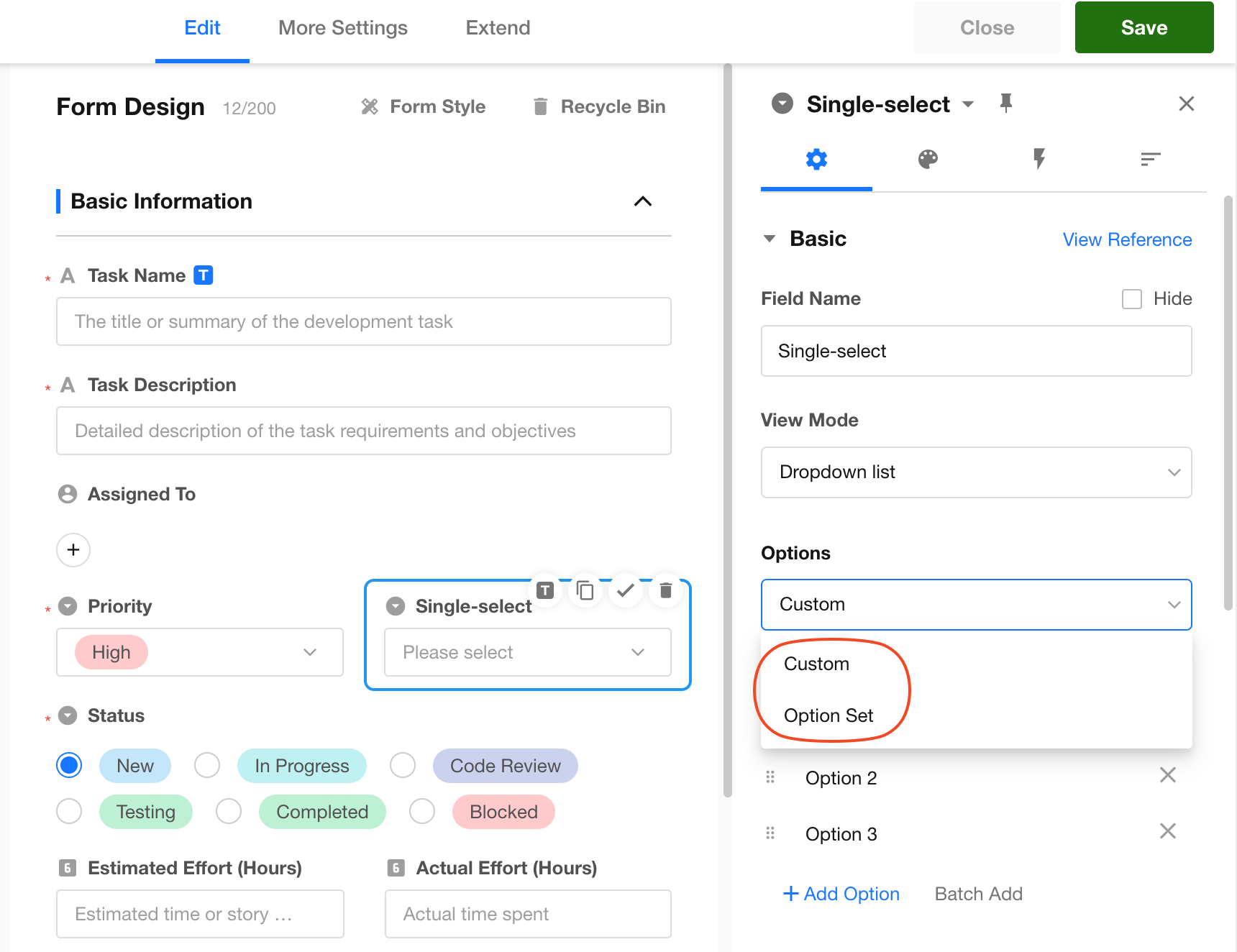
Options for single select and multi select fields can be configured directly within the field or selected from a predefined option set.
Add and Delete Options
Click + Add Option to add a new option. Click X to delete an option.
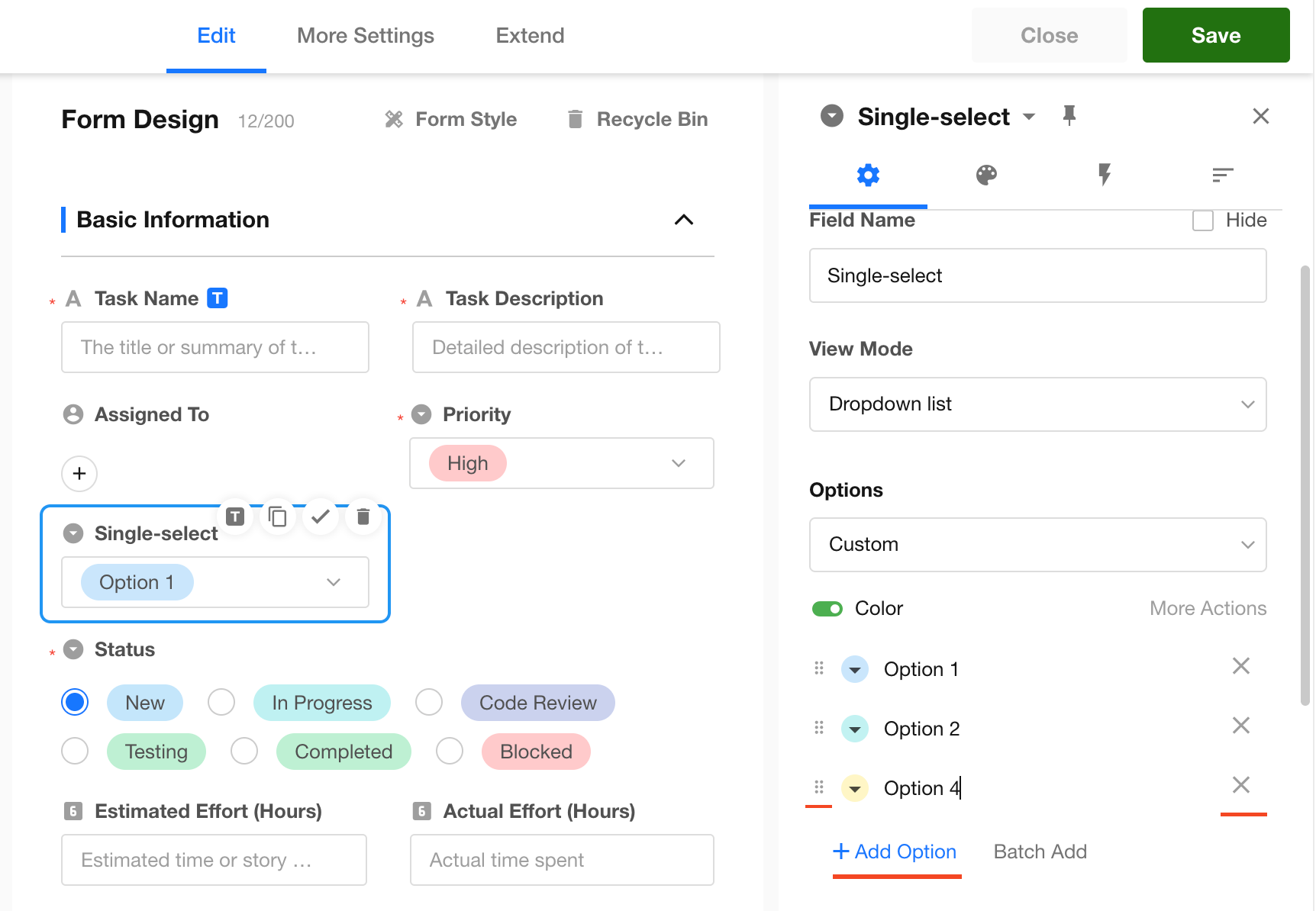
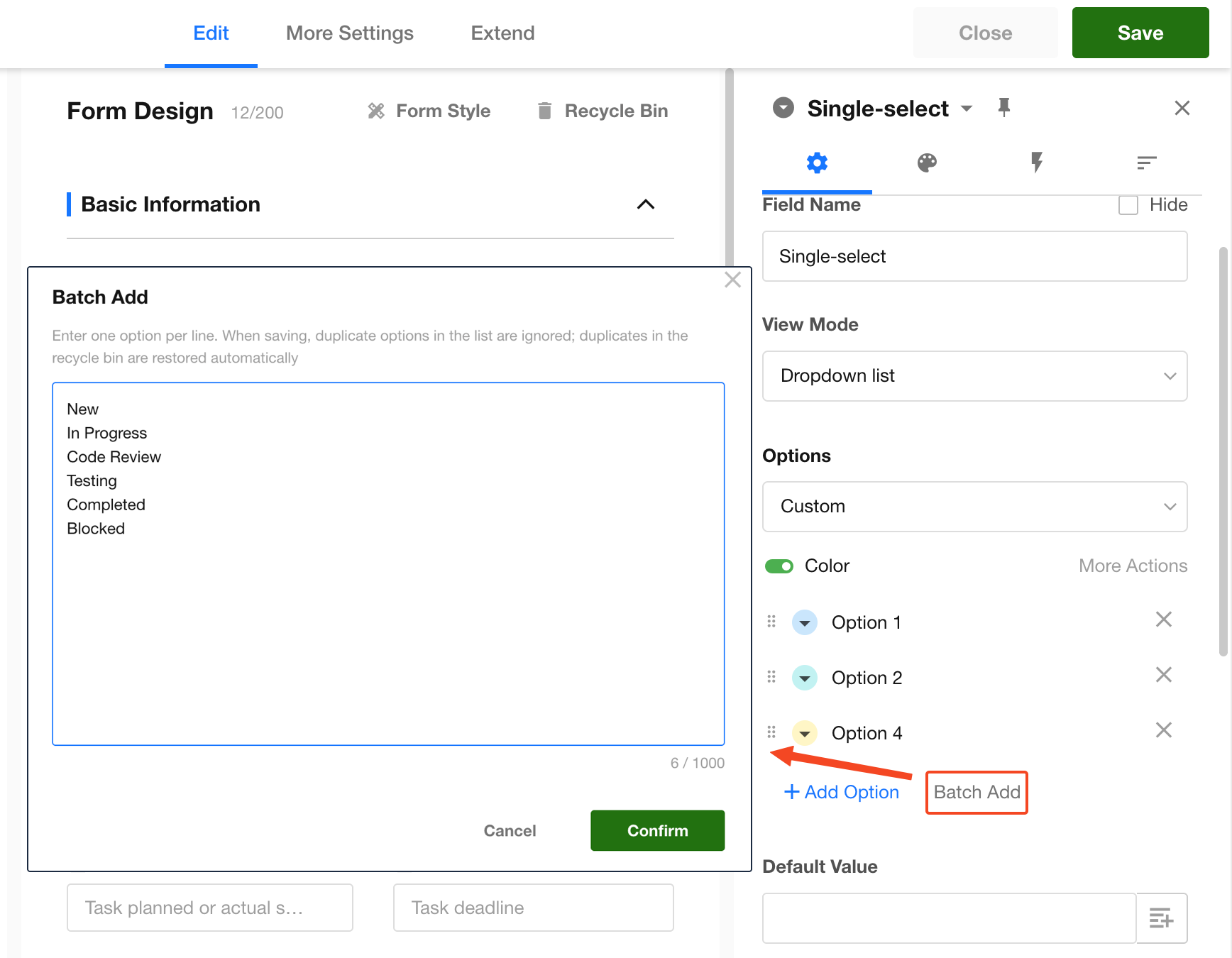
Bulk Add Options
You can enter multiple lines of text, where each line will be automatically recognized as an option.
If an option duplicates an existing one in the option list, it will be ignored upon saving. If it matches an option in the recycle bin, it will be automatically restored.
If options are sourced from an option set, any edits made in the field will be automatically synchronized to the option set.
Show "Other" Option
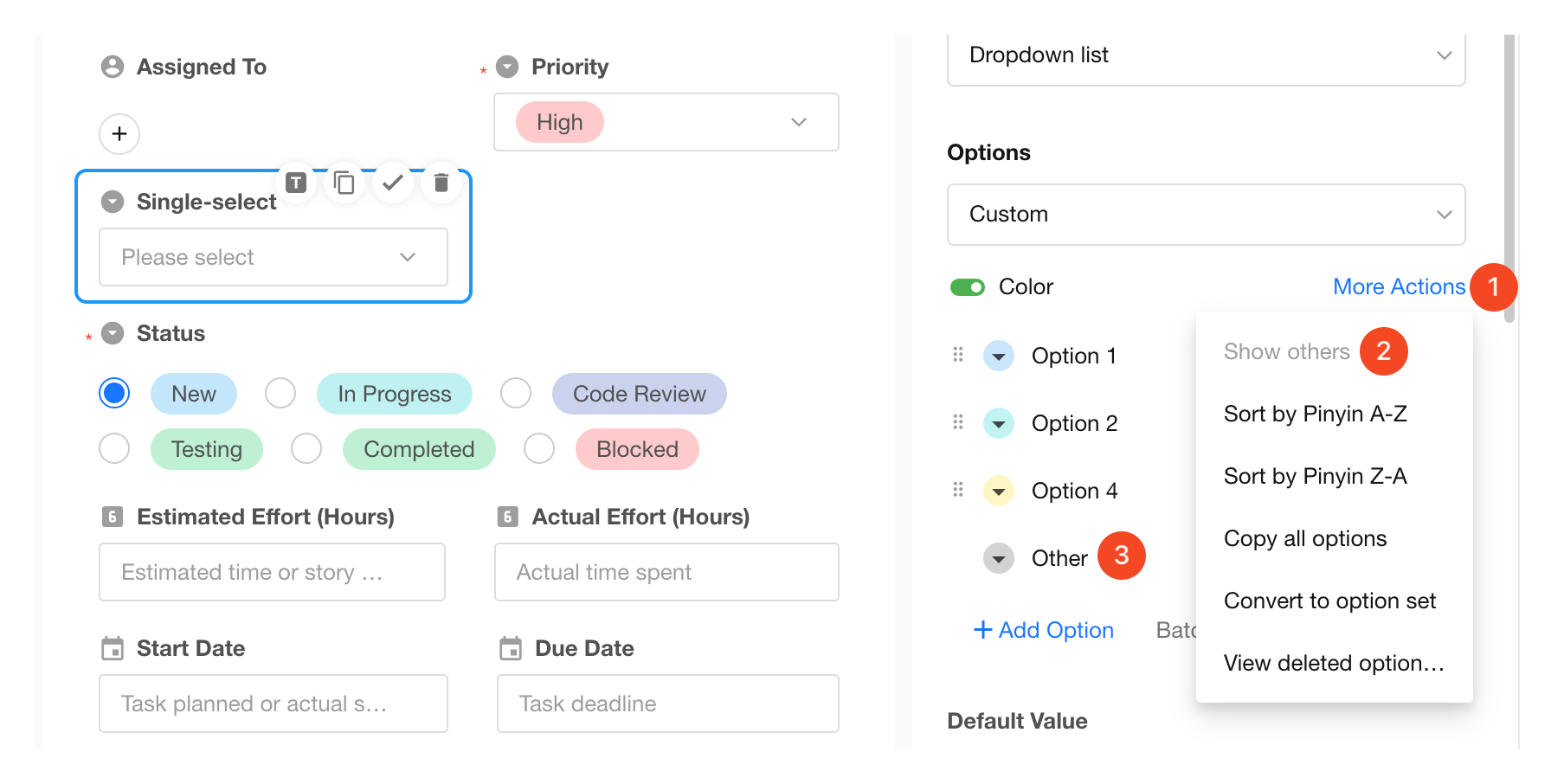
If predefined options are not sufficient, users can manually input additional values using the Other option.
The label for "Other" can be customized (for example, renamed to "None of the above"). The "Other" option always appears at the end of the list.
Click More Actions > Show Other Option to automatically add an "Other" option.
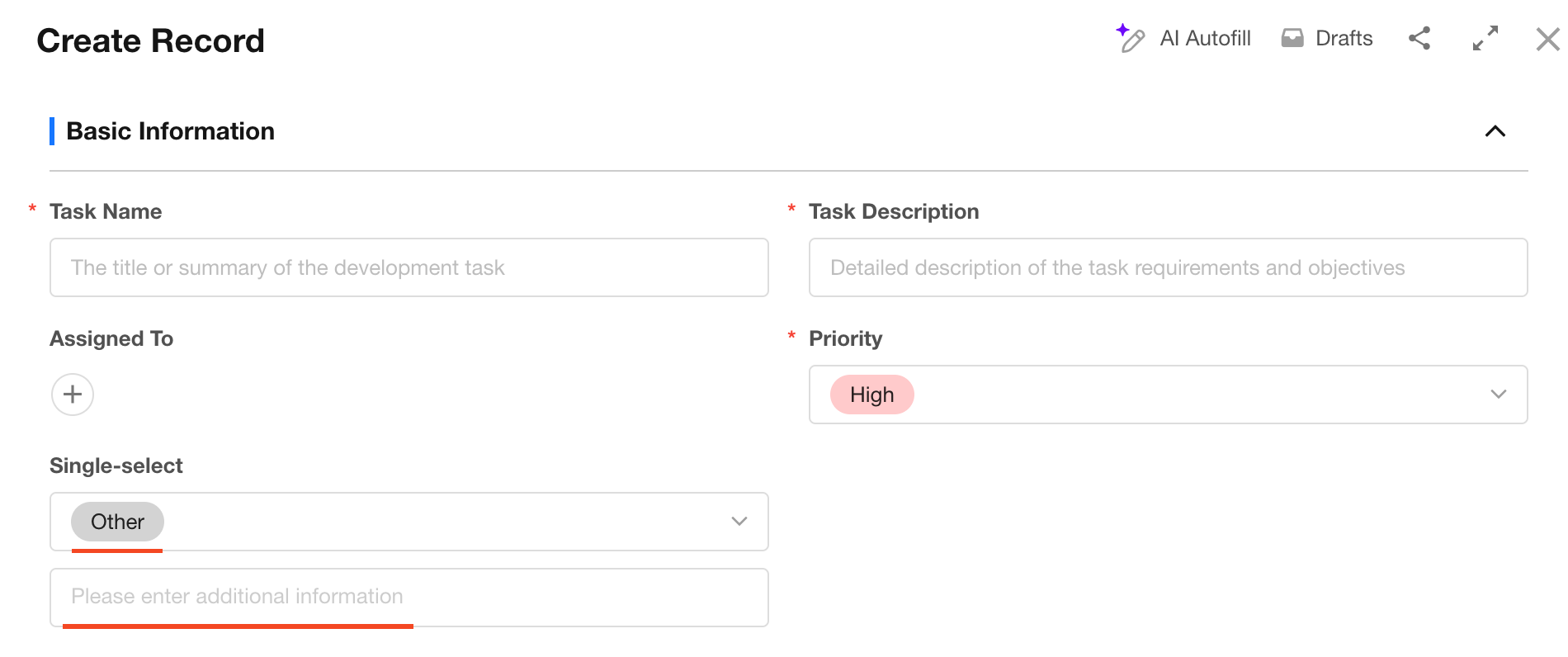
When users select Other, an input field appears for entering additional content. This input field supports customizable hint text.
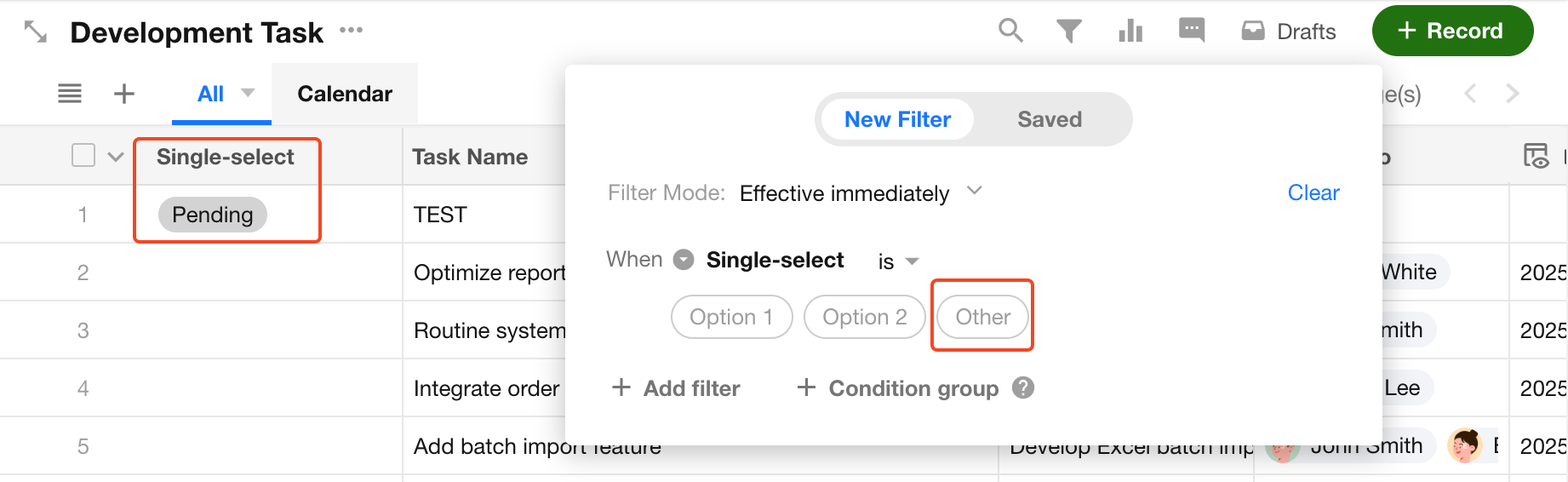
When displaying field values, the entered content will be shown. However, when filtering, you need to select Other.
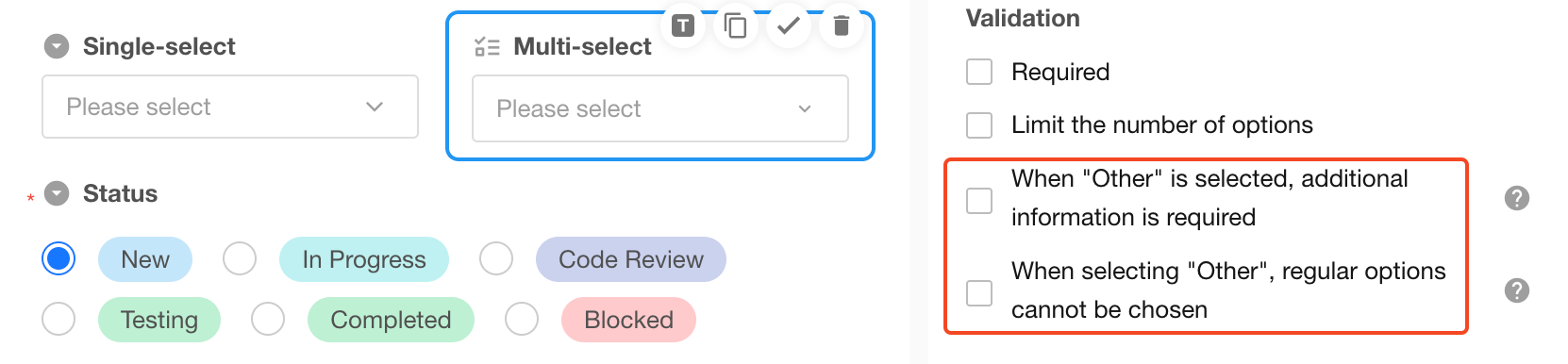
Configuration for "Other" Option
-
Require additional input when "Other" is selected
When enabled, users are required to provide additional input before saving. -
Disallow selecting regular options when "Other" is selected
Available only for multi select fields. When enabled, selecting "Other" will automatically deselect any previously selected regular options.
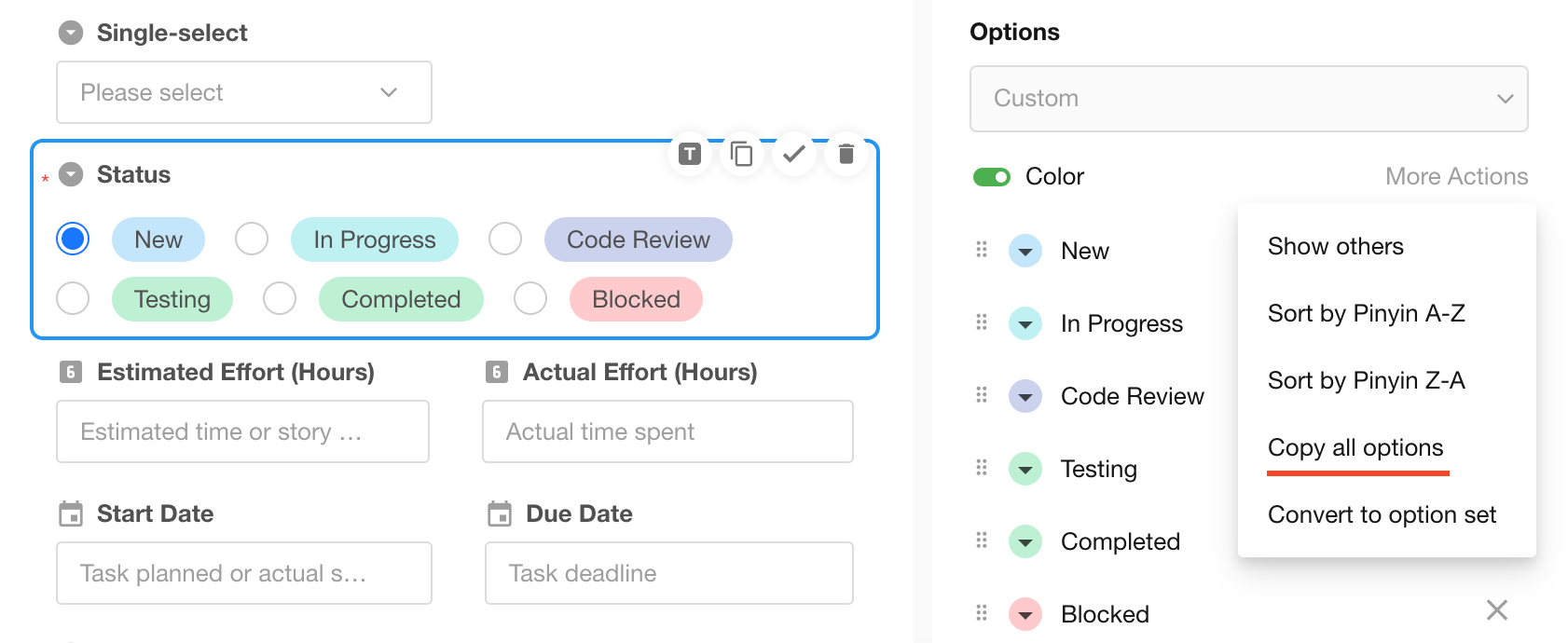
Copy All Options
In More Actions, click Copy All Options to copy all existing options as text. You can then paste them into another option field to batch add options.
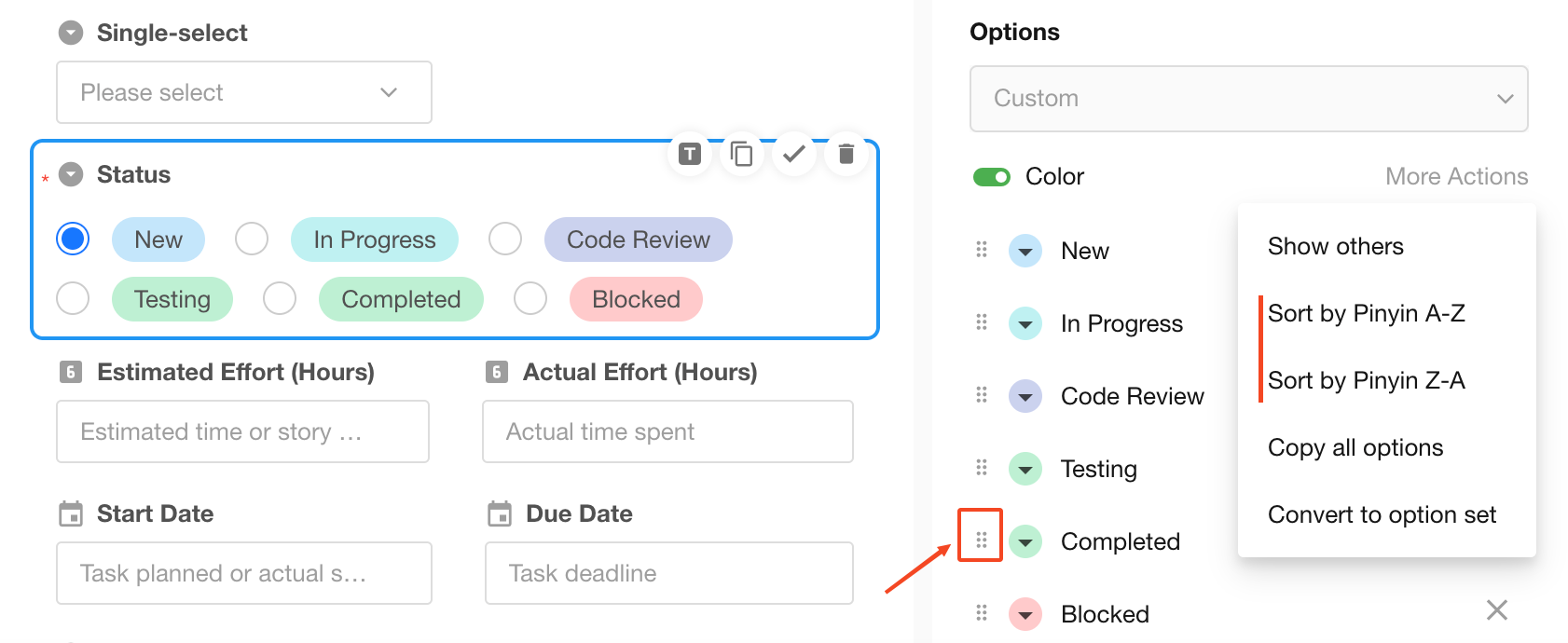
Option Sorting
In the option list, you can drag and drop individual options to reorder them. In More Actions, you can also sort all options quickly by pinyin.
When sorting records in a view, you can sort by option values. The order will follow the option sequence configured in the field.
If the option order is modified later, you need to perform a batch data refresh by an app admin to correct the sorting in the view.
Allow Users to Add Options
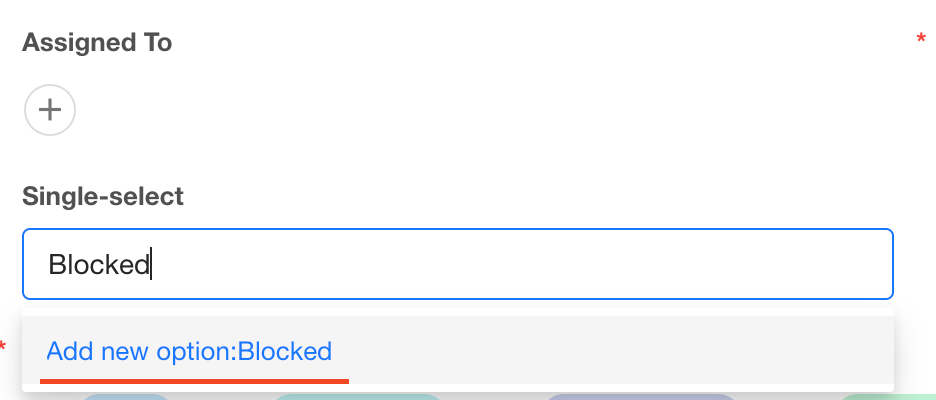
In some cases, predefined options may not cover all possibilities. Users can directly enter new values, which will be automatically added to the option list.
This feature is only supported in Dropdown display mode.
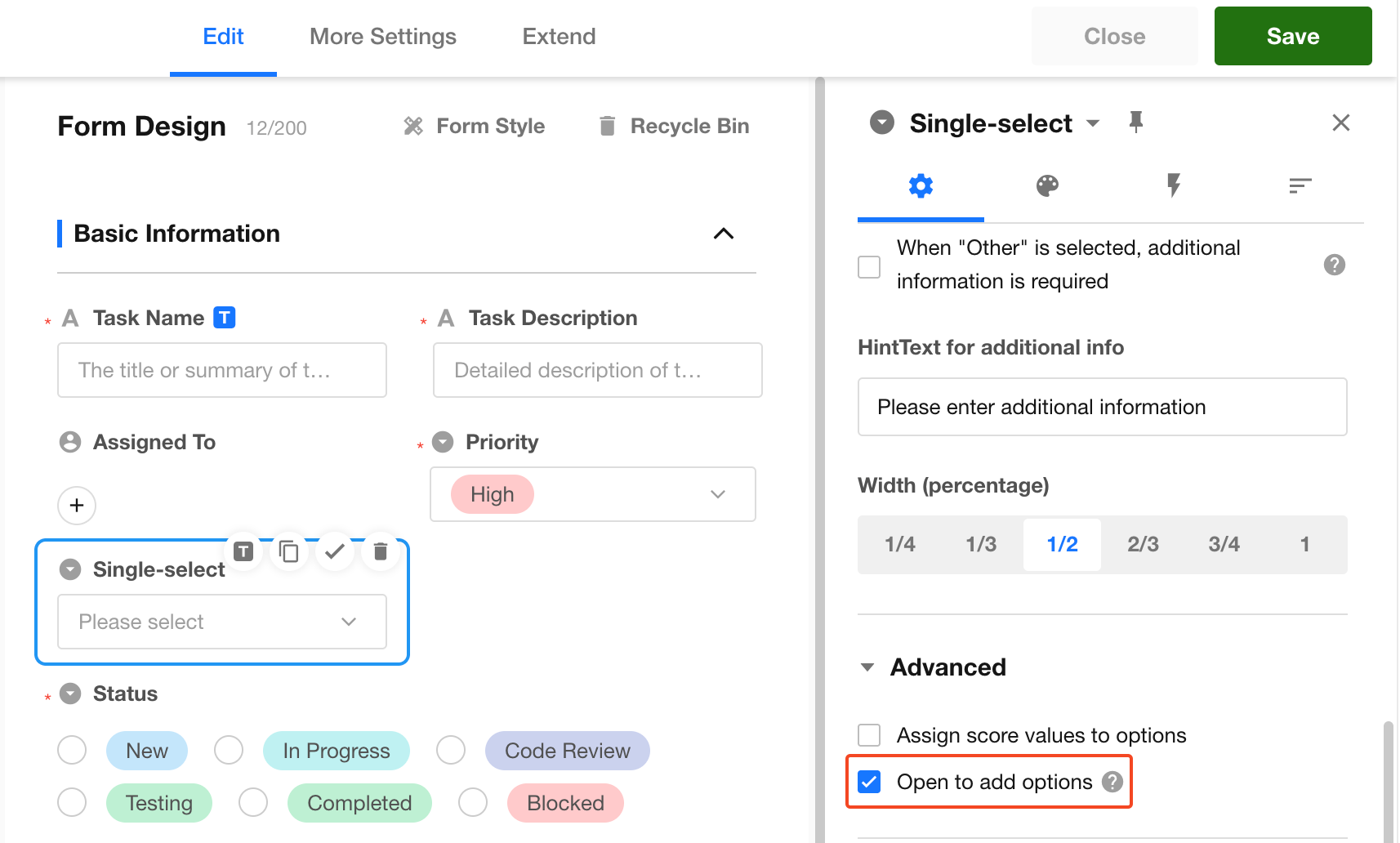
Users can type directly into the input box and press Enter to add a new option.
Deleted Options
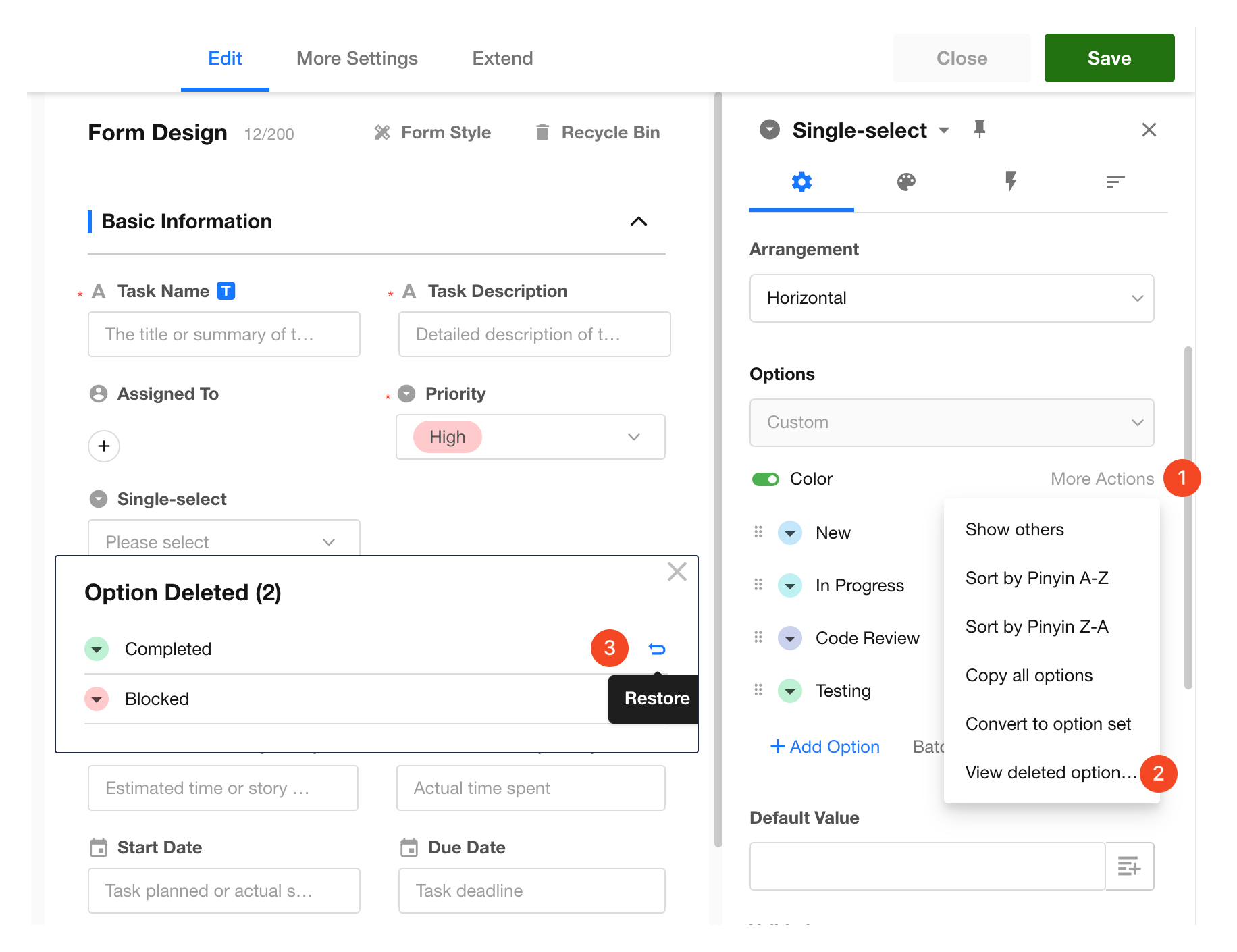
In More Actions, you can view deleted options and restore them if needed.
Option Color Configuration
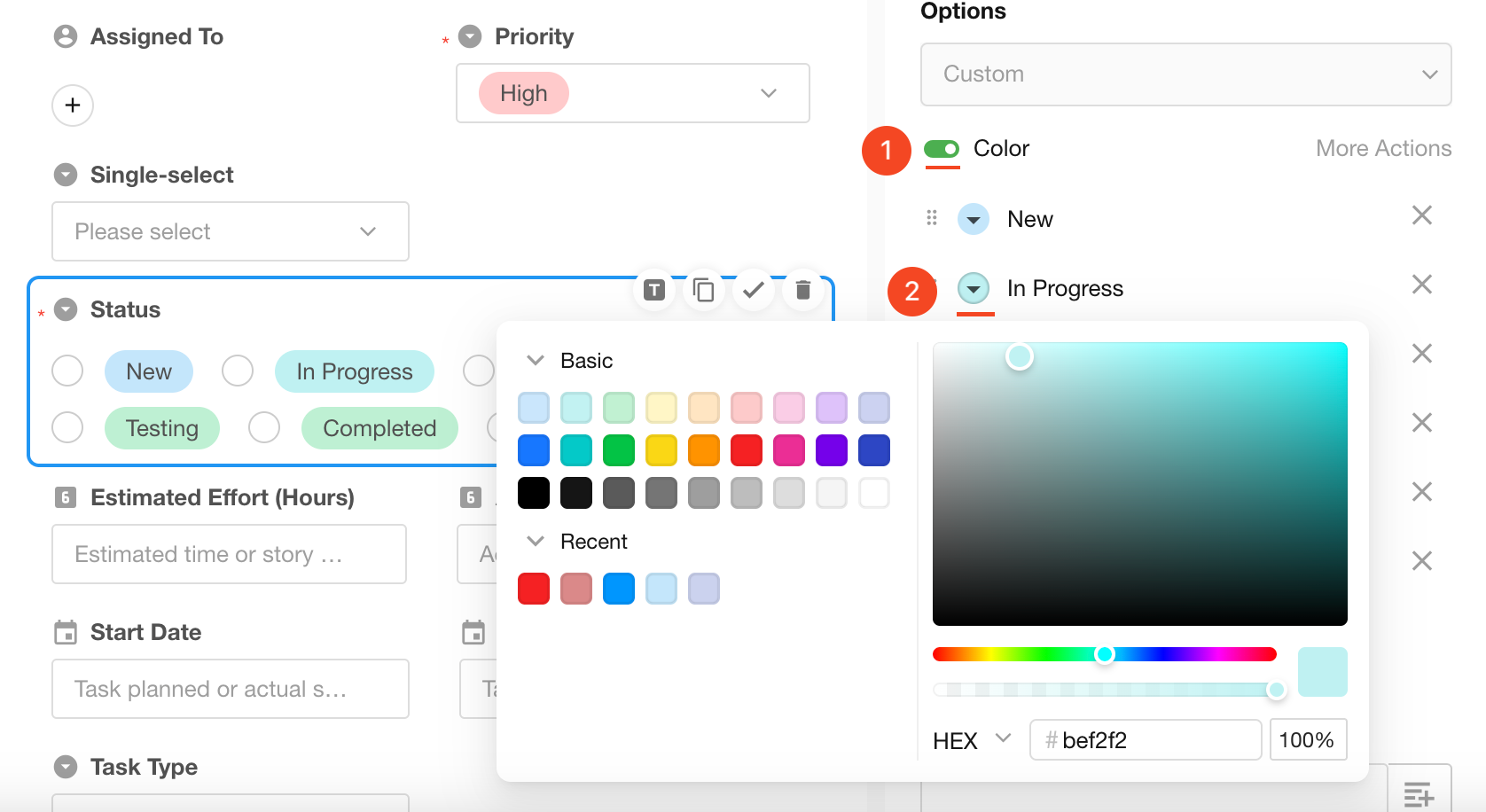
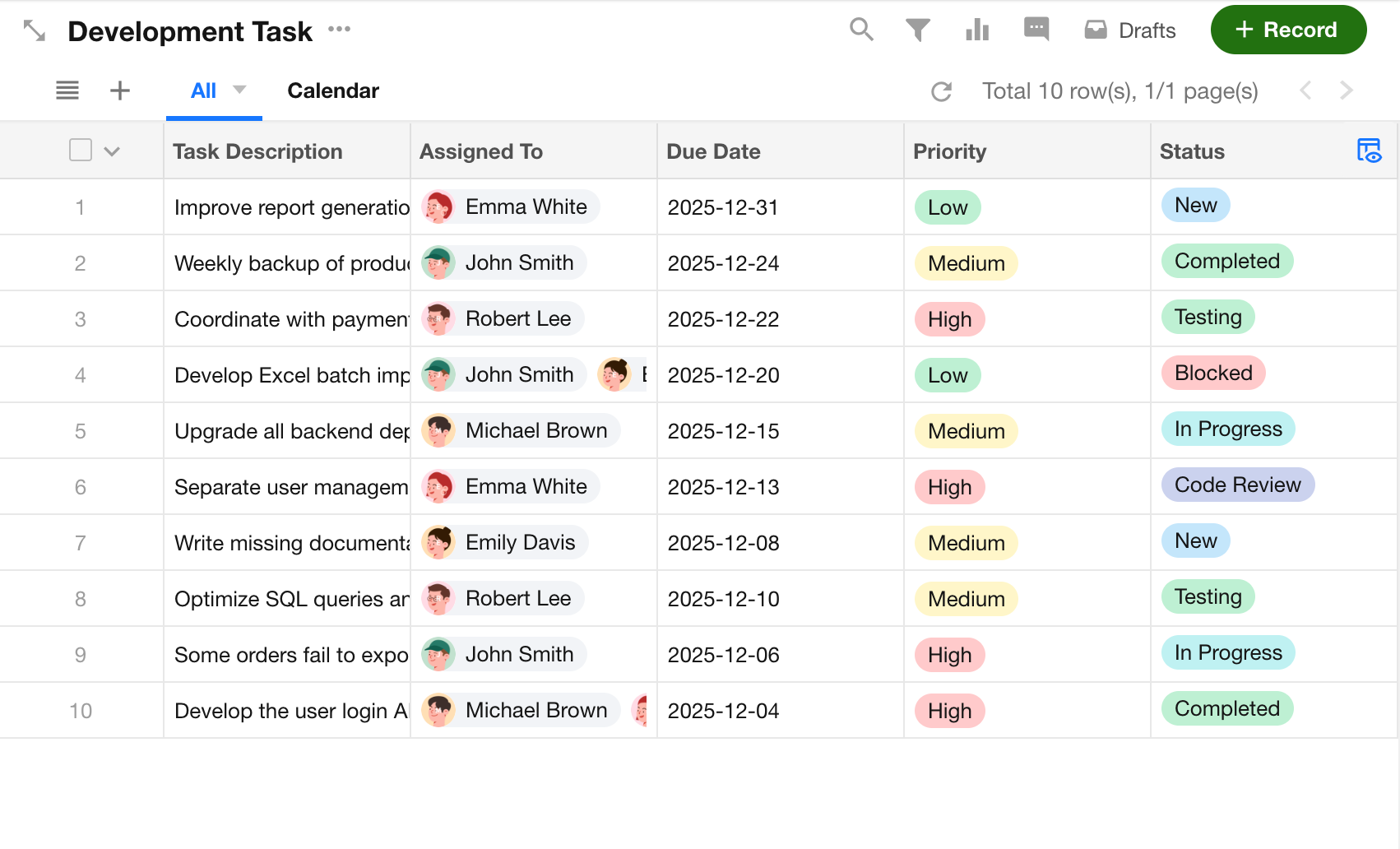
Options support color configuration to help categorize and identify data. You can also enable or disable colors for all options.
Display in the worksheet:
Assign Values to Options
In some cases, each option may represent a numeric value. For example, when a single select field represents tax rates (1%, 3%), the actual values used in calculations should be 0.01 and 0.03. Since "1%" is text and cannot be used in calculations, assigning values (e.g., 0.01) enables proper computation.
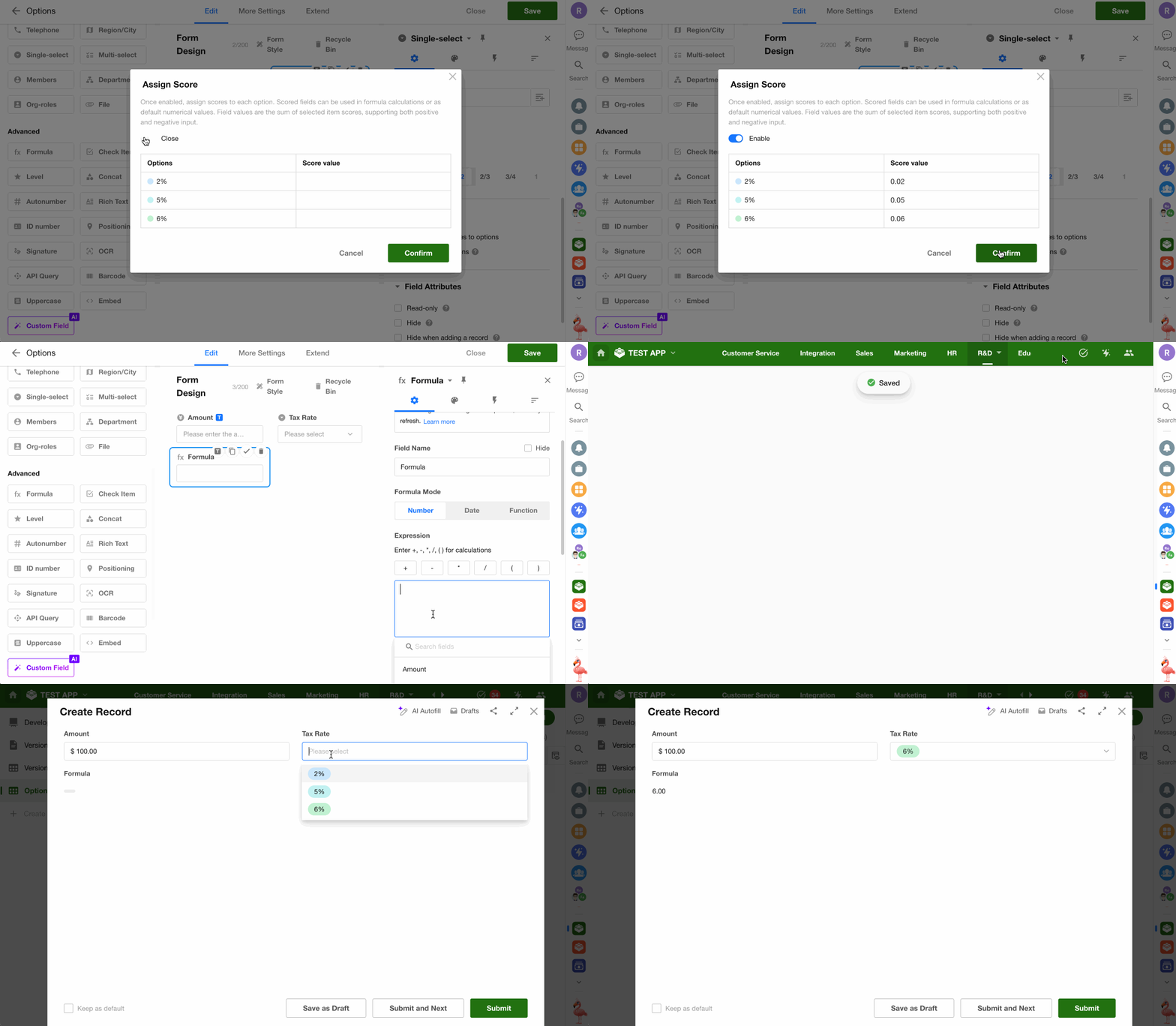
- Option values can be used in calculations within formula fields, field default values, and calculation nodes in workflow. In calculation nodes, only single select fields are supported.
- Option values cannot be used in function-based calculation.
- Option sorting is not determined by assigned values.
Default Options
If a default value is set, it will be automatically selected when creating a new record. The configuration differs depending on whether custom options or option sets are used.
Both fixed default values and dynamic default values are supported.
-
Fixed Default Value
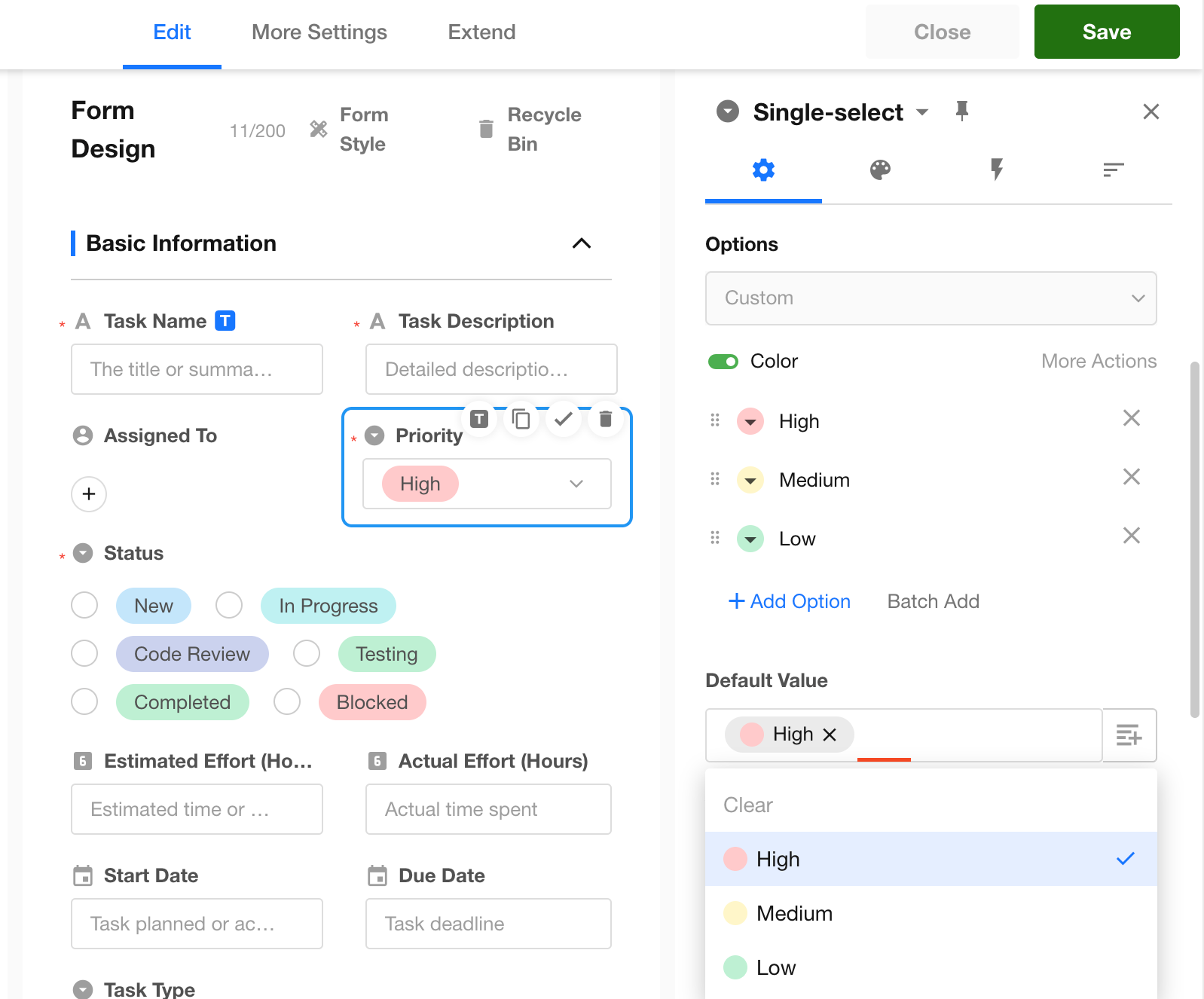
Click the input box to specify a fixed default value.
-
Dynamic Default Value
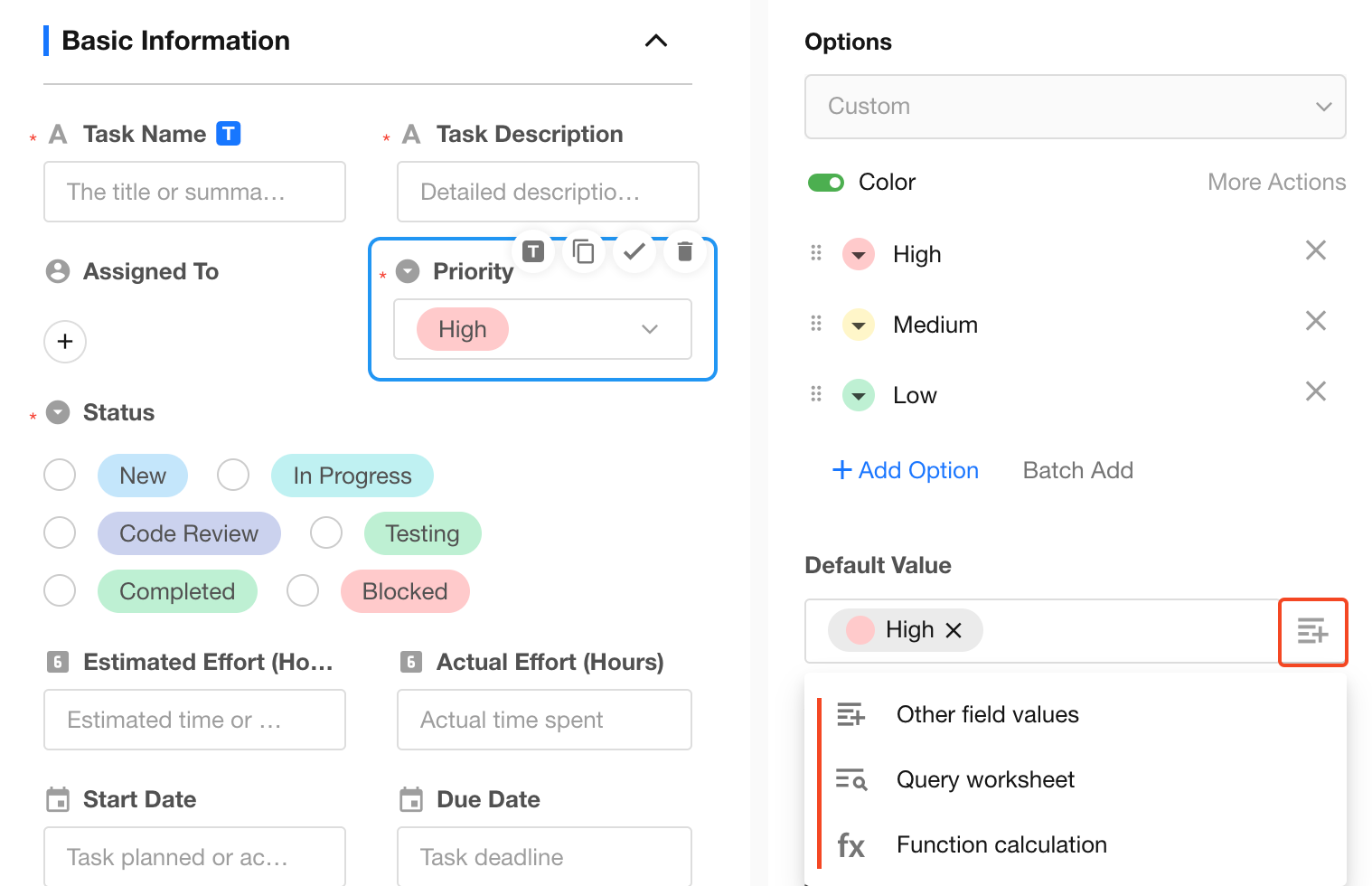
Supports three methods: other field values, query worksheet, and function.
Learn more about setting default values with functions
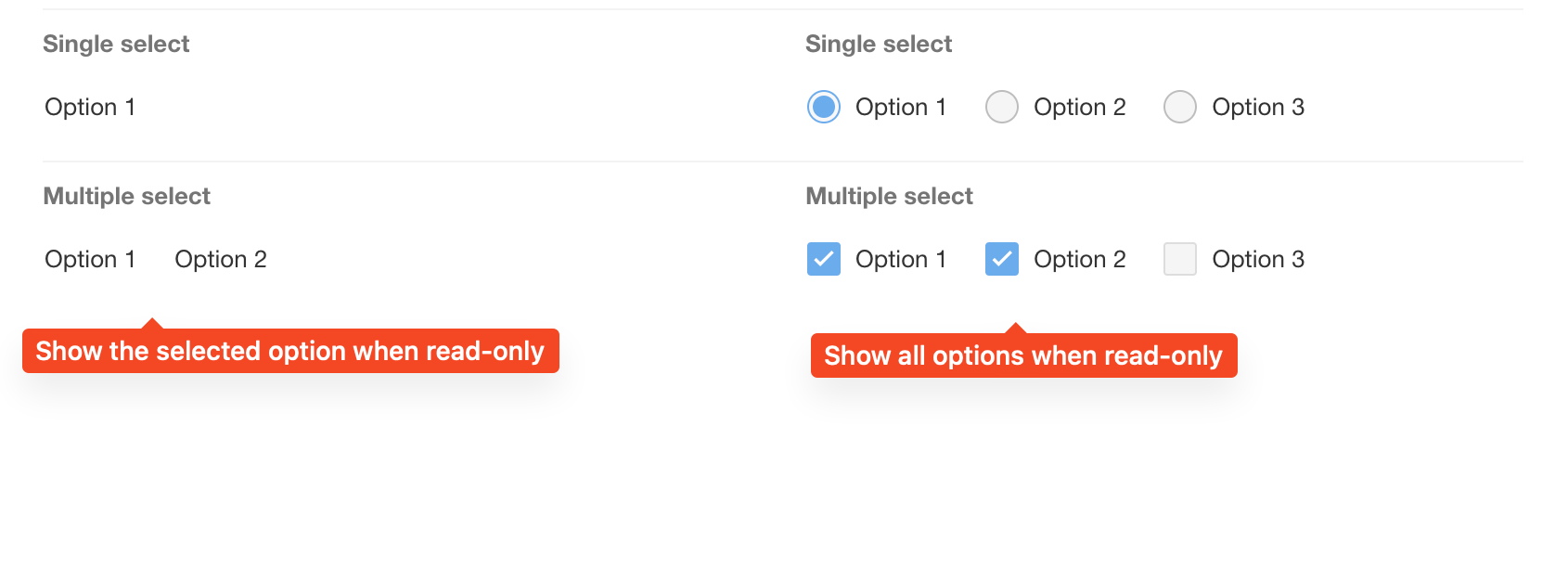
Show All Options in Read-Only Mode
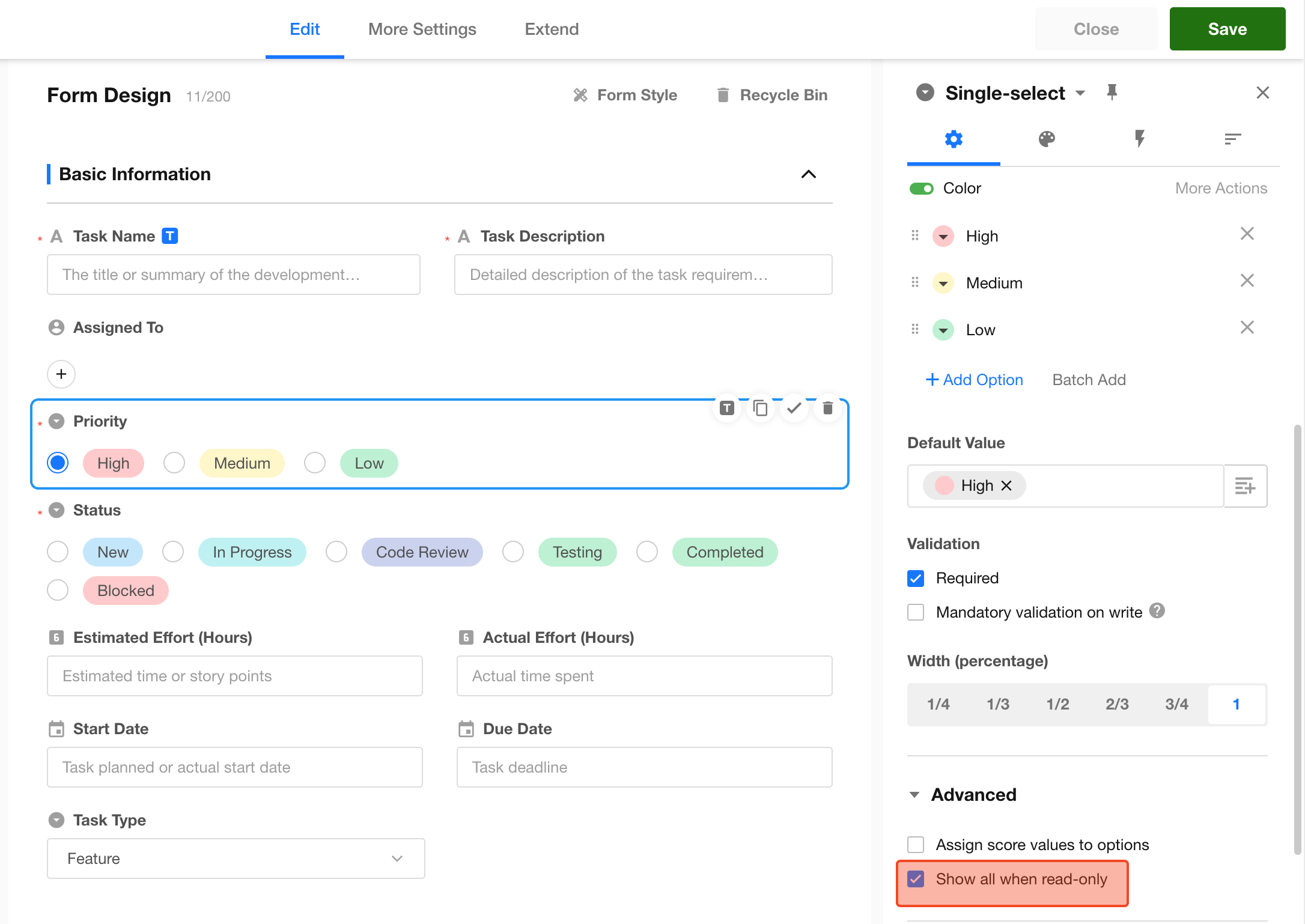
When options are displayed in tiled layout, you can enable Show all options in read-only mode.
If disabled, only the selected options will be displayed.
Use Option Sets
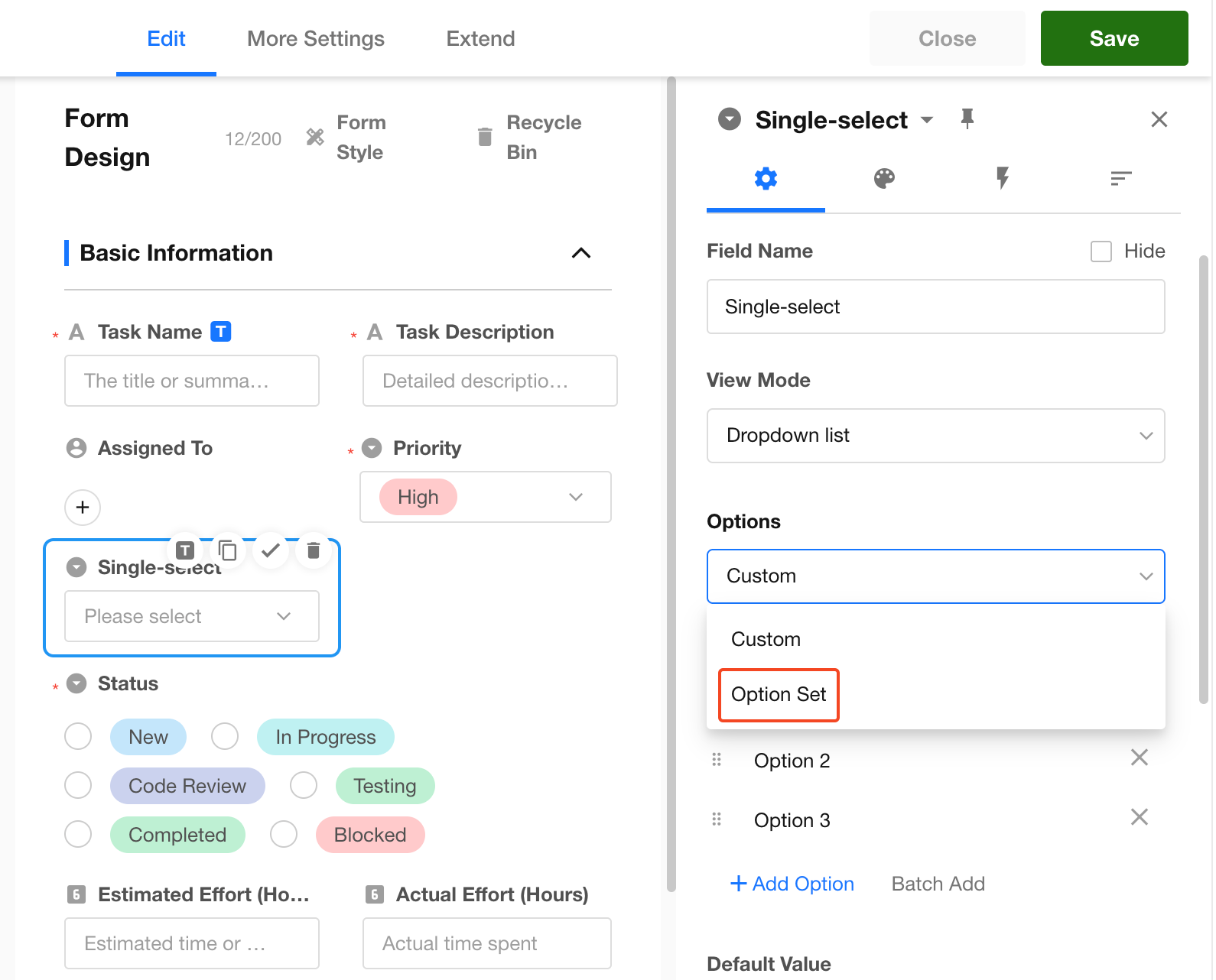
An option set is a shared option template (or data source). Single select and multi select fields can directly use an existing option set, or convert custom options into an option set for reuse across worksheets.
-
Select an option set when adding a field
-
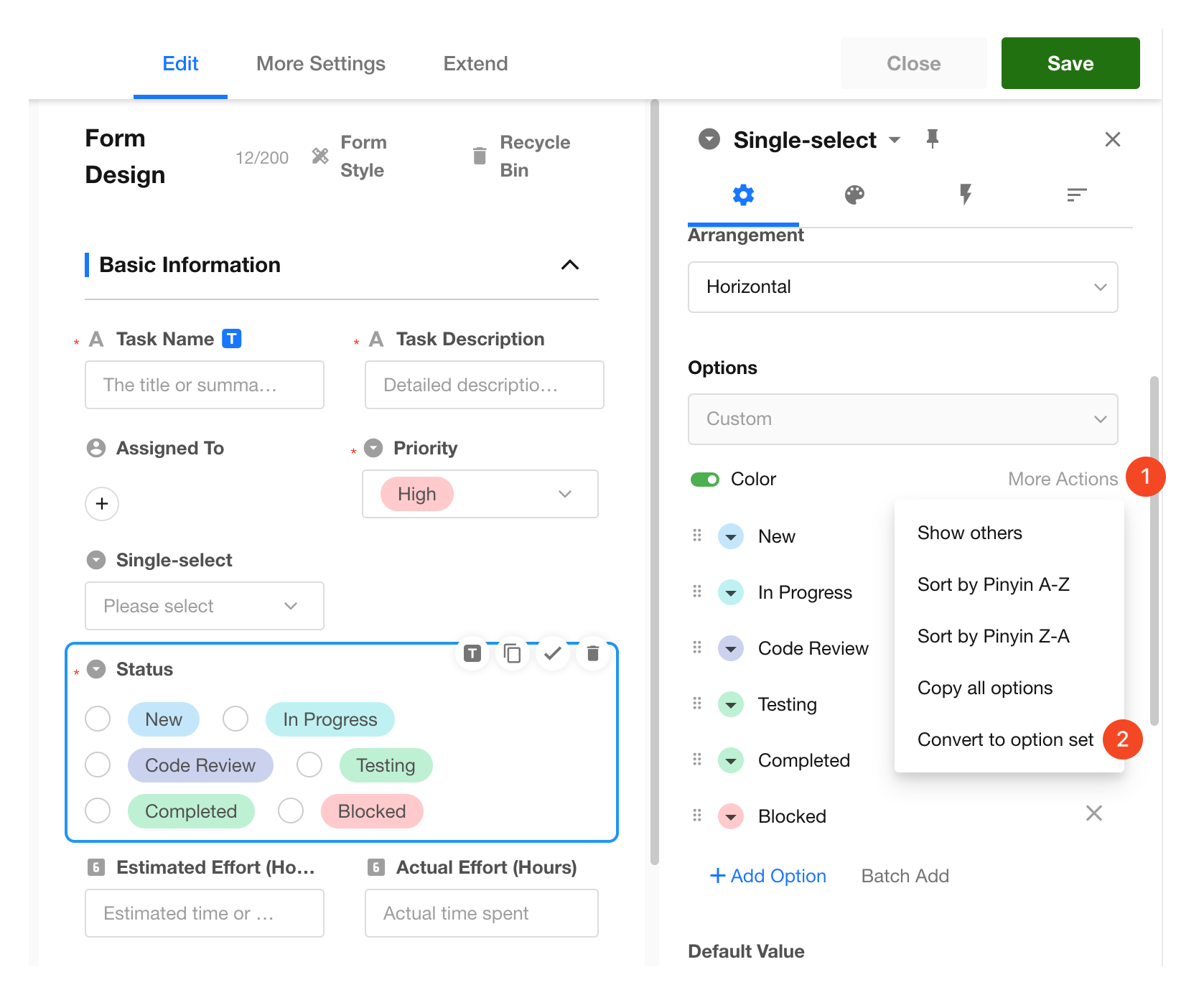
Convert custom options into an option set
Custom options can be converted into an option set. After conversion, any edits will automatically sync to the option set. Fields in other worksheets referencing this option set will also update automatically.
-
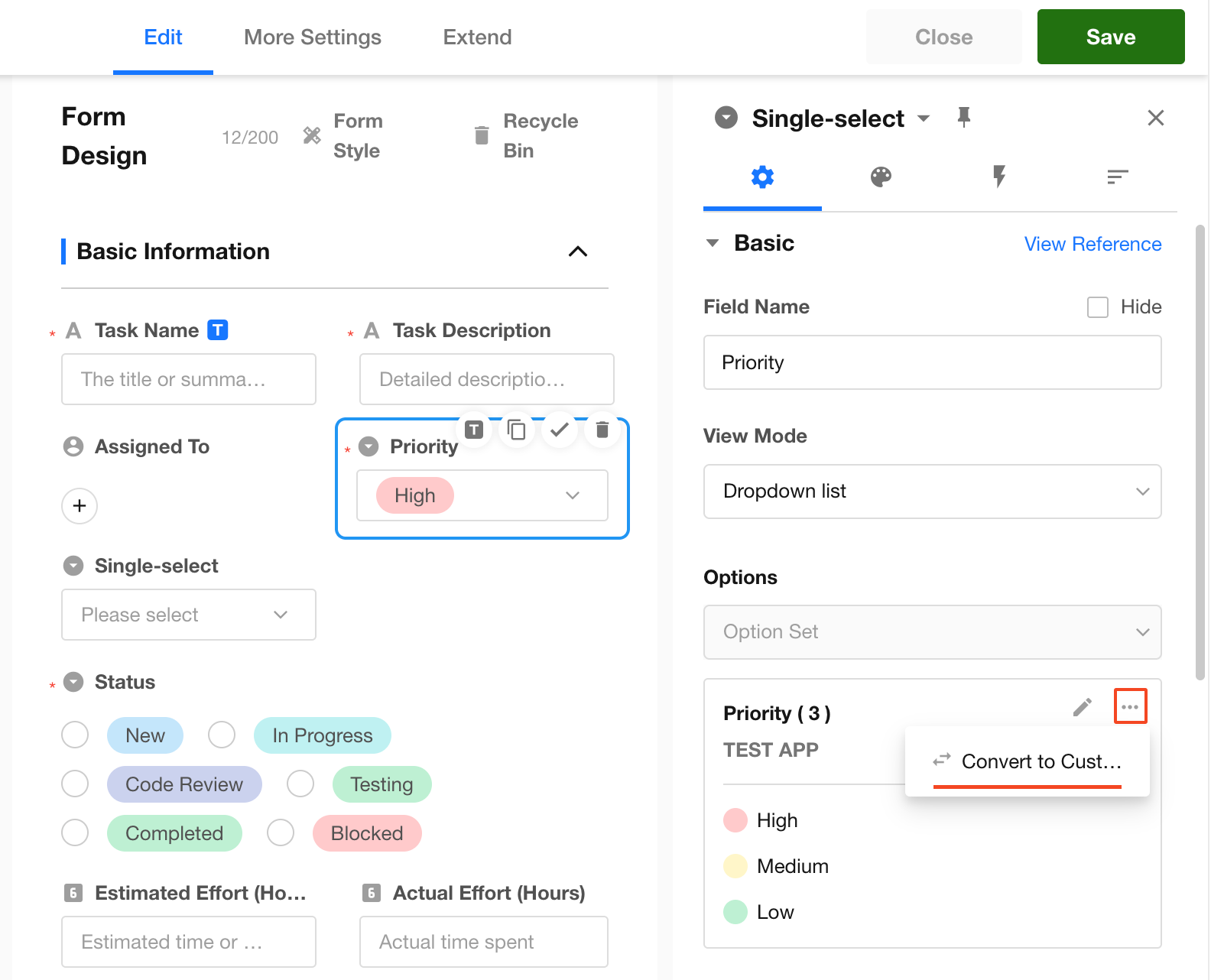
Convert an option set into custom options
Converting an option set into custom options removes the reference to the original option set and creates a new set of custom options. Historical data will also be converted. After conversion, it can be turned into a new option set, but it will not be the same as the original.
-
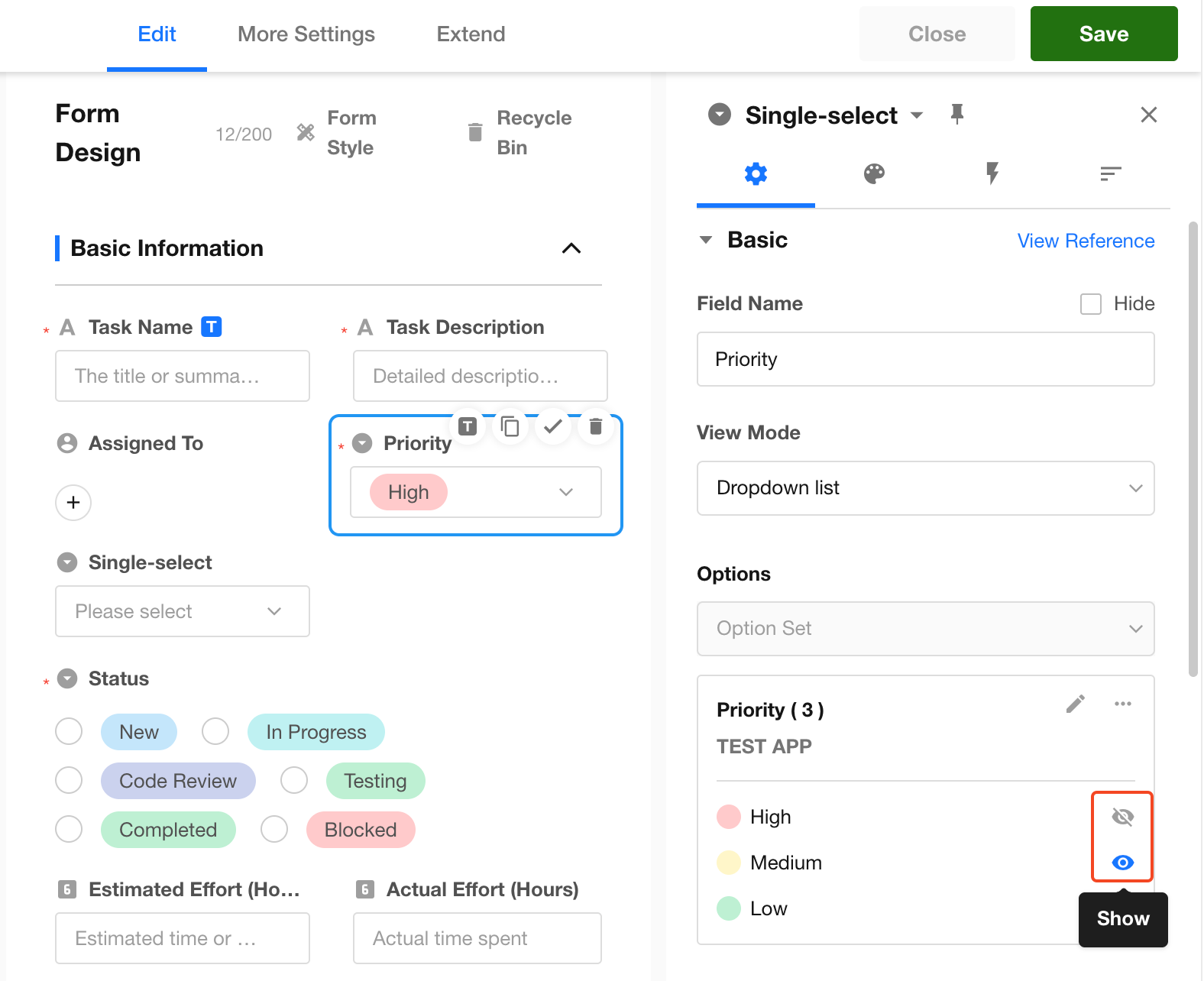
Hide specific options in an option set
If some options in an option set are not applicable to the current field, they can be hidden. Hidden options will not be visible to users during selection.
-
Manage option sets
Was this document helpful?