How to Automatically Update Related Data When Worksheet Records Change
When data in a worksheet changes (e.g., a record is added or updated), you can use the Update Record or Add Record node in a workflow to achieve the following:
- Modify other field values in the current record
- Update field values in records from other worksheets
1. Automatically Update Other Fields in the Same Record
Example:
In a task management worksheet, when the field “Task Status” is changed to Completed, the system should automatically update the “Completion Time” field in the same record to the current system time.
Workflow Setup:
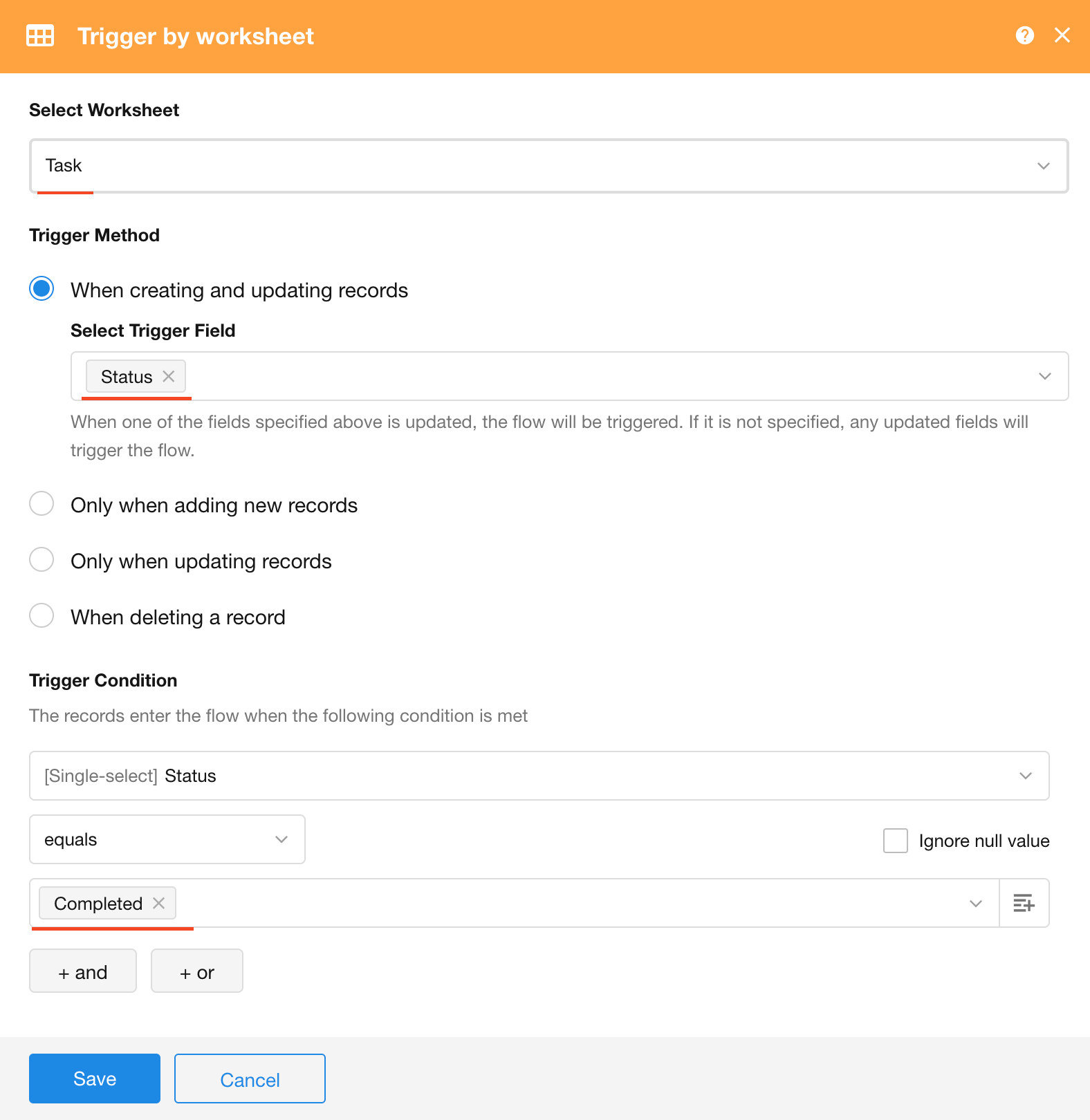
Step 1: Configure the Trigger Node
- Worksheet: Select the Task worksheet
- Trigger condition: Trigger the workflow when a record is updated
- Filter condition: Trigger only when the task status is changed to "Completed"
Step 2: Configure the Automation Action to Update the Current Record
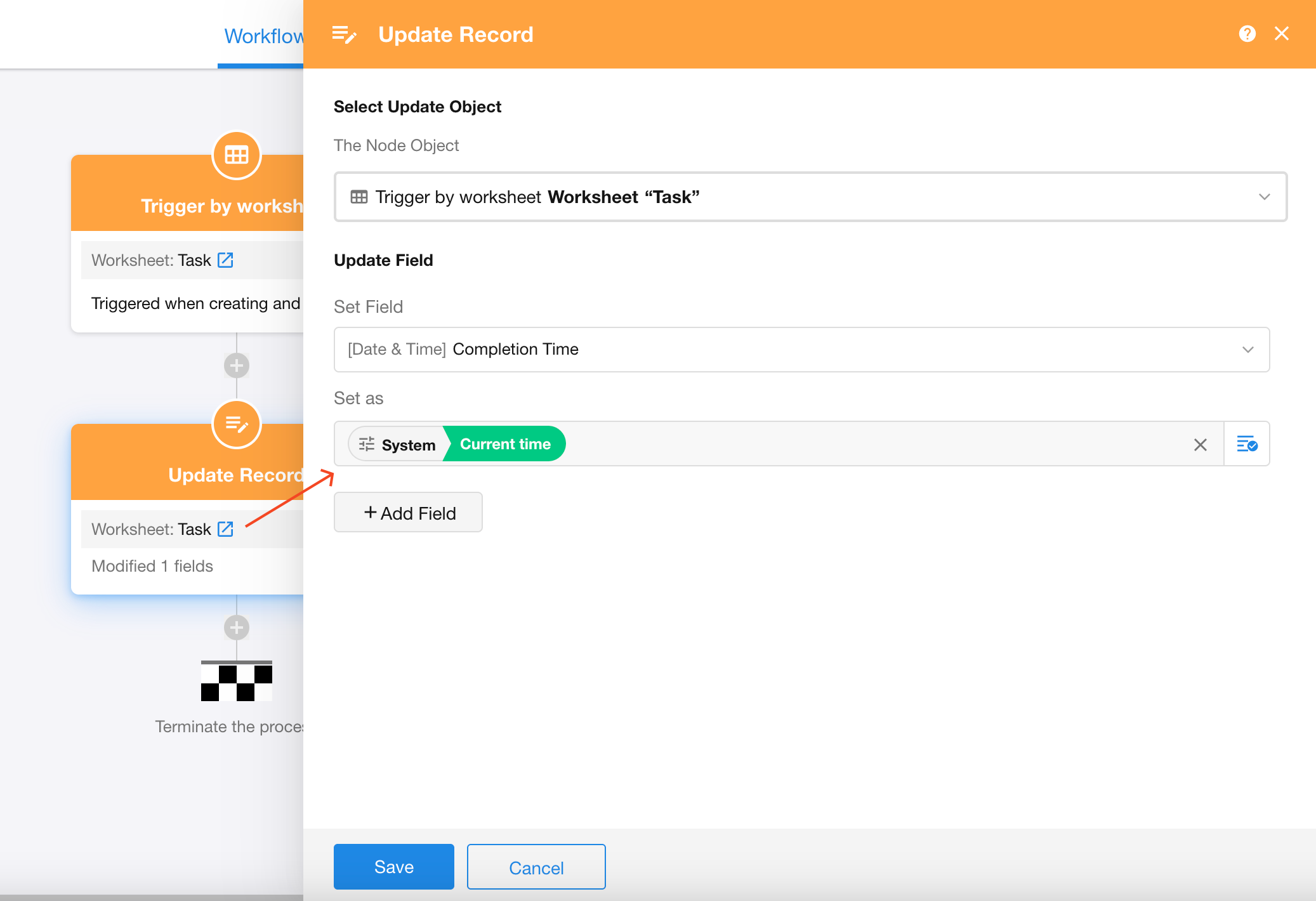
Add an Update Record node and configure it as follows:
- Record to update: The current record that triggered the workflow
- Field to update: Select the Completion Time field
- New value: Set it to System Current Time
2. Automatically Update Records in Other Worksheets
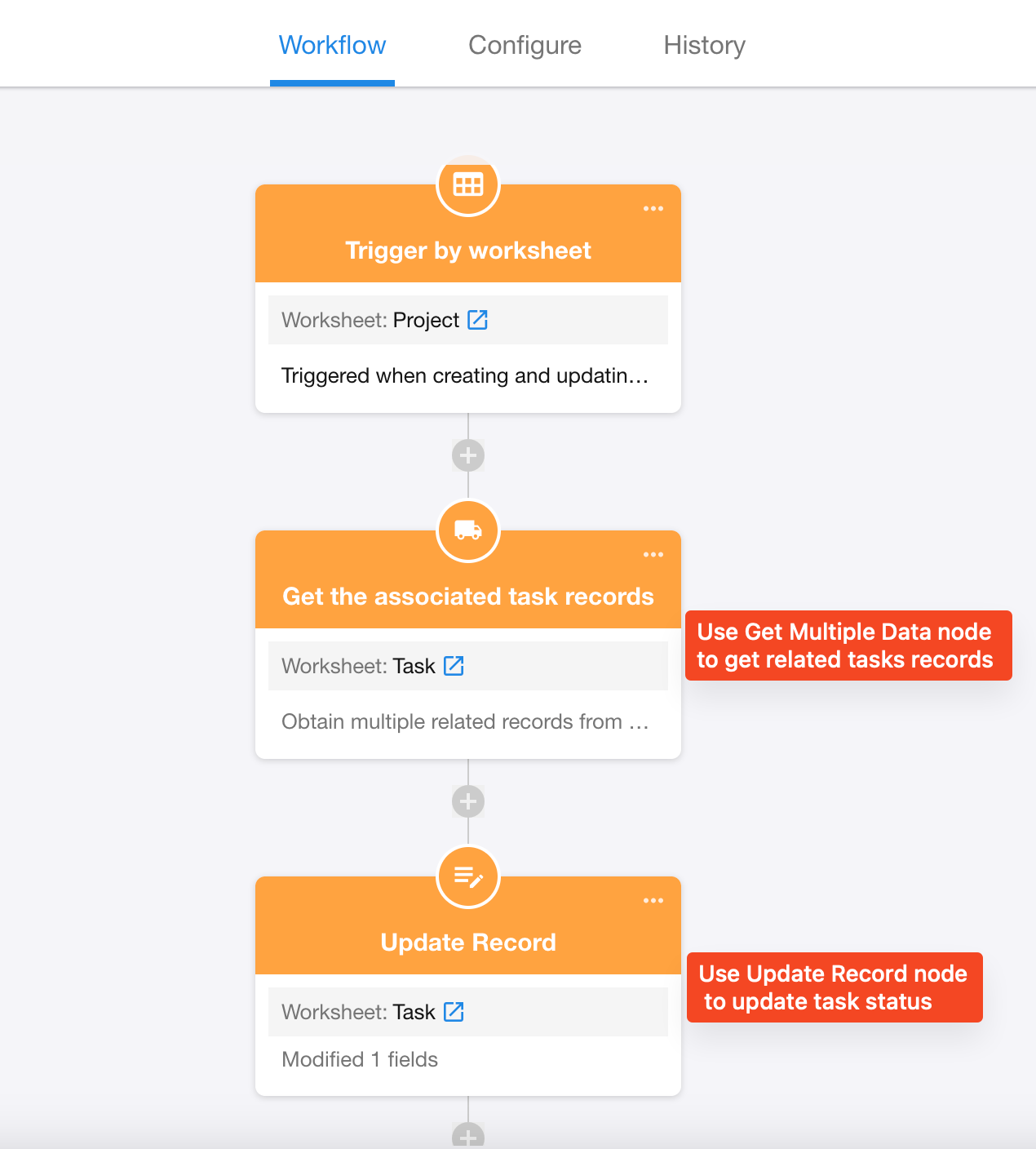
Example In a Project worksheet, when a project’s Status field is updated to Completed, all associated Task records should automatically have their Status field updated to Completed as well.
Workflow Configuration:
Was this document helpful?