Create a Word Print Template
Before getting started, read the Introduction to Print Templates to learn how print templates work.
Accessing the Print Template Designer
Go to Edit Form > More Settings > Print Template, click Create Template to create a Word print template.

When creating a Word print template for the first time, you'll need to use field codes for each record field. Paste these codes into the Word file to auto-populate data during printing.
Step 1: Start to Design

Step 2: Understand the Field Code Reference Table

The reference table includes the following:
-
Field Name: The name of the field in the worksheet.
-
Field Code: A formatted code based on the field name used to identify the field. Paste this code into the Word template to populate the corresponding data.
-
Field ID/Field Alias: Serves the same purpose as the field code, but more precise and unique. If duplicate field codes exist, use the Field ID or alias instead.
Step 3: Design Your Word Template
We recommend editing the template using Microsoft Word. Templates created in WPS may encounter formatting issues during printing.
You can download a sample template (pre-filled with field codes in a basic layout) and modify it, or use your own existing Word file.

The following is a pre-designed Word template. You just need to paste the field codes into the appropriate cells.

To print in this format, paste the corresponding field codes into the desired cells. Below is an example of how to insert codes for fields in the current worksheet and related worksheets.

Step 4: Configure Related Worksheets
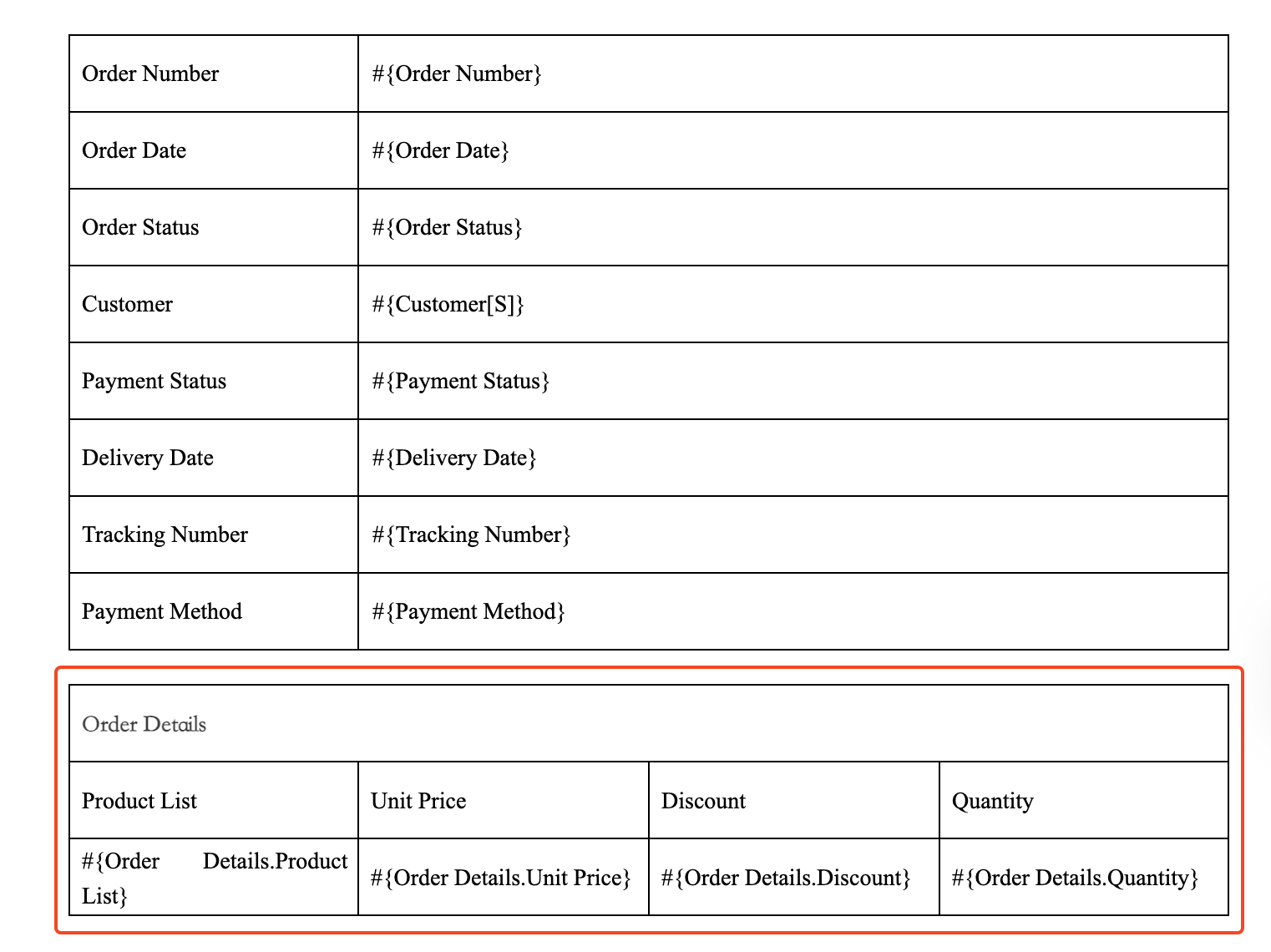
First, draw a table where:
- The first row represents column names.
- The second row contains the corresponding field codes.
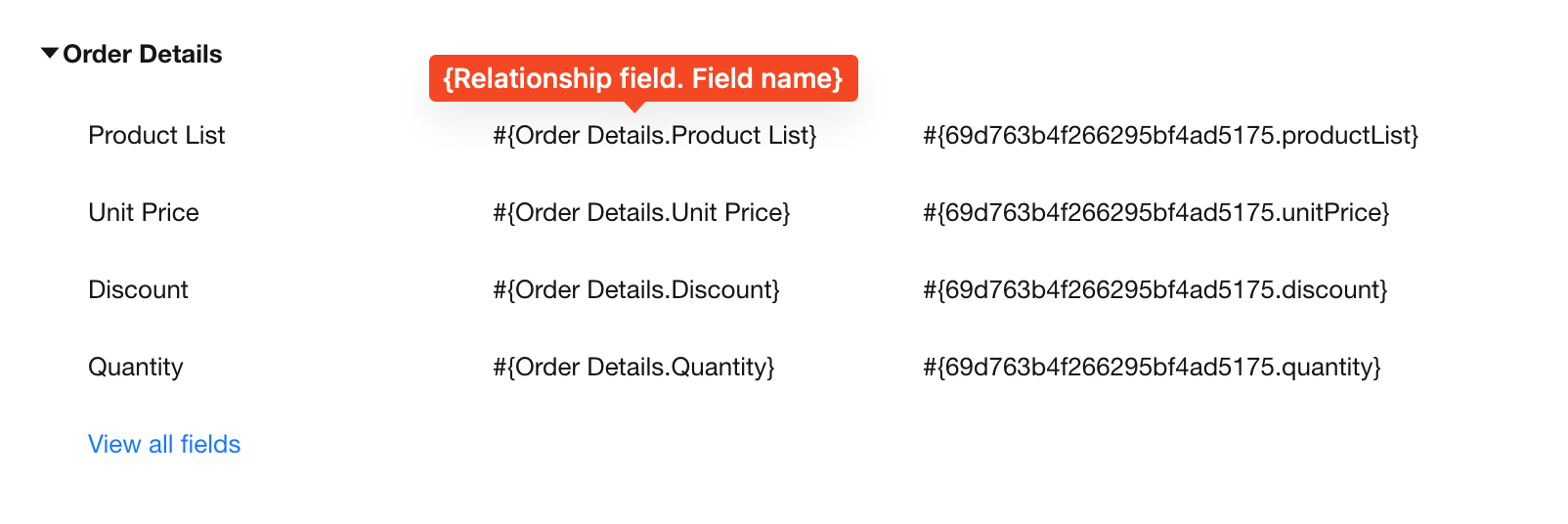
Why is there no data when printing related worksheets or subforms?
-
Reason 1: The subform or related worksheet is not configured in a standalone table
The subform or related worksheet (table style) must be defined in a separate table. It cannot be embedded within cells of the main table.
If it is nested inside a larger cell, data may fail to populate, or hiding empty data may not work correctly. -
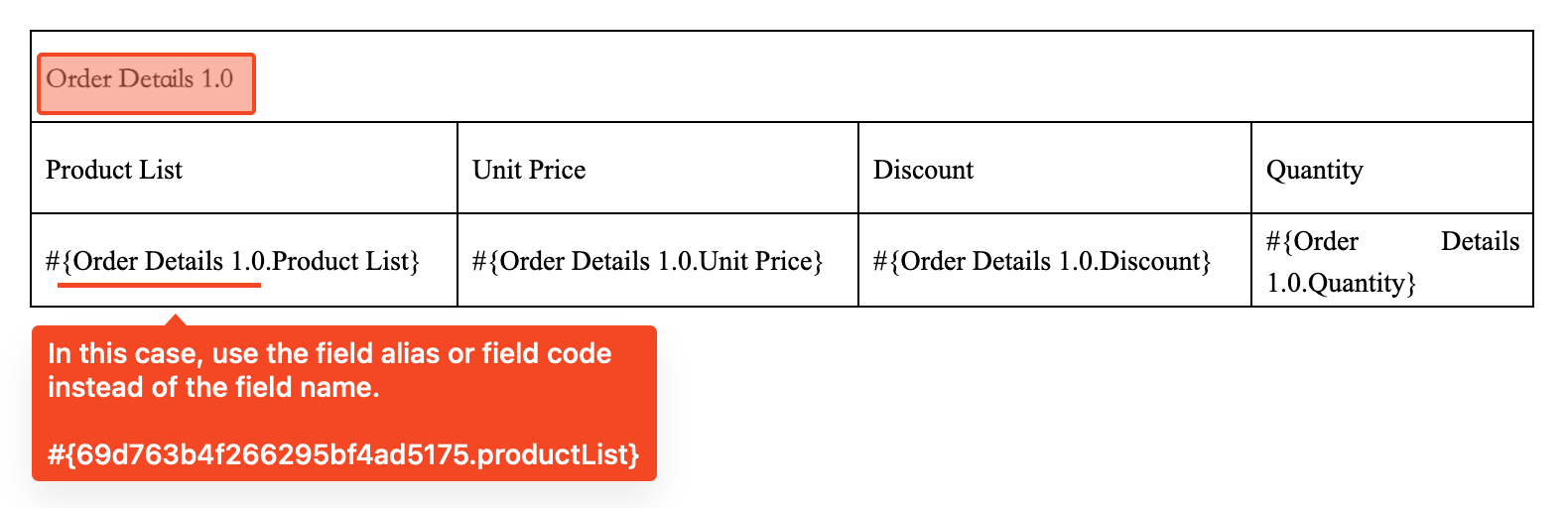
Reason 2: Relationship field name or subform field name contain special characters
The field code format for a related worksheet or subform is:
{relationship field name.field name}If the relationship field name contains a
., the code will include multiple., which may cause the system to fail to recognize the field and prevent data from being populated.In this case, use the field alias or field code instead of the field name.
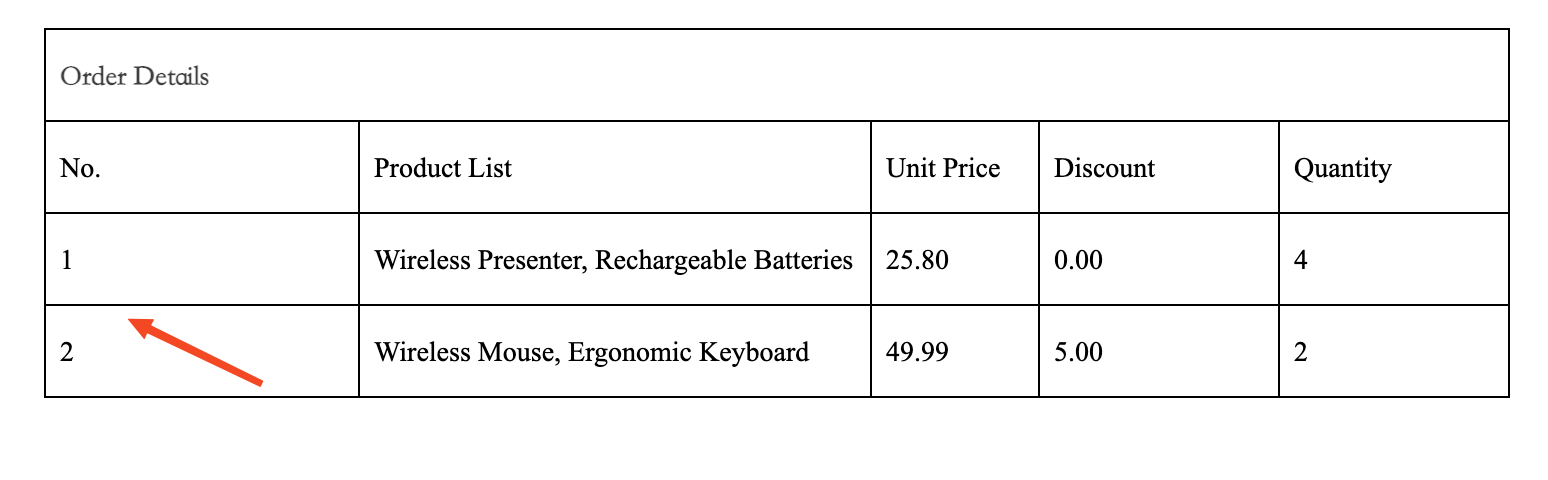
Step 5: Set Row Numbers in Detail Lists
If you need to display row numbers when printing a related worksheet or subform, you can use the dedicated code sequencenumber.
Code format:
#{relationship field name.sequencenumber}#{relationship field code.sequencenumber}
Template example:
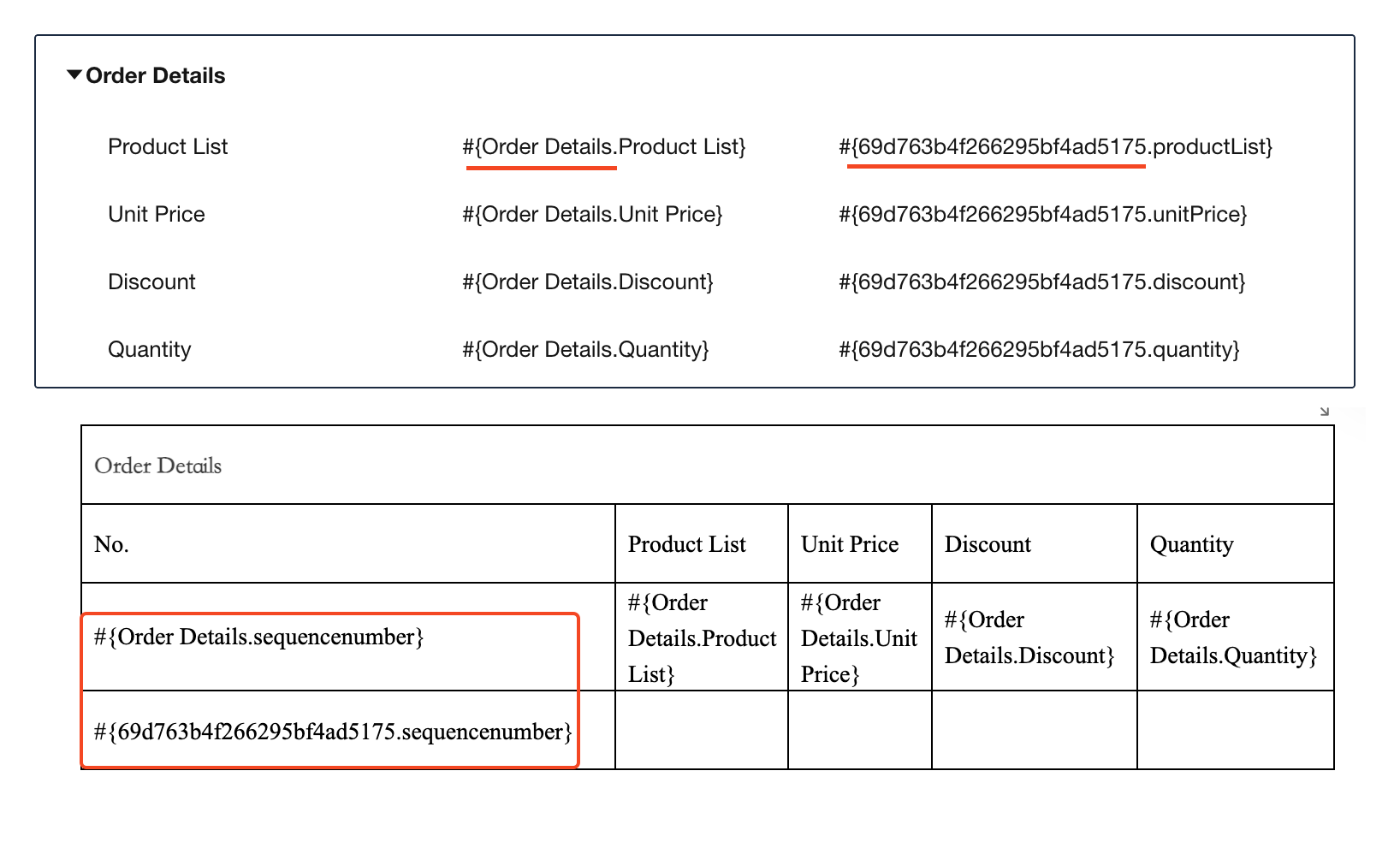
Print result:
Step 6: Upload or Save Template
You can upload a local Word file or create a template online. Only .docx format is supported for Word templates.

Step 7: Set Exported File Name
Files generated using the template can be exported. You can use either:
- Default name: Template name + Title field + Export timestamp.
- Custom name: You can select other fields to concatenate the filename.

Step 8: Allow Downloading & Printing
Enable the "Allow Downloading & Printing" option to let regular users download the generated documents.

To download: After clicking “Print" with template, simply hit the download button, or use the download button in preview mode.

Step 9: Allow Editing Before Printing
When this option is enabled, users can edit the generated Word or Excel print files online before printing.

During preview, an Online Editing button is displayed. Click it to modify the print content, then click the Print button to proceed.

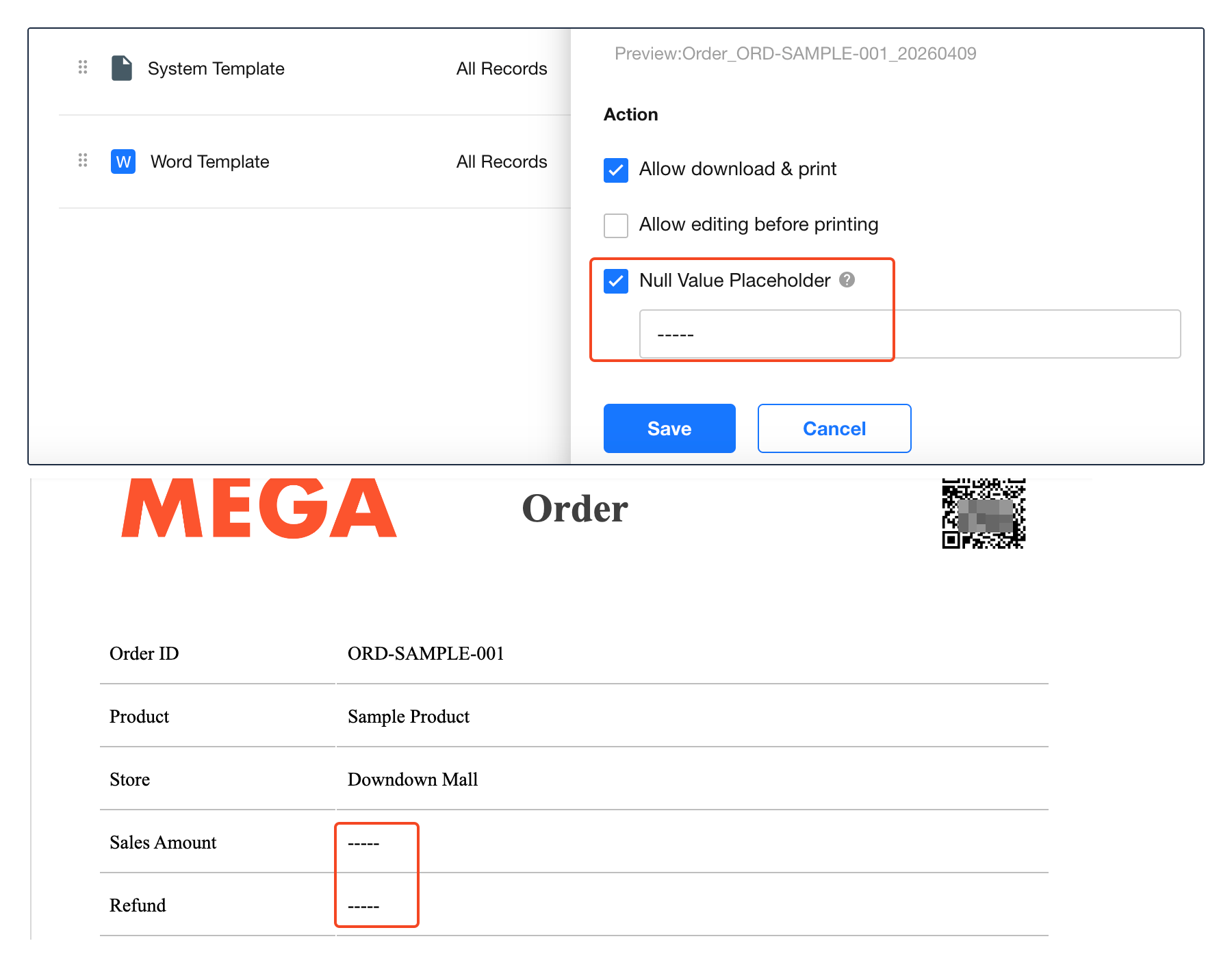
Step 10: Set Placeholder for Empty Fields
When a print field has no value, you can define a custom placeholder (e.g., ---) to ensure a clean and consistent print layout.
Step 11: Test the Print Template

Template Management
Was this document helpful?