Work Handover, Offboarding, and Account Restoration
When an employee changes positions or leaves the organization, their work should be handed over to another team member. After the employee is offboarded, the system removes their account access. If they rejoin the organization later, their account can be restored.
Work Handover
When an employee changes roles or leaves the organization, their work should be handed over.
Access the Work Handover Page
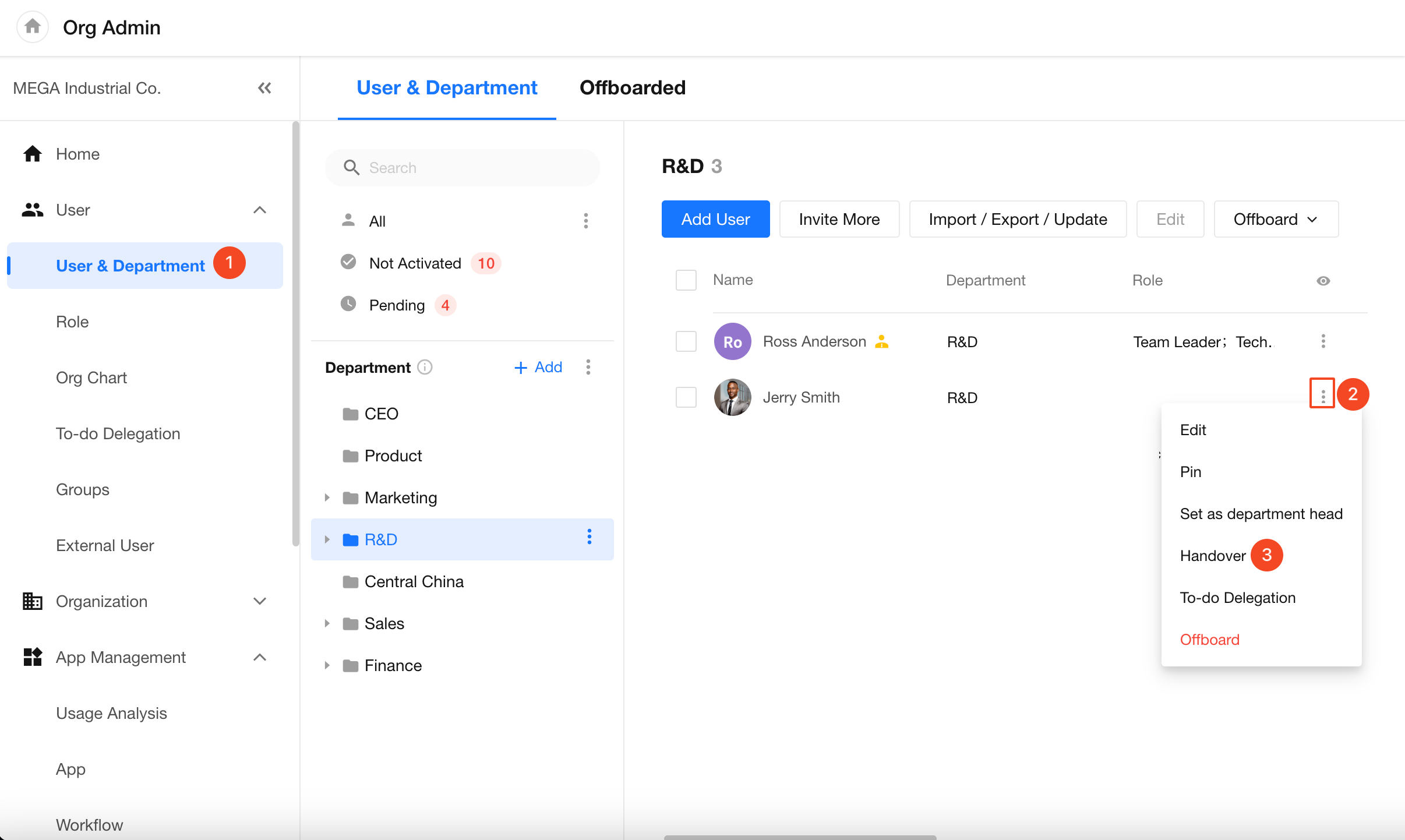
In the Admin Console, go to User & Department, locate the employee, click the More (three-dot) menu, and select Handover.
A dialog displays all items available for handover. Select the items to transfer and choose the successor. You can perform multiple handovers, assigning different responsibilities to different people.
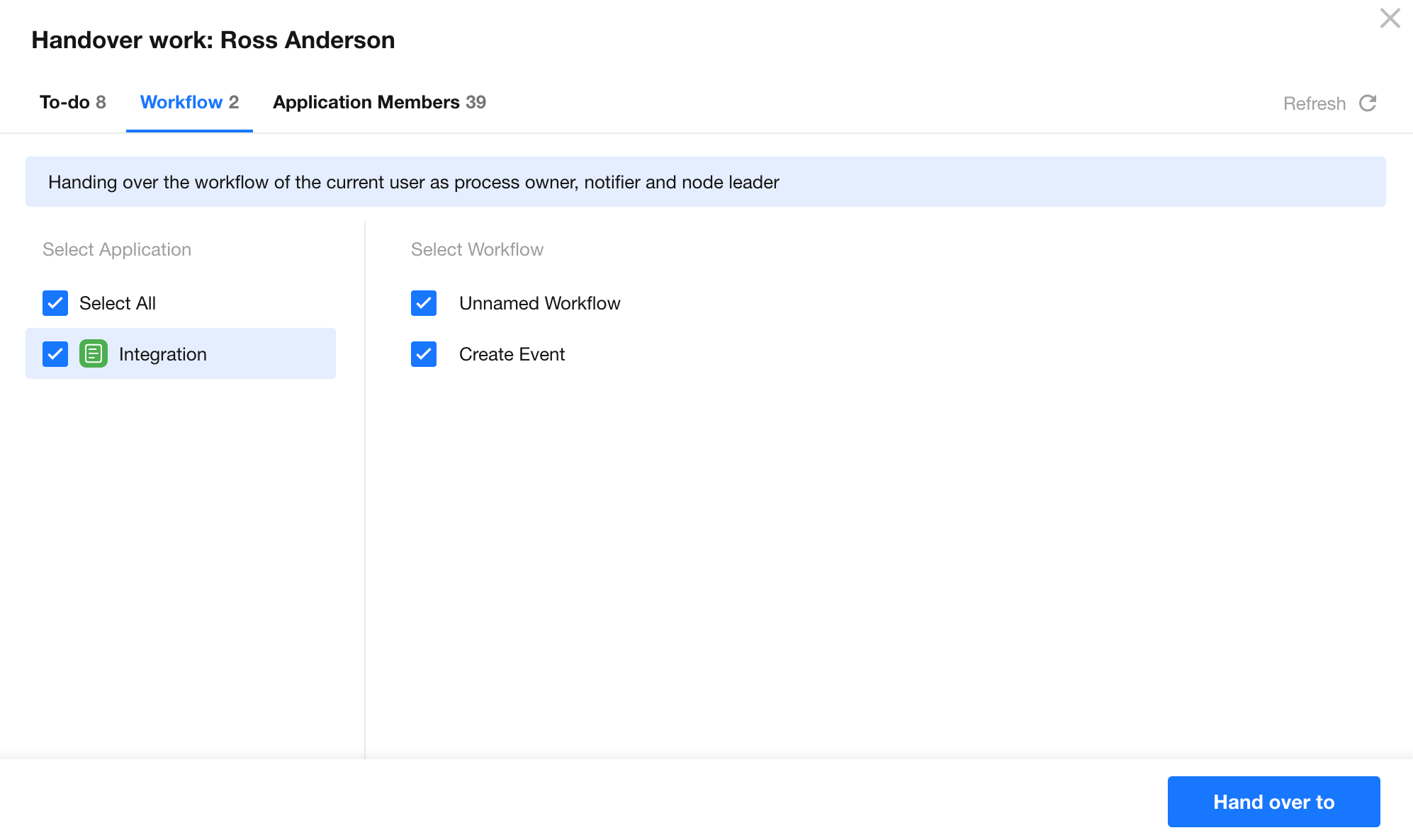
Items That Can Be Handed Over
The following types of items can be transferred:
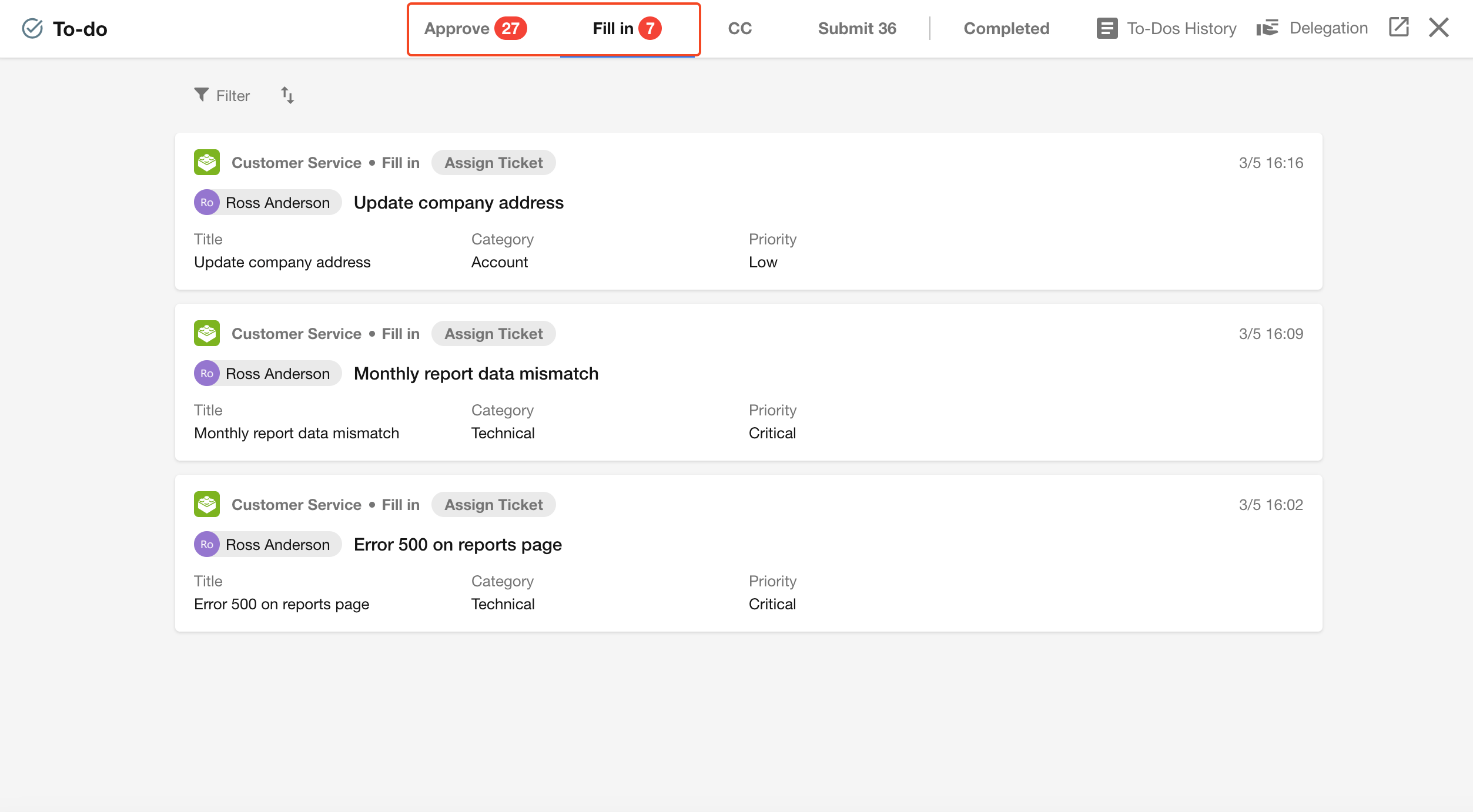
Pending Workflows
Workflow tasks awaiting the employee's approval or input can be reassigned to another user so the workflow can continue.
Both pending approval tasks and pending input tasks are supported.
Workflows That Reference the Employee in Workflow Nodes
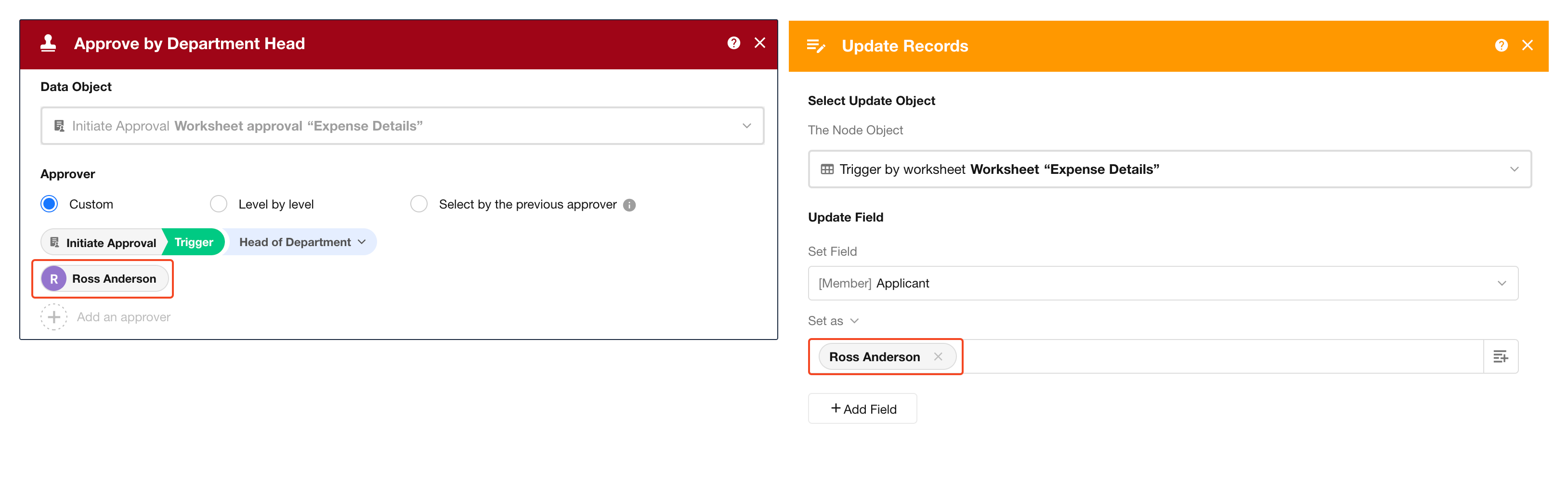
Workflows in which the employee is explicitly assigned within workflow nodes.
For example:
- Assigned as the approver in an approval node.
- Assigned as the owner in an Update Record node.
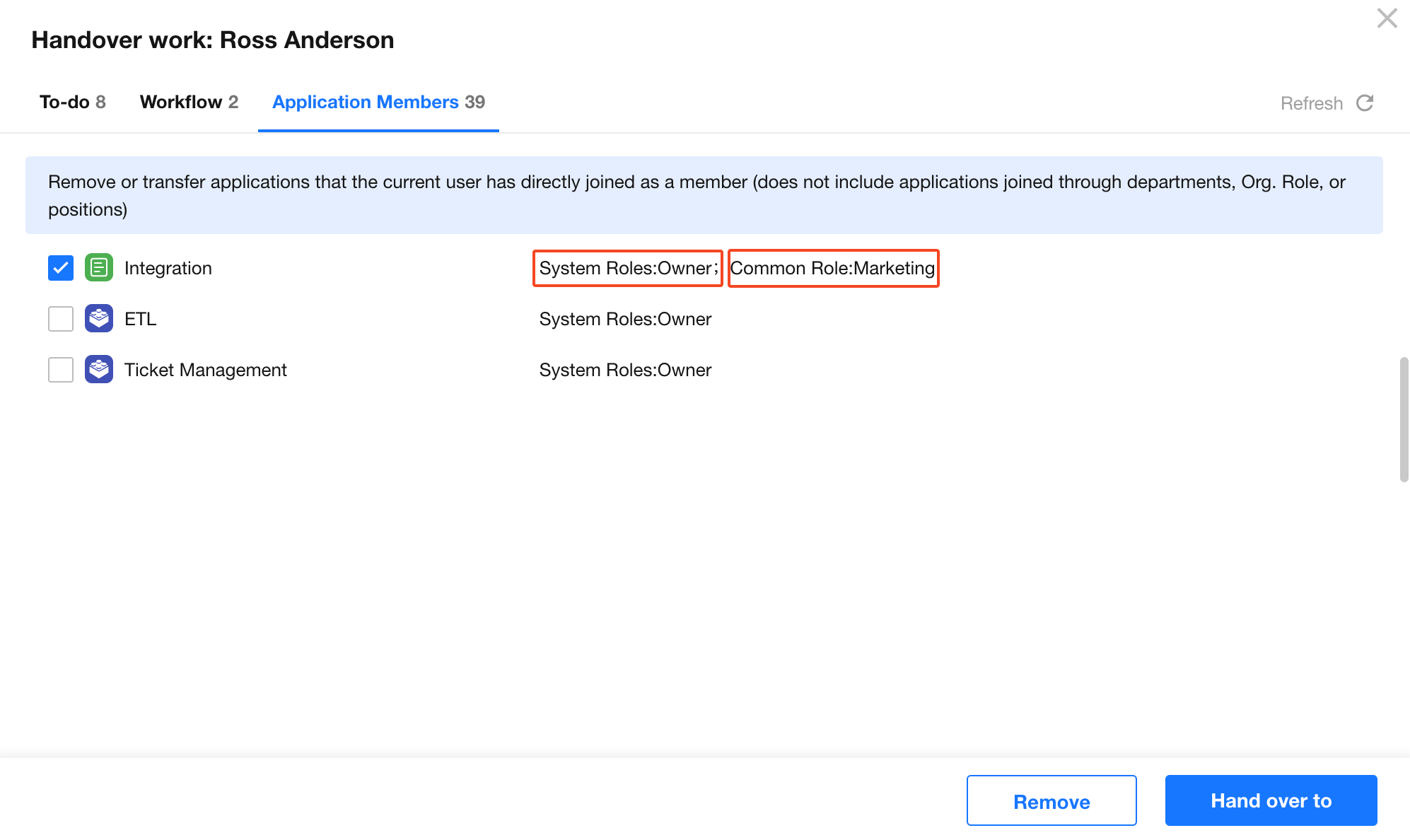
App Membership
All apps the employee has joined, including their roles and permissions.
Organization administrators can either remove the employee from multiple apps or transfer their app roles and permissions to another user.
Note: Only app role memberships are transferred. Member fields and record owners in worksheet records are not included in this handover.
Note: Collaboration items can only be transferred after the employee has been offboarded.
Offboarding Employees
Offboard a Single Employee
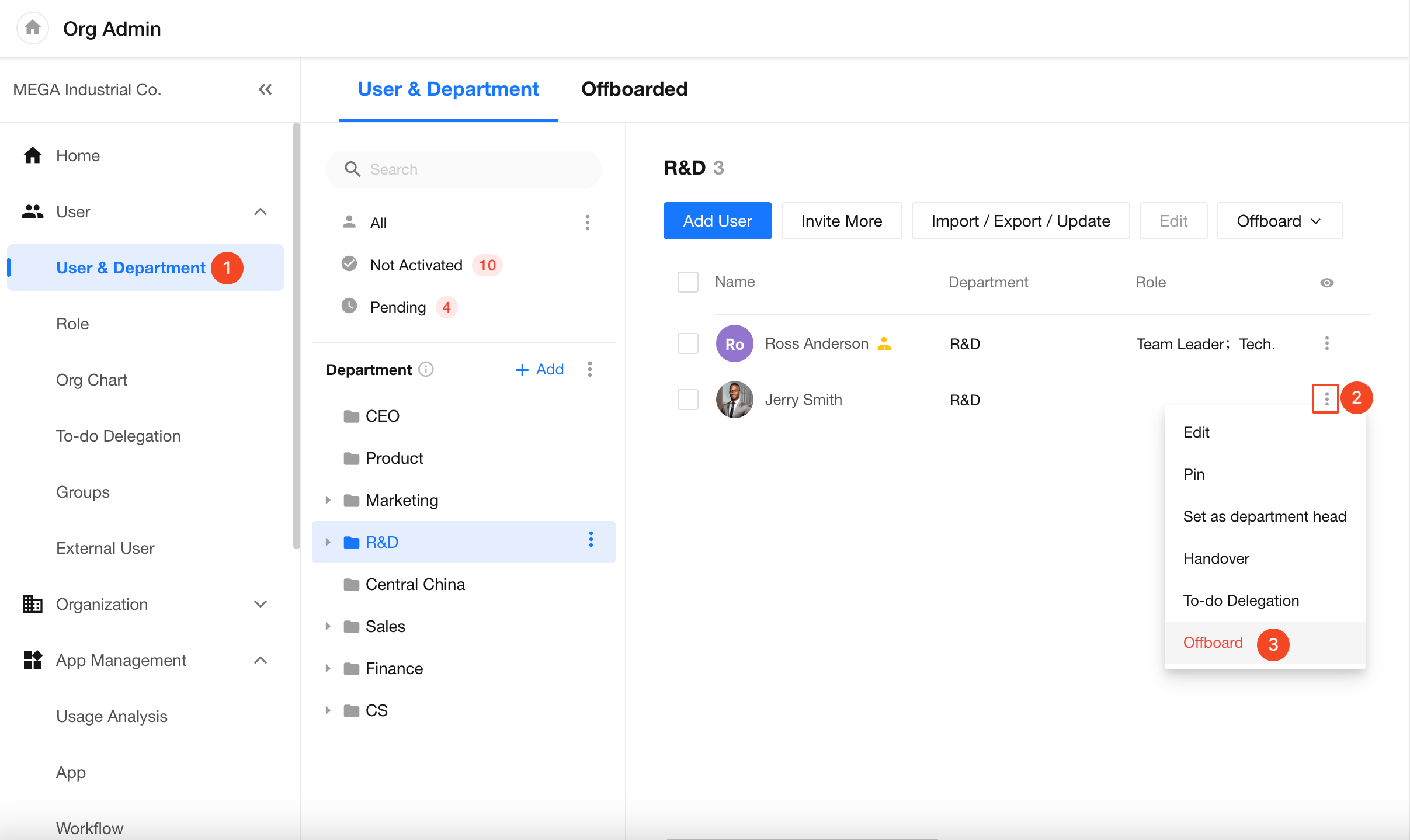
In User & Department, locate the employee, open the More menu, and select Offboard.
Offboard Multiple Employees
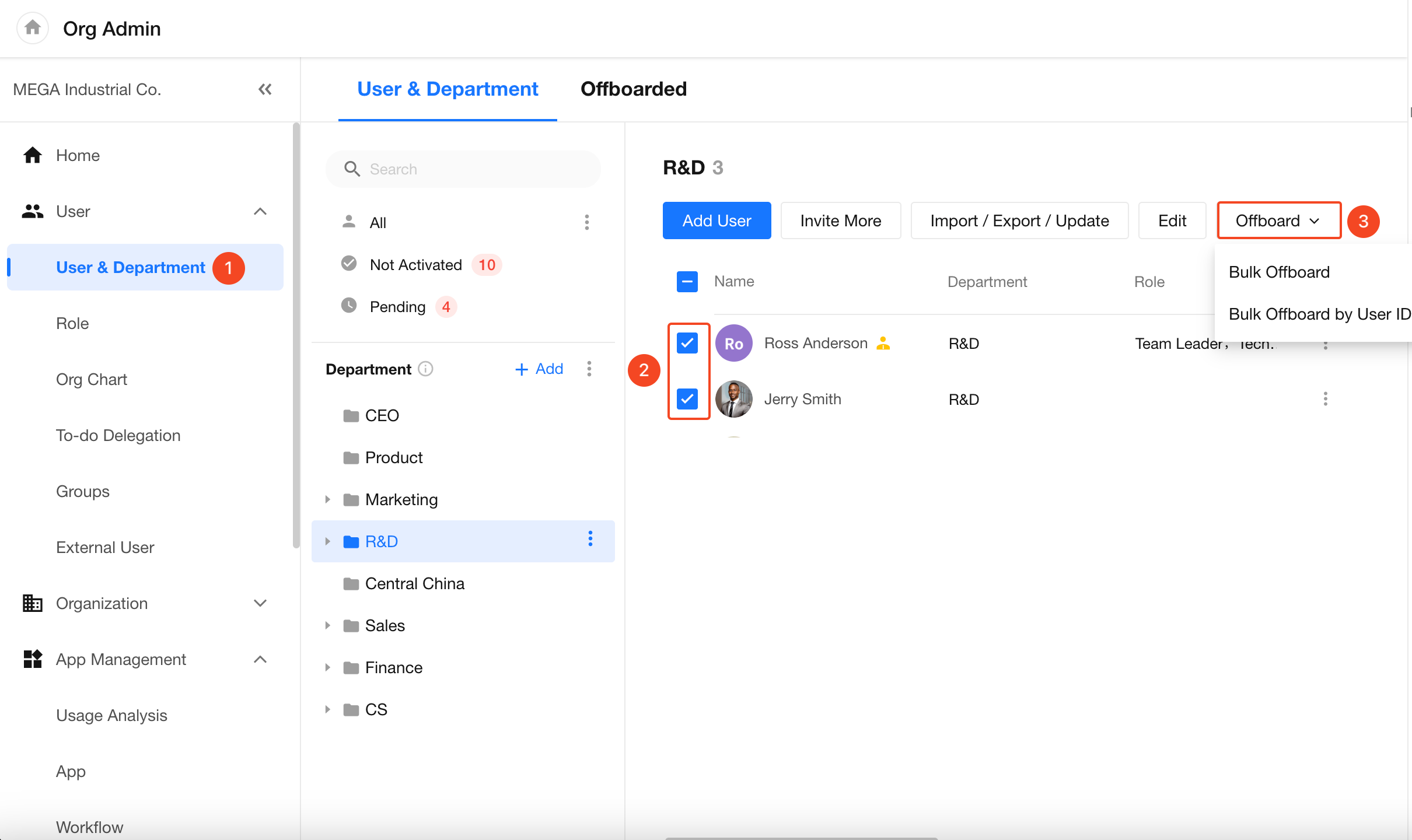
In User & Department, select one or more employees, then click Offboard in the toolbar.
Batch offboarding supports the following methods:
- Batch Offboard selected users
- Batch Offboard by User ID
Note: You can offboard up to 50 employees in a single batch operation.
Batch Offboard by User ID
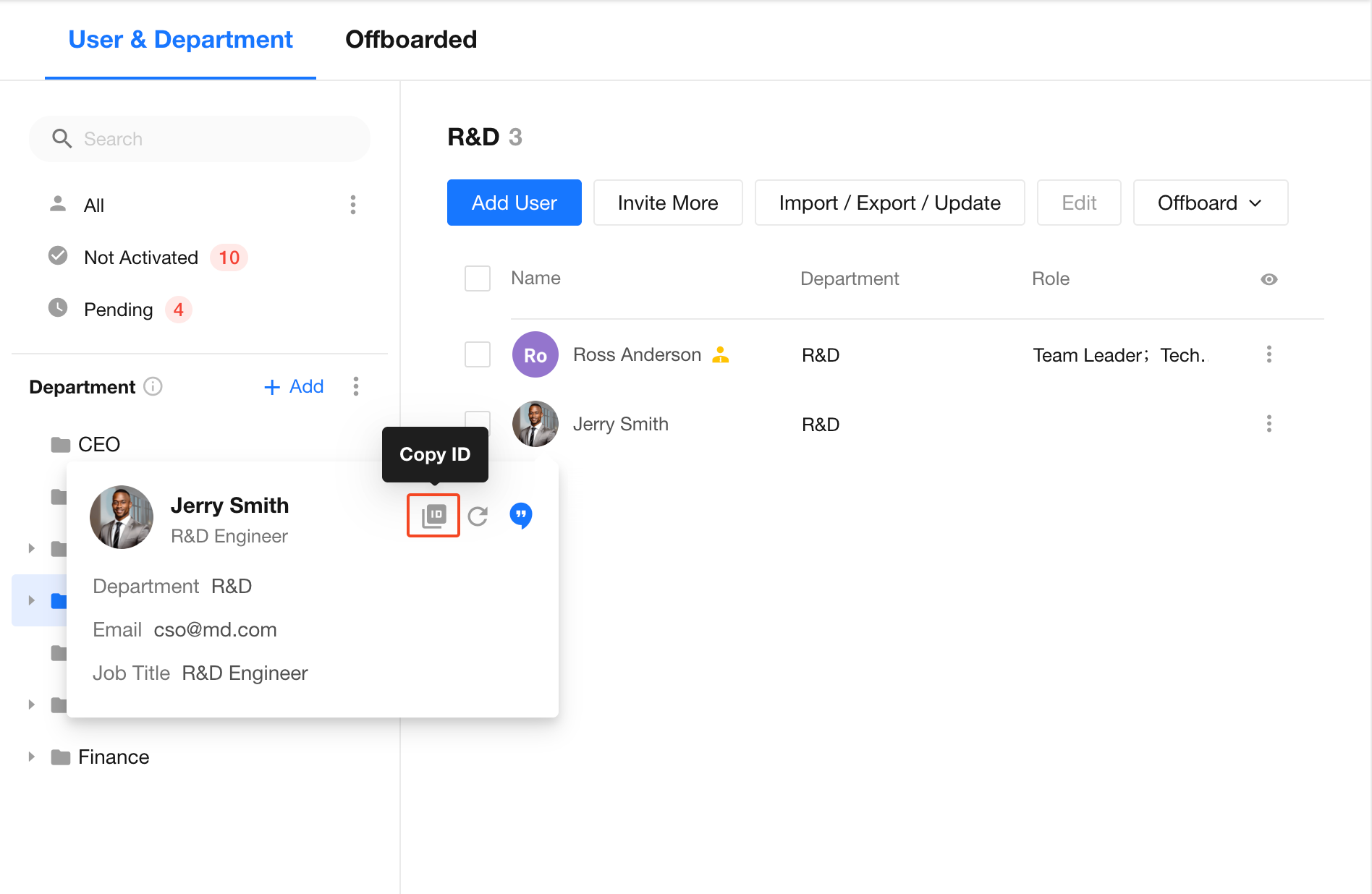
When employees from multiple departments need to be offboarded, you can first obtain their User IDs and then process them in batches.
Paste the User IDs into the dialog box, with one User ID per line, and confirm to complete the operation.
What Happens After Offboarding?
After an employee is offboarded, the system automatically performs the following actions:
- Removes the employee from the organization.
- Removes the employee from all apps in the organization.
- If the employee is the app owner, ownership is automatically transferred to Assistant. You can later transfer ownership to another user from the app list.
- Removes the employee from all groups, tasks, and projects in the organization.
- If the employee owns a group, task, project, or shared folder, ownership is automatically transferred to Assistant and can later be reassigned during the offboarding handover.
Can Offboarded Employees Access Organization Data?
No.
After an employee is offboarded, they are automatically removed from all apps, groups, tasks, projects, and folders, and can no longer access organization data.
Even if they open historical notification messages, the system performs a permission check and blocks unauthorized access.
If the employee later needs to work as an external collaborator, you can invite them to specific apps and groups after offboarding. In this case, they can access only the resources they have been invited to.
Offboarding Handover
After an employee is offboarded, the following handover methods are available:
- App workflow handover (recommended before offboarding)
- Collaboration item handover (groups, tasks, projects, shared folders, and more)
Transfer App Workflows
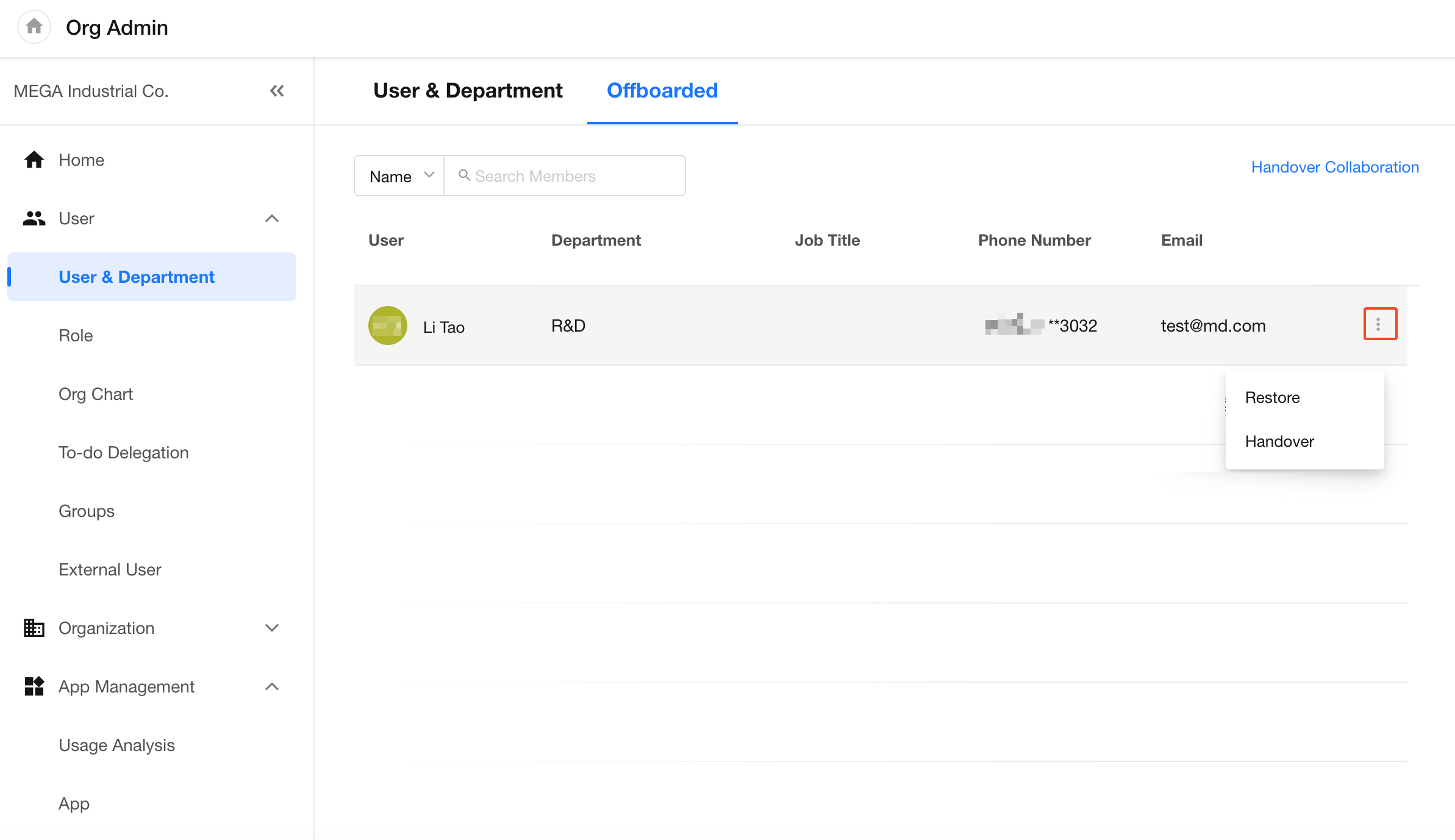
Go to User & Department > Offboarded, locate the employee, open the More menu, and select Handover.
Transfer Collaboration Items
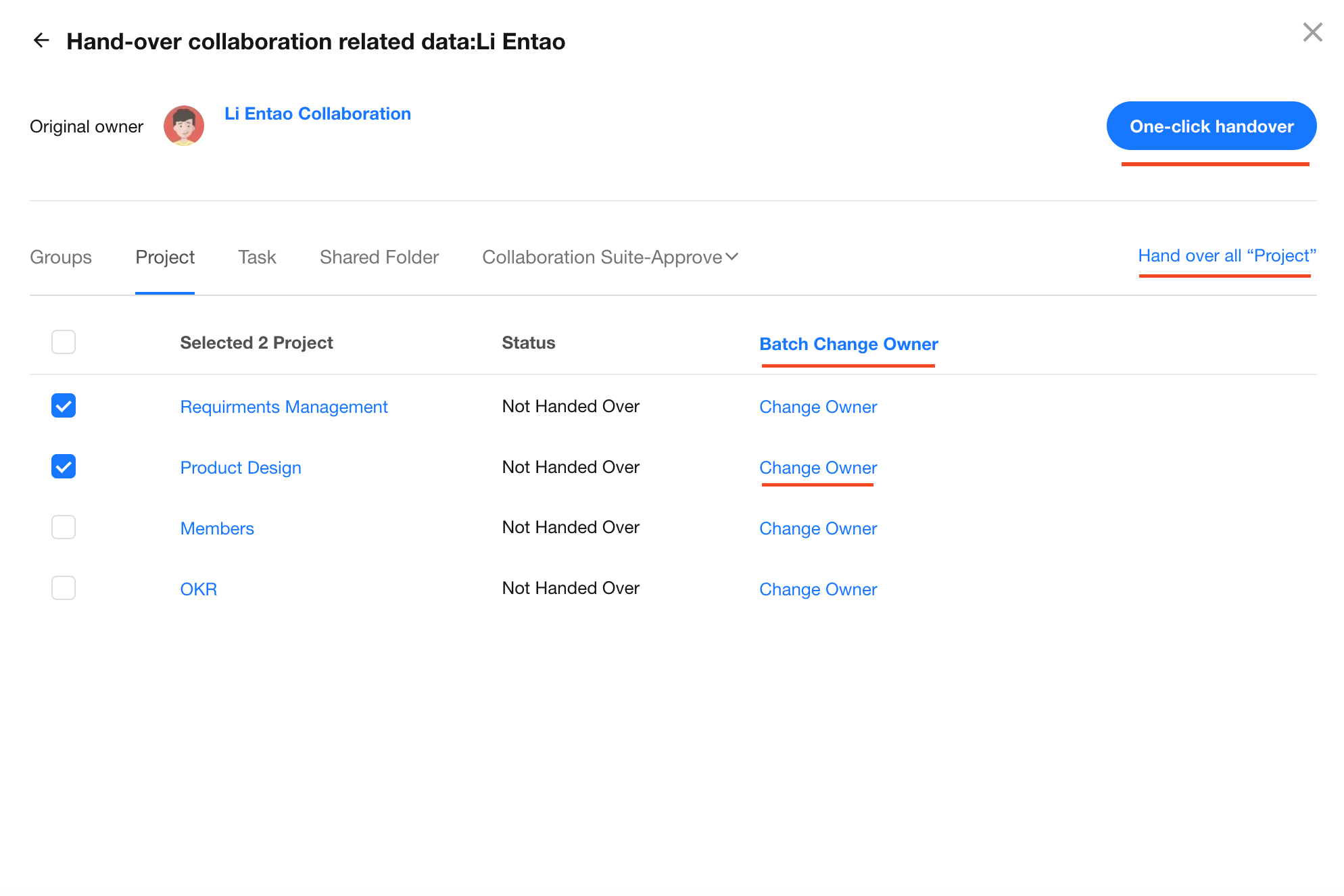
Go to User & Department > Offboarded, then click Handover Collaboration in the upper-right corner.
Locate the employee and click Handover.
The following transfer methods are supported:
- Transfer an individual item to another user.
- Transfer multiple selected items to another user.
- Transfer all collaboration items owned by the employee to another user.
- One-click Handover — Transfers all groups, projects, tasks, shared folders, and approvals owned by the employee to another user.
Manually Transfer Apps and Worksheet Records
App ownership and member fields in worksheet records are not transferred automatically and must be updated manually.
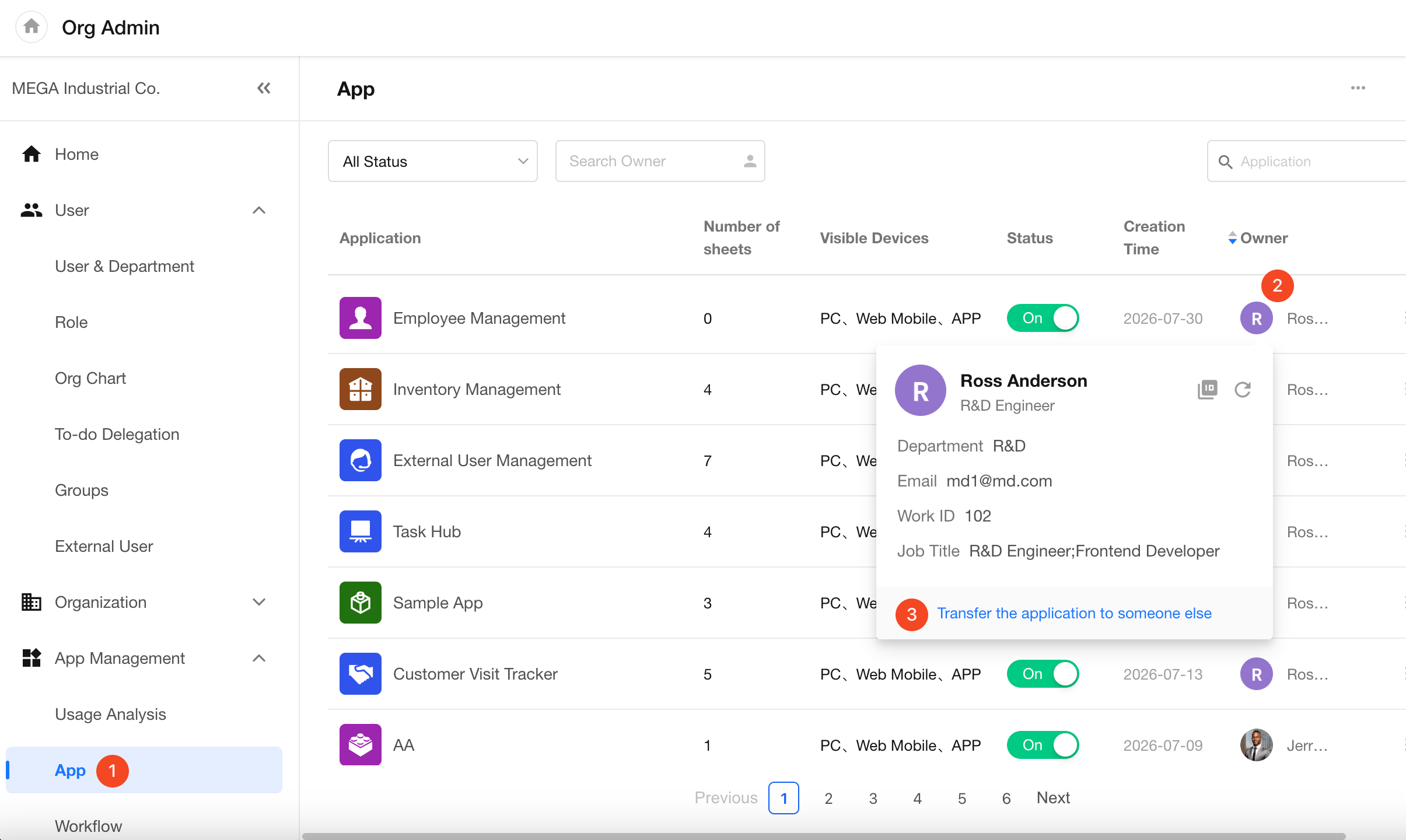
Transfer App Ownership {#app-owner-transfer}v
In the Admin Console, go to App Management > App, locate the target app, and transfer ownership.
Transfer Worksheet Records
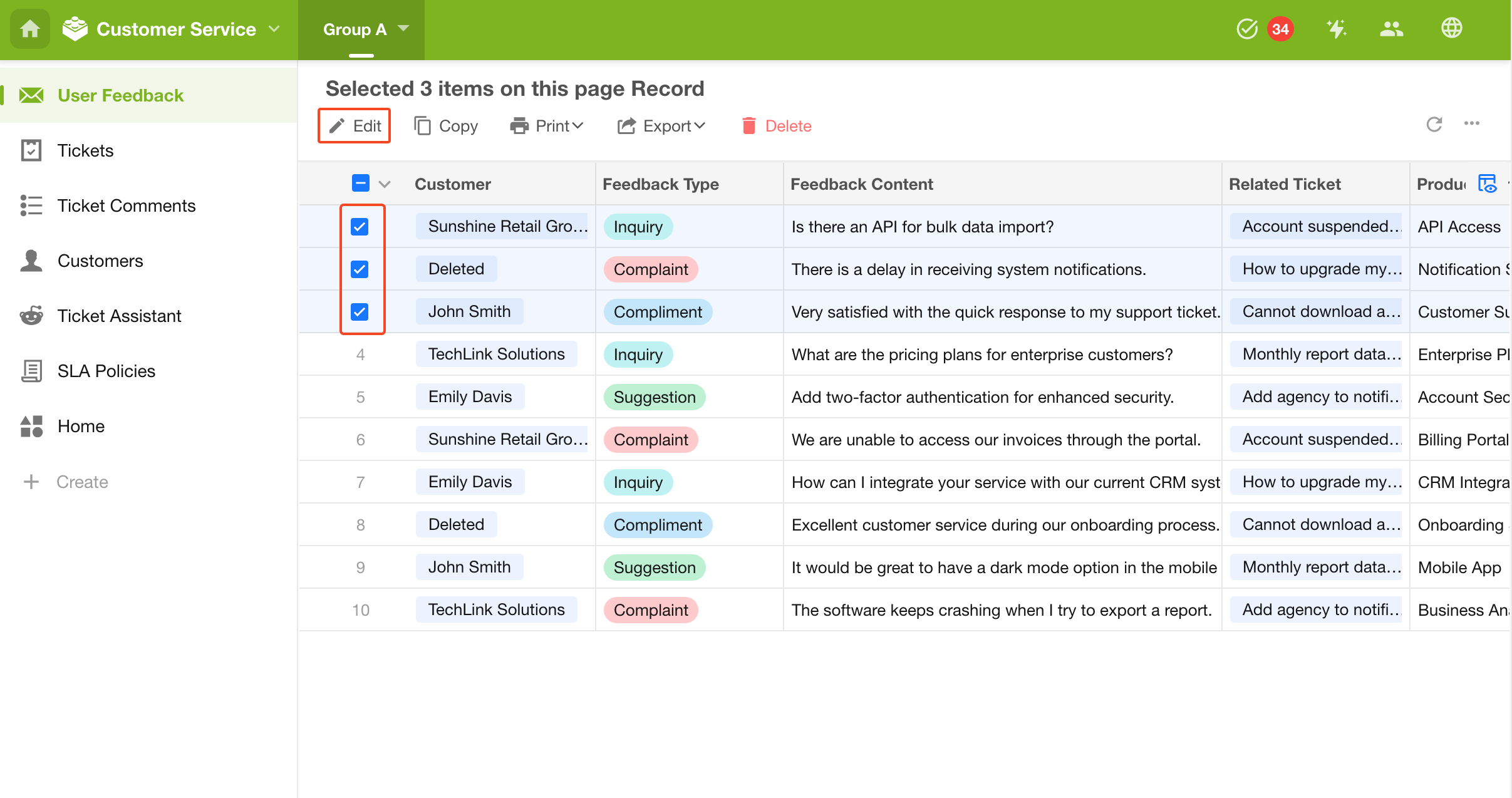
Use filters to locate records owned by the offboarded employee, then update the record owner or other member fields in bulk.
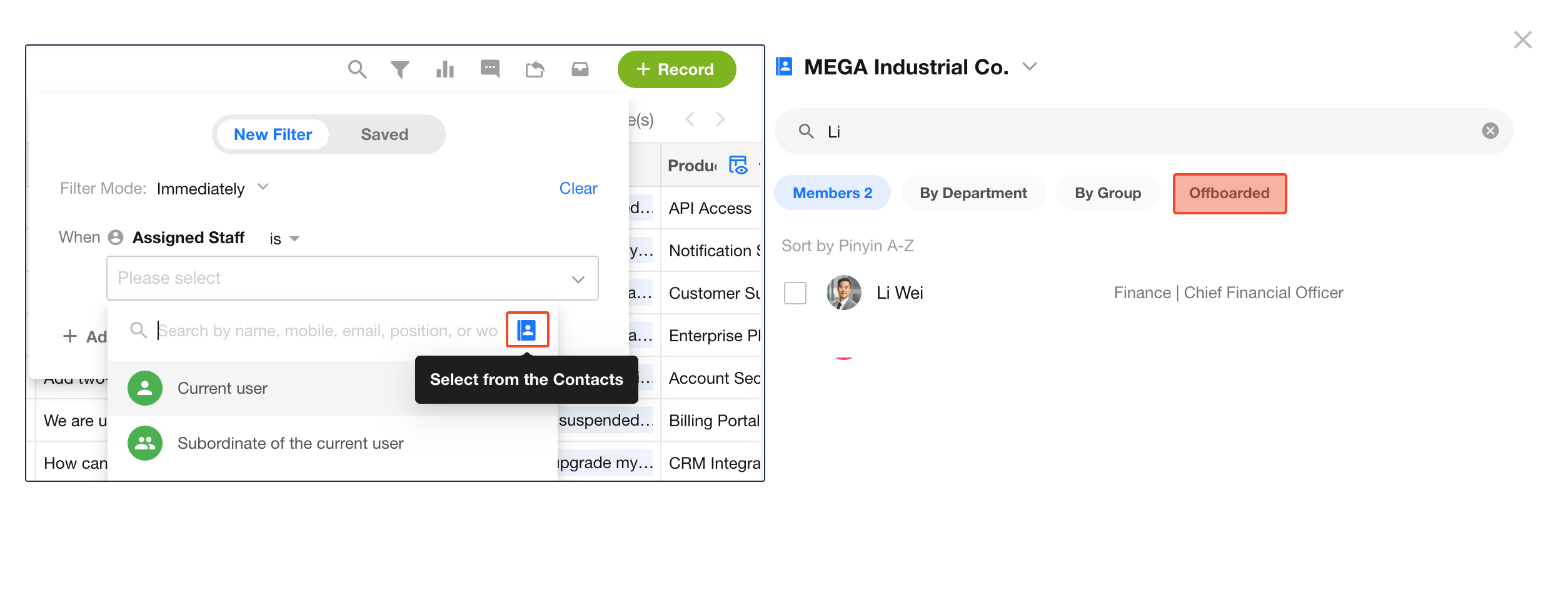
Filter Records Owned by Offboarded Employees
When configuring filters, search for users in Contacts. The Offboarded option is available in the user picker.
Restore an Account
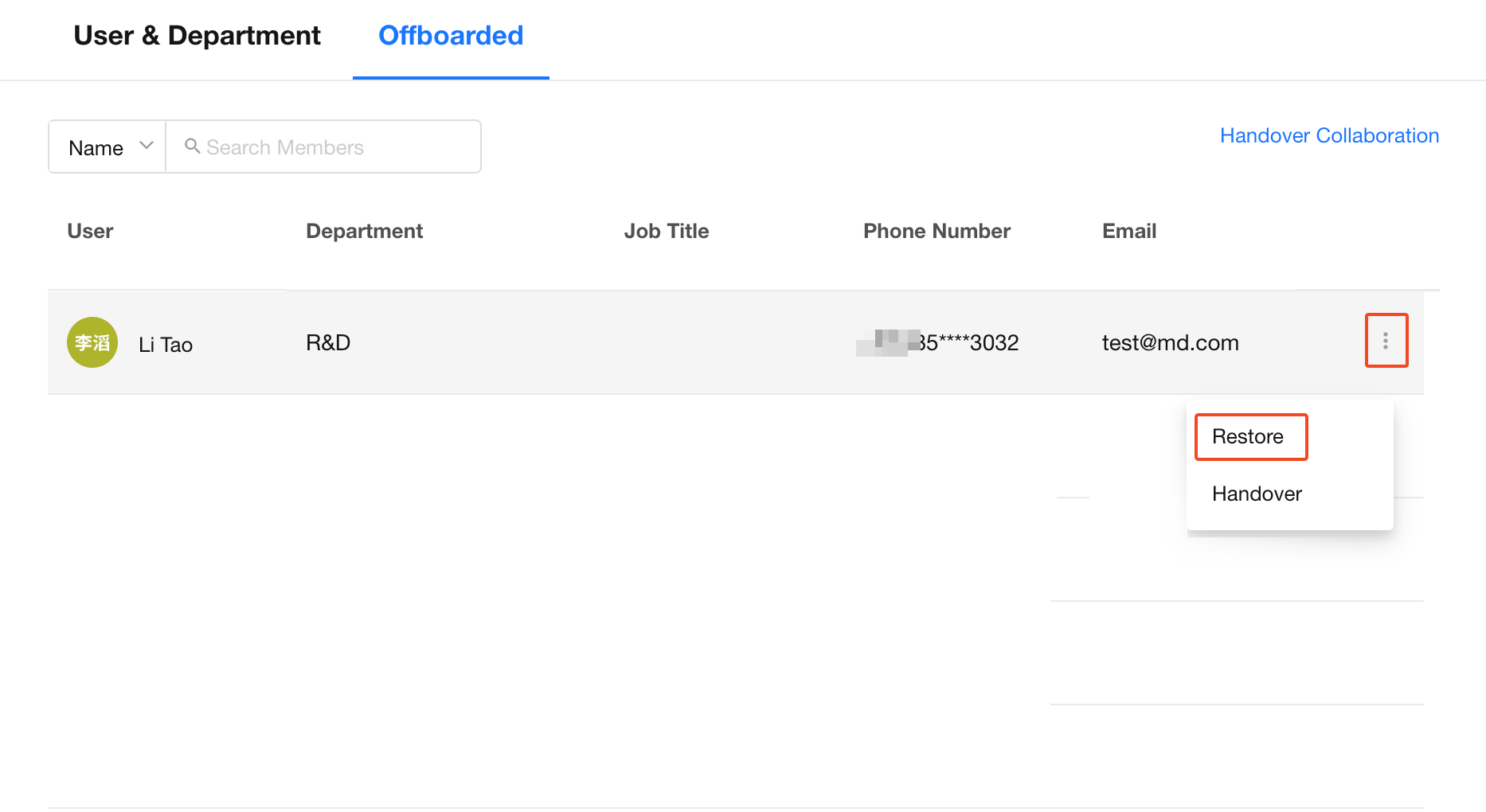
As an organization administrator, click your profile picture and go to User > User & Department > Offboarded.
Locate the offboarded employee, open the More menu, and select Restore.
Note: Restoring an account does not automatically restore the employee's previous app memberships or group memberships. These must be added manually.
Was this document helpful?