Usage Analysis
The Usage Analysis module helps administrators monitor application usage and member activity across the organization. It includes two main types of analytics:
-
Aggregate Statistics
Summarizes current totals such as the number of worksheets across the organization, the number of workflows, etc.These statistics are updated in real-time, reflecting the current moment.
-
Usage Trends
Displays daily trends for metrics such as application visits or record creation over the past 7 days.These statistics are updated daily and only include data up to yesterday. Today's usage will be available tomorrow.
1. Overview
This section provides a high-level summary of the organization’s total applications, worksheets, and recent usage activity.
Aggregation Overview
Displays total counts of applications, worksheets, records, workflows, and attachment storage.
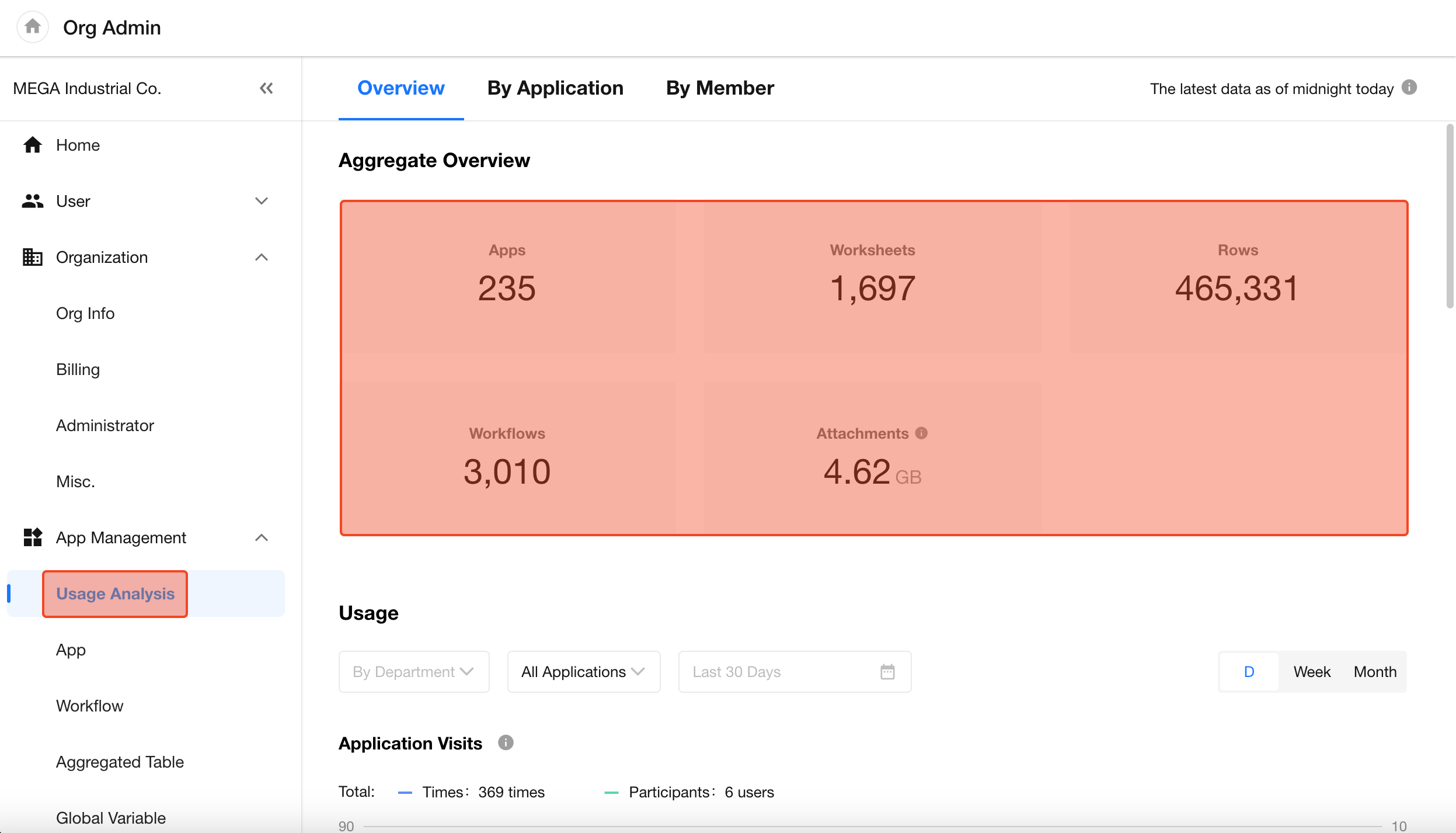
Clicking on the total application or workflow counts navigates to the corresponding management interface.
-
Total Applications:
The number of applications in the organization. -
Total Worksheets:
The number of worksheets across all applications (excludes deleted worksheets in Recycle Bin and custom pages). -
Total Records:
The total number of records in all worksheets (excludes deleted records in Recycle Bin). -
Total Workflows:
All workflows in the organization, including closed ones. -
Attachment Storage:
The total size of all uploaded attachments across fields and comments. This is updated daily.
Usage
Displays metrics including application visits (visit counts and visitors), record creation, workflow executions, and attachment uploads.
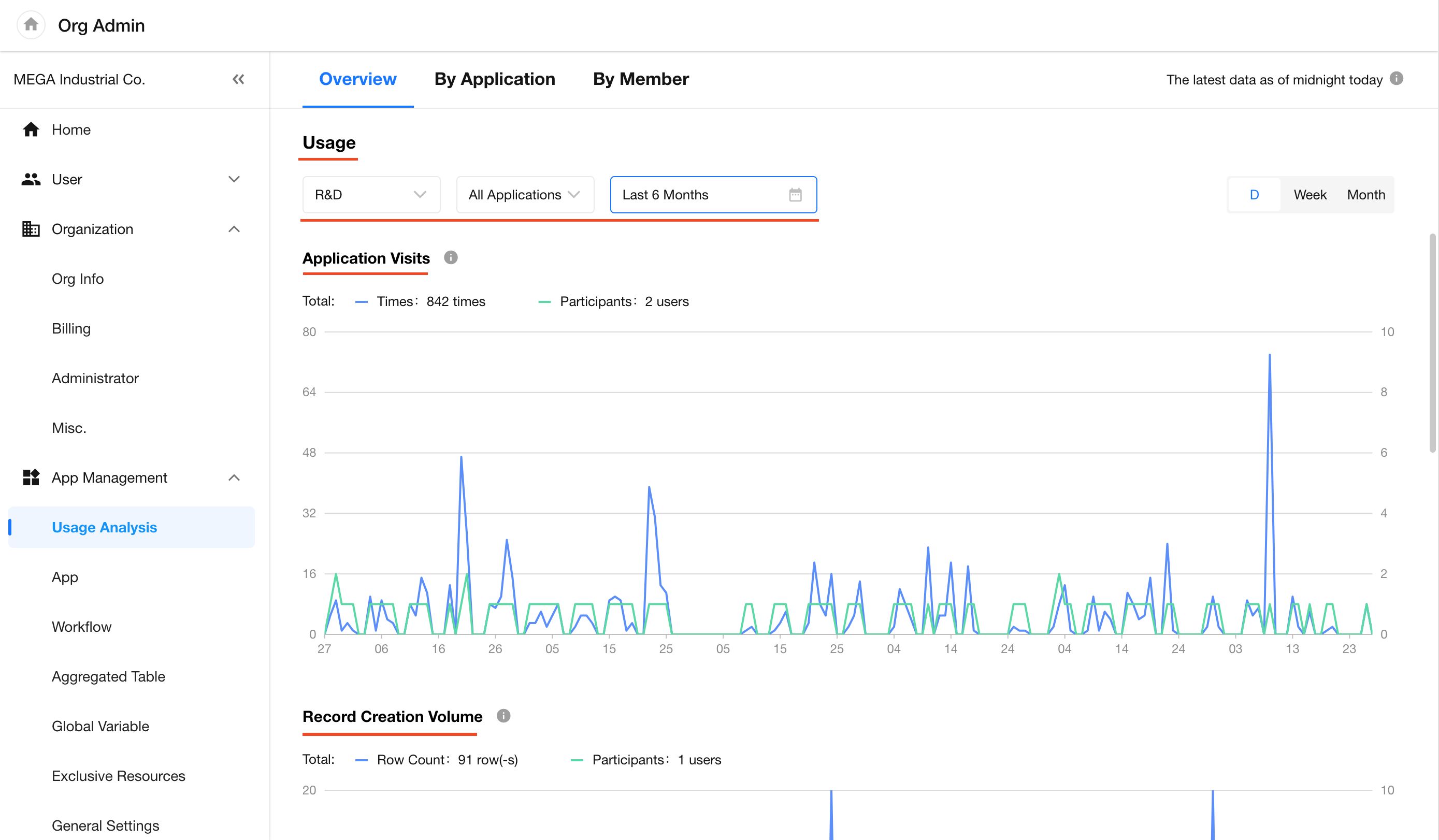
Data is available up to yesterday only. Today’s usage data will be available the following day.
You can filter data by department, application, and time period. For periods over 7 days, you can switch to weekly or monthly views.
-
Application Visit Count
Each of the following actions counts as one visit:- Clicking the app icon to enter an application
- Opening an app via shared link
- Entering an application via system notifications
- Refreshing the app page
Navigating within the app (e.g., switching worksheets or views) does not increase the visit count.
-
Application Visitors
Unique visitors within the selected timeframe. Multiple visits by the same person in one day count as one. -
Record Creation
Counts all records created, regardless of method. -
Workflow Executions
It cannot be counted by part.
-
Attachment Uploads
Includes files uploaded to fields or within discussions.
2. By Application
Aggregation Overview
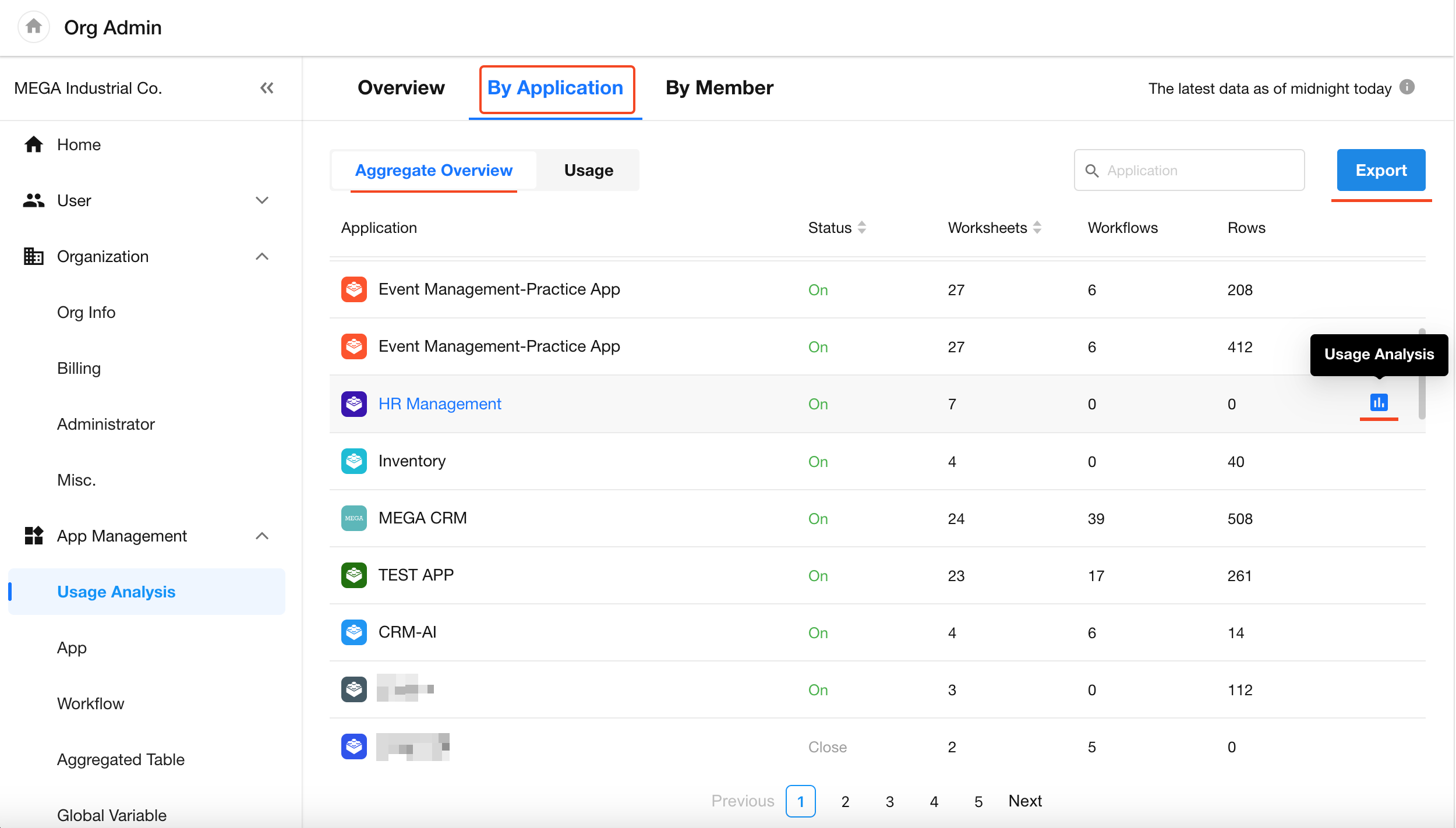
Displays historical cumulative metrics grouped by application (including closed apps), such as:
- Number of worksheets
- Number of workflows
- Number of records
All statistics data can be exported to Excel.
To view detailed usage analysis for a specific app, click "Usage Analysis" icon in the last column (app administrators only).
Usage
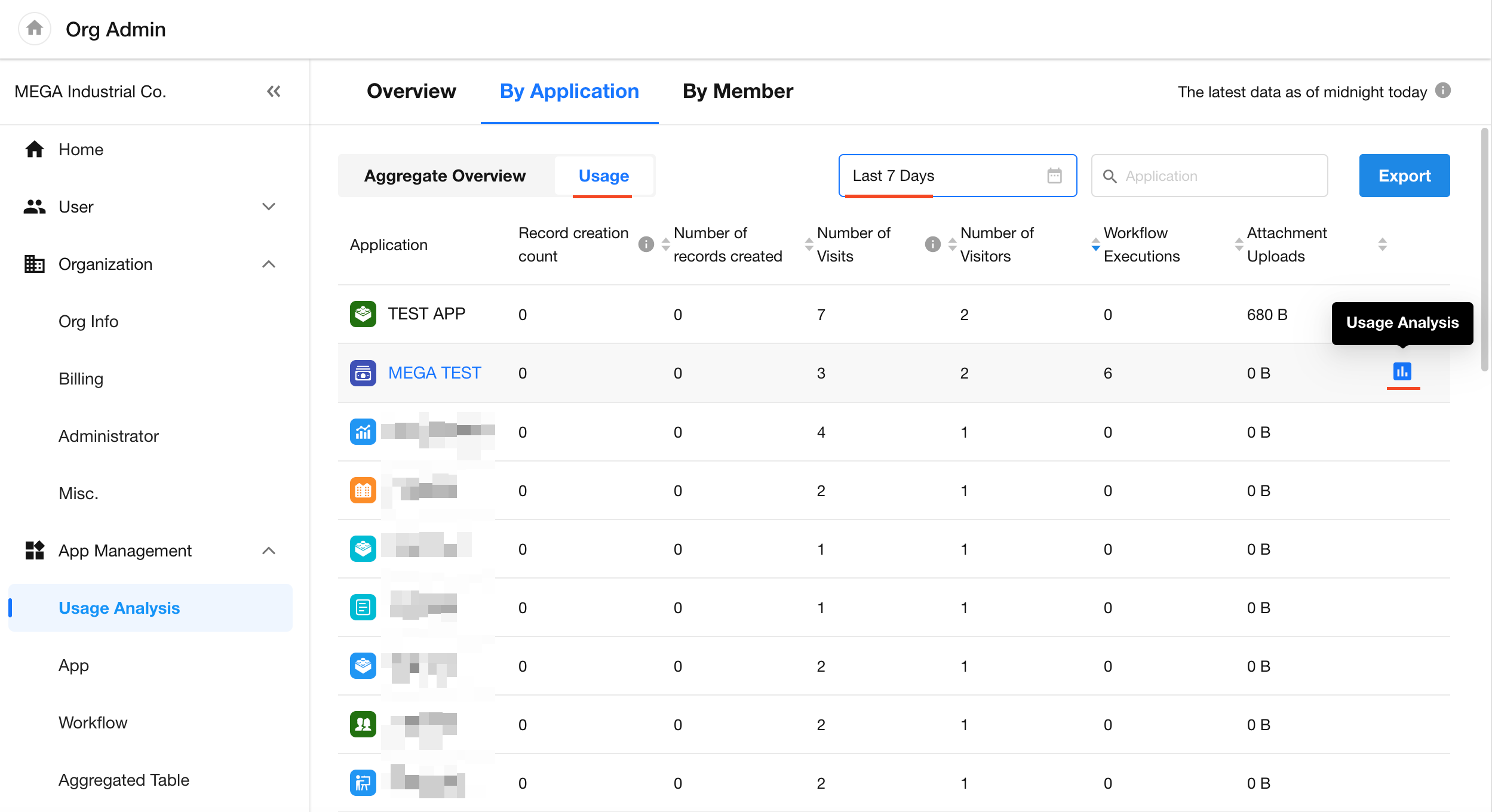
Displays recent activity data grouped by application (including closed apps), such as:
- Record creation count
- Record creators
- Application visitors
- Visit count
- Workflow executions
- Attachment uploads
Click "Usage Analysis" icon in the last column for more detailed metrics (app administrators only).
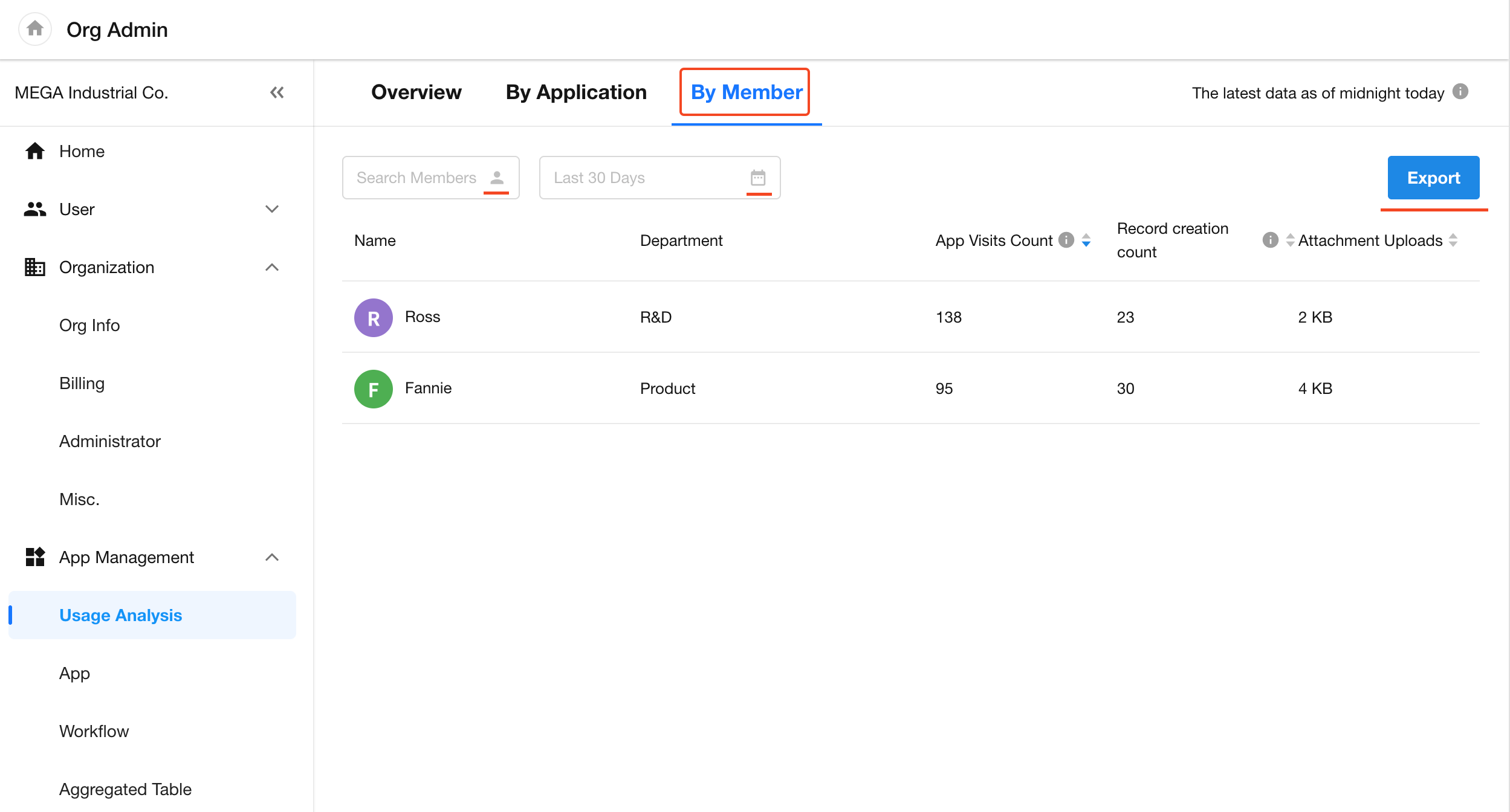
3. By Member
Search for members and select a time range to view their usage details, including:
- Application visit count
- Record creation
- Attachment uploads
Data can be exported to Excel.
The following actions count as application visits:
- Clicking the app icon to enter an application
- Refreshing the app page
- Accessing the app via notification messages
In-app navigation such as switching worksheets or views does not count as additional visits.
Was this document helpful?