How to Plan and Design an Application
HAP allows you to create various custom applications and distribute them only to the colleagues who need access. With proper planning and design, your application structure and data organization will be clear and intuitive, helping users get started more easily.
Below is a typical example of an application. The “HR Management” in the top-left corner represents the application name. The top navigation bar displays groups, the left sidebar lists worksheet objects within the application, and each worksheet can contain multiple views based on data characteristics.
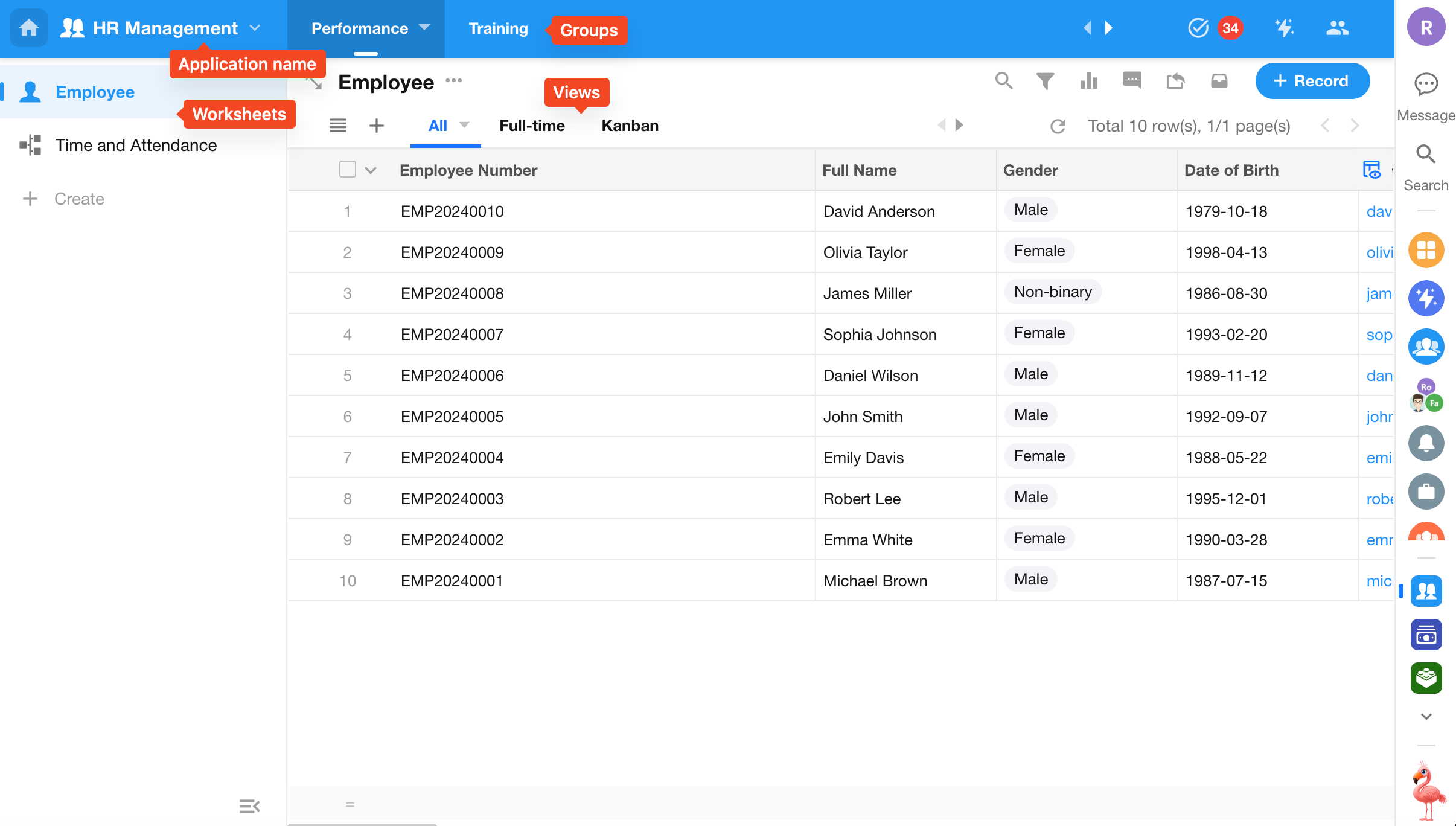
How to Plan an Application
Using the framework below, you can easily determine how an application should be structured. This guideline applies to most scenarios.
Business Function ➡️ Application
No matter what IT problem you are solving, it belongs to a specific business function. We recommend defining the application scope based on that function.
Common business functions include product development, manufacturing, operations, sales, marketing, finance, and HR. You can also define more granular scopes such as procurement or logistics.
Using business functions as application boundaries helps control the number of applications and makes them easier for employees to identify.
Business Process ➡️ Group
Next, within the selected business function, identify the business processes that need to be managed—for example, “Order Management.” Based on the requirements of each process, structure the application using groups.
Although a business process is an abstract concept, it is always a subset of a business function, making it relatively straightforward to define.
For example:
- Under a Sales function, you can design an “Order Management” application, as it represents a business process.
- Under Operations, you can design a Procurement application, as procurement is a process within operations.
Business Data Object ➡️ Worksheet
Within each application group, you can add business data objects, which are represented as worksheets.
Worksheets are typically named after the objects they represent, such as “Orders,” “Customers,” or “Purchase Orders.”
Data by Status ➡️ View
Within a worksheet, you can create different views based on data status. For example, “Active Orders” and “Closed Orders.”
Views also serve as the basis for access control. Different views can be assigned to different application roles.
A well-designed application can continue to evolve over time. You can add more application objects (such as additional worksheets) as needed, making custom applications flexible rather than fixed.
Was this document helpful?