Application Localization
Leverage AI-powered translation to localize application content into multiple languages, enabling seamless collaboration across global teams.
Available in paid editions only.
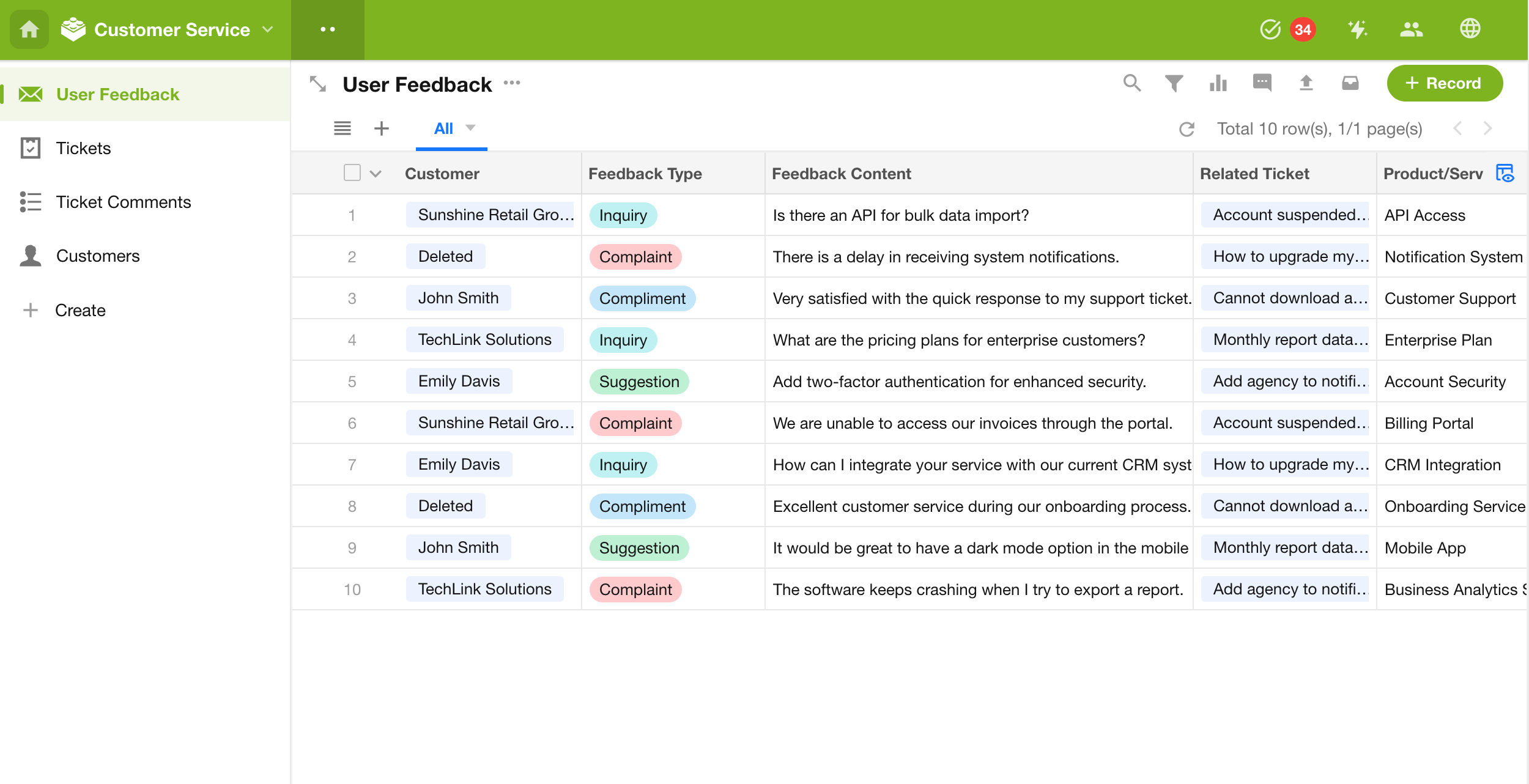
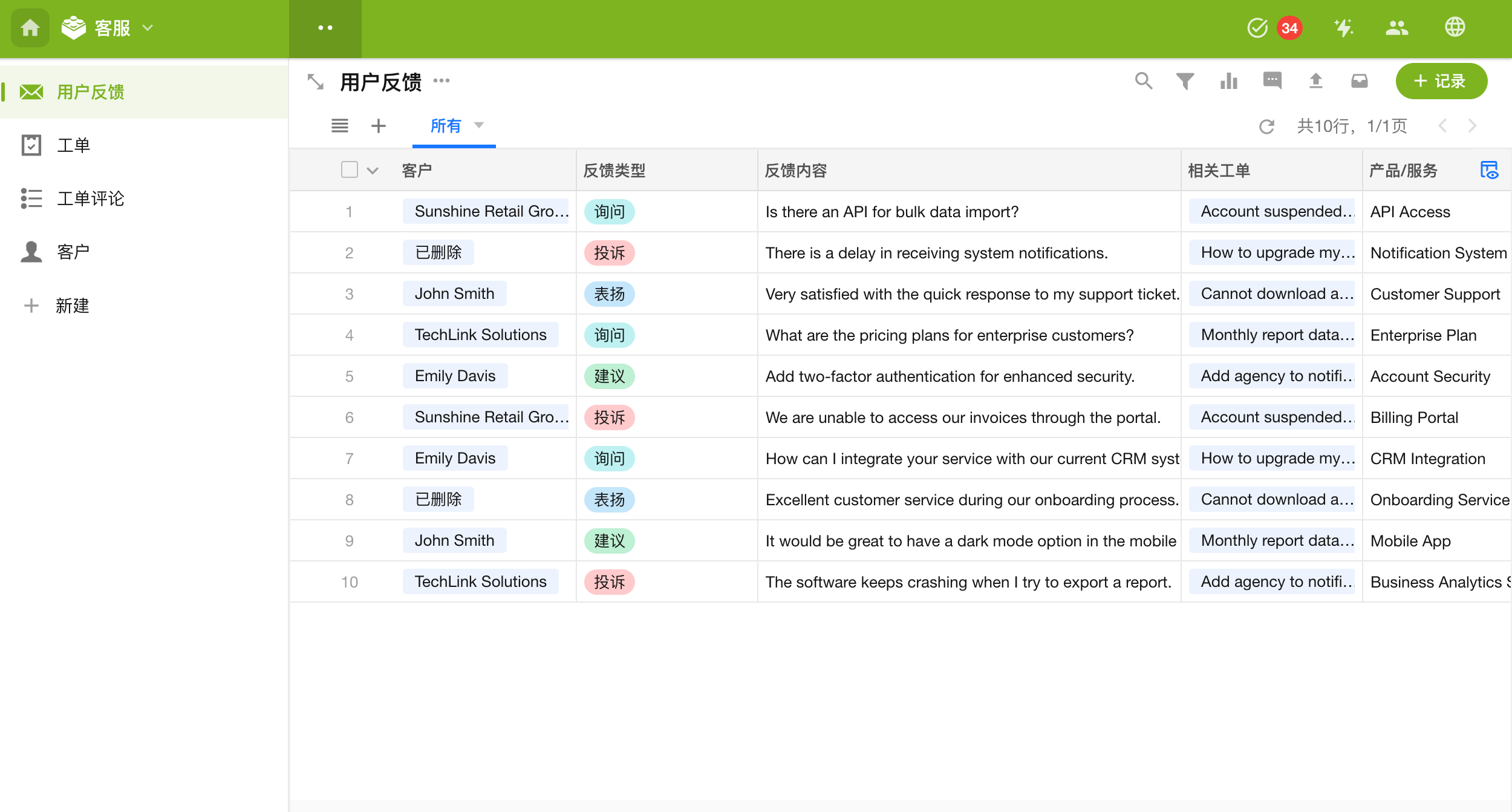
The same application displayed in different languages:
-
English
-
Simplified Chinese
What Can Be Translated?
Application content falls into two categories, both of which support translation:
- System Text: Menu names, button labels, feature descriptions, system notifications, and other built-in content.
- Custom Content: User-defined content such as worksheet names, field names, view names, button labels, option sets, workflows, and workflow node names.
Content That Cannot Be Translated
User-entered data is not translated. This includes values in Text, Rich Text, Formula, Concat, Auto Number, and Uppercase fields, as well as record comments and other manually entered content.
Supported Languages
Full Support (System Text + Custom Content): Simplified Chinese, Traditional Chinese, English, Japanese, Malay, and Thai.
Partial Support (Custom Content Only): Additional languages such as German, French, Spanish, Russian, Korean, Portuguese, Italian, Vietnamese, and more (see the table below).
| Full Support | Partial Support (Custom Content Only) |
|---|---|
| Simplified Chinese | Danish (Dansk) |
| Traditional Chinese | Ukrainian (українська) |
| English | Uzbek (o'zbek) |
| Japanese | Armenian (հայերեն) |
| Malay | Russian (русский) |
| Thai | Bulgarian (български) |
| Sinhala (සිංහල) | |
| Croatian (Hrvatski) | |
| Icelandic (íslenska) | |
| Hungarian (Magyar) | |
| Afrikaans | |
| Hindi (हिन्दी) | |
| Indonesian (Indonesia) | |
| Kyrgyz (кыргыз тили) | |
| Kazakh (қазақ тілі) | |
| Turkish (Türkçe) | |
| Serbian (српски) | |
| Bengali (বাংলা) | |
| Nepali (नेपाली) | |
| Greek (Ελληνικά) | |
| German (Deutsch) | |
| Italian (Italiano) | |
| Latvian (latviešu) | |
| Norwegian (Norsk) | |
| Czech (čeština) | |
| Slovak (Slovenčina) | |
| Slovenian (Slovenščina) | |
| Swahili (Kiswahili) | |
| Khmer (ខ្មែរ) | |
| Georgian (ქართული) | |
| French (Français) | |
| Polish (Polski) | |
| Estonian (eesti) | |
| Swedish (Svenska) | |
| Belarusian (беларуская) | |
| Lithuanian (Lietuvių) | |
| Burmese (မြန်မာ) | |
| Romanian (Română) | |
| Lao (ລາວ) | |
| Finnish (Suomi) | |
| Dutch (Nederlands) | |
| Filipino (Tagalog) | |
| Portuguese (Português) | |
| Mongolian (Монгол) | |
| Spanish (Español) | |
| Vietnamese (Tiếng Việt) | |
| Amharic (አማርኛ) | |
| Albanian (shqip) | |
| Korean (한국어) | |
| Macedonian (македонски јазик) |
Language Management
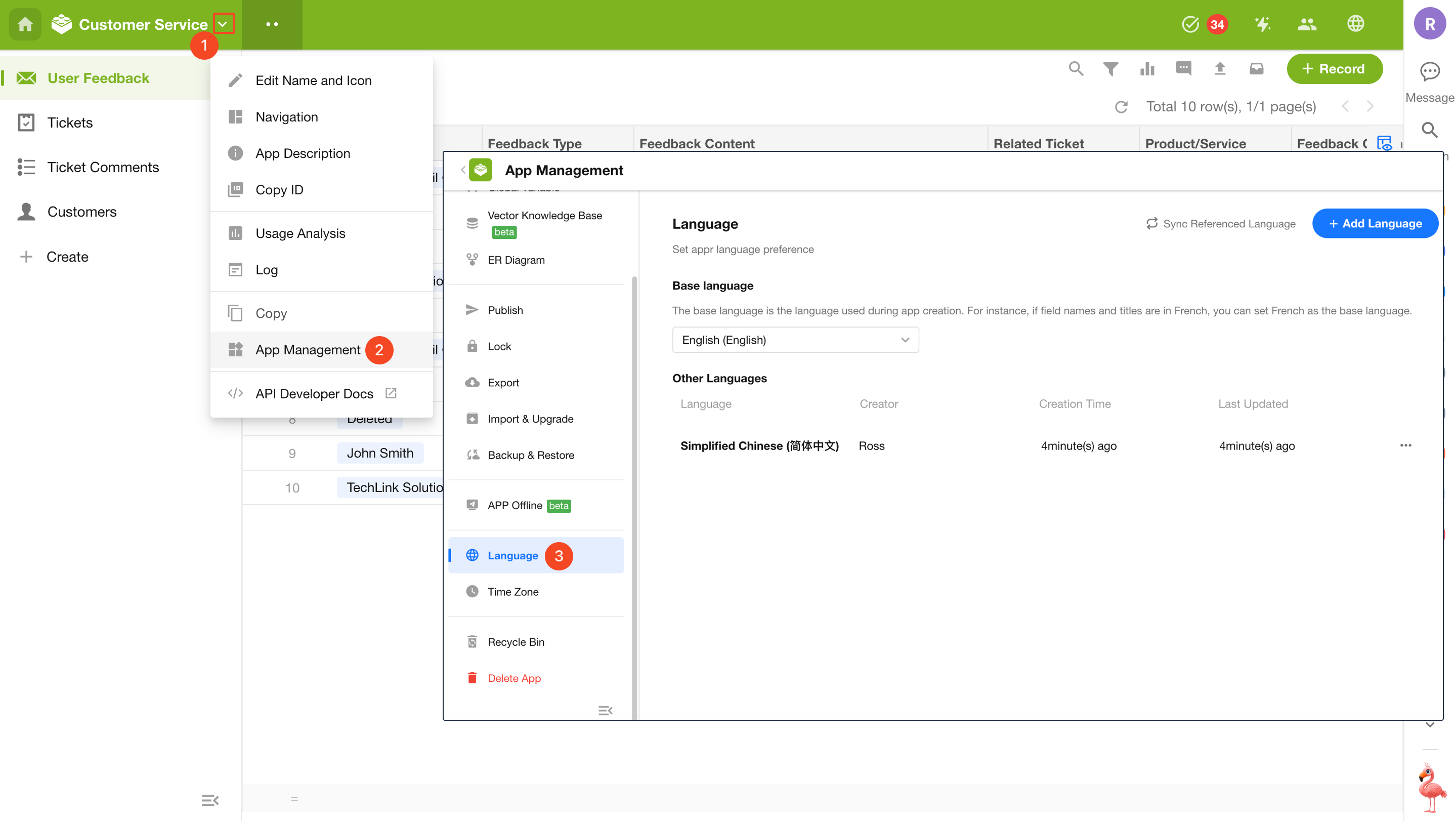
Application administrators can open the application management page and click the Language tab in the left navigation pane to access localization settings.
Base Language and Source Text
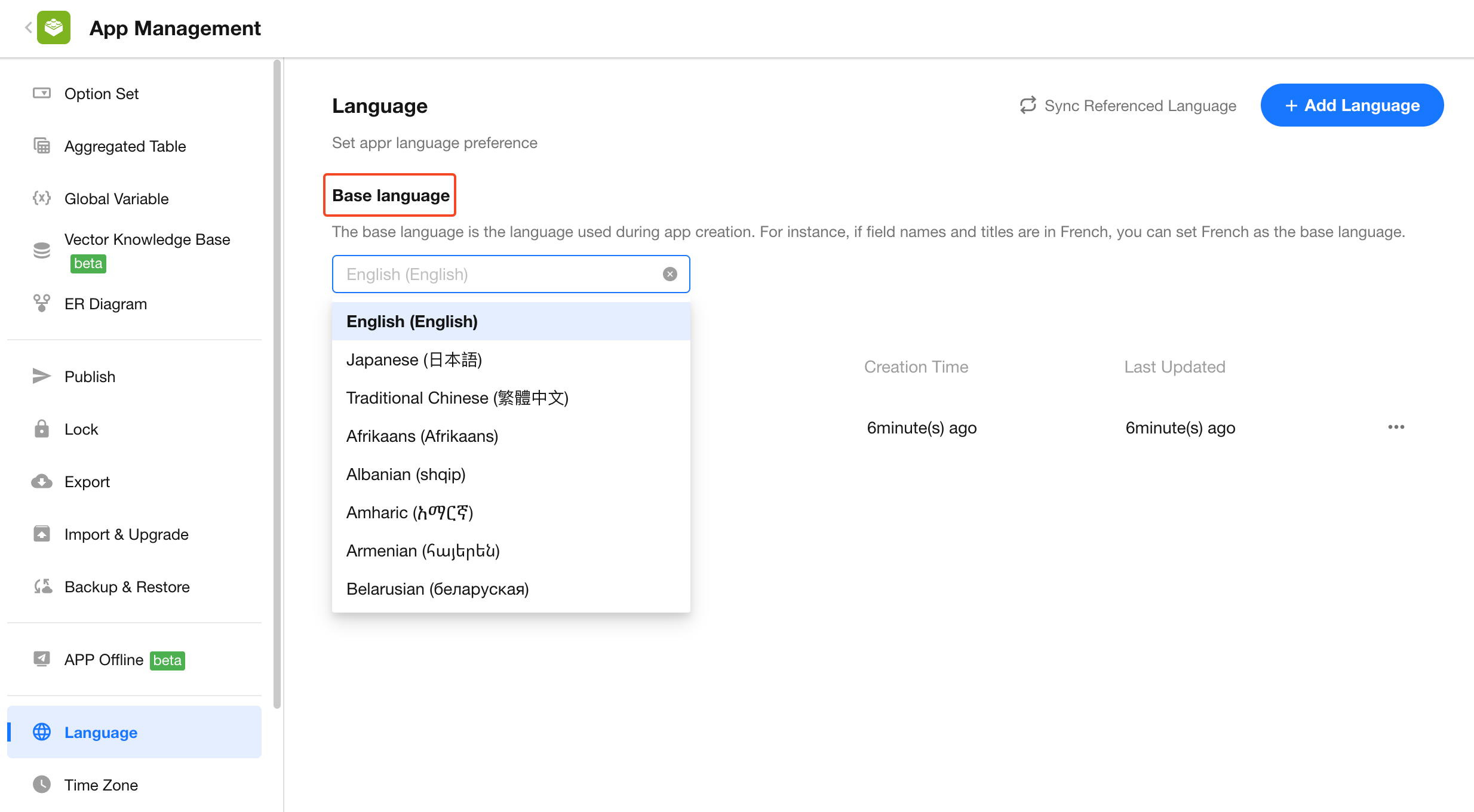
Base Language
Select a language as the base language for application configuration. Application administrators will see the application in this language when building and configuring it.
If no base language is selected, the language configured in the administrator's personal account will be used.
A non-system language can also be selected as the base language. In this case, menus, configuration options, and other system UI elements will still follow the language setting in the user's personal account.
Source Text
Source Text refers to the original content entered when configuring the application and serves as the fallback content.
For example, if an administrator creates a worksheet named Customer, then Customer is the source text. You can add translations for it in other languages.
If Korean has been added as an application language but no Korean translation is configured, users viewing the application in Korean will still see Customer.
Add Additional Languages
1. Add a Language
Click Add Language, select the required language(s), and save.
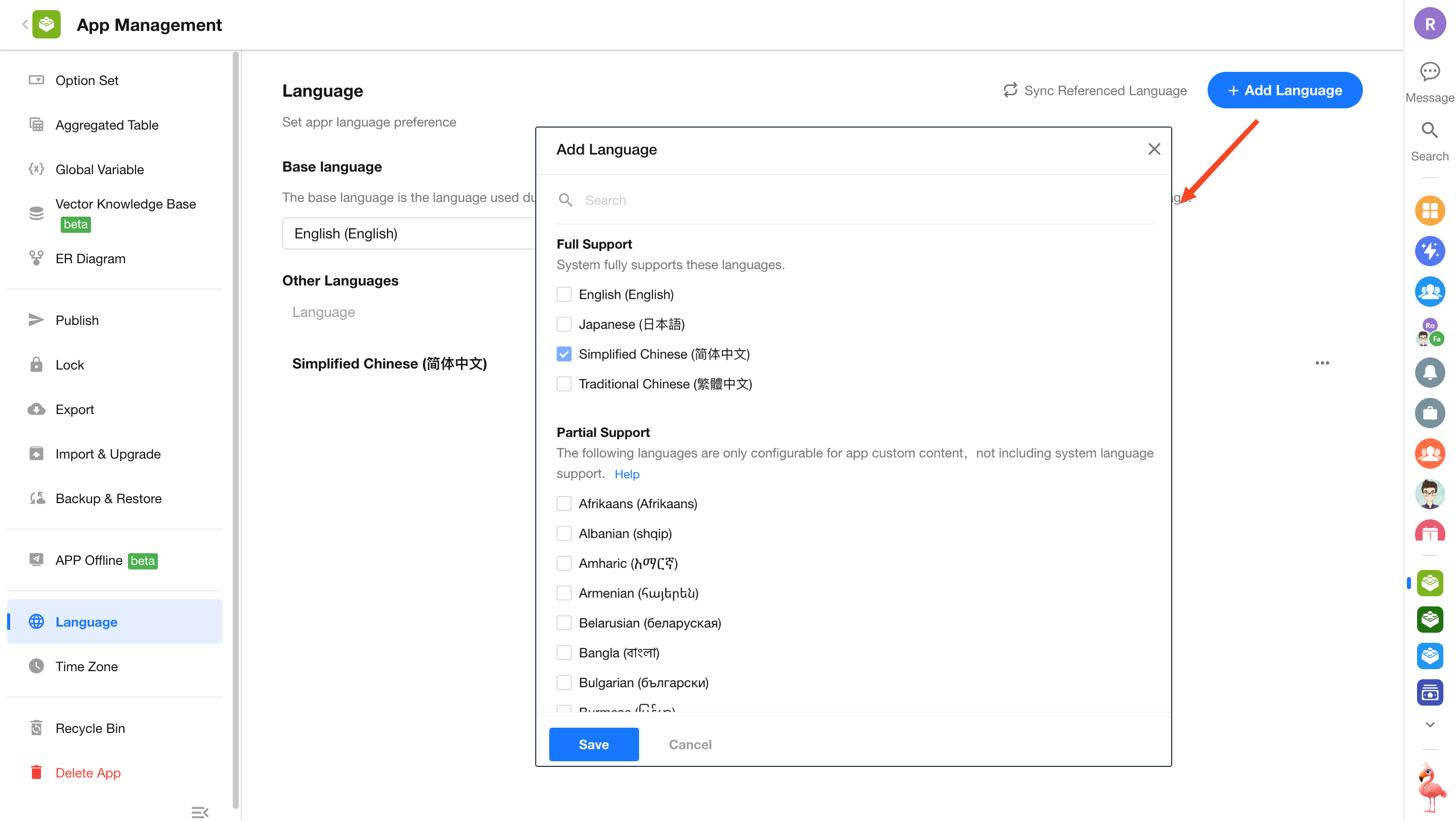
Open the newly added language and begin translating.
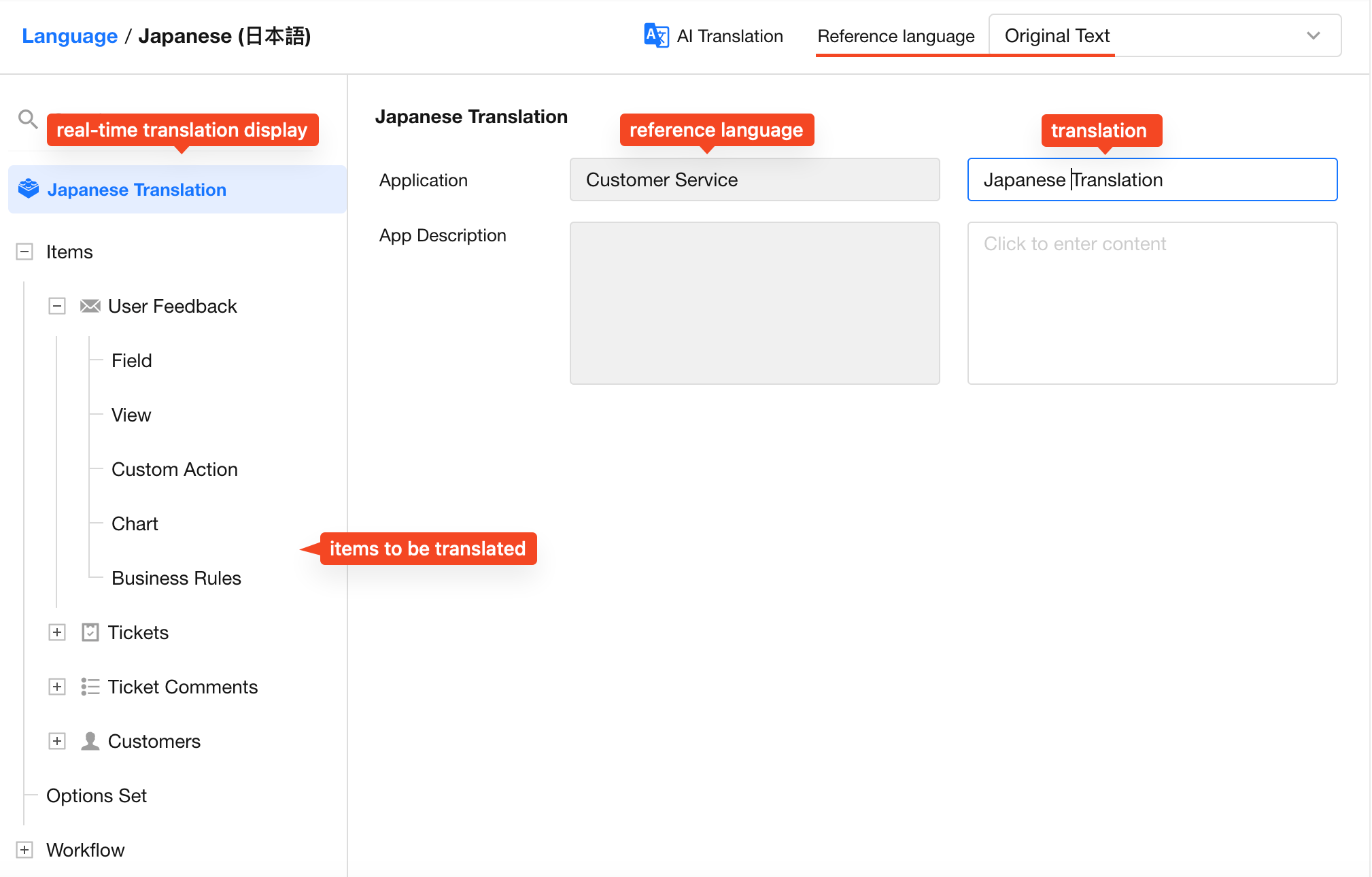
2. Select Content to Translate
Navigate through the application structure and select the content you want to translate.
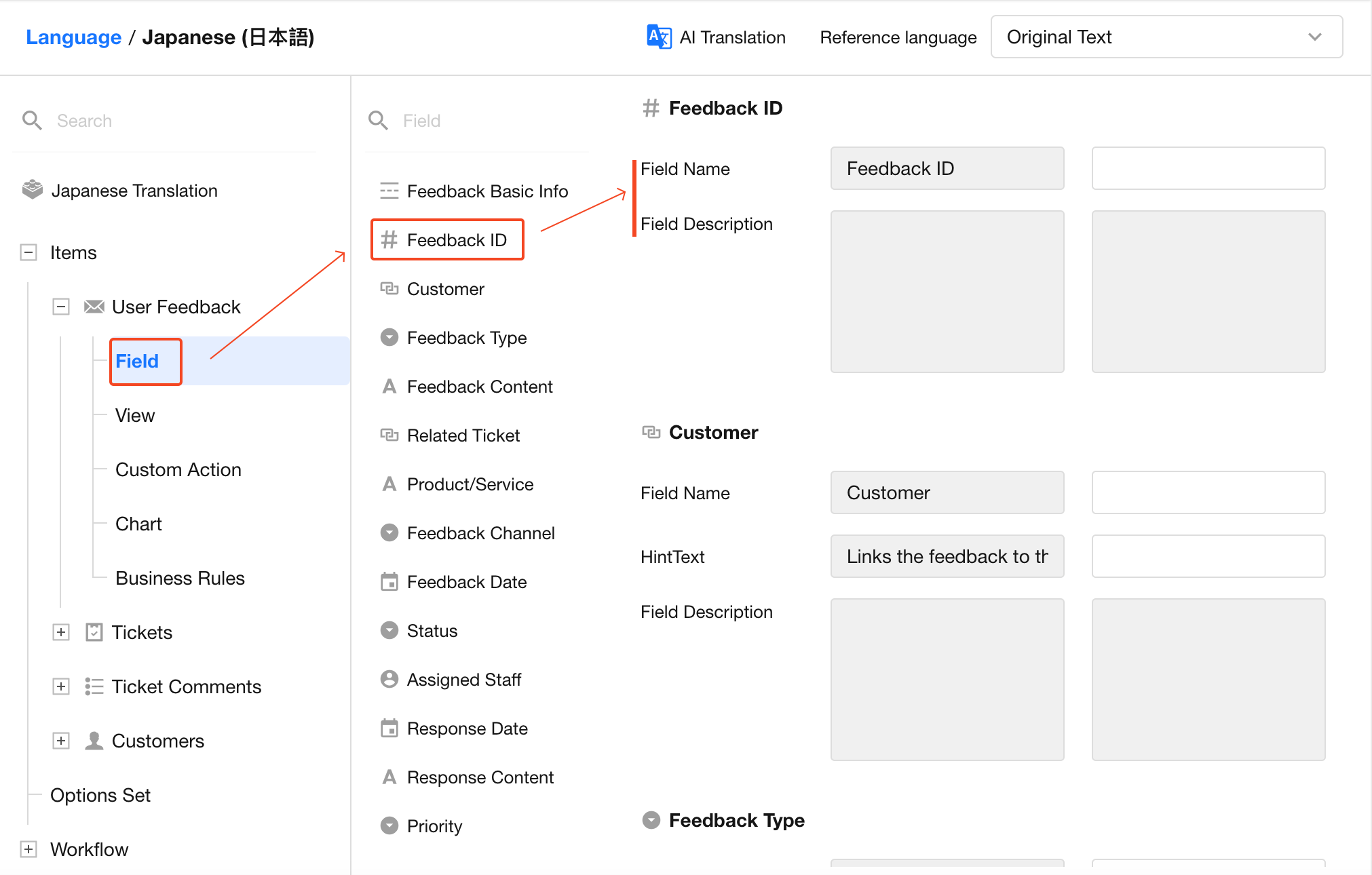
3. Select a Reference Language
Choose an existing language or the source text as the reference language.
The reference language column is read-only. Only the target language column can be edited.
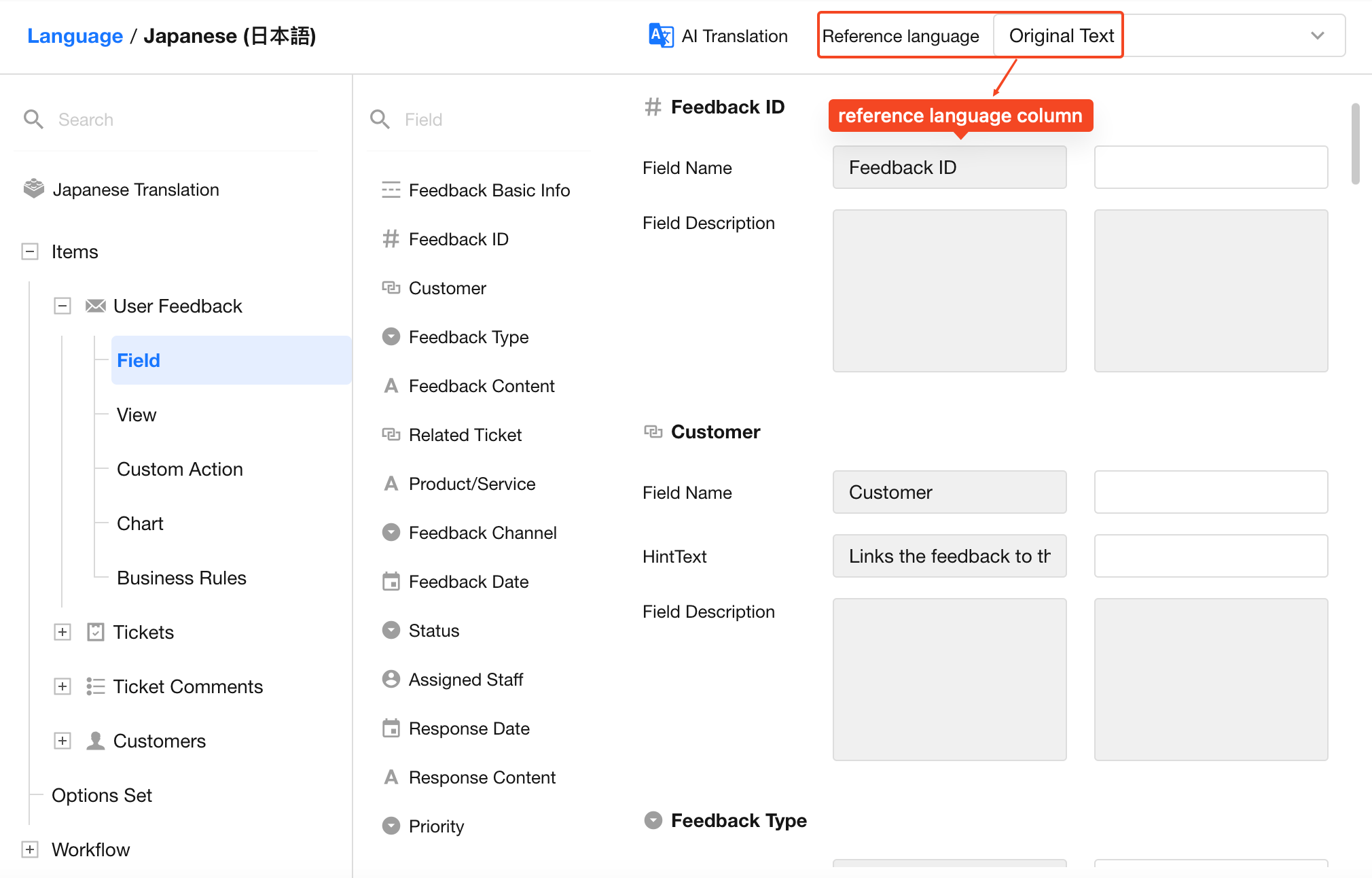
4. Translate Manually
Enter translations directly based on the reference content.
After a translation is added, the application structure panel displays the translated text. If no translation exists, the source text is displayed instead.
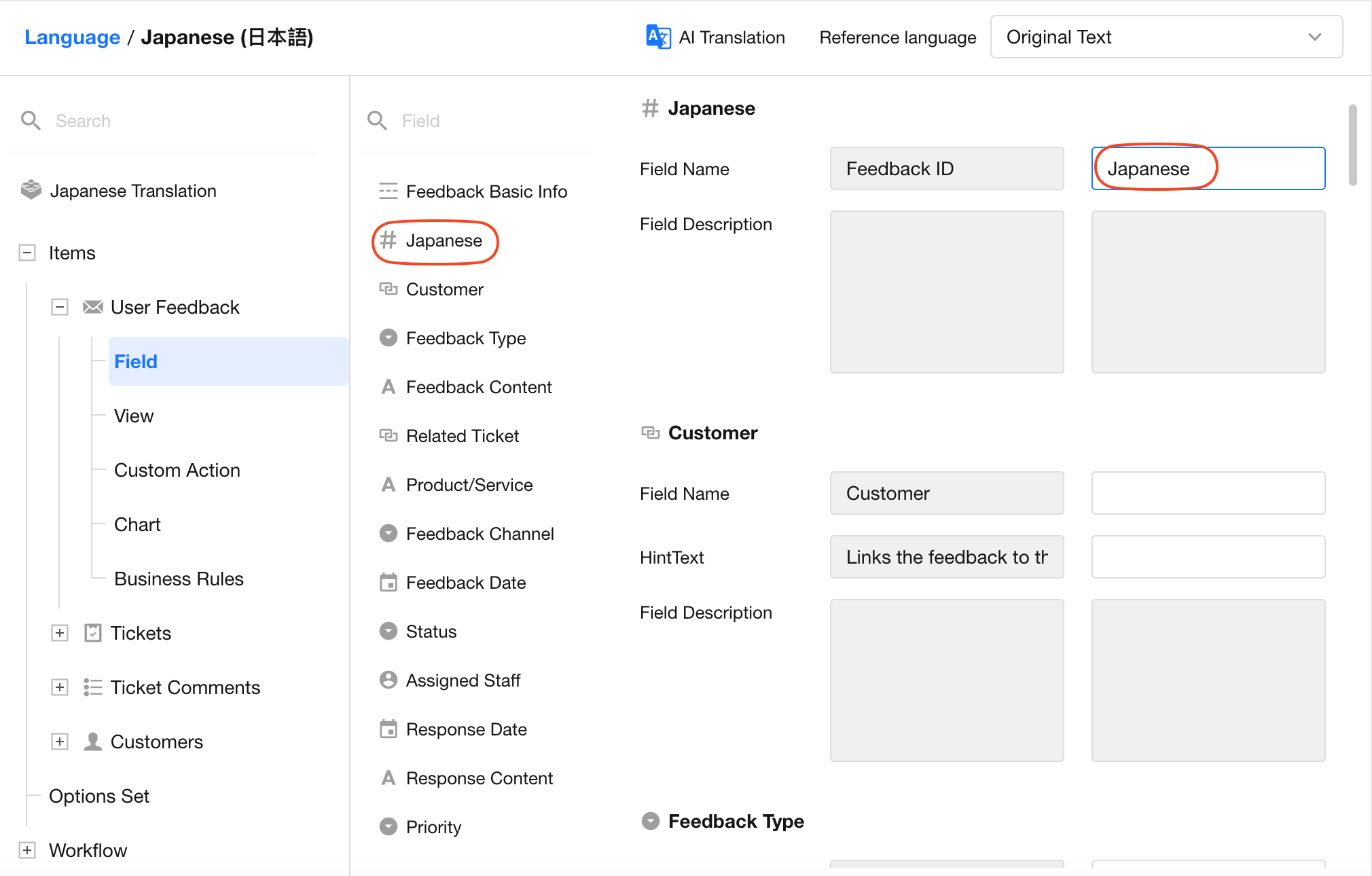
Translations can only be created when content exists in the reference language.
For example, if the hint text of the Customer field is empty in the source text, it cannot be translated into any language.
If content exists in the source text but no English translation has been provided, you can use the source text as the reference language to create a Japanese translation. However, English cannot be used as the reference language because no English content exists.
5. Smart Translation
Use AI-powered Smart Translation to automatically translate all translatable content within the application.
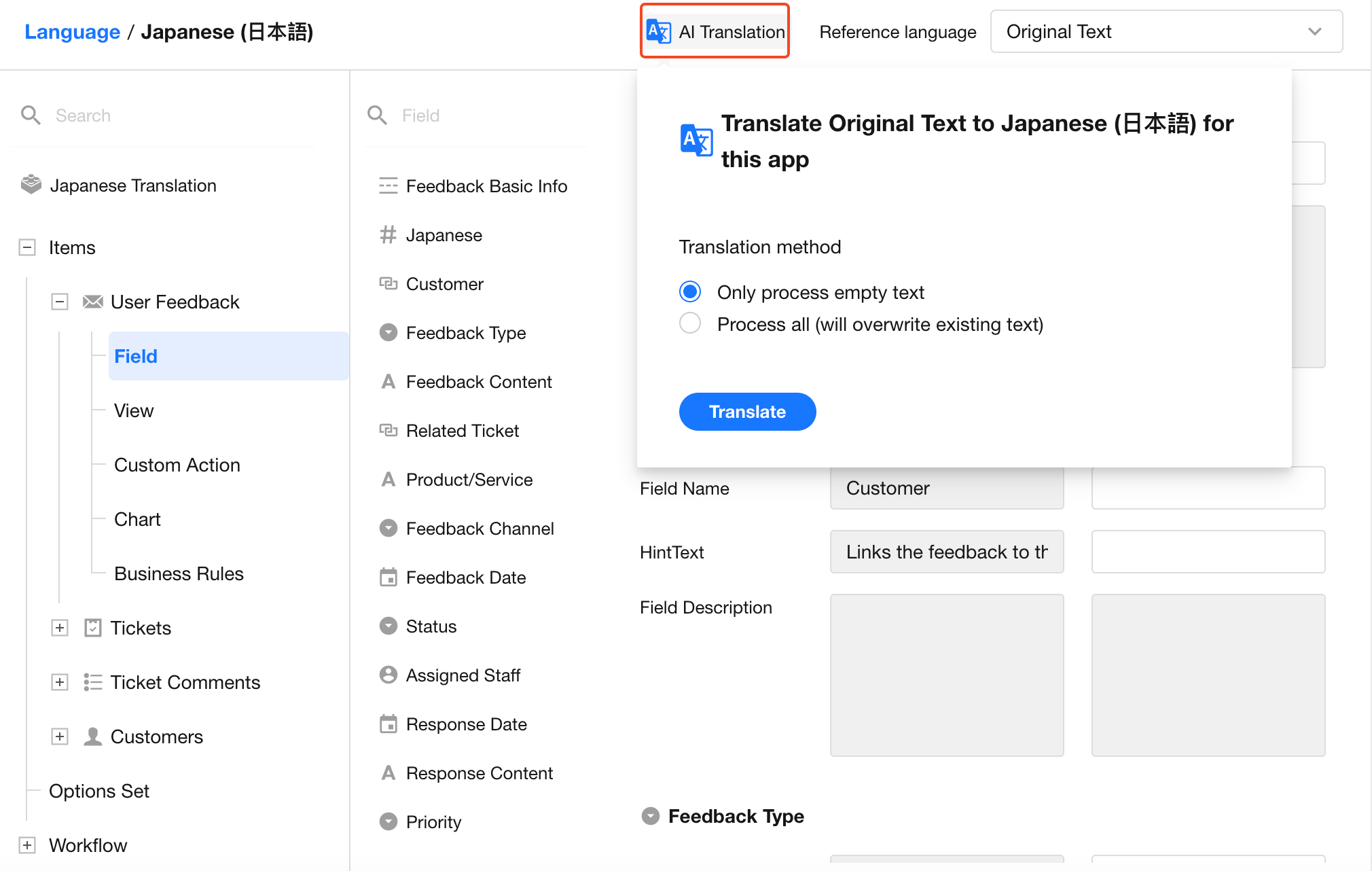
Translation options:
- Translate Empty Items Only – Existing translations are preserved, and only untranslated content is processed.
- Translate All Items (Overwrite Existing Translations) – Replaces all existing translations, including previously translated content.
Notes
- Items without content in the reference language are never translated.
- Added application languages remain available after application copy, export, and import operations.
- Rich Text content (such as application descriptions, remark fields, worksheet descriptions, and custom page descriptions) does not support Smart Translation.
- After Smart Translation completes successfully, it cannot be run again for the same application within five minutes.
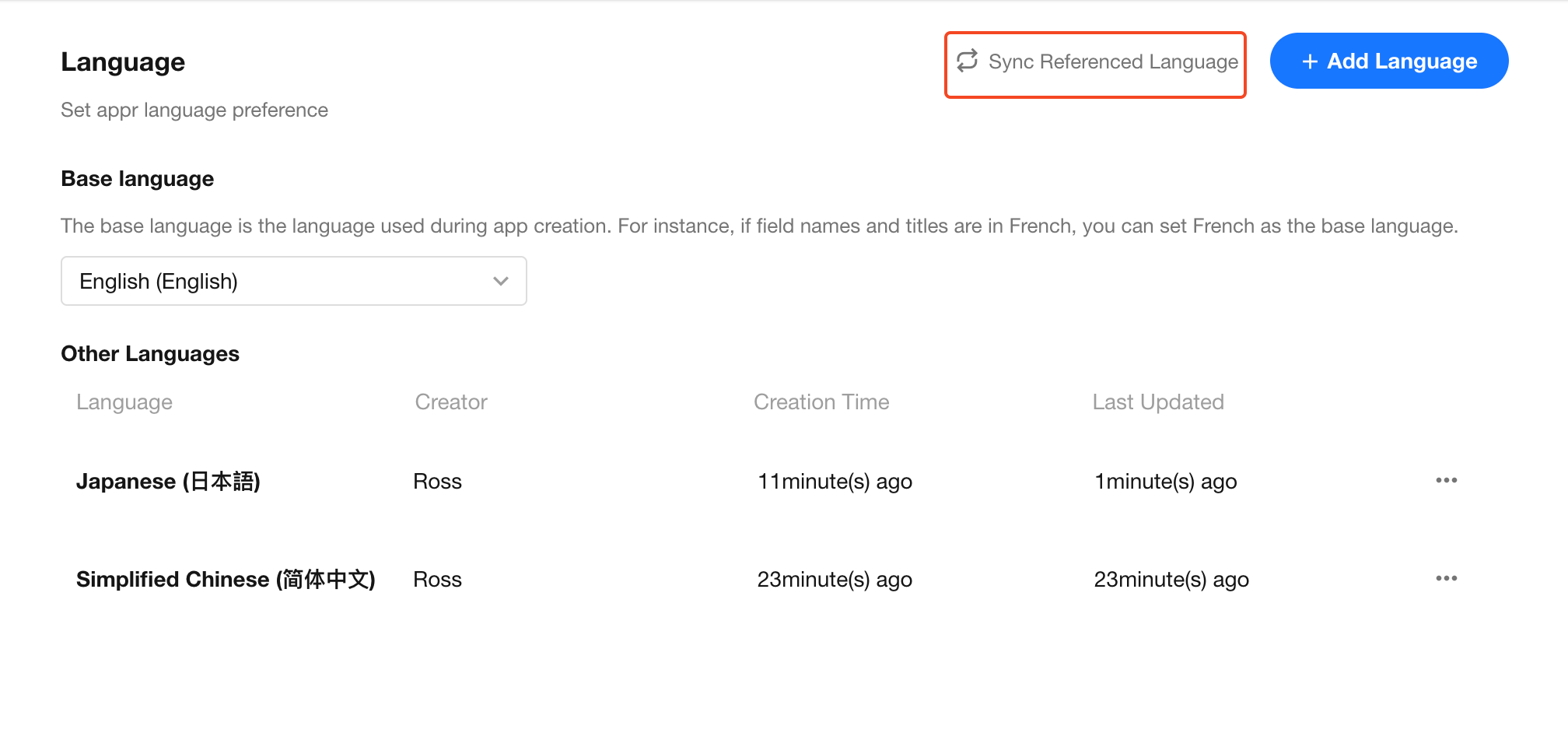
6. Sync Referenced Languages
Click Sync Referenced Languages to synchronize multilingual resources referenced from other applications, such as option sets and related worksheets or records.
Only resources referenced by the current application are synchronized. The source application configuration and data remain unchanged.
For example, if an option set or a related worksheet/record has already been translated in another application, running Sync Referenced Languages allows the current application to display those translations in the selected language.
How Users Switch Languages
After localization is enabled, a language selector appears in the application navigation bar. Users can switch languages at any time.
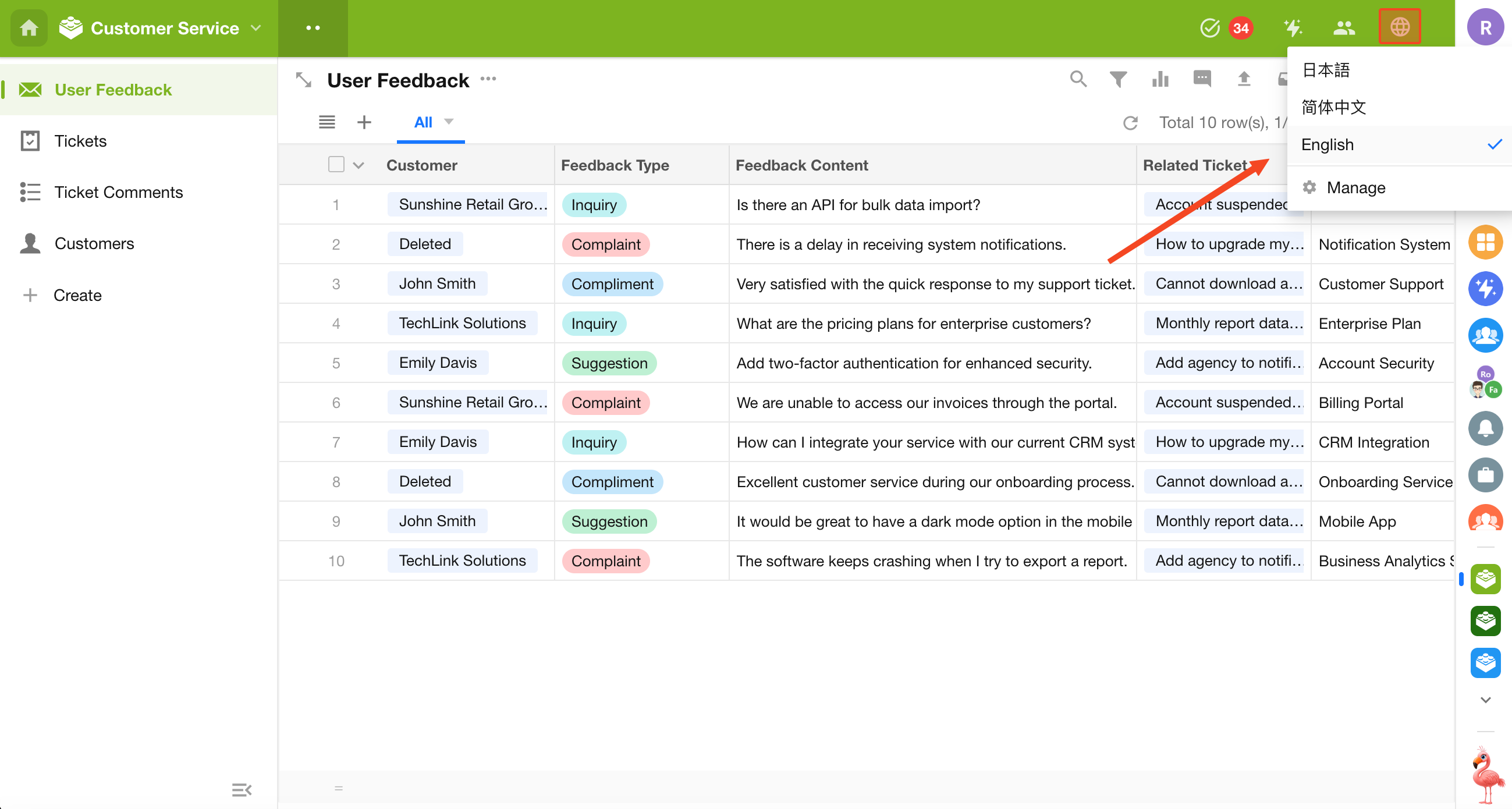
Application Language vs. Personal Account Language
-
When an application language is selected from the system-supported languages, the user's personal account language is automatically synchronized to match the application language. Changing the personal account language does not update the application language.
-
Language display follows the following priority:
Application Language > Personal Account Language > Source Language
For example, if a user's personal account language is set to English and Korean is added as an application language:
- If Korean translations are not available, the application displays: English + Source Language
- If Korean translations are available, the application displays: Korean + English + Source Language
Was this document helpful?