Home Page
The home page is a centralized entry point for commonly used modules. It helps users quickly access to-dos, recently used applications, and favorited applications, worksheets, custom pages, records, and charts—improving overall productivity.
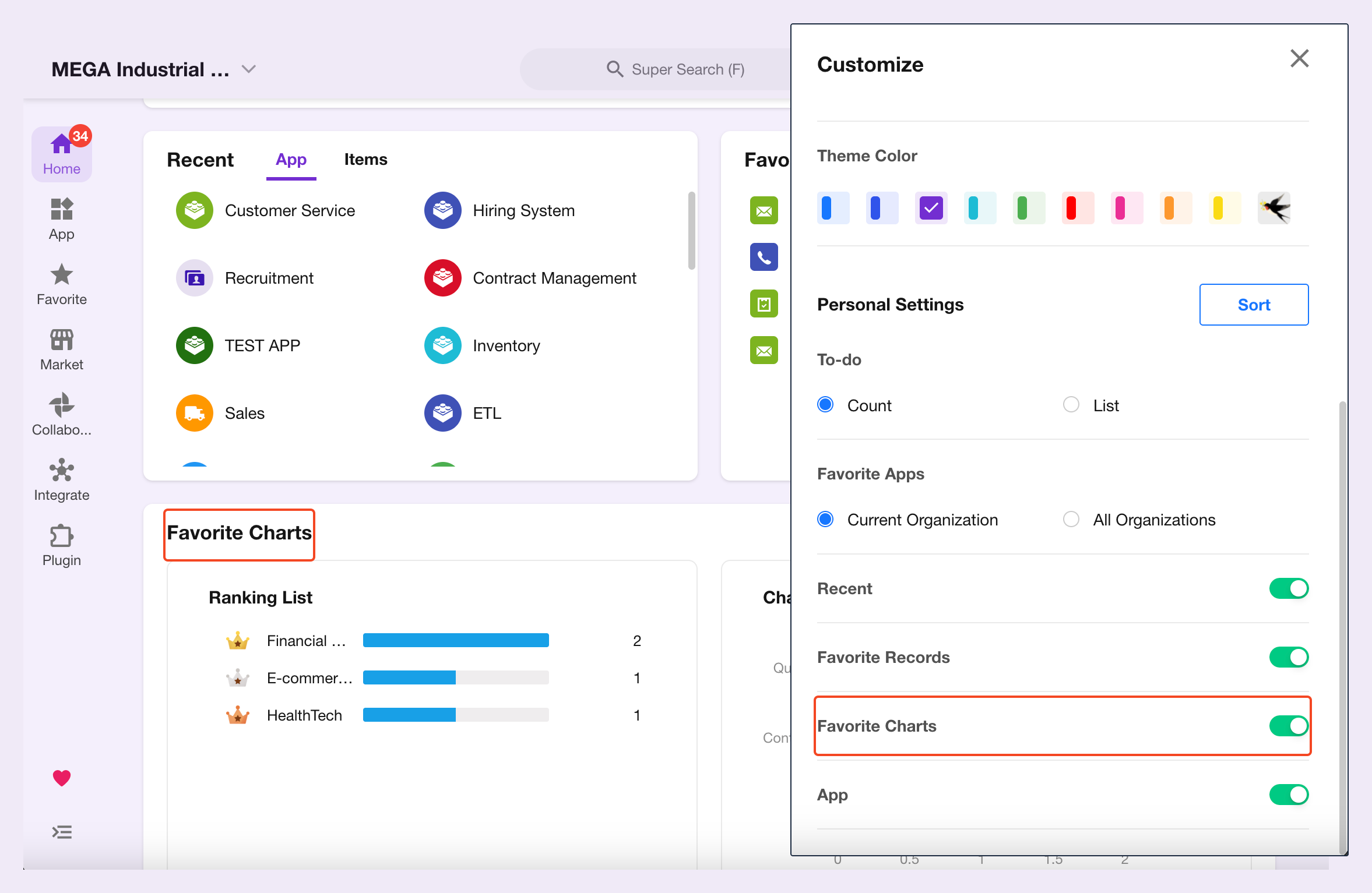
Organization admins can customize the home page, including the organization logo, slogan, and theme color, to enhance brand identity. Individual users can also personalize their home page by adjusting the order of favorite applications and records.
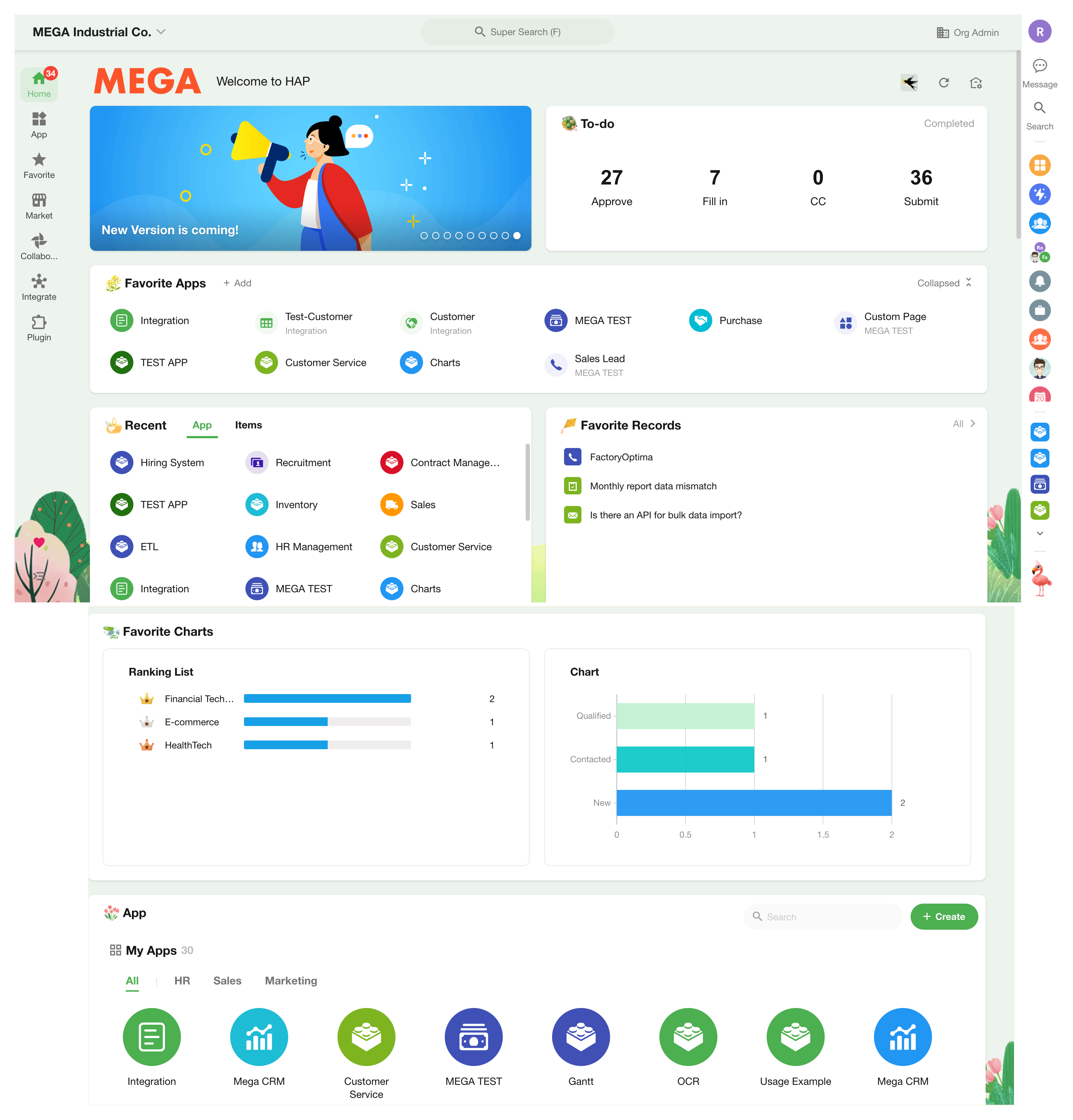
Main Content
The home page includes:
-
Configured by organization admins:
- Company logo
- Welcome message
- Banner
- Page theme color
-
Configured by individual users:
- To-do items
- Recently accessed applications and items (worksheets/custom pages)
- Favorite applications, worksheets, and custom pages
- Favorite records
- Favorite charts
- Applications joined in the current organization
- Applications joined in other organizations
Home Page Customization
Click the Customize icon in the top-right corner to open the home page settings. Both organization admins and individual users use the same entry point. Non-admin users will not see organization-level settings.
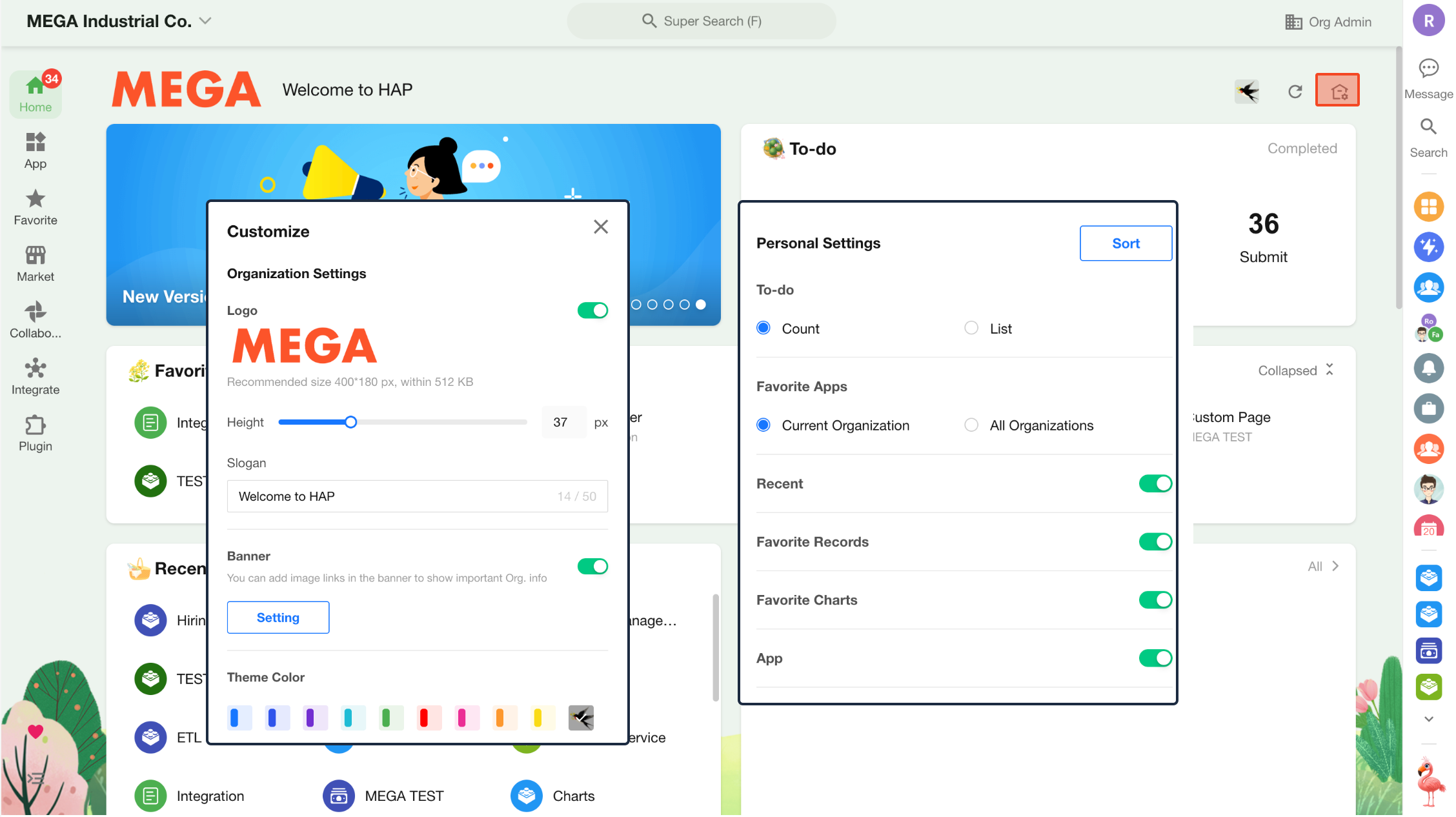
Organization Settings
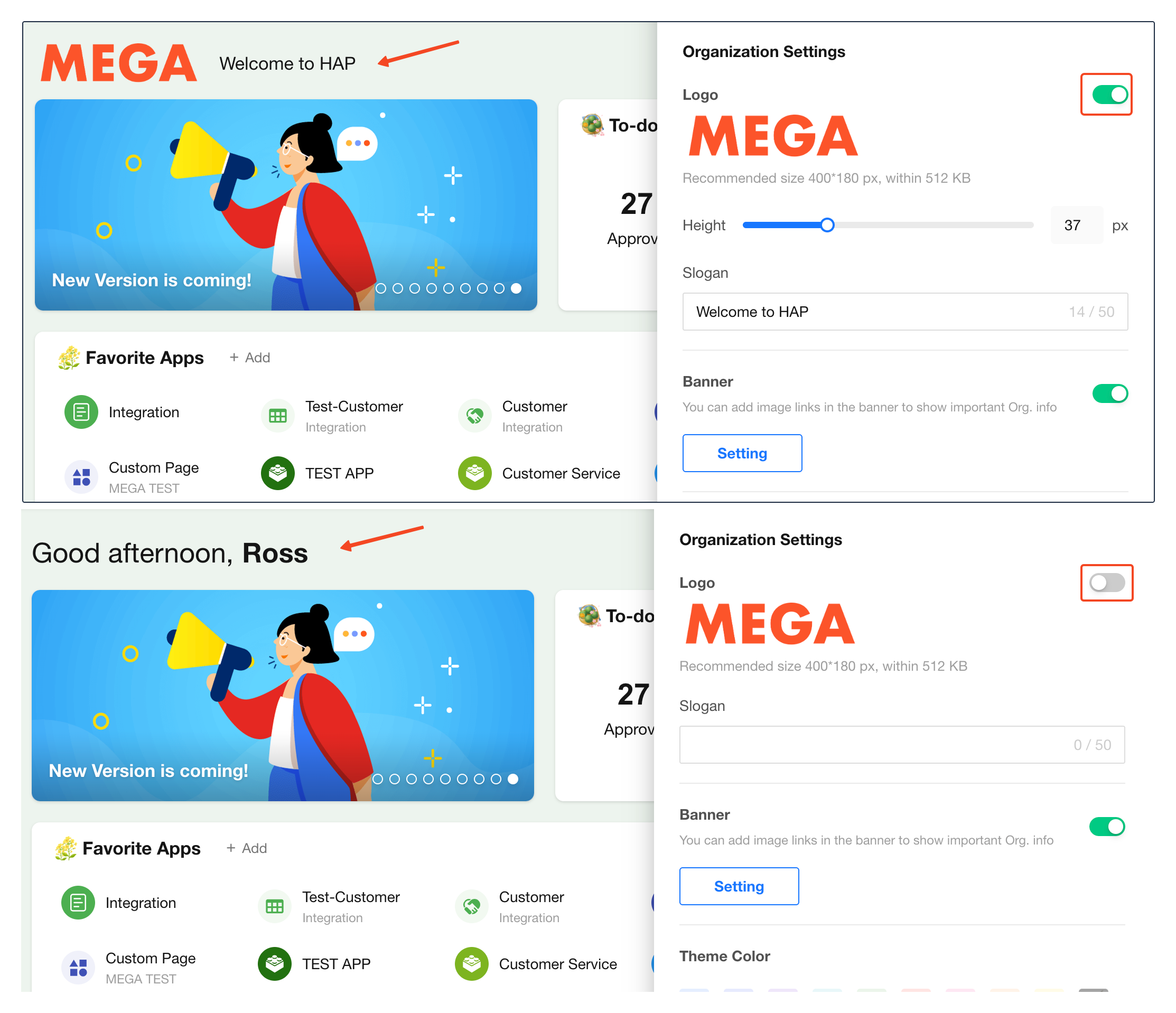
Logo and Slogan
The logo is synced with the one uploaded in the Organization Admin Console. You can adjust the display height.
If the logo is hidden, and the slogan is not set, a greeting message will be displayed instead.
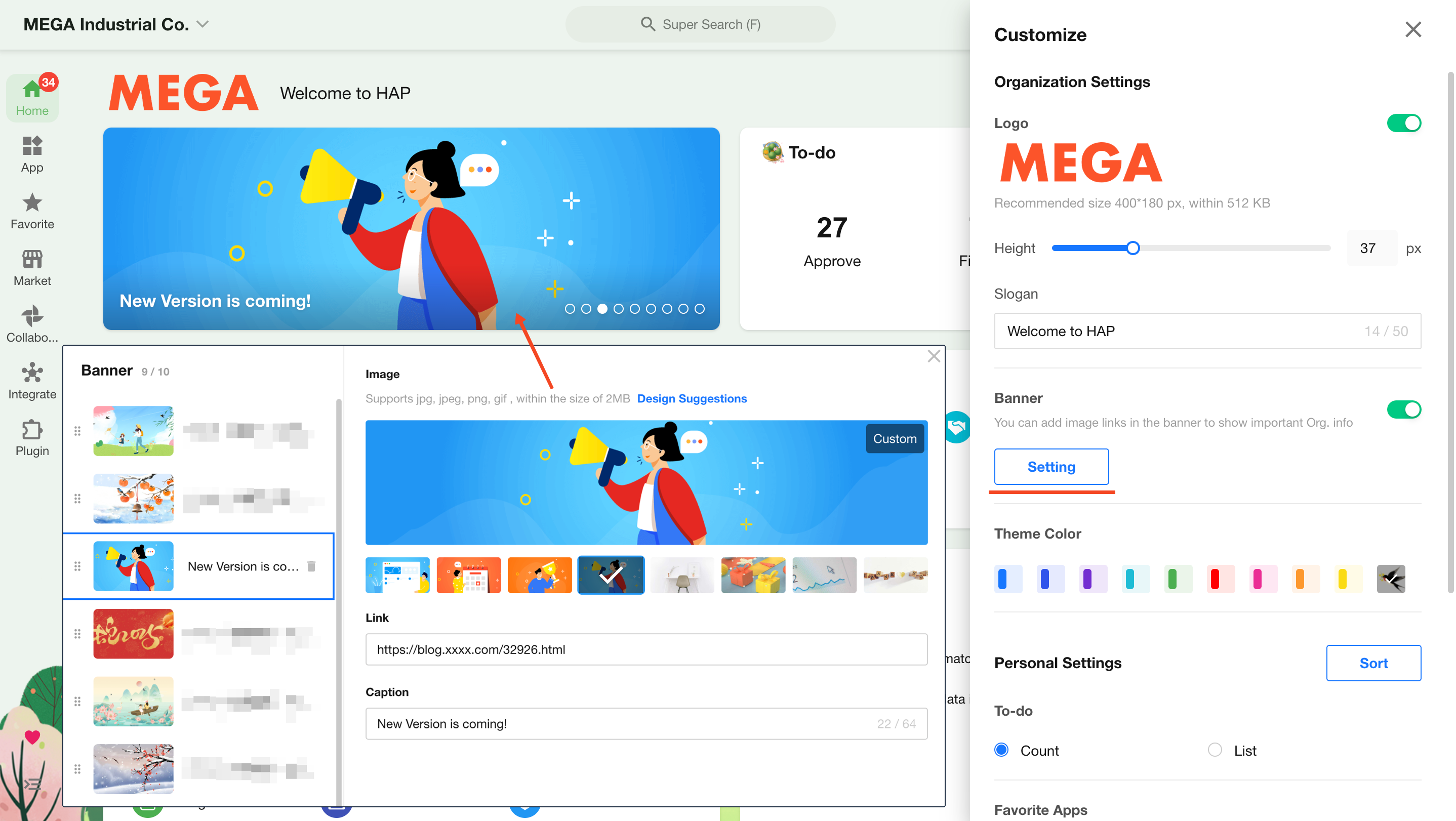
Banner
Important announcements can be displayed in the banner. Multiple items are supported.
-
Each item supports an image with an optional link
- Recommended size: 1600×400 px
- Supported formats: jpg, jpeg, png, gif
- Max size: 2MB
-
Multiple items rotate automatically every 3 seconds
-
Items can be reordered via drag-and-drop
-
The banner can be disabled. When disabled, the to-do section expands to fill the space
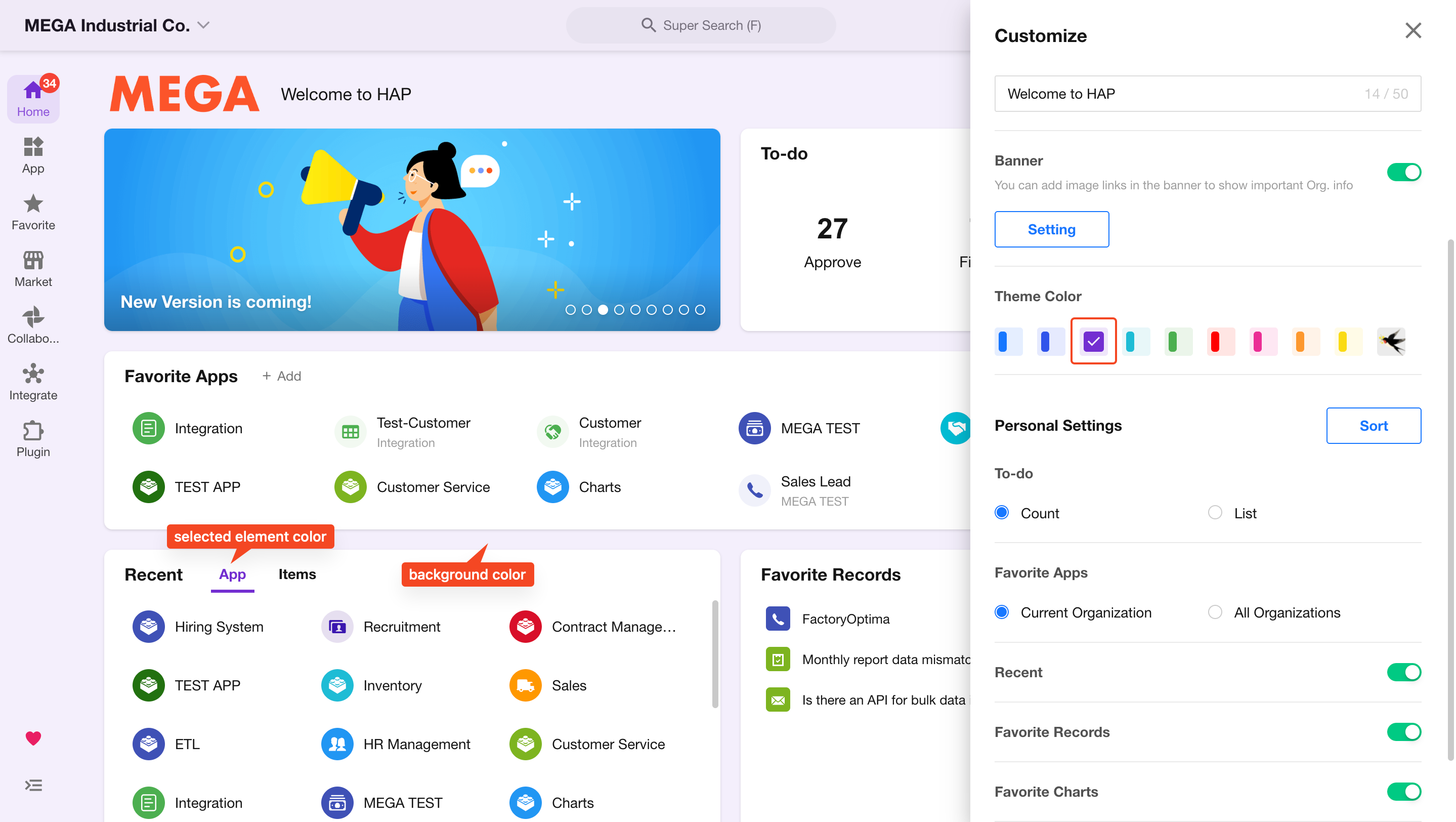
Theme Color
The theme color applies to the home page, including background and UI elements. It is consistent across all users. Inside applications, the application’s theme color takes precedence.
- Selected elements use the primary theme color
- The page background uses a lighter shade of the theme color
Personal Settings
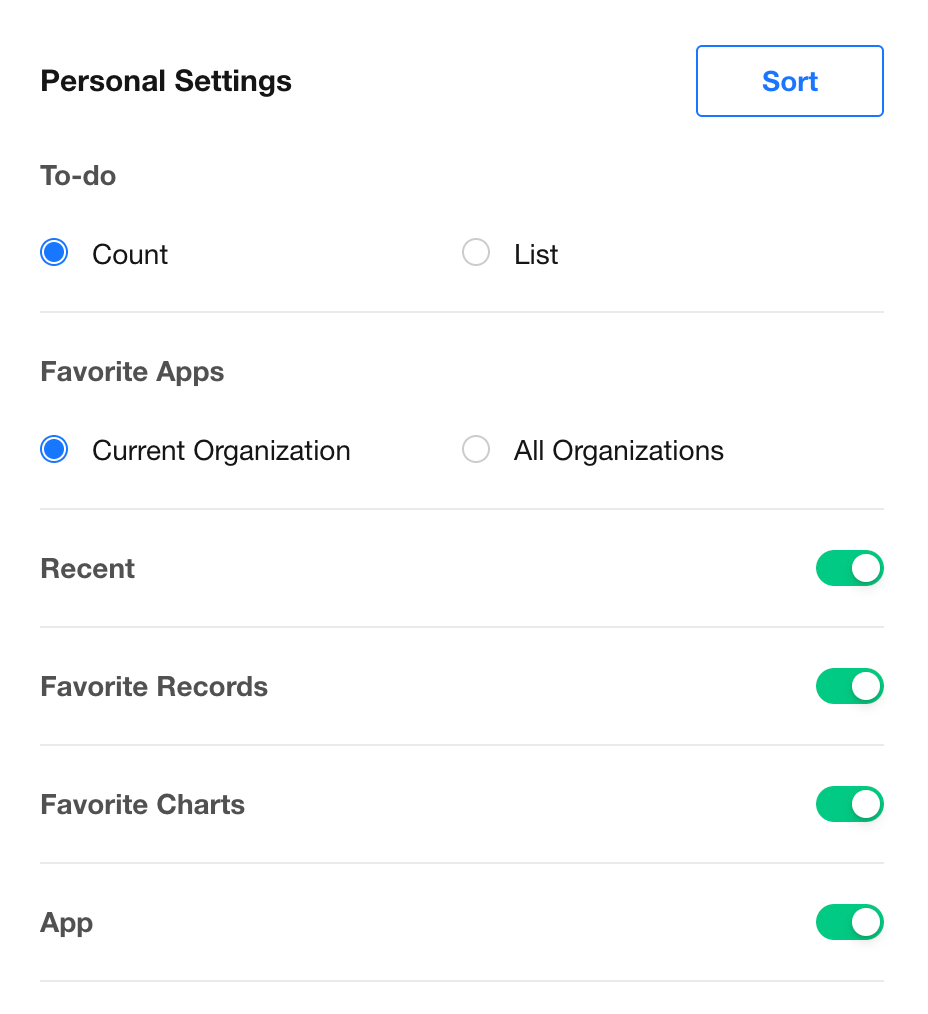
Users can configure:
- Display style of to-do items
- Visibility of favorite applications
- Whether to show recently used items, favorite records, and favorite charts
- Display order of all sections
To-do Display
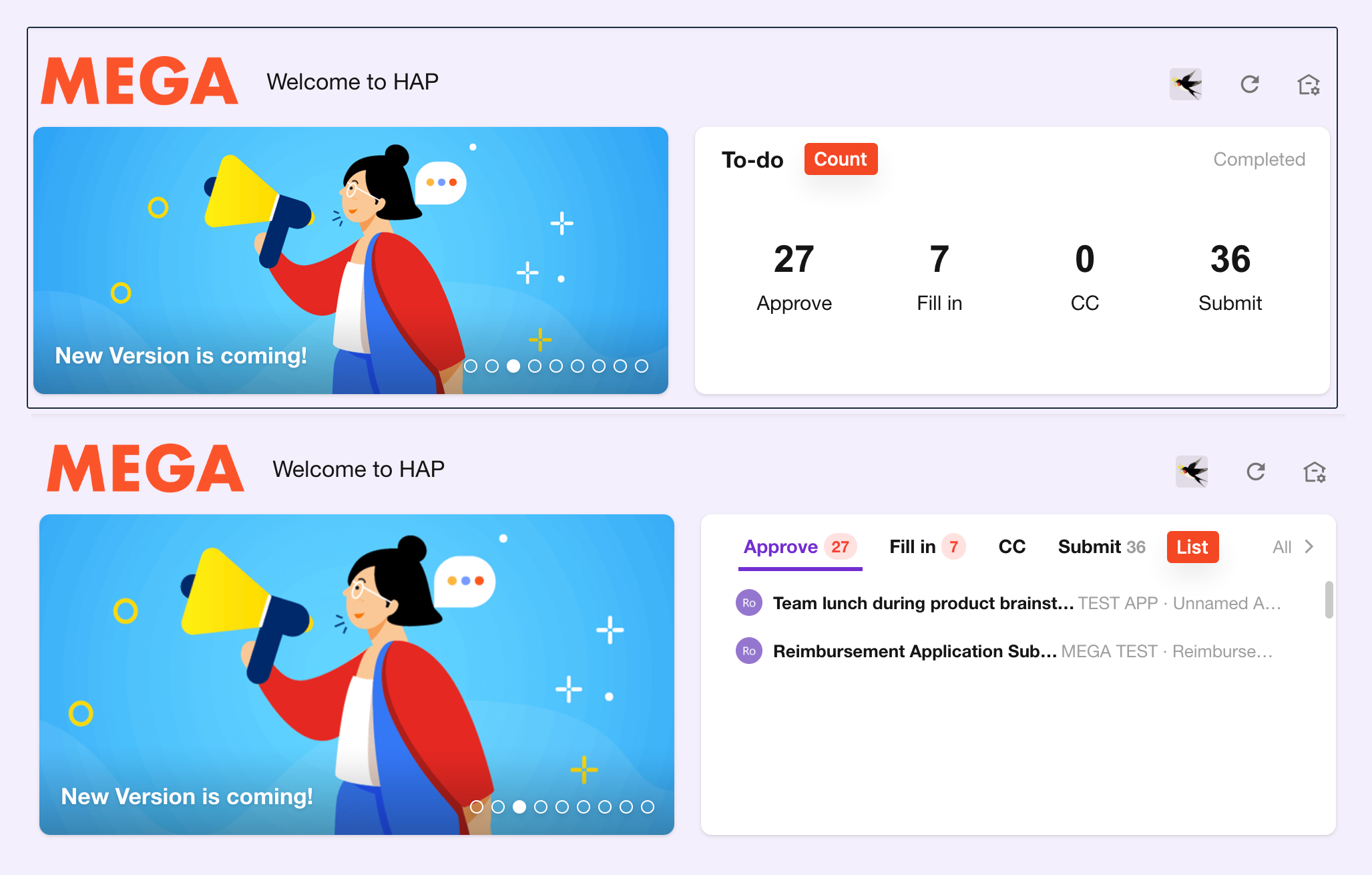
Two display modes are available: count and list.
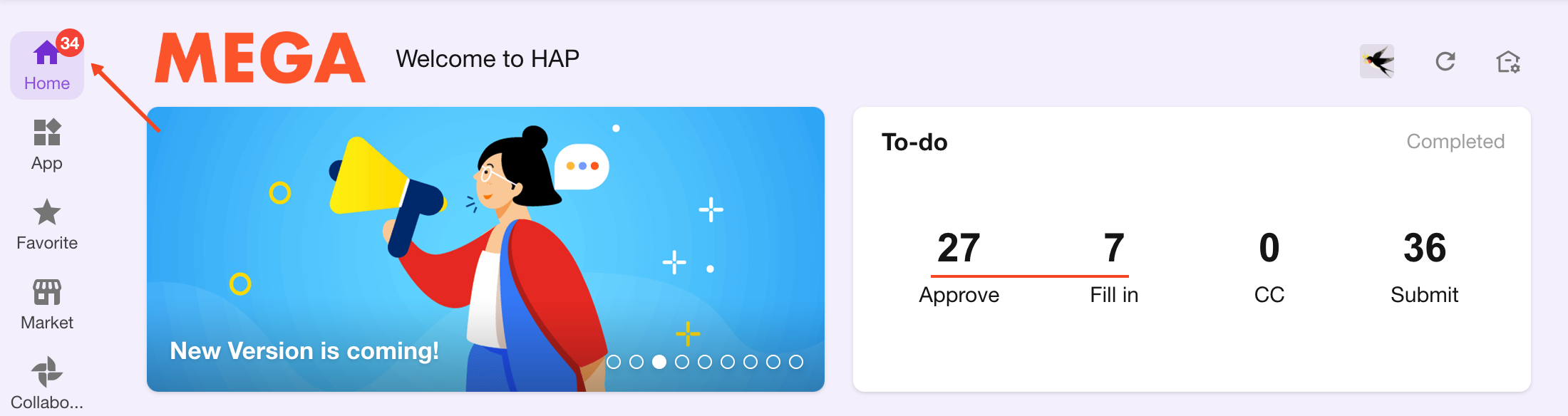
Count display rules:
- If there are approval or fill-in to-dos, display the total count (up to 99)
- If only CC to-dos exist, display a red dot indicator
Display Order
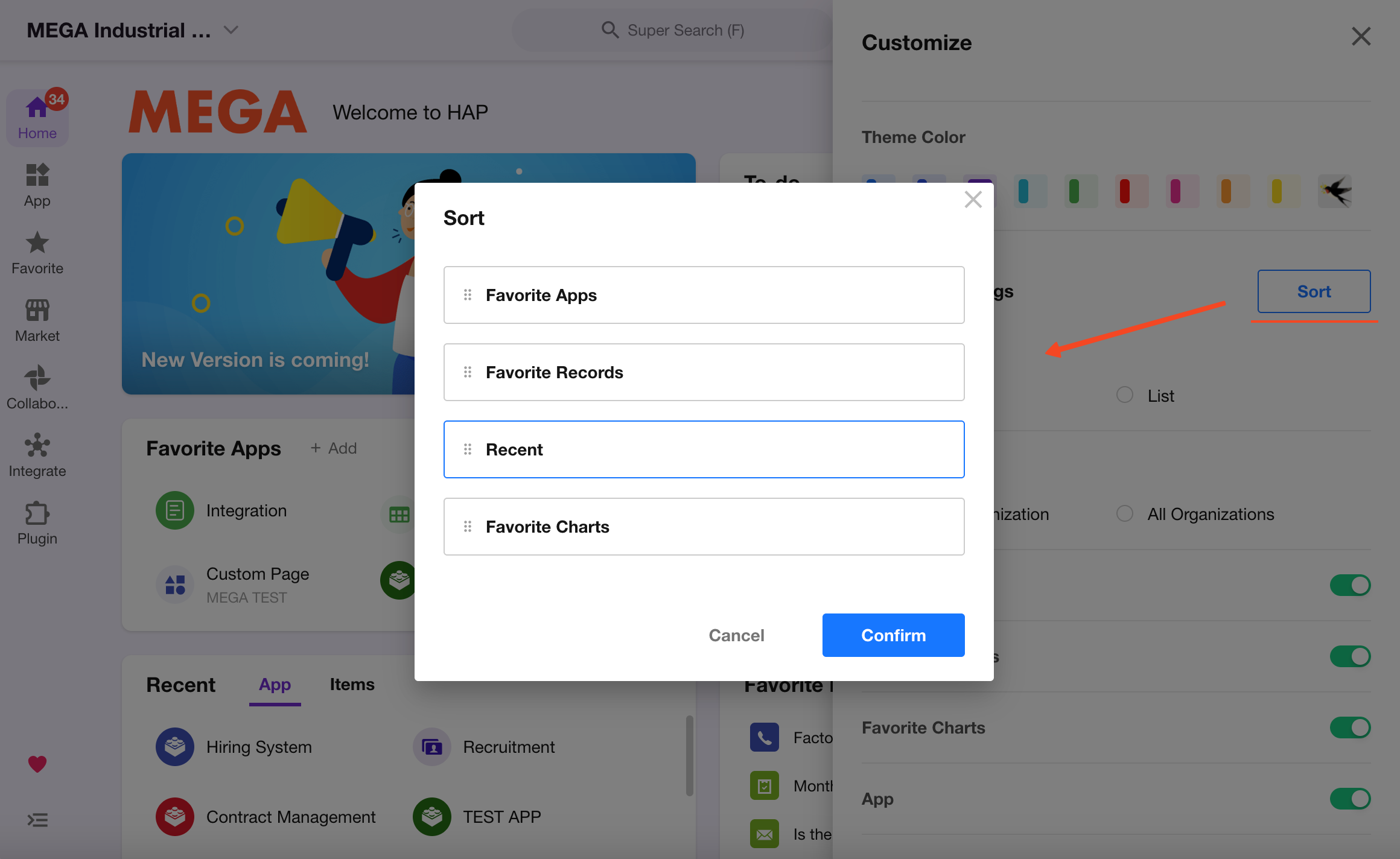
Users can reorder sections such as favorite applications, records, and recent items on the home page.
Favorite Applications
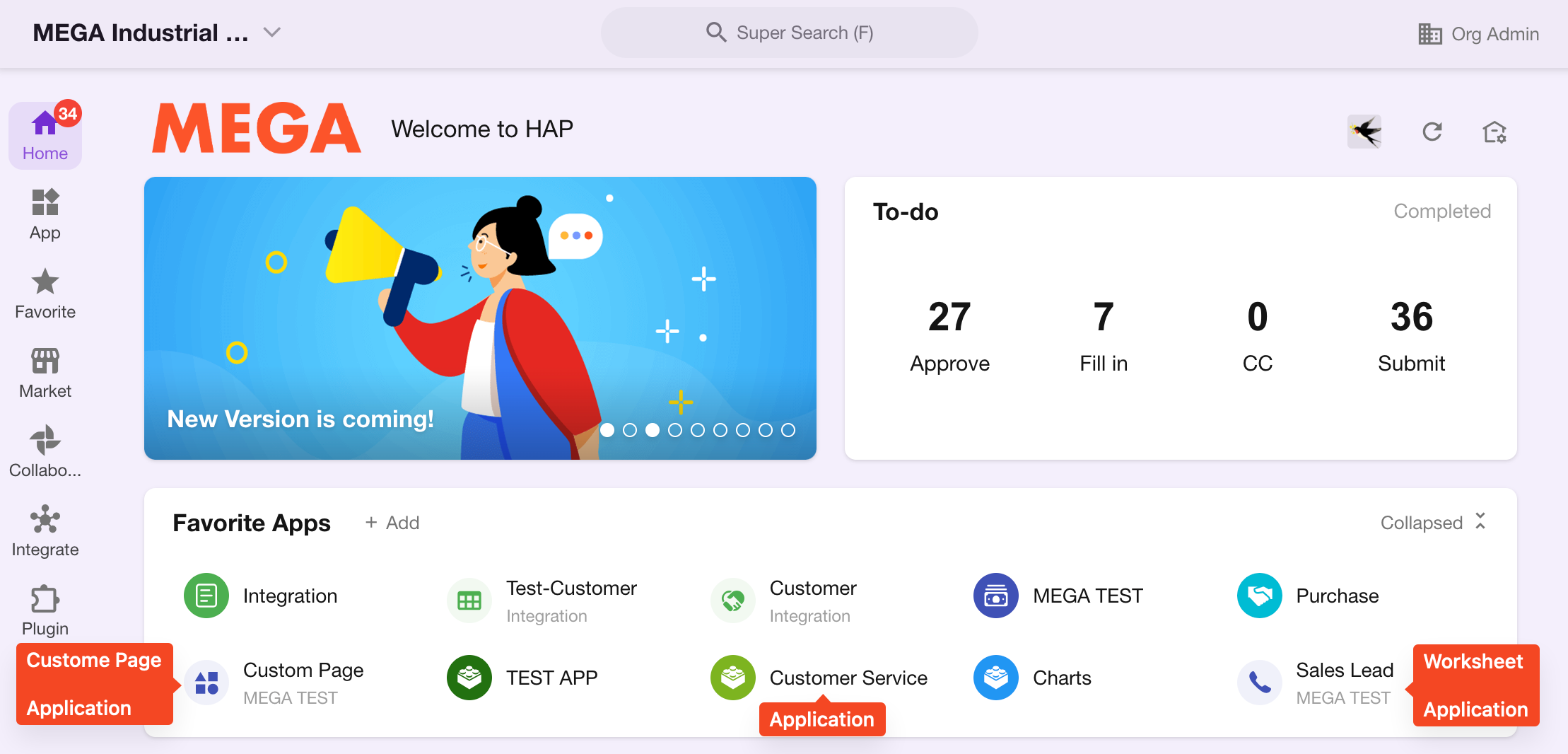
The Favorite Apps section displays favorited applications, worksheets, and custom pages. You can drag icons to reorder them. There is no limit on the number of favorited applications.
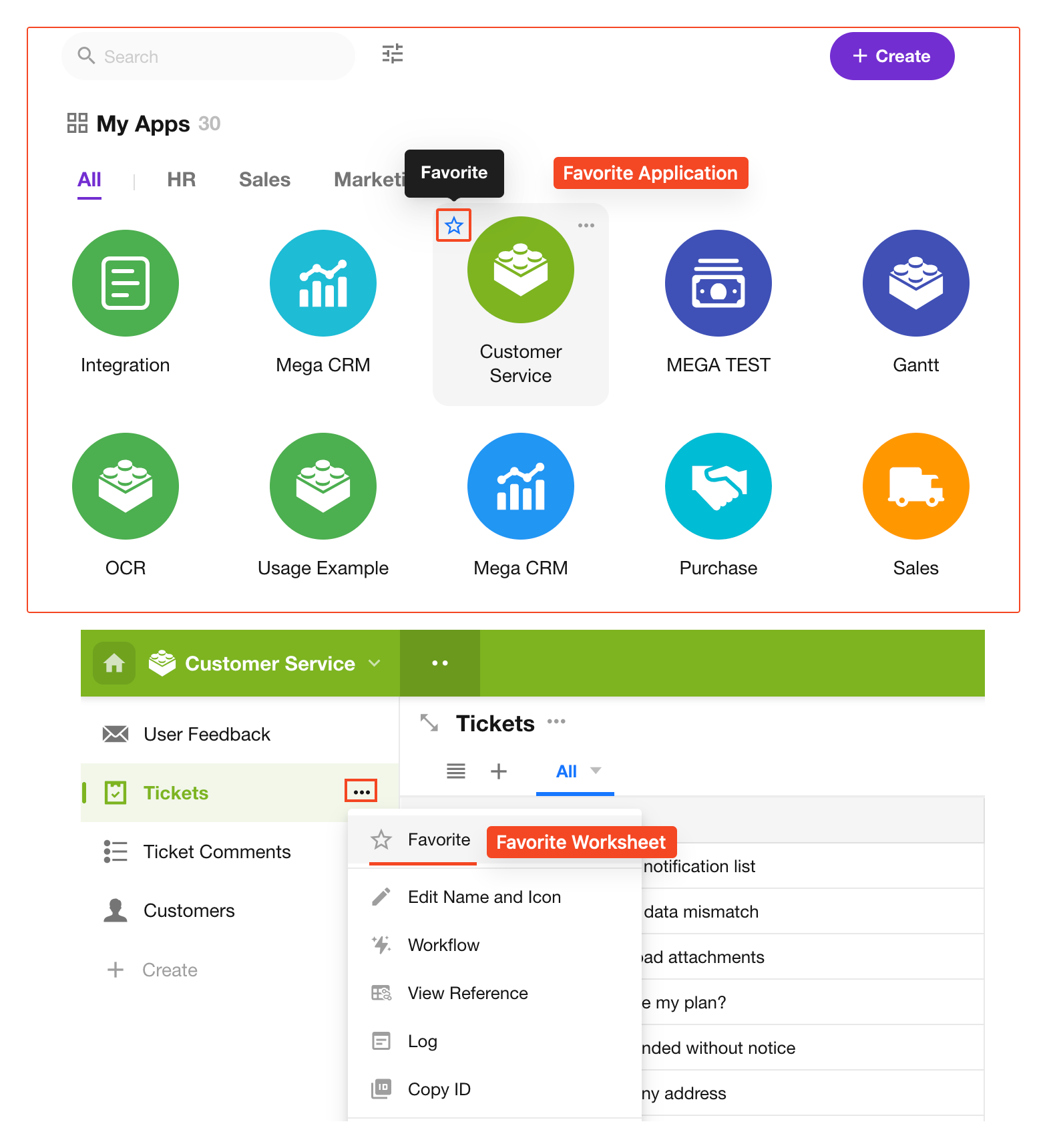
How to favorite items:
- Favorite an application: click the ☆ icon on the application
- Favorite a worksheet or custom page: click the Favorite button in the left navigation within the application
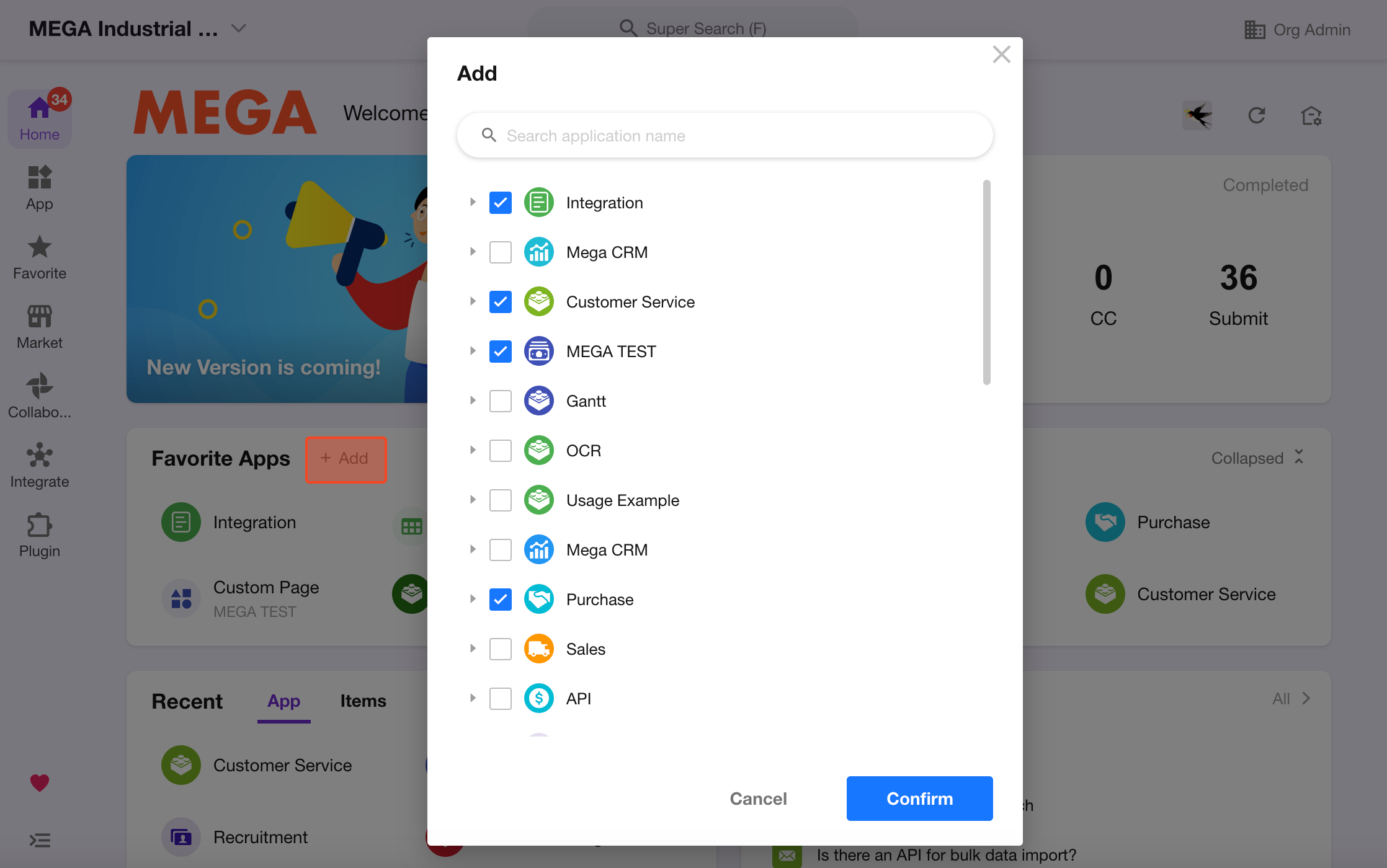
You can also search and favorite applications directly from the home page.
Display scope of favorites:
-
Current organization only:
Only shows favorites from the current organization -
All organizations:
Displays favorites from all organizations
Recent
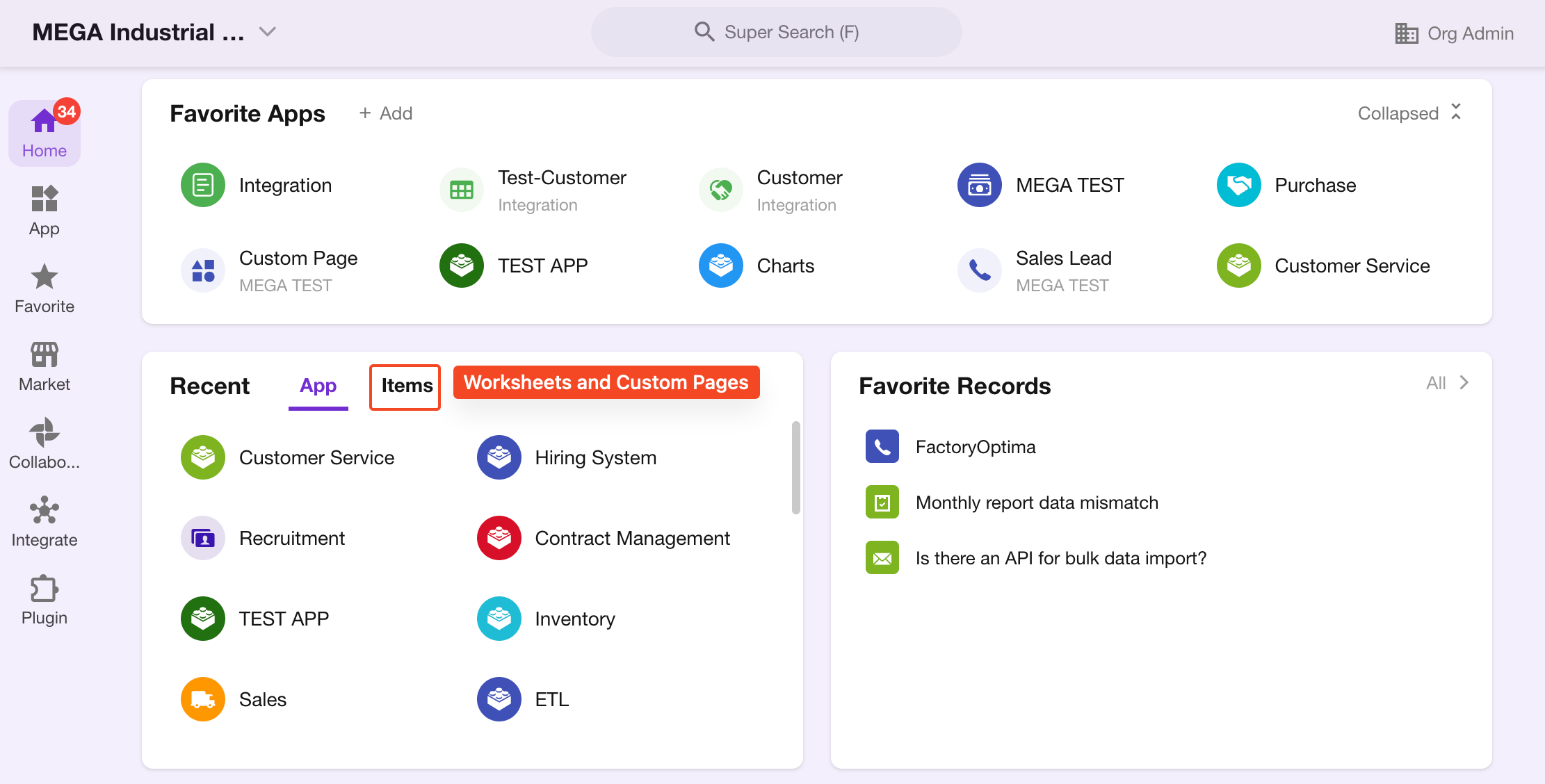
The Recent section shows up to 30 recently accessed applications and items (worksheets/custom pages), with the most recent at the top. Sorting is not supported.
Favorite Records
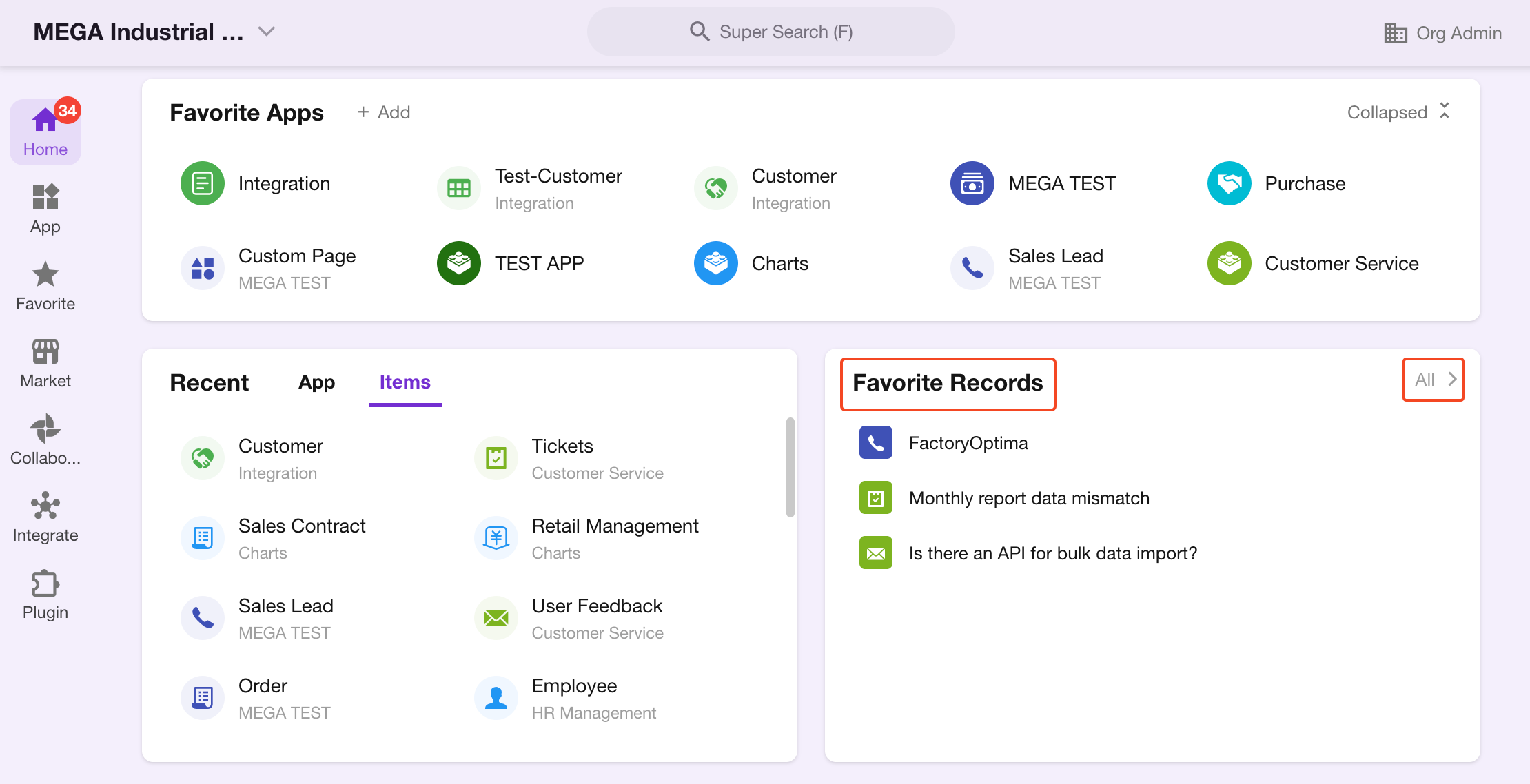
Important records can be marked as favorites for quick access. Up to 200 records can be favorited.
How to Favorite Records
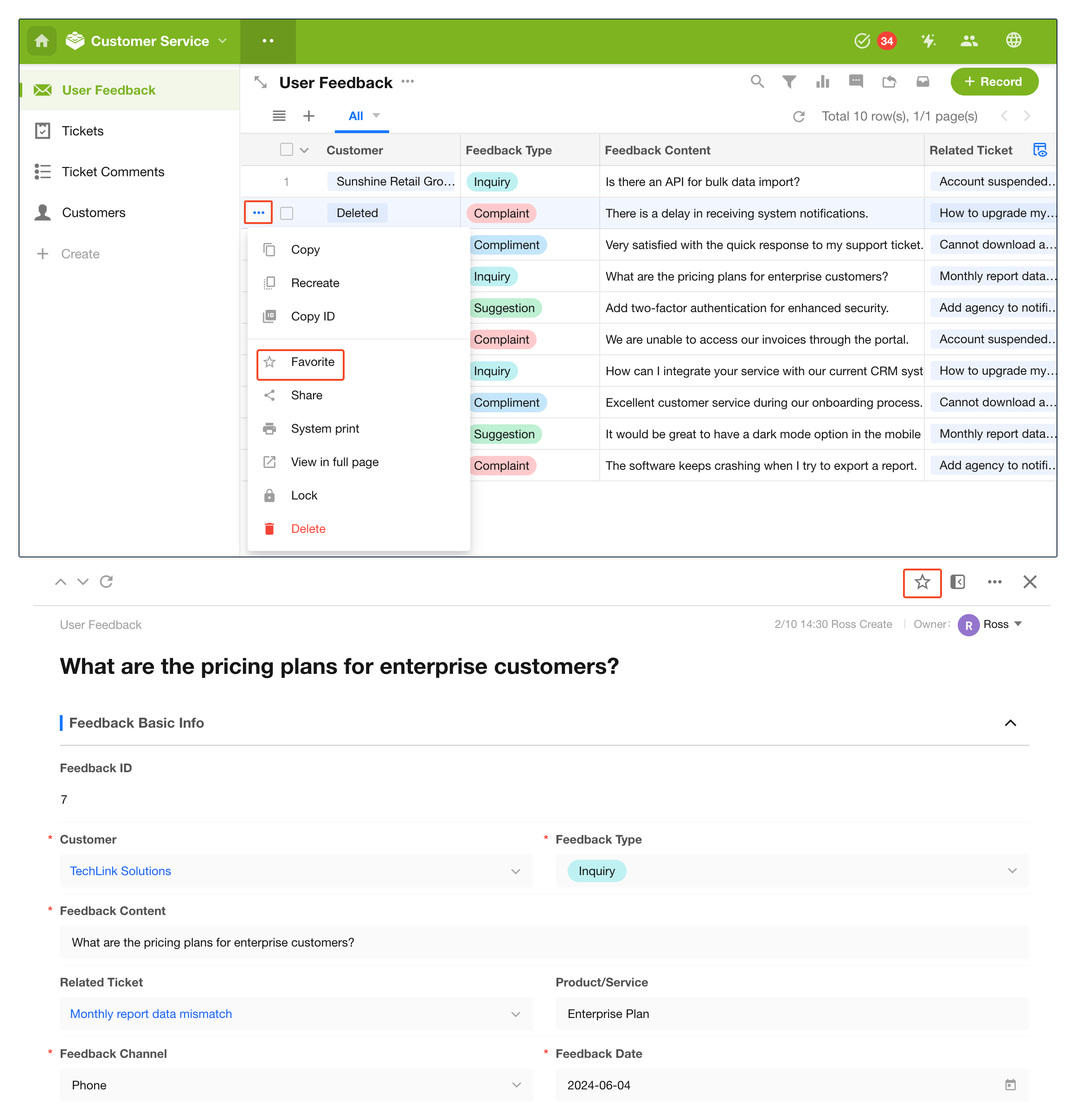
You can favorite records from the record list or record detail page. Click again to remove from favorites.
Favorited Records List
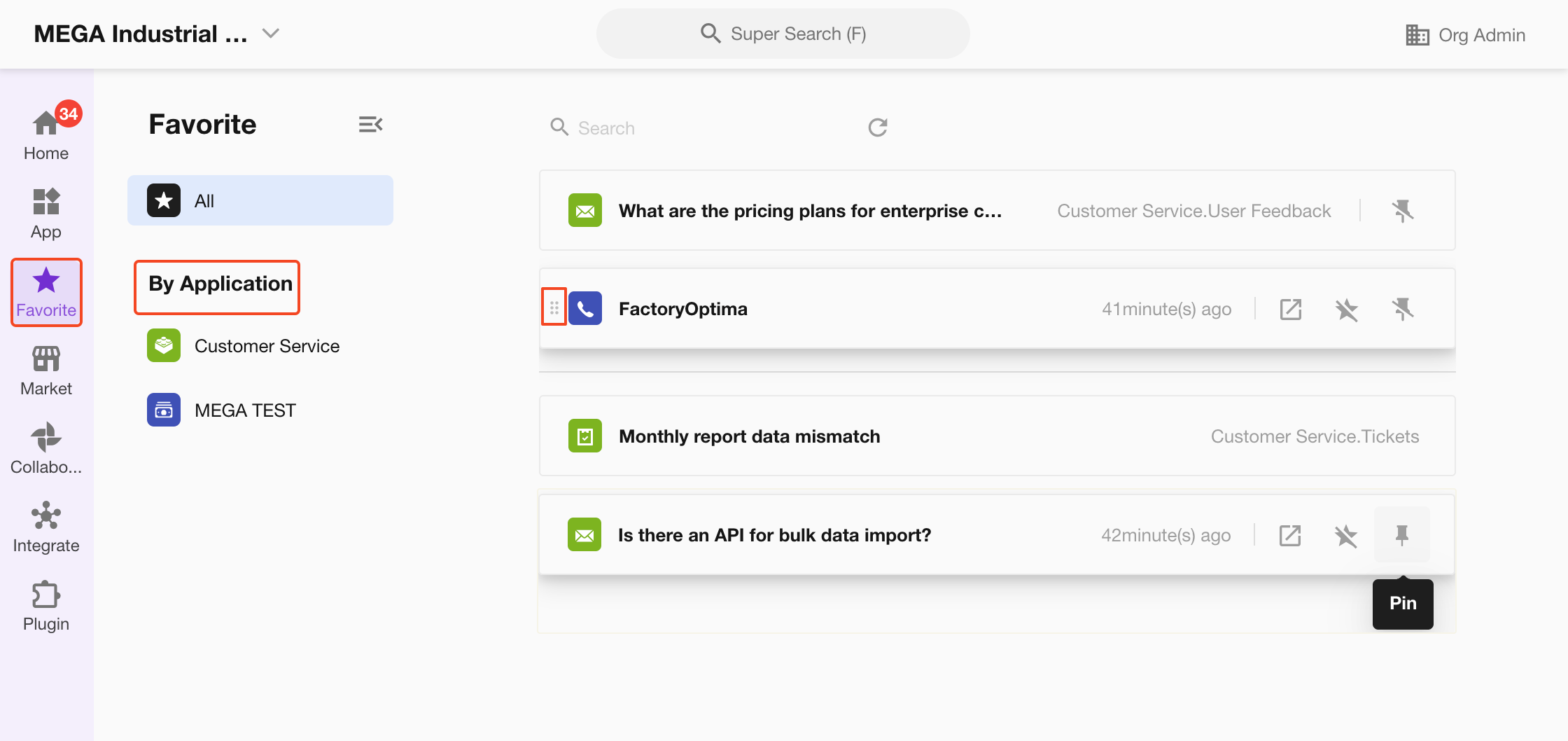
In the favorited records list:
- You can filter by application
- Records can be pinned; pinned records can be reordered
- Applications containing favorited records are displayed in the left navigation
Favorite Charts
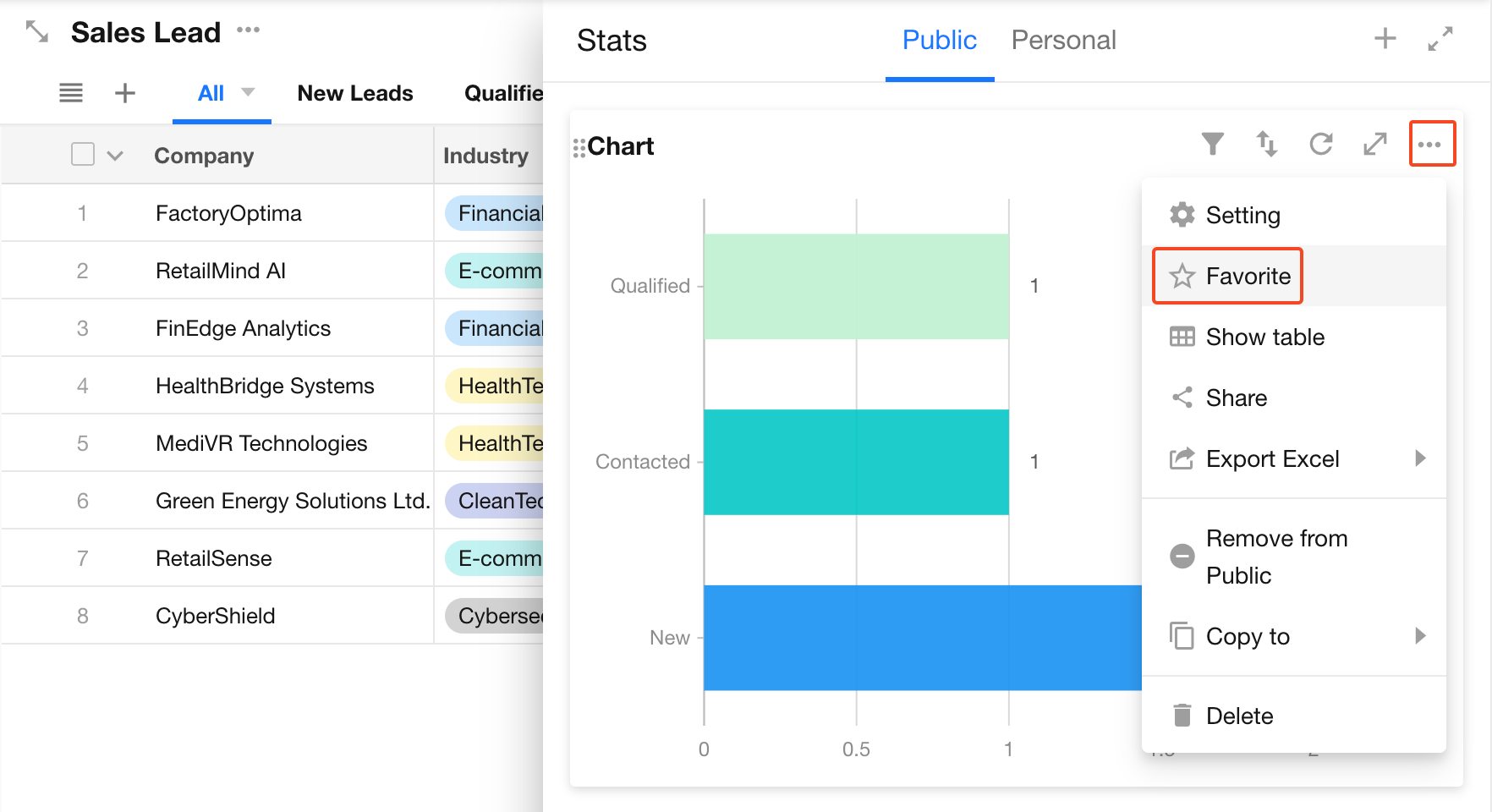
Charts in worksheets and custom pages can also be favorited and displayed on the home page. Up to 10 charts can be favorited.
Use the chart toolbar to favorite or unfavorite charts.
Was this document helpful?