App Backup and Restore
App structure, configurations, and data can be backed up and restored using backup files.
- You can create multiple backups and choose a specific backup file for restoration.
- Only app admins who are members of the current organization can perform backup and restore operations.
1. Backup and Restore
App admins can go to App Management > Backup & Restore to create backups or restore apps.
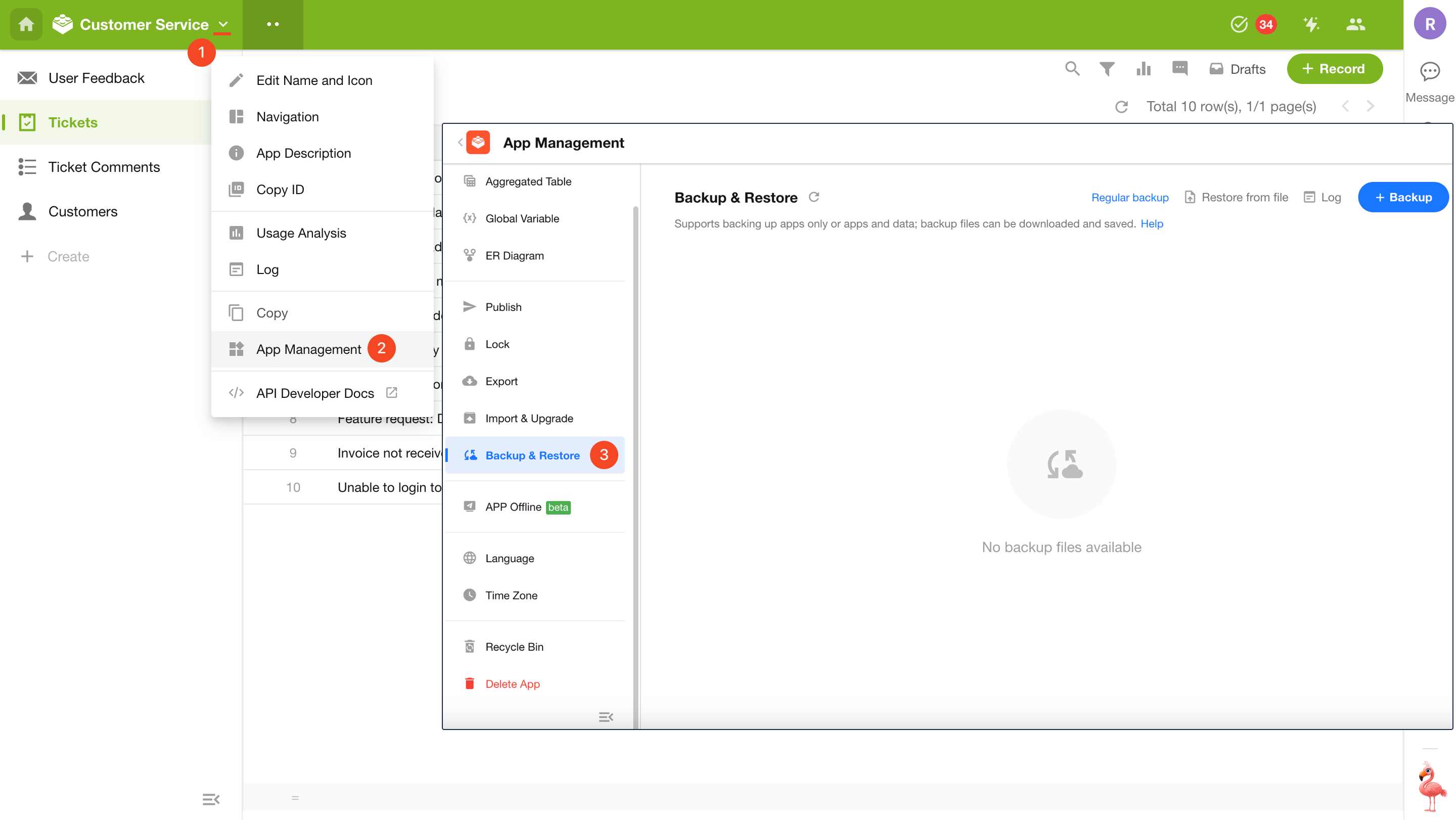
Create a Backup File
Click + Backup, then confirm to generate a backup file automatically.
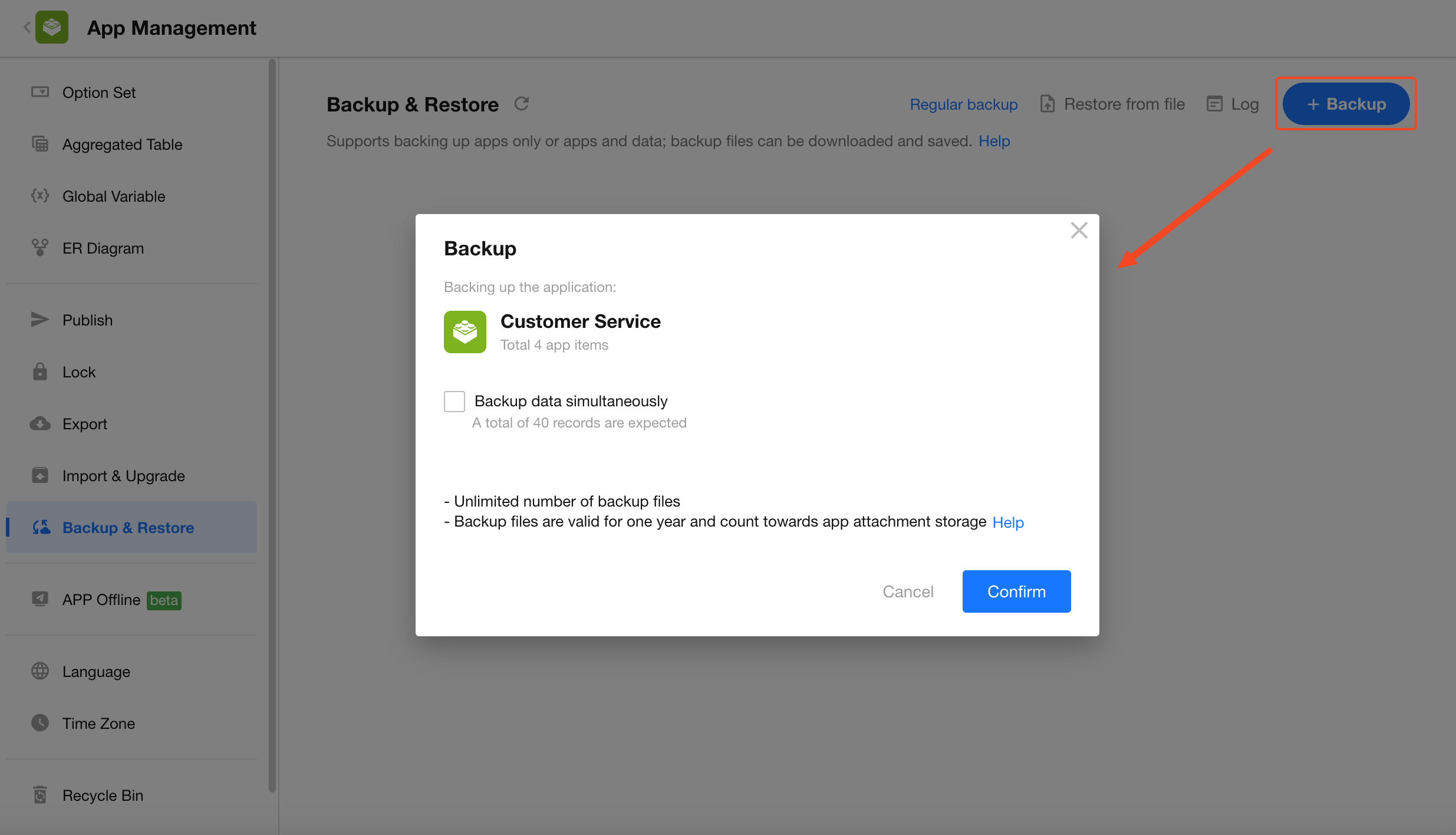
- When backing up app items, you can choose to include data, but data cannot be backed up separately.
- Backup files count toward the organization’s annual app attachment upload quota.
- There must be at least a 5-minute interval between two backups.
What Is Included in a Backup
- Worksheet data (optional)
- App name, icon, description, mobile navigation settings, option sets, app groups, etc.
- Worksheet structure and configurations
- Custom pages
- Workflow (only workflows within the current app; workflows in other apps that modify this app’s worksheet data are not included)
- Users (only permission configurations; role members, departments, and job positions are not included)
- External portal (only roles and permissions; external user account data is not included)
Scheduled Backup
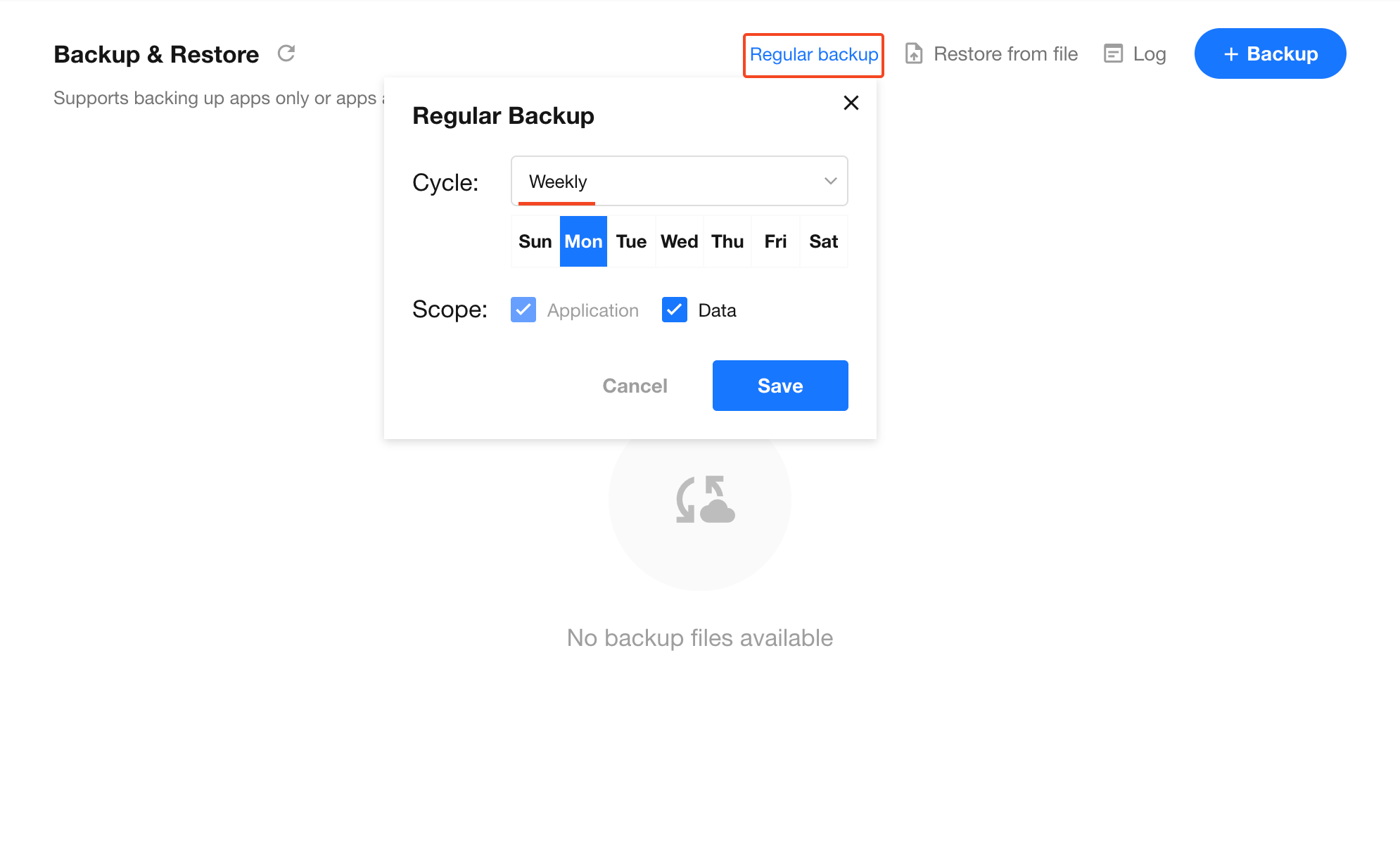
Supports automatic backups (daily, weekly, monthly) for app structure and data. This feature is available only in the Ultimate edition. Scheduled backups also count toward the organization’s annual app attachment upload quota.
2. Manage Backup Files
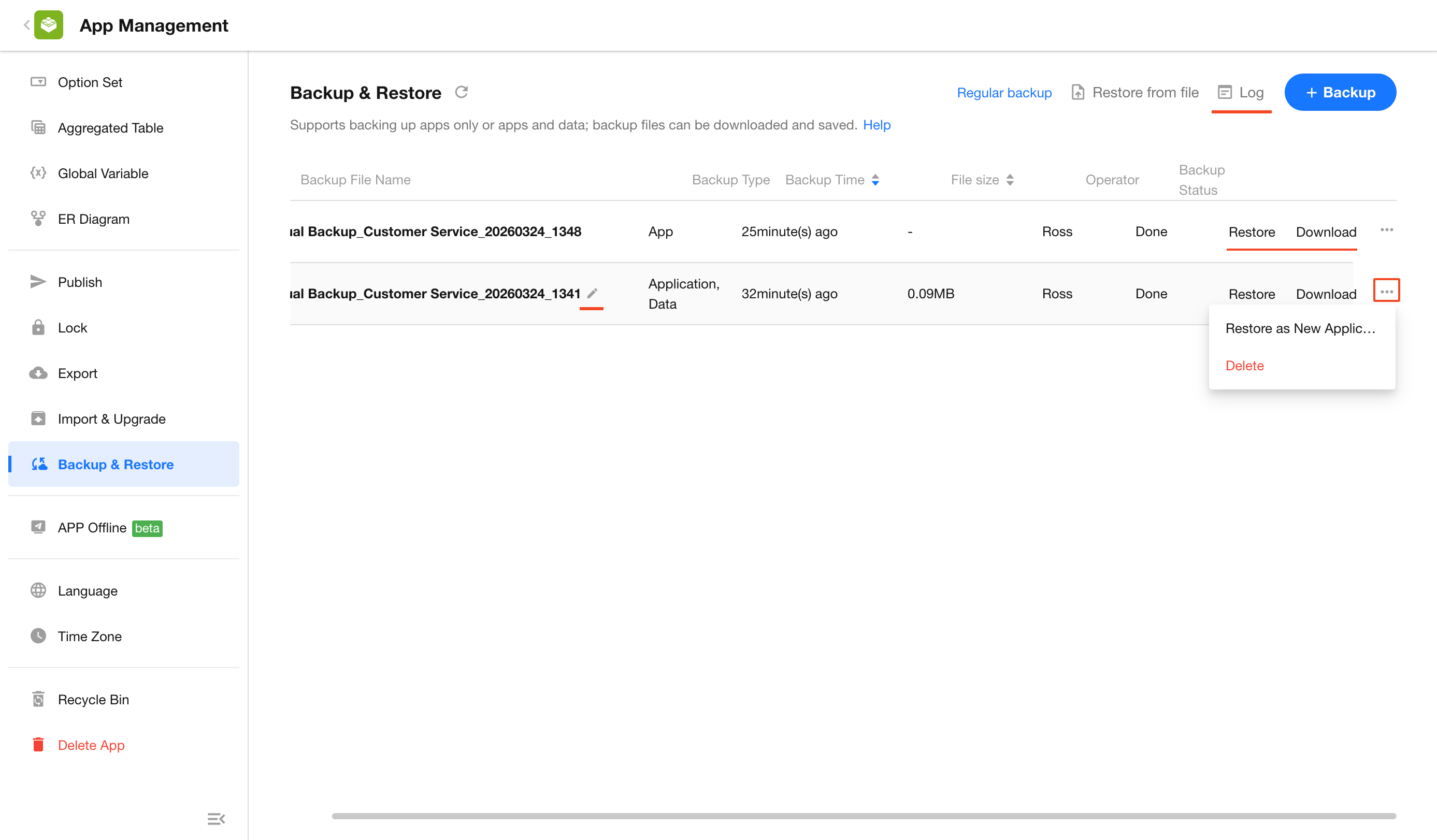
You can perform the following operations on backup files:
-
Rename Backup File
The default naming format is: Type_App Name_Timestamp. You can rename it as needed. -
Delete Backup File
-
Download Backup File
You can download application configuration or application data backup files. Only data backups smaller than 1 GB can be downloaded. -
Restore App
Restore the current app to the configuration and data state at the time of backup. -
Restore as New App
Create a new app based on the backup. Data restoration is not supported in this mode.
The new app is only visible to the operator, who is also the sole admin. -
View Backup Logs
3. How to Restore an App
1. Restore Methods
-
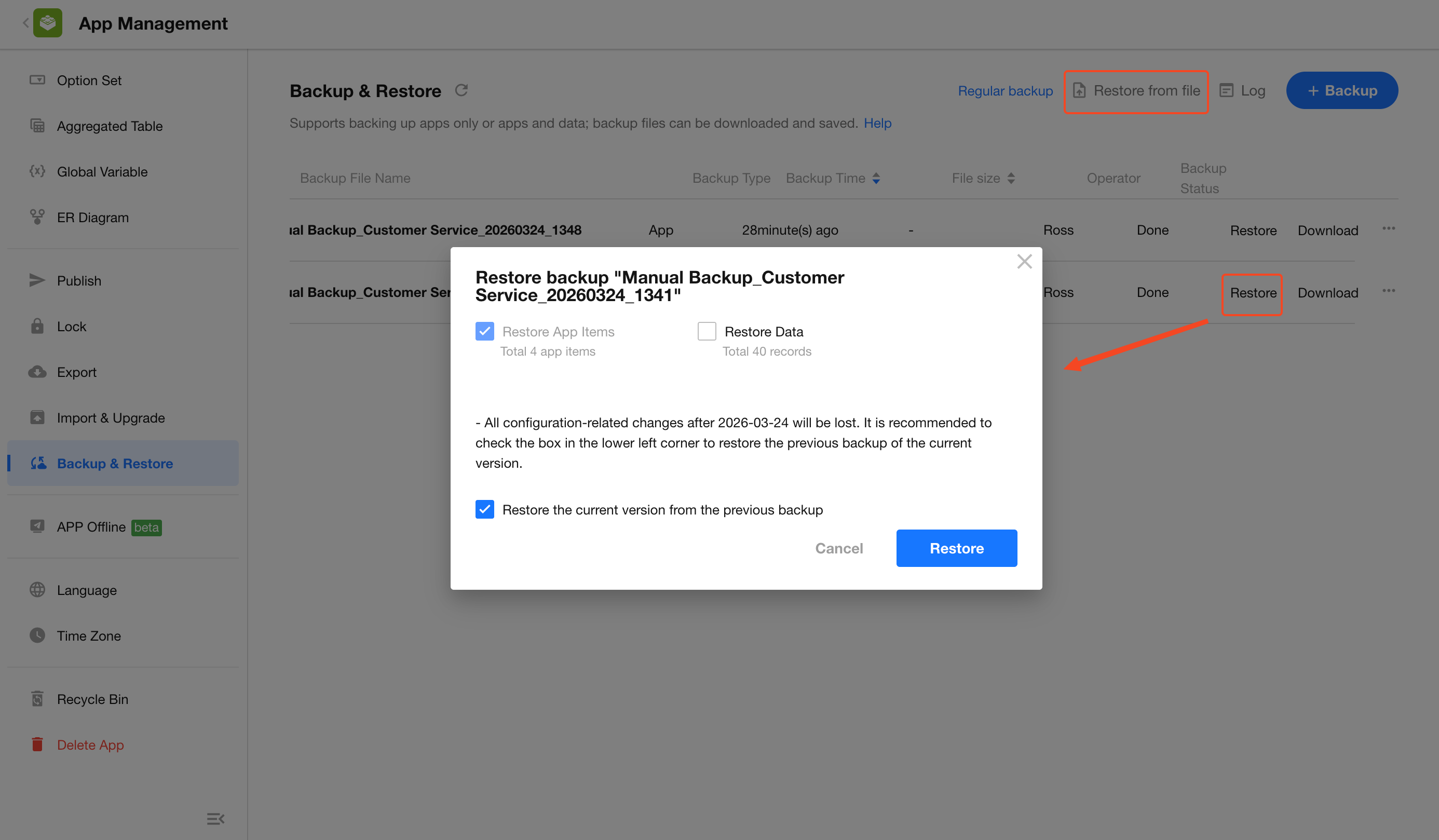
Method 1: On the backup management page, locate a backup record and click Restore.
-
Method 2: On the backup management page, select Restore from File and upload a backup file.
2. Configure Restore Options
-
Restore App Configuration
After restoration, all configuration changes made after the backup will be lost.
It is recommended to enable Back up current version before restoring. -
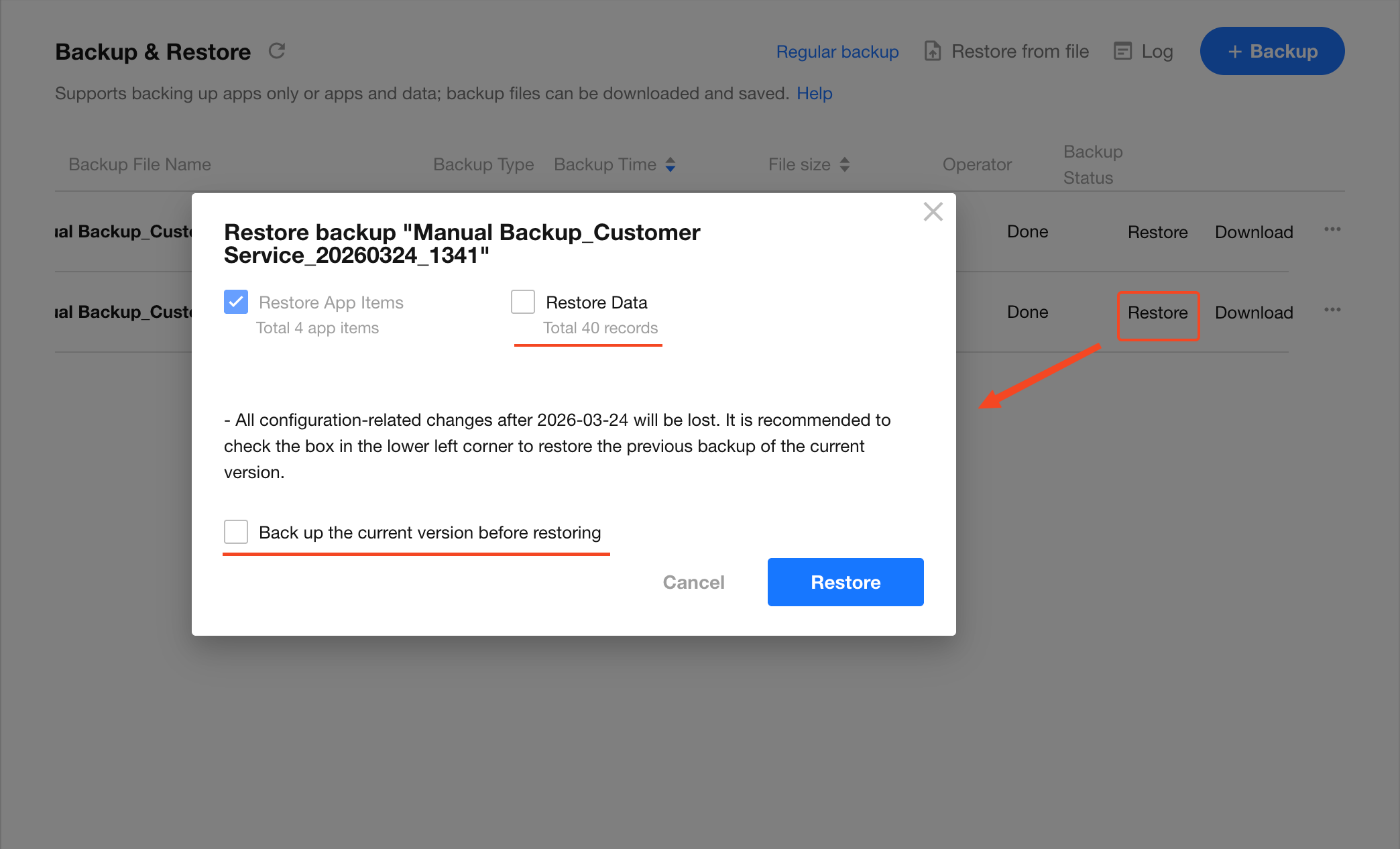
Restore Data
If selected, data will be incrementally overwritten and cannot be reversed.
Please create a backup before proceeding to ensure data safety. -
Back up current app version during restore
If you have not created a manual backup, it is recommended to enable this option.
3. Verify Identity and Start Restore
Since restoring an app is a critical operation, identity verification is required.
After verification, the system will automatically begin the restore process.
A notification will be sent once the restoration is complete.
Q&A
Q1: If a worksheet is deleted, will its data be restored after restoring the app?
Yes. Deleting a worksheet actually hides it, and the data still exists. After restoring the app, the worksheet and its data will reappear.
Q2: Will data added after the backup be lost during restoration?
No. The following scenarios apply:
- New records added after the backup will remain unchanged after restoration.
- If a field had a value at the time of backup but is currently empty, it will be restored to the backup value.
- If a field was empty at the time of backup but currently has a value, it will be restored to empty.
- Records deleted at the time of backup will be restored.
Q3: If a field (with existing data) is deleted after backup, will it and its data be restored?
Yes. The field and its data will be restored, including data added between the backup and field deletion. However, for records created after the field was deleted, this field will have no data.
Q4: Will all backup content be fully restored?
Non-referenced fields can be fully restored. However, reference-type fields cannot be restored if they have been modified or deleted. Reference-type fields include: Relationship,Subform, Cascading, File, Free Link, Department, and Org-roles.
Was this document helpful?