Hide UI Areas in Applications
When integrating with external systems, you may need to embed an application within another platform. In such cases, only a specific worksheet or page may be required, while other elements (such as worksheet navigation or message panels) become unnecessary.
To support this scenario, HAP provides a UI area hiding feature. It allows you to hide specific sections of the page by passing parameters in the URL.
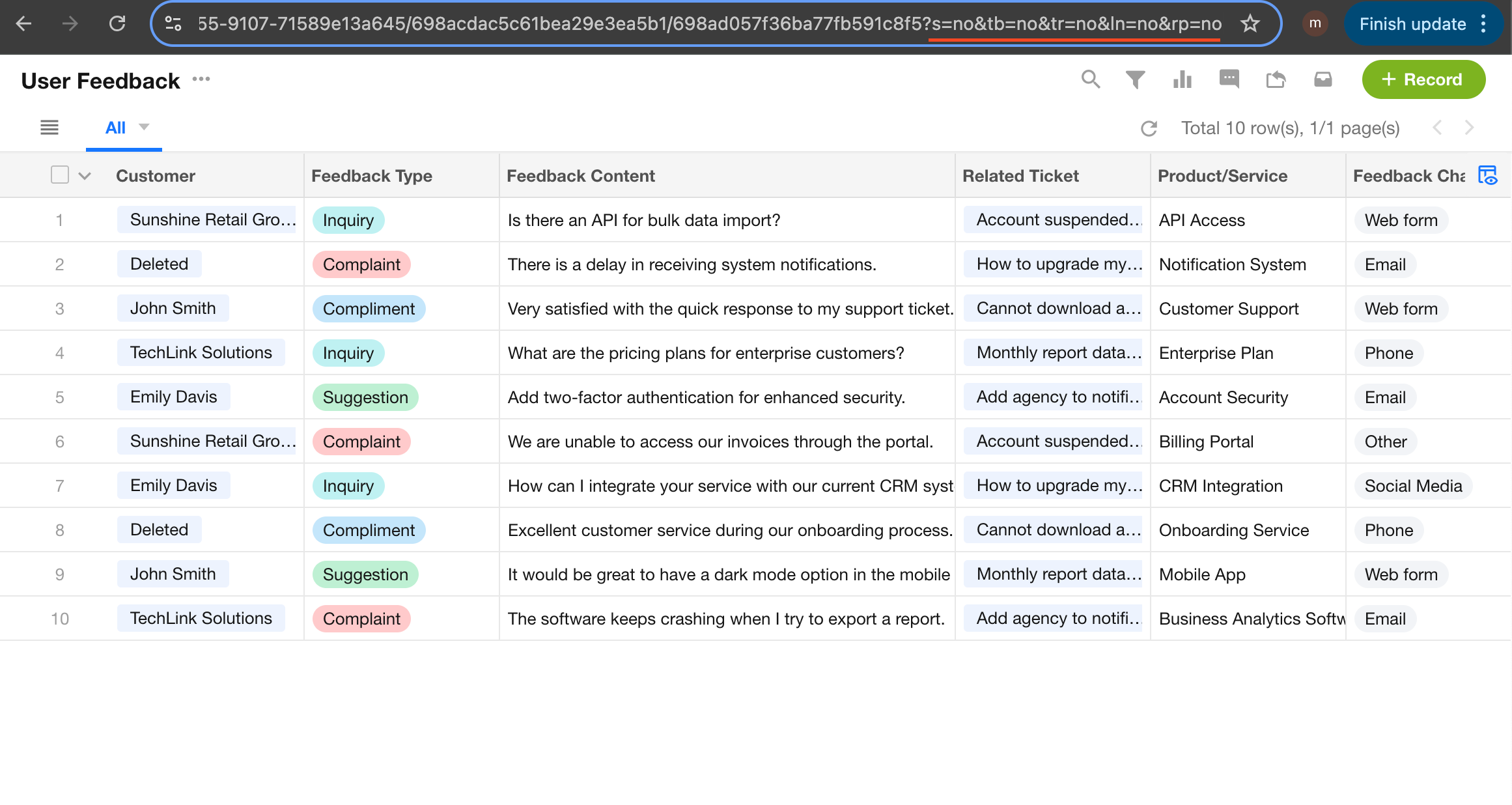
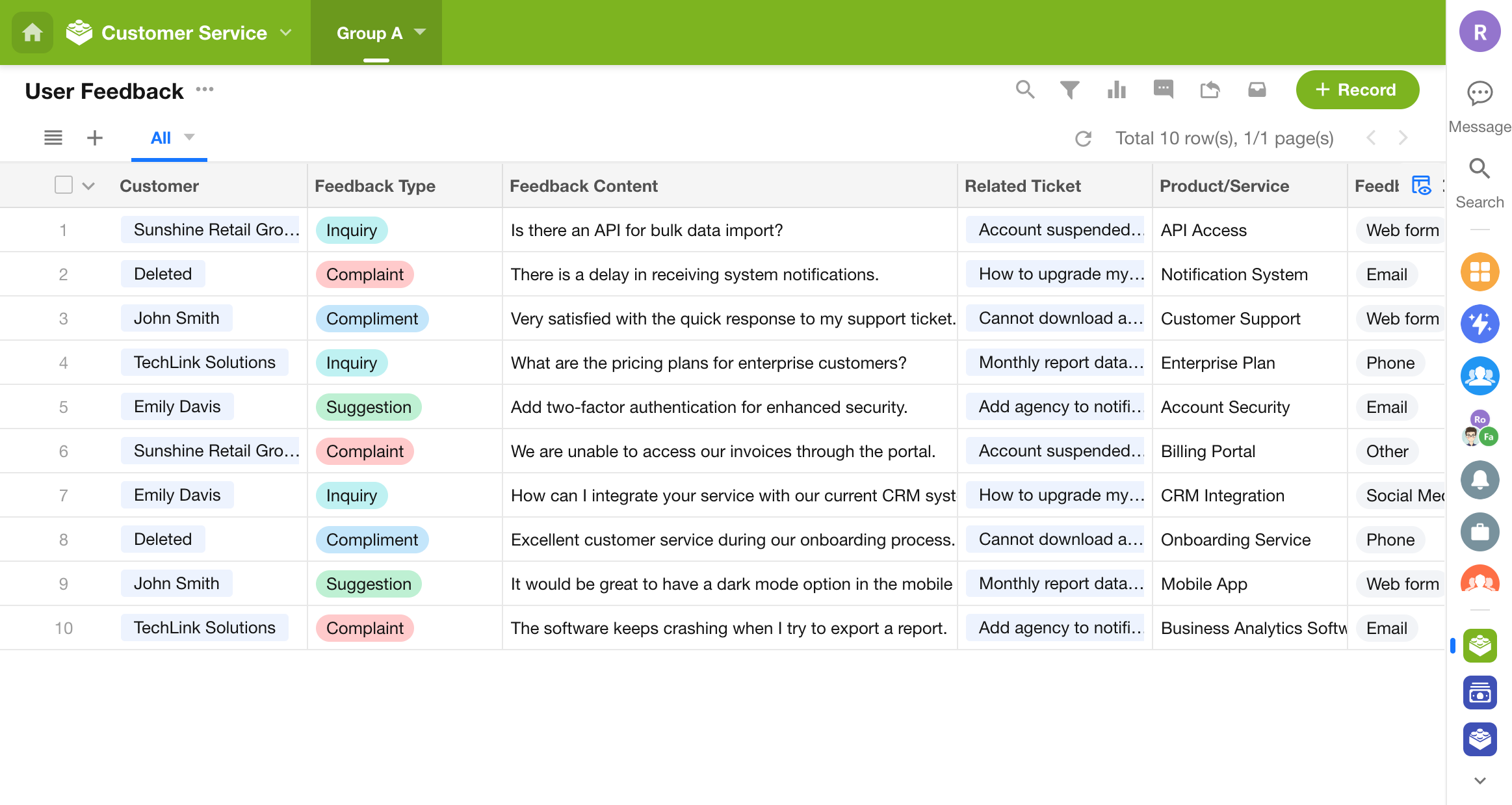
As shown below, all unnecessary UI areas are hidden, leaving only the central data area. This results in a clean layout suitable for embedding into external systems.
1. UI Areas and Parameters
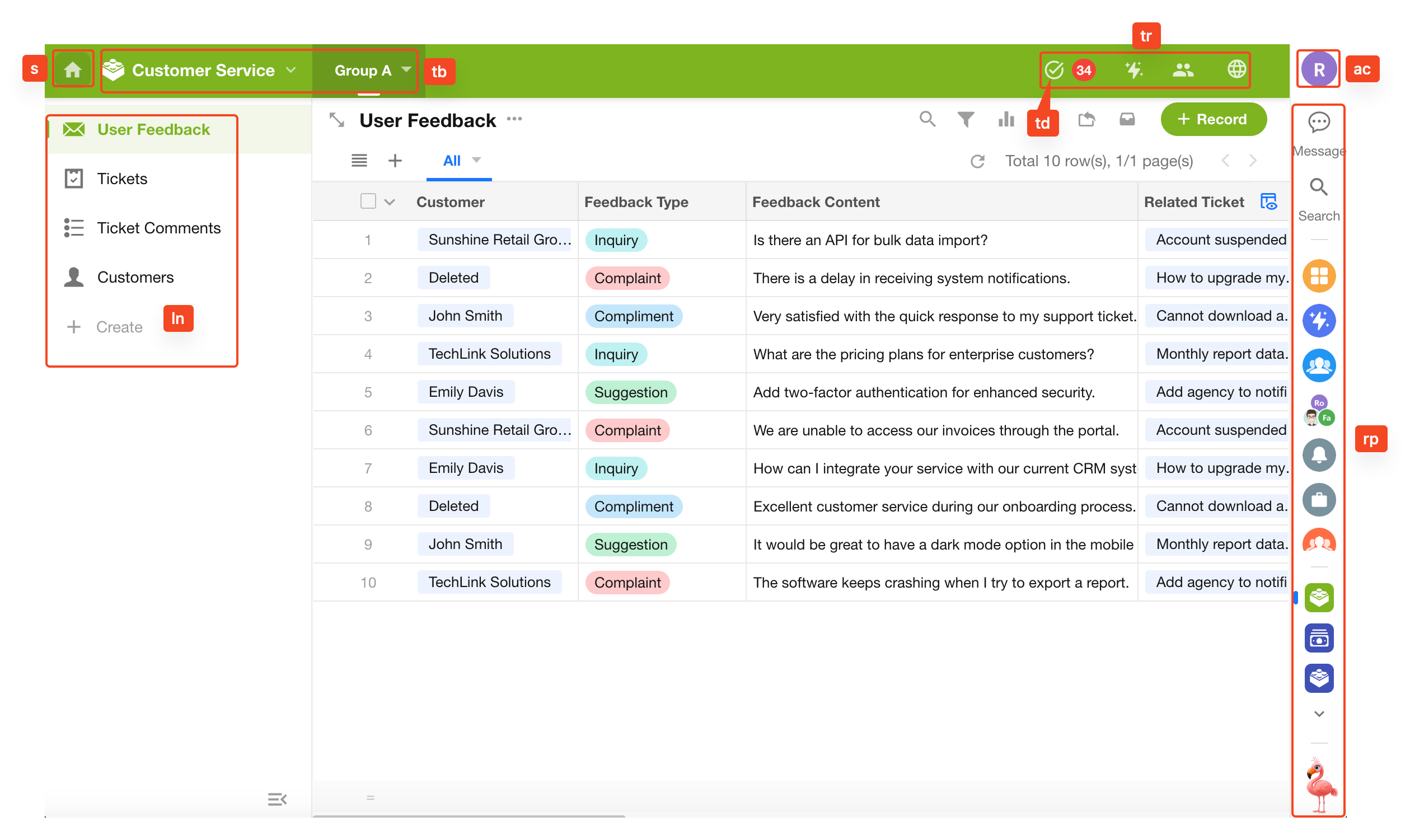
| UI Area | Parameter | Hide Value |
|---|---|---|
| Top-left “Back to Home” | s | no |
| Top center group bar | tb | no |
| Top-right action buttons | tr | no |
| To-do | td | no |
| Account avatar | ac | no |
| Left worksheet navigation | ln | no |
| Right message panel | rp | no |
| Chat entry | ch | no |
UI reference:
2. URL Parameter Configuration Example
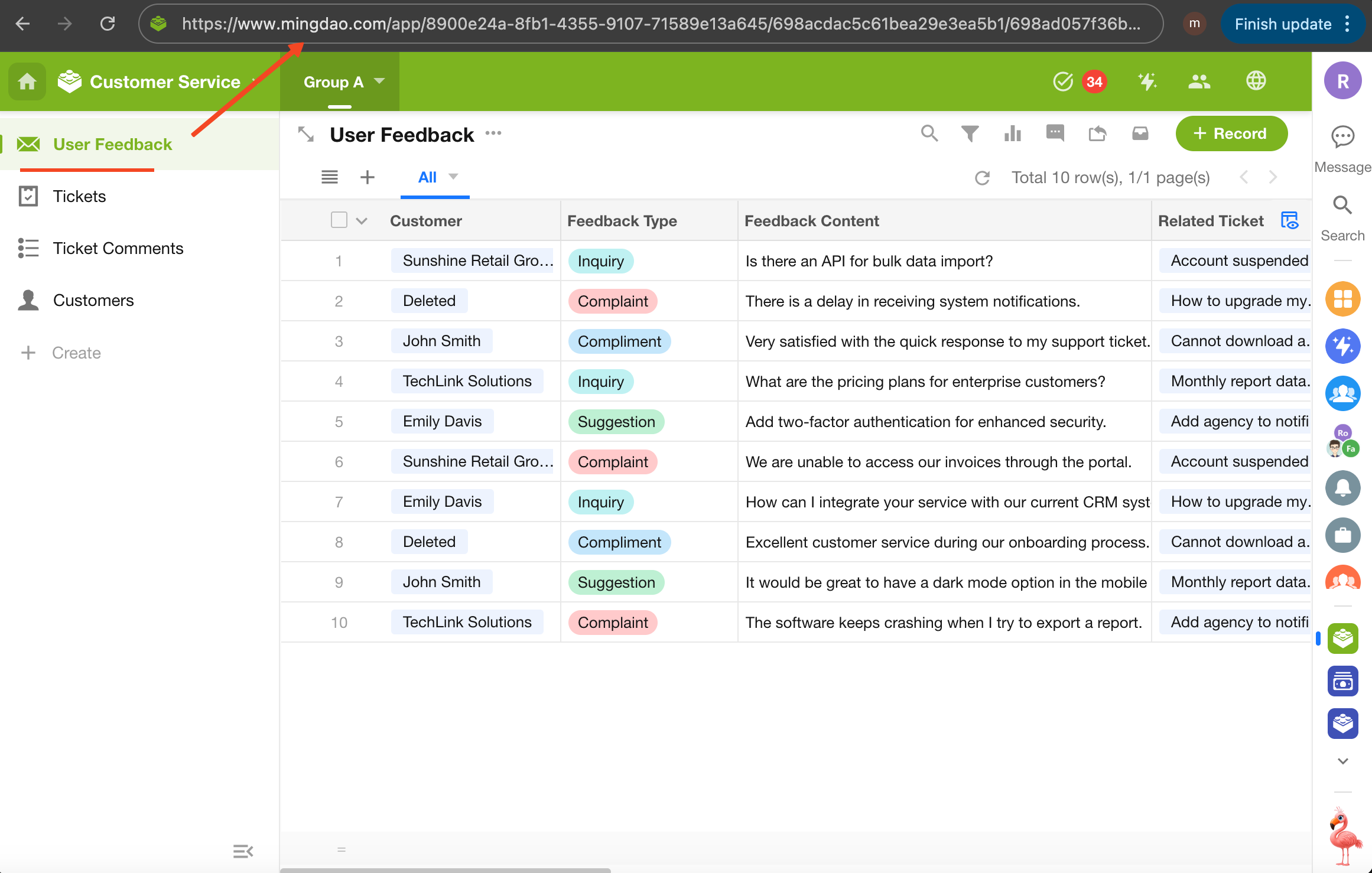
2.1 Get the Page URL
For example, to embed the User Feedback worksheet from a Customer Service application:
Open the page in a PC browser. The URL in the address bar is the page URL.
2.2 Append URL Parameters
-
1) Add a question mark (?) to the URL
The question mark indicates the start of custom parameters. A URL can only contain one
?. If one already exists, proceed to step 3.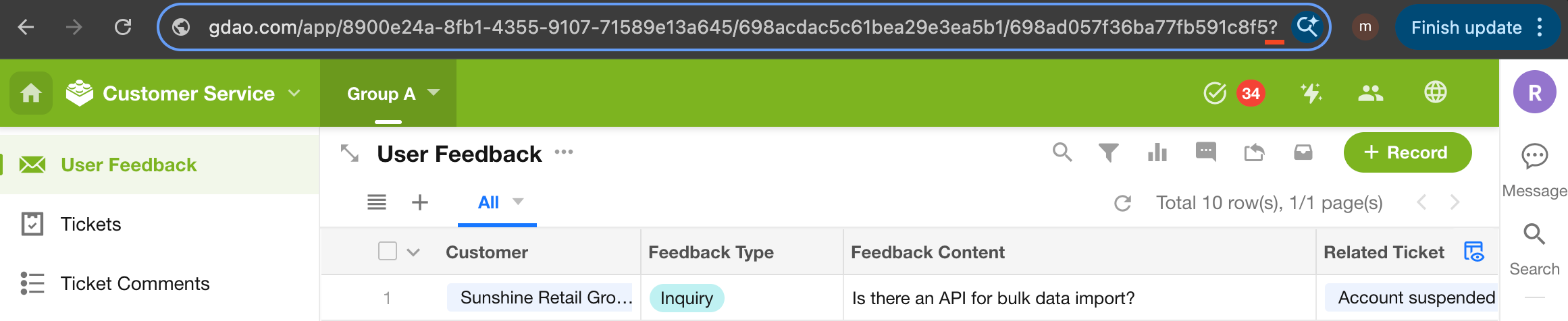
-
2) Hide one UI area
After the
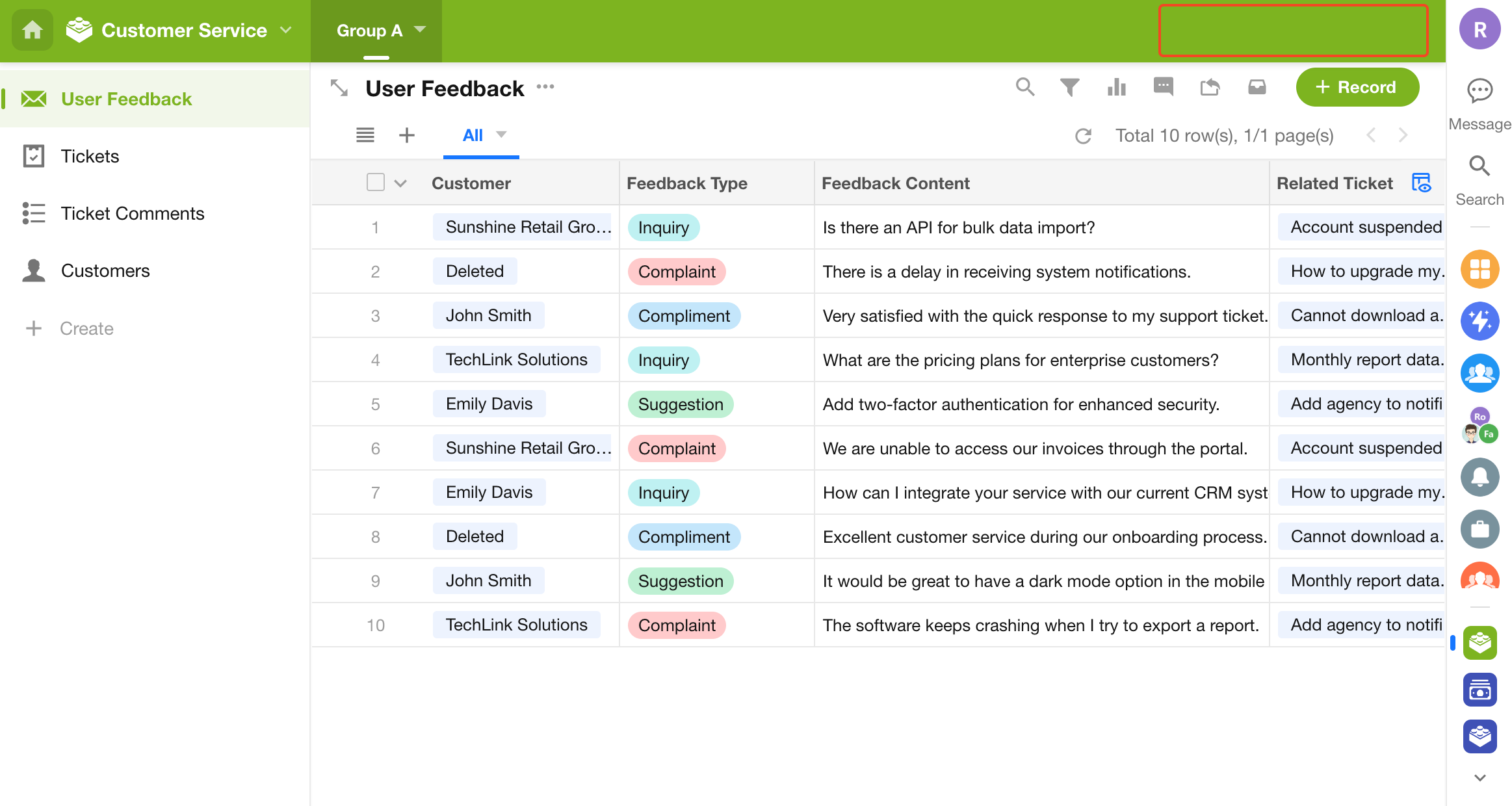
?, enter the parameter and value using=. For example, to hide the top-right action buttons: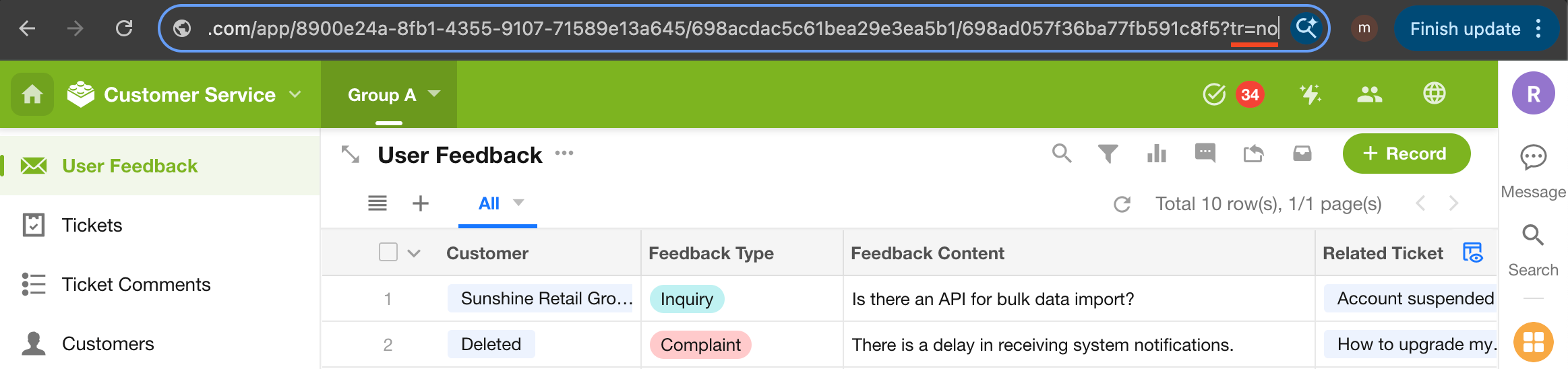
Press Enter to test. The chat panel will be hidden.
-
3) Hide additional areas
Use
&to append more parameters. For example, to also hide the left navigation: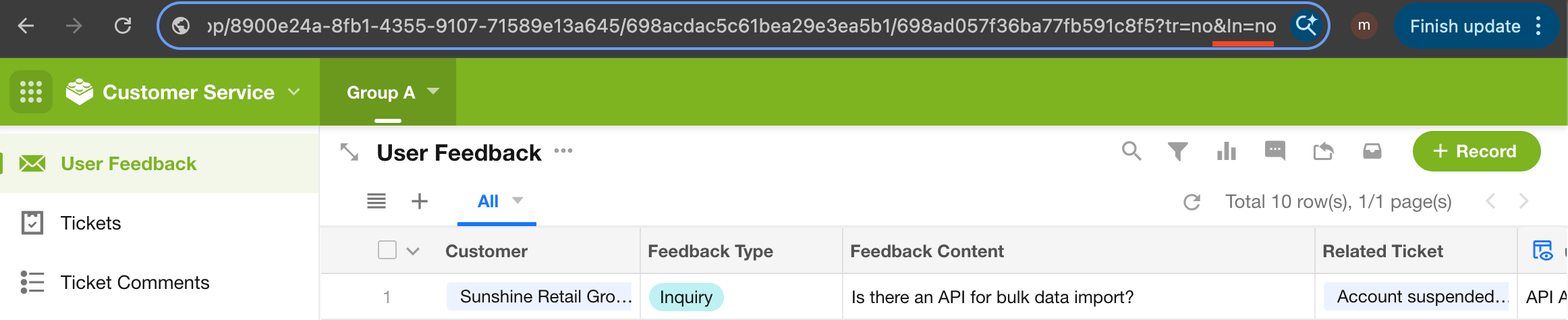
Press Enter to test. The left navigation will also be hidden.
Example: Hide five UI areas at once:
?s=no&tb=no&tr=no&ln=no&rp=no
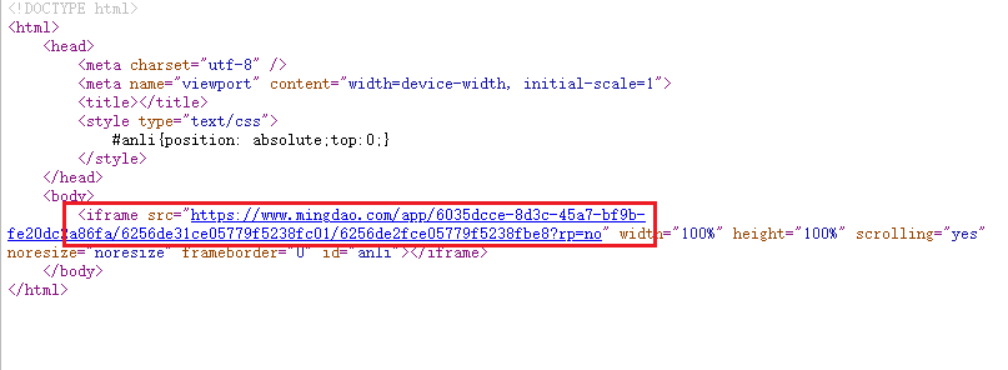
2.3 Embed the URL in an iframe
Insert the configured URL into an iframe in the external system.
This feature works reliably when used within an iframe. In other scenarios, URL parameters may be modified during navigation, causing the configuration to fail.
2.4 Notes
- Parameter names and values must be lowercase
- The order of parameters does not matter
- Only when the value is set to
nowill the corresponding UI area be hidden; otherwise, it will remain visible
Was this document helpful?