Node - Get Multiple Personnel (Departments / Organization Roles)
Purpose: Retrieves multiple member, department, or organization role objects from record fields or the organization directory. The returned data is structured as multiple records and can be passed directly to a subprocess or other workflow nodes that process batch data.
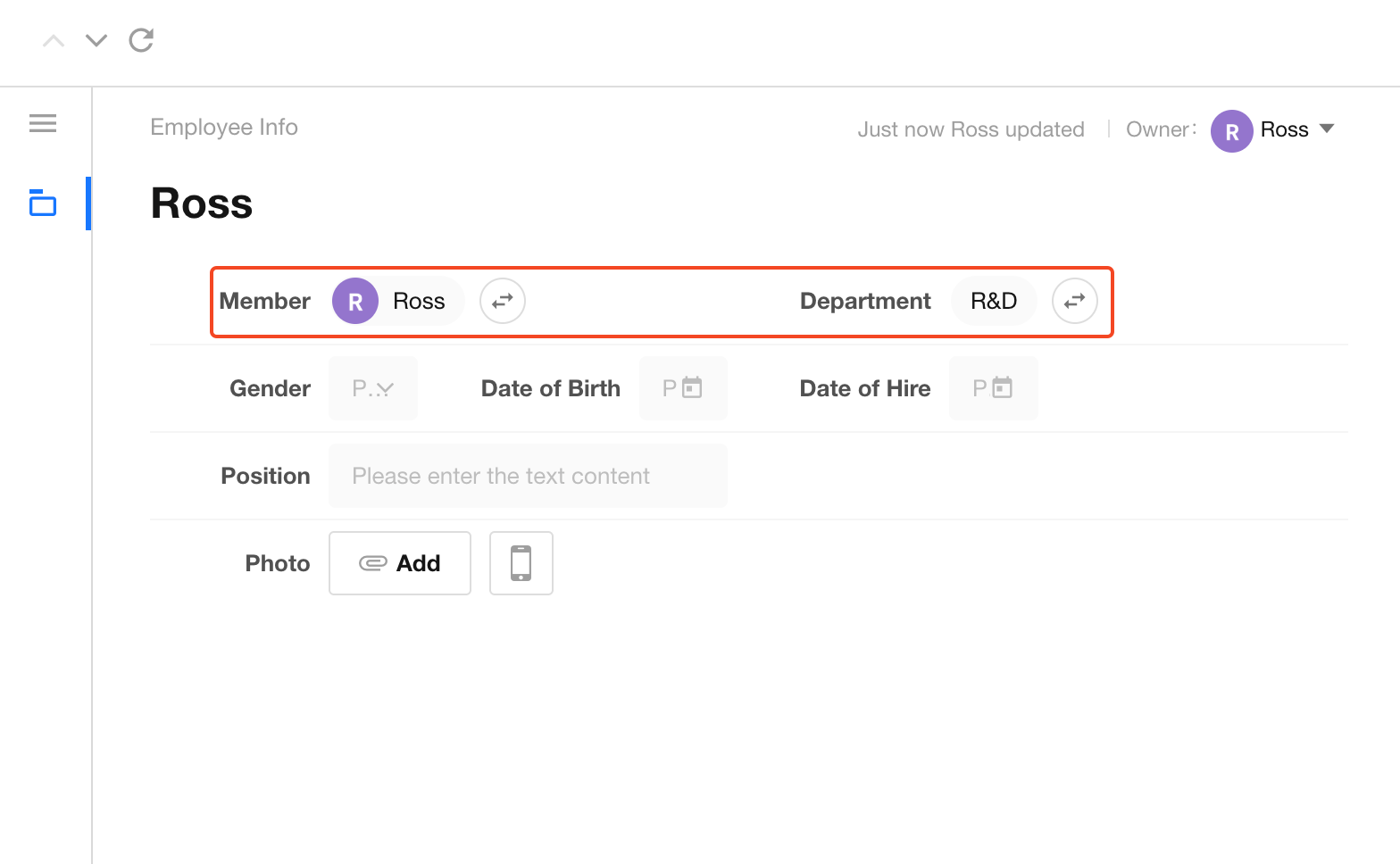
As shown above, Member and Department are field types in a worksheet. Meanwhile, members, departments, and organization roles are independent data objects managed in the organization directory, each with its own set of properties.
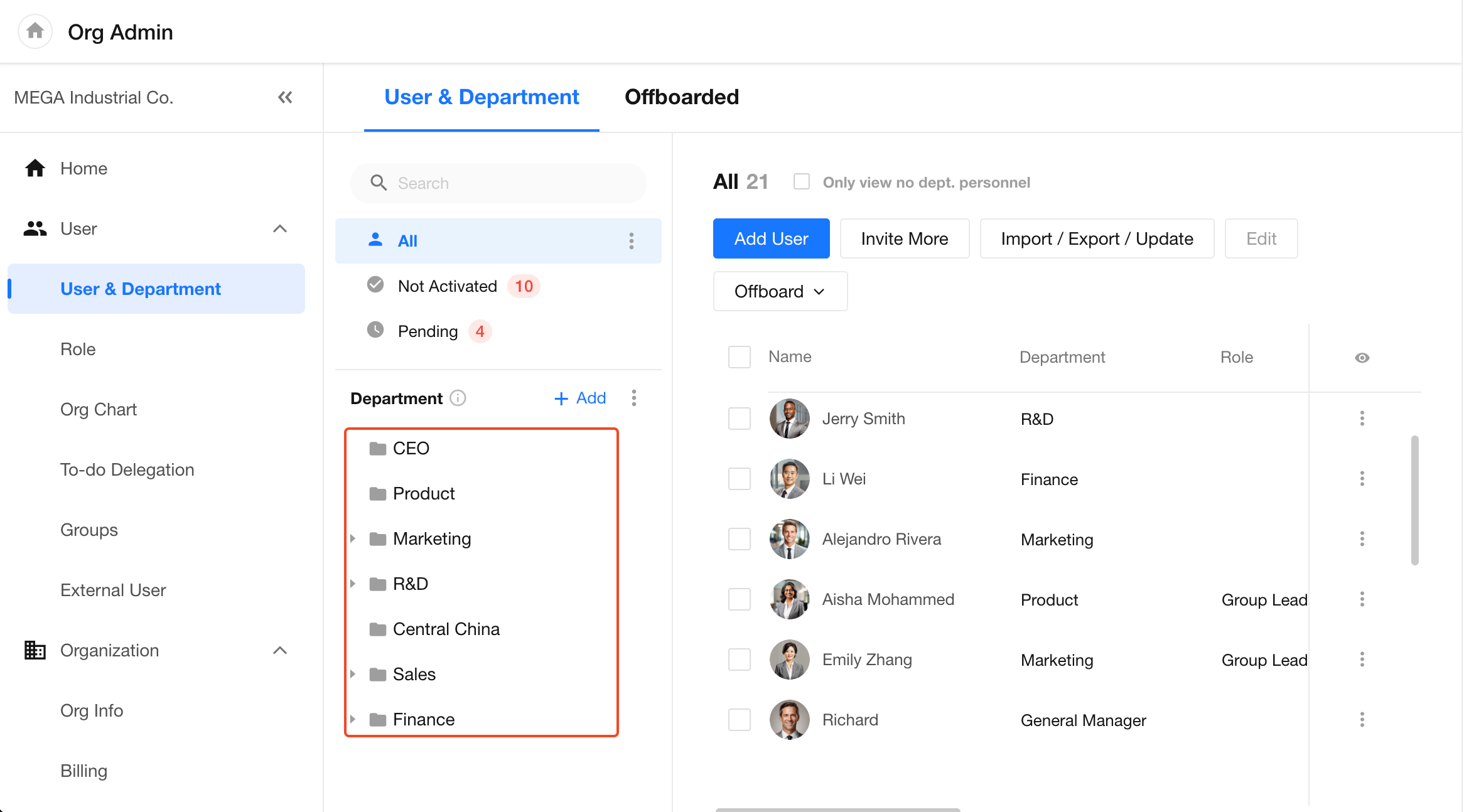
A member object includes properties such as:
Name, mobile number, email, department, job title, employee ID, work location, direct manager, direct reports, and more.
A department object includes properties such as:
Department name, department manager, parent department, child departments, and more.
An organization role object includes properties such as:
Role name, description, role members (member array), organization role ID, current role, created time, and more.
You can think of Members, Departments, and Organization Roles in the organization directory as system tables or hidden worksheets. This node retrieves multiple objects from these system tables in much the same way that the Get Single Data and Get Multiple Data nodes retrieve records from worksheets.
Example
Create an Employee Directory worksheet to maintain employee information for the entire organization, a specific department, or a project team. Use a scheduled workflow to keep the worksheet synchronized with the organization directory.
1. Create a scheduled workflow
Create a workflow that runs every weekday at 2:00 AM to synchronize employee information.
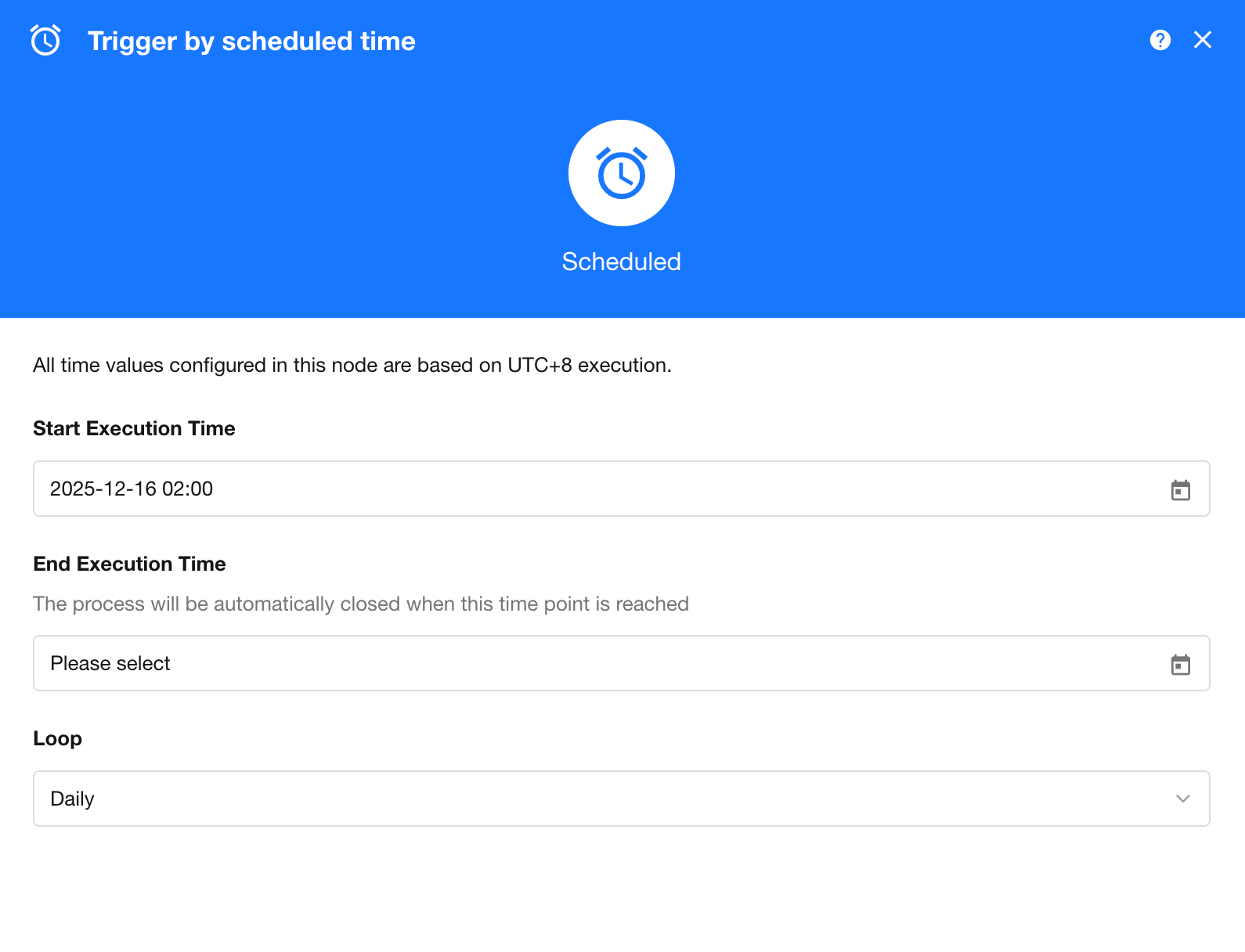
2. Add the Get Multiple Personnel node
After the workflow is triggered, add the Get Multiple Personnel node and choose to retrieve data from the organization directory.
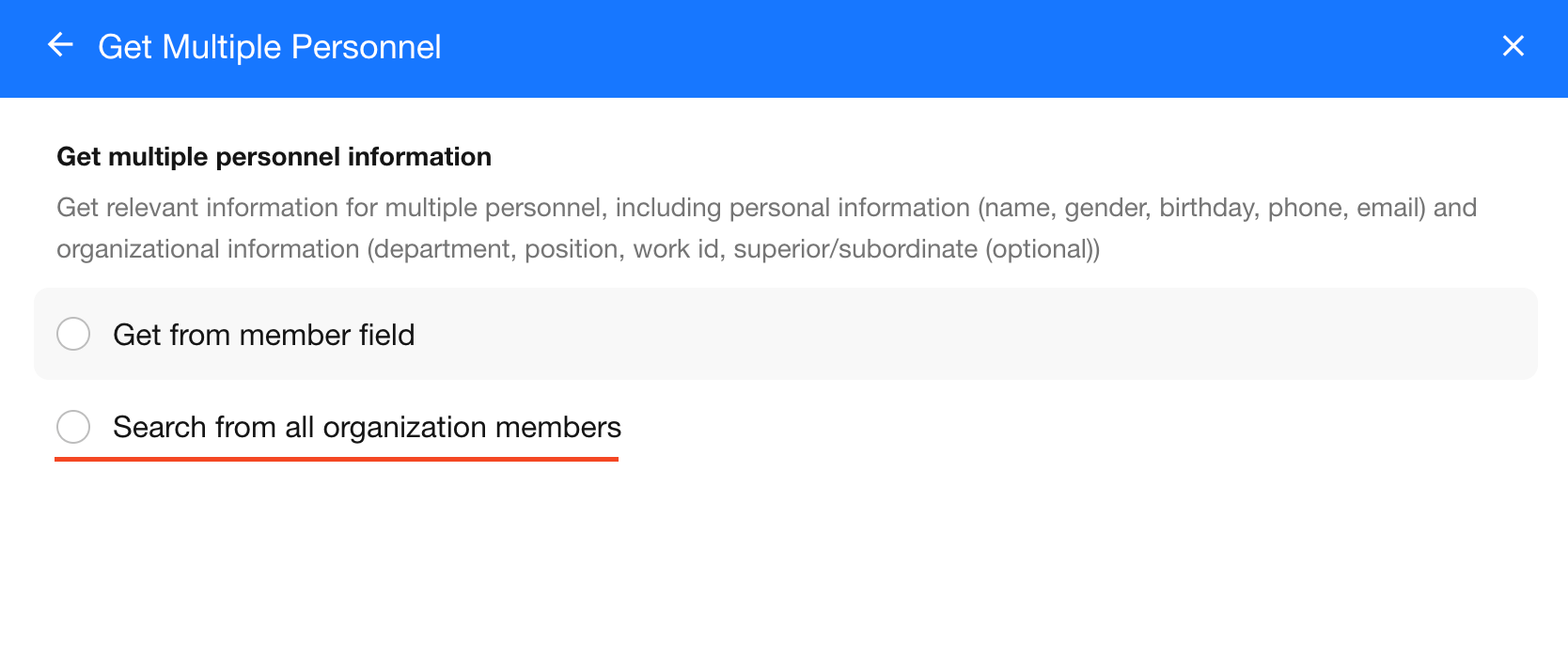
3. Configure the filter conditions
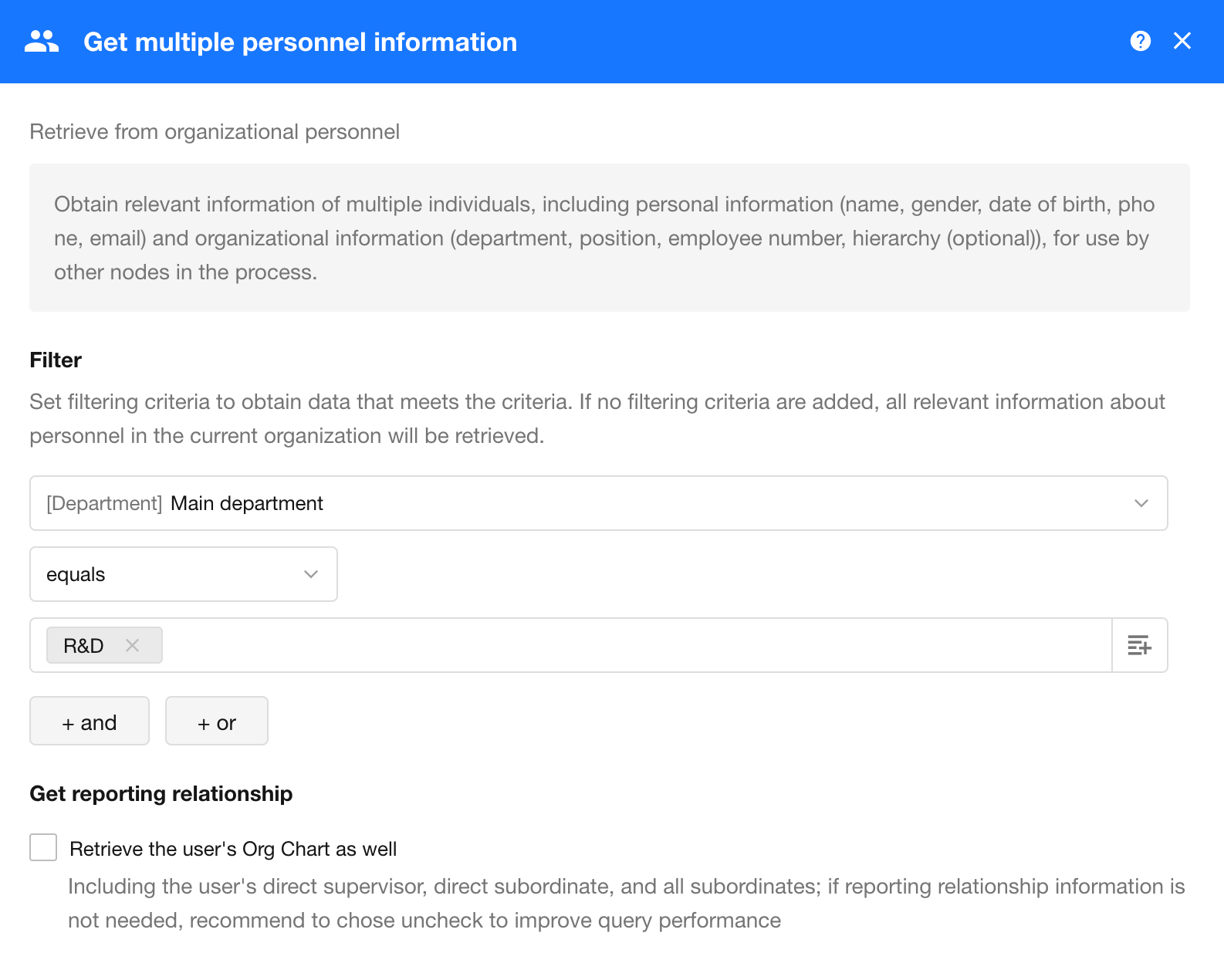
If no filter conditions are configured, the node retrieves all members in the organization.
4. Synchronize the worksheet through a subprocess
After retrieving the member data, use a subprocess to update existing employee records in the worksheet and create records for employees who do not already exist.
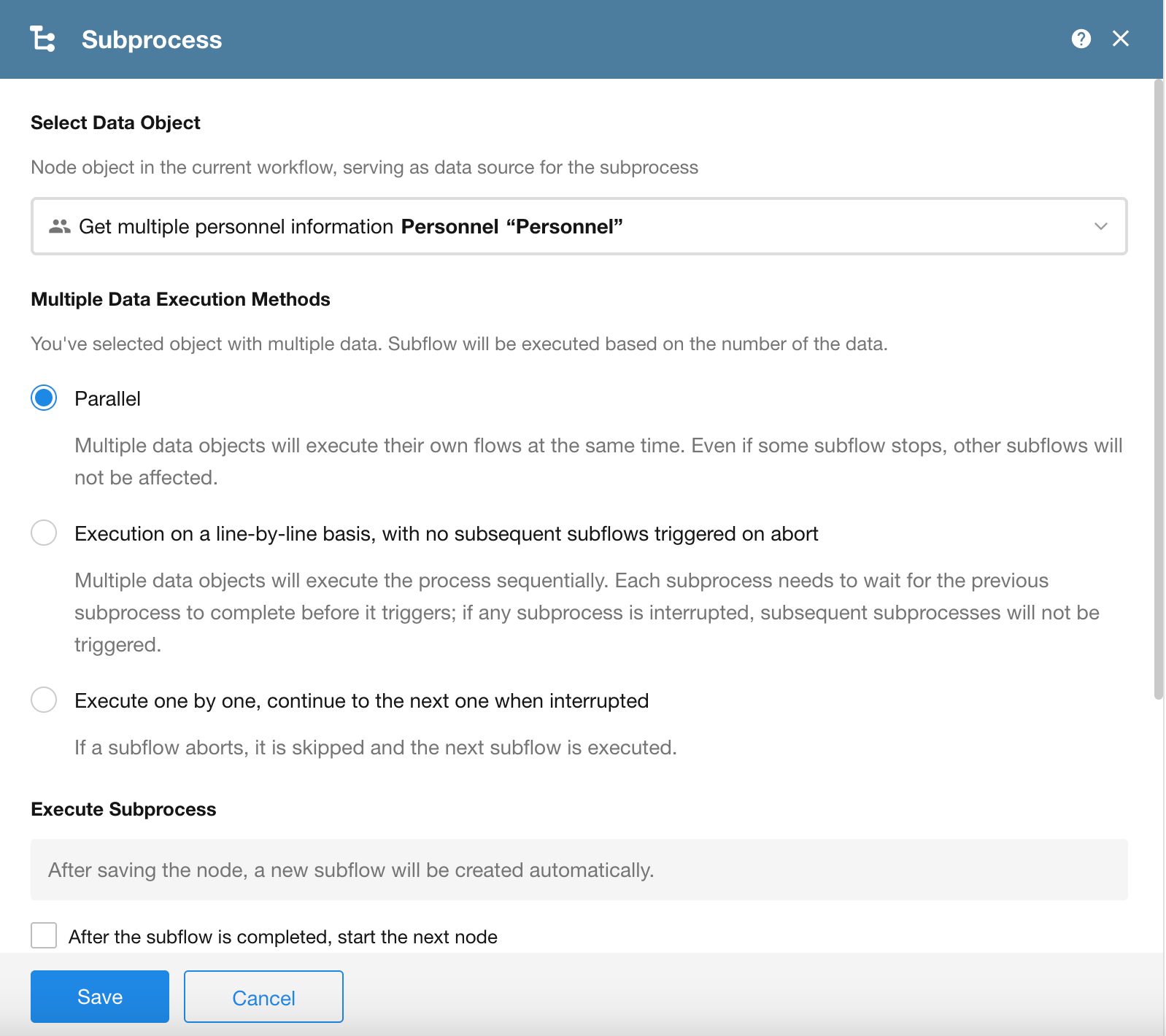
Why use a subprocess?
Some employees may already exist in the worksheet and only need to be updated, while others need to be created as new records. A subprocess allows each employee to be processed individually, so the workflow can determine whether to update an existing record or create a new one.
Subprocess configuration
5. Check whether the employee already exists
Use the Get Single Data node to search the Employee Directory worksheet for the current employee.
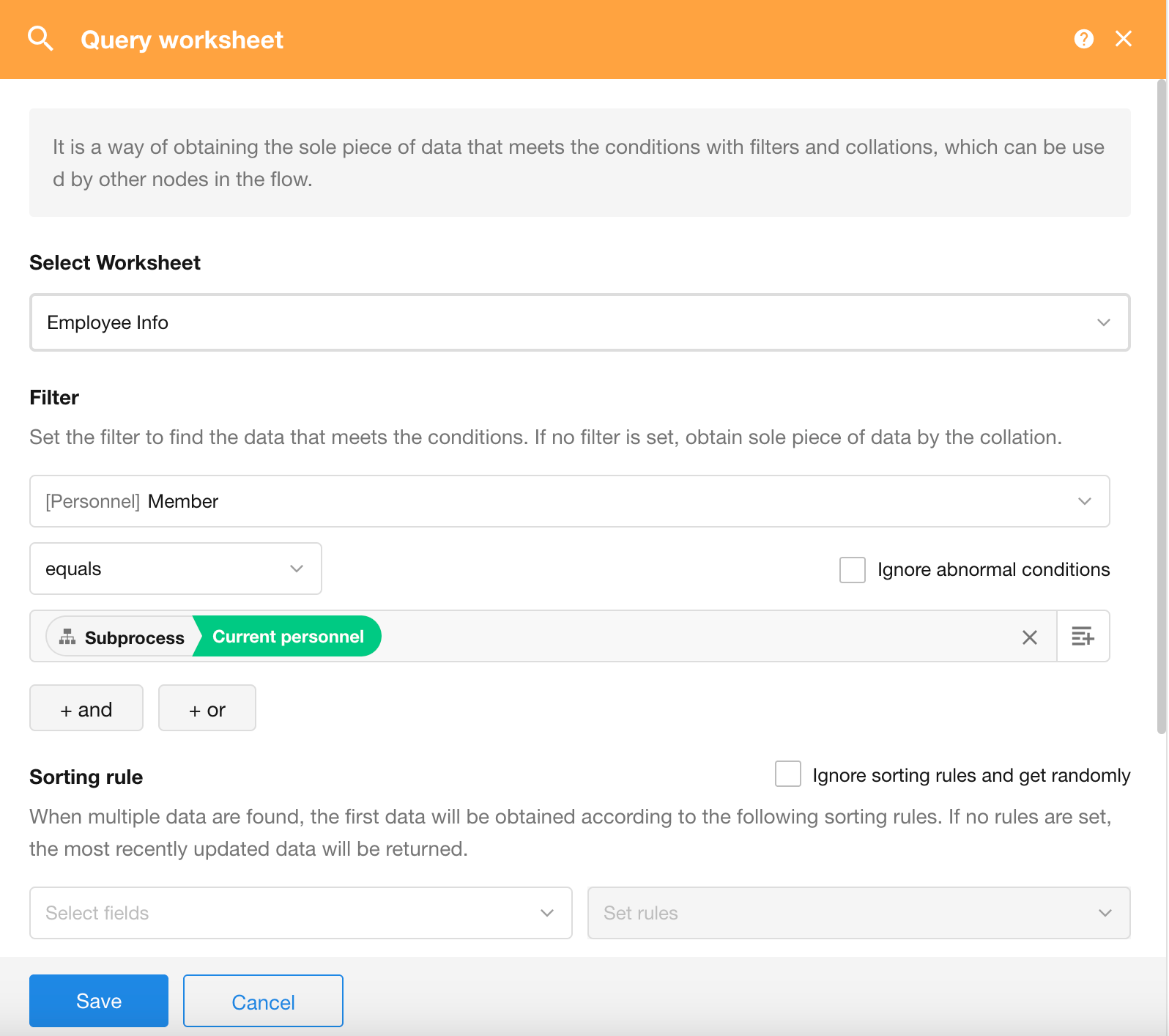
6. Add a branch to handle each scenario
If a matching employee record is found, update it. Otherwise, create a new record.
-
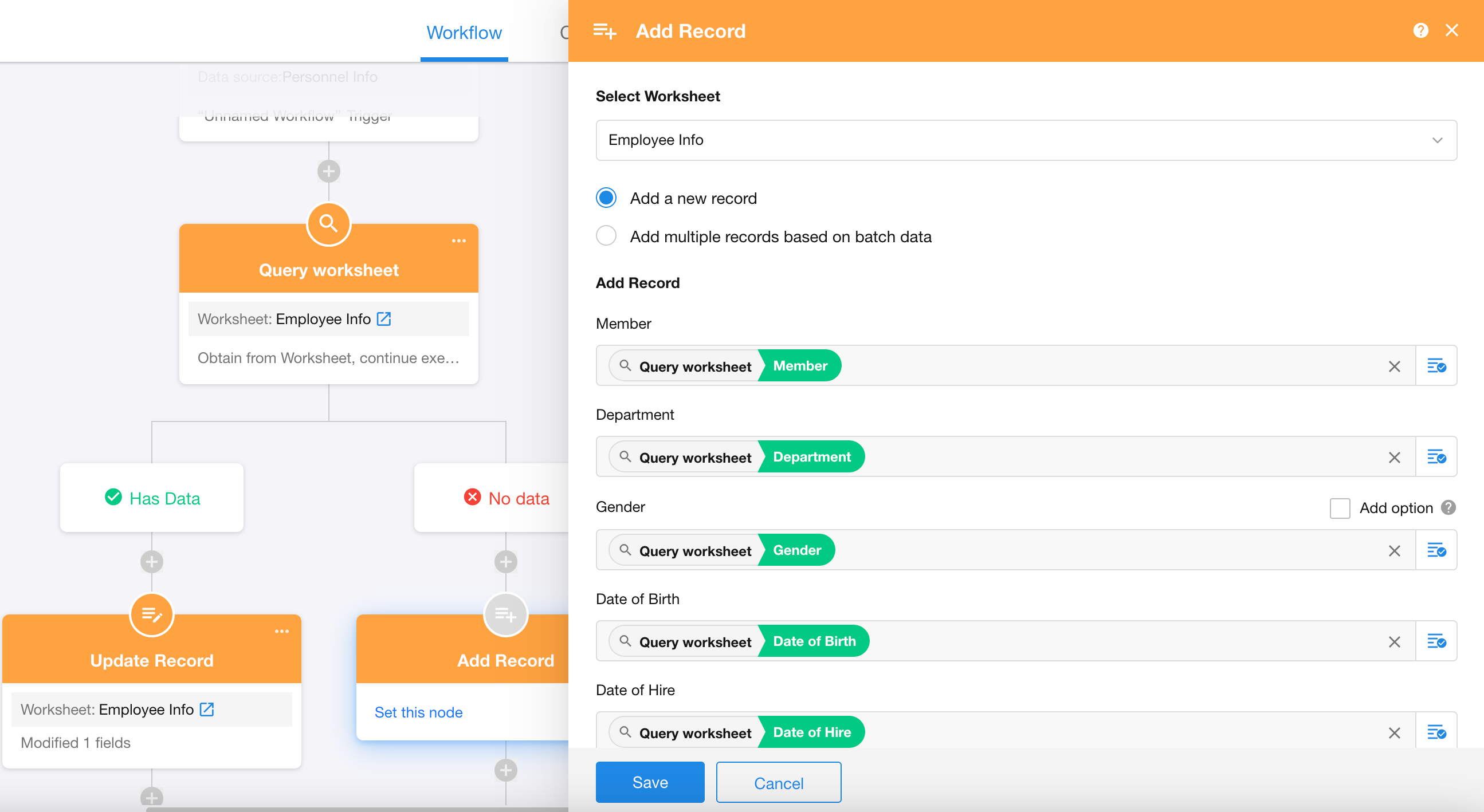
Update Record
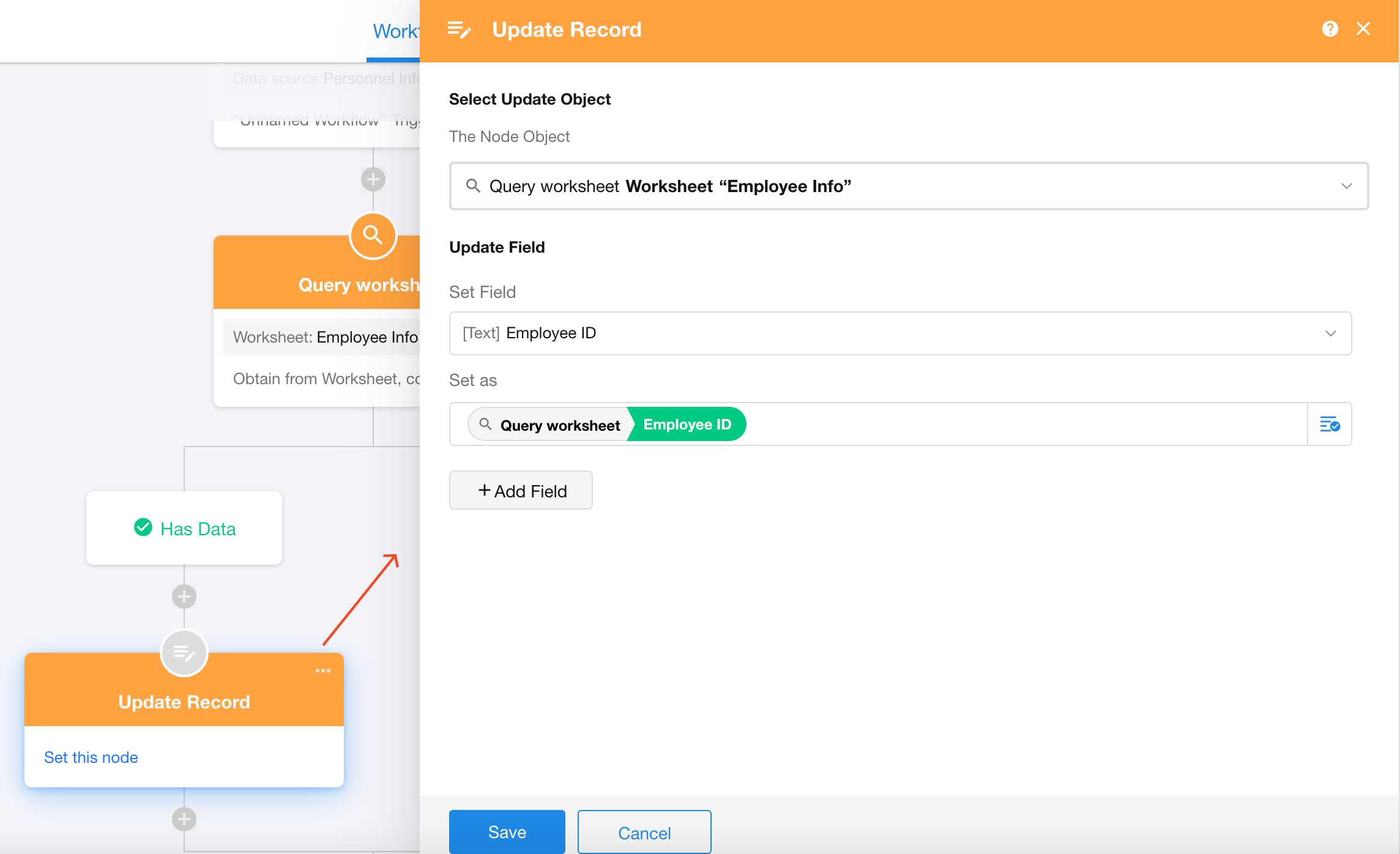
-
Create Record
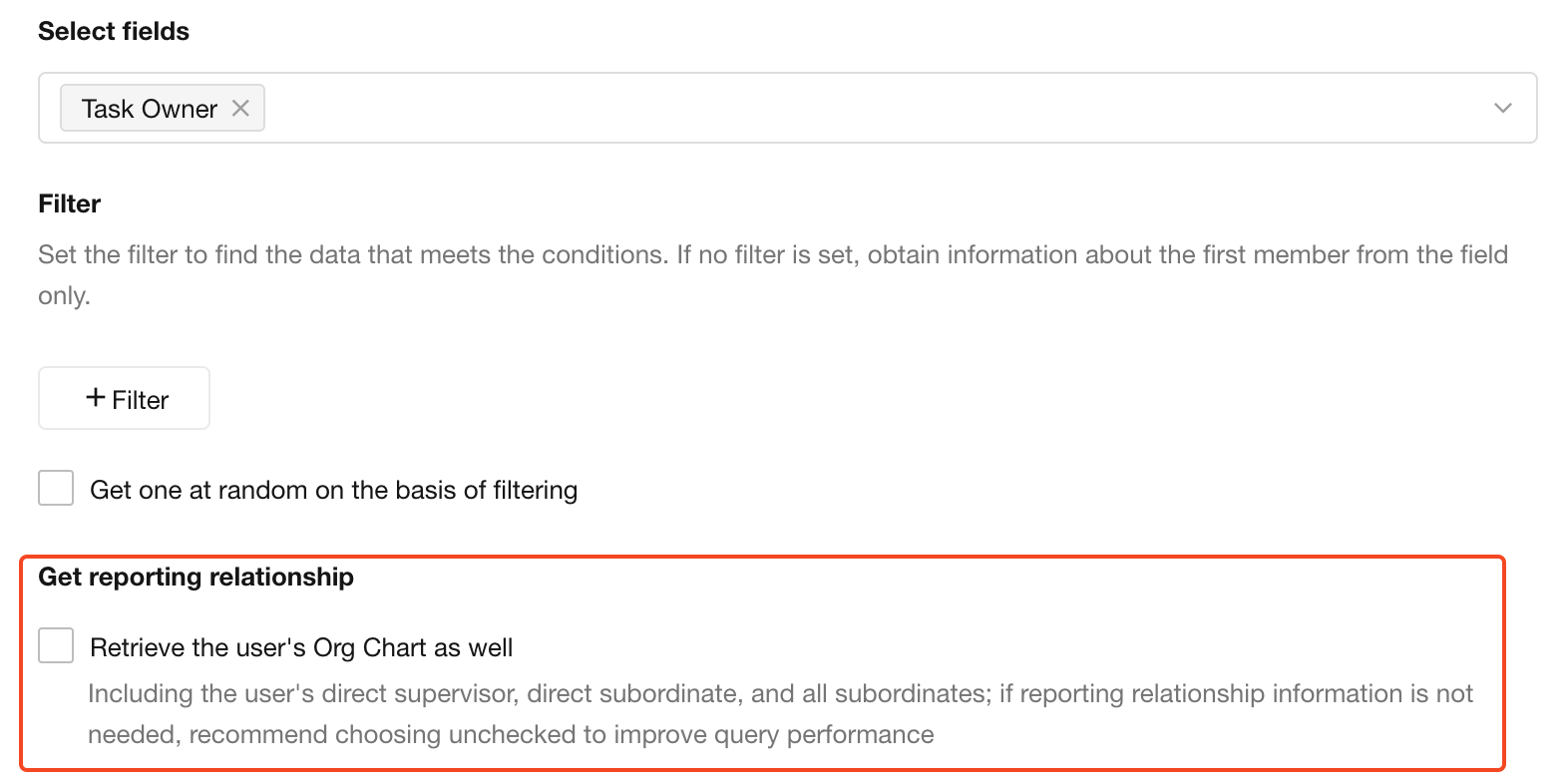
Retrieve Reporting Relationships
By default, this node does not retrieve reporting relationships when fetching member data.
If you need to use information such as the member's manager or direct reports, enable this option. Otherwise, leave it disabled to improve query performance.
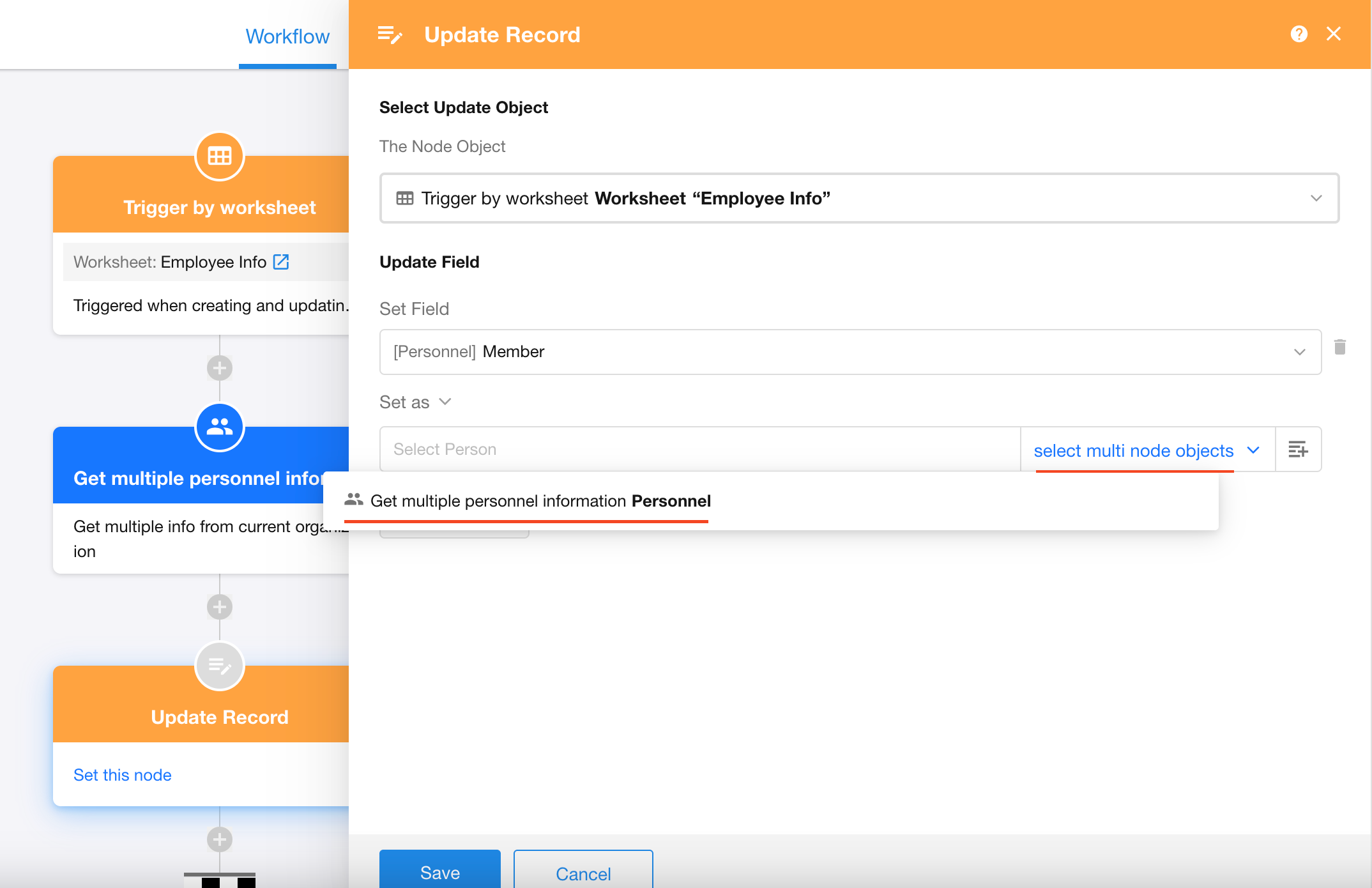
Populate Multi-select Member, Department, and Organization Role Fields
After retrieving multiple objects with the Get Multiple Personnel (Departments/Organization Roles) node, you can use the output directly in the Add Record or Update Record node to populate multi-select Member, Department, or Organization Role fields.
Was this document helpful?