Node — Get Single Data
Node Function
-
Retrieve a single record through this node, which can then be updated or deleted, or used by subsequent nodes.
-
You can retrieve either a random record or the first record based on sorting rules.
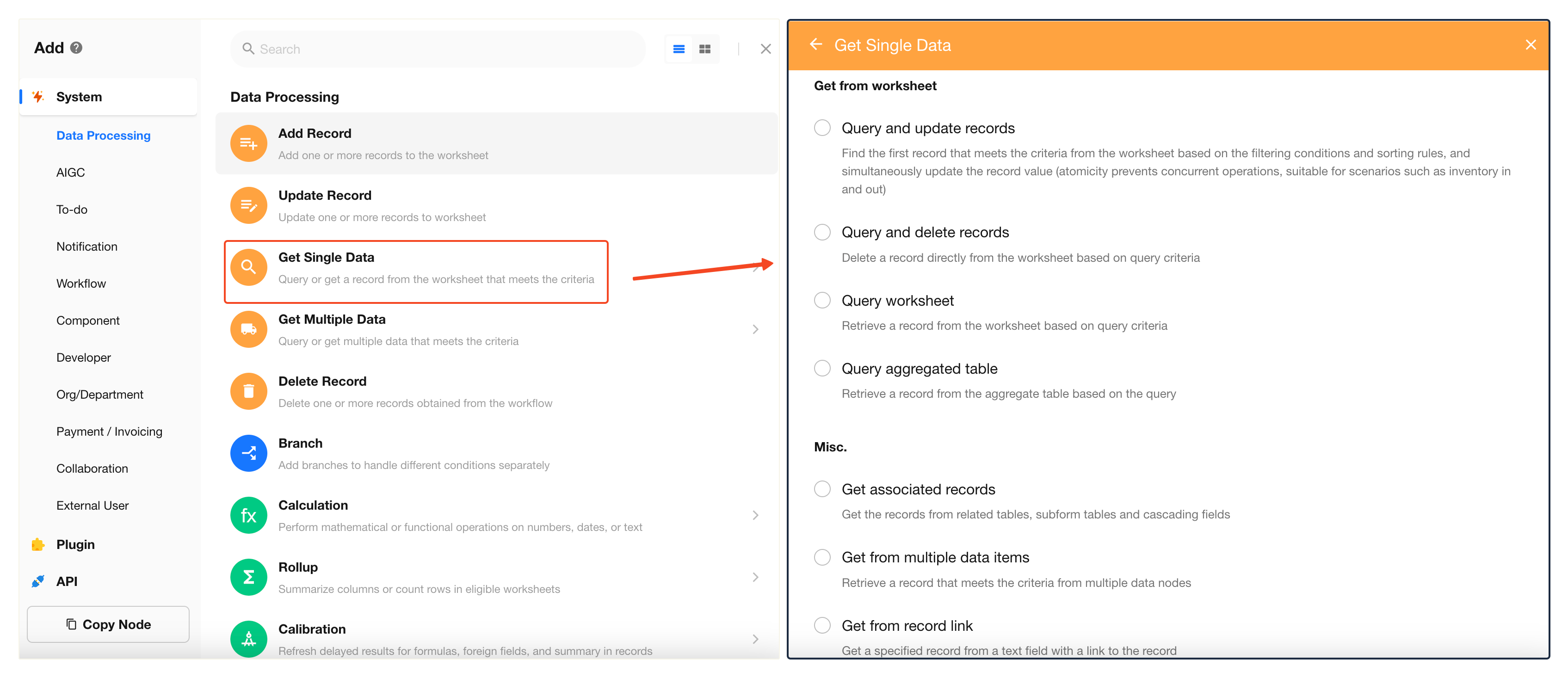
Ways to Retrieve a Record
Query from a Worksheet
-
1. Query and Update Record
Find a unique record from a worksheet using filter conditions and sorting rules, and update it at the same time.
Supports returning the record data before the update. Random retrieval is not supported. -
2. Query and Delete Record
Delete a unique record directly based on filter conditions and sorting rules.
Random retrieval is not supported.
Supports permanent deletion (bypassing the recycle bin, cannot be restored). -
3. Query Worksheet
Retrieve a single record for use in subsequent nodes without performing any operation.
Supports random retrieval.
Retrieve from Other Sources
-
4. From Multiple Records
If a Get Multiple Data node exists in the workflow, you can use this node to extract one record from the result set.
-
5. Retrieve Related Record
Retrieve a record via relationships, such as from a related worksheet or subform.
-
6. From Record Link
Parse a record link stored in a text field to retrieve the corresponding record object for use in the workflow.
Query Worksheet
Example Scenario
When a new lead is added to the Leads worksheet, check whether a corresponding contact already exists in the Contacts worksheet using the phone number.
- If a record is found, update the Customer Status field to “Potential Customer”
- If no record is found, automatically create a new record in the Contacts worksheet
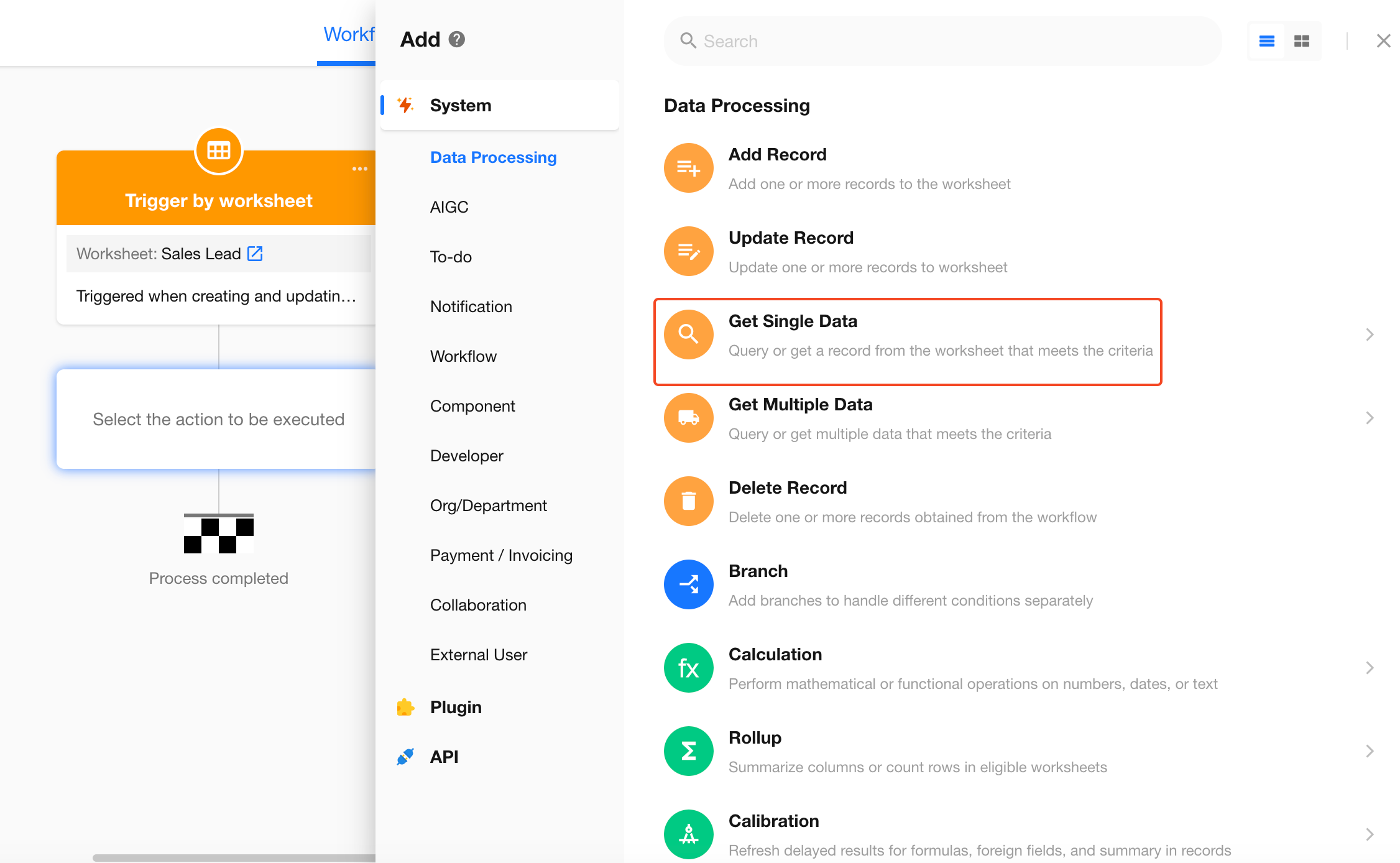
1. Select the “Get Single Data” Node
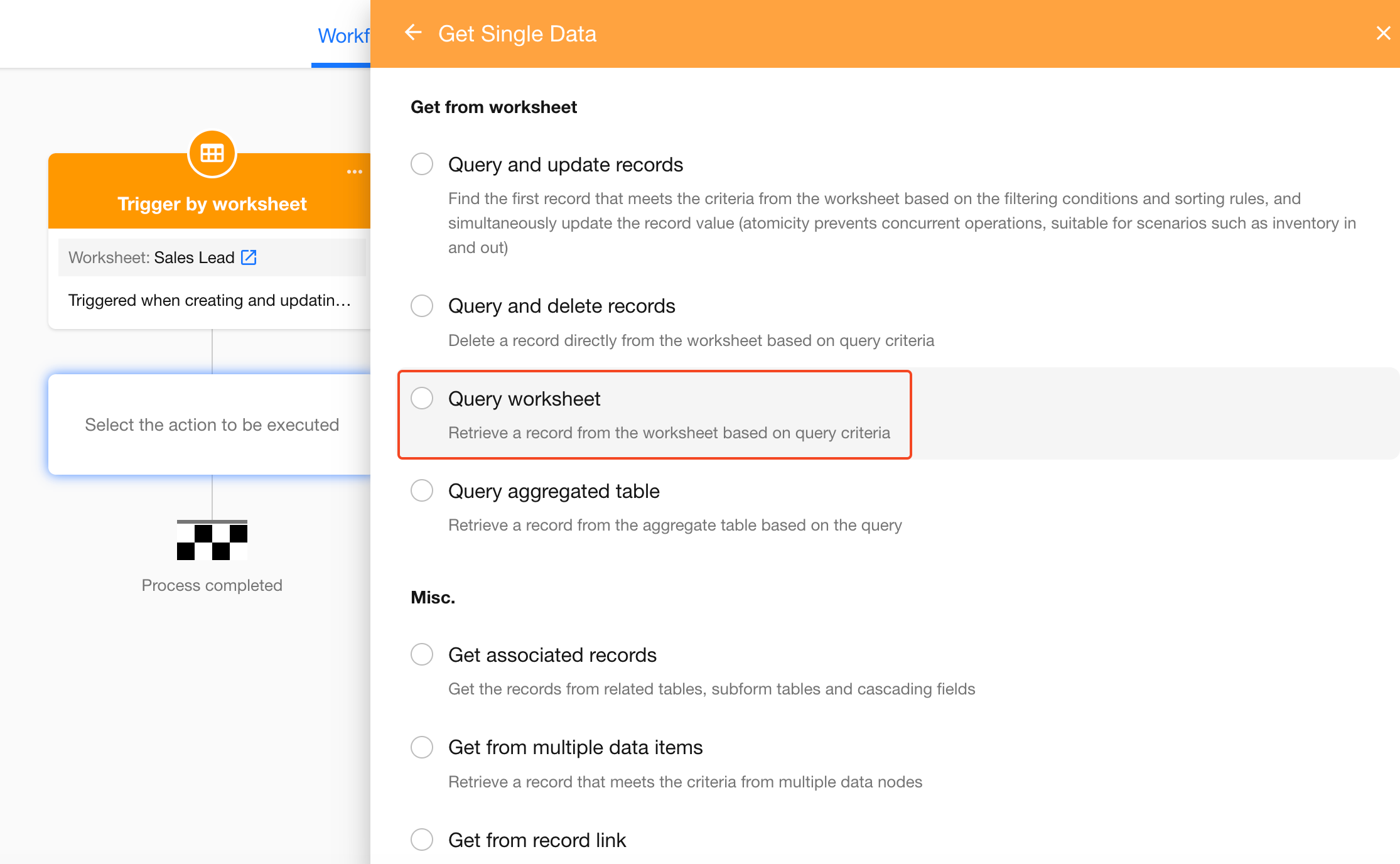
Since the data is retrieved directly from the Contacts worksheet, select Query Worksheet.
2. Configure the Node
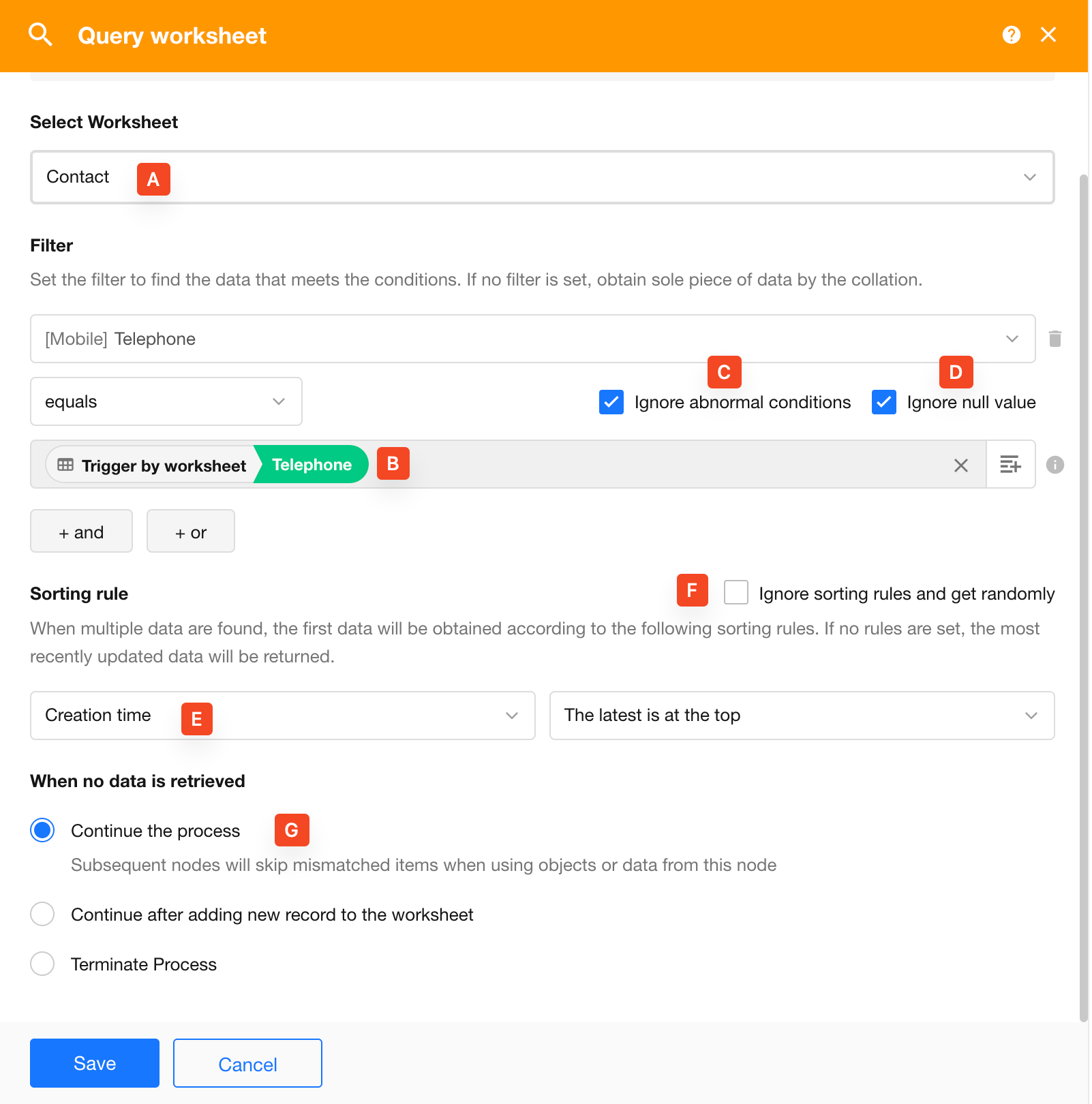
A. Select the Worksheet
Choose which worksheet to query.
B. Set Filter Conditions
- In a single condition, the condition value can be fixed or dynamically referenced from previous nodes
- Also supports condition groups with AND/OR logic
C. Ignore Condition Errors
If a dynamic field is used in the filter condition and that field is deleted, the query may fail.
- Enabled: Ignore errors, skip quries and continue execution
- Disabled: The node fails and stops the workflow, notifying configured recipients
D. Ignore Empty Values
If a condition value is empty, that condition is skipped.
Example:
- Phone = phone number from Record A
- Status = “Active”
If Ignore Empty Values is enabled and the phone number is empty, only the “Status = Active” condition is applied.
If there is only one condition and its value is empty, it is treated as no filter, and the system retrieves either a random record or the first record based on sorting.
E. Set Sorting Rules
If multiple records match the conditions, the first record is selected based on the sorting rules.
F. Random Retrieval
Enable this option to ignore sorting rules and randomly retrieve one matching record.
G. Behavior When No Record Is Found
If no matching record exists, choose how the workflow proceeds:
-
1) Continue
Continue to subsequent nodes. If later nodes reference this node’s data, they may be skipped or return empty values.
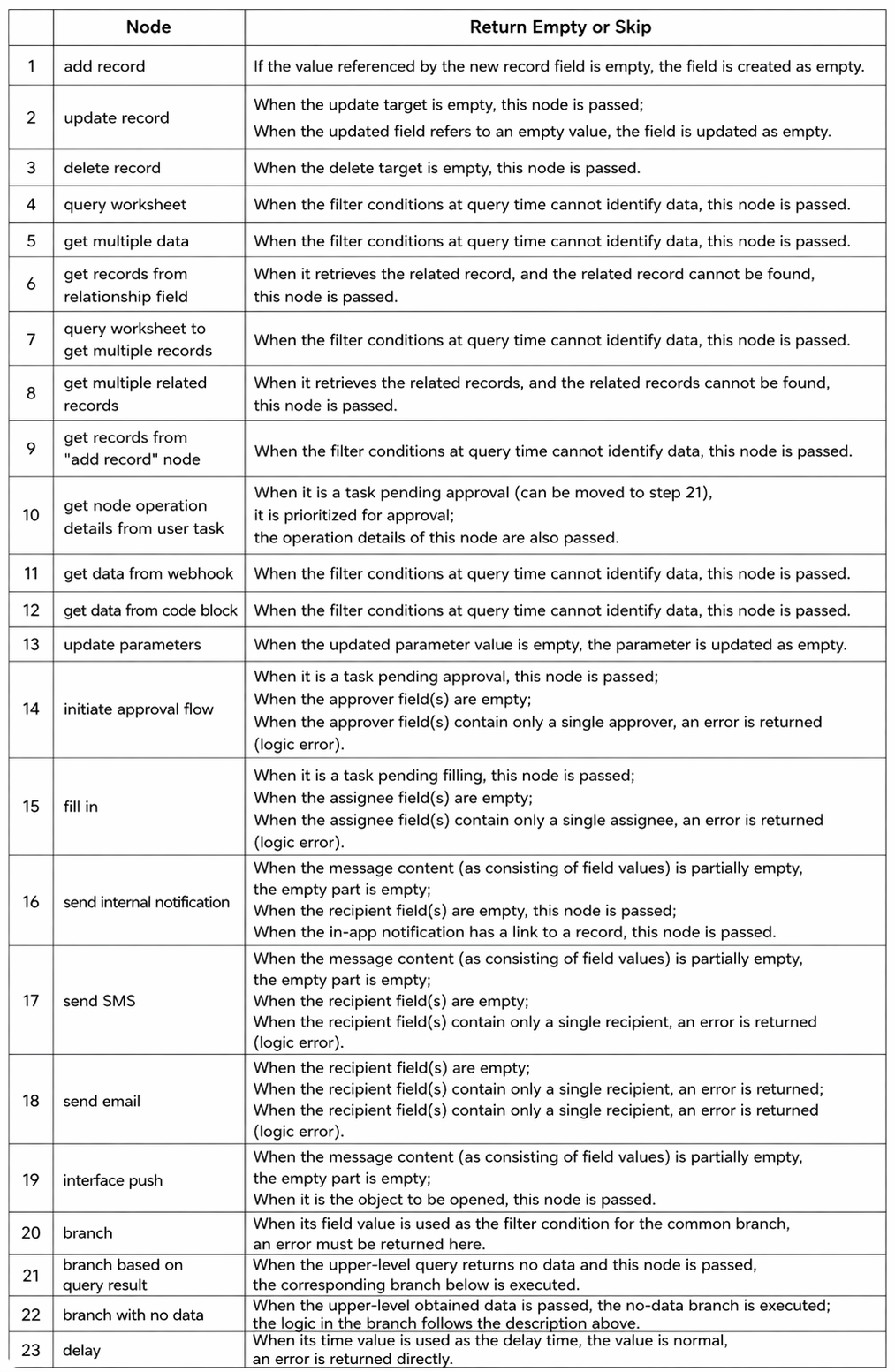
Learn more about skip vs. empty -
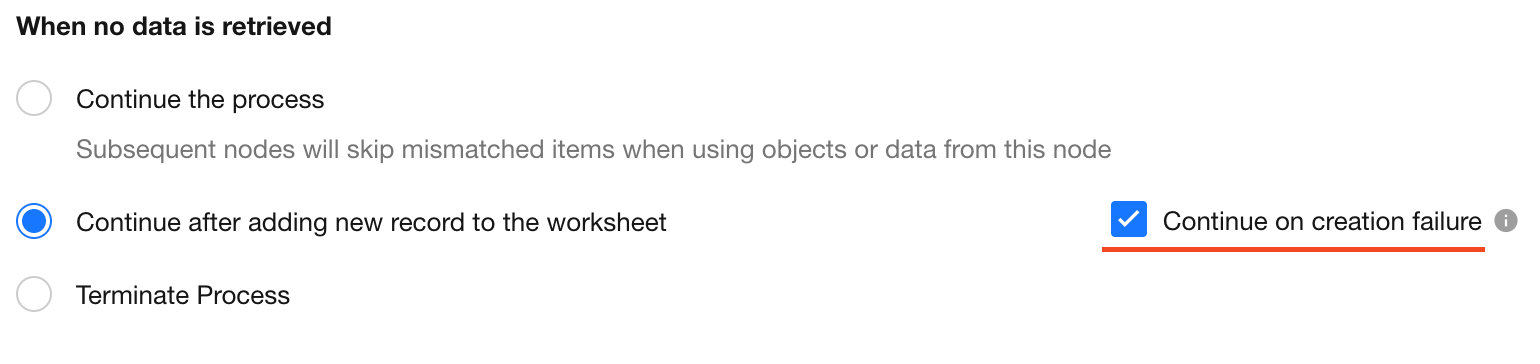
2) Create a Record and Continue
Automatically create a new record in the worksheet (here add a new record to Contacts worksheet) and use it in subsequent nodes.
If a unique index is configured in the worksheet and a duplicate record creation will fail:
- If Continue on failure is unchecked → workflow stops
- If checked → workflow continues, but this node returns empty data
-
3) Stop or Branch Based on Result
- If followed by a branch node, execute the “No Data” branch
- Otherwise, stop the workflow
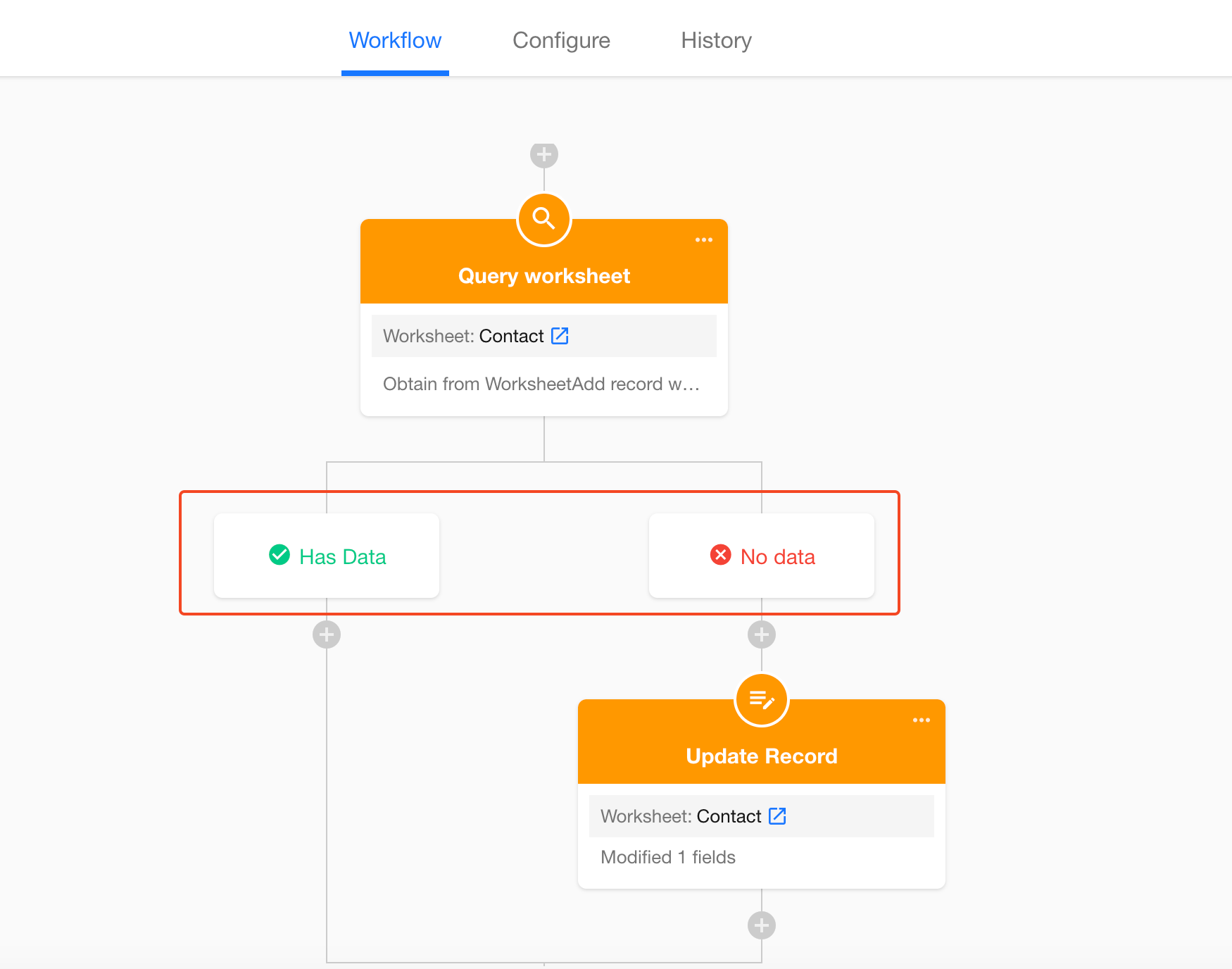
In this example, we choose to create a new record in the Contacts worksheet and return it.
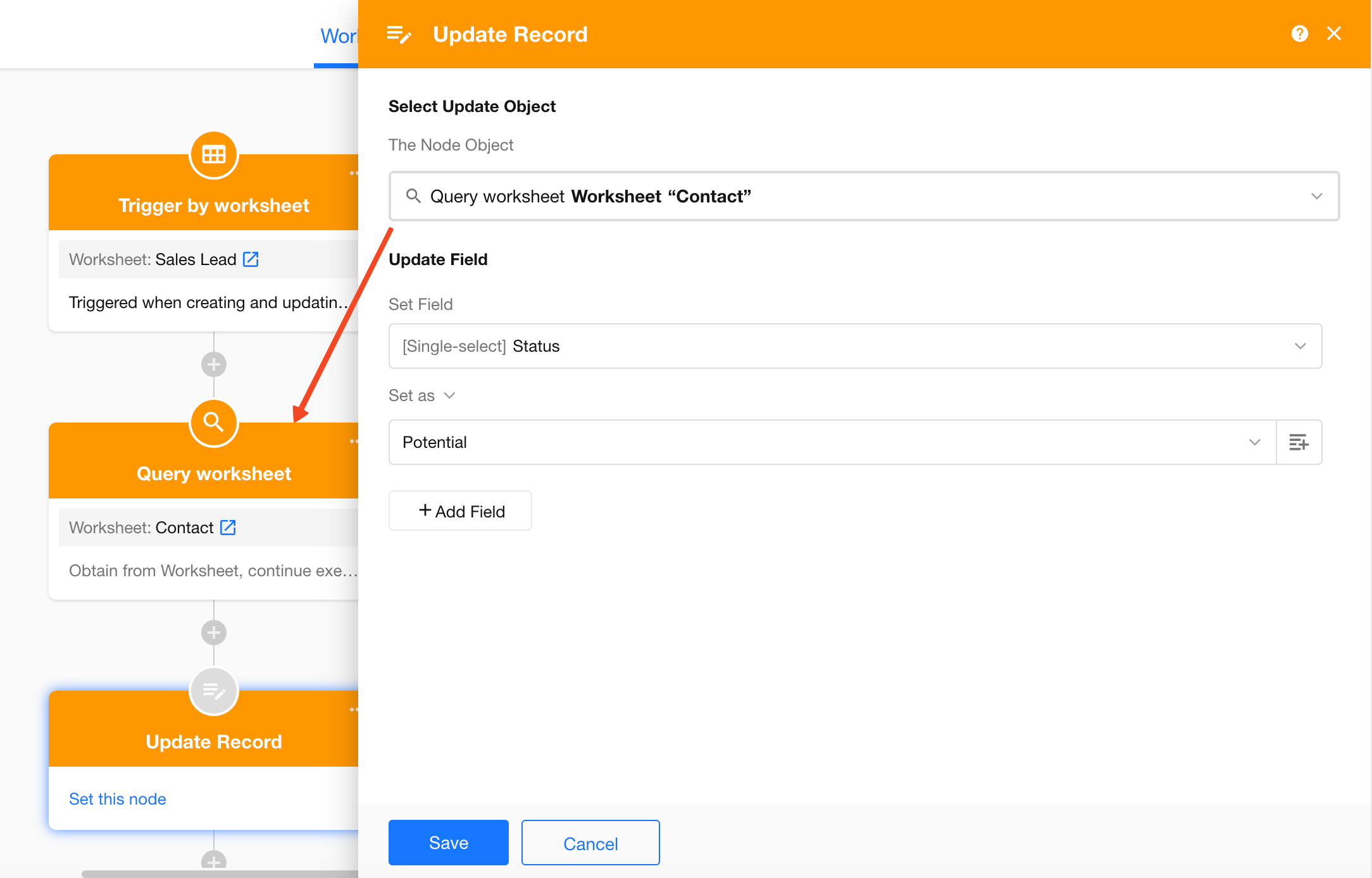
3. Update the Retrieved Record
After retrieving the record, use the Update Record node to modify it.
In this example:
- Target: the record retrieved by the query node
- Field: Customer Status
- Value: “Potential Customer”
4. Use with Branch Nodes
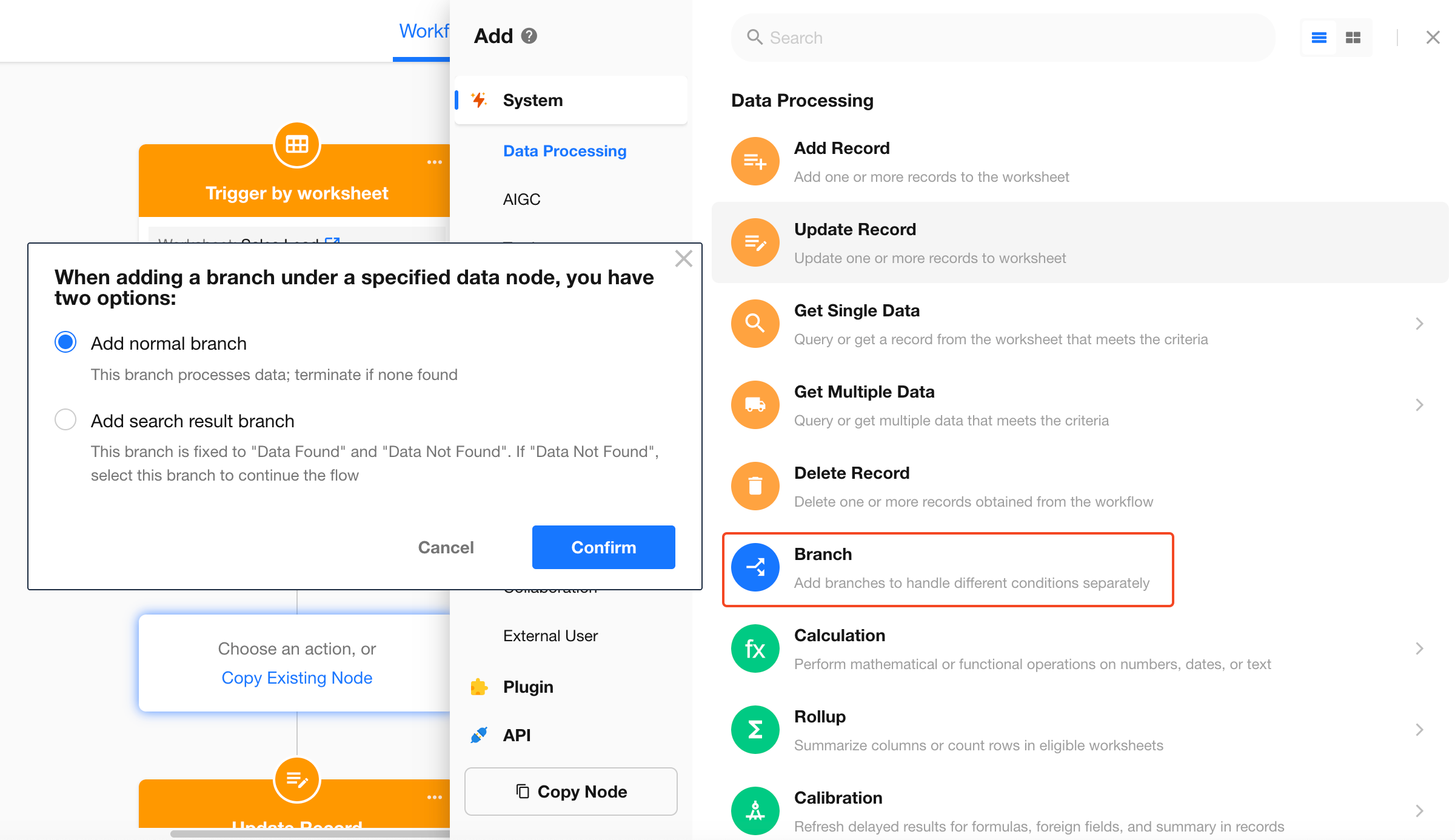
If no record is found and you do not want to create a new one, you can add a Branch Node to define different actions based on the query result.
5. Use with Scheduled Workflows
Workflows triggered by Scheduled Triggers are not tied to worksheet data. After triggering, no record is automatically available in the flow.
To update or delete a record, you must first retrieve it using the Get Single Data or Get Multiple Data node, and then perform operations or reference its field values.
Query and Update Record
This method allows you to update a record immediately after retrieving it, without adding a separate Update Record node. It also supports returning the record’s pre-update values for traceability.
Example: Restore inventory when stock is insufficient
When a product is issued, query the inventory worksheet by product code and deduct the issued quantity. Then compare the original inventory value with the issued quantity. If the inventory is less than the issued quantity, restore the inventory field to its original value (no deduction).
Step 1: Query the inventory worksheet and update the record
- Query the inventory worksheet
- Filter by product code to locate a unique record
- If a record is found, update it directly by deducting the issued quantity
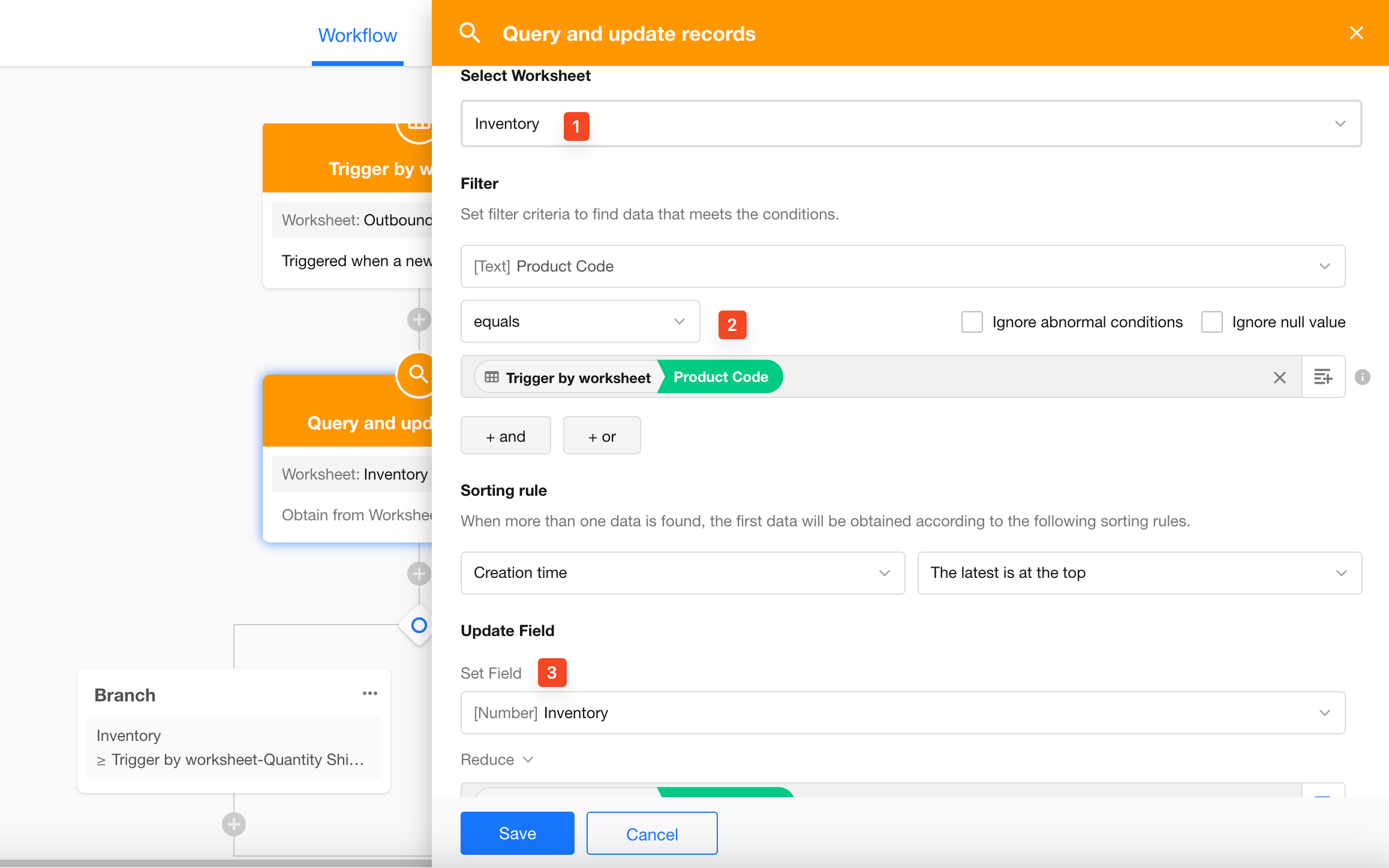
At this point, the inventory is updated. To compare issued quantity with inventory, you must configure the output value.
Step 2: Compare original inventory and issued quantity, and roll back if needed
First, understand how to output values after updating a record:
When used by subsequent nodes
-
Use pre-update data
The workflow preserves field values before the update. Subsequent nodes will use the original values.
-
Use latest data
Subsequent nodes will retrieve the latest values in real time. These values may reflect changes made by other workflows.
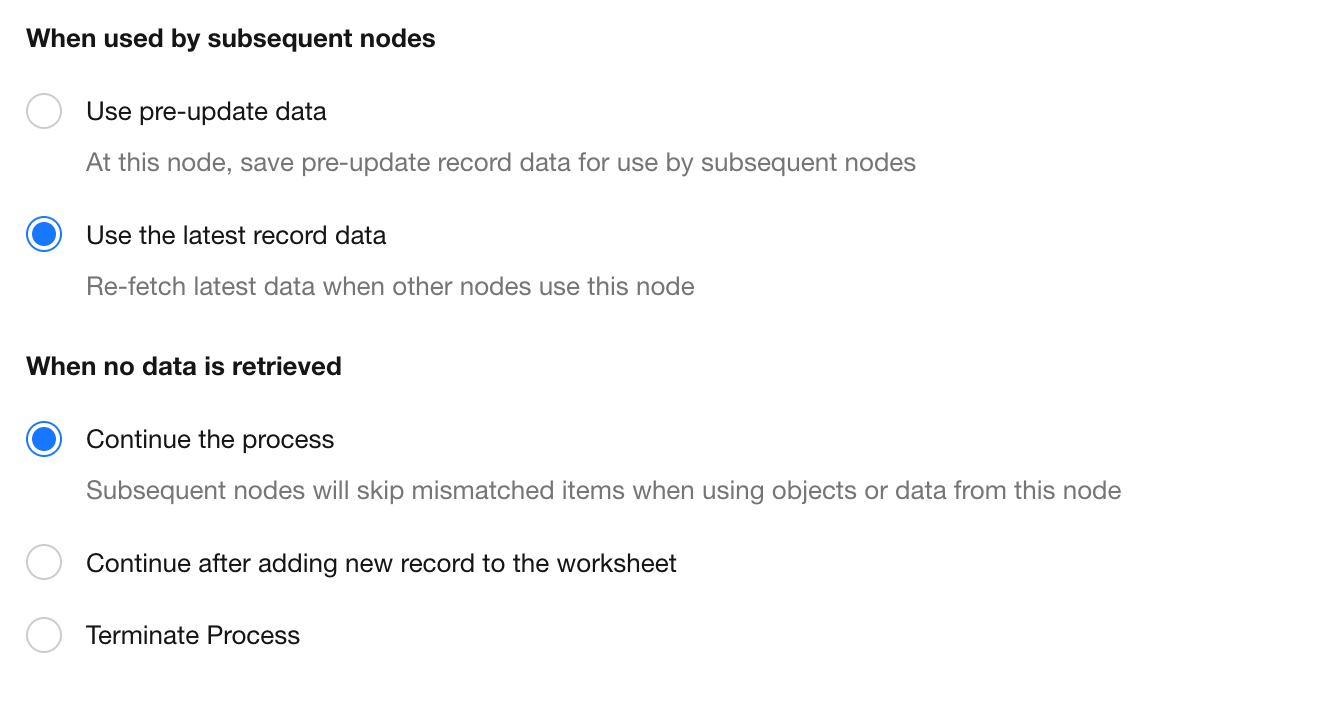
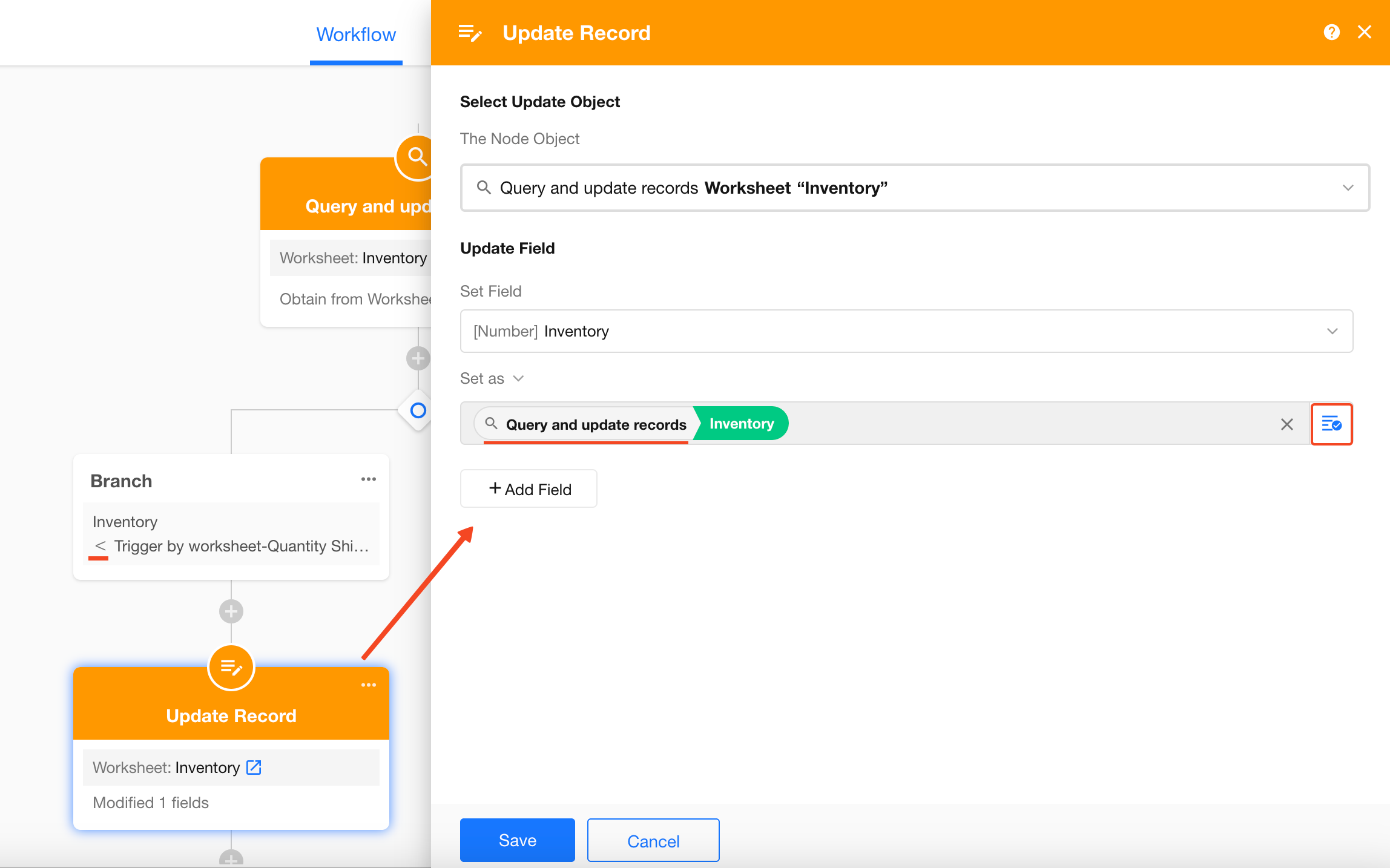
Configuration steps:
- Select Use pre-update data
- Add a branch node to compare original inventory with issued quantity
- If inventory is less than issued quantity, restore the inventory value
Retrieve from Multiple Records
The Get Multiple Data node can retrieve multiple records from a worksheet or return arrays (multi-row data) from Webhook or code block nodes.
Example
In a multi-approver workflow, to get the latest approval result:
- Use the Get Multiple Data node to retrieve all approvers’ data
- Use the Get Single Data node to sort by processing time and retrieve the latest data
Workflow Configuration
As shown below: after the approval node, in the branch where the result is “Approved,” first use the Get Multiple Data node (from a manual node) to retrieve multiple approvers' data, then use the Get Single Data node to extract one.
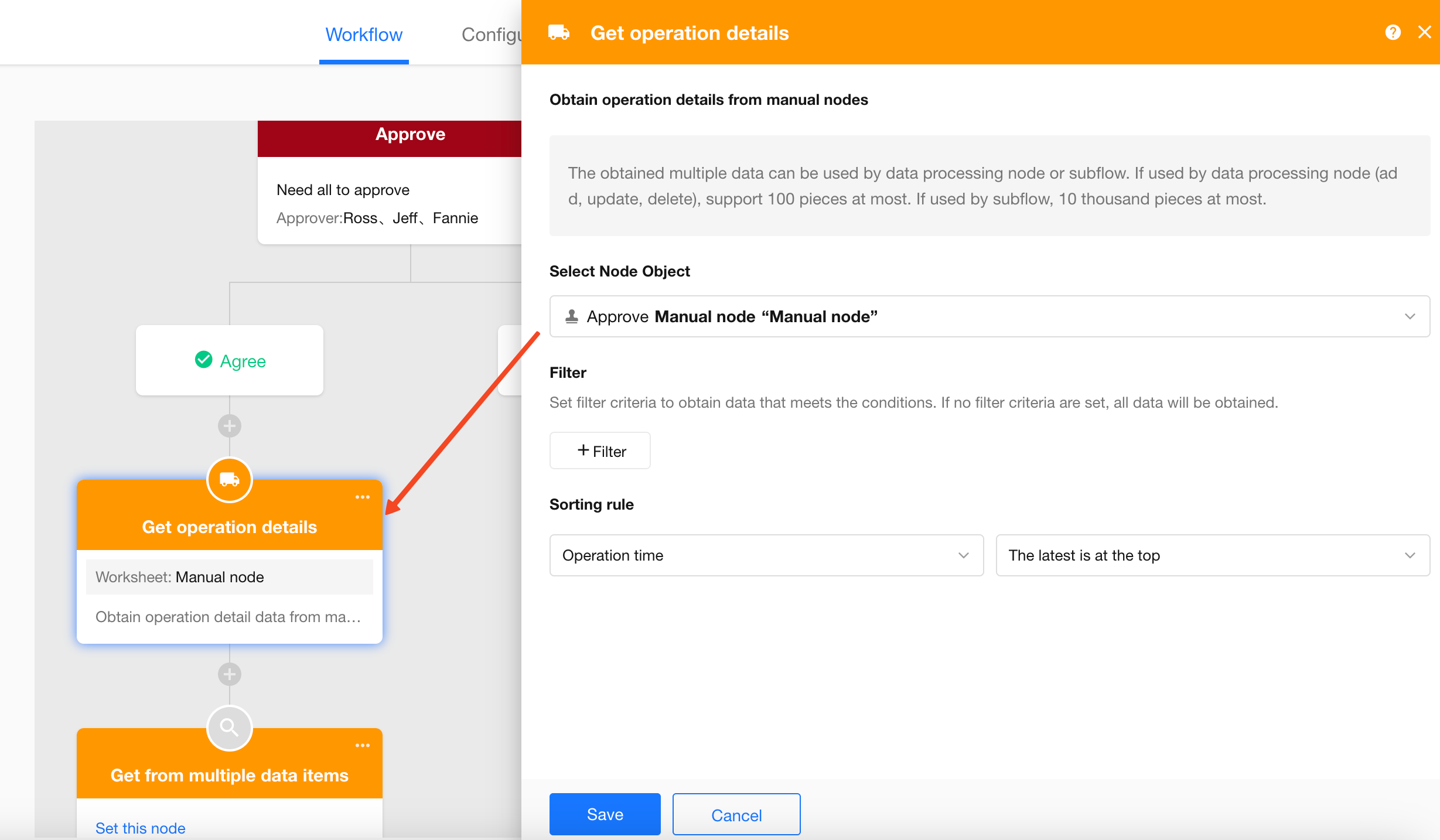
Filtering, sorting, random retrieval, and behavior when no record is found are the same as querying from a worksheet and are not repeated here.
Retrieve from Related Records
Example
As shown below: when creating an outbound detail record, it is linked to a product record. After submission, you need to update the product’s inventory.
Since the outbound detail record does not contain inventory data, you must first retrieve the related product record, then update it.
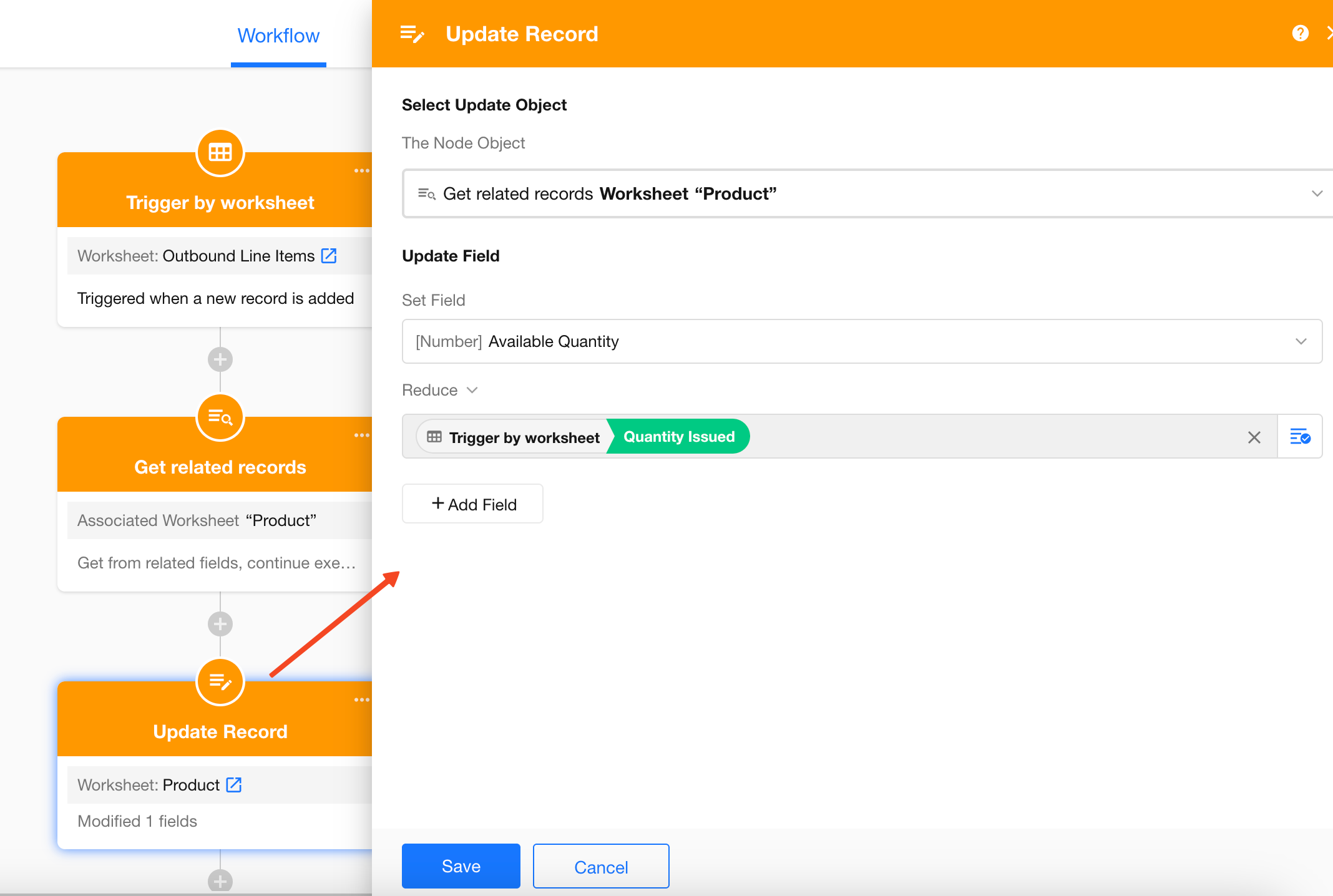
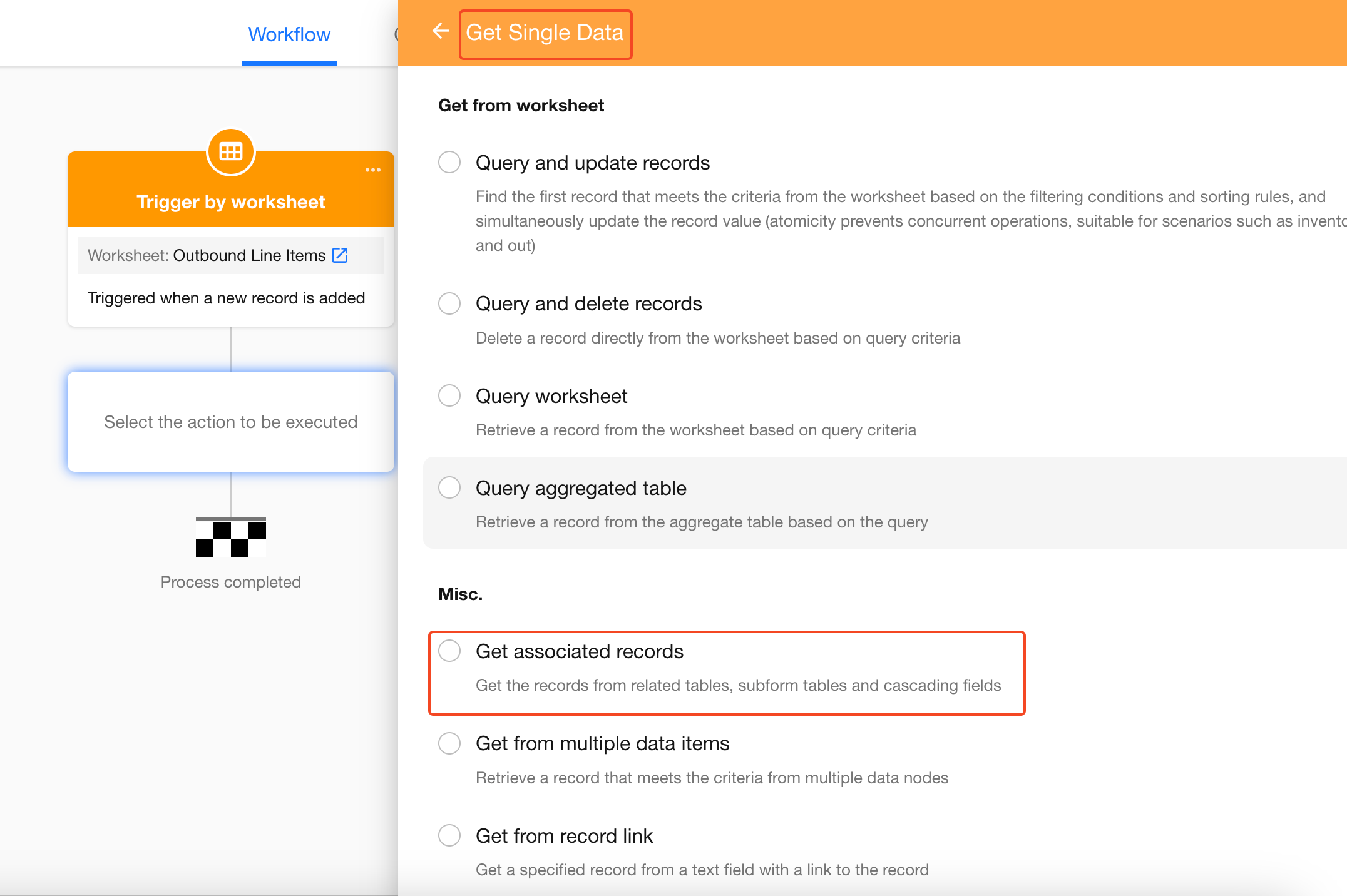
1. Add “Get Single Data” Node
Add the node and select Get Related Records.
2. Configure the Node
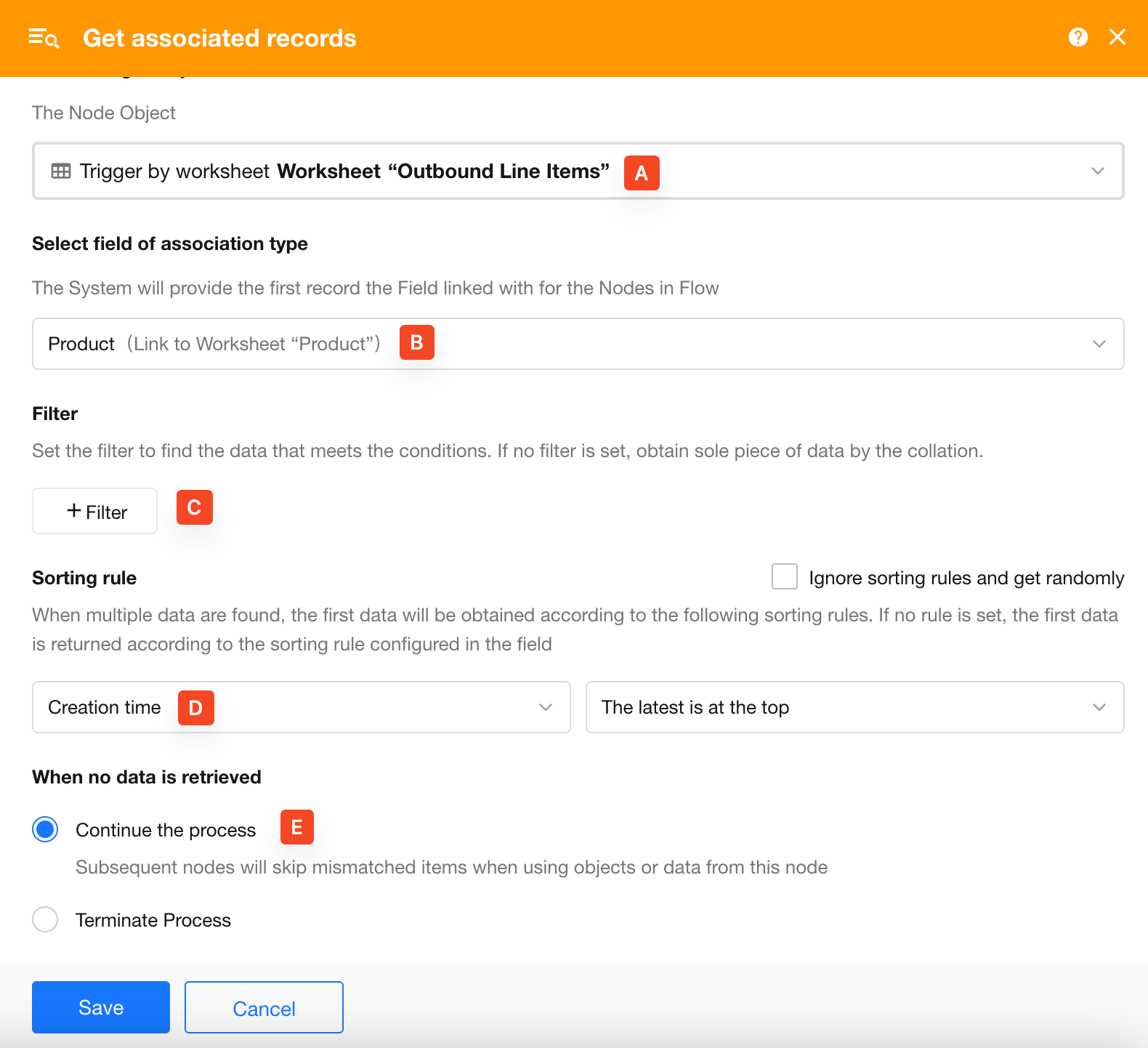
A: Select the source record (the outbound detail record triggering the workflow)
B: Select the relationship field (e.g., Product) to retrieve the related product record
C: If multiple related records exist, use filters to narrow down the result
D: If multiple records match, apply sorting to retrieve the first one
E: If no related record is found, choose how to proceed:
-
Continue execution
Subsequent nodes continue. If they reference this node, they may be skipped or receive empty values -
Stop or branch based on result
- If followed by a branch node → execute the “No Data” branch
- Otherwise → stop the workflow
3. Use or Process the Retrieved Record
This node only retrieves and identifies a record. No operation is performed yet.
You can:
- Add an Update Record node to modify it
- Use its values in calculation nodes
- Add a Delete Record node to remove it
Example: Update product inventory
Subtract the issued quantity from the current inventory to get the new value.
If a record is linked to multiple related records, this node retrieves only one. To retrieve all related records, use the Get Multiple Data node.
Tips
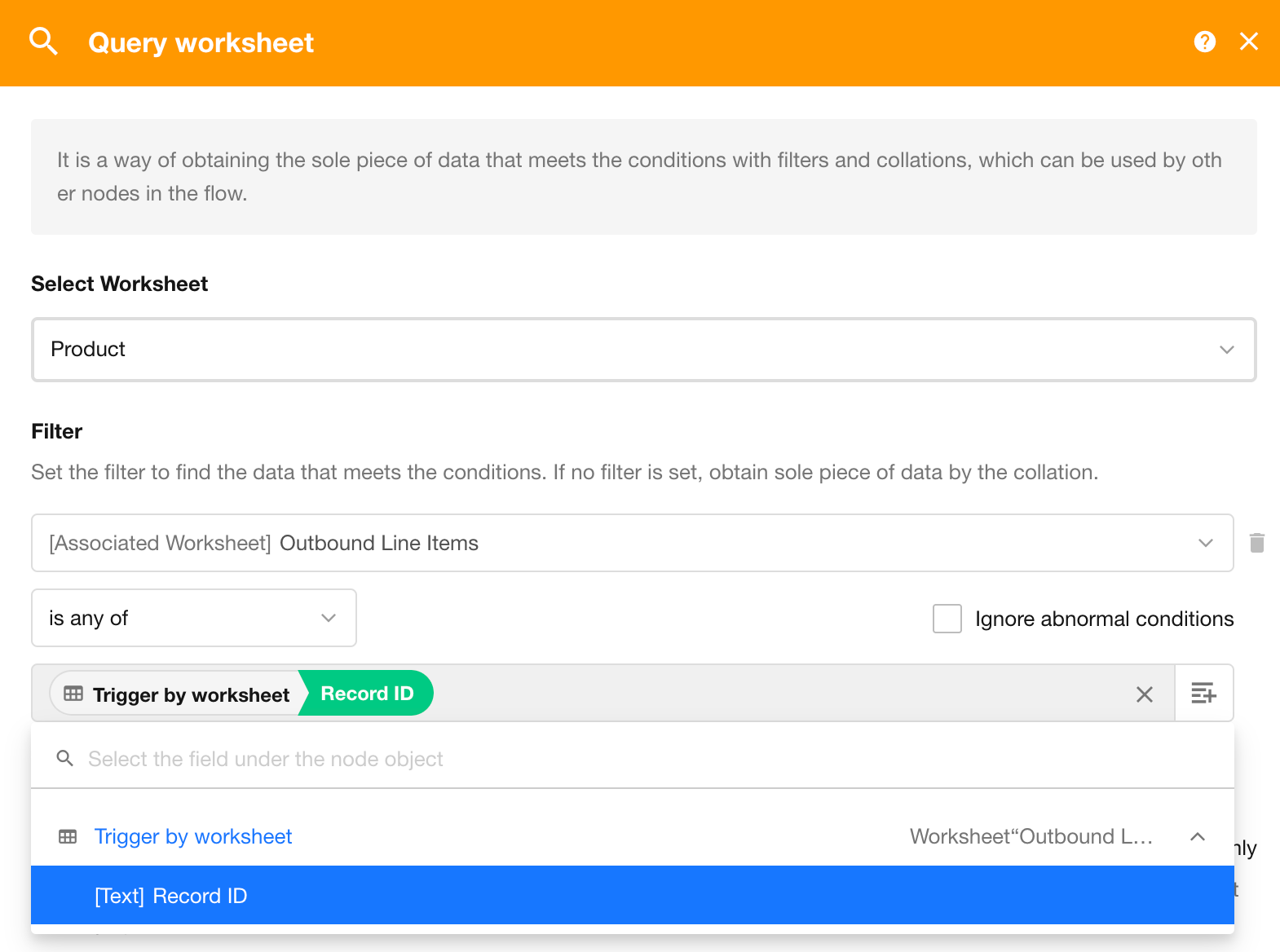
This scenario can also be implemented using Query Worksheet, which is generally faster.
Example: Instead of retrieving via relationship field, directly query the product worksheet with appropriate conditions:
Retrieve Record from Link
This node can parse a record link stored in a text field and retrieve the corresponding record for use in subsequent nodes.
Example
Use a record link stored in a text field in the Purchase Line Items worksheet to match and associate a Purchase Order record.
Workflow Configuration
As shown below: parse the link stored in the text field (Description) in the Purchase Line Items worksheet, locate the corresponding record in the Purchase Order worksheet, then update the relationship field using an Update Record node.
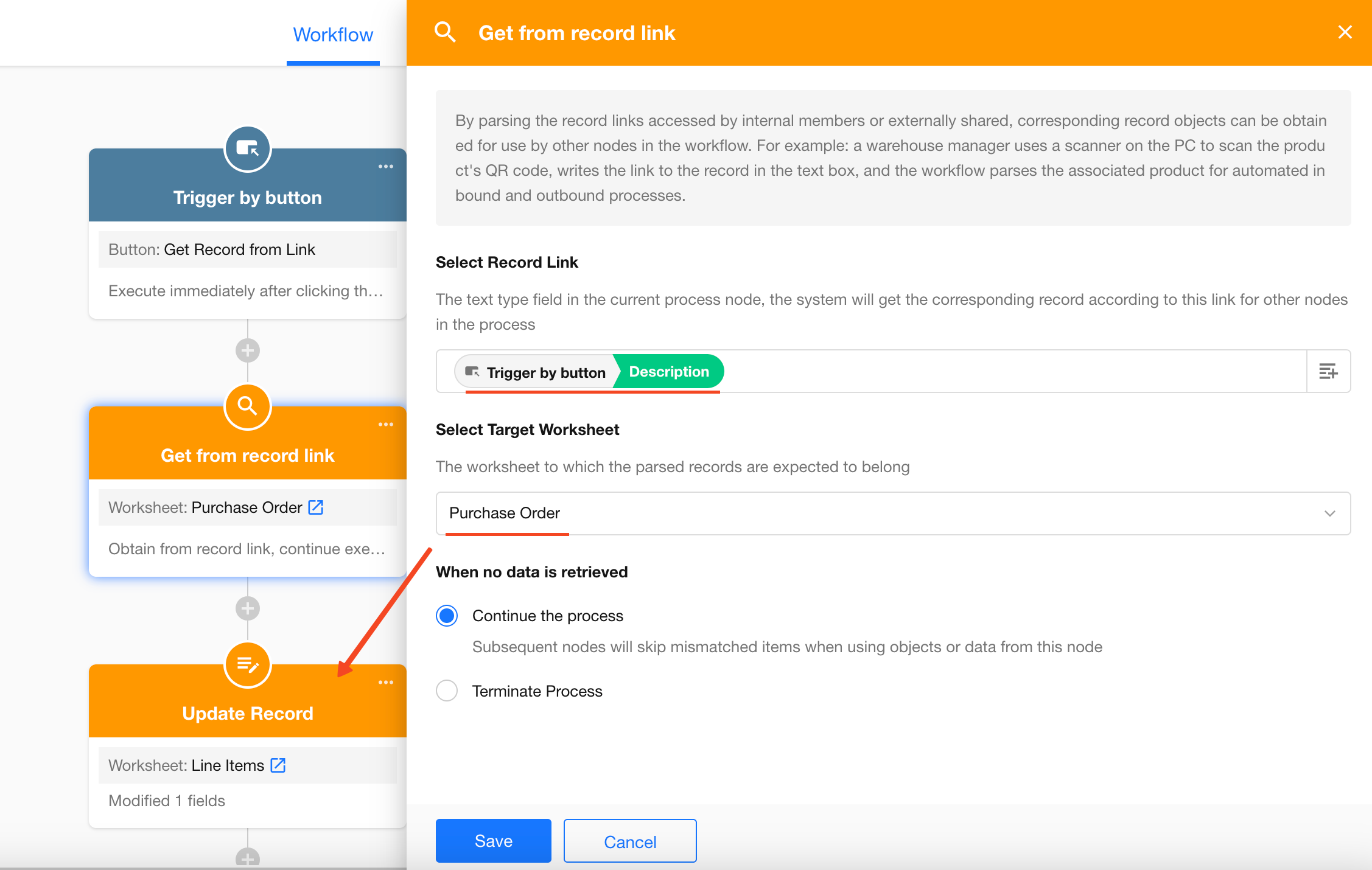
Supported Link Types
- Internal: record sharing QR code links
- External: QR code links from system print or Word print
Handling Missing Records
When the Get Single Data node does not return a record, and subsequent nodes depend on it:
Let node A = Get Single Data
Let node B = subsequent node
Two principles apply:
-
If node B treats node A as an object (e.g., update/delete it), node B is skipped because no record exists
-
If node B uses a field value from node A, it returns empty, and node B continues execution
Details:
Was this document helpful?