Workflow Node - Get Record Print File
Overview
The Get Record Print File node generates a Word or Excel document from a record using a print template. It can also generate a PDF file when PDF generation is enabled.
The generated file can be saved to a file field using an Update Record node or attached to an email using a Send Email node.
Word and Excel file generation is free. PDF generation is a paid service. This node is available only on paid plans.
Use Case
Generate a Word contract from a contract record, save it to a file field in the record, and submit it to the finance team for review.
Configure the Node
Add and Configure a Get Record Print File Node
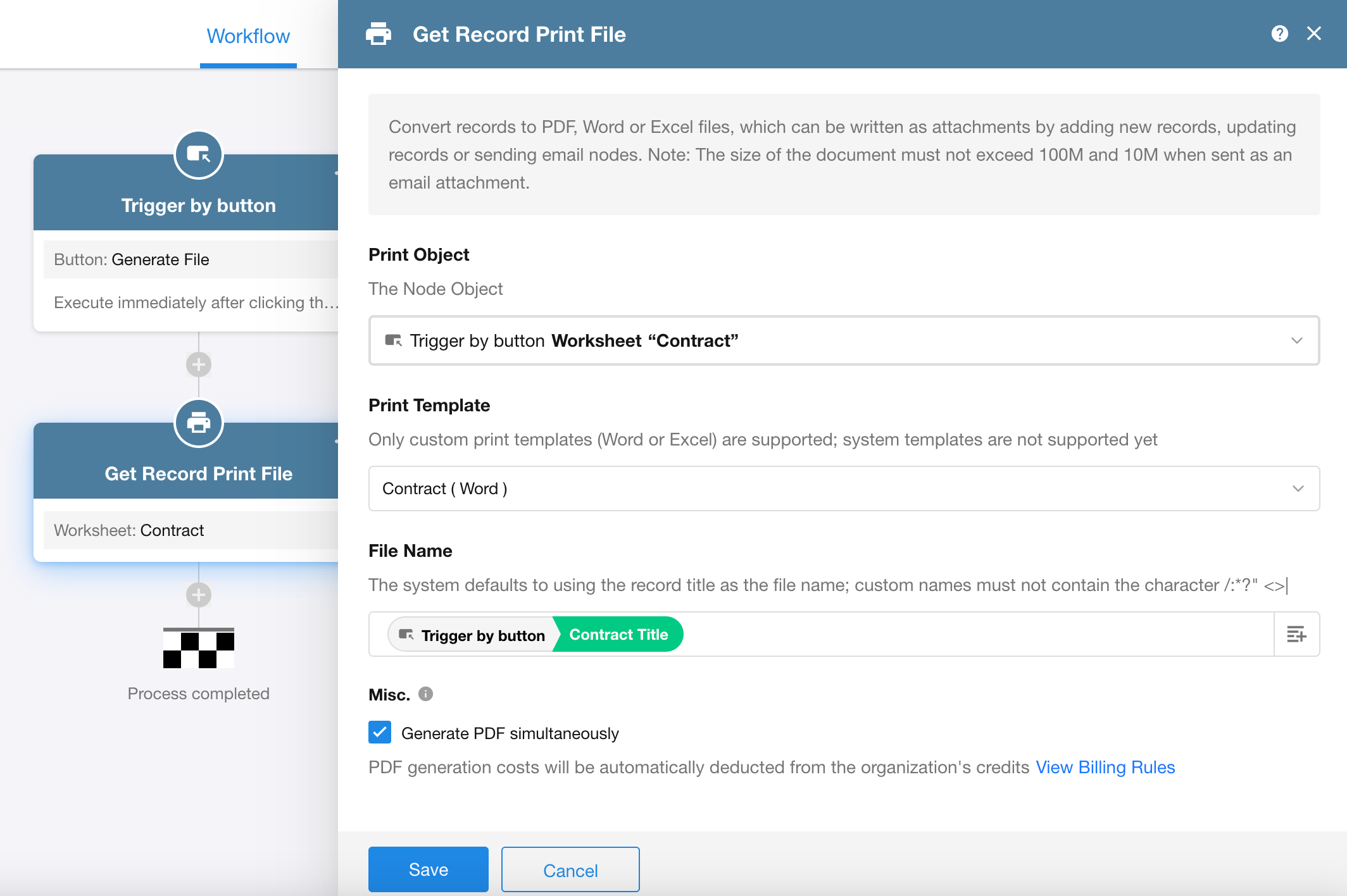
Configure the following settings:
-
Print Object: Select the node that provides the source record.
-
Print Template: Select a print template from the worksheet containing the source record. If multiple templates are available, select the one to use for file generation.
-
File Name: Use a field value, a fixed value, or a combination of fixed text and field values as the file name.
File names cannot contain any of the following characters:
/ \ : * ? " < > |.If no custom file name is specified, the record title is used by default.
-
Generate File: A Word or Excel file is generated based on the selected template type at no charge. To generate a PDF file as well, enable PDF generation.
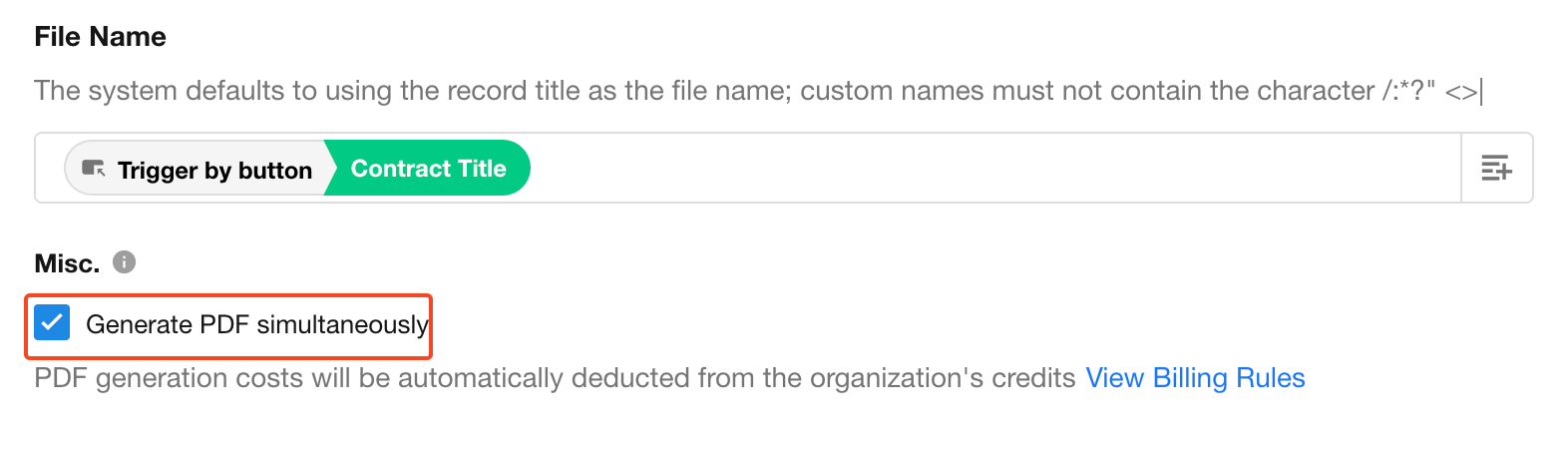
PDF generation
- PDF files are generated through a third-party service provided by WPS and cost CNY 0.15 per successfully generated file. No fee is charged if generation fails.
- If the same generated file is referenced by multiple subsequent nodes, such as an Update Record node and a Send Email node, it is charged only once.
Use the Generated File
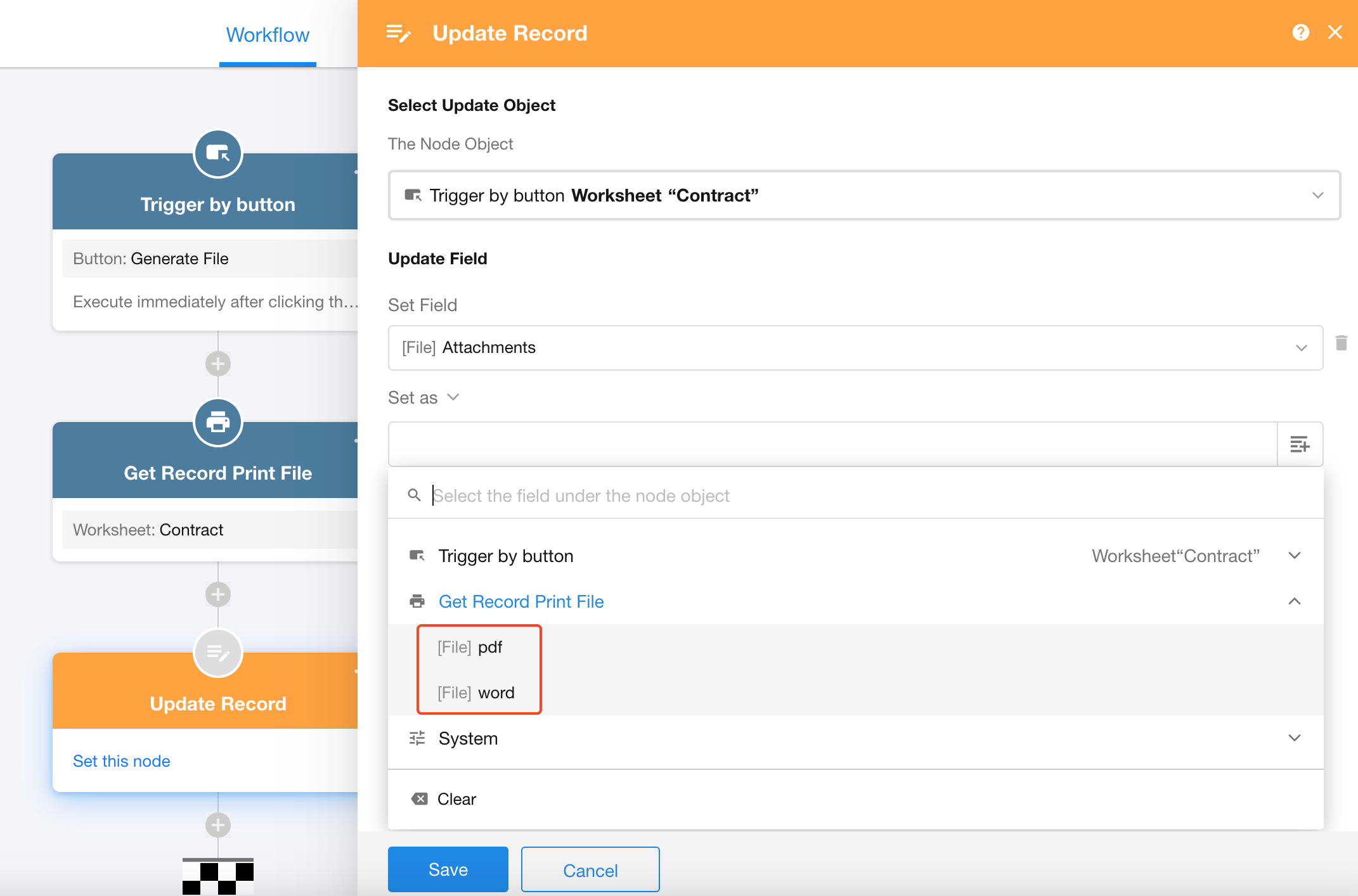
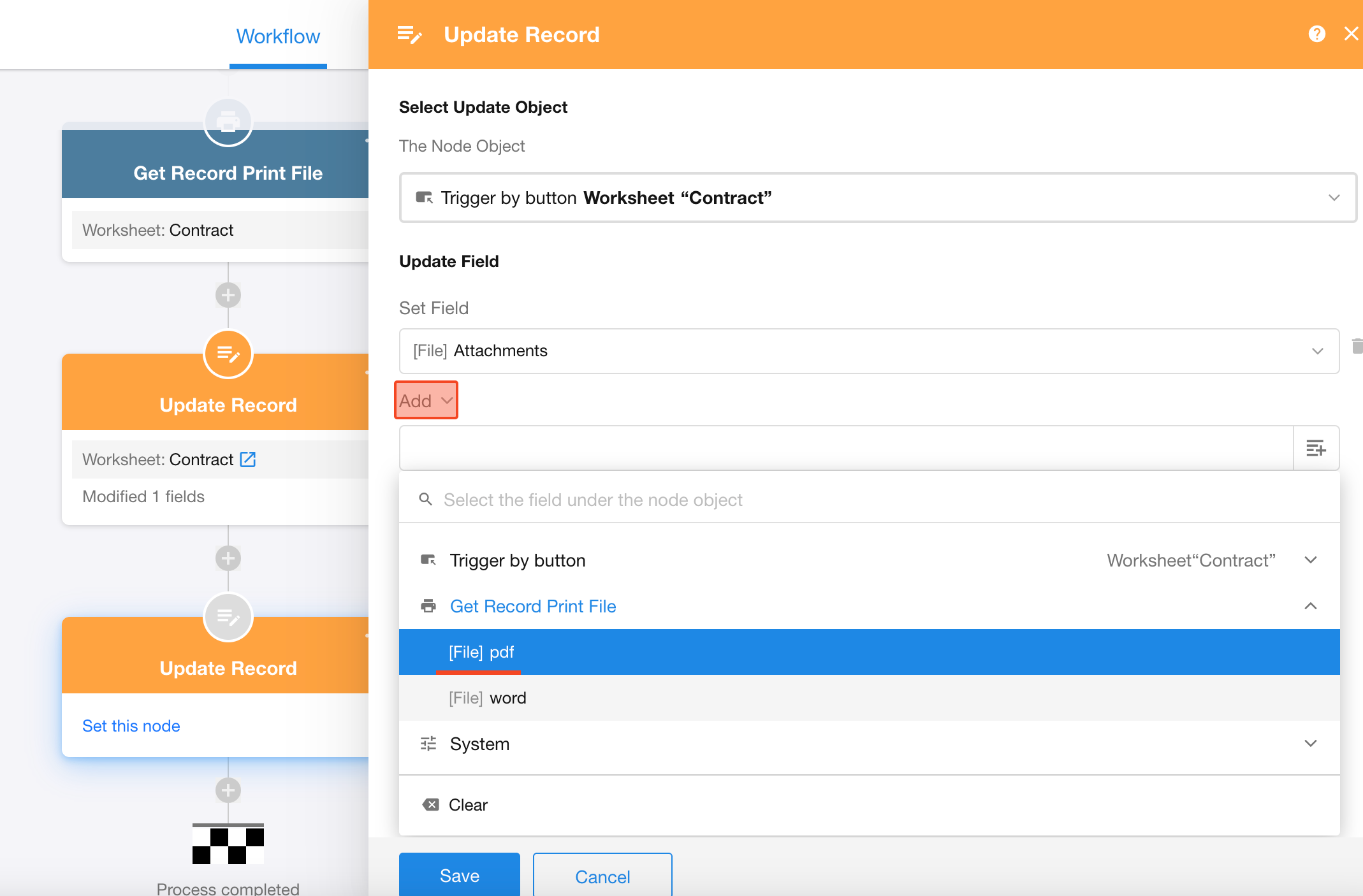
To save the generated file to a record, add an Update Record node and write the file to the target file field.
The generated file can also be selected as an attachment in a Send Email node.
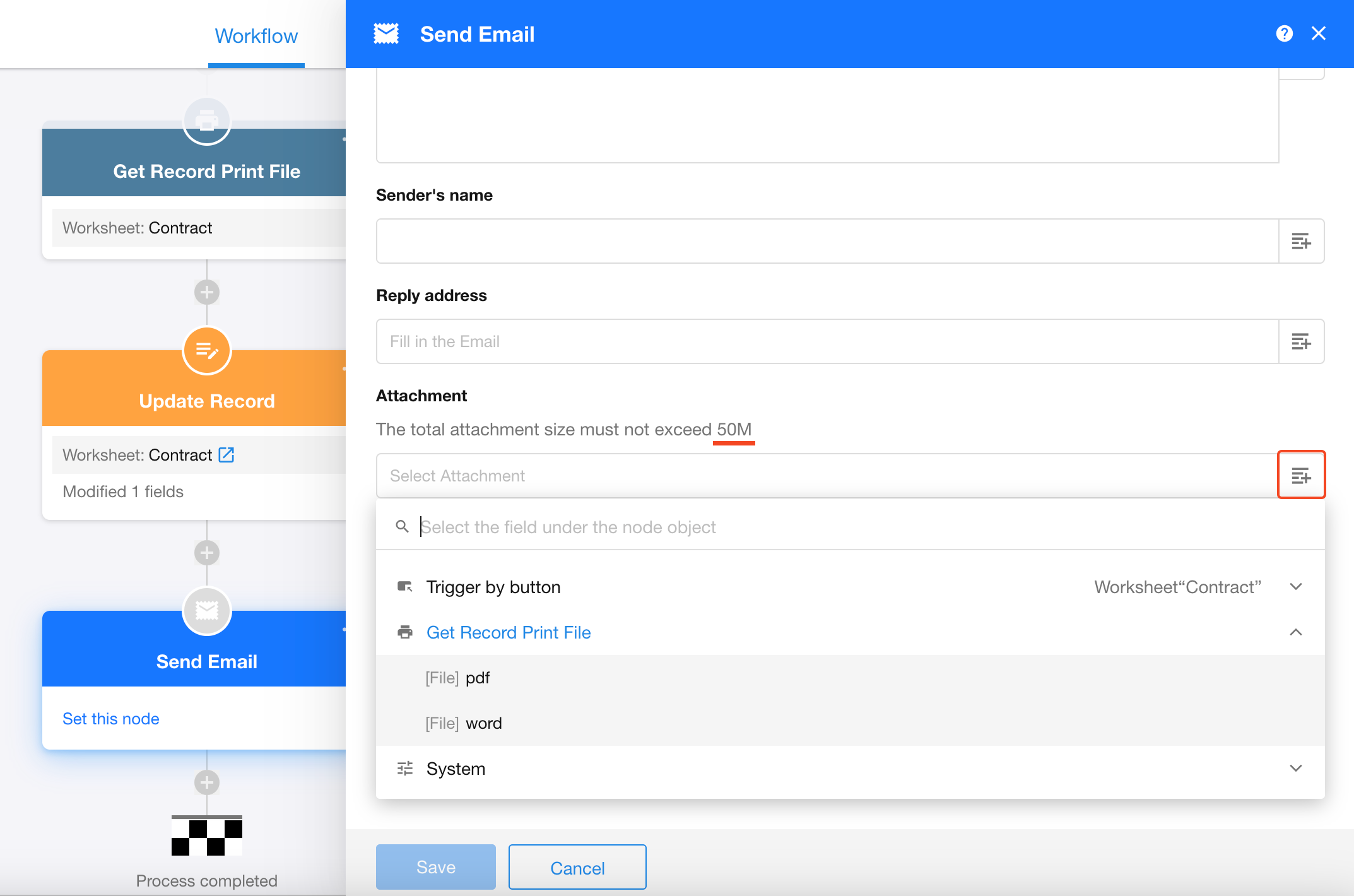
The available file types depend on the selected template and node configuration:
- With a Word template, only the generated Word file is available.
- With an Excel template, only the generated Excel file is available.
- A PDF file is available only when PDF generation is enabled in the Get Record Print File node.
Notes
-
Generated files can be up to 100 MB. Files used as attachments in a Send Email node can be up to 50 MB.
-
A single Update Record node can add only one generated file type: Word, Excel, or PDF. To add another file type, add another Update Record node and set the field update method to Add.
-
File generation requires server-side processing. The workflow does not continue to subsequent nodes until the file has been generated.
-
System print templates are not supported. Only Word and Excel print templates can be used.
Was this document helpful?