Node - Subprocess
When to Use a Subprocess
A Subprocess lets you reuse workflow logic across multiple workflows and process large sets of data using the same sequence of actions.
Common use cases include:
-
Reuse the same logic with different workflow triggers
For example, an expense approval may start automatically when a new record is created, or manually when a user saves a record as a draft and later clicks a button to submit it.
Although the workflows have different triggers, they use the same approval logic. You can configure the approval steps as a subprocess and call the same subprocess from both workflows.
-
Process more than 100 records
When a workflow needs to process a large number of records, pass the records to a subprocess for individual processing. For worksheet data, a subprocess can process up to 1 million records.
-
Apply different logic to individual records in a batch
For example, suppose 50 records are retrieved from an external source. Some do not yet exist in the worksheet and need to be created, while others already exist and need to be updated.
Pass the records to a subprocess and check each record individually. The subprocess can then create or update the record based on whether a matching record already exists.
A subprocess can receive a single record, multiple records, or multiple rows of data. A single subprocess execution does not count toward the organization's workflow execution usage.
Example 1: Reuse the Same Workflow Logic
Suppose the same approval process needs to run when a new record is created and when a user clicks a custom action. You can configure the approval logic once as a subprocess and reuse it in both workflows.
1. Add a Subprocess Node
Add a Subprocess node after the workflow trigger.
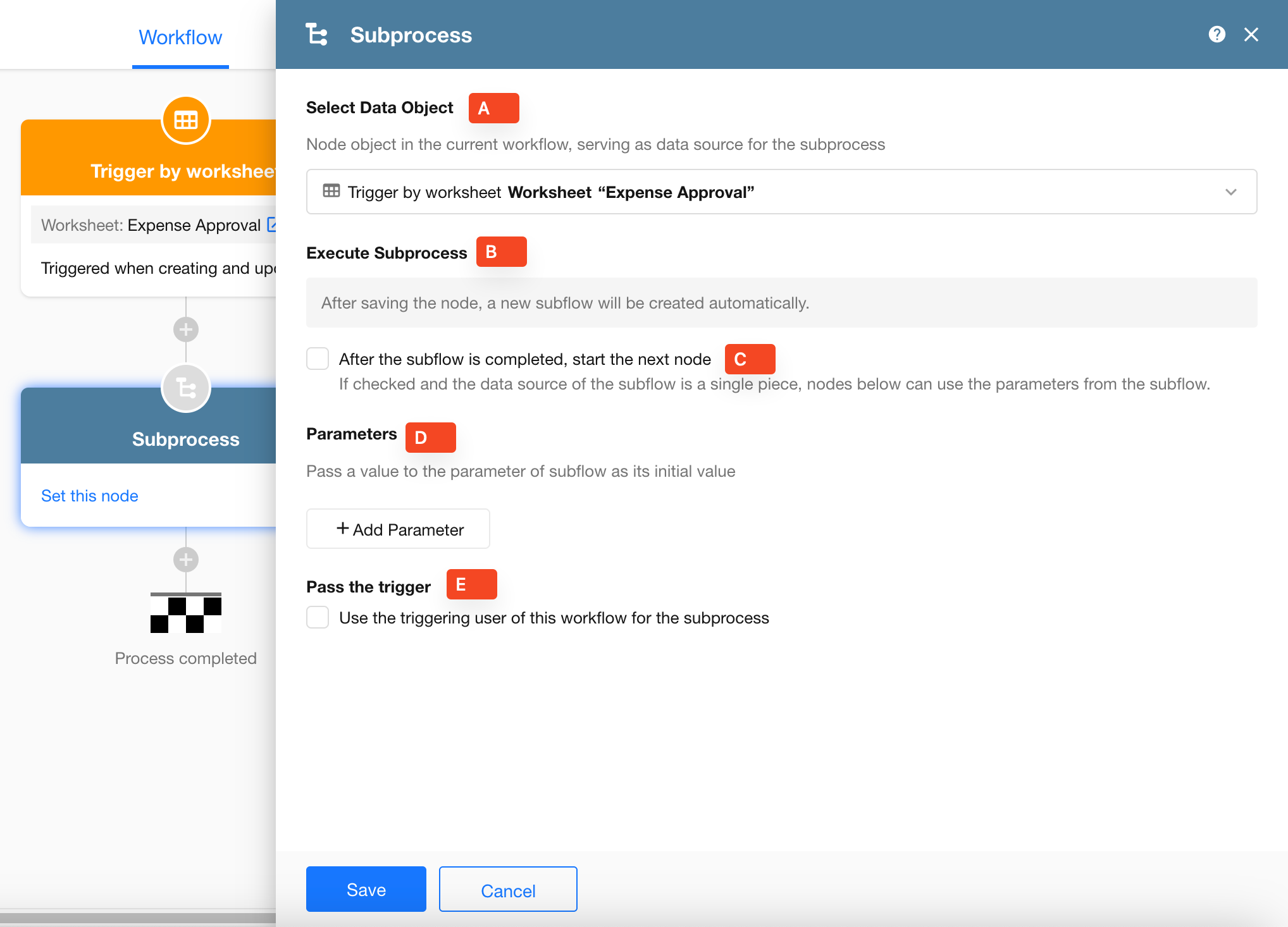
Configure the node as follows:
-
A - Data to Pass: Select the record from a previous node to pass to the subprocess.
-
B - Create Subprocess: Save the node to automatically create the subprocess.
-
C - Workflow Parameters: Pass values to workflow parameters for use within the subprocess. For details, see Workflow Parameters.
-
D - Wait for the Subprocess to Finish: Enable After the subflow is completed, start the next node when subsequent nodes need to wait for the subprocess to complete.
When this option is disabled, the parent workflow continues without waiting for the subprocess. The subprocess runs independently, and its result does not affect subsequent nodes in the parent workflow.
-
F - Triggering User: Enable Use the triggering user of this workflow for the subprocess to use the triggering user of the parent workflow as the triggering user of the subprocess.
If this option is disabled, the triggering user of the subprocess is Workflow.
2. Open the Subprocess

3. Configure and Publish the Subprocess
Configure the approval logic in the subprocess, then publish it.

4. Reuse the Subprocess
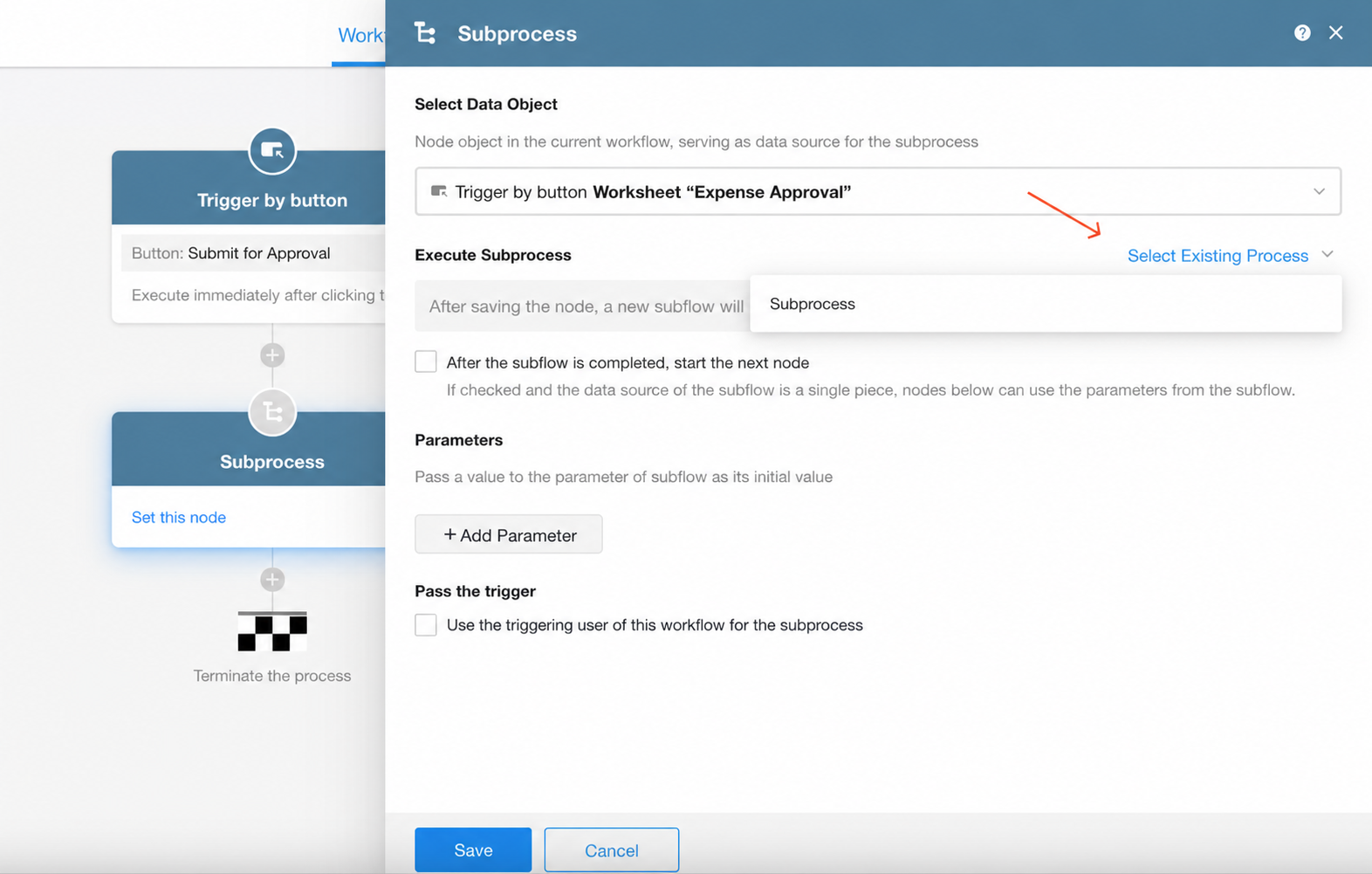
In the workflow triggered by a custom action, add a Subprocess node and select the existing subprocess.
Both workflows now use the same approval logic.
Notes
-
A Subprocess node can call only workflows of the Subprocess type. Workflows triggered by worksheet events, date fields, schedules, webhooks, or custom actions cannot be selected.

-
A subprocess is created from a Subprocess node in a parent workflow and cannot be created independently.
-
Workflow execution usage: In this example, the parent workflow runs once and the subprocess runs once, for a total of 2 workflow executions.
Example 2: Process Records in Bulk
Suppose a scheduled workflow needs to delete records from an intermediate worksheet every day. The Query and Batch Delete node supports up to 1,000 records, so a different approach is required when more than 1,000 records need to be processed.
In this case, retrieve the records and pass them to a subprocess for individual processing.

Select the Data Source
Select the node that provides the data to pass to the subprocess.
In this example, select the Get Multiple Data node.
Set the Maximum Number of Records
When the data source is a worksheet, you can configure the maximum number of records to retrieve.
Enable Get all records from the worksheet to retrieve up to 1 million records. Alternatively, set a custom limit. The default limit is 50,000 records.
For non-worksheet data, such as arrays returned by a Code Block, PBP, or Send API Request node, the subprocess can receive and process up to 10,000 rows.
Choose an Execution Mode
When multiple records are passed to the subprocess, choose how the individual subprocess executions run:
-
Parallel: Runs subprocess executions concurrently. Use this mode when each record can be processed independently. This mode is suitable for the current example.
-
Execution on a line-by-line basis, with no subsequent subflows triggered on abort: Runs subprocess executions one at a time and in order. Each execution starts only after the previous one finishes. If an execution is terminated, no remaining subprocess executions are started.
-
Execute one by one, continue to the next one when interrupted: Runs subprocess executions one at a time and in order. If an execution is terminated, the next subprocess execution continues as normal.
Handle a Terminated Subprocess
Whether a terminated subprocess also stops the parent workflow depends on the wait setting and execution mode.
-
If After the subflow is completed, start the next node is disabled, the parent workflow continues independently of the subprocess results.
-
If After the subflow is completed, start the next node is enabled and the execution mode is Parallel or Execution on a line-by-line basis, with no subsequent subflows triggered on abort, terminating any subprocess execution also terminates the parent workflow. Nodes after the Subprocess node are not run.

Workflow Execution Usage
When multiple records are passed to a subprocess for individual processing, each record results in a separate subprocess execution.
For example, if the parent workflow passes 500 records to the subprocess, the subprocess runs 500 times, once for each record.
The entire operation therefore consumes 501 workflow executions:
- 1 parent workflow execution
- 500 subprocess executions

Was this document helpful?