Node - Jump To
The Jump To node redirects a workflow to a specified node and resumes execution from there. It can be used to return to an earlier step when data is invalid, conditions are not met, or rework is required, or to adjust the execution path based on business conditions.
The Jump To node supports both direct jumps and condition-based jumps. It can jump to a node within the current branch or to a node in the main workflow.
Add a Jump To Node
Add a Jump To node to the workflow, then configure the target node and jump conditions.
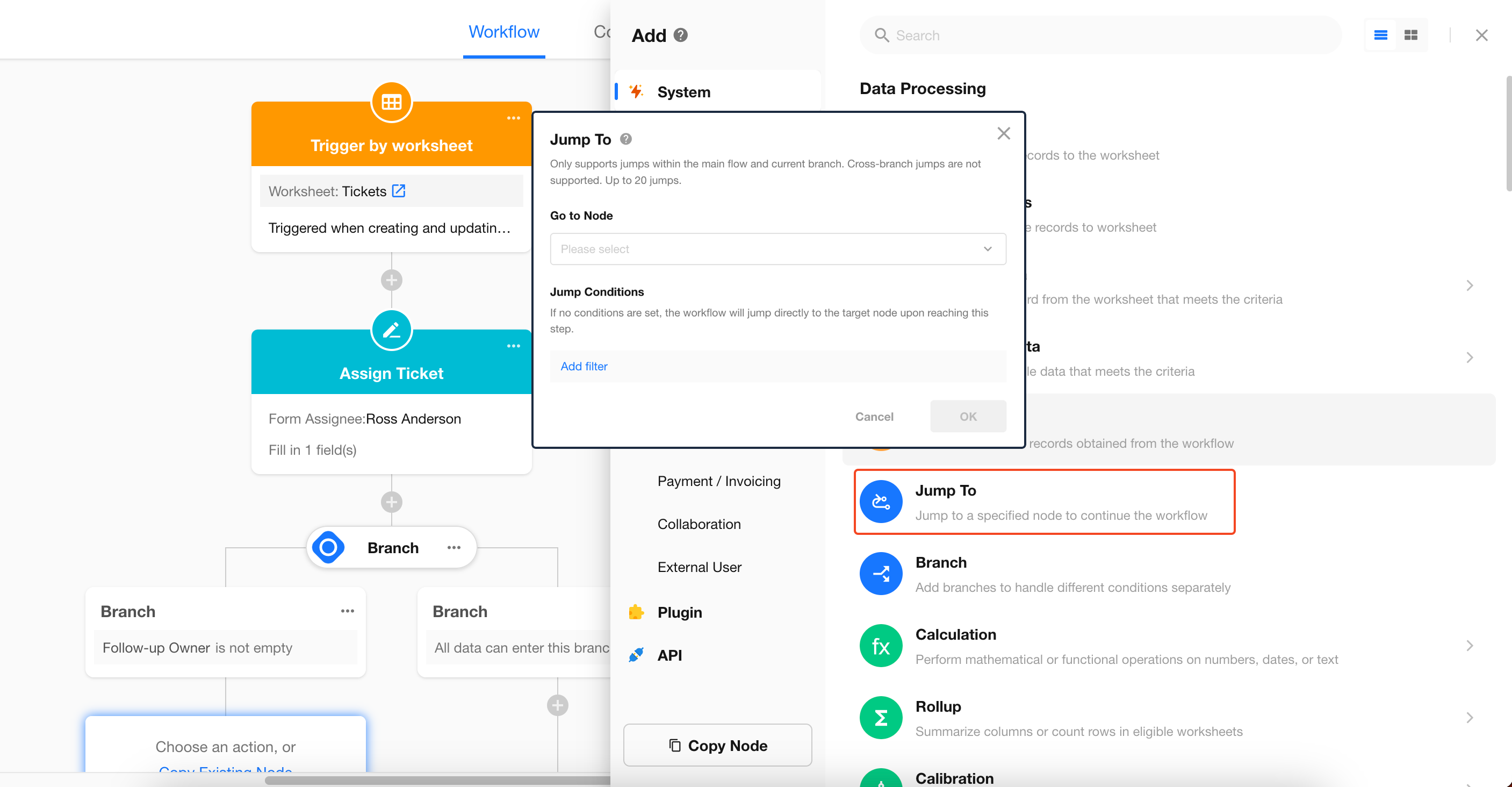
Configure the Jump To Node
-
Go to Node:
Select the target node where the workflow should resume. The target can be a node within the current branch or in the main workflow. Jumps between different branches are not supported.
If the target node has already run, it will run again after the jump, followed by the subsequent nodes in the workflow.
-
Jump Conditions:
Define the conditions that trigger the jump.
If no condition is configured, the workflow jumps directly to the target node when it reaches the Jump To node.
If conditions are configured, the jump occurs only when the conditions are met.
-
Jump Rules:
-
Jumps from Parallel Branches: If a Jump To node is triggered within a parallel branch, the current branch and all other branches that are still running or waiting to execute are terminated immediately, and the workflow continues from the target node.
-
Jumps in Approval Workflows: A Jump To node in an approval workflow can only jump to a node within the same approval workflow.
-
Maximum Number of Jumps: A single workflow execution can perform up to 20 jumps. Any jumps beyond the 20th will not be executed.
-
-
Note:
A jump may cause the target node and subsequent nodes to run again. If these nodes include actions such as sending notifications, creating records, or calling APIs, review these actions carefully to ensure that repeated execution does not create duplicate or unintended results.
Was this document helpful?